Every computer you own, in one window.
Claude Code, Codex and 12 more agents.
A worktree each, so agents never clash.
Close the app; your agents keep going.


Terminal
curl -fsSL https://autonomous.ai/harness.sh | bashhnControl-B, then one key. Like tmux.
Answer agents without opening them.
Type a task; Harness picks where.
Status and latency of every machine.
Swipe right
Swipe right to see every agent.
Tap the mic
Tap the mic and speak instead of typing.
Tap or say
Tap yes, always or no, or say it.
Swipe left
Swipe left to start a new task.
OS
Unlock straight into your agents.
Add Claude Code or Codex in one key.
Every agent gets them over MCP.
Commandharness connections
One key updates; agents keep going.
The ultimate Harness setup.
An always-on display by your keyboard. See which agent needs you, then tap and speak the next task.

End-to-end encrypted.
Code, keys and keystrokes are sealed on your machine. The relay forwards bytes it can’t read. Harness picks the best path on its own.
Direct.
A WebRTC channel between your machines. No server in the path.
Fast and light.
A native app, not Electron. Close it and your agents keep working. We measure the workflows developers repeat, including their slow tails.
Release build, M2 Max, 120 observations per action. Synthetic harnesses; keyboard, network and display time excluded. Full results
World-class entrepreneurs are polymaths.
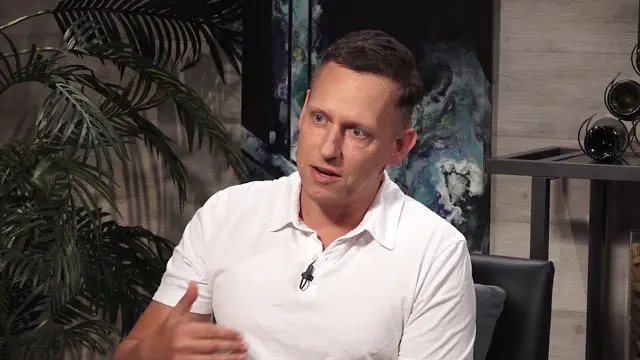
Beyond code: build across disciplines.
Coding agents can build far more than software. Give one a harness and it works with the real tools of a craft while you steer in a live viewer. Every clip below is a real, unedited session.
Design with Blender.
Ask for a lamp and the sliders that matter. Turn them and Blender rebuilds the real geometry. Keep the versions you love.
Circuits with CircuitJS.
Describe a circuit and watch charge move along the wires. Change one resistor, overlay the new scope trace and keep both.
Robotics with MuJoCo.
Build a robot and its controller, then test them in live physics. Shove a paused run with 100 N and watch two futures split.
Games with Godogen.
Your agent builds a game you can play while it takes shape. Miss a jump, rewind, and pin the moment so the agent sees what you mean.
Music with Strudel.
Describe a track and perform it live in Strudel’s REPL. Bring voices in and out, and keep the WAV with its editable source.
Chemistry with RDKit.
Build a molecule from a description, then turn a bond and watch it move along a real energy curve you can reproduce.
Documents with Typst.
Describe a paper or a report and your agent writes a real PDF, updated on every save. Circle a detail and the next draft answers it.
Data with Jev Sheets.
Ask every row a question: reviews, surveys or tickets come back with answers and probabilities. Test a wording on a few rows first.
Domain-Specific Harnesses.
Each one turns a coding agent into a specialist. You chat on one side; the part, the board or the game takes shape on the other.


Before you start.
How do remote harnesses stay responsive?
Harness uses a direct WebRTC connection when your network allows it, so terminal traffic travels between your machines without a relay in the data path. It sends terminal input and output, rather than streaming a remote desktop. The actual response time still depends on your network and host machine. Your agent’s model speed is separate.
What if a direct connection is blocked?
Harness can carry the encrypted connection through Cloudflare TURN or use a WebSocket relay while WebRTC connects. It can switch to a direct connection when one becomes available. You don’t need to open inbound ports or configure a VPN.
Can a relay read my terminal traffic?
Remote terminal traffic is encrypted end to end, with the keys held by your connected machines. Relays forward the encrypted data. That protects the terminal stream; it doesn’t mean the service has no account or connection metadata.
What keeps a harness running?
The agent process runs on its host machine independently of the Harness window. Closing the app or losing your connection doesn’t stop work on an awake remote host. Reconnect to the same harness when you’re ready.
What if the machine running an agent sleeps or restarts?
A harness still needs a running host. A sleeping machine can’t keep doing work. After a reboot, the daemon restores the panes and resumes their harnesses once Harness starts again. For jobs you want to leave running, use an always-on home server, office machine, or cloud server.
Where do my agents and files actually live?
Each agent runs on the machine hosting its harness and works with the files and tools available there. Putting harnesses side by side in Harness doesn’t copy their projects between machines. Your agents continue to use their own model providers and credentials.
How do I connect a remote machine?
Install Harness on it (on a server without a screen, the CLI), sign in with the same Harness account and set a remote password. Then choose Machines → Link Machine in the app and enter that password. The link is end-to-end encrypted, with no SSH keys and no open ports.
Can I use Harness with just one computer?
Yes. Start with local agents on your Mac or Linux computer. Remote machines are optional.
Do I keep my existing agent accounts?
Yes. The agents run with your own accounts or API credentials. Harness gives you a place to work with them across your machines.
What does the free download include?
The Harness desktop app is free to download. Bring your own agent accounts; agent subscriptions, model usage, and any rented servers are separate.
Do I need the Harness device?
No. The desktop app works on its own. The device is an optional companion for controlling your harnesses from your desk.