How to Block Apps on iPhone - 5 Methods That Work
To block apps on iPhone, open Settings, tap Screen Time, and use App Limits to cap a specific app or Downtime to block a schedule of apps, then set a Screen Time passcode so the limit cannot be dismissed. That last step is the one most guides skip, and it is the difference between a real block and a pop-up you tap past.
This guide on how to block apps on iPhone covers the four built-in methods, which one fits your goal, and a fifth approach for when Apple's own tools are too easy to ignore.
The fastest way to block apps on iPhone
The quickest way to block a single app on iPhone is to set its App Limit to one minute, which locks it almost immediately after you open it. Open Settings, tap Screen Time, tap App Limits, tap Add Limit, choose the app, and set the time to the lowest value. Once that minute is used, the app shows a grayed-out hourglass icon and will not open.
This works, but it has the same weakness as every Screen Time limit by default: when the limit hits, iOS offers an Ignore Limit button, and one tap gets you back in. To make any of the methods below actually hold, you need the passcode step covered later. Without it, you are setting a reminder, not a block.
Method 1: Block a specific app with App Limits
App Limits block one app or a category of apps once you hit a daily time cap. This is the right tool when you want to keep an app installed but stop yourself using it past a set amount.
- Open Settings and tap Screen Time.
- Tap App Limits, then tap Add Limit.
- Select a category, or tap the category name to choose individual apps.
- Set the time limit. Choose one minute to effectively block the app, or a realistic daily cap to ration it.
- Tap Add.
To block several apps, add them to the same limit and the cap applies across all of them together. When the time is used, the apps dim and show an hourglass. Remember that by default you can tap Ignore Limit to keep going, so this method only becomes a true block once you add a passcode.
Method 2: Block apps on a schedule with Downtime
Downtime blocks a whole set of apps during hours you choose, such as work, study or bedtime. It is the best method when your problem is a time of day rather than one specific app.
- Open Settings and tap Screen Time.
- Tap Downtime and turn on Scheduled.
- Choose Every Day or Customize Days, then set the start and end times.
- Return to Screen Time, tap Always Allowed, and pick the apps that stay open, such as Phone, Messages and Maps.
During Downtime only your allowed apps and phone calls work, and everything else appears dimmed with an hourglass. There is an important switch here: turning on Block at Downtime is what stops the apps being opened at all. With it off, you get a reminder you can tap past. With it on, and a passcode set, the block holds.
Method 3: Block app downloads and installs
Content and Privacy Restrictions stop new apps being installed, block in-app purchases, and hide the App Store entirely. This is the method for stopping the cycle of deleting a blocked app and reinstalling it, or for setting up a child's phone.
- Open Settings and tap Screen Time.
- Tap Content and Privacy Restrictions and turn it on.
- Tap iTunes and App Store Purchases.
- Set Installing Apps to Don't Allow to hide the App Store, or set Deleting Apps to Don't Allow so blocked apps cannot be removed.
Setting Deleting Apps to Don't Allow is the quiet trick that makes the other methods stick, because it stops the most common bypass: deleting the app to escape its limit, then reinstalling later.
Method 4: Lock yourself into one app with Guided Access
Guided Access locks your iPhone to a single app until you enter a passcode, which is the opposite approach, keeping you in one app rather than out of others. It suits focused reading, a single work tool, or handing your phone to a child for one game.
- Open Settings, tap Accessibility, then tap Guided Access and turn it on.
- Set a Guided Access passcode.
- Open the app you want to stay in, then triple-click the side button to start.
Guided Access is not built for all-day blocking across many apps, but it is the strongest lock for a single-app focus session, since leaving the app requires the passcode every time.
The step that makes blocks actually work
A Screen Time passcode is what turns every method above from a suggestion into a real block, because without it iOS lets you dismiss any limit. This is the single most important step, and most people skip it.
- Open Settings and tap Screen Time.
- Tap Lock Screen Time Settings.
- Create a four-digit passcode that is different from your unlock code.
- Add a recovery contact or Apple Account so you are not locked out permanently.
With a passcode set, the Ignore Limit option asks for the code, and App Limits and Downtime become genuinely enforced rather than optional. Choose a code you do not have memorised for casual use, or have someone else set it, so entering it takes real effort.
Method 5: Use a physical blocker when Screen Time is not enough
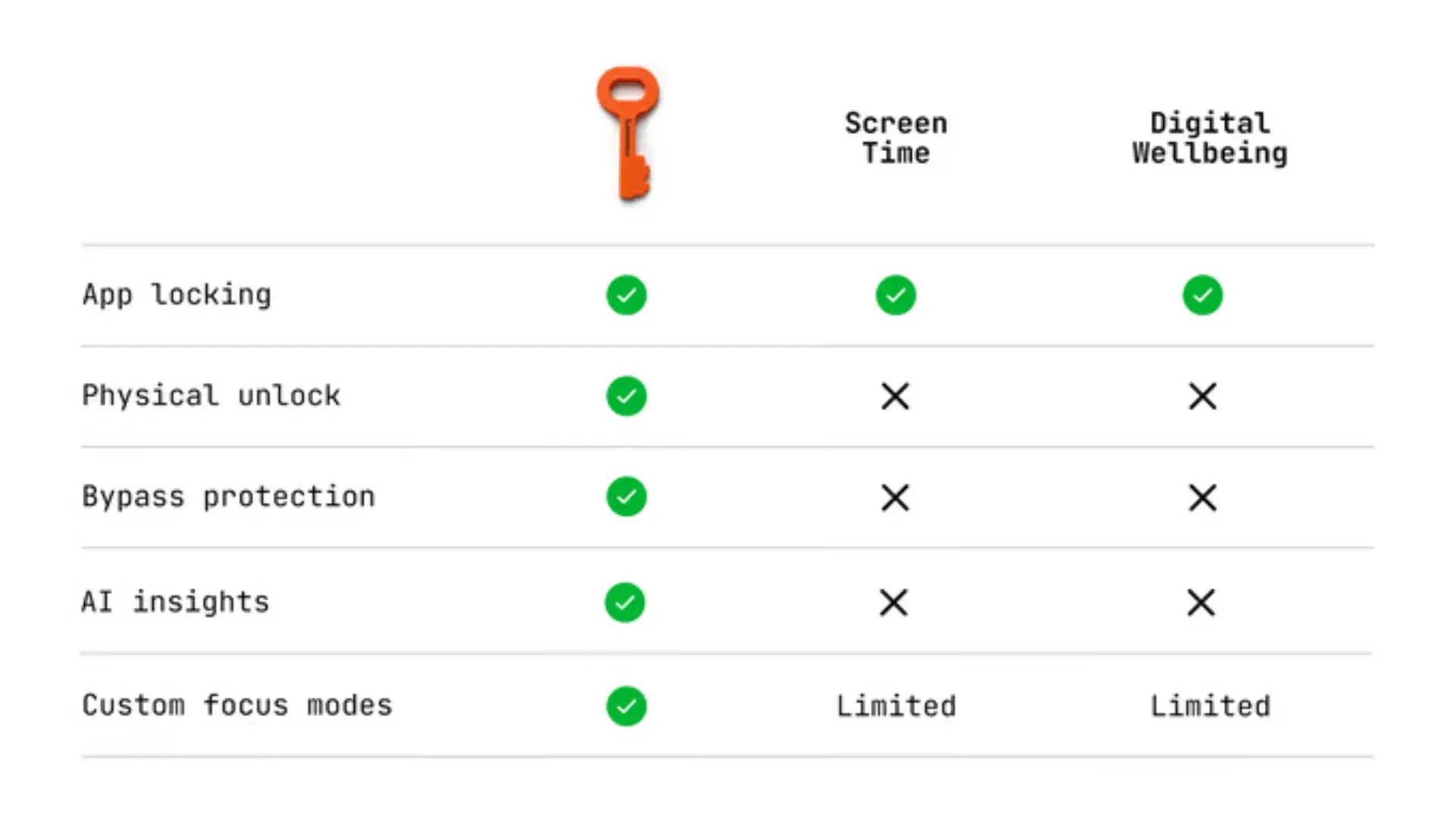
This method is not an iOS feature, and that is the point. The four built-in methods above share one weakness: the passcode that unlocks every block lives on the same phone you are trying to step away from. If you know the code, you can lift the block in seconds, and in a weak moment most people do exactly that. Apple even designed the default to let you tap past limits without a code at all.
For casual boundaries the four built-in methods are all you need. But if you have already set Screen Time limits and tapped Ignore Limit more times than you can count, the problem is not the settings. It is that the off switch is always in your hand.
A physical app blocker solves that by moving the unlock control onto a separate NFC object you tap to open your apps, so getting back in means physically fetching the device rather than tapping a button. Leave it in another room and the block holds because you cannot reach the key, not because you found the willpower. It is a different mechanism, not another setting, for people whose issue is that software limits are too easy to override.
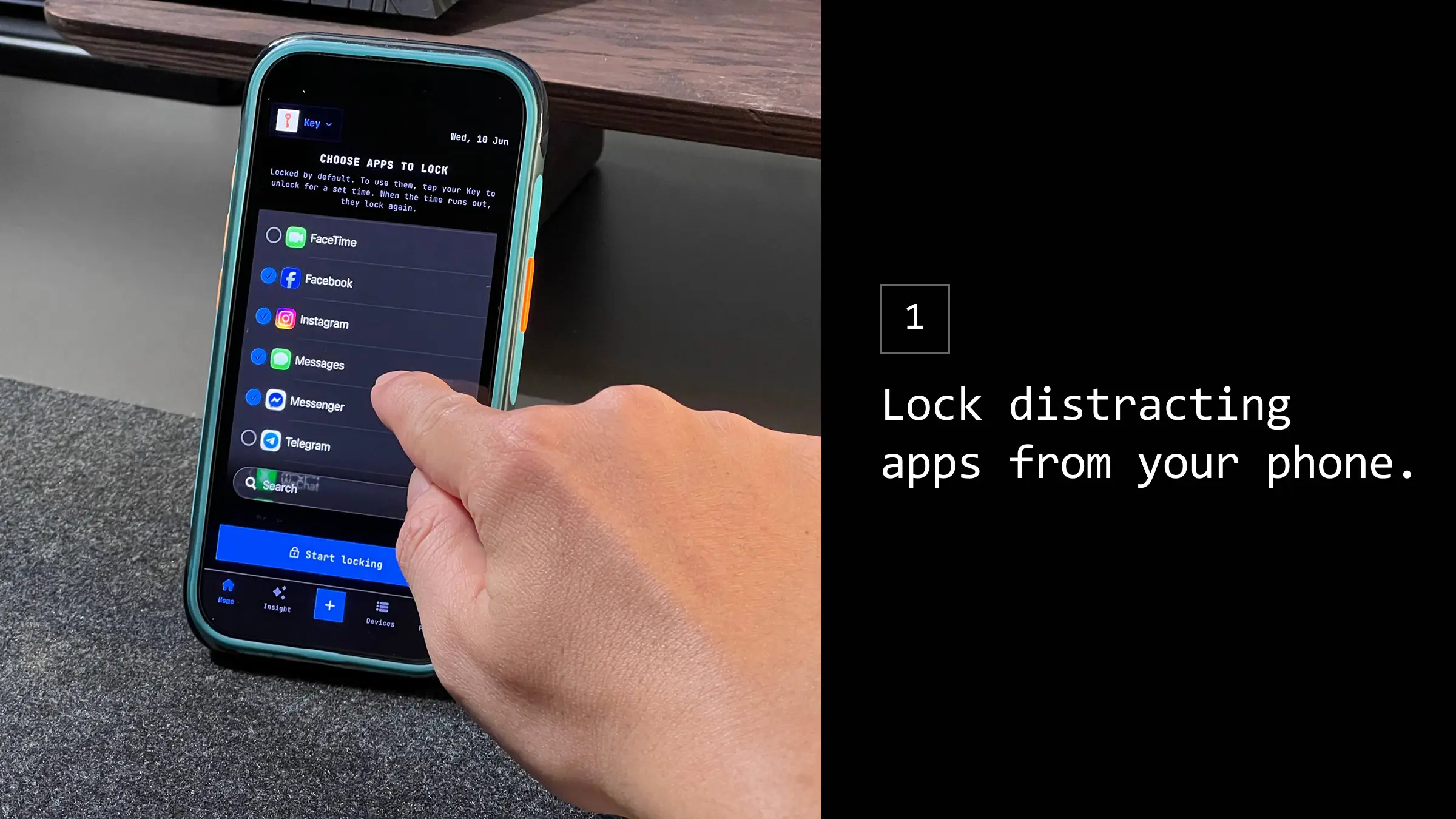
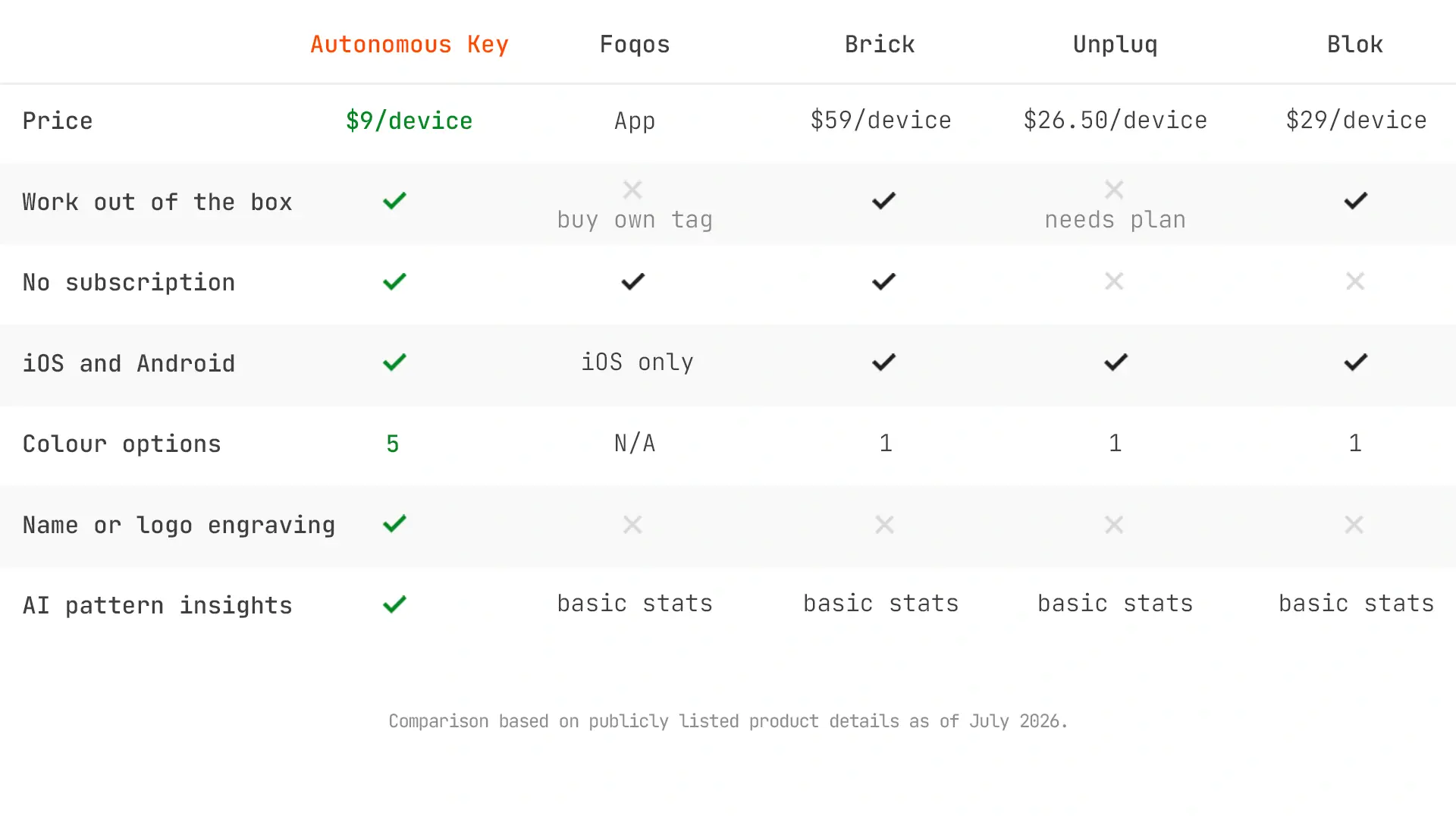
Options range from a free app plus a one-dollar NFC tag up to finished devices, and our guide to Brick alternatives compares the main ones. Think of it as the step after Screen Time, not a replacement for it.
Frequently asked questions
How do I block apps on my iPhone?
Open Settings, tap Screen Time, then use App Limits to cap a specific app or Downtime to block apps on a schedule. Set the limit to one minute to block an app almost immediately. Add a Screen Time passcode so the limit cannot be dismissed with the Ignore Limit button.
How do I temporarily block apps on iPhone?
Use Downtime for a scheduled block, or set an App Limit you can remove later. Go to Settings, Screen Time, Downtime, turn on Scheduled, and set start and end times. The apps unlock automatically when the window ends, so it suits work hours or bedtime without a permanent change.
How do I block a specific app on iPhone?
Go to Settings, Screen Time, App Limits, Add Limit, then choose the single app rather than a whole category. Set the time to one minute to block it almost as soon as it opens. Add a Screen Time passcode, or the block can be dismissed the moment the limit is reached.
Can you block apps on iPhone without deleting them?
Yes. App Limits and Downtime both block apps while leaving them installed, so your data and logins stay intact. Set an App Limit to one minute, or add the app to a Downtime schedule. The app stays on your Home Screen but shows an hourglass and will not open while blocked.
How do I stop myself from ignoring Screen Time limits?
Set a Screen Time passcode under Settings, Screen Time, Lock Screen Time Settings, using a code different from your unlock code. This makes the Ignore Limit prompt require the passcode. For a stronger barrier, have someone else set the code, or use a physical blocker whose unlock is not on your phone at all.
How do I block apps permanently on iPhone?
Combine methods: set an App Limit or Downtime, turn on Block at Downtime, set Deleting Apps to Don't Allow under Content and Privacy Restrictions so the app cannot be removed, and lock it all behind a Screen Time passcode. No software block is truly permanent, but this combination is the hardest to undo casually.
Conclusion
Knowing how to block apps on iPhone comes down to picking the right built-in tool: App Limits for one app, Downtime for a schedule, Restrictions for downloads, and Guided Access for single-app focus. Then you lock it behind a Screen Time passcode so it cannot be waved away. When even that is too easy to undo, a physical blocker is the fifth option.
That passcode is what separates a real block from a reminder. If you set all of this up and still find yourself tapping past every limit, the honest fix is not another setting but a different mechanism, one where the key to your apps is not sitting in your hand.