


Harness Device

Plug it in.
Start talking.

Three steps. The app sets up the rest.

Version 0.1.16 · Apple silicon and Intel · macOS 13 or later

Also for Windows · ARM64, Windows · x64, Linux · ARM64, Linux · x64

Open this page on your computer to download the app.

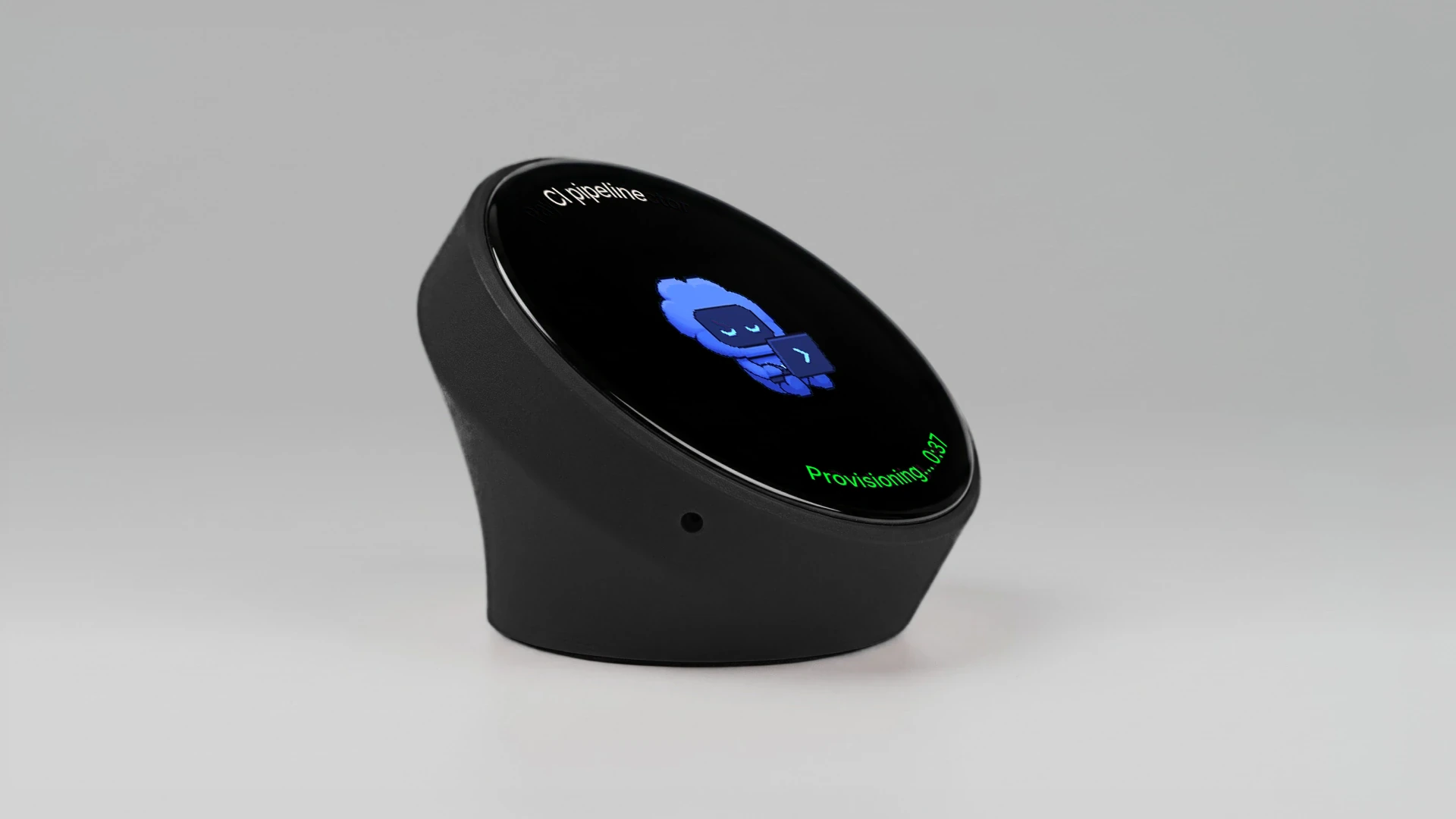
Harness Device on a desk, showing an agent at work

Set up. About two minutes, once per computer.

  1. Step 1

    Get the app.

    Download Harness Device, drag it to Applications and open it. It lives in your menu bar.

    Choose Sign in… once.

    Download
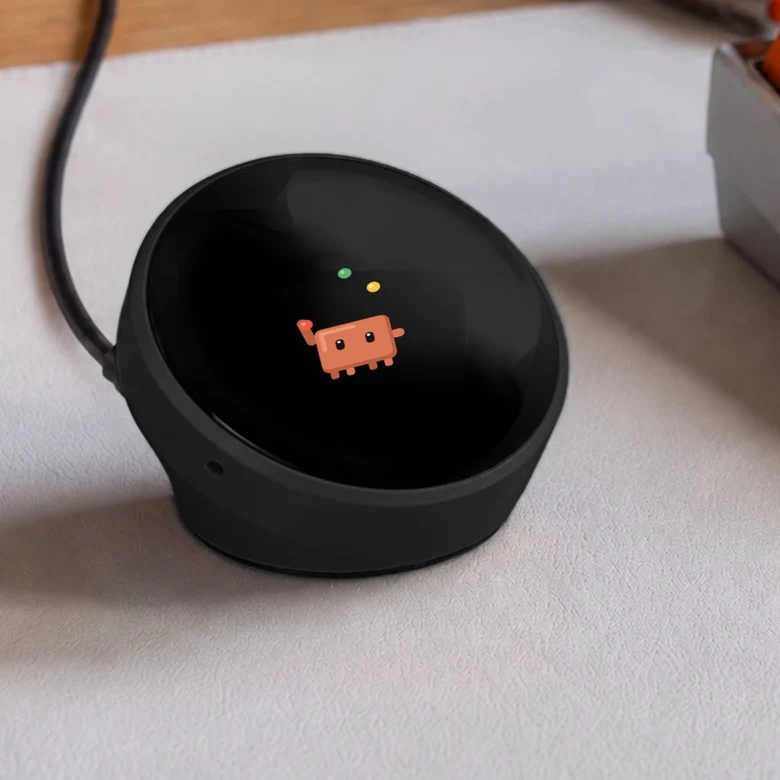
  2. Harness Device connected with its USB-C cable, Clawd on its face
    Step 2

    Plug in.

    Connect the device to your computer with the USB-C cable. The menu says Device ready.

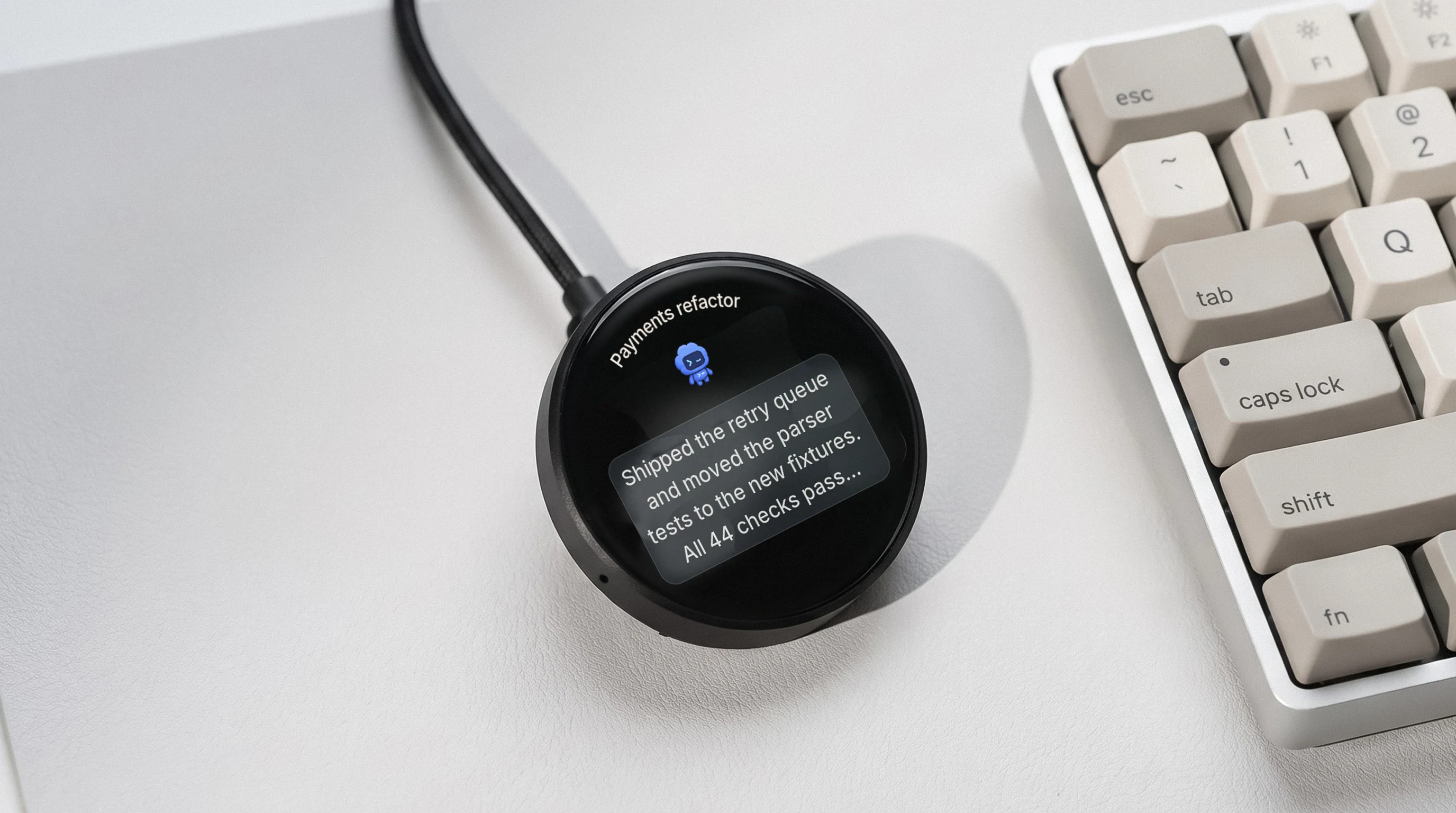
  3. An agent's update on the device's screen
    Step 3

    Open your agents.

    Claude Code and Codex appear on the device. Nothing to set up.

Use it. The whole face is the button.

Works with. Claude Code and Codex, in the apps you already use.

  • Claude

    Claude Code
  • ChatGPT

    Codex
  • VS Code

    TerminalClaude Code panel
  • Cursor

    TerminalClaude Code panelCursor agent
Terminals
  • Orca
  • herdr
  • Terminal
  • Ghostty
  • iTerm2
  • tmux
  • cmux
  • Warp
  • WezTerm
  • OpenCode
  • More joining

The app adds the Claude Code plugin, the VS Code and Cursor extension and the Orca plugin for you. Agents run as you already set them up.

What’s new. The app and the device update themselves.

November 27, 2026

Version 0.1.16

  • Harness Device: the Harness mark in the tray and the design team's app icon (all 3 OSes)
  • Device app: a dropped instance unlocks its file, so a relaunch is not refused by a forked child
  • Harness Device: another person's desktop app no longer keeps this person's daemon from starting
  • Dial: voice to Codex and other engines in terminals (queue under every trusted Codex home; Ghostty tab typing)

Downloads

MacApple silicon and Intel · .dmg
WindowsARM64 · .exe
Windowsx64 · .exe
LinuxARM64 · AppImage
Linuxx64 · AppImage

macOS 13 or later.

Need help? Most answers are in the menu-bar icon.

The menu says “Plug in your device”.

Use the cable that came in the box, or another USB-C cable that carries data. Plug it straight into your computer, not a charger or hub.

An agent is missing on the device.

Start Claude Code or Codex in one of the apps above. It shows up on its own.

Hold the face to switch to the app it runs in.

More than one computer?

Install the app and sign in on each one. The device shows the agents of every computer you sign in on.

Something else is wrong.

Click the menu-bar icon, choose Export logs, and send the file to [email protected].

Still stuck?A person reads every email.