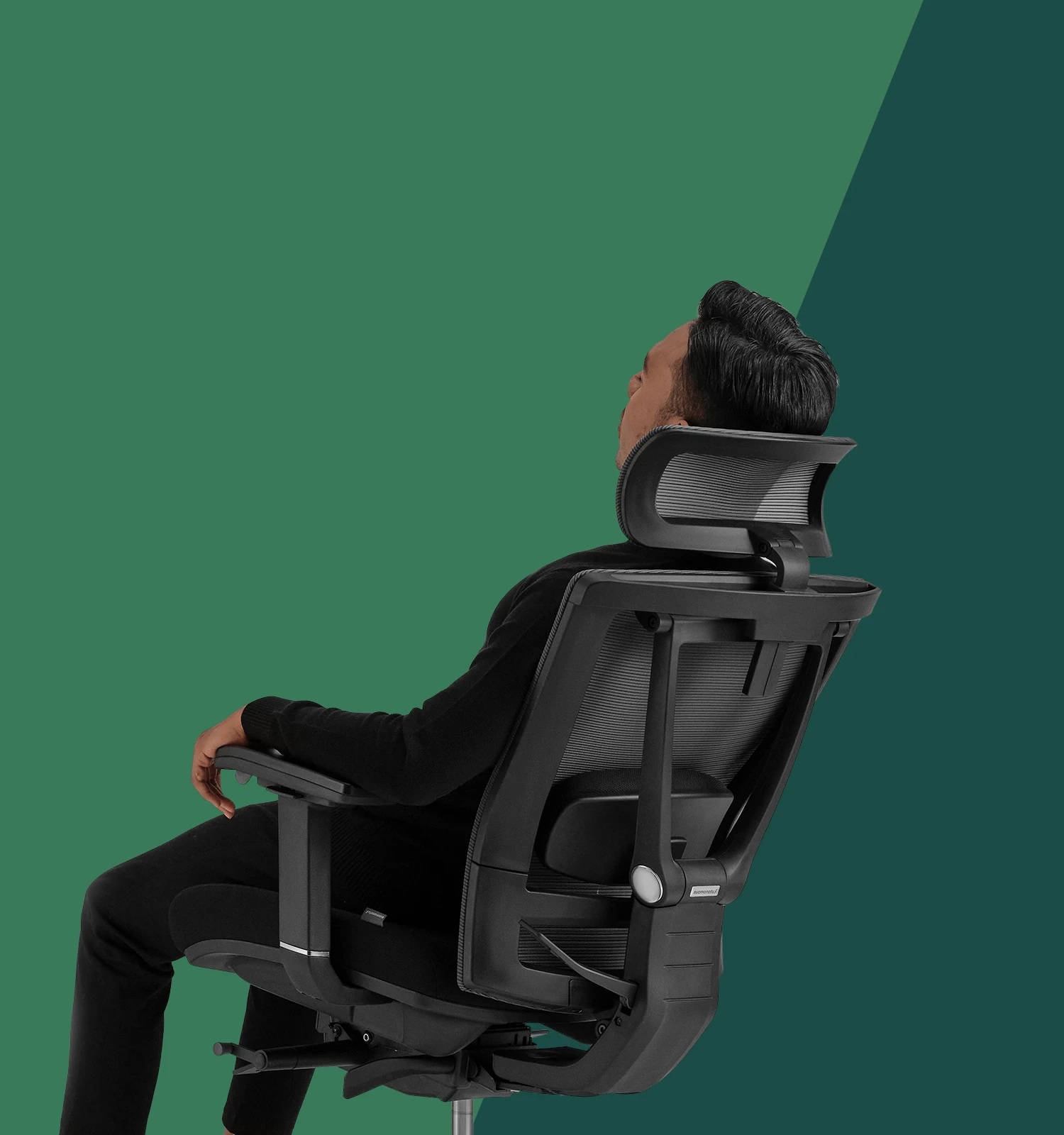
ErgoChair Pro
Black Friday price.
Built for 12-hour sessions.
13 Home Office Accessories for a Better Workday in 2026


The home office accessories worth buying first are a separate keyboard and mouse for a raised laptop, a headset if calls sound poor, and task lighting when the room is dim. Keep a camera or screen stand that already works. For a starting point, the keyboard and laptop stand below total $79.89 with an existing mouse; the wired headset and webcam total $76.99 before tax and shipping. Buy only the missing part.
Home office essentials should fit the workday and the room. Hydrate, for example, uses an existing cup on a USB-C coaster, but a drinking reminder is optional. These thirteen picks cover typing, calls, connections, storage and personal habits, with the extra purchases and reasons to skip each one.
Home Office Accessories at a Glance
Choose the function missing from your setup, rather than a matching set.
| Accessory | Useful for | US price |
|---|---|---|
| Logitech K380s | Separate typing | $29.99 |
| Logitech Lift | Mouse fit | $59.99 |
| Hydrate | Drink reminders | $29 |
| IKEA TERTIAL | Task lighting | $19.99 |
| Logitech Brio 100 | Video calls | $24.99 |
| Jabra Evolve 20 SE | Call audio | $52 |
| Autonomous Key | Phone-app pause | $14 |
| Rain Design mStand | Laptop height | $49.90 |
| Anker 332 Hub | Extra ports | $24.99 |
| IKEA ELLOVEN | Desktop storage | $29.99 |
| Logitech Desk Mat | Work surface | $22.99 |
| VELCRO ONE-WRAP | Cable grouping | $6.95 |
| TP-Link UE300C | Wired networking | $10.29 |
Prices change periodically and can vary by retailer or color. Tax, shipping, bulbs, chargers and cables can add to the total.
Home Office Accessories for Different Workday Needs
These picks use manufacturer specifications and current purchase information. Start with the task that is not working well, then check the connection, size and upkeep.
Logitech Pebble Keys 2 K380s for a Raised Laptop
The Logitech Pebble Keys 2 K380s puts the keyboard where your hands need it while the laptop screen sits higher. Its compact Bluetooth layout can switch between three paired devices, making it useful for a desk shared with a tablet or personal computer.
Choose the layout before the color. This keyboard has no number pad or backlight, so frequent spreadsheet work may call for something larger. A compact keyboard layout also leaves more room for a mouse on a small surface.
| Pros | Cons |
|---|---|
| Compact, quiet keys; three-device switching. | No number pad or backlight; check computer connectivity. |
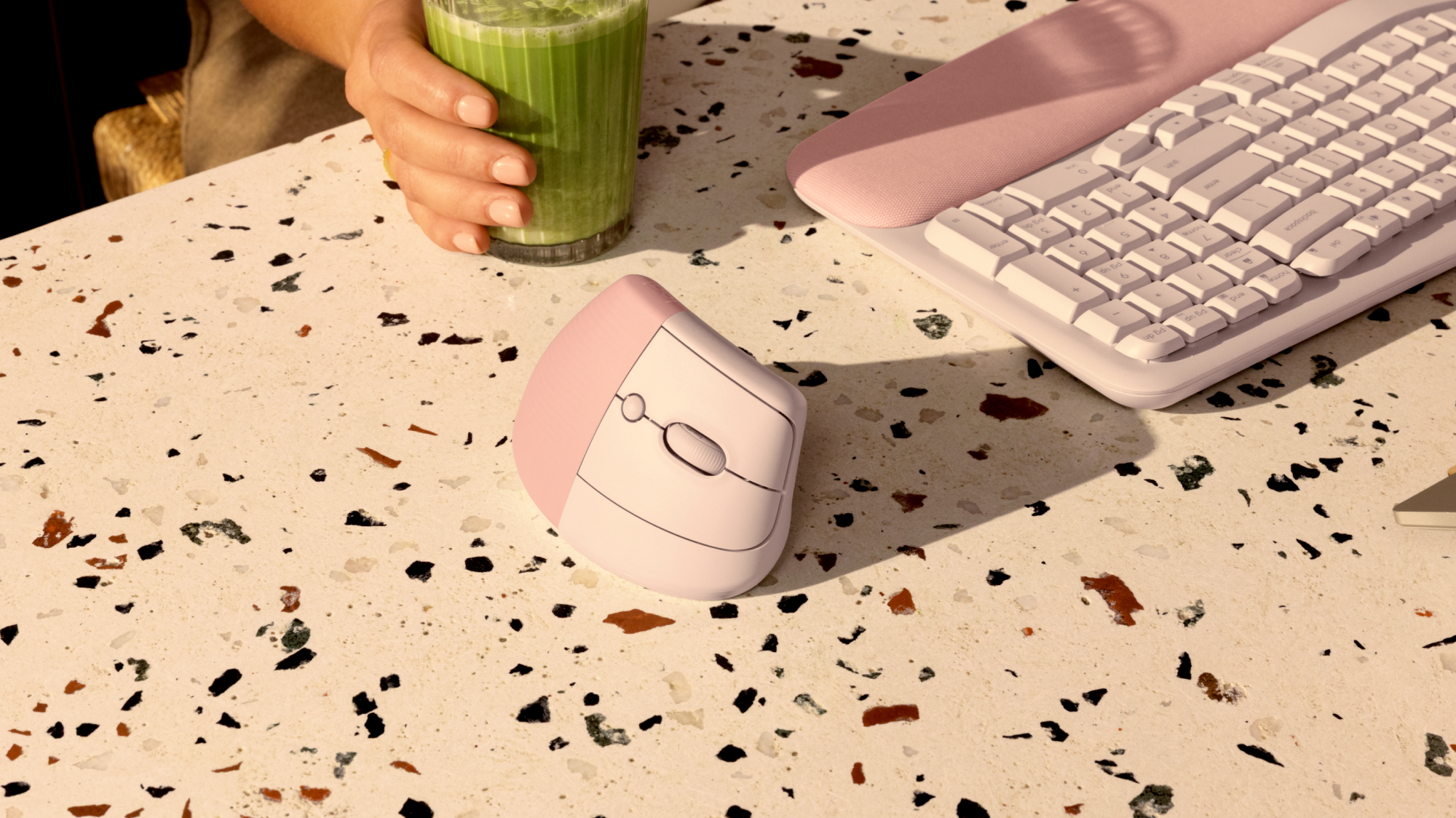
Logitech Lift for Small-to-Medium Hands
Logitech Lift is a vertical mouse designed for small-to-medium hands. Its upright shape, thumb rest and quiet clicks offer a different feel from a flat mouse, which is worth considering when the existing one feels poorly matched to your hand.
Check handedness as well as size: the right-hand and left-hand versions are separate. Keep a comfortable mouse rather than replacing it just to complete a matching set. A different grip shape can take adjustment, so check the return terms if trying a vertical mouse for the first time.
| Pros | Cons |
|---|---|
| Small-to-medium-hand fit; quiet clicks and thumb rest. | Handed versions differ; upright shape is a personal preference. |
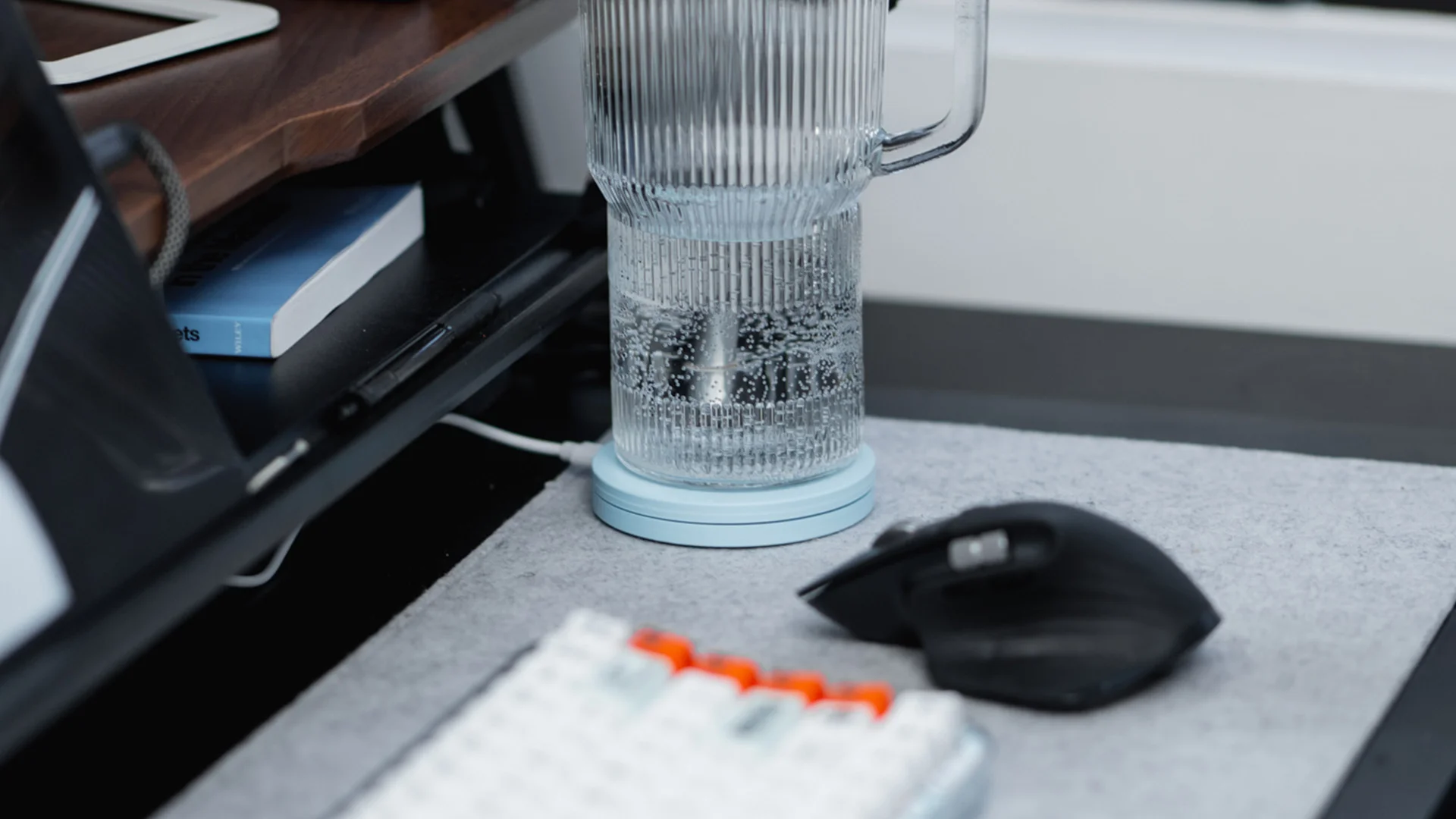
Hydrate for the Drink Forgotten Beside the Keyboard
Hydrate is a USB-C desk coaster that tracks drinking through changes in the weight of a cup or bottle. It works with a container already on the desk and can remind through light, vibration or a buzzer.
The drink needs to return to the coaster for those weight changes to be tracked. App setup and a powered USB-C spot are part of the purchase, while the optional bottle is extra. Choose a quiet reminder for a shared room or calls, and skip this accessory if the existing routine already works.
| Pros | Cons |
|---|---|
| Uses an existing cup or bottle; reminder choices. | Needs app setup and returning the drink to the coaster. |
IKEA TERTIAL for Adjustable Task Lighting
IKEA TERTIAL directs light onto a work surface with an adjustable arm and head. It is a straightforward option when room lighting leaves the keyboard or paperwork in shadow.
Budget for an E26 LED bulb because the lamp does not include one. Check the desk edge and arm reach before using its clamp, which fits tops up to 2.25 inches thick. Position the light so it does not reflect in the monitor; more brightness is not automatically a better setup.
| Pros | Cons |
|---|---|
| Adjustable arm and head; no monitor mounting needed. | Bulb sold separately; clamp and reach need checking. |

Logitech Brio 100 for a Separate Webcam Position
The Logitech Brio 100 is a wired 1080p webcam with automatic light balancing, a built-in microphone and a sliding privacy shutter. It lets the camera sit on an external monitor rather than at the angle of a laptop on the desk.
Try the existing camera with light in front of your face first. If it is already clear and well positioned, another webcam may add little. Brio 100 uses USB-A, so check the computer or adapter; it is a fixed-focus camera rather than a 4K model with automatic framing.
| Pros | Cons |
|---|---|
| Physical shutter; simple wired camera placement. | USB-A connection; fixed focus and no 4K capture. |
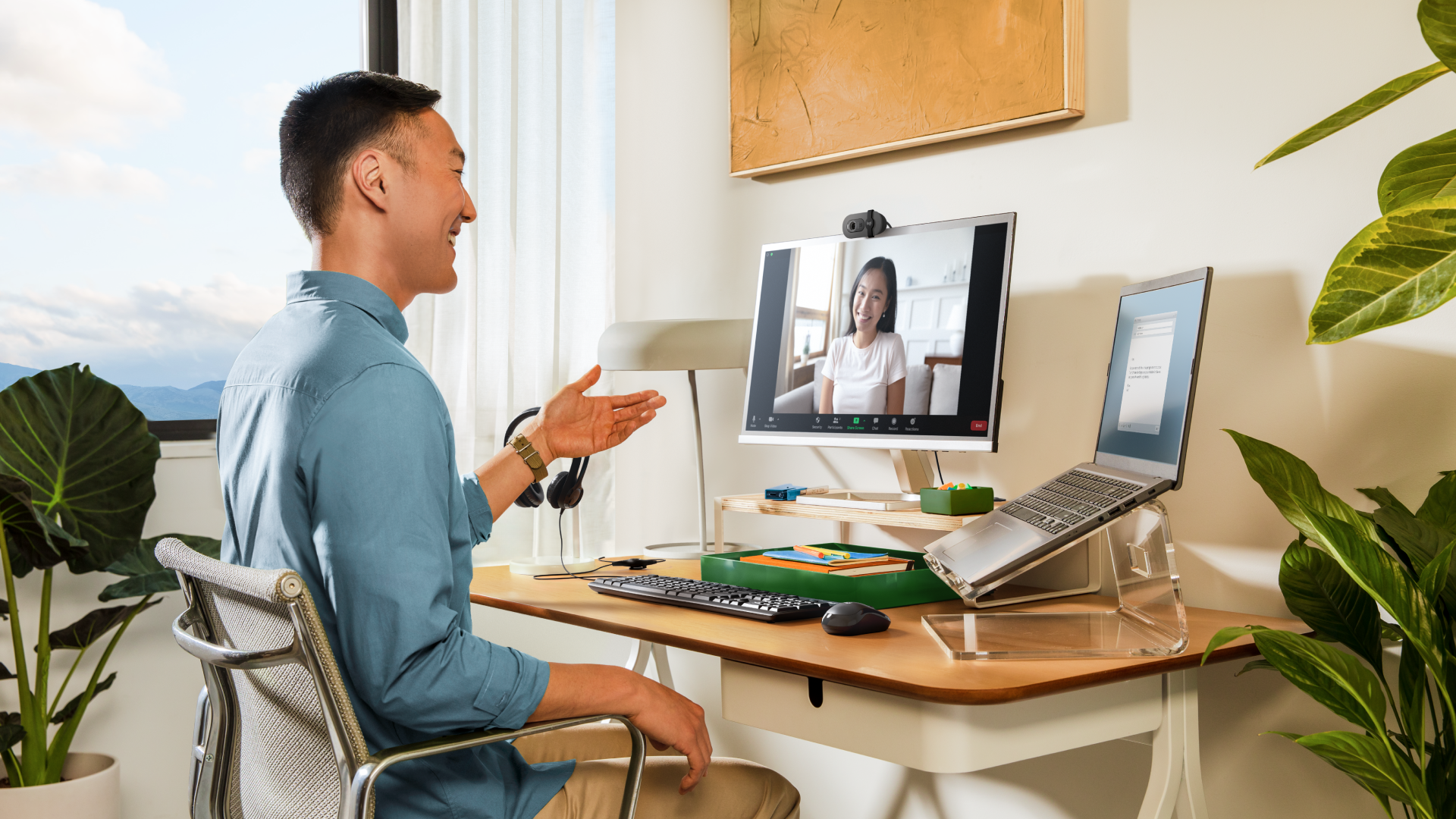
Jabra Evolve 20 SE for Wired Calls and Mute Controls
The Jabra Evolve 20 SE USB-C/A UC Stereo combines an on-ear headset with a boom microphone and inline call, volume and mute controls. The 4999-829-489-01 version connects through USB-C with a USB-A adapter.
A wired headset avoids battery charging and Bluetooth pairing, but its cable limits movement away from the desk. Check the fit for long calls and make a recording in the app you use. Microphone background-noise reduction is a different feature from active noise cancellation in the earcups.
| Pros | Cons |
|---|---|
| Boom microphone and inline controls; USB-C/A connection. | Wired reach and on-ear fit; not an ANC headphone substitute. |

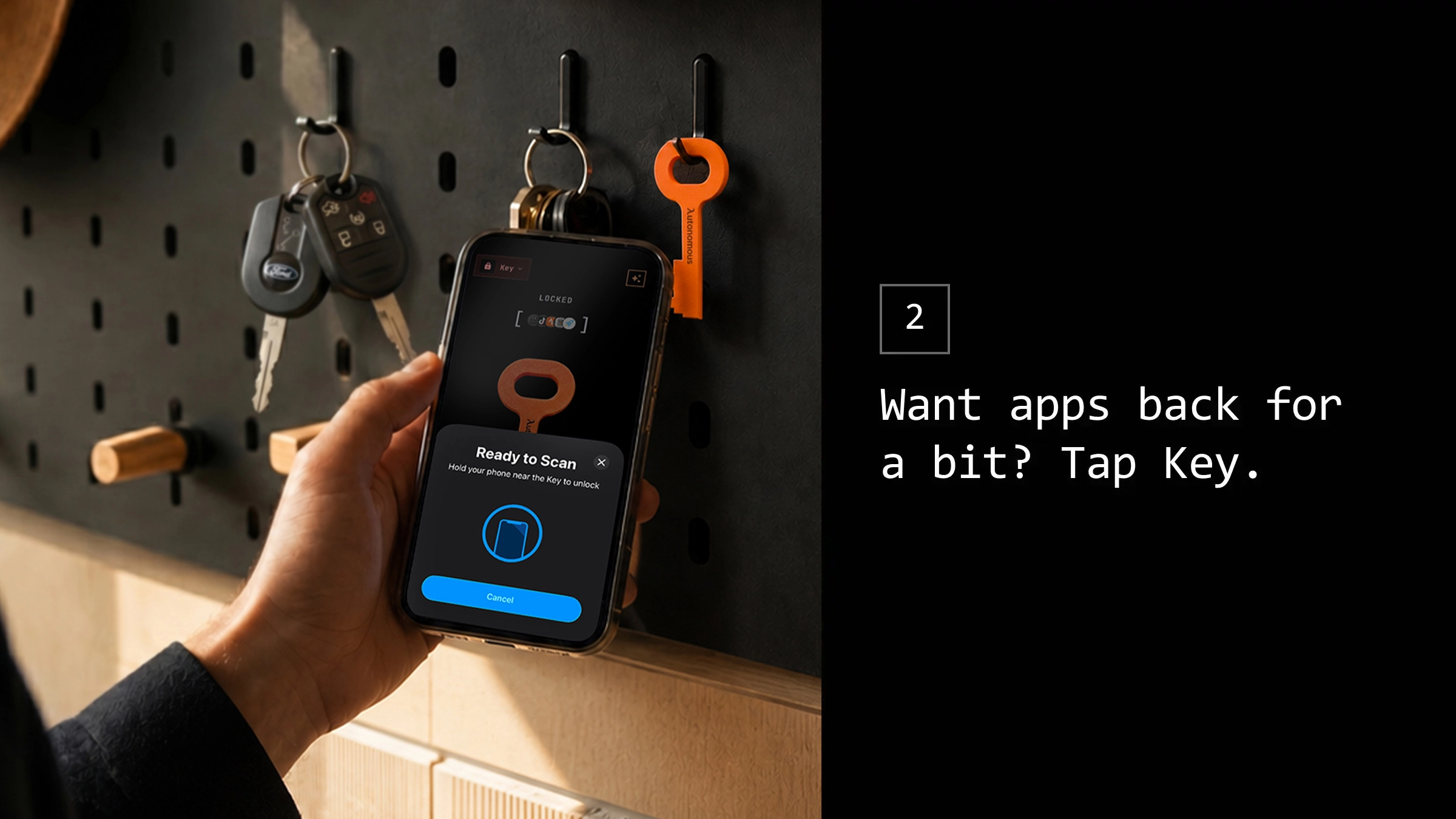
Autonomous Key for a Physical Pause Before Phone Apps
Autonomous Key adds a physical step before we return to selected distracting phone apps. The passive NFC key pairs with the free companion app; tapping the phone against the Key allows access to the apps we chose to lock.
The Key needs no battery or charging, and its app has no subscription. Setup requires an account, phone permissions and NFC hardware on iOS 15 or later or Android 8 or later. It is an optional aid for a pause we already want to make, with some phone setup to manage.
| Pros | Cons |
|---|---|
| No charging or app subscription; a physical step before reopening apps. | Requires NFC, app setup and phone permissions. |
Rain Design mStand for a Laptop Used as a Screen
The Rain Design mStand raises a laptop about 5.9 inches on a fixed aluminum support. It suits a laptop used with a separate keyboard and mouse, allowing the screen and typing surface to occupy different heights.
Its base measures 10 by 7.5 inches, so include the input devices when measuring the whole work area. The height does not adjust and the stand does not fold away. Check the resulting screen position before adding it to a small desk or a shared dining table.
| Pros | Cons |
|---|---|
| Fixed support without clamps; separate screen placement. | No height adjustment; rigid format takes storage space. |

Anker 332 for One HDMI Screen and Extra USB Ports
The Anker 332 A8355 is a five-in-one USB-C hub with HDMI, USB data ports and charging passthrough. It can suit a laptop that needs a screen, keyboard or other desk connections without a larger docking station.
HDMI supports up to 4K at 30Hz and requires a host port with DisplayPort Alt Mode. The hub takes up to 100W of power input and passes up to 85W to the laptop, but the charger and suitable cable are extra. Its USB-C data port is not another video output, and there is no Ethernet socket.
| Pros | Cons |
|---|---|
| HDMI and USB connections in a compact hub. | Separate charger for passthrough; host video support required. |

IKEA ELLOVEN for Small-Item Storage Under a Monitor
IKEA ELLOVEN combines a fixed monitor riser with a shallow drawer for pens, notepads and small cables. The stand is 18.5 inches wide, 10.25 inches deep and 4 inches high, with a 44-pound maximum load.
Check the screen height before adding those four inches; an already tall monitor may not need a riser. The drawer stays on the desktop, so there is no drilling or clamp installation. Measure any keyboard intended to slide underneath rather than assuming every full-size model fits.
| Pros | Cons |
|---|---|
| Drawer and monitor support without installation. | Fixed added height; uses desktop depth. |

Logitech Studio Series Desk Mat for a Defined Work Area
The Logitech Studio Series Desk Mat adds a soft cloth surface and a non-slip base under the keyboard and mouse. Its 27.56 by 11.81-inch footprint can define a work area on a desk or shared table.
Check mouse movement and the keyboard width before choosing it. The surface is spill resistant, but that does not protect nearby electronics from a drink. It is an optional surface accessory, so keep the existing mouse pad if it already works and packs away easily.
| Pros | Cons |
|---|---|
| Soft, non-slip work surface; no installation. | Fixed footprint; spill resistance does not protect devices. |

VELCRO ONE-WRAP for Cables That Need Regular Access
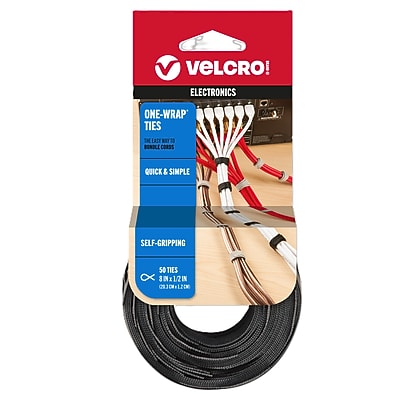
VELCRO Brand ONE-WRAP Thin Ties 90924 are reusable hook-and-loop straps for grouping cables. This pack contains fifty 8 by 0.5-inch ties, which can be reopened when a charger or device changes.
Group leads loosely and leave ports easy to reach. These ties organize cable bundles; they are not a way to suspend a heavy power brick. If the desk is already tidy, a large pack may be more than one home setup needs.
| Pros | Cons |
|---|---|
| Reusable straps; easy to change a cable bundle. | Large pack for a small setup; not load-bearing support. |
TP-Link UE300C for a Laptop Without an Ethernet Socket
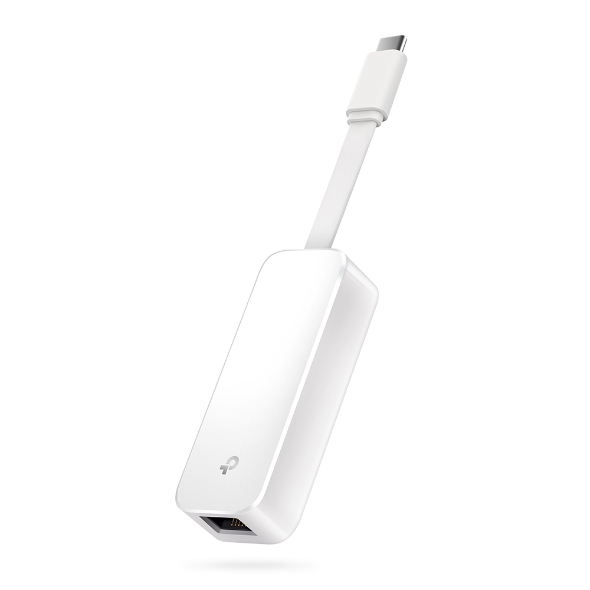
The TP-Link UE300C connects a USB-C computer to a wired network through a Gigabit Ethernet port. It is useful when there is an accessible router or network socket but no Ethernet port on the laptop.
An Ethernet cable is a separate purchase. Check the operating system and the route the cable will take through the room. This adapter can bypass a weak Wi-Fi link, but it cannot increase the speed of an internet plan or guarantee a clear call. Skip it when a usable wired connection is not nearby.
| Pros | Cons |
|---|---|
| USB-powered wired connection; no wall adapter needed. | Ethernet cable extra; needs a nearby wired network connection. |
How to Choose Work From Home Accessories Without Buying Twice
Test the current setup during real work before ordering accessories. A poor camera image, a noisy call and an uncomfortable typing position are different problems and need different fixes.
Make a Test Call in the Room You Use
A short recording in the usual calling app reveals more than a headset's product name. Check that the app uses the intended microphone, then listen with the normal household noise in the background.
Separate what you hear from what colleagues hear. Ear-cup noise cancellation and microphone noise reduction are different features. A headset that quiets the room for the wearer does not automatically make their voice clearer at the other end.
For the picture, try front-facing light and a better camera angle before replacing the webcam. A brighter lamp behind the screen can also create reflections. Keep the setup that looks and sounds clear rather than upgrading resolution for its own sake.
Count the Connections and the Extras
A useful accessory needs the right host connection and everything required to power it. Check the actual laptop model and port specification, not just the shape of the USB-C socket.
- Video: the Anker hub needs a host port that supports video for its HDMI output.
- Power: charging passthrough needs a separate suitable charger and cable.
- Lighting: TERTIAL needs a bulb, an outlet and a suitable mounting spot.
- Networking: UE300C needs an Ethernet cable and a usable wired network connection.
Check the equipment your work requires against what the employer supplies or approves. An allowance may have purchase rules, approved models or receipt requirements; check before spending personal money.
Measure the Whole Work Area and the Place It Packs Away
A shared table needs room for the working setup and somewhere to put it after work. Measure the stand, keyboard and mouse area together, then check where the light, drink and cables will go.
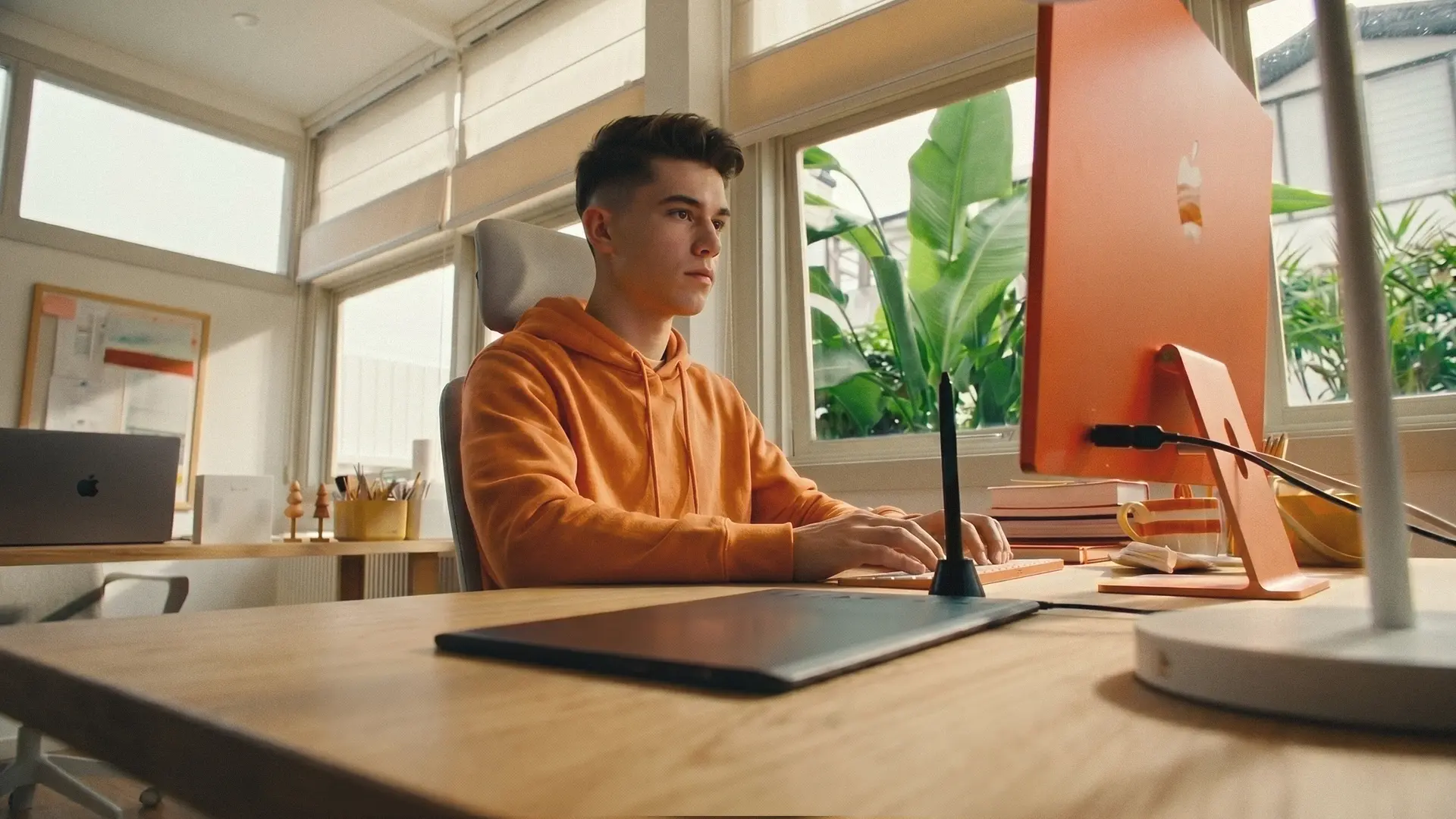
Adjust the existing chair and screen first. OSHA's workstation guidance calls for relaxed shoulders, hands and wrists in line with the forearms, and usable room for the keyboard and mouse. Accessories support that arrangement rather than replacing it.
Keep useful office accessories within reach and remove things that only occupy space.
Mechanical mounting and moving-cable checks become a separate consideration when choosing accessories for a standing desk.
FAQs
What Home Office Accessories Should I Buy First?
Buy the accessory that fixes the first clear problem in the workday. A raised laptop needs independent keyboard and mouse positioning; unclear calls may need a headset; a dim work surface may need task lighting. Keep equipment that already works and ask what the employer provides first.
Which Work From Home Accessories Can I Skip?
Skip a separate webcam when the existing camera is clear and well positioned, a hub when the laptop has enough ports, and a riser when the screen is already at a usable height. Habit reminders and desk mats are optional additions rather than requirements for remote work.
What Can I Improve With a Small Budget?
Start with one failing task rather than a full accessory bundle. Try the existing camera with better lighting, use a headset already owned, and remove unused equipment. Compare the table prices with the cost of any required bulb, cable, charger or input device before ordering.
Does Every USB-C Hub Work With an External Monitor?
No, the computer's USB-C port must support the video mode the hub needs. A data-only port cannot supply HDMI video just because the connector fits. Check the laptop and hub specifications, the intended screen resolution and the power supply before choosing a hub.
Do Noise-Cancelling Headphones Make My Microphone Clearer?
No, ear-cup noise cancellation and microphone noise reduction serve different purposes. One changes what the wearer hears; the other concerns the signal sent to the call. Check the microphone specification and make a recording in the calling app with the room's usual background noise.
How Do I Choose Accessories for a Small Home Office?
Measure the complete working footprint and storage space before buying. A compact keyboard can leave more mouse room, while a drawer riser can hold small items. Fixed stands still need somewhere to go after work, and extra hardware should not crowd the usable typing area.
Are Ergonomic Accessories Enough for a Comfortable Home Office?
Ergonomic accessories work as part of an adjustable setup rather than as a complete solution on their own. Set the chair, screen and input devices to fit the person, keep frequently used items close, and change position during the day. A different mouse or stand does not suit everyone.
Conclusion
The useful home office accessories are the ones that make a specific part of remote work easier. Start with typing, calls and lighting, then check connections and room fit. Buy the missing function, include its required extras, and leave space for the room to return to home life after work.
References
Desk Pro
Black Friday price.
So 12 hours isn’t 12 hours sitting.