PS5 Keyboard and Mouse: Setup, Games & Compatibility
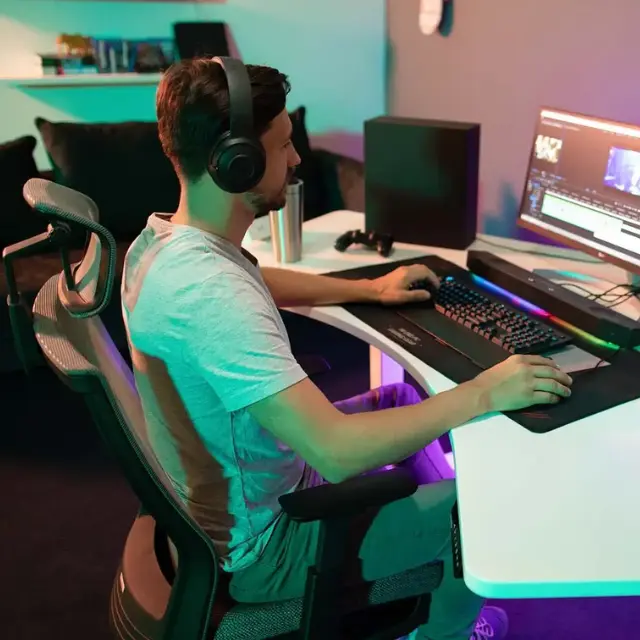
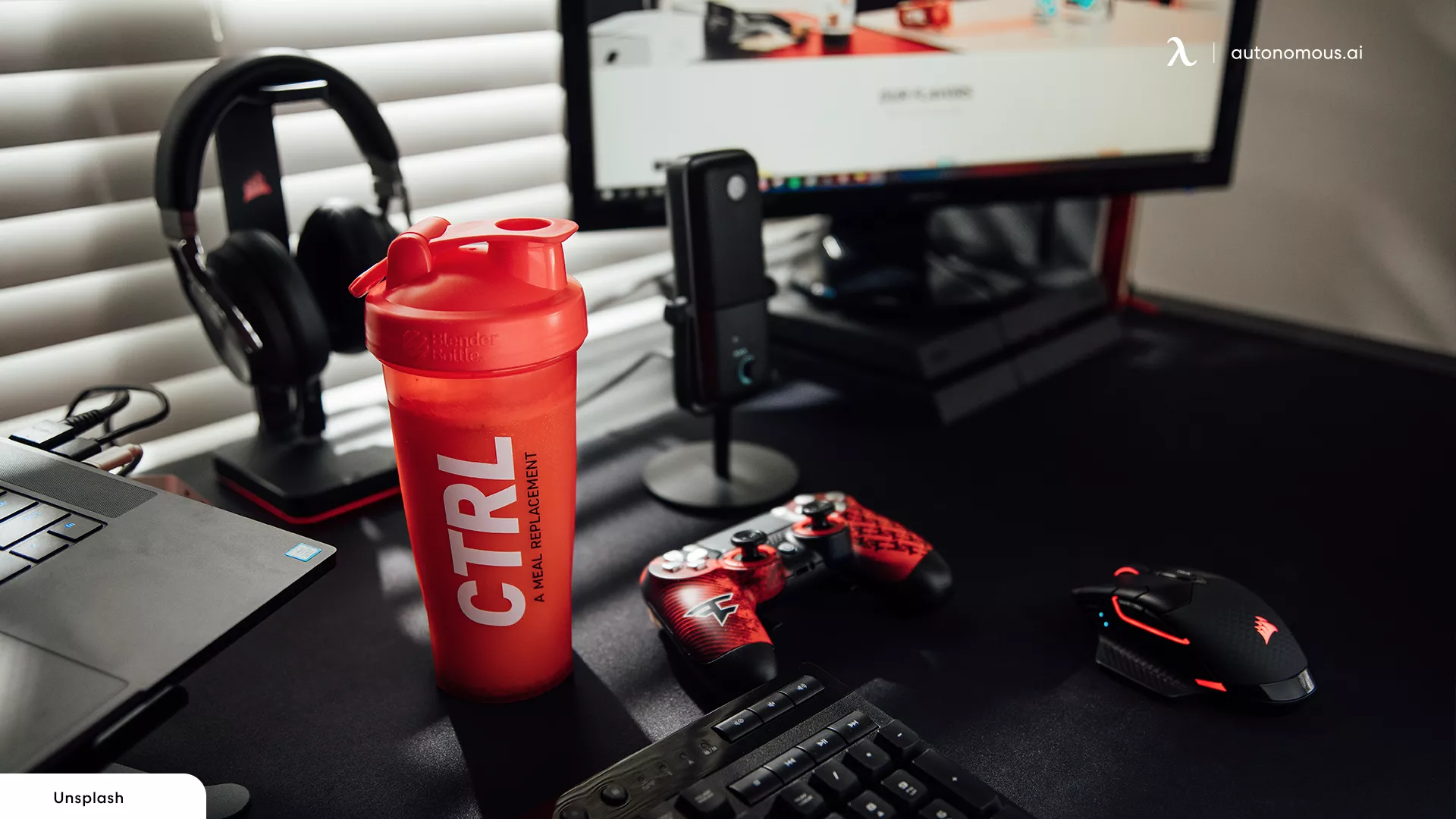
You can connect a PS5 keyboard and mouse through USB or Bluetooth, but whether you can play with them depends on the game. Fortnite and Final Fantasy XIV support native keyboard-and-mouse controls, while other titles may recognize the devices without accepting them during gameplay.
That's the distinction worth checking before buying new peripherals. A keyboard can work for typing on the PS5 but do nothing when you press WASD in a game. An expensive gaming mouse won't change that.
This guide covers how to connect both devices, which PS5 games support keyboard and mouse, how to fix common problems, and what to look for when choosing a setup.
Can You Use a Keyboard and Mouse on PS5?
Yes, the PS5 supports compatible USB and Bluetooth keyboards and mice for text entry, supported interface functions, and games with native keyboard-and-mouse controls.
PlayStation includes settings for keyboard language, key repeat, mouse handedness, and pointer speed. However, Sony also notes that not every USB or Bluetooth accessory will work with the console.
There are three levels of compatibility:
| Compatibility | What it means |
|---|---|
| Console recognition | PS5 accepts the connected device |
| Game support | The game accepts keyboard and mouse inputs |
| In-game controls | Movement, aiming, and keybinds work as expected |
A successful connection only proves the first point.
For example, you might be able to type with a keyboard in the PS5 interface but find that movement keys don't respond once you launch a game.
PS5 Pro follows the same general accessory model. It doesn't automatically enable keyboard-and-mouse gameplay in titles that require a controller.
How to Connect a Keyboard and Mouse to PS5
A PS5 keyboard and mouse can connect through wired USB, Bluetooth, or a compatible wireless USB receiver. Wired USB is the easiest place to start because it avoids pairing problems.
1. Connect a Wired USB Keyboard and Mouse
A wired keyboard and mouse can connect directly to the PS5's available USB ports without a special adapter.
- Turn on your PS5 and open the home screen.
- Plug the keyboard into an available USB port.
- Connect the mouse to another USB port.
- Open Settings > Accessories > Other Accessories.
- Review the keyboard and mouse settings.
- Launch a game with native support to test gameplay input.
If either device doesn't respond, move it to another USB port and test it separately.
A basic wired keyboard and mouse are also useful for diagnosing whether a wireless connection is causing trouble.
2. Connect a Bluetooth Keyboard and Mouse
Compatible Bluetooth keyboards and mice can pair directly with the PS5 through its accessory menu.
- Put the keyboard or mouse into pairing mode.
- On PS5, open Settings > Accessories > General > Bluetooth Accessories.
- Wait for nearby Bluetooth devices to appear.
- Select the device you want to pair.
- Complete any instructions shown on the screen.
- Repeat the process for the second device.
After successful pairing, the device appears under Registered Accessories.
PlayStation warns that incompatible Bluetooth devices may still appear in the search results. Finding a keyboard in the list doesn't guarantee that it will connect or function correctly.
If a previously paired device fails to reconnect, select it from Registered Accessories and choose Connect.
3. Use a Wireless Keyboard and Mouse With a USB Receiver
Some wireless keyboards and mice use a small USB receiver instead of the PS5's built-in Bluetooth connection.
Insert the receiver into an available USB port, switch on the peripheral, and follow the manufacturer's connection instructions.
Many factory-paired devices connect automatically, but proprietary receivers aren't universally compatible with PS5.
Keep in mind that a wireless USB receiver and a Bluetooth connection are different technologies. A device advertised as wireless may support one, both, or neither connection method on PS5.
Gaming peripherals may also depend on desktop software for macros, lighting, or custom profiles. Their basic controls might work even when those additional features don't.
4. Adjust PS5 Keyboard and Mouse Settings
Basic keyboard and mouse settings are available under Settings > Accessories > Other Accessories.
| Setting | Function |
|---|---|
| Keyboard language | Selects input language |
| Key repeat delay | Sets delay before a held key repeats |
| Key repeat rate | Controls character repetition speed |
| Mouse type | Left- or right-handed buttons |
| Pointer speed | Adjusts pointer movement |
These settings don't replace a game's own controls.
For example, Fortnite has separate keyboard bindings, while shooters may offer mouse sensitivity and aiming settings inside the game.
Once the devices connect, use the game's settings to adjust how they behave during gameplay.
Which PS5 Games Support Keyboard and Mouse?
PS5 keyboard and mouse games are titles that accept both devices during gameplay, not just for typing or menu navigation.
Support varies by title and can change with updates. The table below separates publisher documentation from player reports rather than treating every online compatibility list as equally reliable.
PS5 Keyboard and Mouse Compatibility List
| PS5 game | Support status | Notes |
|---|---|---|
| Fortnite | Publisher-documented | Native keyboard and mouse |
| Final Fantasy XIV | Publisher-documented | Full control mode |
| The Sims 4 | Publisher-documented | Console support; PS4 version on PS5 |
| Battlefield 6 | Player-confirmed | Some input issues reported |
| THE FINALS | Player-confirmed | PS5 gameplay reports |
| Call of Duty: Warzone | Player-reported | Check current input settings |
| ARC Raiders | Reported unsupported | No native support confirmed |
| Marvel Rivals | Not verified | Controller-emulation adapters prohibited |
| Borderlands 4 | Reported unsupported | No newer official confirmation found |
| Diablo IV | Uncertain | Conflicting player reports |
Publisher-documented means relevant guidance is available from the developer or publisher. Player-confirmed means players have described using both inputs during gameplay. It doesn't guarantee that every device or future game version will behave identically.
For games without clear publisher confirmation, check the latest patch notes and control settings before purchasing peripherals specifically for that title.
Can You Use Keyboard and Mouse on PS5 Fortnite?
Fortnite supports native keyboard-and-mouse gameplay on PS5 without requiring a controller-emulation adapter.
Epic Games provides a dedicated keyboard settings tab for console players.
To configure the controls:
- Connect your keyboard and mouse.
- Launch Fortnite and open Settings.
- Select the keyboard tab, marked with an arrow-keys icon.
- Review movement, combat, and building bindings.
- Test the controls before entering a competitive match.
Fortnite's available settings can vary by game mode, so make sure you're editing the relevant controls.
Epic has also documented a PS5 issue where a controller connection prompt appears while using keyboard and mouse. Its support guidance recommends checking Remote Play and restoring licenses when that specific problem occurs.
For mouse buttons that won't bind correctly, Epic recommends checking conflicting bindings, trying a rear USB port, and restarting the console with the mouse connected.
.webp)
Does Battlefield 6 Support Keyboard and Mouse on PS5?
Battlefield 6 has player-confirmed keyboard-and-mouse gameplay on PS5, although some players have reported unreliable input.
A July 2026 player report describes using a wireless mouse and keyboard for Battlefield 6, with the keyboard working more reliably through a wired connection. Other reports describe problems with quick mouse movements or certain keyboard combinations.
These reports show that native gameplay input can work. They don't establish identical performance across every device.
If you're setting up Battlefield 6:
- Test both devices separately before launching the game.
- Try a wired keyboard if a wireless receiver behaves inconsistently.
- Review movement and mouse sensitivity settings.
- Check whether unusual actions come from conflicting bindings.
- Compare behavior with another supported game.
Don't assume a mouse is faulty because Battlefield 6 behaves differently from Fortnite or Call of Duty. The game itself may handle input differently.
Can You Use Keyboard and Mouse on PS5 ARC Raiders?
Native keyboard-and-mouse gameplay on PS5 ARC Raiders was still reported as unavailable by players in October 2026.
Players have repeatedly requested the feature, including during 2026. We could not find an official announcement confirming that native PS5 gameplay support had been added.
For now, don't buy a keyboard-and-mouse setup specifically for ARC Raiders on the assumption that both devices will work.
A keyboard connecting to the PS5 isn't evidence that ARC Raiders accepts keyboard movement or mouse aiming.
Can You Use Keyboard and Mouse on PS5 Marvel Rivals?
Native keyboard-and-mouse gameplay on PS5 Marvel Rivals could not be confirmed from the official sources reviewed.
The more important distinction is between native input and controller emulation.
Marvel Rivals explicitly prohibits hardware and software that translate keyboard-and-mouse controls into controller signals. Its published policy names the XIM series, Cronus Zen, Titan Two, KeyMander, and Brook Sniper among the examples.
The developer warns that prohibited adapter use can lead to penalties, including account suspension.
Unless Marvel Rivals introduces officially supported keyboard-and-mouse gameplay on PS5, a controller is the safer supported input method.
Does Borderlands 4 Support Keyboard and Mouse on PS5?
Borderlands 4 has player reports indicating that native keyboard-and-mouse gameplay isn't supported on PS5, but we couldn't confirm its current status through official publisher documentation.
This distinction matters because the PC version supports keyboard-and-mouse input, while console versions can use different control systems.
If you're buying Borderlands 4 specifically to play with a mouse, check the latest PS5 control settings or an explicit developer statement first.
Older community reports aren't proof that support will remain absent after future updates.
What About Call of Duty, THE FINALS, and Diablo IV?
Keyboard-and-mouse support differs across these three games, and not every claim has the same level of evidence.
Call of Duty: Warzone: Keyboard-and-mouse gameplay is widely reported on PlayStation. Check the current game's input settings and whether the intended mode accepts your devices.
THE FINALS: PS5 players reported working keyboard-and-mouse controls during 2026, including in July. These reports are consistent across multiple discussions, although we did not find equivalent current publisher documentation describing every supported feature.
Diablo IV: Earlier console versions lacked full native gameplay support. Later community reports suggest support may have changed, but the evidence reviewed is inconsistent. Don't classify the current PS5 version as confirmed without a newer official statement or a direct test.
When reports conflict, use the controls available in the current game build rather than relying on a generic compatibility list.
How to Check PS5 Keyboard and Mouse Compatibility Before Buying
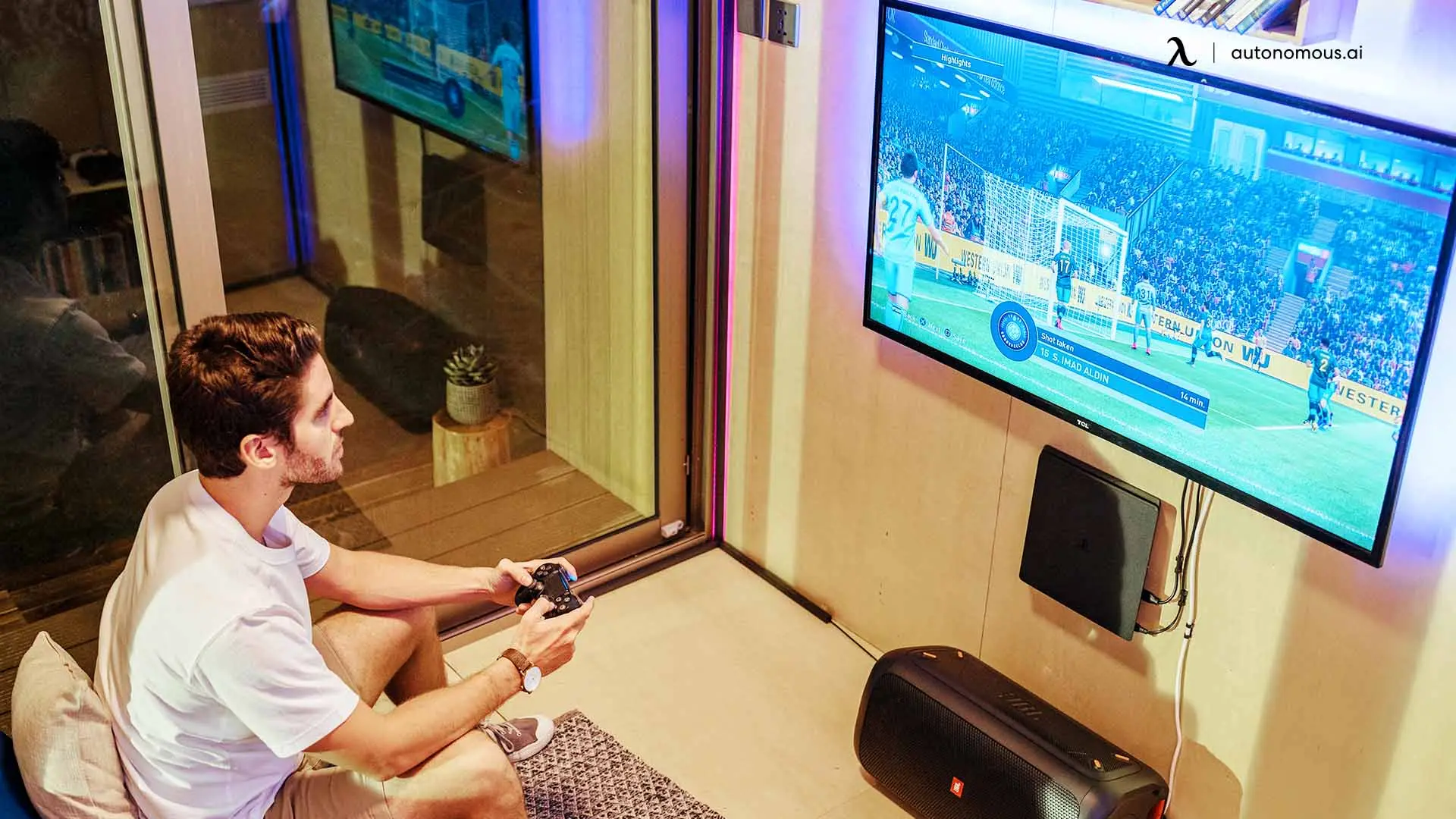
The quickest way to verify PS5 keyboard and mouse support is to test both devices in the game you actually play.
A working keyboard in the PS5 interface doesn't prove that WASD movement will work during gameplay.
If you already own or can borrow a basic wired pair, run three checks:
- Check the connection. Plug both devices into the PS5 and confirm they respond in supported system functions.
- Launch the game. Look for keyboard bindings, mouse sensitivity, or input-device settings. Test movement and aiming in a non-competitive mode where possible.
- Check the limitations. Try the controls you regularly use, including extra mouse buttons, aiming, menus, and vehicle controls where relevant.
If both devices work outside the game but not during gameplay, investigate native game support before replacing the hardware.
A different keyboard won't enable controls the game doesn't implement.
The test also helps distinguish a compatibility problem from a personal preference. A mouse can function correctly while still feeling unfamiliar because of sensitivity, acceleration, or the game's input handling.

Why Isn't My PS5 Keyboard or Mouse Working?
PS5 keyboard and mouse problems usually come from connection compatibility, pairing issues, unsupported game controls, or in-game settings.
Start by identifying where the device stops working.
| Problem | Possible cause | What to try |
|---|---|---|
| Nothing responds | USB or device compatibility | Change port or test another device |
| Bluetooth won't pair | Pairing or compatibility issue | Restart pairing |
| Keyboard types but won't move | No native game support | Check the game's controls |
| Mouse works, keyboard doesn't | Connection or game-input issue | Test keyboard wired |
| Wrong actions activate | Conflicting keybinds | Review game settings |
| Mouse movement feels odd | Sensitivity or input handling | Adjust in-game settings |
| Extra buttons don't respond | Unsupported features | Use standard assignments |
Keyboard Works in PS5 Menus but Not in Games
A keyboard that works for text entry but not gameplay may be functioning normally.
Some PS5 games accept keyboard input only for typing, while movement and combat still require a controller.
Check the game's input settings first. Reconnecting the keyboard won't enable a control scheme the game doesn't support.
Bluetooth Keyboard or Mouse Won't Connect
Bluetooth pairing can fail when a device is connected elsewhere, isn't in pairing mode, or isn't compatible with PS5.
Disconnect it from nearby computers or tablets, restart pairing mode, and try the PS5 Bluetooth Accessories menu again.
If the device still won't pair, test it on another system. A wired keyboard or mouse can help isolate the problem.
Mouse Works in One Game but Not Another
A mouse that works in Fortnite but not another PS5 game may be experiencing a game compatibility issue rather than a hardware failure.
Different games implement different input methods. Some have native mouse aiming, some use a controller, and others support a keyboard only for text entry.
Review the affected game's input documentation before changing the console configuration.
Why Does Mouse Movement Feel Delayed?
Mouse input can feel different on PS5 because response depends on the game, display, connection, and available sensitivity settings.
Start with the game's mouse sensitivity options and make sure the display is using an appropriate gaming mode.
For wireless devices, compare the behavior with a wired connection if possible.
Raising DPI or polling rate won't necessarily fix a game's input implementation. Avoid treating a specification advertised for PC gaming as a guarantee of equivalent PS5 performance.
Do You Need a PS5 Keyboard and Mouse Adapter?
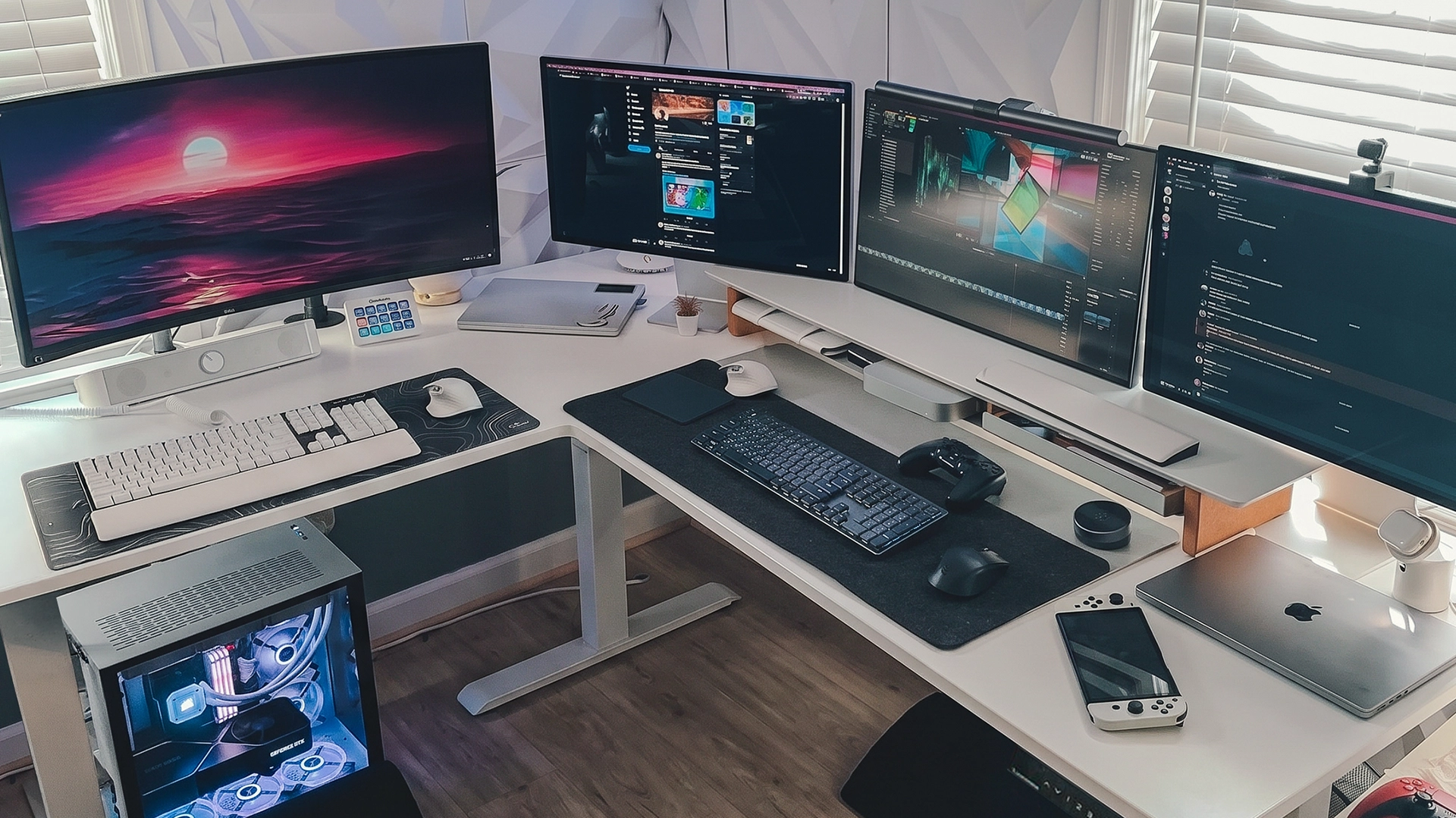
A PS5 keyboard and mouse adapter isn't necessary for compatible peripherals or games with native keyboard-and-mouse support.
An ordinary USB hub and a controller-emulation adapter serve different purposes.
| Device | Purpose |
|---|---|
| USB hub | Adds ports for connecting peripherals |
| Wireless USB receiver | Connects compatible wireless devices |
| Controller-emulation adapter | Translates keyboard/mouse input into controller signals |
A USB hub doesn't enable keyboard-and-mouse controls in an unsupported game.
Controller-emulation adapters attempt to make keyboard presses and mouse movement appear as controller input. That may involve additional setup and doesn't guarantee the same aiming behavior as native mouse support.
Their use may also violate game rules.
Marvel Rivals is a clear example: its developer explicitly prohibits keyboard-and-mouse controller emulation and lists potential account penalties.
The separate PS5 keyboard and mouse adapter guide covers this hardware category in more detail. Before using an adapter, check the relevant game's current policies rather than relying on claims that a device works with PS5.
Best PS5 Keyboard and Mouse: What Should You Look For?
The best keyboard and mouse for PS5 are devices that connect reliably, work with your games, and fit the way you play.
You don't need premium peripherals to test native support. A basic wired pair is often enough to find out whether a game accepts both inputs.
Wired vs. Wireless Keyboard and Mouse for PS5
Wired USB is the simplest choice for a PS5 setup when the console is close enough to the playing position.
Wireless devices reduce cables but introduce receiver, Bluetooth, and battery considerations.
| Connection | Advantage | Tradeoff |
|---|---|---|
| Wired USB | Simple setup | Cable length |
| Bluetooth | No receiver needed | Pairing and compatibility |
| 2.4GHz receiver | Dedicated wireless link | Receiver compatibility |
Neither connection method guarantees better performance in every game.
For troubleshooting, a wired pair removes several variables and makes it easier to determine whether the game supports the input method.
What Keyboard Size Works Best for PS5?
A compact keyboard often makes sense for PS5 because most games don't need a number pad.
The choice depends on available space and whether the keyboard will also be used with a computer.
- Full-size: Useful for gaming and work that requires a number pad.
- TKL: Retains function and navigation keys without the number pad.
- 75%: Saves more space while keeping many dedicated keys.
- 60%: Very compact, but some functions require key combinations.
If the keyboard serves both gaming and coding, the layout matters beyond PS5 compatibility. That's why compact keyboards also appear among practical gifts for programmers.
For console-only use, prioritize the keys required by the games you play rather than buying the smallest model available.
What Mouse Features Matter on PS5?
A PS5 gaming mouse needs reliable basic input and sensitivity controls that don't depend entirely on PC software.
High DPI ratings, extra buttons, and custom lighting aren't necessarily useful when a game can't access those features.
Look for a comfortable shape, adjustable sensitivity, and a compatible connection method.
If you use extra mouse buttons, check whether the game recognizes them. Some peripherals store settings in onboard memory, while others require desktop software to apply custom profiles.
The same applies to elaborate macros and advanced functions. Basic input compatibility doesn't mean every advertised feature works on PS5.
What About a Keyboard and Mouse for Couch Gaming?
A keyboard and mouse can work in a living-room PS5 setup, but the mouse needs a firm surface.
A keyboard can rest on your lap. A mouse sliding across a sofa cushion is much harder to control.
A lapboard may be enough for occasional play. If you regularly play shooters with mouse input, a desk-and-monitor arrangement gives you a fixed mouse area and keeps both hands in a predictable position.
Viewing distance, console placement, and cable routing are also worth sorting out in a PS5 gaming setup.
You don't need special furniture to use keyboard and mouse. Any stable surface with enough depth can work.
A height-adjustable gaming desk becomes relevant when the same space serves gaming and work, particularly if you want to change between sitting and standing.
Before choosing one, check how much room remains for mouse movement after placing the monitor, keyboard, and console.
How Much Desk Space Do You Need?
A PS5 keyboard-and-mouse desk needs enough room for the keyboard, unrestricted mouse movement, and safe console placement.
Autonomous's PS5 setup guide illustrates the tradeoff: on a 24-inch-deep desk, a typical monitor stand can leave roughly 15 inches behind the screen. That space may be enough for a vertical console, but not necessarily a horizontal one.
A gaming mouse also needs room beside the keyboard, not underneath a monitor stand or against the edge of the desk.
A compact keyboard helps recover some space. Cable routing and the console's ventilation clearance matter too.
Small gaming desk accessories, such as desk mats and cable organizers, can help manage the remaining surface without requiring a new desk.
Is a Budget PS5 Keyboard and Mouse Enough?
A budget keyboard and mouse can be enough for PS5 when both devices work reliably and the game supports native input.
Premium switches and additional mouse buttons aren't necessary to play Fortnite or test a supported shooter.
If you're buying for someone else, find out which PS5 games they play before choosing peripherals.
The tech gifts under $50 category includes accessories that can be useful even when the recipient's favorite game doesn't support keyboard and mouse.
For younger players, the choice may be different. A headset, desk accessory, or controller-related gift may suit someone who mostly plays controller-focused games. That's worth considering when comparing tech gifts for teens.

PS5 Keyboard and Mouse vs. DualSense Controller
Keyboard and mouse controls can feel more familiar to PC players, while the DualSense remains the more convenient choice for many controller-focused PS5 games.
The difference is partly about game support and partly about how you play.
| Factor | Keyboard and mouse | DualSense |
|---|---|---|
| Game compatibility | Selected games | Standard PS5 input |
| Aiming | Mouse movement | Analog sticks |
| Couch gaming | Requires surfaces | Handheld |
| Customization | Depends on game | Game and console settings |
| Special features | Device-dependent | Haptics, adaptive triggers |
| Setup | Additional peripherals | Included with console |
In games with native support, some players prefer mouse aiming and keyboard bindings.
For racing games, story-driven titles, and games designed around controller features, the DualSense may be more practical.
Aim assist also varies by game. There's no universal PS5 rule that guarantees a particular advantage or disadvantage simply because someone changes input devices.
If both methods are supported, try them before investing in expensive peripherals.
PS5 Keyboard and Mouse FAQs
Most PS5 keyboard-and-mouse questions come down to whether the console recognizes the devices and whether the intended game supports their controls.
Can You Use Any Keyboard and Mouse on PS5?
No, not every keyboard and mouse is compatible with PS5. Sony supports USB and Bluetooth peripherals but warns that some devices may not work. Standard wired accessories are a sensible starting point. Gaming devices that require proprietary drivers or software should be checked against the manufacturer's console compatibility information.
Can You Use a Wireless Keyboard and Mouse on PS5?
Yes, compatible Bluetooth keyboards and mice can pair through the PS5's Bluetooth Accessories menu. Some wireless models also connect through USB receivers. These connection methods are different, and support varies by device. Connecting wirelessly doesn't guarantee that a game accepts keyboard-and-mouse gameplay.
Does PS5 Pro Support Keyboard and Mouse?
Yes, PS5 Pro supports compatible keyboard-and-mouse accessory functions through the PS5 system. As with a standard PS5, gameplay support depends on the title. Upgrading to PS5 Pro doesn't add native mouse controls to games designed exclusively for a controller. Check hardware and game compatibility separately.
Can You Use Keyboard and Mouse on PS5 Fortnite?
Yes, Fortnite supports native keyboard-and-mouse gameplay on PS5. Connect compatible peripherals, open Fortnite's settings, and select the keyboard controls tab to review bindings. Epic also documents PS5-specific issues involving controller prompts and mouse bindings, so consult its current support instructions if either device behaves unexpectedly.
Does ARC Raiders Support Keyboard and Mouse on PS5?
ARC Raiders players continued reporting a lack of native keyboard-and-mouse gameplay on PS5 in October 2026. No official confirmation of added support was found during this review. Check the current console version and Embark's announcements before buying peripherals specifically for ARC Raiders.
Can You Use Keyboard and Mouse on PS5 Without an Adapter?
Yes, compatible keyboards and mice work directly with PS5 system functions and games that support native input. No controller-emulation adapter is necessary for those uses. A USB hub can add connection ports, but it doesn't create native controls in unsupported games. Controller-emulation adapters may also violate individual game rules.
Is Keyboard and Mouse Better Than Controller on PS5?
Keyboard and mouse may suit players familiar with PC shooters, particularly in games with native support and customizable bindings. DualSense is often more convenient for couch gaming and titles designed around controller features. Neither method is universally better. Game compatibility and personal preference matter more than the input device alone.
Why Does My Keyboard Work on PS5 but Not in a Game?
A keyboard can work for text entry on PS5 while failing to control gameplay because the game doesn't support keyboard movement. Check the game's input settings first. If native support exists, review bindings and try another connection method. Replacing the keyboard won't help when the game only supports controller input.
Conclusion
A PS5 keyboard and mouse setup is straightforward when the devices are compatible and the game supports both inputs. USB and Bluetooth connectivity are built into the console, but gameplay support must be checked separately.
Fortnite and Final Fantasy XIV have documented support. Battlefield 6 and THE FINALS have working PS5 player reports, while other titles remain unsupported or insufficiently verified.
Before buying new hardware, test the game with basic peripherals and check its controls. The best PS5 keyboard and mouse are the ones that work in the games you actually play.