


How to Run AI Locally: Tools, Models, and Hardware
.webp)
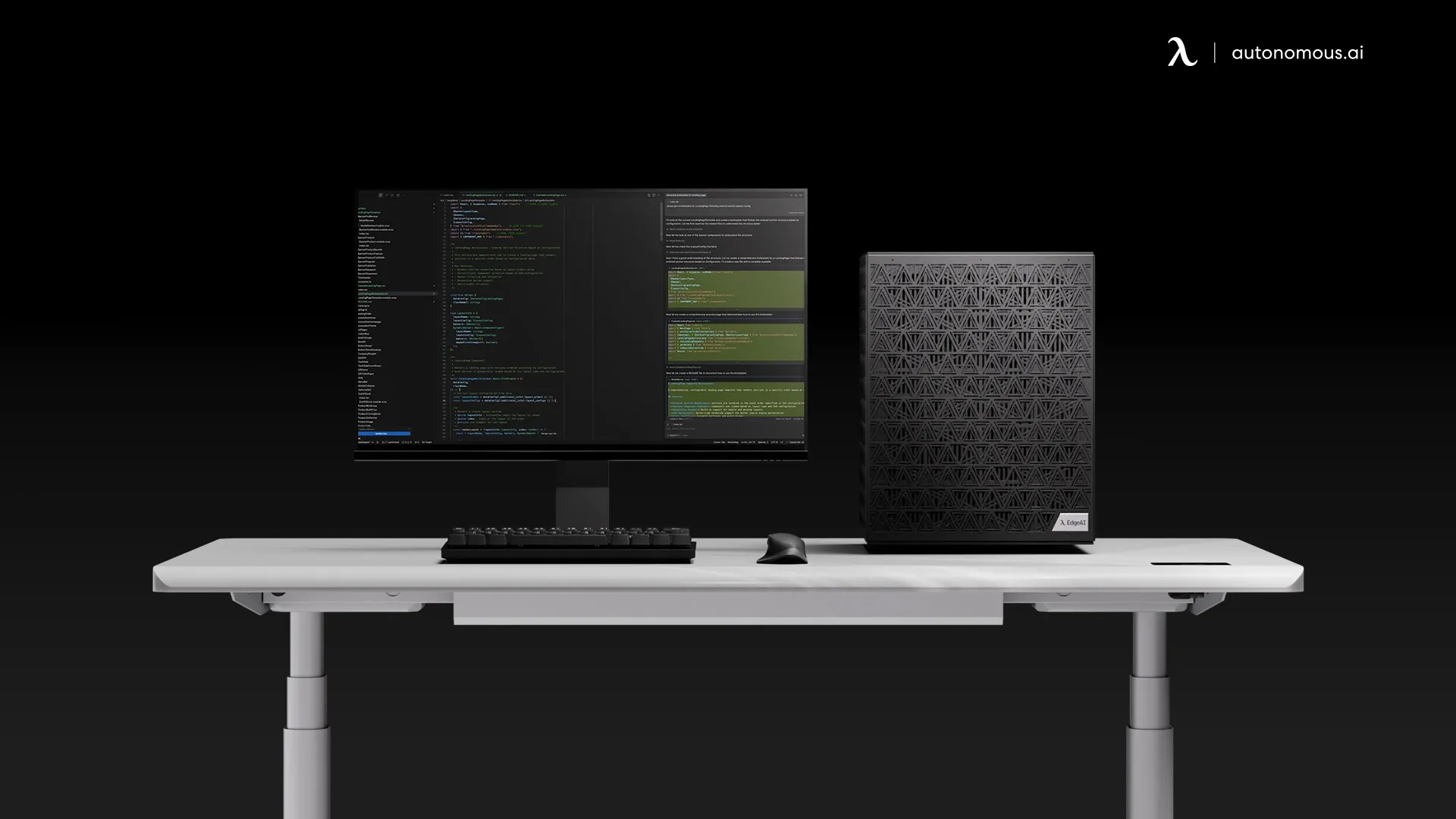
You can run AI locally by installing a local model runner like Ollama or Jan, downloading an open model that fits your hardware, and chatting with it offline, no cloud account and no per-message fee. On a normal laptop that is enough to run a capable 7B or 8B model today. This guide covers the tools, which models actually fit the machine you have, and the point where a serious workload needs hardware built for it.
The fastest way to run AI locally
The quickest path to running AI locally is a desktop app that bundles everything: the model runner, a model library, and a chat window. Download one, pick a model it recommends for your machine, and you are talking to a private, offline model in a few minutes. No coding, no cloud, nothing leaves your computer.
Under the hood these apps run an inference engine, usually llama.cpp, that loads a compressed model file and runs it on your CPU or GPU. You do not have to touch that layer to get started, but knowing it is there explains why model size and your hardware decide what runs well, which is the rest of this guide.
The tools that run local AI
Local AI tools fall into two groups: point-and-click apps for getting started, and command-line engines for more control. Most people should start with an app, because the app runs an engine underneath anyway. Whichever you pick, they run the same open models in the same file format, so the real constraint is not the tool, it is how much memory your machine has.
1. Desktop apps: the easiest start
Desktop apps bundle the model runner, a model library, and a chat window into one install, which makes them the simplest way to start. You download the app, pick a model it recommends for your machine, and chat, with no command line involved.
The two best-known are Jan and LM Studio, both free apps you install like any other program. Each feels close to a private ChatGPT: a familiar chat window, a built-in browser to find and download open models, and settings that show what your hardware can handle before you commit to a download. The difference from ChatGPT is that everything runs on your own machine and nothing is sent to a server.
2. Command-line runners: more control
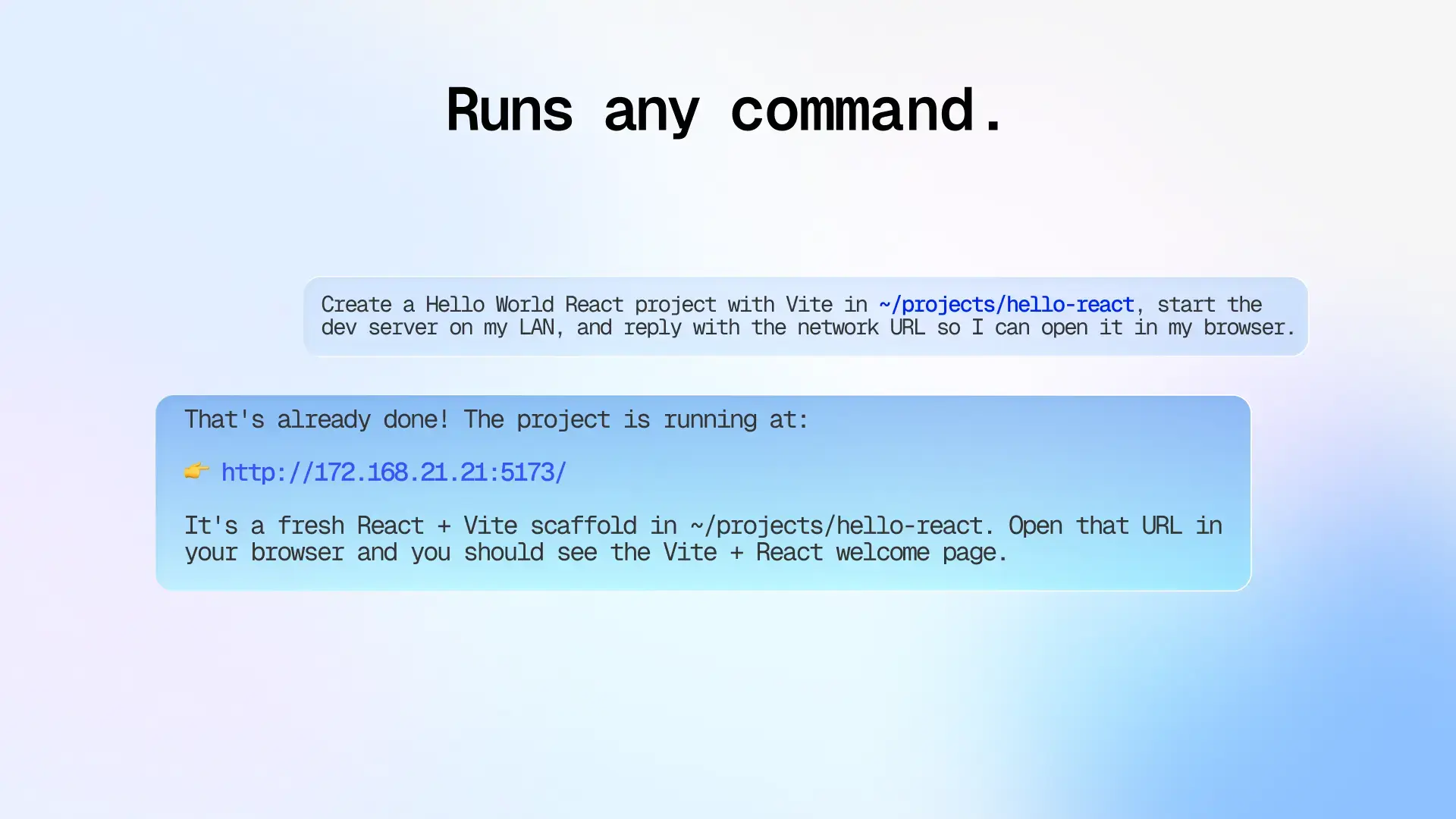
Command-line runners give you direct control over models and how they are served, at the cost of a little setup. Ollama is the most common one, pulling and running a model from a single command, and many apps and scripts are built on top of it. It suits anyone comfortable in a terminal who wants to script model use, wire a model into their own tools, or run without a graphical app at all.
3. The engine underneath: llama.cpp
llama.cpp is the inference engine that most local AI tools quietly run on, whether you see it or not. It is what actually loads a compressed model file and runs it on your CPU or GPU, and it is why the same models run across so many different apps. You can run it directly for maximum control, but most people use it through an app or through Ollama without ever calling it by name.
4. Serving to many users: vLLM
vLLM is a high-throughput server for running one model for many users at once, which matters for a team rather than a single person. It is not a day-one tool, since a single user does not need it, but it is the standard choice once you are serving a model to a group from a shared machine. It reappears later in this guide, at the point where hardware, not software, becomes the limit.
Which models fit your hardware
The model you can run locally is set by your memory, because a model has to fit in RAM or VRAM to run at a usable speed. To run an LLM locally, model sizes are written as a parameter count, like 7B for seven billion, and a rough rule is that a 4-bit quantized model needs a bit more than half a gigabyte of memory per billion parameters.
Your machine | Model size that runs well | What it is good for |
Laptop, 8-16GB RAM, no GPU | 3B to 8B | Chat, writing, summarising, simple coding help |
Desktop with a 12-16GB GPU | 8B to 14B | Faster responses, better coding and analysis |
Workstation GPU, 24-32GB VRAM | 27B to 32B | Strong single-model performance, the current sweet spot |
Multi-GPU, 64GB+ VRAM | 70B and up | Large models at full quality, or serving several users |
Quantization is the lever that makes a model fit. It compresses the model to use less memory, and versions labelled Q4 are the usual starting point: they run on modest hardware and keep most of the quality. Move to Q6 or Q8 for higher quality once you have the memory to spare.
What running AI locally gets you
Running AI locally gives you three things a cloud API cannot, and they are the reason people bother:
- Privacy, because prompts and data never leave your machine and nobody trains on your work
- No usage bill, because once you own the hardware the only cost is electricity, so an local AI agent can run all day
- Offline and always-available, because there is no server to be rate-limited, deprecated, or taken down
The trade is capability at the top end. The very largest frontier models still run in the cloud, so local AI is about running genuinely useful open models privately, not matching the biggest hosted model on day one.
When you need hardware built for it
A laptop handles small models, but two different needs push you toward dedicated hardware, and they point at two different machines. One is wanting an agent that runs on its own, always on, without tying up your laptop. The other is running models too large to fit, serving several users, or fine-tuning on your own data. These are not the same problem, so they do not have the same answer.
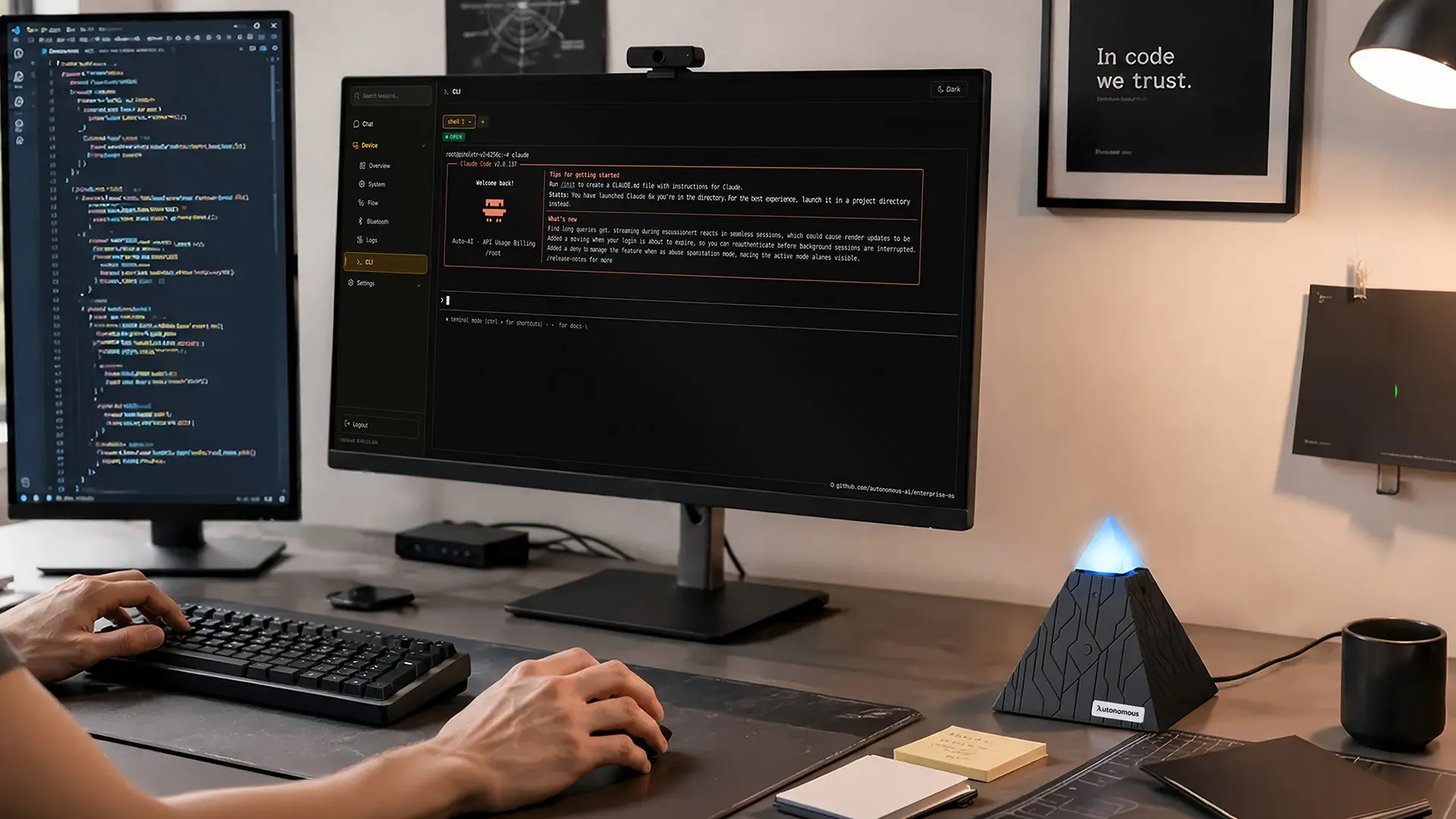
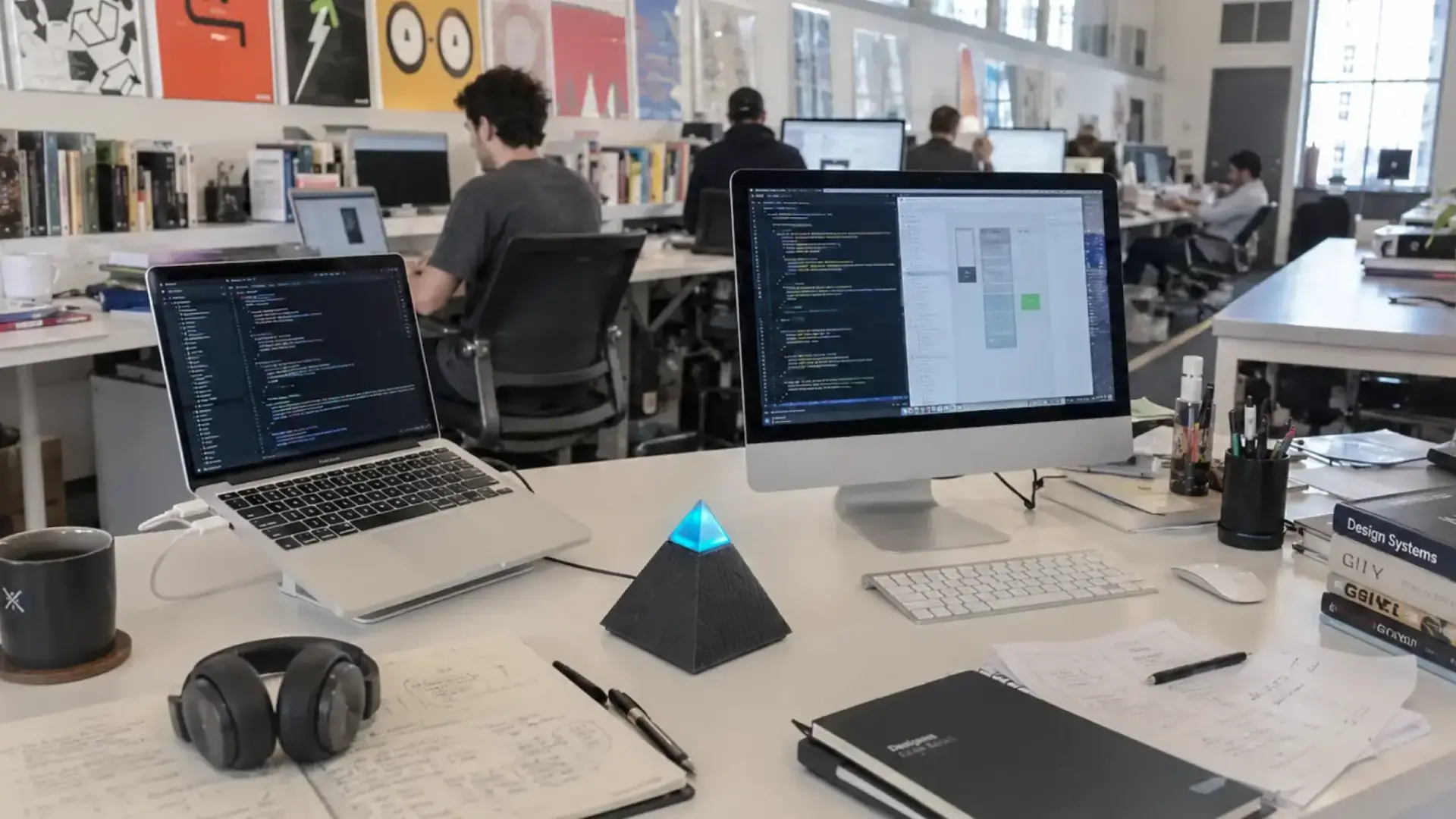
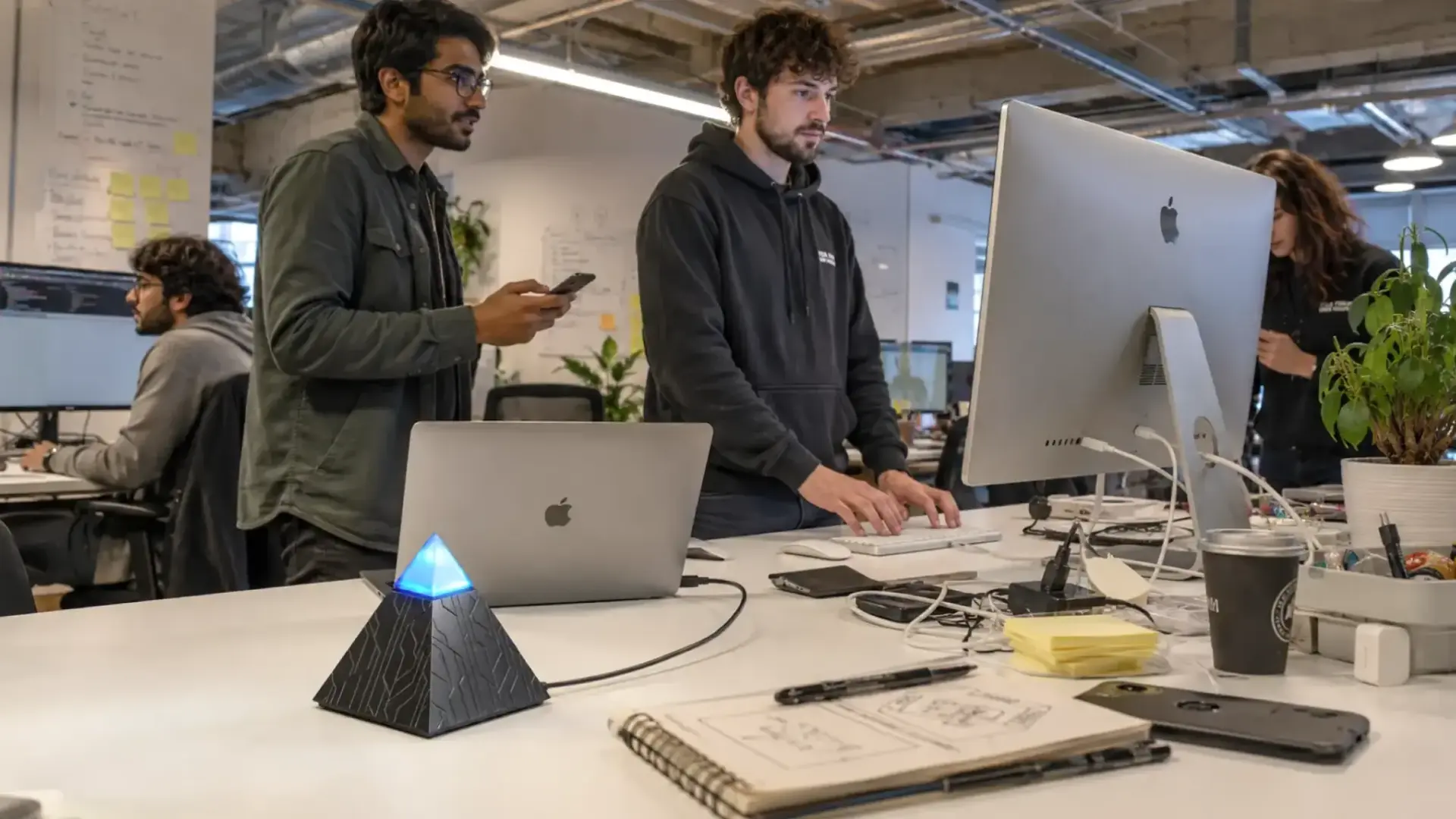
For an always-on agent, a small dedicated device does the job.
The Autonomous Intern is a compact unit that runs an agent like OpenClaw or Hermes out of the box, with your credentials, context, and memory kept as local files, reached by text or voice through Telegram, Slack, or Discord.
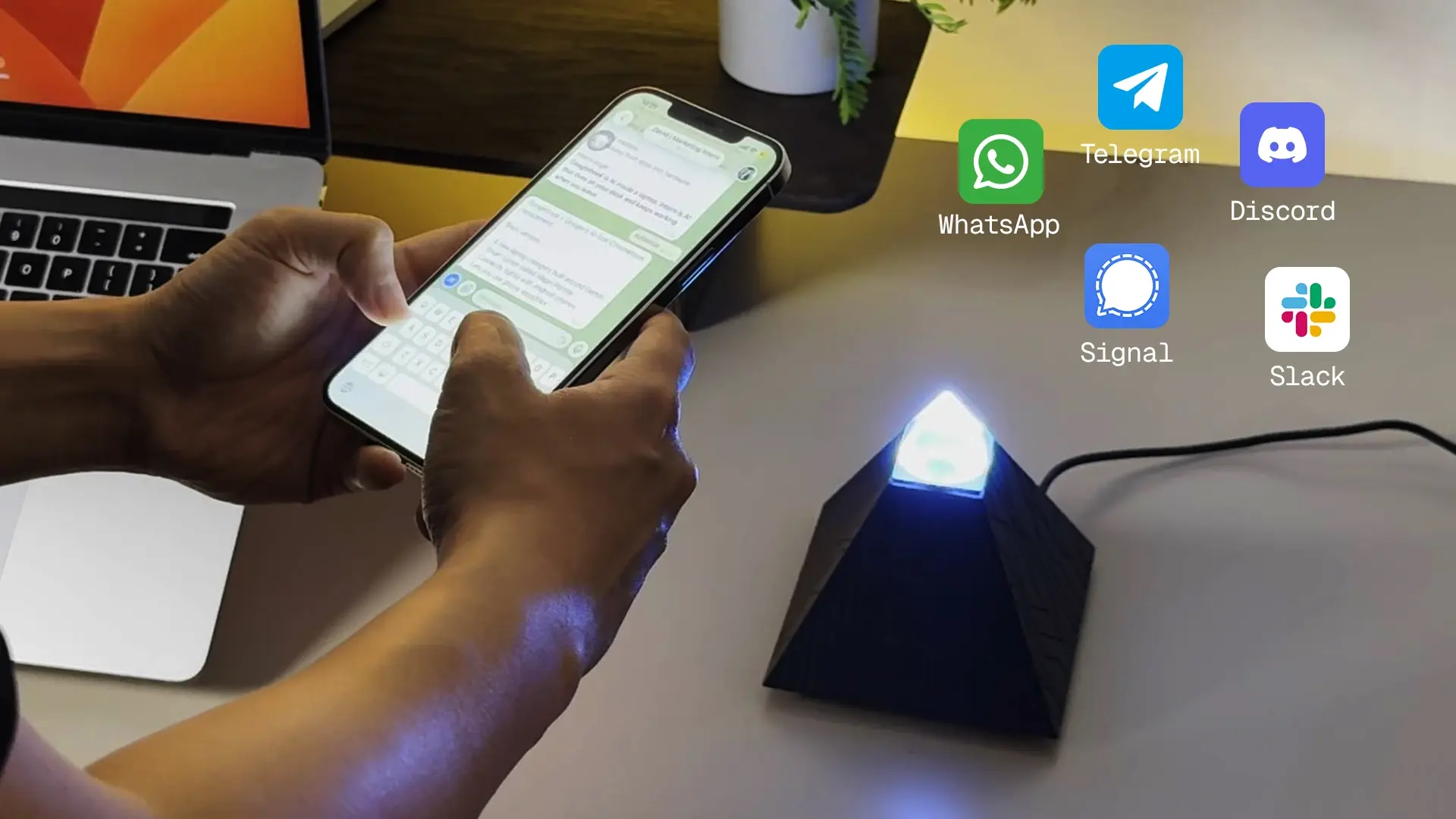
The honest limit is that it is a small device: it runs the agent locally but leans on a cloud model for the heavy reasoning through your own keys, so it does not serve large local models and model usage still costs tokens.
It is the low-cost way to have an agent running around the clock, not a way to run a 70B model privately.
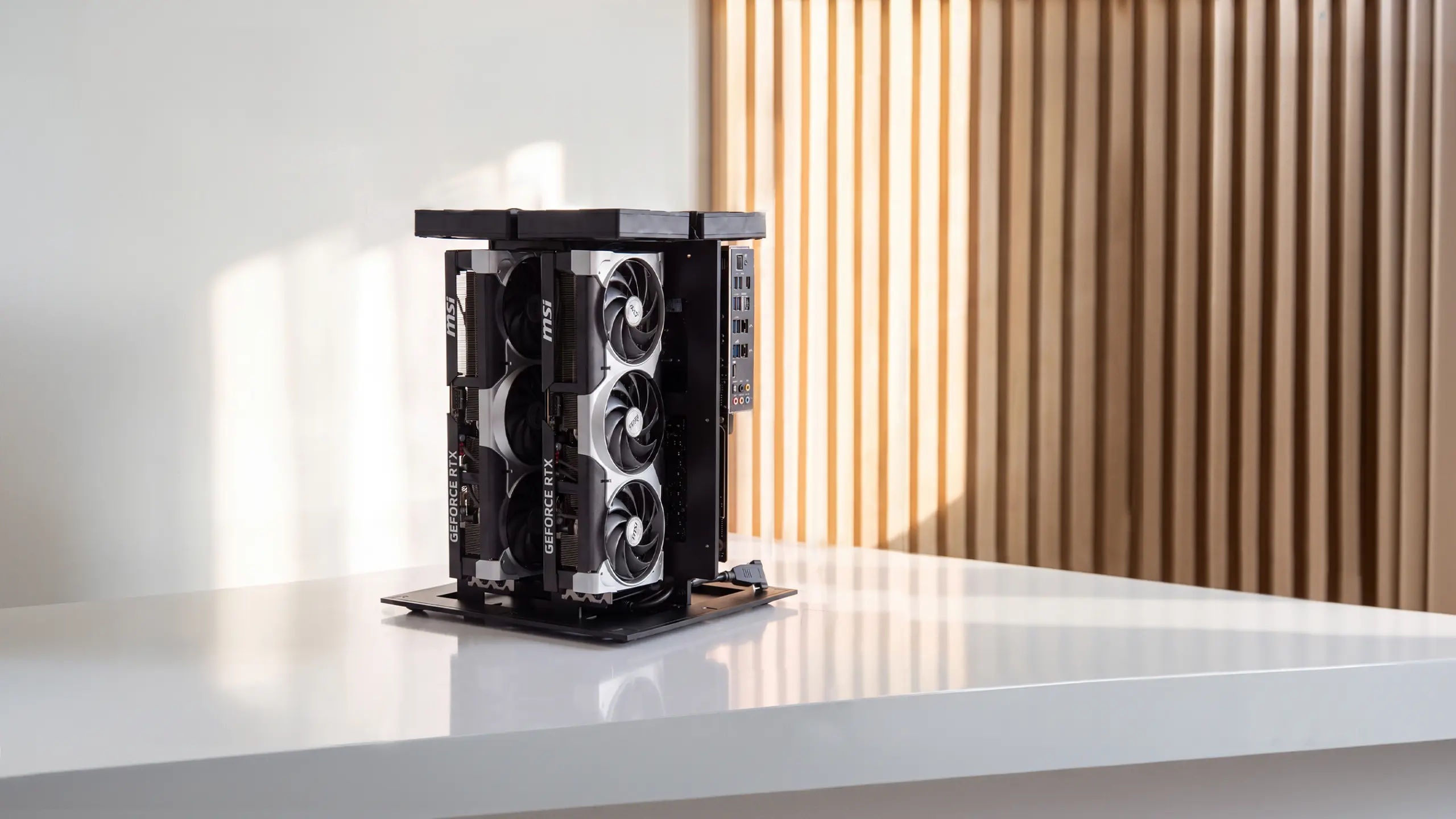
For running large models entirely on your own hardware, you need real VRAM.
Running a 70B-class model at full quality, or serving a team at once, needs the combined VRAM of several GPUs, plus the power and cooling to run them continuously.
The Autonomous Computer is built for exactly this: several GPUs installed and burn-tested, drivers loaded, so a large model runs the moment it arrives, and nothing leaves the building, not the agent and not the model. The full build files are open too, so you can build the same thing yourself if you prefer. For most people that day is a while off, and the local AI software on the laptop you already own is the right place to start.
Local AI vs cloud AI
Local AI and cloud AI solve the same task from opposite directions, and the right choice depends on privacy, cost, and how large a model you need. The difference between GPUs and CPUs for AI shapes both, since GPUs do the heavy lifting either way.
Local AI | Cloud AI | |
Privacy | Data stays on your machine | Prompts sent to a provider |
Cost | Hardware once, then electricity | Per-token or per-hour, ongoing |
Model size | Limited by your VRAM | Access to the largest models |
Offline | Works with no internet | Needs a connection |
Setup | Install an app, download a model | Sign up for an account |
For private, everyday use on models you own, local wins. For occasional access to the very largest models, cloud still makes sense. Many people use both: local for daily work and private data, cloud for the rare job that needs a frontier model.
Frequently asked questions
Can I run AI locally on a normal laptop?
Yes, a normal laptop from the last few years runs local AI well. With 8 to 16GB of RAM you can run a 3B to 8B model for chat, writing, and light coding, with no GPU required. Responses are slower on CPU alone, but it works offline and keeps everything private.
What is the easiest way to run AI locally?
The easiest way to run AI locally is a desktop app like Ollama, Jan, or LM Studio. You download the app, pick a model it recommends for your hardware, and start chatting. The app handles the model download, the inference engine, and updates, so no coding is needed.
Is running AI locally free?
Running AI locally is free to run once you have the hardware. The tools are open source, open models are free to download, and there is no per-message fee. The only ongoing cost is electricity. Your existing computer often runs small models with no new hardware at all.
How much RAM do I need to run AI locally?
To run AI locally, reserve roughly twice the model's file size in free memory. A 4GB quantized model needs about 8GB of RAM to run smoothly, so 16GB comfortably runs an 8B model. Larger models need a GPU with matching VRAM rather than system RAM.
How do I run larger AI models locally?
To run larger models locally, you need more VRAM, which means a GPU or several. A 24 to 32GB workstation GPU runs a 27B to 32B model well, and 70B-class models need 64GB or more across multiple GPUs. At that point a purpose-built multi-GPU machine is the practical answer.
Which local AI model should I start with?
Start with a well-known 7B or 8B model in Q4 quantization, which most local AI apps recommend by default. These balance quality, speed, and memory use, and run on most laptops. Once you know your hardware handles it, move up in size or precision from there.
The bottom line
Running AI locally is more approachable than it looks: install a local AI tool, pick a model that fits your memory, and you have a private, offline assistant with no usage bill. Start on the machine you already own with a 7B or 8B model, and let your workload tell you when you need more. When it does, the limit is almost always VRAM, and the answer is hardware built to hold larger models, whether you build it yourself or run it on a dedicated machine like the Autonomous Computer.
References
- Ollama, local model documentation, ollama.com
- Hugging Face, open model hub, huggingface.co
- Autonomous open hardware build repository, github.com/autonomous-ai/autonomous-computer