PS5 Keyboard and Mouse Guide: Setup, Games & Converters
Table of Contents
- Can You Use a Keyboard and Mouse on PS5?
- Which PS5 Games Support Keyboard and Mouse?
- How to Connect a Keyboard and Mouse to Your PS5
- Does Using a Keyboard and Mouse on PS5 Affect Aim Assist?
- Using a PS5 Keyboard and Mouse in Games That Don't Have Native Support
- Best Keyboard and Mouse for PS5 — Picks for Every Budget
- Setting Up Your Space for PS5 Keyboard and Mouse Gaming
- FAQs
- Conclusion
Using a keyboard and mouse on PS5 is possible — but it comes with conditions worth knowing before you buy anything. PS5 supports both input types natively, though most games aren't designed for them, and some require a separate adapter to work at all.
This guide covers which games support keyboard and mouse directly, how to connect your devices, how adapters fit into the picture, and which hardware combinations are worth the money across different budgets.
Can You Use a Keyboard and Mouse on PS5?
Yes. PS5 supports both USB and Bluetooth keyboards and mice out of the box, with no additional software required. However, what they can do depends entirely on the context you're using them in.
For general console tasks — navigating menus, typing passwords, using the browser — any standard keyboard and mouse compatible with PS5 will work immediately after plugging in. The console detects most devices automatically.
For actual gameplay, the situation is different. A game must explicitly support keyboard and mouse input for those devices to function in-game. Most PS5 titles are built around controller input, and if a game doesn't support KB+M, the devices will be recognized by the console but ignored during play.
If a game doesn't have native support, you have two options:
- Use a converter or adapter — a device that translates keyboard and mouse signals into controller input, making the PS5 treat your peripherals as a DualSense. This opens up more games but comes with trade-offs covered in the converter section below.
- Stick with the controller — the practical default for any title not on the native support list.
One distinction worth making early: connecting a keyboard for typing and using a keyboard to play are not the same thing. The first works broadly. The second depends entirely on the game.
Which PS5 Games Support Keyboard and Mouse?
As of 2026, fewer than 30 PS5 titles offer native keyboard and mouse support — most of them concentrated in FPS, MMO, strategy, and sandbox genres where mouse precision or complex UI navigation makes a meaningful difference.
Native support means the game handles KB+M input directly. No extra hardware, no workarounds — just plug in and play. The table below reflects confirmed support as of April 2026. Patch updates can change this, so it's worth checking a game's settings menu or patch notes if you're unsure.
Game | Genre | Support Type | Notes |
Fortnite | Battle Royale | Native | Full support — no converter needed |
Call of Duty: Warzone / MW2 / MW3 | FPS | Native | Adjust input method in in-game settings |
Final Fantasy XIV | MMO | Native | Recommended — UI is dense for controller use |
Minecraft | Sandbox | Native | Full support |
The Sims 4 | Simulation | Native | Significantly easier than controller |
Quake / Quake II | FPS | Native | — |
Death Stranding | Action | Native | — |
Diablo IV | ARPG | Native | Added Season 9, July 2025 |
Aimlabs | Aim Trainer | Native | Added February 2026 update |
Sea of Thieves | Adventure | Native | — |
Company of Heroes 3 | RTS | Native | KB+M strongly recommended over controller |
Planet Coaster | Simulation | Native | — |
Off the Grid | Battle Royale | Native | — |
Apex Legends | Battle Royale | Native | Full support; aim assist disabled with native KB+M |
Destiny 2 | FPS | Converter required | Native support, not available |
THE FINALS | FPS | Converter required | Native support, not available |
Valorant | Tactical FPS | Converter required | Vanguard anti-cheat active — high ban risk with adapters |
Rainbow Six Siege | Tactical FPS | Verify | Native support status changes with patches |
Marvel Rivals | Hero Shooter | Verify | Confirm in-game before purchasing peripherals |
- Which Genres Actually Benefit from KB+M on PS5?
Not every game on the native support list will feel meaningfully different with a keyboard and mouse — it depends largely on genre.
FPS and tactical shooters are where mouse input has the clearest impact. Mouse aiming is faster and more precise than thumbstick aiming in most scenarios, particularly at longer ranges. If you've played shooters on PC before, the transition back to a mouse on PS5 will feel immediately familiar.
MMOs and strategy games are a different case — it's less about speed and more about usability. Titles like Final Fantasy XIV or Company of Heroes 3 have dense interfaces built around pointing, clicking, and hotkeys. Playing them with a controller is functional but noticeably more awkward. A good gaming keyboard for PS5 makes navigation in these games substantially more comfortable.
Simulation and sandbox games like The Sims 4, Minecraft, and Planet Coaster fall into a similar category. The mouse handles spatial selection and object placement in ways a thumbstick simply wasn't designed for.
Story-driven games, racing titles, and fighting games are the exceptions. These genres are built around controller input, and KB+M rarely improves the experience — in some cases it makes it worse. For those, the DualSense remains the right tool.
How to Connect a Keyboard and Mouse to Your PS5
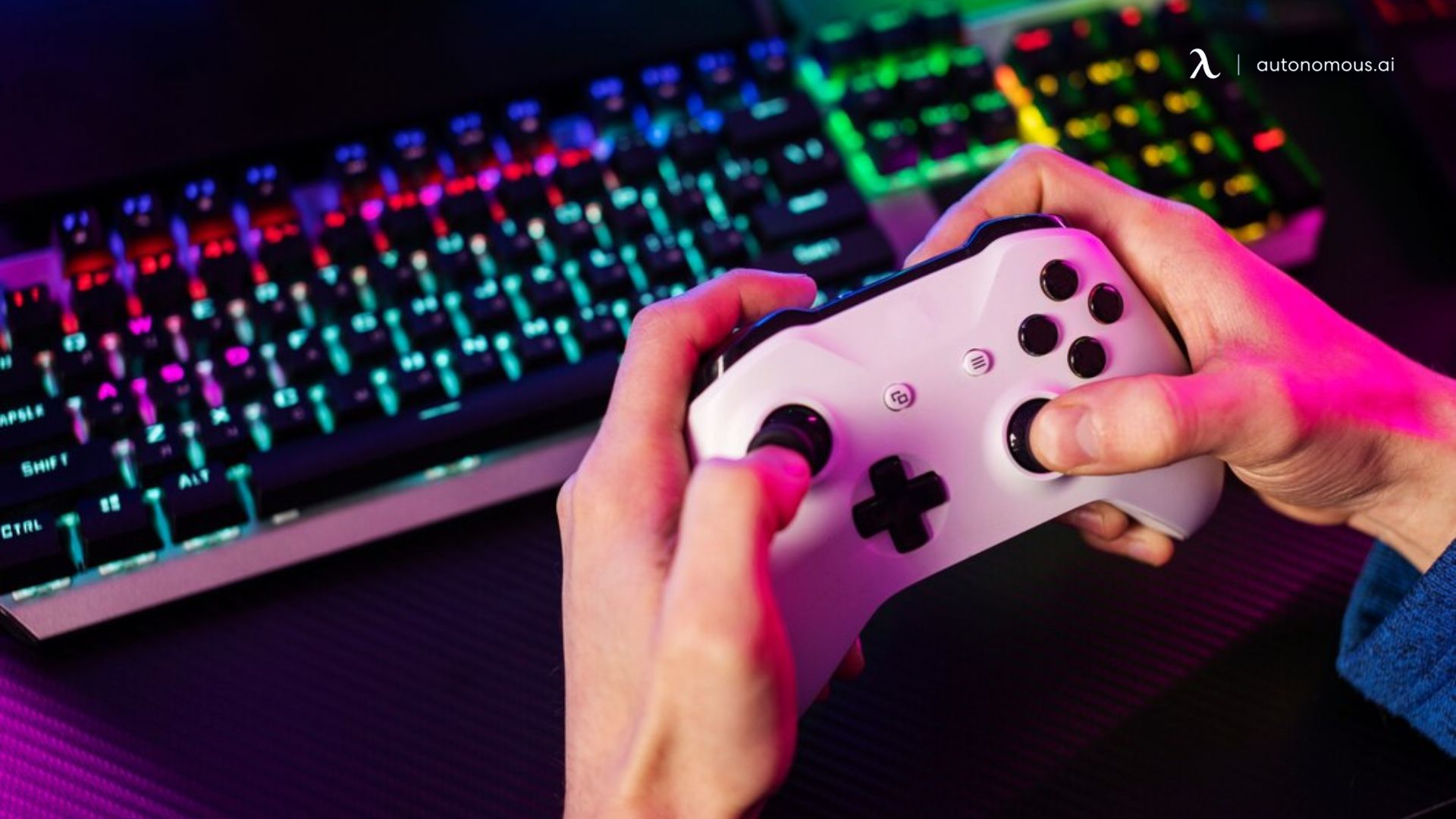
Most standard USB keyboards and mice work on PS5 immediately after plugging in — no drivers, no software, no pairing codes. The console handles detection automatically and confirms it with a brief on-screen notification.
There are two connection methods: wired and wireless. Which one makes more sense depends on how and where you're gaming.
1. Wired Connection (USB)
Plug your keyboard and mouse into any available USB port on the PS5 — front or back. The console recognizes them within a few seconds. No further steps are needed for basic use.
Once connected, go to Settings > Accessories > Other Accessories to adjust:
- Pointer speed — how fast the mouse cursor moves
- Mouse handedness — left or right-handed button configuration
- Key repeat delay — how long before a held key starts repeating
- Key repeat rate — how fast it repeats once it starts
- Keyboard language — input language and method
These settings apply to menu navigation and browser use. In-game sensitivity is controlled separately within each game's own settings menu.
2. Wireless Connection (Bluetooth or 2.4GHz Dongle)
For Bluetooth:
- Put your keyboard or mouse into Bluetooth pairing mode. The method varies by device — check the manual if you're not sure.
- On the PS5, go to Settings > Accessories > General > Bluetooth Accessories.
- The console scans for nearby devices. Select yours from the list when it appears.
- Some keyboards will trigger a passkey prompt — the PS5 displays a code on screen, and you type it on the keyboard and press Enter to confirm. Not all devices require this step, but it's normal if it appears.
- Once paired, the device reconnects automatically the next time both the console and peripheral are powered on.
For 2.4GHz dongles:
Plug the dongle into a USB port. Most 2.4GHz keyboards and mice are pre-paired to their dongle from the factory and connect without any additional steps. Some devices require a pairing button press — check your device's manual if it doesn't connect immediately.
3. What If Your Device Isn't Detected?
A few things to check before assuming a hardware fault:
- Some devices require proprietary software to function. If a keyboard needs a driver to work on PC, it likely won't work on PS5 either.
- Bluetooth devices that don't appear during scanning may not be compatible with PS5. Try a different device before concluding there's a console issue.
- If a USB device isn't detected, try a different port.
- If compatibility is unclear before purchasing, check online listings or product reviews specifically mentioning PS5 support — some peripherals work wired but not wirelessly, so it's worth testing both options.
Does Using a Keyboard and Mouse on PS5 Affect Aim Assist?
Yes — and it's one of the more important things to understand before committing to a PS5 keyboard and mouse setup for competitive games.
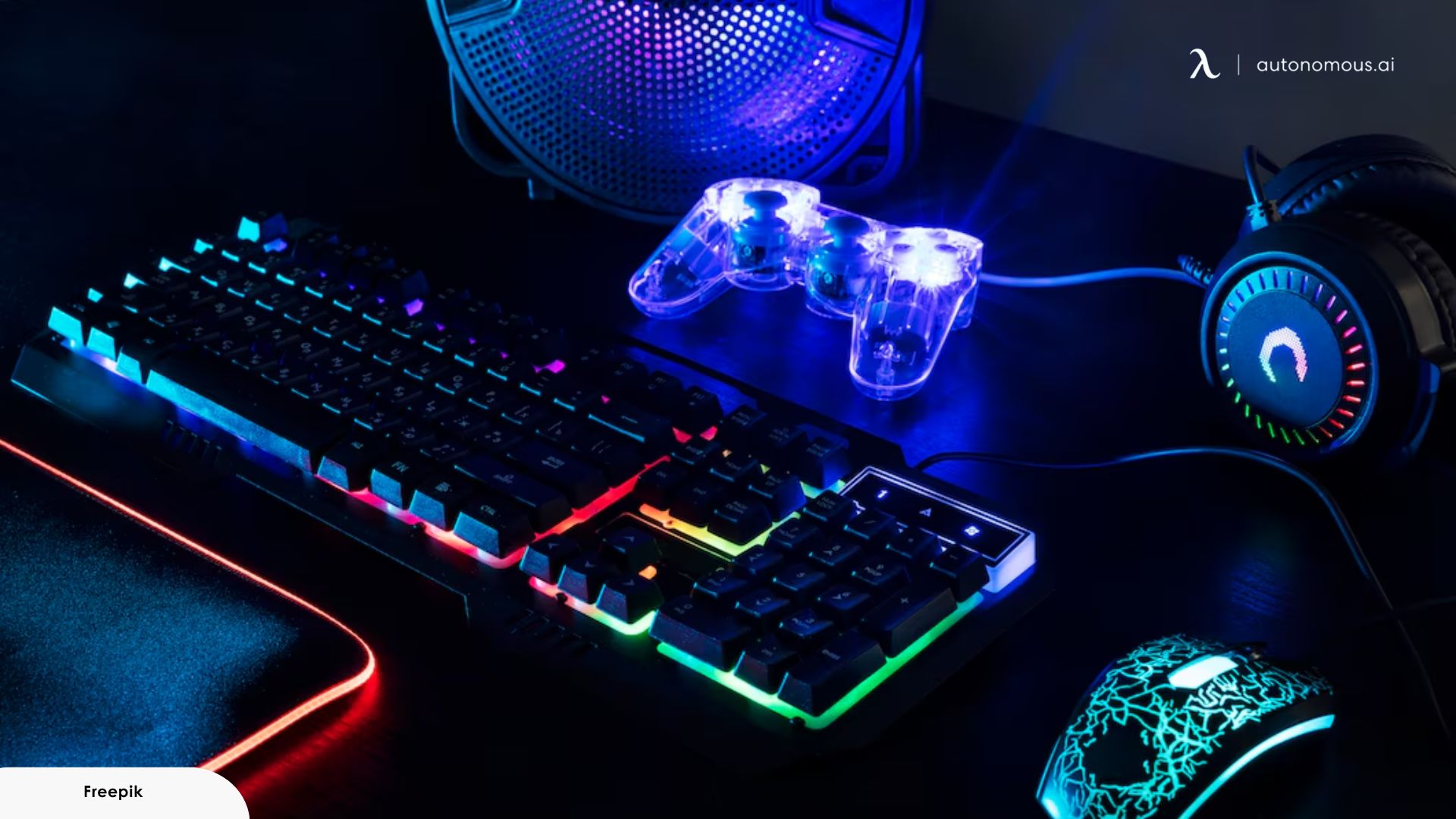
Aim assist is disabled for keyboard and mouse users by default. It's a standard implementation across most shooters, where controller users receive a slider or toggle to adjust assistance level while KB+M users receive none. The reasoning is simple: a mouse is already more precise than a thumbstick, so adding aim assist on top of that would make the gap between input types even wider.
Native KB+M | Converter KB+M | |
Aim assist | Disabled | Active (console sees a controller) |
Game compatibility | Natively supported titles only | Most games |
Anti-cheat risk | None | Moderate to high depending on game |
Matchmaking pool | Often placed with PC players | Remains in console pool |
Input lag | Minimal | Slight increase depending on device |
Using a PS5 Keyboard and Mouse in Games That Don't Have Native Support
A converter — also called an adapter or emulator — is a small hardware device that sits between your keyboard and mouse and the PS5, translating those inputs into signals the console reads as DualSense controller input.
This matters because it bypasses the game-level restriction. A title that ignores native KB+M input has no way of blocking converter use at the hardware level — the game simply sees controller input arriving as usual.
1. How Converters Actually Work
Most converters connect via USB and require a licensed controller to also be plugged in — this is what authenticates the connection with the PS5. The keyboard and mouse plug into the converter itself. Setup time varies by device, but most modern converters include game profiles that pre-configure sensitivity curves and key mappings for popular titles, so you're not starting from scratch.
The experience isn't identical to native KB+M. There's a translation layer between your mouse movement and what appears on screen, which is why sensitivity calibration matters more with converters than with native input.
2. Converter Comparison
These are the four most widely used converters for PS5 as of 2026:
Converter | Price Range | Input Lag | Best For | Ban Risk |
LeadJoy VX2 AimBox | ~$40–$50 | Low | Budget, plug-and-play, casual use | Moderate |
Beloader Pro | ~$60–$80 | Very low | Competitive FPS, low-latency priority | Moderate |
ReaSnow S1 | ~$50–$70 | Low | Custom macros, modding community | Moderate |
XIM Matrix | ~$100–$130 | Very low | Advanced input mapping, FPS-focused | High |
For most people starting out, the LeadJoy VX2 AimBox covers the basics without a steep learning curve or price. The XIM Matrix gives more control over sensitivity curves and profiles, but its detection history in anti-cheat-heavy games makes it a higher-risk choice for anyone playing ranked modes.
3. Ban Risk by Game — What's Actually Known
The risk of being banned for converter use depends on the game, not the PS5 system itself. Sony does not block converters at the console level. Enforcement is handled individually by game developers and their anti-cheat systems.
Here's the current picture across the most relevant titles:
- Call of Duty (Warzone / MW3):
Ricochet Anti-Cheat has actively detected and banned XIM and Cronus Zen users, particularly in competitive and ranked playlists. High-profile streamers have faced bans, and PS5 firmware updates have reduced converter functionality in some CoD titles.
- Fortnite:
Detection measures exist but enforcement has been inconsistent. The risk is present, especially in competitive modes, but bans are less frequently reported than in CoD.
- Valorant:
Vanguard anti-cheat is active on PS5. Converter use in Valorant carries the highest ban risk of any title on this list. Using an adapter in ranked play is not advisable.
- Apex Legends:
Has native KB+M support, so a converter is unnecessary. Using one anyway adds aim assist on top of mouse input — which is both a competitive integrity issue and a potential flag for anti-cheat systems.
- Destiny 2, THE FINALS, Marvel Rivals:
Native support is absent or limited, making converters the only KB+M path. Ban risk exists but is less documented than CoD or Valorant. Check each game's Terms of Service before using one in online multiplayer.
Best Keyboard and Mouse for PS5 — Picks for Every Budget
The best keyboard and mouse for PS5 depends on two things: whether you're playing natively supported games or using a converter, and how much you want to spend. The seven combos below cover the full range — from basic plug-and-play setups under $40 to converter-paired performance rigs for competitive play.
If you're newer to PC peripherals, different keyboard sizes and different types of mice cover the layout and form factor basics before you commit to a specific combo.
Here's the full lineup at a glance before diving into each one:
Combo | Price | Connection | Best For | PS5 Compatibility |
RedThunder K10 | ~$40 | 2.4GHz wireless | Budget starter | Native + converter |
CHONCHOW TKL | ~$45 | 2.4GHz wireless | Couch / compact | Native + converter |
CHONCHOW Light Up | ~$30 | Wired USB | Entry-level / first setup | Native + converter |
Razer DeathStalker V2 + Viper Mini | ~$80–$100 | 2.4GHz wireless | Mid-budget, low-profile | Native + converter |
SteelSeries Apex 3 + Logitech G502 HERO | ~$120 | Wired USB | Competitive FPS | Converter recommended |
Keychron K2 HE + Razer DeathAdder V3 | ~$200 | Wireless + wired | Performance + typing | Converter required |
Wooting 60HE+ + Logitech G Pro X Superlight 2 | ~$300+ | Wired USB | Competitive / elite | Converter required |
1. RedThunder K10 — Best Budget PS5 Keyboard and Mouse Combo
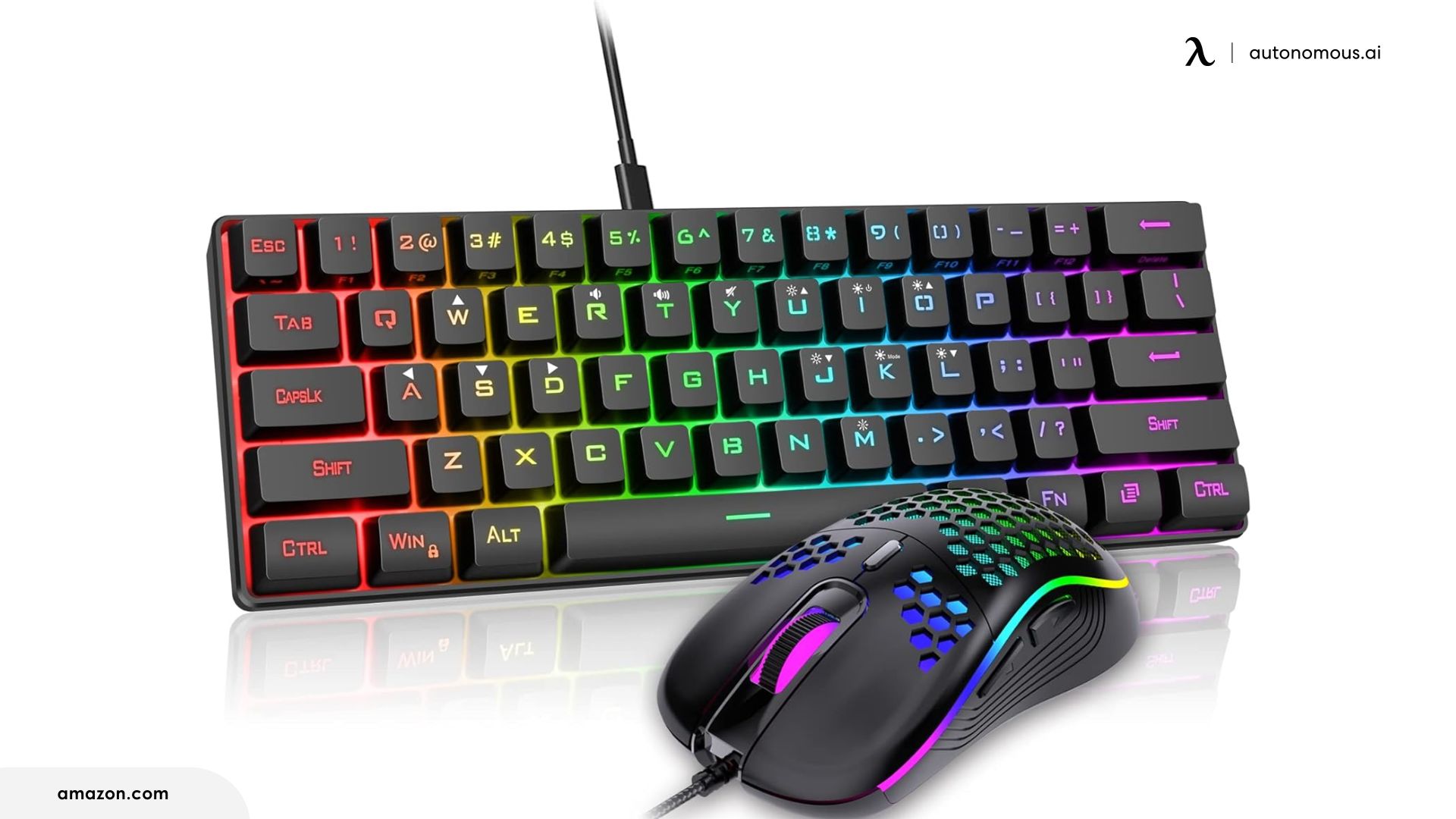
The RedThunder K10 is a fully wireless keyboard and mouse combo that connects via a single 2.4GHz USB dongle — plug it in, and both devices work immediately on PS5 with no pairing steps.
The keyboard uses a 60% compact layout, which cuts the numpad and some function rows to save desk space. For PS5 gaming, that reduction rarely matters — the keys you actually use in supported games are all present. The mouse has a honeycomb shell design that keeps it light without feeling cheap, with a 7200 DPI optical sensor and adjustable sensitivity.
Battery life is solid for this price tier: the keyboard runs roughly 8 hours with RGB on and considerably longer with it off.
This combo works for native-supported games straight out of the box. If you're also using a converter, it pairs cleanly with the LeadJoy VX2 AimBox without any compatibility issues.
Pros | Cons |
2.4GHz dongle — no pairing required | Membrane switches only |
Compact layout suits PS5 gaming | 60% layout removes some keys |
Lightweight honeycomb mouse | Mouse DPI limited to presets |
PS5 compatibility | Native + converter |
2. CHONCHOW TKL — Best Wireless PS5 Keyboard and Mouse for Couch Gaming
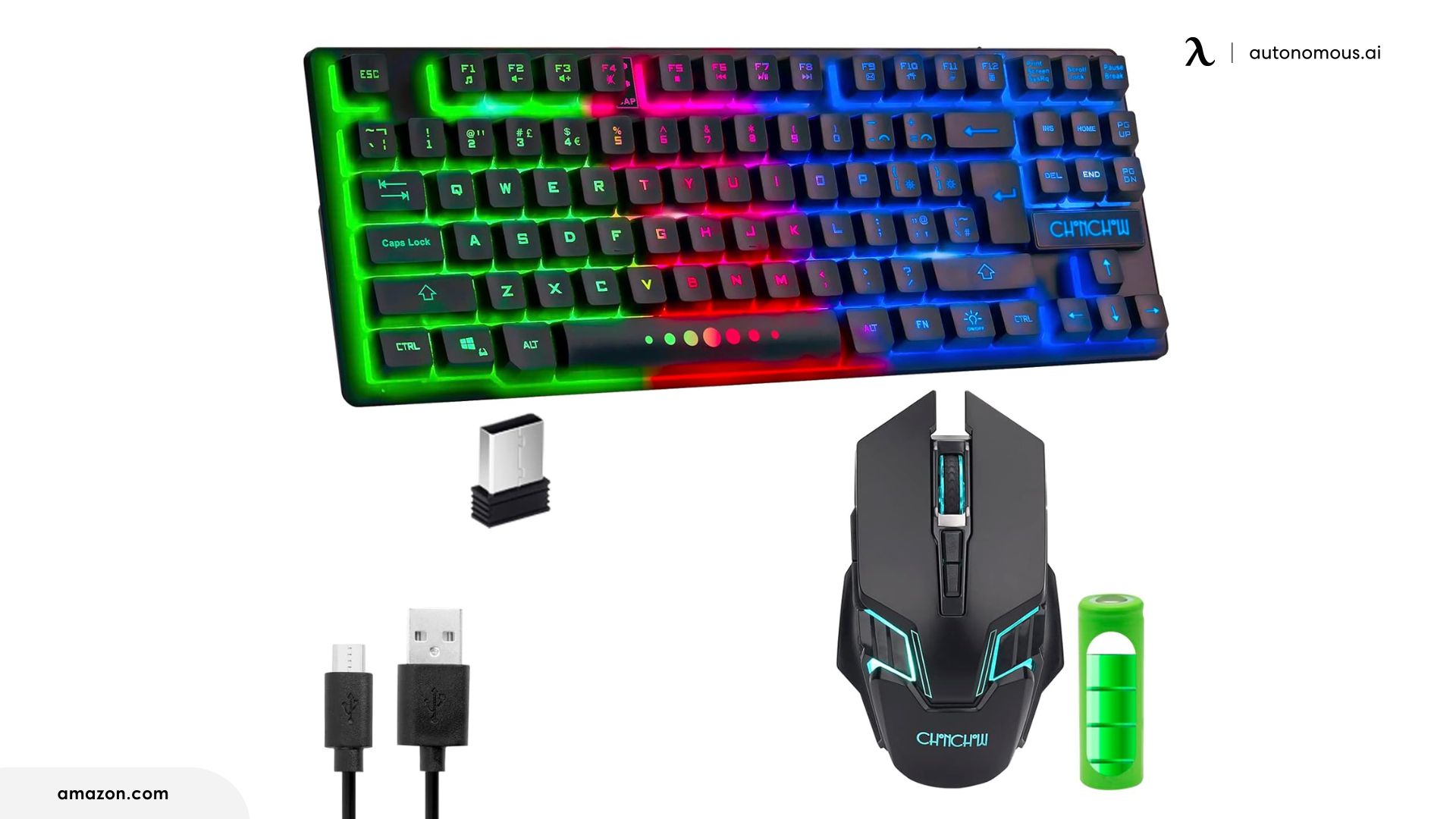
The CHONCHOW TKL is an 87-key tenkeyless wireless combo — no numpad, but with the full function row and arrow cluster intact — built around battery life and a compact footprint that work well when gaming from a couch or using it on a lap desk.
Keeping the function row and arrow cluster is a practical advantage over the 60% layout above. If you're also using the keyboard for chat or menu navigation between gaming sessions, that extra key real estate makes a noticeable difference in day-to-day comfort.
Battery life is one of this combo's clearer strengths — both the keyboard and mouse are rated for several weeks on a single charge with RGB off, which is more practical than daily charging on a budget device. The 2.4GHz dongle connection keeps input consistent, and the mouse covers a DPI range sufficient for native PS5 supported games.
If your PS5 is connected to a living room TV and you're gaming from a distance, the CHONCHOW TKL is a more comfortable setup than the 60% RedThunder — slightly larger keys, better battery margin, and a layout that feels closer to a standard keyboard.
Pros | Cons |
Strong battery life on both devices | Mouse DPI ceiling lower than mid-tier picks |
TKL layout keeps function and arrow keys | Not suited for competitive play |
2.4GHz dongle — stable wireless | Basic mouse shape |
PS5 compatibility | Native + converter |
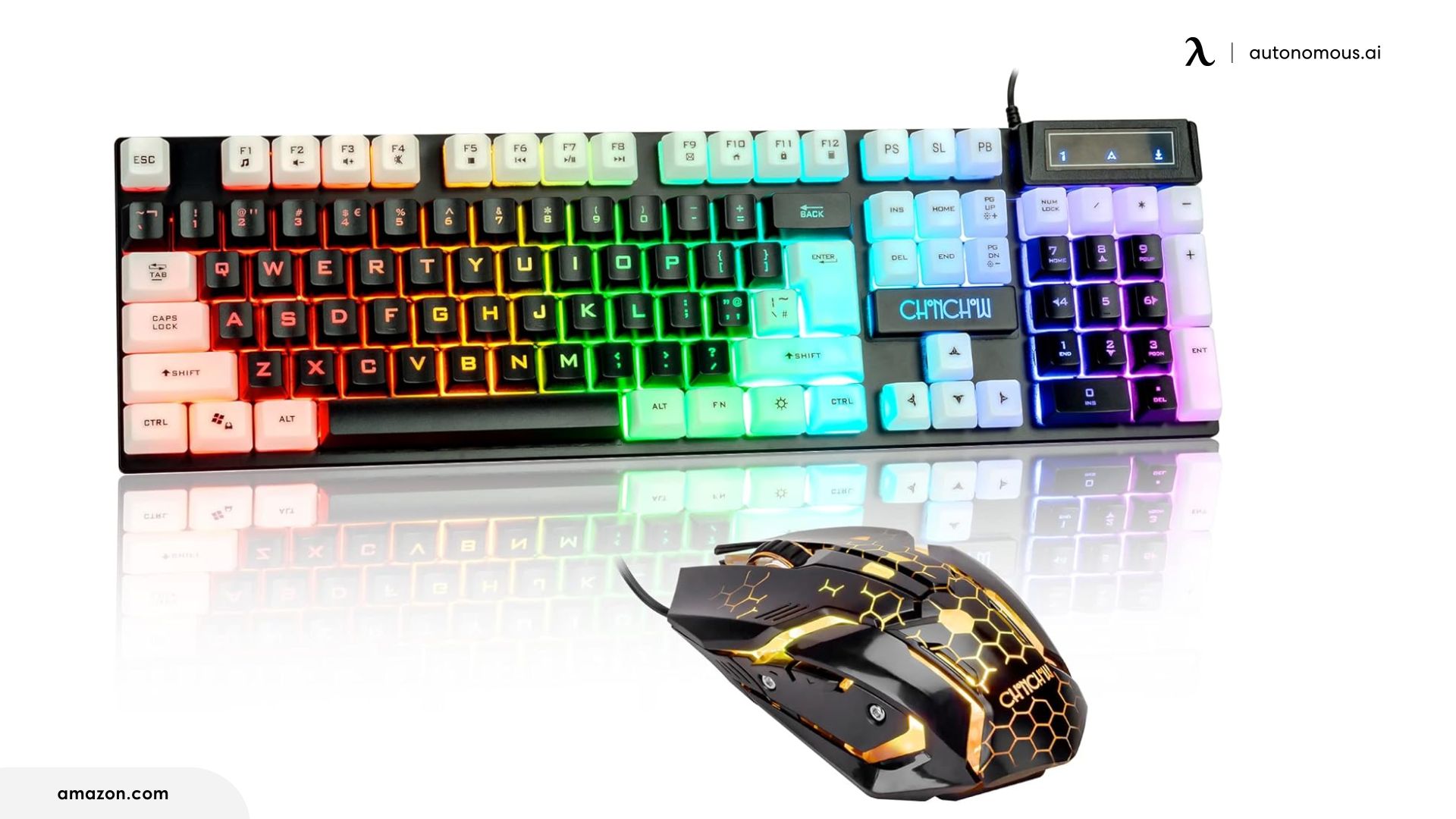
3. CHONCHOW Light Up — Best Wired PS5 Keyboard and Mouse Under $35
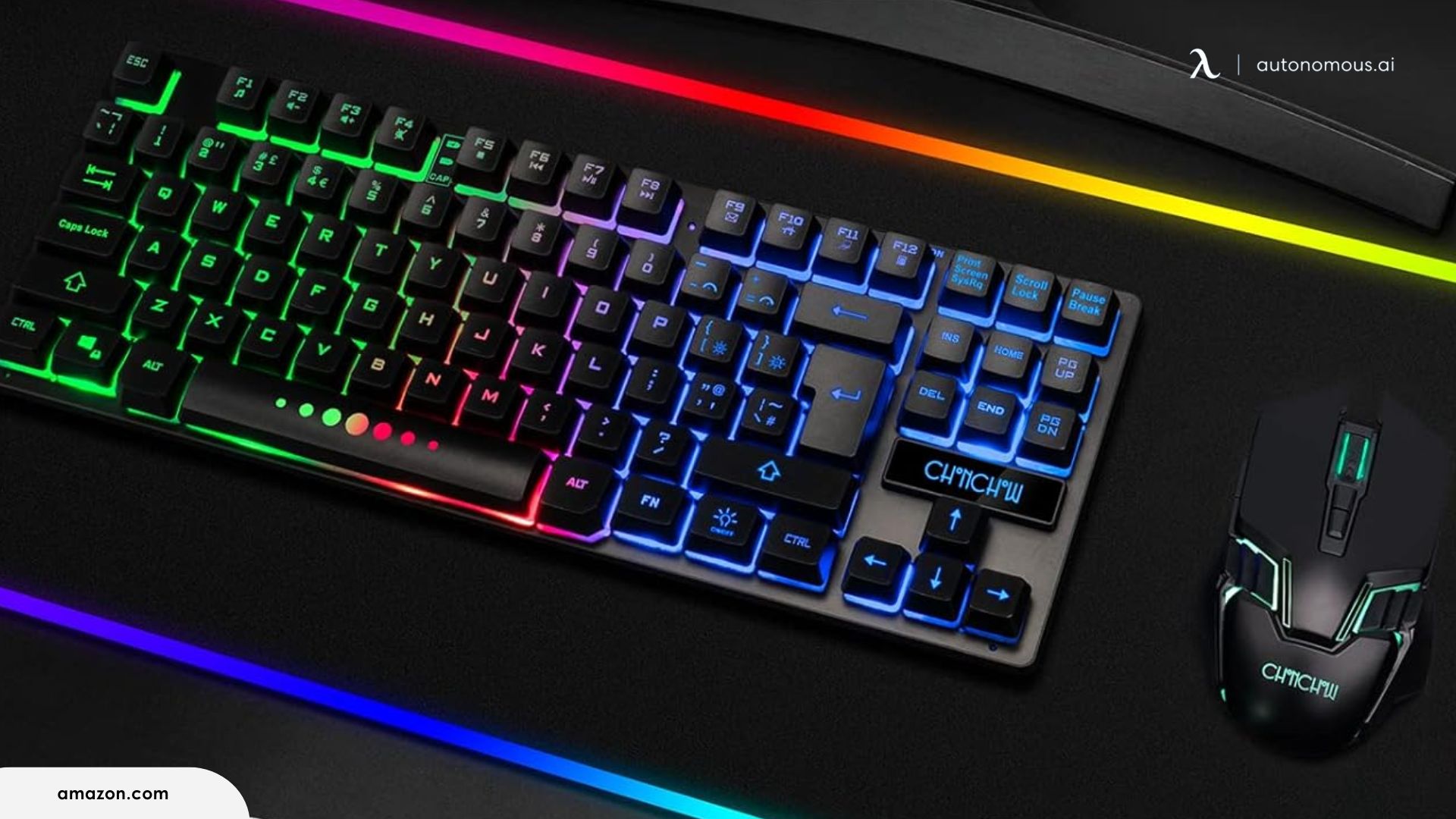
The CHONCHOW Light Up is a full-size wired USB combo that requires no setup beyond plugging in — no pairing, no software, no drivers. PS5 detects both devices automatically.
The full-size layout includes a numpad, which makes it more comfortable for typing longer messages or navigating the PS5 browser. RGB lighting is adjustable across multiple modes, and the WASD keycaps are interchangeable if you want visual differentiation for gaming keys. The mouse offers four DPI presets up to 3600 and six buttons, including two side buttons.
The trade-off at this price point is that both devices are membrane-only. For casual use and native-supported games, that distinction won't matter much. For anyone moving into competitive FPS play or planning to use a converter, this combo isn't the right fit — but it was never designed for that.
For a first PS5 keyboard and mouse setup, or a secondary setup for a younger gamer, this covers the basics.
Pros | Cons |
Plug-and-play, no drivers needed | Wired only |
Full-size layout with numpad | Membrane only — no mechanical option |
Bold RGB with adjustable modes | Not suitable for competitive gaming |
PS5 compatibility | Native + converter |
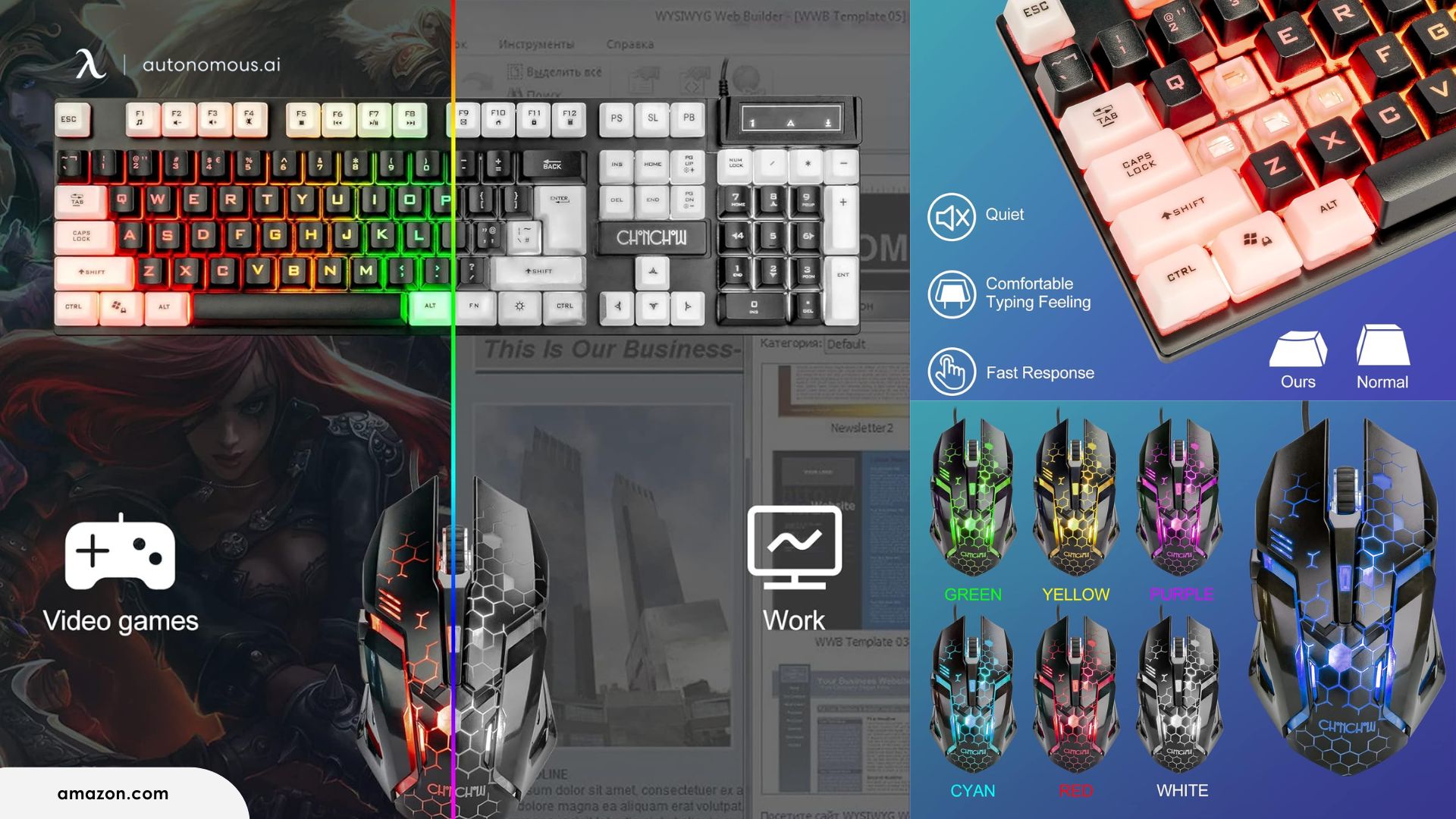
If you’re building a starter PS5 setup and want a bright, desk-filling combo that’s plug-and-play, this CHONCHOW set gets the job done with style. It’s also a fun option for younger gamers or colorful setups.
4. Razer DeathStalker V2 + Viper Mini — Best Mid-Budget Wireless PS5 Keyboard and Mouse
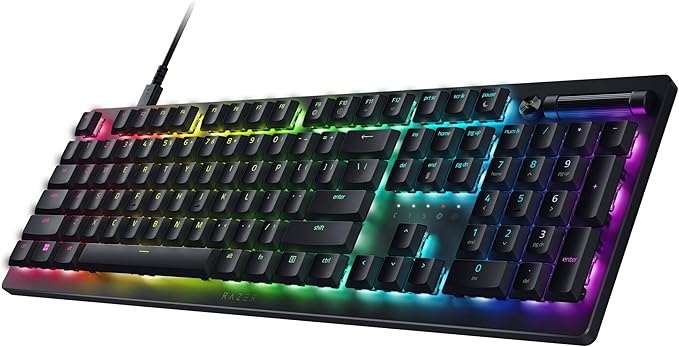
The Razer DeathStalker V2 (standard version) is a low-profile wireless keyboard that uses optical switches rather than standard membrane or mechanical — a less common design at this price range that delivers a faster, cleaner keypress without the travel depth of a full-height key.
Low-profile means the keys sit closer to the board surface, which some players find more comfortable for extended sessions and others find takes adjustment. The keyboard connects via a 2.4GHz USB dongle, which keeps the PS5 connection stable. The TKL layout retains the function row without a numpad, keeping desk space reasonable.
The Viper Mini is one of the lighter mice at this price, coming in at 61g with a reliable 8500 DPI optical sensor. For fast-paced shooters on PS5 — whether natively supported or via converter — the low weight means less hand fatigue over longer sessions without sacrificing tracking accuracy.
Together, both devices work plug-and-play on PS5 and connect via 2.4GHz for consistent latency. For a mid-budget wireless gaming keyboard and mouse for PS5, this pairing delivers performance that clearly separates it from the under-$50 tier.

Pros | Cons |
Low-profile optical switches — faster actuation | Adjustment period for low-profile layout |
Viper Mini is 61g — lightweight for gaming | Viper Mini is smaller — not ideal for large hands |
Both connect via 2.4GHz for stable PS5 use | Razer software features don't carry over to PS5 |
PS5 compatibility | Native + converter |
5. SteelSeries Apex 3 + Logitech G502 HERO — Best PS5 Keyboard and Mouse for Competitive FPS
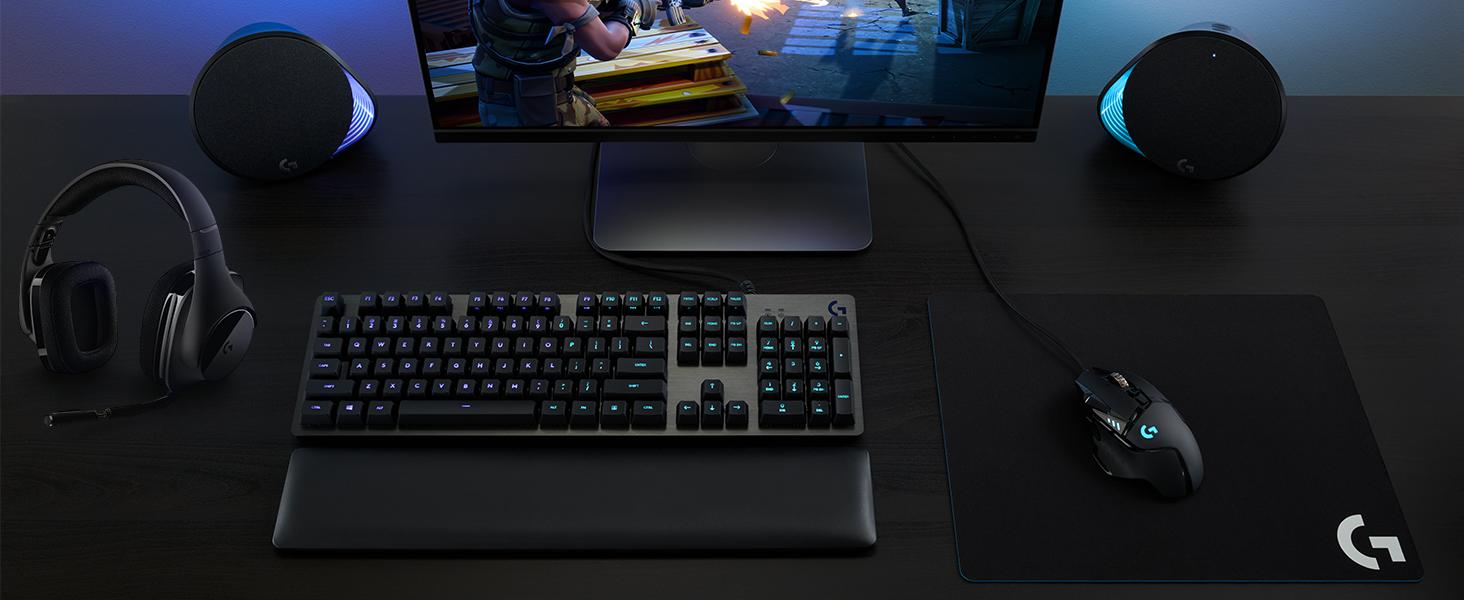
The SteelSeries Apex 3 is a full-size wired gaming keyboard with whisper-quiet membrane switches, ten-zone RGB lighting, and an IP32 water resistance rating. The G502 HERO is a wired gaming mouse with a 25,600 DPI HERO sensor, 11 programmable buttons, and a weight adjustment system that lets you add or remove five 3.6g weights to dial in feel.
For PS5 keyboard and mouse use in competitive FPS titles — particularly when paired with a converter — this combination delivers a tangible performance step up from the budget tier. The G502 HERO's sensor is precise enough that sensitivity calibration in converter software becomes genuinely meaningful, and the Apex 3's anti-ghosting means simultaneous keystrokes register reliably during fast movement sequences.
Neither device requires software to function on PS5. Both are wired, which is the preferred connection type when using a converter, since the converter itself handles the wireless-to-USB signal translation — adding another wireless hop between your peripherals and the console is unnecessary friction.

Pros | Cons |
G502 HERO has class-leading sensor precision | Apex 3 uses membrane switches, not mechanical |
Adjustable weight system on G502 | G502 is heavier than ultra-light alternatives |
Both wired — ideal for converter setups | Full-size keyboard takes more desk space |
PS5 compatibility | Converter recommended for most titles |
6. Keychron K2 Pro + Razer DeathAdder V3 — Best Performance PS5 Keyboard and Mouse (Wireless Option)
The Keychron K2 HE is a 75% layout wireless keyboard that uses Hall Effect magnetic switches — a technology that replaces physical contact points with magnetic sensors, allowing each key's actuation point to be adjusted from 0.2mm to 3.8mm in 0.1mm increments. In practice, this means you can set shallow actuation for faster key registration in shooters, or deeper actuation for more deliberate keystrokes during typing.
It connects via 2.4GHz wireless, Bluetooth 5.2, or wired USB-C, with a 1000Hz polling rate in wireless gaming mode. The 75% layout keeps the function row and arrow cluster while dropping the numpad — a practical balance for players who also use the keyboard for work or communication outside of gaming.
The DeathAdder V3 is a lightweight ergonomic mouse with a 30,000 DPI optical sensor. Its shape is built for right-handed palm and claw grip, which makes it comfortable across longer sessions without becoming tiring. Wired via USB-A, it requires no software to function on PS5 through a converter.


Pros | Cons |
Adjustable Hall Effect switches — rare at this price | Requires a converter for most PS5 titles |
K2 HE supports 2.4GHz, BT, and USB-C | Full customization features don't apply on PS5 |
DeathAdder V3 suits extended sessions | Higher price point than mid-range tier |
PS5 compatibility | Converter required |
7. Wooting 60HE+ + Logitech G Pro X Superlight 2 — Best High-End PS5 Keyboard and Mouse for Competitive Play
The Wooting 60HE+ is a 60% wired keyboard built around Lekker Hall Effect switches with rapid trigger functionality — a feature that registers a keypress on the way down and resets it on the way back up based on actual travel distance rather than a fixed point. For fast-paced shooters, this reduces the time between releasing a movement key and re-pressing it, which has a measurable impact at higher skill levels. It's one of the most consistently recommended keyboards in competitive PC and console gaming communities, specifically for this feature.
Actuation is adjustable from 0.1mm to 4.0mm per key, and the 1000Hz polling rate keeps input consistent. The 60% layout is compact by design — this is a keyboard built for gaming performance, not productivity versatility.
The Logitech G Pro X Superlight 2 is a wireless gaming mouse weighing 60g with a HERO 2 sensor rated for 44,000 DPI and 888 IPS tracking. It connects via Logitech's LIGHTSPEED 2.4GHz wireless and supports up to 8kHz polling rate. At this weight, it's designed to minimize physical resistance during fast mouse movements — a practical consideration for FPS aim mechanics.
Both devices are used with a converter on PS5. At this tier, the performance ceiling is set by the converter's latency and sensitivity calibration rather than the peripherals themselves.


Pros | Cons |
Rapid trigger on Wooting 60HE+ is class-leading for FPS | Both devices require a converter on PS5 |
Superlight 2 at 60g reduces movement fatigue | 60% layout removes function row — gaming-only practical |
Designed for elite performance | Highest price point in this lineup |
PS5 compatibility | Converter required |
Setting Up Your Space for PS5 Keyboard and Mouse Gaming
Using a keyboard and mouse on PS5 introduces physical setup considerations that controller gaming doesn't. A mouse needs a flat, stable surface at the right height — and that changes how your space needs to be arranged before you start playing.
1. Desk Gaming: The Two Variables That Actually Matter
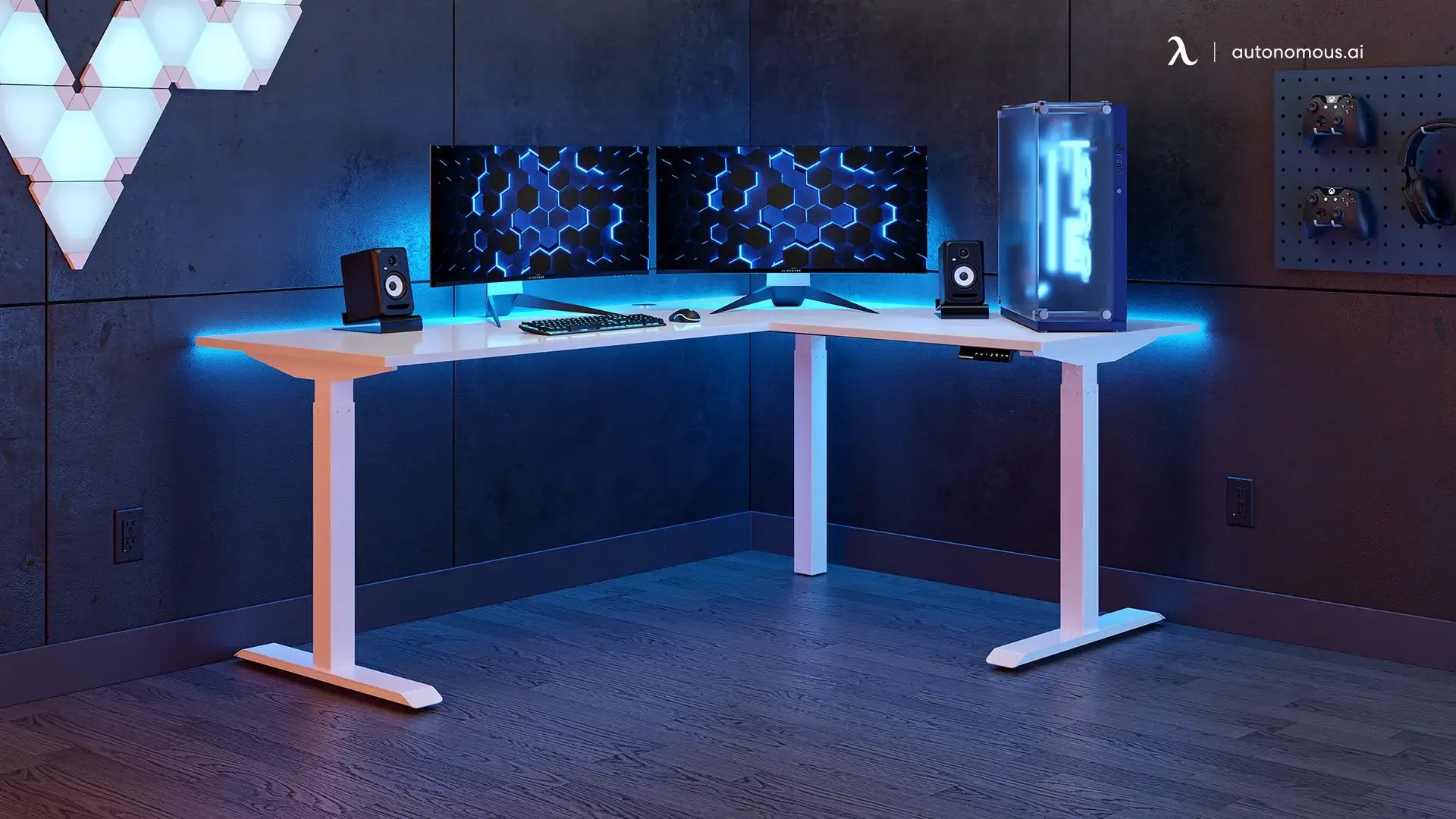
For a desk-based PS5 gaming setup, monitor distance and elbow height are the two factors that affect comfort most directly.
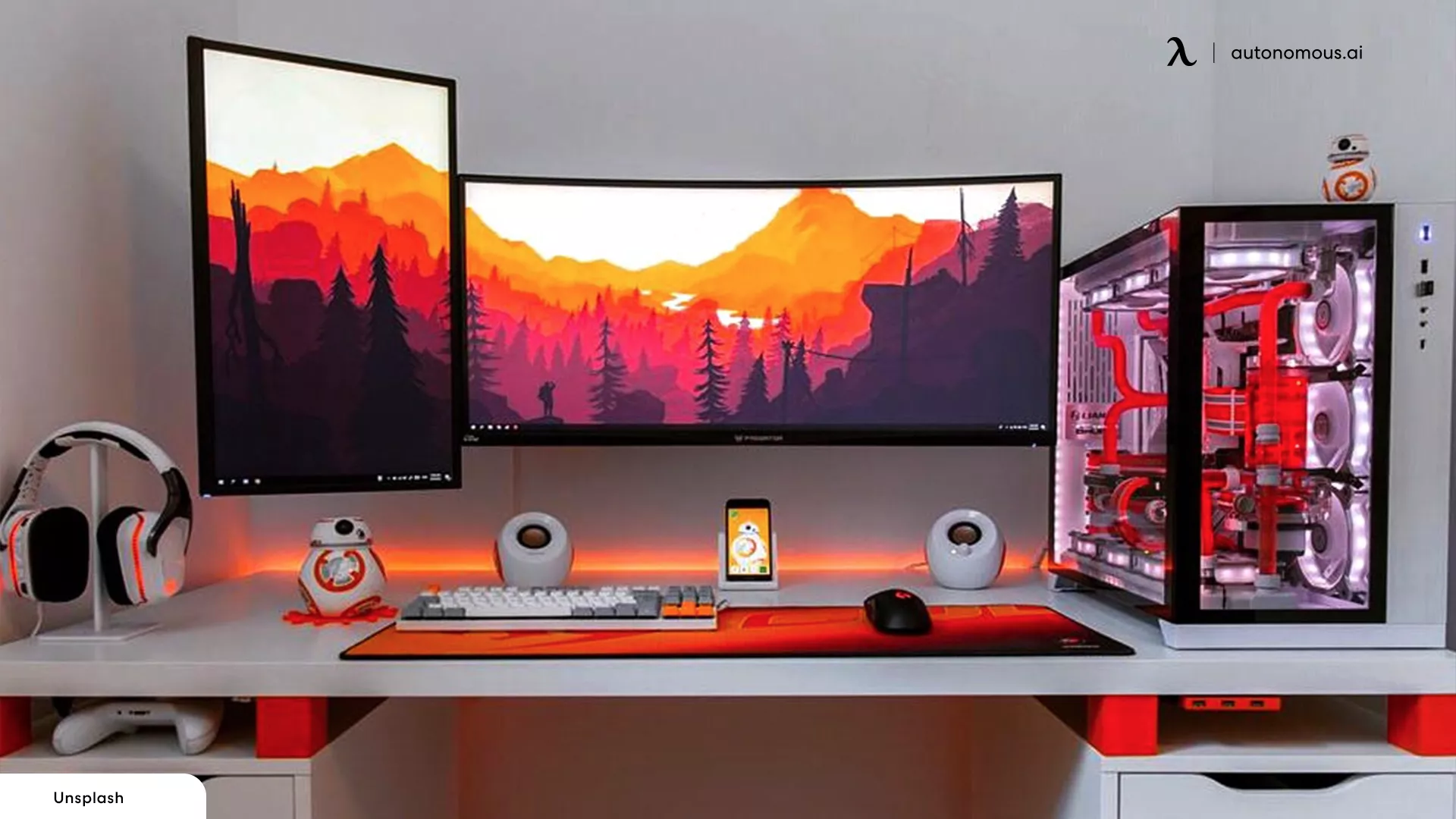
Monitor distance: A mouse requires more deliberate, larger arm movements than a controller thumbstick. If your monitor is further away than a typical PC setup — which is common when a PS5 is connected to a larger display — you'll need to compensate with higher mouse sensitivity or move the monitor closer. Most PS5 players gaming with KB+M at a desk find a viewing distance of 60–90cm more comfortable than the 1–2 meter distances typical for TV-connected console setups. If you're also building out a full display arrangement, a PS5 dual-monitor setup changes the space and distance calculations further.
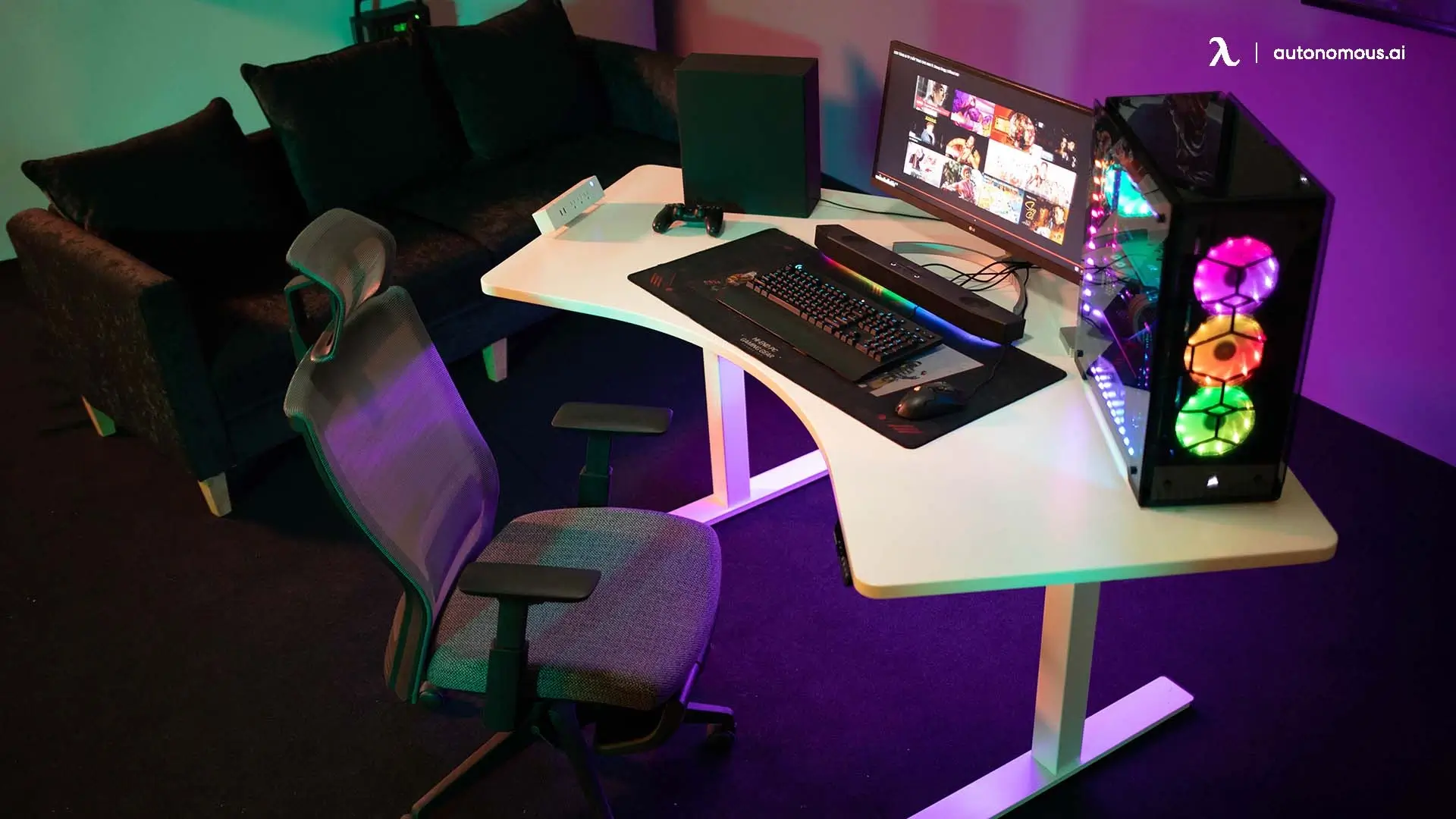
Elbow height: Your elbows should rest at roughly 90 degrees when your hands are on the keyboard. If your desk surface is too high or too low relative to your chair, wrist strain builds up over longer sessions. A height-adjustable gaming desk removes that variable entirely, and pairing it with an appropriately sized gaming chair keeps the 90-degree elbow angle consistent across sitting positions.
.jpg)
Surface space is the third variable worth checking before you buy. A full-size keyboard plus a mouse with adequate movement room requires at minimum 60–70cm of horizontal desk space. If your current desk is tight, a TKL or 60% keyboard — like several options in the product section above — reclaims meaningful surface area.
2. Couch Gaming: Solving the Surface Problem
Couch gaming with a keyboard and mouse on PS5 has one practical obstacle: there's no stable flat surface at the right height by default.
The most functional solutions, in order of cost and stability:
- Lap desk or lap board — a flat, rigid surface with a cushioned underside that sits across your thighs. Provides a stable platform for both keyboard and mouse. Look for one with at least 60cm of usable surface width to give the mouse room to move. This is the most common solution and works well for casual to mid-level play.
- Side table or TV tray — a small table positioned next to the couch at seat height. More stable than a lap desk for the mouse, but requires the keyboard to be in your lap or on a separate surface, which splits your setup.
- Coffee table — works if you sit on the floor or use a low couch. Not ideal for extended sessions due to forward posture.
The Razer Turret — a keyboard with a built-in retractable mouse mat — was designed specifically for this use case and is compatible with PS5. It's a niche product, but worth knowing exists if couch gaming is your primary setup.
One Note on Cable Management
Wired keyboards and mice introduce a cable run from your input devices to the PS5 that doesn't exist with a controller. For gaming desk setups this is typically straightforward — cable clips or a basic cable channel keep everything tidy. For couch setups, a wired combo creates a real cable management challenge and is one of the clearest practical arguments for choosing a 2.4GHz wireless combo.
If you're using a converter, it adds one more USB device to manage — most converters sit between the PS5 and your peripherals, so the cable management run terminates at the converter rather than at the console directly.
FAQs
Is PS5 compatible with a keyboard and mouse?
Yes — PS5 is compatible with most standard keyboards and mice at the system level, with no drivers or additional software required. For basic use — menus, typing, browser navigation — any compatible keyboard and mouse works immediately after connecting. For in-game use, the game itself must explicitly support keyboard and mouse input, and most PS5 titles do not.
Can I use any keyboard and mouse on PS5?
Most can, but not all. Standard USB keyboards and mice work out of the box. Devices that require proprietary drivers or companion software may not function fully. Bluetooth compatibility also varies — if a device isn’t detected during pairing, it may not be supported by PS5.
What type of keyboard is compatible with PS5?
Any standard USB or 2.4GHz wireless keyboard works. This includes mechanical, membrane, and compact layouts (60%, TKL, full-size). Keyboards that rely on brand-specific software for advanced features may have limited functionality on PS5.
Is it worth getting a keyboard and mouse for PS5?
Yes — if you play supported games. In FPS titles like Fortnite or Call of Duty, a mouse offers more precise aim than a controller. For MMOs and strategy games, a keyboard improves control and navigation. For racing, fighting, or story-driven games, a controller remains the better choice.
Do wireless and Bluetooth keyboards work on PS5?
Yes, but 2.4GHz wireless works best. USB dongle devices connect instantly and offer stable performance. Bluetooth devices can be paired in settings, but compatibility varies and input lag can be slightly higher during gameplay.
Which PS5 games support keyboard and mouse?
Only a limited number. As of 2026, fewer than 30 PS5 games support keyboard and mouse natively. Popular titles include Fortnite, Call of Duty, Apex Legends, Final Fantasy XIV, Minecraft, Diablo IV, and The Sims 4. Always check in-game settings or patch notes, as support is developer-controlled.
Does using a keyboard and mouse on PS5 affect aim assist?
Yes. Native keyboard and mouse input disables aim assist. When using a converter, the PS5 still reads input as a controller — meaning aim assist remains active, which is why converters are often considered a competitive advantage.
What’s the difference between native support and using a converter?
- Native support: Direct input, no extra hardware, no aim assist
- Converter: Translates input into controller signals, expands compatibility, keeps aim assist active
Converters add flexibility but also introduce latency, complexity, and potential ban risk in competitive games.
Are keyboard and mouse converters allowed on PS5?
Technically yes, but game-dependent. Sony does not block converters at the system level. However, many competitive games classify them as unfair and may ban accounts in ranked modes. Casual and single-player use is generally safe.
Is it legal to use a converter on PS5?
Converters are not illegal, and Sony does not prohibit them at the hardware level. Whether using one violates the rules depends on each game's Terms of Service. Most competitive multiplayer games — particularly those with active anti-cheat — classify converter use as a breach of fair play rules in ranked modes, which can result in account action. Using converters in casual or single-player modes is generally not an issue.
What’s the best converter for PS5 keyboard and mouse?
It depends on your budget and use case:
- LeadJoy VX2 AimBox: budget, plug-and-play
- Beloader Pro: lower latency, better for FPS
- XIM Matrix: advanced control, highest risk in competitive games
Choose based on performance needs and tolerance for detection risk.
What settings should I use for keyboard and mouse on PS5?
Start with:
- Increase pointer speed in system settings
- Adjust sensitivity in each game (not system-wide like PC)
- Disable unnecessary mouse acceleration (in supported titles)
Fine-tuning depends on the game — FPS titles benefit most from in-game sensitivity adjustments.
Is keyboard and mouse better than controller on PS5?
For some games, yes. In FPS and strategy titles, keyboard and mouse offer better precision and control. For racing, sports, and fighting games, controllers are still the better option due to game design.
Conclusion
A PS5 keyboard and mouse setup works well when matched to the right games and the right expectations. Native support covers the titles where it matters most — FPS, MMO, and strategy games. Converters fill the gap for everything else, with trade-offs worth understanding before buying. For most players, one of the budget wireless combos is enough to start. For competitive use, the product and converter sections above give you everything needed to make an informed decision. Check your game's current settings before purchasing — support status changes with patches.