How to Lock and Unlock a Standing Desk Properly

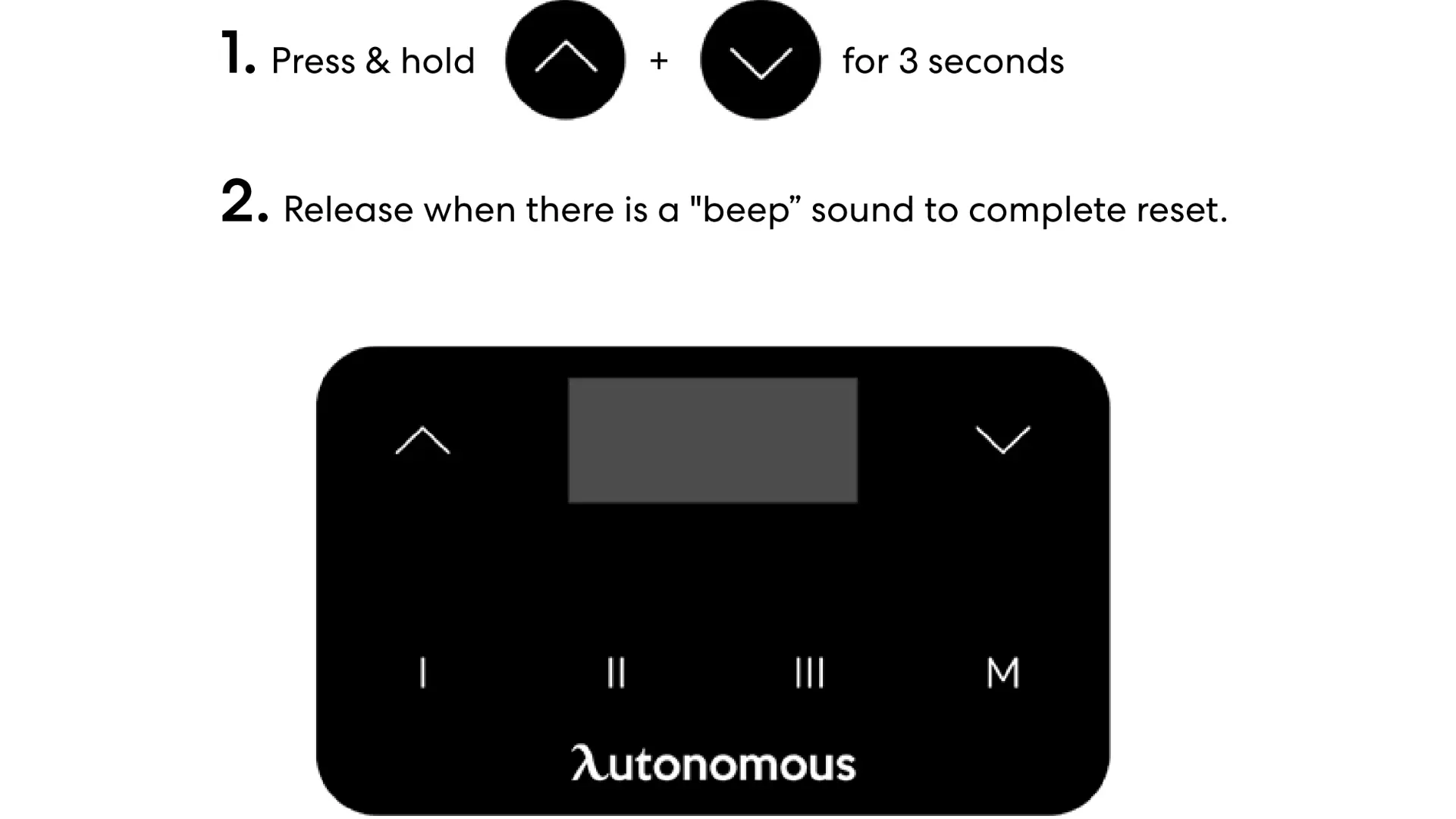
Your desk suddenly stops responding, or it keeps moving when you don’t want it to. It’s a simple problem, but it quickly becomes frustrating when you’re trying to stay focused. Most standing desks have built-in controls to manage this, yet the steps aren’t always clear across different models. That’s why many users get stuck at this point. In this guide, you’ll learn how to lock and unlock a standing desk so you can use it smoothly and avoid unexpected movement.
How to Lock a Standing Desk
Locking your standing desk is essential for ensuring that the height settings stay secure, preventing accidental adjustments while you work. While locking mechanisms may vary slightly depending on the brand, the process is generally the same for most electric standing desks.
Step 1: Locate the Control Panel
First, find the control panel or keypad on your desk. This is usually located under the tabletop or on the side.
Step 2: Press and Hold the Memory Button
On most models, you’ll need to press and hold the memory button (often labeled with an "M") for about 3-5 seconds.
Step 3: Wait for the Display to Show "LOCK"
After holding the button, the display will either show the word "LOCK" or simply stop the movement altogether, indicating that your desk is now locked in place.
Step 4: Check for Stability
Gently try to adjust the desk. If it's locked, the height adjustment controls will be unresponsive.
How to Unlock a Standing Desk
Unlocking a standing desk is necessary when you want to adjust the height to a sitting or standing position. Unlocking the desk allows for smooth transitions between sitting and standing postures, ensuring you stay comfortable and productive.
Step 1: Find the Control Panel
Like locking the desk, unlocking it involves the control panel or keypad located on the side of your desk.
Step 2: Press and Hold the Memory Button
Press and hold the memory button (often the same "M" button) for about 3-5 seconds until the display changes or clears. You may see the word "UNLOCK" or the desk will return to a neutral, adjustable position.
Step 3: Adjust the Height
Once unlocked, the desk should allow you to use the up and down buttons to adjust the desk height. You can set it to your preferred sitting or standing position.
Step 4: Verify Desk Movement
To confirm that the desk is unlocked, try adjusting it. If the desk moves, it is now unlocked and ready for use.
Brand-Specific Guides: How to Lock and Unlock Your Desk
Locking a standing desk prevents the desk from moving several times a day. This reduces the frustration of setting the desk height repeatedly according to your desired ergonomic position.
1. Autonomous Desks
How to Lock Your Autonomous Desk
- Locate the Control Panel: Find the control panel under the tabletop of your Autonomous Desk.
- Press and Hold the Memory Button: Press and hold the "M" (Memory) button for about 3–5 seconds.
- Look for the Lock Icon: Once locked, the display should show a "LOCK" symbol, and the desk will be unresponsive to height adjustments.
How to Unlock the Autonomous Standing Desk?
Autonomous standing desks are many of the first in the line of height-adjustable standing desks. To unlock the desk, press the ‘M’ button and hold it until the numbers start to show again. Autonomous desks are simple to control and manage in terms of height.
And though these desks are a complete package in all ways, they are known to show issues once in a while. These issues arise as a stuck Autonomous adjustable desk, which won't budge. A simple way to deal with this is to troubleshoot the desk. This can be done by turning the desk off from the source of power and waiting about 30 seconds before connecting it again. Use the down arrow to bring the desk to the lowest possible height. This will reset your desk to be used again.
2. Uplift Desk
How Do You Lock the Uplift Desk?
Versatile office desks like the uplift desk offer lock options. This prevents accidental movement of the unit and makes the desk an ideal pick for a kid-friendly workspace. After setting the ergonomic standing desk position to your desired height, use the touch keypad to activate the lock setting. For the uplift standing desk, hold the 'M' button until the display shows 'LOC.' Simple as that.
If you are wondering how to unlock an electric desk by uplifting it, the same 'M' key will do the job. Just hold it until the display changes to a numeric height setting. Another great thing about this standing desk is that in case of a power outage or losing a connection with the socket (probably a mischievous child), the desk will automatically lock itself.
How to Unlock the Uplift Desk?
Uplift standing desks are among the versatile height-adjustable desks in the current ergonomic market. These desks are also known for their user-friendly interface and simple-to-operate working mechanism. The unlock system is also straightforward: The 'M' button changes to the height numeric setting from 'LOC.' This will take about 5 seconds, and this time delay is also intended for safety purposes.
3. Omnidesk
How Do I Lock My Omnidesk?
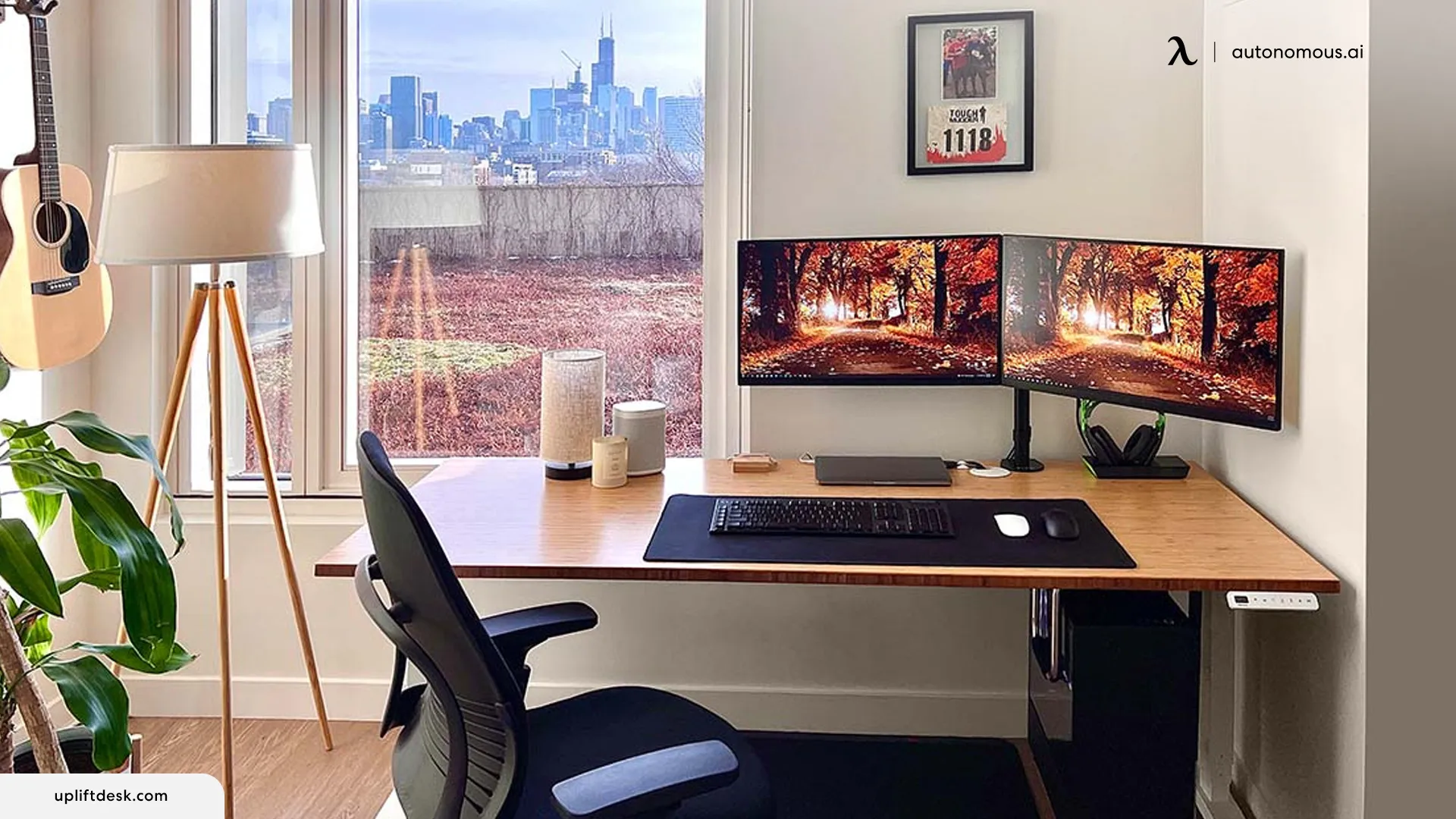
The standing desk pro Omnidesk is one of the most popular and user-friendly desks. It operates with several ergonomic adjustments and one of them is the child lock facility. This child lock, also known as the security lock, is intended to keep the desk surface free from any collisions during the movement.
To activate the lock, press the 'M' button on the touchpad and hold it until the display changes to 'S' and then 'LOC.' This will take about 6-8 seconds, so you don't have to worry about the desk not working. Once the display changes to 'LOC' , release the button. The desk is set in a locked position.
To unlock the Omnidesk and make it functional again, repeat the same step until the 'LOC' changes to the numeric height display.
How to Unlock Your Omnidesk
- Press and Hold the Lock Button: Press the lock button once more.
- Wait for the Desk to Unlock: After a few seconds, the desk will be unlocked and ready to adjust.
4. Amq Standing Desk
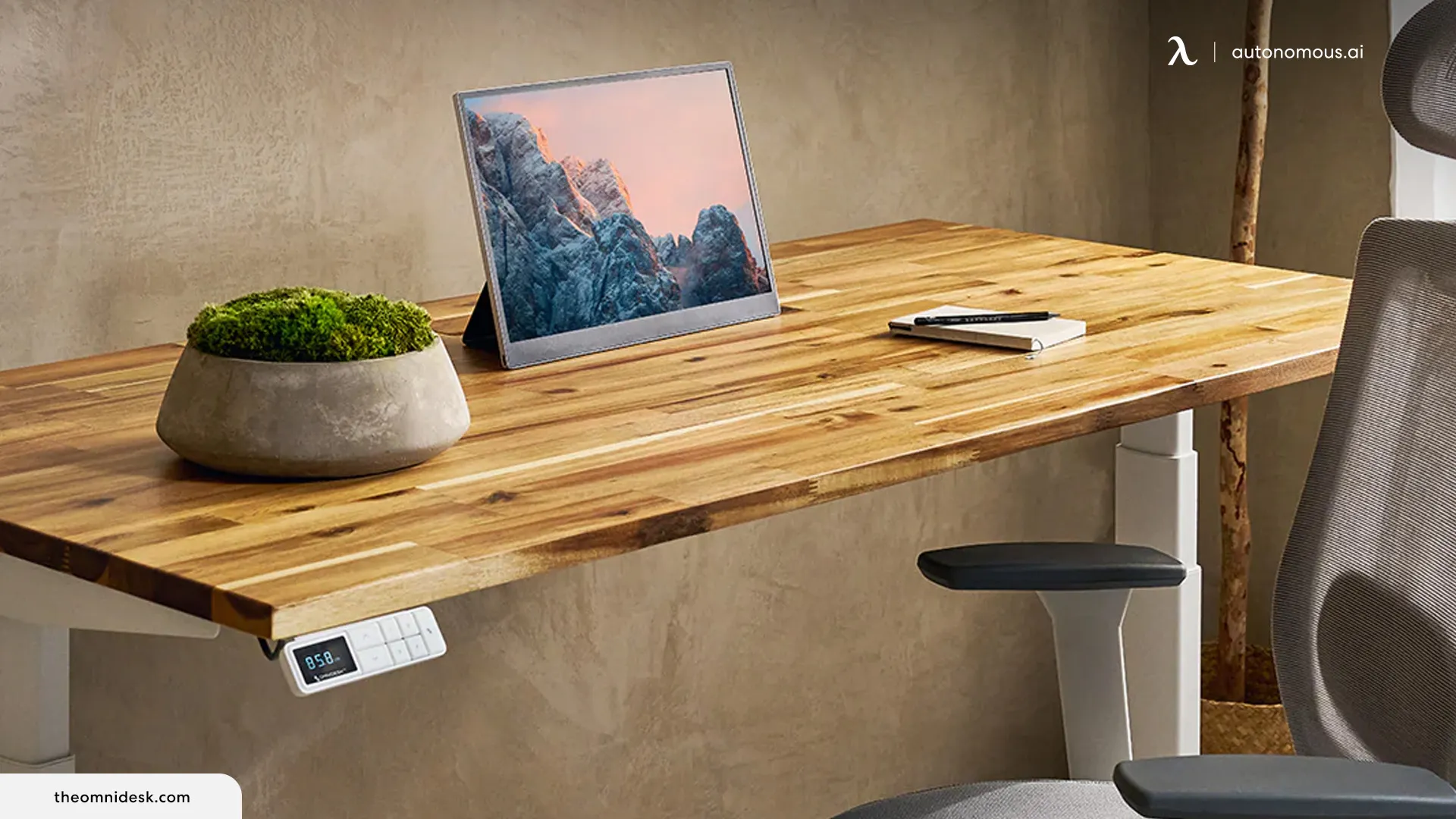
How to Lock Your AMQ Standing Desk
- Find the Control Panel: The control panel is located at the side of the desk.
- Press and Hold the Lock Button: Hold the lock button until the desk becomes unresponsive to height adjustments.
How to Unlock Amq Standing Desk?
Having trouble with one of the finest ergonomic desks? You might be wondering how to unlock an adjustable desk by name, as the locking seems straightforward, but vice versa is hard. Though it may seem like a new technology made it to your home, the desk is simple to work with. Once you use an ergonomic standing desk height calculator to calculate the right height for you, the desk must be locked in that position until you are required to change the position again.
On the touch keypad, you will find the 'M' button. By pressing and holding it in place for around 5 seconds, the display will change to a height number instead of the 'LOC.' This means your desk is now unlocked to be used again.
5. VariDesk
How Do I Unlock VariDesk?
To unlock the varidesk, take help from the bunch of control features found on the desk. The touch keypad has an 'M' button which is responsible for the locking action same as the other desks on our list. Hold onto the 'M' button until the display 'LOC' changes to numeric figures. This means your desk is not unlocked. Use these numbers to adjust the height as needed.
How to Lock Your VariDesk
- Locate the Control Panel: The control panel is usually found on the side of the desk.
- Press and Hold the Memory Button: Hold the memory button for a few seconds until the desk stops moving.
6. Eureka Ergonomic
How to Lock Your Eureka Ergonomic Desk
- Find the Control Panel: The control panel is usually mounted beneath the desk surface.
- Press the Lock Button: Hold the lock button until the desk locks.
How to Unlock Your Eureka Ergonomic Desk
Press and Hold the Unlock Button: Hold the unlock button to release the desk and adjust the height.
7. Flexispot
How to Lock Your Flexispot Desk
- Locate the Control Panel: Find the keypad located under the desk surface.
- Press and Hold the Lock Button: Press and hold the "Lock" button for a few seconds.
- Confirm Lock: The desk should stop moving and display a "LOCK" symbol.
How to Unlock Your Flexispot Desk
- Press and Hold the Unlock Button: Press and hold the "Unlock" button to release the lock.
- Adjust the Desk Height: Once unlocked, adjust the desk as needed.
8. IKEA
How to Lock Your IKEA Standing Desk
- Locate the Control Panel: The control panel is typically under the desk’s surface.
- Press and Hold the Memory Button: Hold for 3-5 seconds until the desk stops moving.
How to Unlock Your IKEA Standing Desk
Press and Hold the Memory Button: Press the same button to unlock it, enabling height adjustments.
9. Branch
How to Lock Your Branch Desk
- Find the Control Panel: Located under the desk, press and hold the memory button for a few seconds.
- Wait for the Lock Icon: The desk will lock, and you won’t be able to change the height.
How to Unlock Your Branch Desk
Press and Hold the Memory Button: Hold the memory button to unlock the desk and make height adjustments.
10. Desky
How to Lock Your Desky Standing Desk
- Locate the Control Panel: Find the panel under the desk.
- Press and Hold the Lock Button: Hold the lock button until the desk stops moving.
How to Unlock Your Desky Standing Desk
Press and Hold the Unlock Button: Hold to release the lock and adjust the desk.
11. Herman Miller
How to Lock Your Herman Miller Desk
- Locate the Control Panel: The control panel is located on the side of the desk.
- Press and Hold the Lock Button: Hold for a few seconds until the desk stops adjusting.
How to Unlock Your Herman Miller Desk
Press and Hold the Unlock Button: Hold the button until the desk unlocks and is ready for adjustments.
12. Uncaged Ergonomics
How to Lock Your Uncaged Ergonomics Desk
- Find the Control Panel: The keypad is usually under the desk.
- Press and Hold the Lock Button: Hold the lock button until the desk locks into position.
How to Unlock Your Uncaged Ergonomics Desk
Press and Hold the Unlock Button: Hold the button to unlock the desk, enabling height adjustments.
13. VIVO
How to Lock Your VIVO Desk
- Locate the Control Panel: The control panel is located on the side of the desk.
- Press and Hold the Memory Button: Hold for a few seconds until the desk becomes unresponsive.
How to Unlock Your VIVO Desk
Press and Hold the Memory Button: Press to unlock and allow the desk to adjust its height.
14. Mount-It!
How to Lock Your Mount-It! Standing Desk
- Locate the Control Panel: Find the control panel, which is typically mounted under the desk.
- Press and Hold the Lock Button: Hold the "Lock" button for a few seconds until the desk stops moving.
- Confirm the Lock: The desk will no longer respond to height adjustments, and a "LOCK" symbol will appear on the display.
How to Unlock Your Mount-It! Standing Desk
- Press and Hold the Unlock Button: Hold the unlock button for a few seconds to release the lock.
- Adjust the Desk: Once unlocked, the desk will be ready to adjust to your desired sitting or standing position.
Top Reasons Your Standing Desk is Stuck
- Power Issues
Check that all cables are securely connected and the outlet is working. If your standing desk has a power switch on the control box, make sure it’s turned on.
- Overloaded Weight Limit
Too much weight can stop the motor from moving the standing desk. Remove heavy items and try again.
- Obstructions or Jammed Mechanisms
Small objects or tangled cables can block movement. Check under and around the frame, then clear anything in the way.
- Control Panel Issues
A faulty button or loose connection may cause inconsistent movement. Inspect the keypad, reconnect it, and reset it if your model allows.
- Motor or Gear Malfunction
Grinding or clicking sounds may point to internal damage. If so, contact the manufacturer or check your warranty options.
- Need for a Reset
Some standing desks stop working because of a control error. A reset often fixes this, usually by holding the down button at the desk’s lowest position for several seconds.
- Calibration or Syncing Errors
Dual- or multi-motor standing desks can stop if the legs fall out of sync. Recalibrate the desk based on your model’s instructions.
- Software Updates or Firmware Glitches
For standing desks with smart features, an app or firmware issue may be the cause. Check for updates and restart the system.
FAQs
Why is my standing desk locked?
Your desk is locked to prevent accidental movement. This usually happens when the lock function is activated through a button or button combination on the control panel.
How do I unlock a standing desk?
Press and hold the same button or button combination used for locking for 3–5 seconds. The desk will unlock once the display changes or the controls respond again.
What buttons lock a standing desk?
Most desks use either a dedicated lock button or a combination such as holding the memory button or arrow keys. The exact method depends on the desk model.
Why won’t my standing desk unlock?
Common causes include holding the wrong buttons, not holding long enough, or a temporary system issue. Try holding the correct combination for 3–5 seconds or restarting the desk.
How long should I hold the button to lock or unlock the desk?
Typically, you need to hold the button or combination for 3 to 5 seconds. Releasing too early may prevent the lock or unlock from activating.
Does every standing desk have a lock feature?
No. Some basic or manual standing desks do not include a lock function. Only certain electric desks with control panels support locking.
Can I disable the lock function on my standing desk?
In most cases, the lock cannot be permanently disabled. You can only toggle it on or off using the control panel.
What does “LOCK” mean on a standing desk display?
It indicates the desk is locked and will not respond to height adjustment controls until it is unlocked.
Why is my standing desk stuck and not moving?
The desk may be locked, overloaded, or experiencing a power issue. First check if it’s locked, then reset the desk by unplugging and reconnecting it.
Is it safe to leave my standing desk unlocked?
Yes, but it increases the risk of accidental movement, especially in shared spaces. Locking is recommended when the desk is not in use.
Do all brands use the same lock method?
No. While most desks follow a similar approach, each brand may use different buttons or combinations to lock and unlock the desk.
How do I reset a standing desk if it won’t unlock?
Unplug the desk for 30–60 seconds, then plug it back in. After restarting, try the unlock process again using the correct button combination.
Conclusion
A standing desk is a valuable investment in your health and productivity, but like any device, it may experience occasional issues. By understanding these common problems and how to troubleshoot them, you can resolve most issues quickly and keep your desk functioning smoothly.
If you’ve tried all of these solutions and your standing desk is still stuck, contact the manufacturer for further assistance. With the right approach, you can enjoy the full benefits of a standing desk and stay productive, comfortable, and healthy at work.