Why Is My Screen Yellow? Fix Monitor Yellow Tint Fast

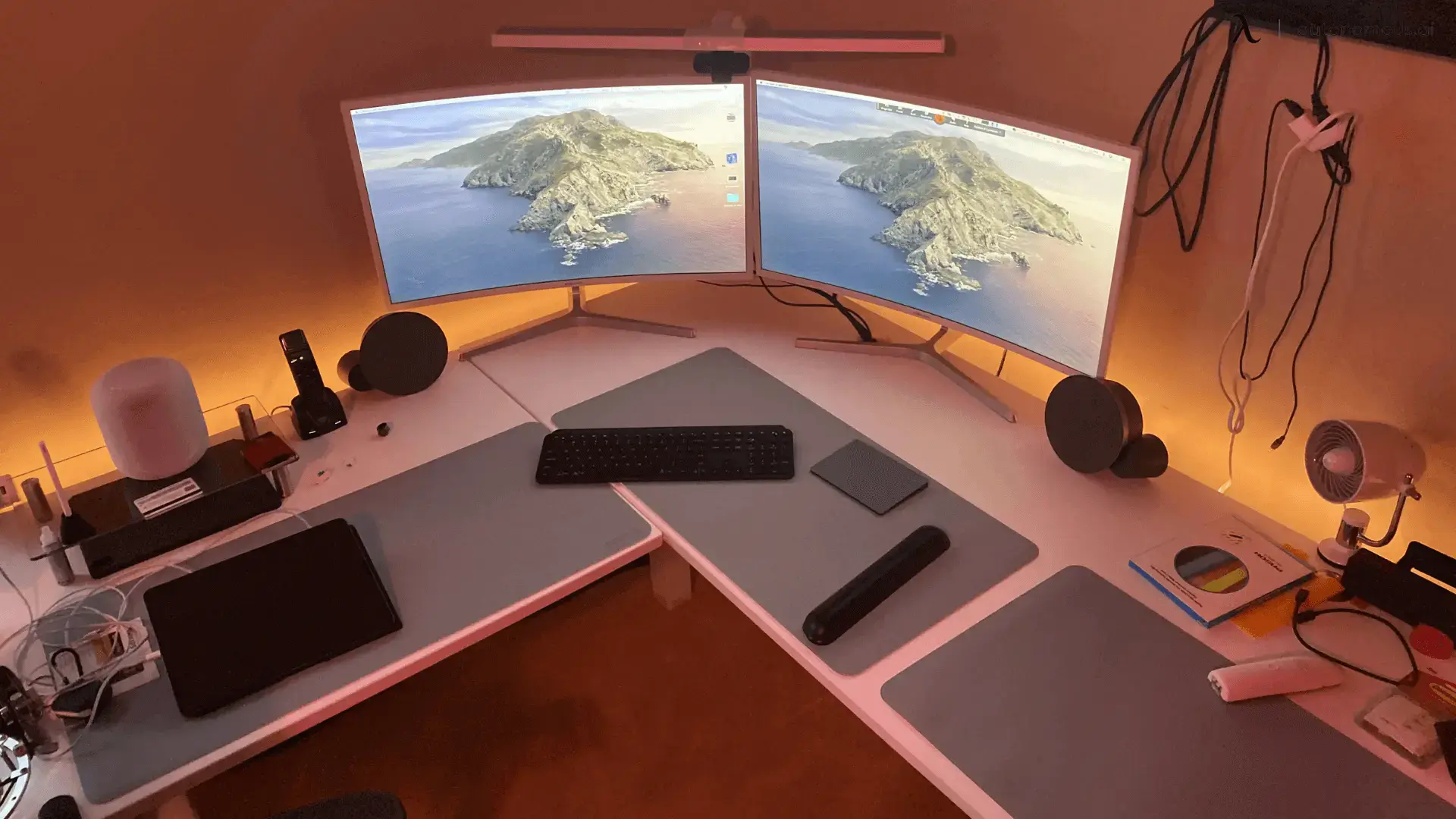
Quick answer: If your monitor looks yellow, the cause is usually a setting like Night Light, True Tone, or color temperature adjustment, not a broken screen. Start by turning off warm-color filters, checking display settings, and testing the monitor with another device to see whether the issue comes from the screen or the computer.
Table of Contents
- Why is my screen yellow?
- Quick fixes for a yellow monitor screen (try this first)
- What causes a computer monitor yellow tint?
- How to fix yellow tint on Windows and Mac
- Why did my screen suddenly turn yellow?
- Why is there a yellow border around my screen?
- Is my monitor broken or just a setting?
- How to prevent yellow tint from coming back
- FAQs
- Final answer
Your screen suddenly looks warm, faded, or completely off—and now everything has a yellow tint. If you’re seeing a computer monitor yellow tint, it usually feels like something broke overnight.
The good news: in most cases, your monitor isn’t damaged. A yellow screen is often caused by a simple setting or display adjustment that can be fixed in seconds. This guide shows you how to fix it quickly, what causes it, and how to tell if it’s a real hardware issue.
Why is my screen yellow?
A yellow screen is usually caused by display settings that shift colors toward warmer tones.
Modern devices include features like Night Light, True Tone, or blue light filters. These reduce blue light to make screens easier on your eyes, especially at night. When turned on, they make your display look warmer or yellow.
In other cases, a yellow tint can come from incorrect color calibration, outdated drivers, or signal issues. The key is identifying whether the change is intentional (a setting) or accidental.
Quick fixes for a yellow monitor screen (try this first)
A yellow monitor screen can usually be fixed in under a minute by checking the most common settings.
Start with these:
- Turn off Night Light / blue light filter
- Disable True Tone (Mac)
- Restart your computer
- Check brightness and color settings
These fixes work because most yellow tint issues are caused by display adjustments rather than hardware problems.
If your screen returns to normal after one of these steps, the issue was likely just a setting change.
What causes a computer monitor yellow tint?
A computer monitor yellow tint happens when the display shifts toward warmer color tones. This can be caused by several factors, but most fall into a few clear categories.
1. Display settings
This is the most common cause.
Features like:
- Night Light (Windows)
- True Tone (Mac)
- Blue light filters
are designed to reduce eye strain. However, they also change how colors appear.
2. Color calibration issues
If your monitor’s color profile is incorrect, it can shift the entire display toward yellow.
This often happens after:
- manual calibration
- system updates
- connecting a new monitor
3. Graphics driver problems
Outdated or corrupted drivers can affect how colors are displayed.
Since drivers control how your system communicates with the monitor, even small issues can lead to visible color changes.
4. Cable or connection issues
A loose or damaged cable can distort the signal between your computer and monitor.
While less common, this can cause color imbalance, including a yellow tint. Issues like this are more likely when using older or incompatible connections, especially across different monitor cable types.
5. Hardware issues
If none of the above fixes work, the problem may be related to:
- the display panel
- the graphics card
This is less common, but it becomes more likely if the issue persists across different devices.
How to fix yellow tint on Windows and Mac
Fixing a yellow screen depends on your operating system. The steps are slightly different, but the causes are similar.
On Windows
A yellow screen on Windows is usually caused by Night Light or color settings.
To fix it:
- Open Settings
- Go to System → Display
- Turn off Night Light
- Check Color settings
- Reset display calibration if needed
If the issue continues, update your graphics drivers through Device Manager.
On Mac
A yellow screen on Mac is often caused by True Tone or Night Shift.
To fix it:
- Open System Settings
- Go to Displays
- Turn off True Tone
- Disable Night Shift
- Check display color profile
Mac devices automatically adjust color based on lighting conditions, which can make the screen appear warmer than expected.
Why did my screen suddenly turn yellow?
A screen can turn yellow suddenly due to automatic display settings or system changes.
Common triggers include:
- Night Light scheduled to turn on at sunset
- system updates resetting display settings
- accidental changes in display preferences
Because these changes happen automatically, it can feel like the problem appeared out of nowhere.
If the change happened instantly, it’s almost always a setting—not a hardware failure.
Why is there a yellow border around my screen?
A yellow border around your screen is usually caused by a system overlay or accessibility feature.
On some systems, a colored border may appear due to:
- screen recording indicators
- focus or accessibility tools
- system UI glitches
This is not related to monitor damage. Restarting your system or disabling overlays usually removes it.
Is my monitor broken or just a setting?
Most yellow screen issues are caused by settings, not hardware.
You can test this with a simple process. If the yellow tint disappears after turning off Night Light or restarting, it is probably a settings issue. If the tint stays after resetting display settings, the next step is to check drivers. If it appears across multiple devices or inputs, the monitor itself may be the problem.
Another useful test is connecting the monitor to a different device. If the yellow tint remains, the monitor may be causing it. If the color returns to normal, the issue is more likely coming from your computer or how you connect a laptop to a monitor.
If the test setup fails or the display is not detected correctly, connection problems may be part of the issue, especially when a monitor is not connecting to a laptop. In that case, it also helps to check whether you are using the right cable to connect a laptop to a monitor, particularly if the setup relies on connecting HDMI to a laptop.
This process helps separate software problems from hardware failures.
How to prevent yellow tint from coming back
Preventing a yellow tint is mostly about controlling automatic display settings.
To avoid the issue:
- Disable scheduled Night Light if you don’t need it
- Keep your display drivers updated
- Avoid unnecessary color calibration changes
- check display settings after system updates
These steps ensure your screen stays consistent and predictable over time.
FAQs
Why is my screen yellow all of a sudden?
A screen usually turns yellow due to automatic features like Night Light or True Tone. These settings can activate based on time or lighting conditions without manual input.
How do I fix a computer monitor yellow tint quickly?
Turn off blue light filters like Night Light or True Tone, then restart your device. Most yellow tint issues are caused by display settings and can be fixed instantly.
Why does my monitor have a yellow tint even after restart?
If the yellow tint remains after restarting, it may be due to color calibration settings or outdated graphics drivers. In rare cases, it can indicate a hardware issue.
Why is my computer screen yellow on Windows?
A yellow screen on Windows is commonly caused by Night Light being enabled. You can turn it off in Display Settings to restore normal colors.
Why is my Mac screen yellow?
Mac screens may appear yellow because of True Tone or Night Shift. These features adjust color temperature based on ambient lighting and time of day.
Can a bad HDMI or Display cable cause a yellow screen?
Yes, a damaged or loose cable can affect the signal and cause color distortion. Replacing the cable can help resolve the issue.
Is a yellow screen a sign my monitor is broken?
Not usually. Most yellow tint issues come from settings, not hardware. If the problem persists across different devices, then hardware may be the cause.
Why does my monitor look yellow compared to other screens?
Different displays use different color settings and calibration. A monitor may look warmer if its color temperature is set lower than others.
What causes a yellow border around my screen?
A yellow border is often caused by system overlays, accessibility settings, or UI bugs. It is not typically related to monitor damage.
How do I stop my screen from turning yellow at night?
Disable Night Light or similar blue light filters in your display settings. These features are designed to reduce eye strain but can make the screen appear yellow.
Why does my laptop monitor flickering and yellow tint happen together?
Flickering and yellow tint together may indicate driver or display setting issues. Updating drivers and checking refresh rate settings can help fix both problems.
When should I worry about a yellow monitor screen?
You should be concerned if the yellow tint persists after resetting settings and appears on multiple devices. This may point to a hardware issue.
Final answer
A computer monitor yellow tint is usually caused by display settings like Night Light or True Tone, not hardware damage.
Start by checking your settings and restarting your device. If the issue continues across different devices, it may be a hardware problem that needs further inspection.