Home Office Setup 2026: What to Buy First

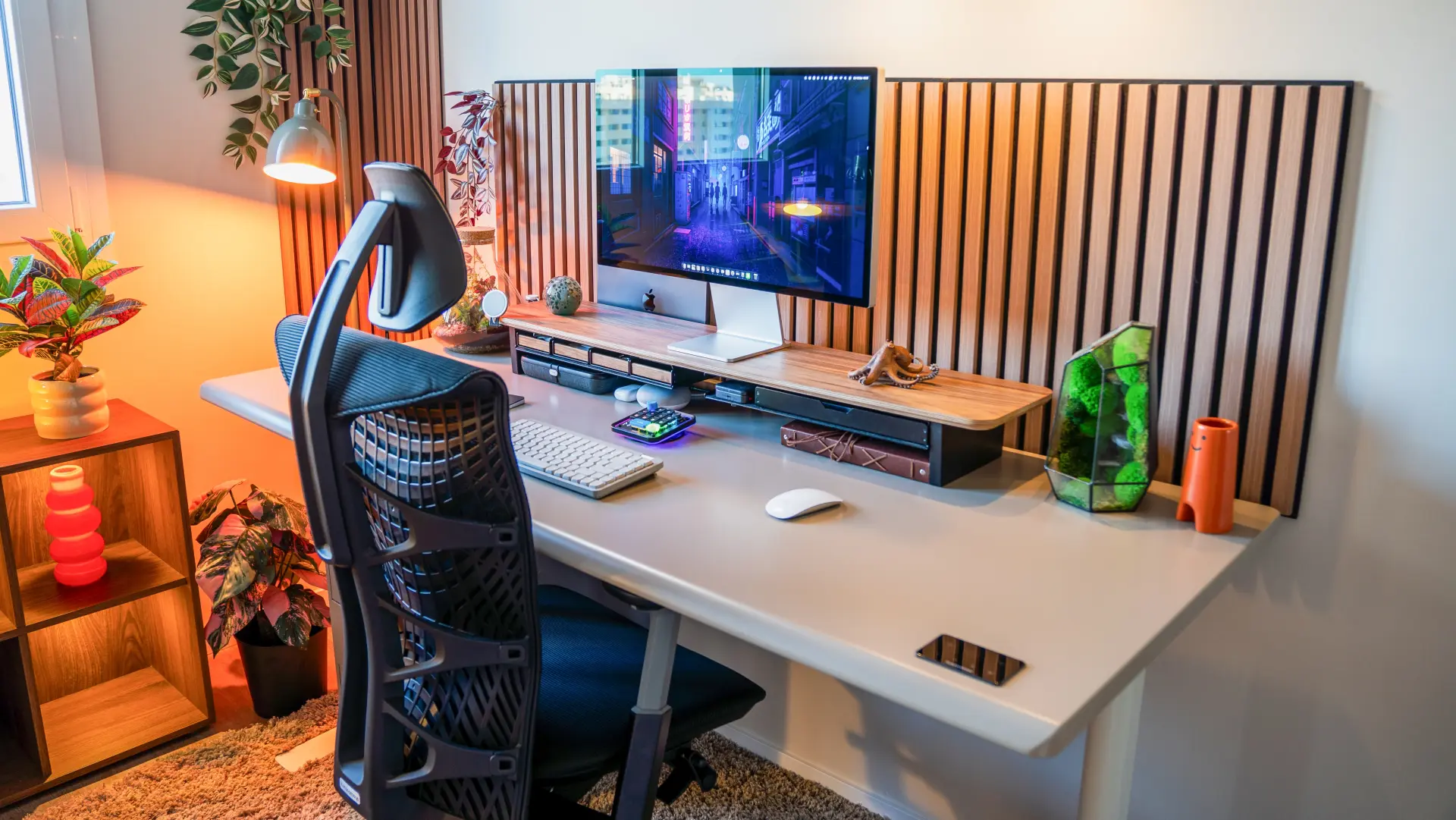
Most home office setup guides hand you a flat shopping list and let you sort out the priorities. This one ranks them, because a $300 chair changes your workday more than a $300 webcam ever will. Below is the order that actually matters - the pieces your body and eyes are in contact with all day come first - plus how to choose each one, real budget tiers, and setup ideas by space and style. The goal is a home office setup that feels good to work in for eight hours, not just one that photographs well.
Quick answer: A good home office setup, in priority order, is a stable (ideally sit-stand) desk, a supportive ergonomic chair, a correctly-sized external monitor, a comfortable keyboard and mouse, reliable power and connectivity, and lighting plus ergonomic accessories. Spend the most on the desk and chair - you're in contact with them every working hour.
Spend priority: where your money actually goes
Here's the judgment the gear roundups skip. If you rank purchases by hours-of-contact and impact on your body, the list reorders itself:
- Chair - load-bearing for your spine every hour. Highest return, full stop.
- Desk - sets your entire posture; sit-stand adds movement to long days.
- Monitor - biggest productivity jump after desk and chair.
- Keyboard and mouse - wrist and shoulder health over years.
- Connectivity and power - quietly fixes daily friction.
- Lighting - matters for calls and eye comfort, cheaper to fix.
- Accessories - footrest, mat, cable management to fine-tune.
If your budget is tight, buy top-down and stop where the money runs out. A great chair and a mediocre webcam beats the reverse every time.
Budget tiers at a glance
Prices change periodically; treat these as planning ranges, not quotes.
Tier | Rough total | What it looks like |
Starter | ~$500-$800 | Solid chair, fixed or budget sit-stand desk, one 24-27" monitor, decent keyboard/mouse |
Mid | ~$1,000-$1,800 | Ergonomic chair, motorized standing desk, 27-32" monitor, dock, better lighting |
Premium | ~$2,500+ | Flagship chair, premium desk, dual/ultrawide monitors, dedicated pod or separated space |
The essentials, in order
1. The chair (buy this first)
A poor chair costs you in back pain and lost focus long before you notice it, which is why it's the highest-return purchase in the whole setup. Prioritize, in this order: adjustable seat height, real lumbar support, seat depth, and cushioning that survives 8-hour days. Skip anything sold mainly on looks.
.webp)
One practical warranty angle worth weighing: the ErgoChair Pro carries a lifetime warranty, which changes the long-run math versus a cheaper chair you replace every few years - a wear issue becomes a claim, not a re-purchase.
2. The desk
Your desk sets your whole posture: you want enough depth to sit the monitor an arm's length away, a height that keeps wrists neutral, and real stability. A sit-stand desk earns its place on long days because alternating positions breaks up the static load of sitting.
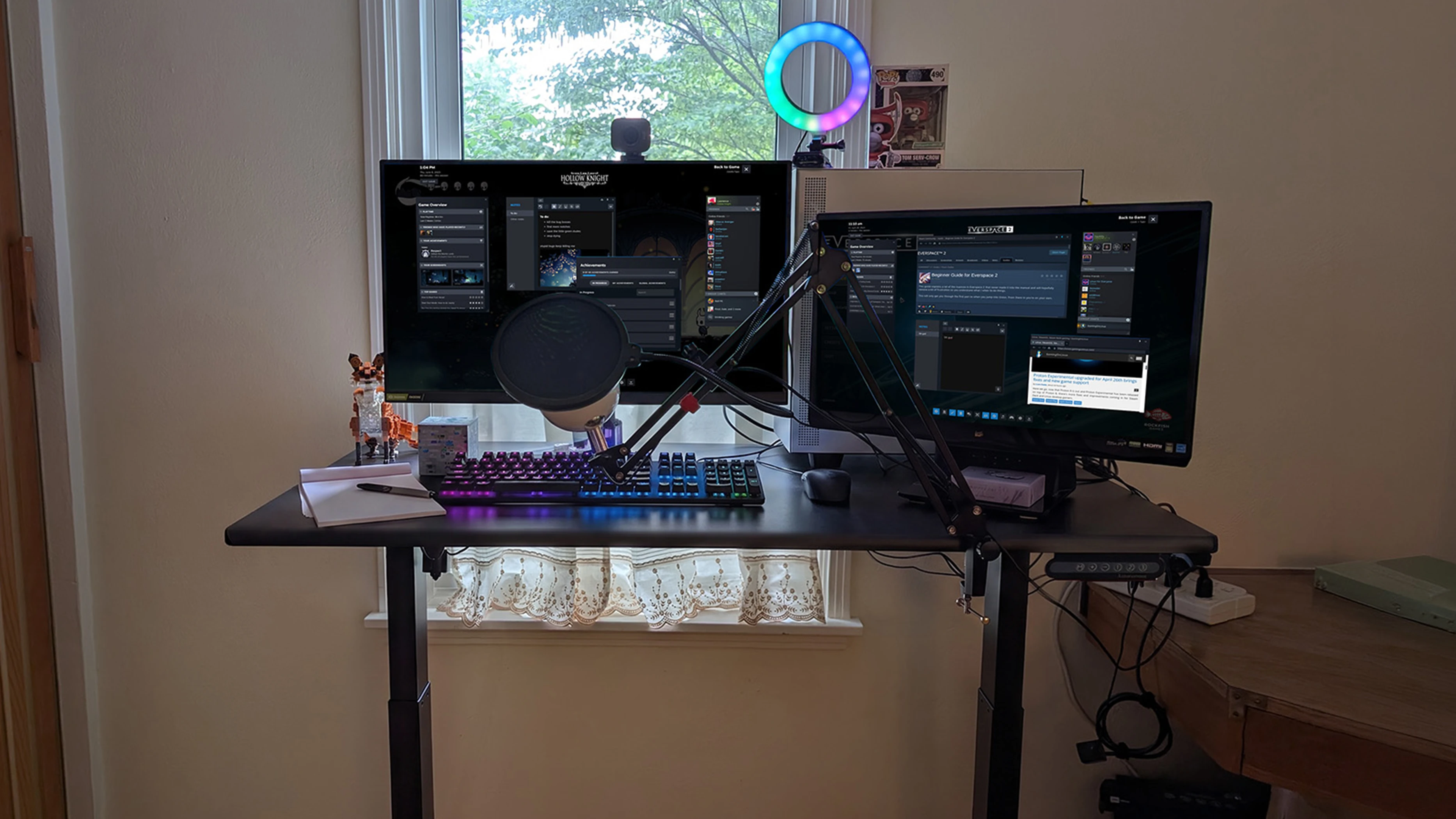
For a concrete baseline, the Autonomous Desk Core crawls in at a 176 lb lifting capacity, a ≤50 dB motor (quiet enough for calls), and ANSI/BIFMA + UL certification for around $349 - the specs to compare any budget standing desk against.
3. The monitor
An external monitor is the biggest productivity upgrade after the desk and chair. Match the size to your work and desk depth:
Size | Best for | Trade-off |
24" | Compact desks, single-task work | Tight for multitasking |
27" | The balanced default for most people | Needs more desk depth |
32"+ | Heavy multitasking, immersive work | Can overwhelm a small desk |
Panel type matters too. IPS gives accurate color and wide viewing angles for everyday work; OLED delivers deeper contrast but costs more and carries burn-in risk for the static toolbars a work desktop shows all day.
4. Keyboard and mouse
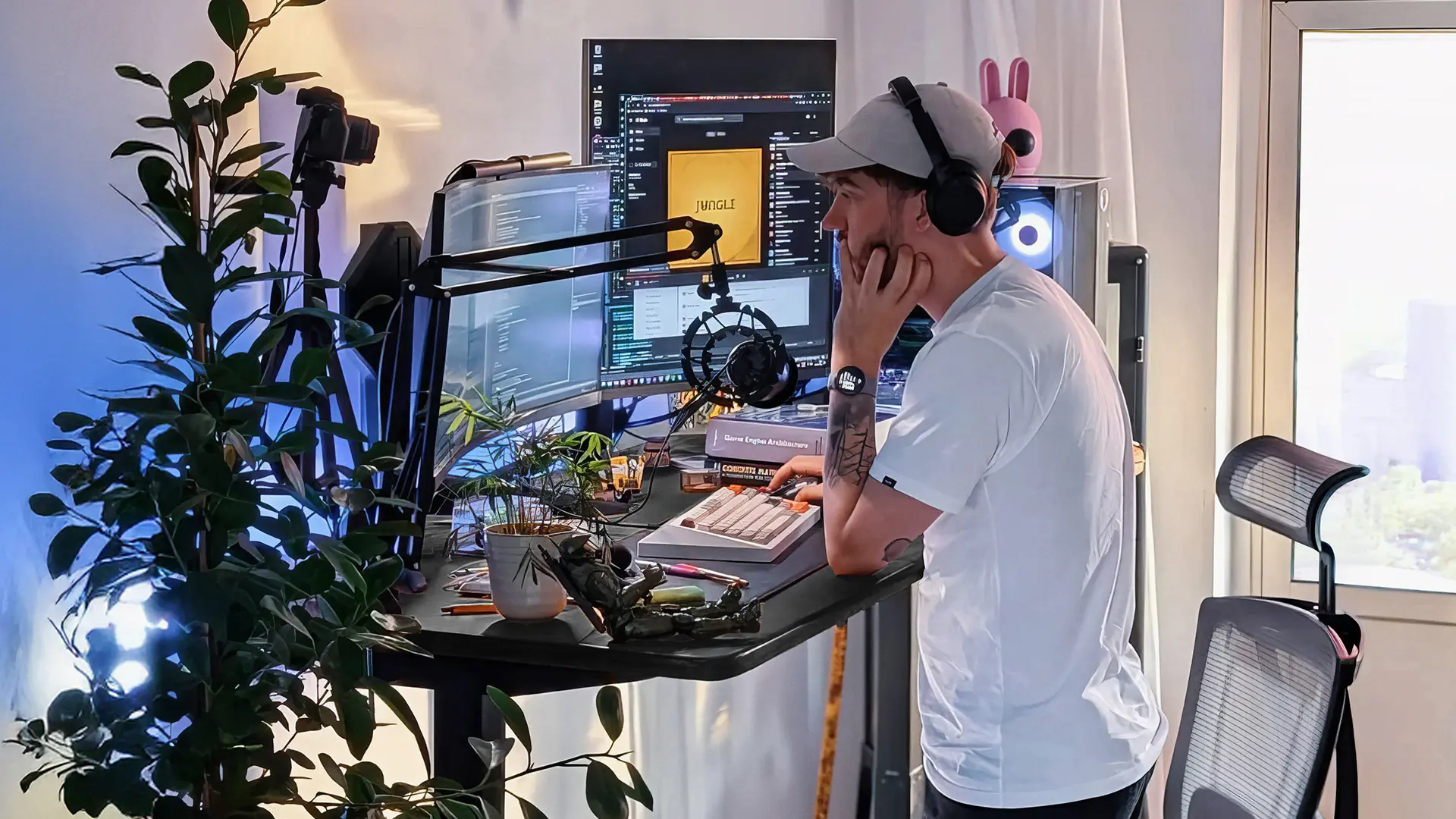
Match them to your hands and desk, not to a trend. Ergonomic or vertical options reduce wrist and shoulder strain on long days; layout and size should follow your desk space and typing habits. This is a small spend with a large long-term payoff for your joints.
5. Connectivity and power
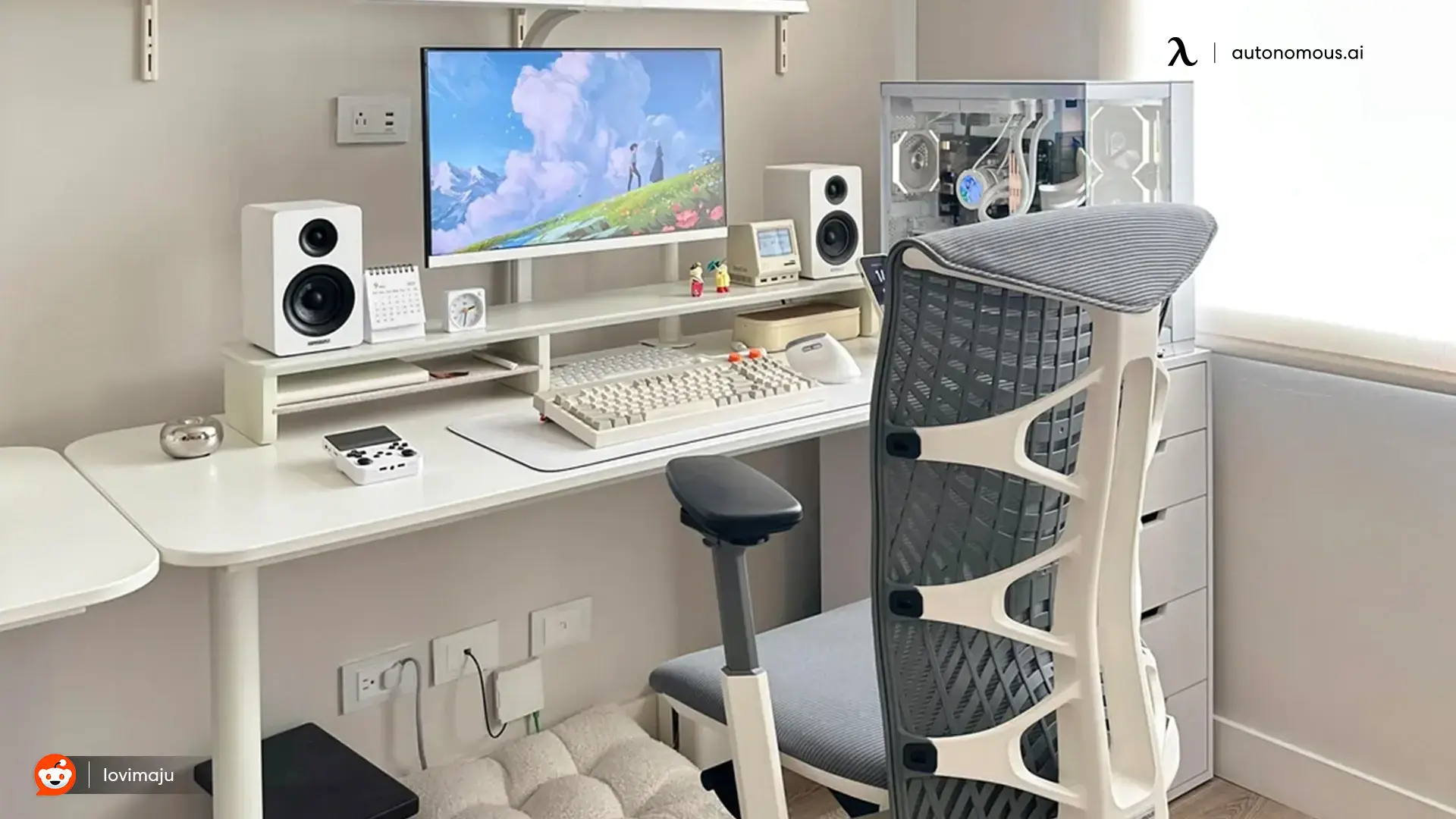
Modern laptops run short on ports, which quietly breaks multi-monitor setups. A quality hub or dock prevents the resolution and refresh-rate problems that come from the wrong adapter, and cuts cable clutter. Get this right once and you stop fighting it daily.
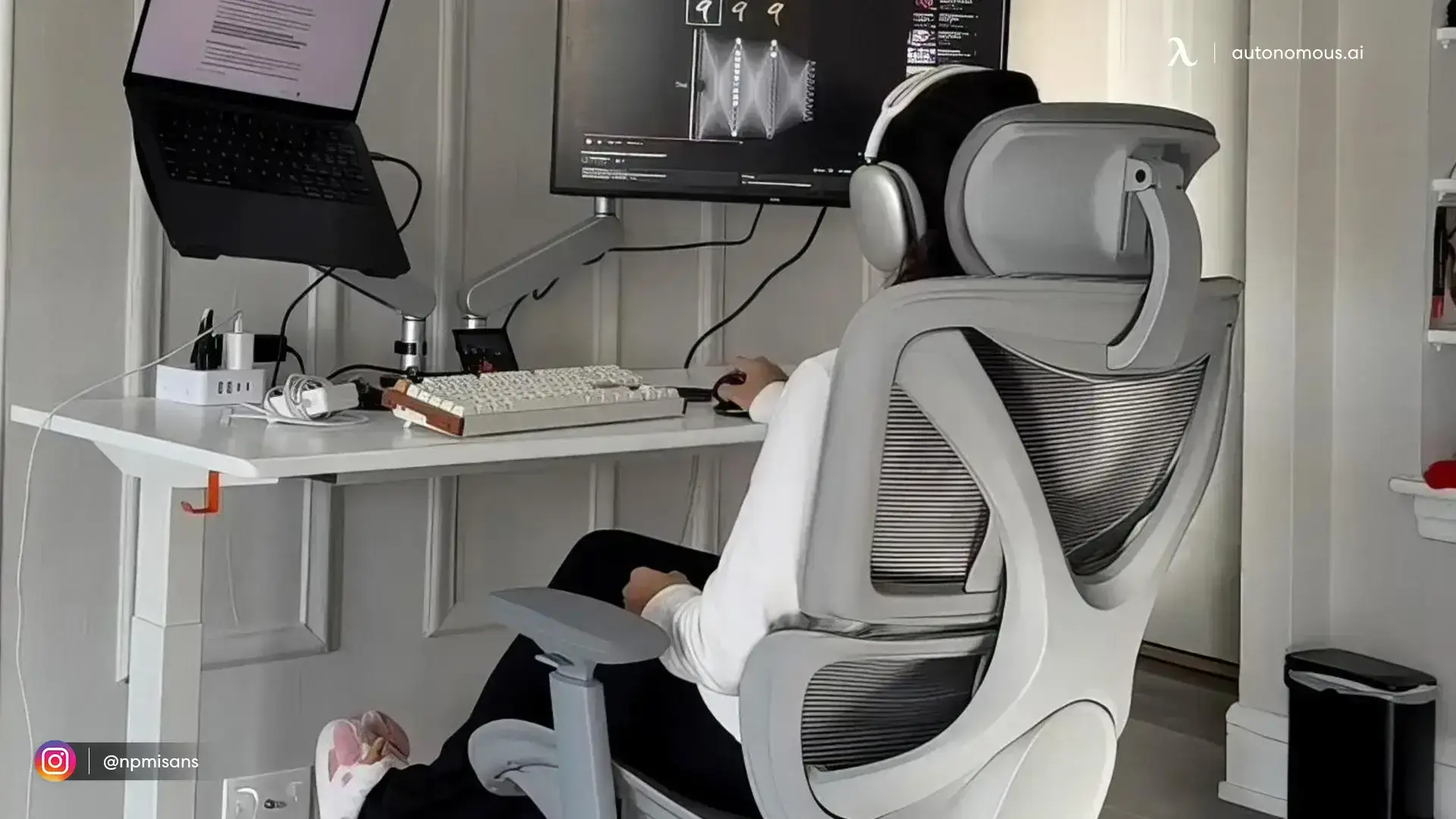
6. Lighting (the piece the gear lists underrate)
Good lighting improves both call quality and eye comfort, and it's cheap relative to its impact. Aim for a key light or bright, diffuse source in front of you (not behind, which silhouettes you on calls), plus a task lamp to kill screen glare.
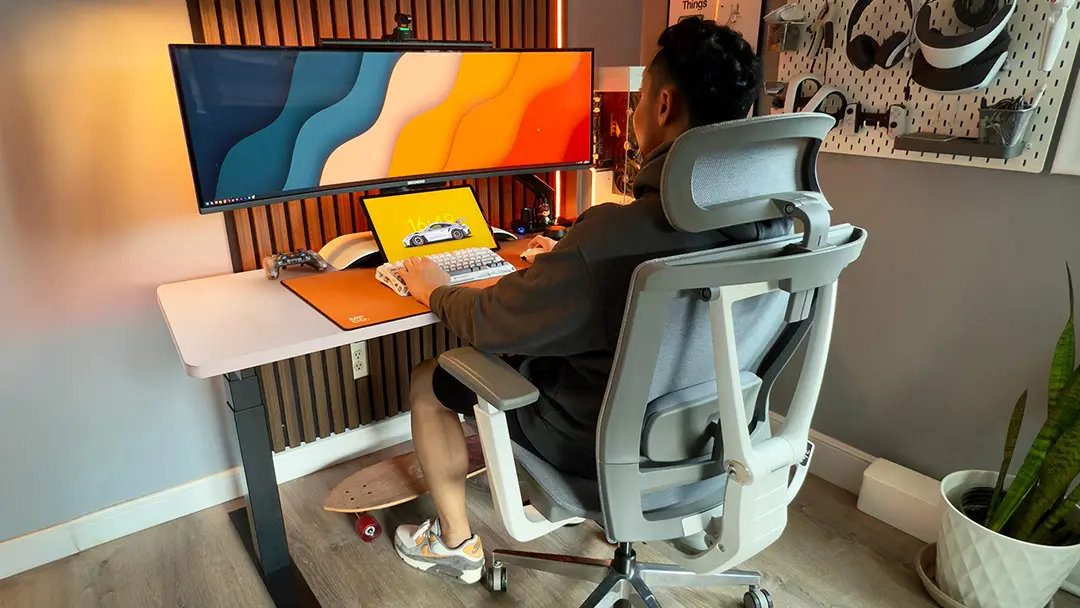
7. Audio, video, and ergonomic accessories
Noise-canceling headphones and an external webcam do far more for call quality than any laptop's built-ins. Then fine-tune with a footrest, an anti-fatigue mat if you stand, and cable management - these fill the gaps when desk and chair dimensions don't perfectly match your body.
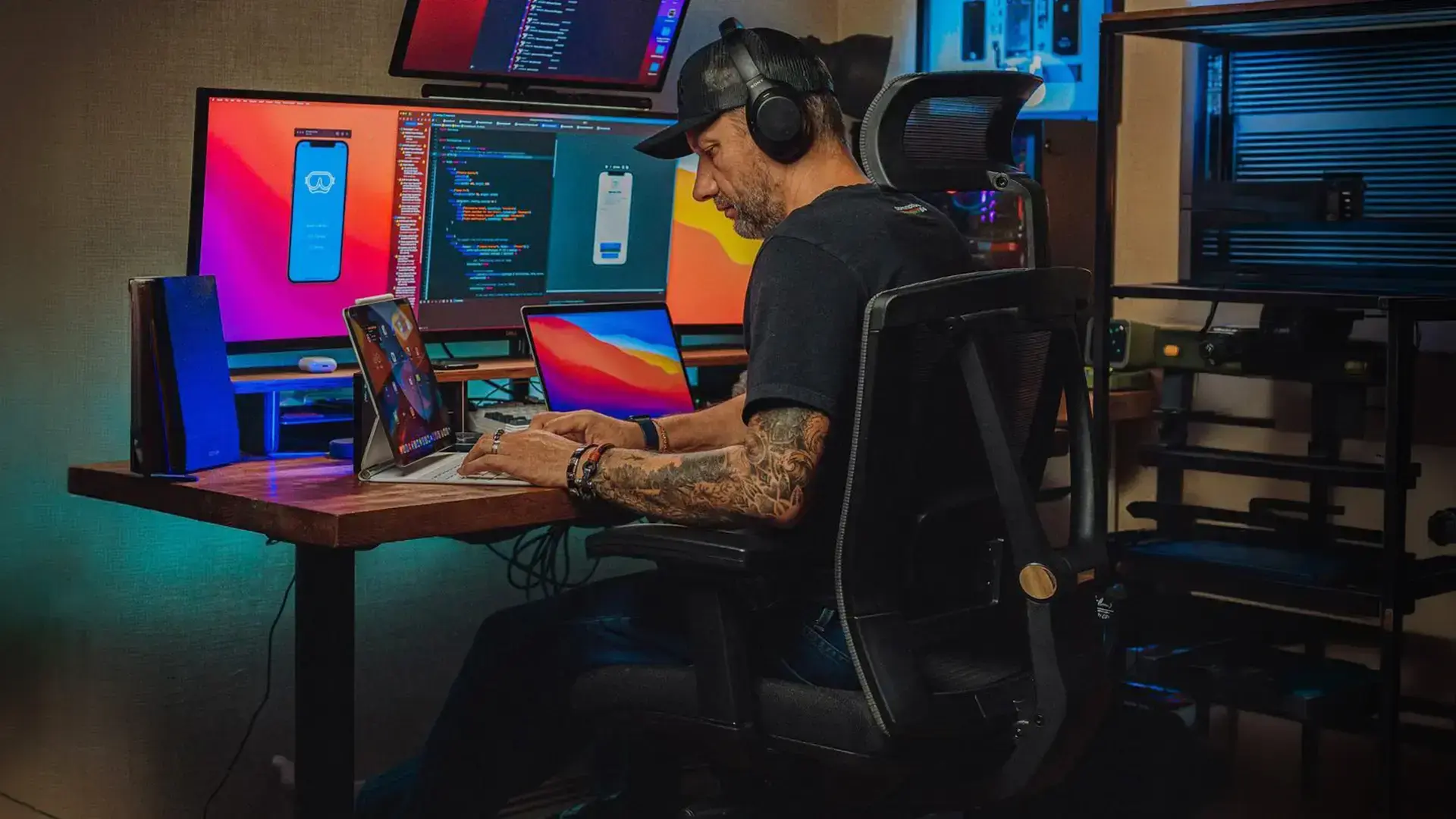
Home office setup ideas by space and style
Gear is half the job; how you arrange it is the other half. Here are grounded directions - each tied to how it actually functions, not just how it looks.
Small-space setup.
Use a compact desk, a single well-placed monitor (or a riser to reclaim surface), and vertical storage to keep the footprint tight. Don't shrink the chair to save space - it's the one piece that doesn't downsize well. A wall-mounted shelf and a slim cable tray keep a small setup from reading as cluttered.
.webp)
Minimalist / modern.
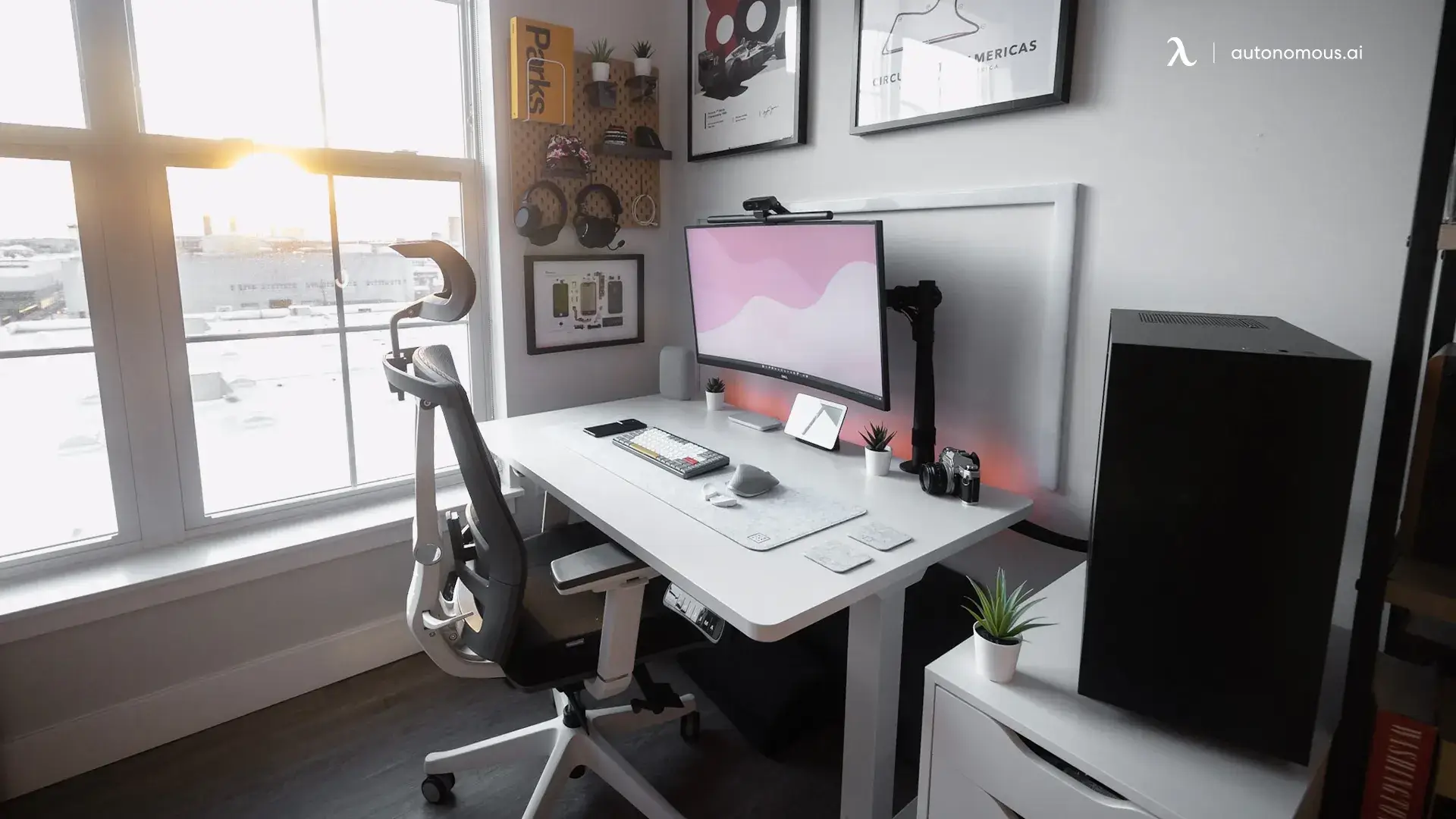
Clean lines, a single monitor on an arm to free the surface, hidden cable management, and a neutral desktop finish. The trick that makes minimalism work day to day is aggressive cable and cord control - visible cables are what break the look.
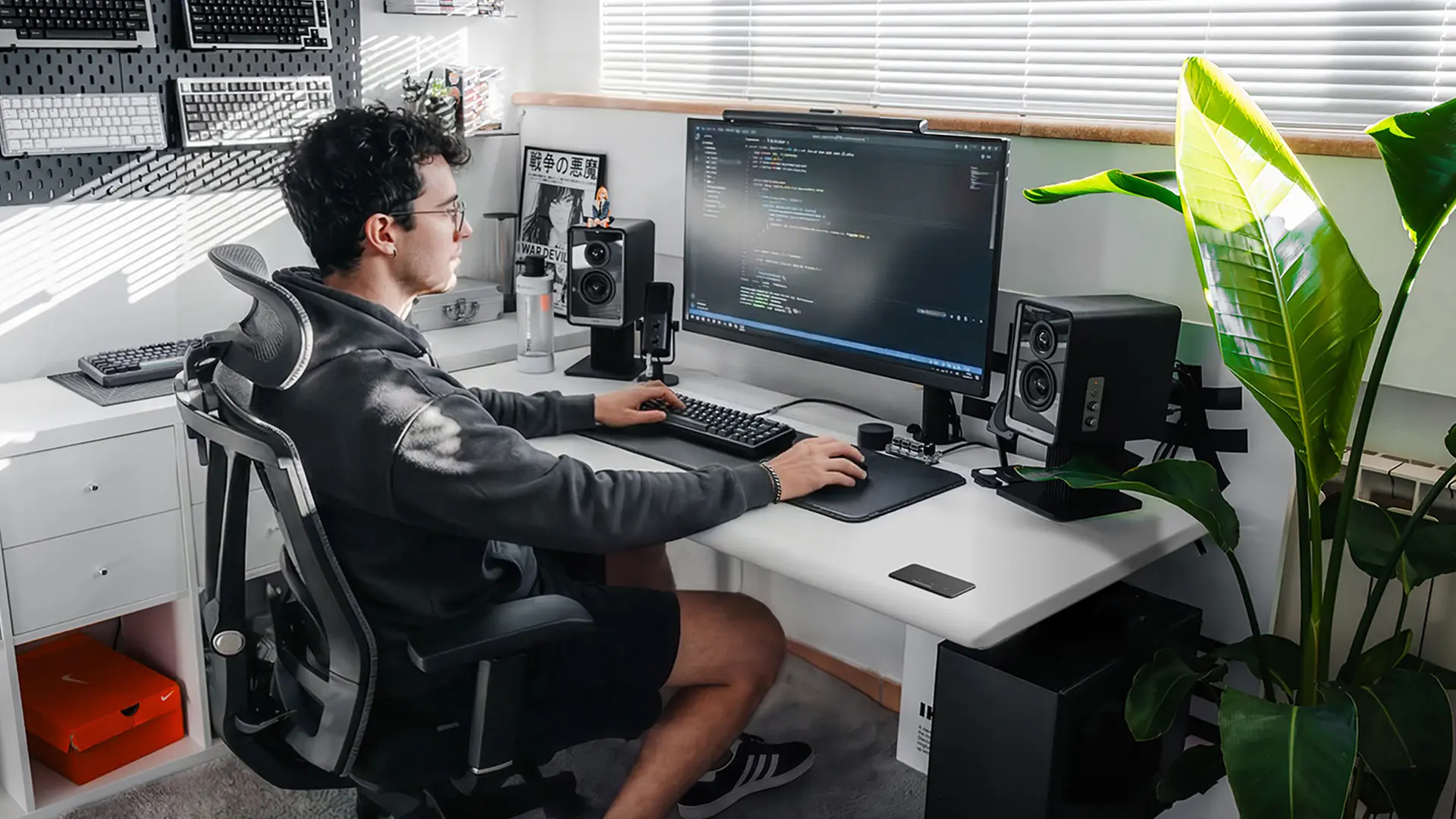
Creative / multi-monitor.
A wide or L-shaped desk, dual or ultrawide monitors at matched heights, strong task lighting, and tool storage within reach. Color-accurate IPS panels matter here more than raw size.
Focus / dedicated space.
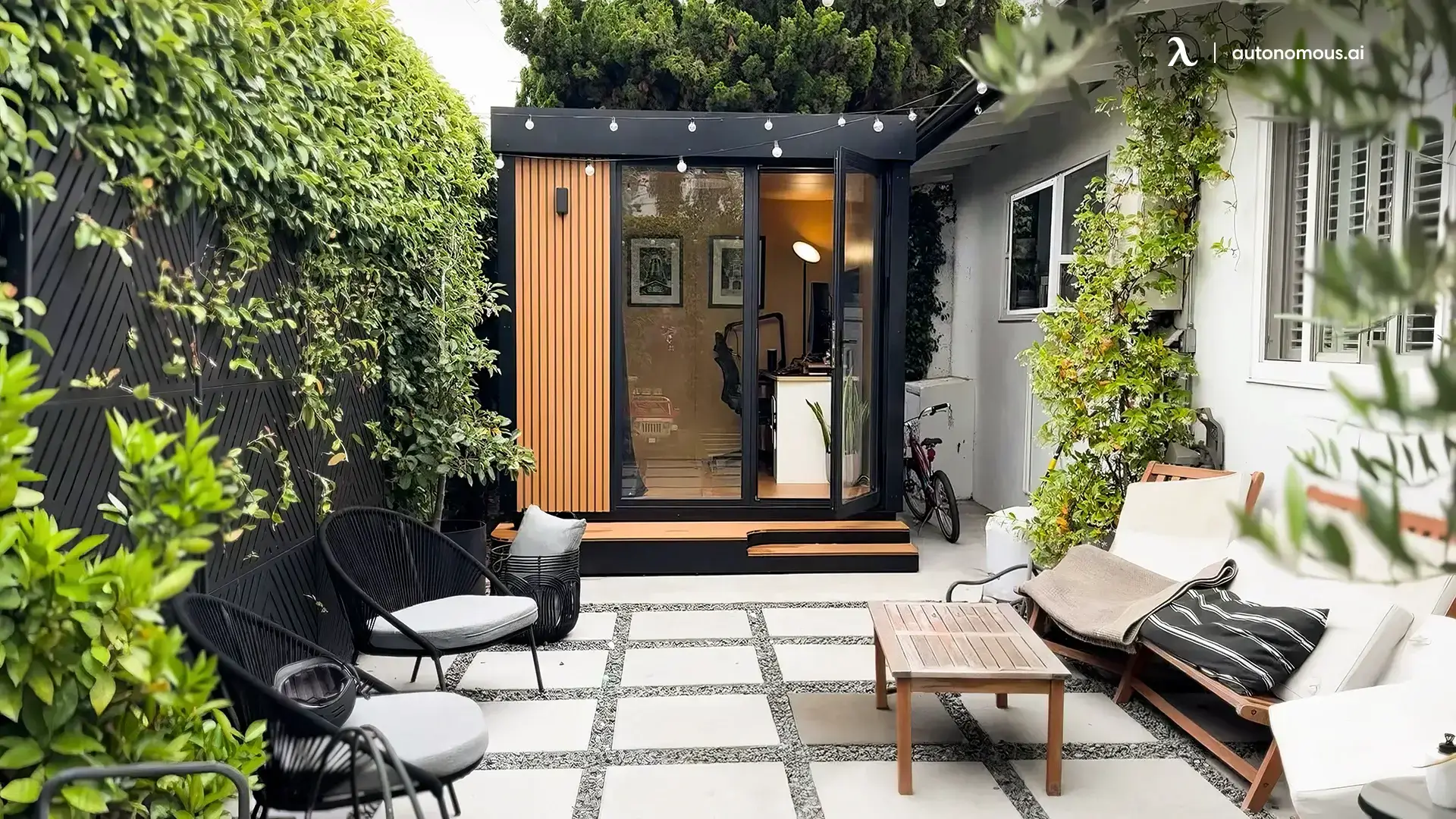
If noise or household distraction is the real problem and a spare room isn't an option, a separated zone with a door-equivalent boundary - or a backyard pod like the WorkPod Core - buys you the quiet that no accessory can. This is the upgrade people underestimate until they have it.
.webp)
Common home office setup mistakes
Buying the desk and chair last. They're the highest-impact pieces; budget for them first.
Chasing aesthetics over ergonomics. A photogenic setup that wrecks your back is a bad setup.
A monitor that's too close or too low. Screen top at eye level, roughly an arm's length away.
Ignoring lighting. It's the cheapest fix with an outsized effect on calls and eye strain.
Cable chaos. Sort it once with a tray and ties; it's the difference between "clean" and "cluttered."
FAQs
What do I need for a home office setup?
In priority order: a supportive ergonomic chair, a stable (ideally sit-stand) desk, an external monitor sized to your work, a comfortable keyboard and mouse, reliable power and connectivity, good lighting, and ergonomic accessories like a footrest and cable management.
What should I buy first for a home office?
The chair, then the desk. You're in contact with them every working hour, and poor versions cause back pain and fatigue no monitor or webcam offsets. Buy top-down and stop where the budget ends.
How much does a good home office setup cost?
Roughly $500-$800 for a solid starter setup, $1,000-$1,800 for a mid-tier one with an ergonomic chair and motorized desk, and $2,500+ for premium. Prices change periodically; spend the largest share on chair and desk.
What size monitor is best for a home office?
27" is the balanced default; 24" suits compact or single-task desks; 32"+ helps heavy multitasking but needs desk depth. Choose IPS for accurate everyday color, OLED only if contrast outweighs burn-in risk.
Is a standing desk worth it for a home office?
For long days, yes - alternating sitting and standing reduces the strain of one fixed posture. Look for a motorized desk with presets, a solid weight capacity, and BIFMA/UL certification, like the ~$349 Autonomous Desk Core.
How do I set up a small home office?
Use a compact desk, one well-placed monitor or a riser, vertical storage, and tight cable management. Keep the chair full-size even in a small space - it's the piece that doesn't shrink well.
How far should my monitor be from my eyes?
About an arm's length (20-26"), with the top of the screen at or just below eye level. Closer than that strains your eyes; lower than that strains your neck. That usually means 24"+ of desk depth.
How do I light a home office for video calls?
Put a bright, diffuse light source in front of you, not behind, so you aren't silhouetted, and add a task lamp to cut screen glare. Daylight-temperature light suits daytime focus; warmer light works later.
Do I need a separate room for a home office?
No, but you need a defined zone. If focus or noise is a problem and a spare room isn't available, a backyard pod or a well-separated, well-lit corner with a boundary does the job.
How do I make a home office setup look good without hurting ergonomics?
Start from ergonomic placement (monitor height, chair support, desk depth), then style around it - a monitor arm, hidden cables, a neutral finish, and one or two personal accents. Aesthetics should sit on top of function, not replace it.
Conclusion
The best home office setup isn't the one with the most gear - it's the one that puts your money where your body spends its time. Buy the chair and desk first, because they're load-bearing for your spine every working hour and no monitor or webcam offsets a bad one; add the screen, input devices, connectivity, and lighting from there, stopping wherever the budget runs out. Size the pieces to your space and work style, keep the monitor an arm's length away at eye level, and let aesthetics sit on top of ergonomics rather than replace them. Get that order right and a home office setup pays you back in comfort and focus across every long day, not just in how it looks on day one.