AI Employee Setup Guide 2026: Deploy Without a Tech Team


Table of Contents
- Before You Start: Is Your Business Ready for an AI Employee?
- Step 1 — Choose the Right First Role
- Step 2 — Write the Role Definition
- Step 3 — Choose Your Tool
- Step 4 — Connect Your Tools and Set Guardrails
- Step 5 — Run the First Week: How to Know If It's Working
- What to Automate Next — Scaling Beyond Your First AI Employee
- FAQs
- Conclusion
Most businesses that struggle with AI don't have a technology problem — they have a sequencing problem. They deploy the wrong tool for the wrong task, see inconsistent results, and conclude that AI isn't ready for real work. Usually, the issue is simpler: they needed an AI employee, not another chatbot or automation trigger.
This guide covers the exact setup process — role selection, scope definition, tool connection, and first-week validation — so your first AI employee deployment works from day one, not after three rounds of troubleshooting.
Before You Start: Is Your Business Ready for an AI Employee?
An AI employee is software — or a software-and-hardware combination — that owns a defined business role and executes it autonomously, without waiting to be prompted for each task. That distinction matters before you commit to setup, because not every workflow is the right fit.
Two conditions determine whether a task belongs to an AI employee or a simpler tool:
The task recurs at minimum weekly, and it requires reading variable input — an email, a form submission, a calendar conflict — and making a low-stakes decision about what to do next. If both conditions are true, an AI employee is the appropriate deployment. If the task recurs but always produces the same output regardless of input, standard automation handles it more efficiently. If the task recurs but always produces the same output regardless of input, standard automation or a general-purpose AI assistant handles it more efficiently.
Run through these three questions before moving to Step 1:
Does the task happen often enough to justify setup time? Deploying an AI worker for something that occurs twice a month rarely pays back the configuration effort within a reasonable timeframe.
Does completing the task require reading context before acting? Forwarding a specific email to a specific person every time is automation. Reading an inbound inquiry, identifying what it's asking, and routing it to the right person based on content — that's an AI employee task.
Is the output low-stakes enough to run without human review on every instance? AI employees work best when their outputs are correctable, not irreversible. Customer inquiry routing, meeting scheduling, and follow-up drafts all qualify. Sending a contract or processing a refund without a human checkpoint generally does not — at least not at initial deployment.
If you answered yes to all three, your workflow is ready. If one answer was no, identify whether the blocker is temporary — a guardrail can often address the third question — or structural.
One practical note: businesses that see the fastest results from their first AI employee deployment tend to start with a role they already understand well. If you've managed the task manually for at least three months, you know its edge cases. That knowledge is what makes a role definition specific enough to work.

Step 1 — Choose the Right First Role
Setting up an AI employee follows five steps: choose the right role, define its scope and authority, select a tool, connect your systems, and validate output in the first week.
The right first role is the most contained workflow available — one with clear inputs, predictable decision logic, and outputs that are easy to evaluate. Most deployment failures trace back to starting with a role that was too broad, not a tool that was too limited.
These six roles have the most consistent track record as first deployments across small and mid-sized operations:
Customer inquiry triage — Reading inbound messages, categorizing by request type, routing to the right person or drafting a templated first response. Works well when inquiry volume exceeds 10–15 per day and response time matters to the business.
Meeting scheduling and follow-up — Managing calendar coordination across multiple parties, sending confirmations, and following up on action items after calls — the core function of an AI scheduling assistant. Effective when scheduling consumes more than 30 minutes per day of a team member's time.
Lead qualification — Applying defined criteria to inbound leads and surfacing the ones that meet the threshold for a human conversation. Requires a clear qualification framework to be written before deployment.
Internal task routing — Receiving task requests from team members across messaging channels and assigning them to the right person or queue based on predefined rules.
Recurring report generation — Pulling structured data from connected tools on a schedule and compiling it into a consistent format — a common starting point for teams using an AI-powered financial assistant to handle reporting. Works best when the data sources have reliable API access.
Inbox management and follow-up sequencing — Monitoring an inbox for threads requiring follow-up, flagging or drafting responses based on defined rules, and keeping communication from going cold.
Document review and contract routing — Flagging incoming documents by type, extracting key fields, and routing for the appropriate approval. Teams working in legal or compliance functions often start here; the deployment considerations for an AI-powered legal assistant follow the same scoping logic as the roles above.
A useful frame for this decision: start with the role you would hire a junior person for, not the one you would need a senior person for. The same logic applies across AI automation for small businesses more broadly — the highest-return workflows are rarely the most complex ones.

Step 2 — Write the Role Definition
A role definition is the document that tells an AI employee what it owns, what decisions it can make without asking, and when it must stop and involve a human. It is not a prompt. Prompts give instructions for a single task, which is closer to how an AI agent operates. A role definition sets the operating parameters for ongoing, autonomous work
Most early deployments underperform not because the underlying tool is weak but because the role definition is written at the wrong level of specificity — either too vague to guide consistent behavior or too rigid to handle normal variation in real-world inputs.
A functional role definition has four components:
Scope defines what the AI employee is responsible for. Write this as a job description sentence — what it monitors, what it evaluates, and what it does as a result. Avoid listing individual commands; describe the function as a continuous responsibility.
Authority defines what decisions the AI employee can execute without human approval. The line between "draft and queue for review" and "send autonomously" is not a minor configuration detail — it is a risk boundary. Define it explicitly, and err toward the more restricted version at initial deployment.
Escalation triggers define the conditions under which the AI employee must stop and flag a human. Write these as observable, testable conditions — specific amounts, identifiable keywords, or unmatched categories — not subjective thresholds like "anything complicated" or "unusual requests." If the trigger cannot be evaluated without human judgment, it is not specific enough.
Off-limits define what the AI employee must never do regardless of context or instruction. This is the only component that should be written before the other three. It is your primary risk control at the role definition stage, and it should be treated as non-negotiable once set.
Write all four components in plain language before opening any software. The role definition is the document the tool configuration maps to — not the other way around.
Worked example — customer inquiry triage:
Component | Example |
Scope | Monitor the support inbox. Categorize each inquiry as billing, technical issue, general question, or complaint. Draft from the approved template library or route to the assigned team member when no template matches. |
Authority | Draft and queue responses for human review before sending. Log each interaction in the CRM with category and action taken. |
Escalation triggers | Any inquiry mentioning a refund, legal action, account cancellation, or distressed language. Any inquiry that cannot be matched to an existing category. |
Off-limits | Do not send without human review in the first 30 days. Do not access systems outside the support inbox, template library, and CRM. |
The example above applies to one role — customer inquiry triage — but the four-component structure transfers to any function: scheduling, lead qualification, internal task routing, or report generation. The components do not change. The specifics inside each one do.
Step 3 — Choose Your Tool
Choosing a tool for an AI employee deployment requires matching the platform category to the environment where the work occurs — cloud-based for app-layer workflows, hardware-integrated for workspace-bound roles.
The answer splits the available options into two categories: software-based AI employees that operate inside cloud applications and browser environments, and hardware-integrated AI employees that operate from within a physical workspace. The distinction is not about capability level — it is about deployment environment and how the AI employee receives context about the work it needs to do.
1. How To Choose Between The Two
Criteria | Software-Based | Hardware-Integrated |
Where work happens | Primarily in cloud apps and browsers | In a dedicated physical workspace |
Who manages it | IT team or operations lead | Individual user or small team |
Privacy model | Cloud-processed, vendor-dependent | Closer to local processing for workspace context |
Best first role | Customer triage, lead qualification, reporting | Task management, scheduling, communication triage |
Team vs. individual | Scales across multi-user environments | Optimized for individual deployment |
Neither category is categorically better — the fit depends on your role definition from Step 2 and the environment where that role operates.
2. What the Setup Looks Like with a Hardware-Integrated AI Employee
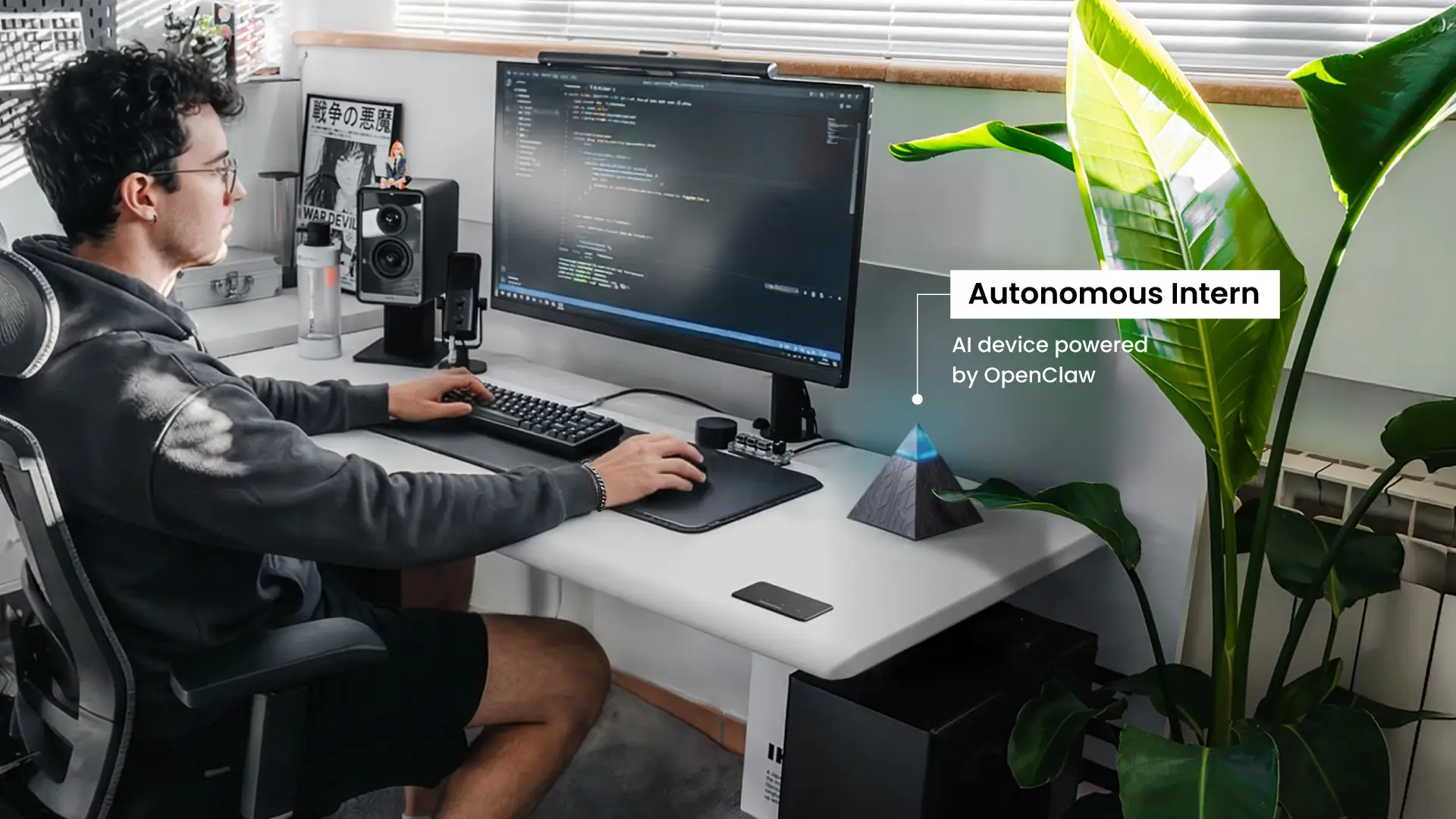
A hardware-integrated AI employee combines a physical device with software that connects to the communication platforms your team already uses, operating from within the workspace rather than inside a browser tab.
For workspace-bound deployments, Autonomous Intern is a concrete example of how the setup process from Steps 1 through 3 translates into practice.
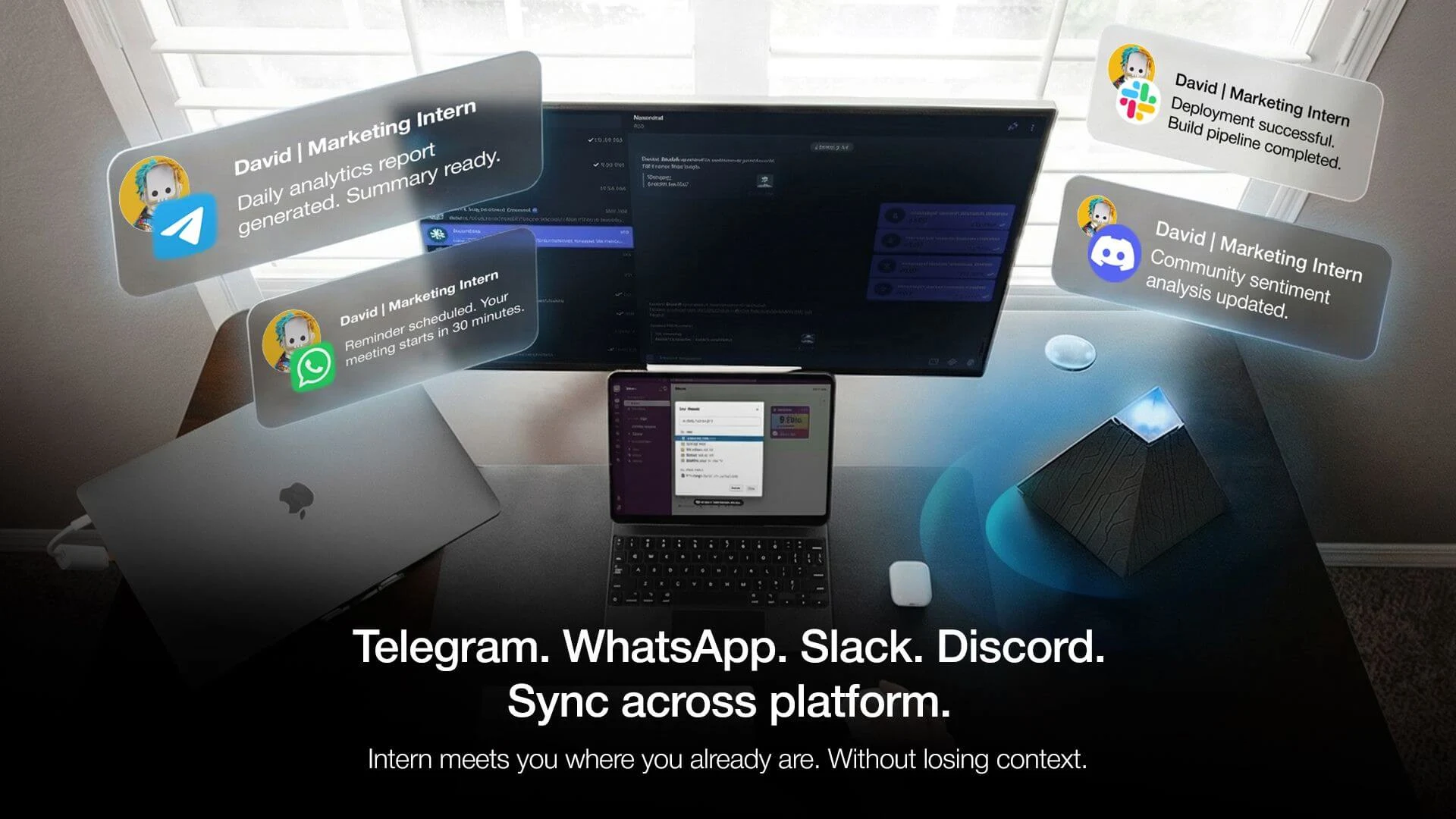
Starting from the role definition: This personal AI assistant receives its operating parameters through the messaging platforms it connects to — Slack, Telegram, WhatsApp, and Discord. The role definition you wrote in Step 2 becomes the instruction set it works from inside those channels. You do not configure a separate interface or write code. You describe the role in the same plain language the template requires, and Intern operates from it across whichever platform your team already uses.
On the tool connection side, Intern's integration footprint is narrow by design at initial deployment — it connects to your communication layer first, which aligns with the guidance in Step 4 to avoid connecting too many systems before the core workflow is validated. The ambient operation model means it does not require you to open an application or initiate a session to receive context — relevant when the role involves monitoring and responding to incoming communication throughout the working day rather than processing batched tasks at set intervals.
For the guardrail design, the local-processing architecture for workspace context simplifies one common configuration decision: what the AI employee can perceive in the environment versus what it can act on in external systems. Those are two separate permission layers in Intern's setup, which maps directly to the authority and off-limits components of the role definition.
Autonomous Intern is available at the cost of $149 range with subscription tiers that scale to usage volume. For individuals deploying a single-role AI employee in a fixed workspace, the total cost of ownership over twelve months is generally lower than per-seat software subscriptions that increase with team size or task volume.
This is one implementation path, not the only one. The decision table above applies regardless of which specific tool you choose within each category.

Step 4 — Connect Your Tools and Set Guardrails
Connecting tools and setting guardrails are two distinct configuration tasks that belong in the same step because the guardrail design depends directly on knowing which systems the AI employee can access.
1. Tool Connections
Tool connection means giving the AI employee access to the systems where the work in its role definition actually occurs. At minimum, an AI employee requires access to three systems: the channel where inputs arrive, the system where outputs are recorded, and the knowledge source it draws from when generating responses.
For most first deployments, this means two or three integrations: the inbox or messaging channel where inputs arrive, the system where outputs get recorded, and the template or knowledge library it draws from when drafting responses.
Most software-based AI employee platforms handle connections through OAuth authorization or API keys — a process that typically takes minutes per integration and does not require developer involvement. Hardware-integrated deployments connect at the communication layer first, as covered in Step 3.
The most common setup mistake at this stage is connecting too many systems before the core workflow has been validated. A new AI employee onboarding process works best when its initial tool access matches exactly what the role definition requires — nothing more. Adding integrations after the first week, once output quality has been confirmed, is lower risk than granting broad access upfront and diagnosing errors across multiple connected systems simultaneously.
A practical connection sequence for a first deployment:
Week 1: Connect only the systems the role definition explicitly references — inbox, template library, logging tool.
Week 2 onward: Expand access incrementally based on validated performance, one integration at a time.

2. Setting Guardrails for Your AI Employee
Guardrails are the operational boundaries that control what the AI employee can do within its connected systems. They are not a secondary concern — they are what makes autonomous operation safe enough to run without constant oversight.
Three categories of guardrails apply to most first deployments:
Communication guardrails define what the AI worker can send on your behalf, to whom, and under what conditions. The most conservative starting position: draft only, human approval before any external message is sent. This can be loosened after the first week once output quality is confirmed.
Data access guardrails define what the AI employee can read versus what it can write or modify. Read access to an inbox and write access to a CRM log are different risk levels — a distinction that sits at the center of most AI privacy and security frameworks. Define them separately, not as a single permission.
Escalation guardrails operationalize the escalation triggers from the role definition. At the tool configuration level, these become specific rules: if a message contains keyword X, flag it and stop. If an input cannot be matched to a template category, route to the human queue and log the gap. The escalation triggers you wrote in Step 2 translate directly into these rules — the configuration step is mapping language to logic, not rewriting the underlying decisions.
For workspace-integrated deployments like Intern, the local-processing architecture for ambient context means the data access guardrail question separates into two distinct layers — what the device perceives in the physical environment and what it acts on in connected external systems — which simplifies the permission design at initial setup.
One principle applies across both tool connections and guardrail design: configure for the role as defined, not for the role as you hope it will eventually expand.
Step 5 — Run the First Week: How to Know If It's Working
The first week of an AI employee deployment is a validation period, not a hands-off automation phase. The goal is not to remove yourself from the workflow immediately — it is to confirm that the role definition is producing the behavior you intended before reducing oversight.
Most deployments that get abandoned within the first month fail not because the tool underperforms but because the first-week feedback loop is missing. Without a structured evaluation process, issues in the role definition go undetected until they compound into errors that are harder to diagnose.
Three checkpoints structure the first week:
- Days 1–2: Monitor every output manually
At this stage, the AI employee is executing the role definition you wrote — your job is to confirm that its interpretation matches your intent. The diagnostic question for this checkpoint: Is the AI employee doing the job I defined, or the job it interpreted? If those diverge, the role definition needs revision before the deployment continues.
Common divergence signals: outputs that technically follow the instructions but miss the intent, escalation triggers that fire too frequently or not at all, and off-limits boundaries that are being approached but not crossed.
- Days 3–5: Review the escalation pattern:
By the third day, a pattern in how the AI worker is handling escalations should be visible. Identify the top three reasons escalation fired. If they match the conditions you defined — a refund mention, an unmatched category, a flagged keyword — the system is working as designed. If escalations are firing for reasons outside the defined triggers, the role definition has a gap that needs closing before scope is expanded.
- Days 6–7: Measure and decide:
Two metrics matter at this checkpoint: task completion rate and error rate. Task completion rate measures how often the AI employee resolved an input without requiring human intervention. Error rate measures how often its output required correction before it was usable.
A practical decision rule for the end of week one:
First-Week Error Rate | Decision |
Below 10% | Expand scope incrementally — add one adjacent task or integration |
10–25% | Hold current scope — tighten the role definition before adding complexity |
Above 25% | Reduce scope — remove the task generating the most errors and redefine |
The threshold that matters most is not the error rate itself but the direction it moves across the week. An error rate that starts at 20% and drops to 8% by day seven indicates a system that is calibrating correctly. An error rate that stays flat or increases indicates a structural problem in the role definition that additional time will not resolve.
One operational note: keep a log of every manual correction made during the first week. The pattern in those corrections is the most reliable signal for what the role definition needs to say more precisely. Corrections that cluster around the same input type or decision point identify exactly where the definition is underspecified.

What to Automate Next — Scaling Beyond Your First AI Employee
Scaling from one AI employee to multiple follows the same logic as the initial deployment: contain the scope, validate the output, then expand.
Three paths are available once the first deployment is stable:
Expand the existing role. The most conservative path. Once the first AI employee is operating within its defined role at an acceptable error rate, adjacent tasks within the same function can be added incrementally. A customer inquiry triage deployment that is working well can be extended to handle follow-up sequencing, then to log interaction summaries in the CRM, then to flag threads that have gone cold beyond a defined threshold. Each addition is a scope extension, not a new deployment — the role definition grows, the tool connections expand, and the guardrail sets updates to match.
Deploy a second AI employee in a different function. The second deployment is faster than the first because the organizational process for writing role definitions, configuring tools, and running first-week validation already exists. At this stage, teams often expand into proactive AI behavior — deployments that surface information or take action before being asked, rather than responding to inbound inputs. The role definition template from Step 2 transfers directly. The tool connection sequence from Step 4 is familiar. What changes is the function — a second AI worker deployed in a different role, operating independently of the first.
Connect multiple AI employees so outputs from one feed inputs to another. This is the most complex path and is worth considering only after both individual deployments are stable. A common pattern: a software-based AI employee handles external-facing workflows — lead qualification, customer triage, scheduling — while a workspace-integrated device like Autonomous Intern manages the internal layer — task routing, meeting prep, follow-up synthesis — without requiring the individual to switch between tools to stay current. The two deployments operate in different environments but pass structured outputs between them through shared logging or a connected CRM.
A business that has one functioning AI employee has already solved the hardest part of the problem. The first deployment forces clarity on role definition, tool access, and guardrail design. Every subsequent deployment inherits that clarity and builds on it, which is why the gap between the first and second AI employee deployment is almost always larger than the gap between the second and third. The best AI employee deployments at scale share one characteristic — each role was validated individually before connections between deployments were introduced.

FAQs
What is an AI employee?
An AI employee is software — or a combination of software and hardware — that owns a defined business role and executes it autonomously on an ongoing basis, without waiting to be prompted for each individual task.
Unlike chatbots or simple automations, AI employees can read inputs, make decisions within a defined scope, and execute multi-step workflows across tools. AI employees function as persistent digital workers that handle ongoing responsibilities, not just one-off tasks.
What is the difference between an AI employee and an AI agent?
The difference between an AI employee and an AI agent is that an AI agent executes tasks, while an AI employee owns a defined role.
An AI agent is the technical building block — an autonomous system that executes a task when triggered. An AI employee wraps that capability in a defined role: scoped permissions, connected tools, guardrails, and memory, so it operates as a persistent digital coworker rather than a single-task executor.
What is the difference between an AI employee and a chatbot?
A chatbot is reactive — it responds to questions within a conversation window and waits for the next prompt. An AI employee is proactive — it monitors for relevant inputs, decides what action to take based on a role definition, and executes across connected systems without someone initiating each step. The practical difference is that a chatbot handles a conversation; an AI employee handles a function.
What is an example of an AI employee?
An example of an AI employee is a system that manages a company’s inbox—reading emails, prioritizing messages, drafting replies, and scheduling follow-ups automatically. It operates continuously within a defined role, not just when prompted. AI employees are designed to handle ongoing business functions, not one-off tasks.
What tasks can an AI employee handle?
An AI employee can handle:
- Customer inquiry triage
- Meeting scheduling
- Lead qualification
- Internal task routing
- Recurring report generation
- Inbox and follow-up management
AI employees perform best on structured, repeatable workflows with clear decision rules. They are not suited for tasks requiring judgment, creative strategy, or final authority without review.
What are the benefits of AI employees?
The benefits of AI employees include automation of repetitive work, lower operational costs, and faster response times across workflows.
AI employees can operate 24/7, maintain consistency, and scale without additional headcount. Most teams use AI employees to free up human time for higher-level decisions and strategy.
Are AI employees safe?
AI employees are safe when deployed with clear role definitions, limited permissions, and human oversight during early use.
Most AI employee platforms include guardrails, access controls, and audit logs to prevent unintended actions. Safety depends on how well the AI employee is scoped and monitored.
Will an AI employee replace human workers?
An AI employee replaces the repeatable majority of a role — the structured, high-volume tasks that follow defined logic — not the role itself. Humans still set direction, manage relationships, and make final decisions; AI employees augment human teams rather than replace them.
How do I set up an AI employee for my business?
Setting up an AI employee follows five steps: choose the right first role, write a role definition covering scope, authority, escalation triggers, and off-limits boundaries, select a tool matched to your deployment environment, connect the minimum required systems, and validate output daily during the first week before reducing oversight.
Do I need technical skills to deploy an AI employee?
No. Most AI employee platforms are configured through plain-language instructions rather than code. The role definition is written in natural language, and tool connections are handled through standard OAuth authorization or API keys — typically a permission-screen process rather than development work. The primary requirement is clarity about the role, not technical skill.
How long does it take to set up an AI employee?
A single, well-scoped role with two or three tool connections can be configured in one working day. The first-week validation period — during which outputs are monitored and the role definition is refined — adds five to seven days before the deployment is considered stable. Cross-functional deployments with multiple integrations typically take three to five business days to configure before validation begins.
How much does an AI employee cost?
The cost of an AI employee typically ranges from $50 to $500 per month, depending on the platform and task complexity. Hardware-integrated AI employees carry a one-time device cost — Autonomous Intern sits in the $149 range — plus a usage-based subscription. A complete cost comparison against a human equivalent requires accounting for salary, onboarding, management overhead, and error cost, not just the licensing fee.
Can an AI employee make mistakes?
Yes, and the first-week validation protocol exists specifically to catch errors before they compound. A well-scoped first deployment typically produces an error rate of 10–25% in week one, declining as the role definition is refined. An error rate that drops across the week indicates normal calibration.

Conclusion
Deploying an AI employee is a scoping problem before it is a technology problem. The businesses that see consistent results from their first deployment are the ones that invested time in the role definition — not the ones that moved fastest to configure a tool.
The five steps in this guide follow that logic in sequence: identify a contained role, define its boundaries precisely, match the tool to the deployment environment, connect only what the role requires, and validate before expanding. Each step depends on the one before it. Skipping the role definition to get to the tool selection faster is the single most reliable way to produce a deployment that underperforms and gets abandoned.
An AI employee does not need to be sophisticated to be useful. It needs to be correctly scoped. Start there, validate that it works, then build from a stable foundation.