How to Build a 4 Monitor Setup (Without the Guesswork)
Quick answer: A 4 monitor setup connects four displays to one PC using a graphics card with multiple video outputs. The most common layouts are a 2×2 grid or a horizontal row, depending on desk space and workflow. This setup helps manage multiple tasks at once without switching between windows.
A 4 monitor setup lives or dies on two things most guides gloss over: whether your graphics card can drive four displays at once, and whether your desk is physically wide enough for the layout you want. Get those right and four screens end multitasking window-juggling; get them wrong and you've got an expensive, cramped mess. Here's the hardware reality, the desk width each layout actually needs, and seven arrangements matched to how people really work.
What you need first: the hardware check
GPU ports. Your graphics card must support four simultaneous displays. Count its outputs - DisplayPort, HDMI, USB-C - and confirm four-display support; many mid-range and higher NVIDIA/AMD cards handle it, but port count alone isn't proof, so check the spec sheet.
Direct connections. Plug each monitor into the GPU, not the motherboard, and skip splitters - they mirror instead of extending.
"Extend" mode. In display settings choose Extend so all four act as separate screens, then drag them to match their physical layout.
Native resolution and matched refresh. Set each to its native resolution; mismatched refresh rates cause visible lag between screens.
How to set up a 4 monitor setup
A 4 monitor setup works when your hardware supports four displays and your layout matches how you use your screens.
- Check if your PC supports 4 monitors
Your graphics card must support four displays at the same time. Look for at least four output ports such as DisplayPort, HDMI, or USB-C. If your GPU has fewer ports, you may need adapters or a docking solution.
- Connect each monitor to the graphics card
Each monitor should be connected directly to your GPU, not the motherboard. Avoid using splitters, because they mirror screens instead of extending them.
- Set display mode to “Extend”
In your display settings, choose “Extend” so all four monitors work as separate screens. This allows you to move windows freely between displays.
- Arrange monitors to match your desk layout
Drag and position the displays in your system settings so they match how they are physically placed. This makes cursor movement feel natural across screens.
- Adjust resolution and refresh rate
Set each monitor to its native resolution and supported refresh rate. Mismatched settings can cause blurry visuals or lag between screens.
- Choose a primary monitor
Set one monitor as your main display. This is where apps open by default and where your taskbar usually appears.
Best 4-Monitor Setup Ideas
1. Standard Quad Layout
This layout involves placing all four monitors in a 2x2 grid. This 4 monitor desk setup is ideal for users who need to manage multiple applications simultaneously. It provides a balanced and symmetrical workspace, allowing for easy access to each screen with minimal head movement.
However, the central monitors can be slightly low or high depending on the stand used, which might require some adjustments. For more inspiration, check out our guide on the 4 monitor setup with laptop.
2. Panoramic Layout
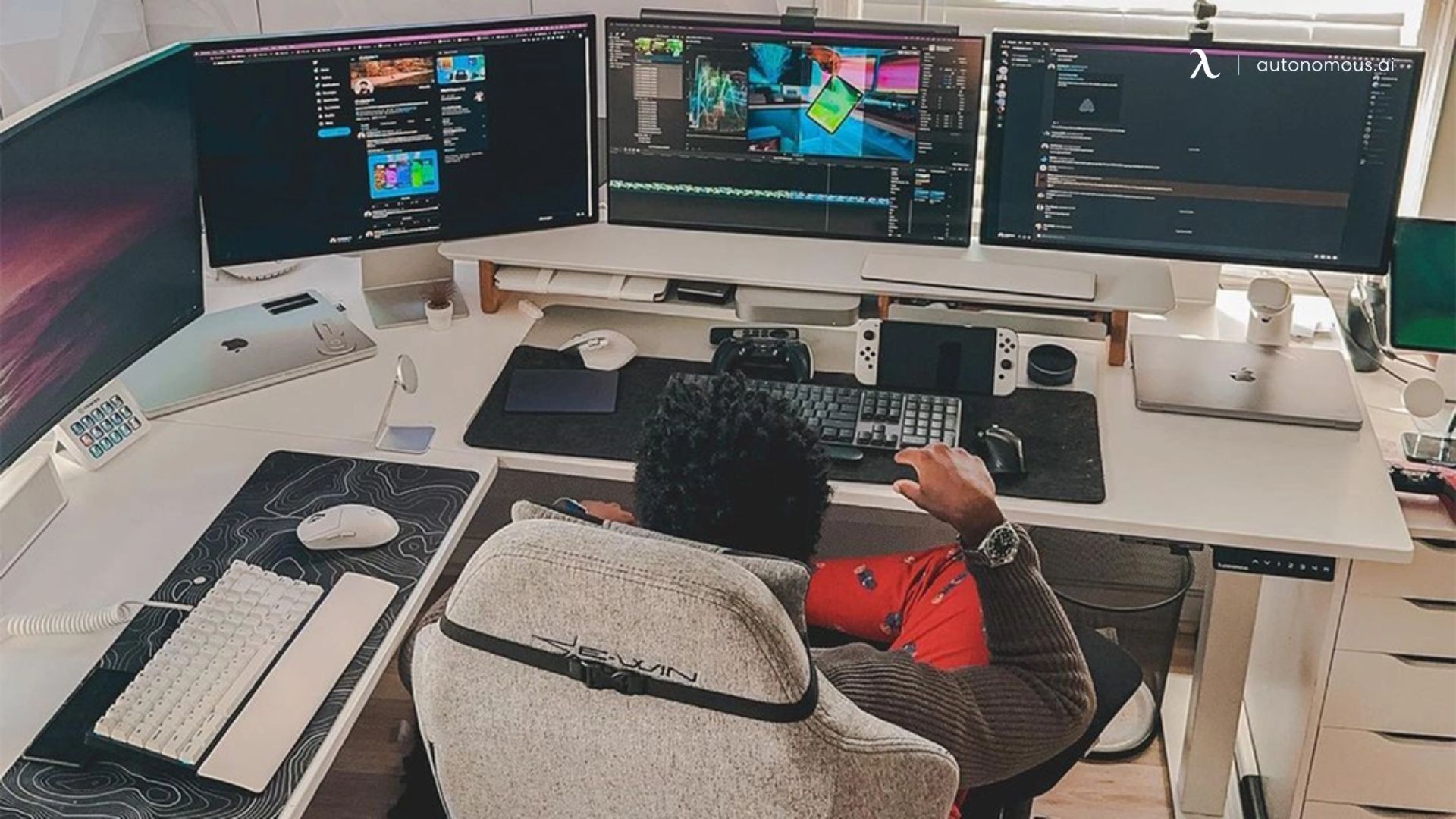
In this setup, all 4 monitors are placed side-by-side horizontally. This layout is particularly suited for 4 monitor gaming setup and immersive work environments, offering a wide, uninterrupted horizontal workspace.
The fourth monitor can be used for secondary tasks like communication apps, keeping the main monitors focused on primary tasks. This layout requires a wide desk and the top monitor might be less comfortable for extended viewing periods.

3. Vertical Duals Layout
This layout includes two monitors side-by-side with another pair of monitors in portrait mode on either side. It is ideal for reading, document editing, and coding. The portrait monitors are perfect for displaying long documents or code, while the central space remains wide for general tasks.
This 4 screen monitor setup requires taller stands or mounts for the portrait monitors, which might feel narrow for certain tasks.
4. Surround Layout
The surround 4 computer monitor setup places one central monitor with three additional monitors surrounding it (left, right, and top). This configuration is excellent for simulators and graphic design, providing a central focus with plenty of peripheral information.
It offers an immersive experience but requires precise positioning to avoid neck strain and can be overwhelming with too much information.

5. Command Center Layout
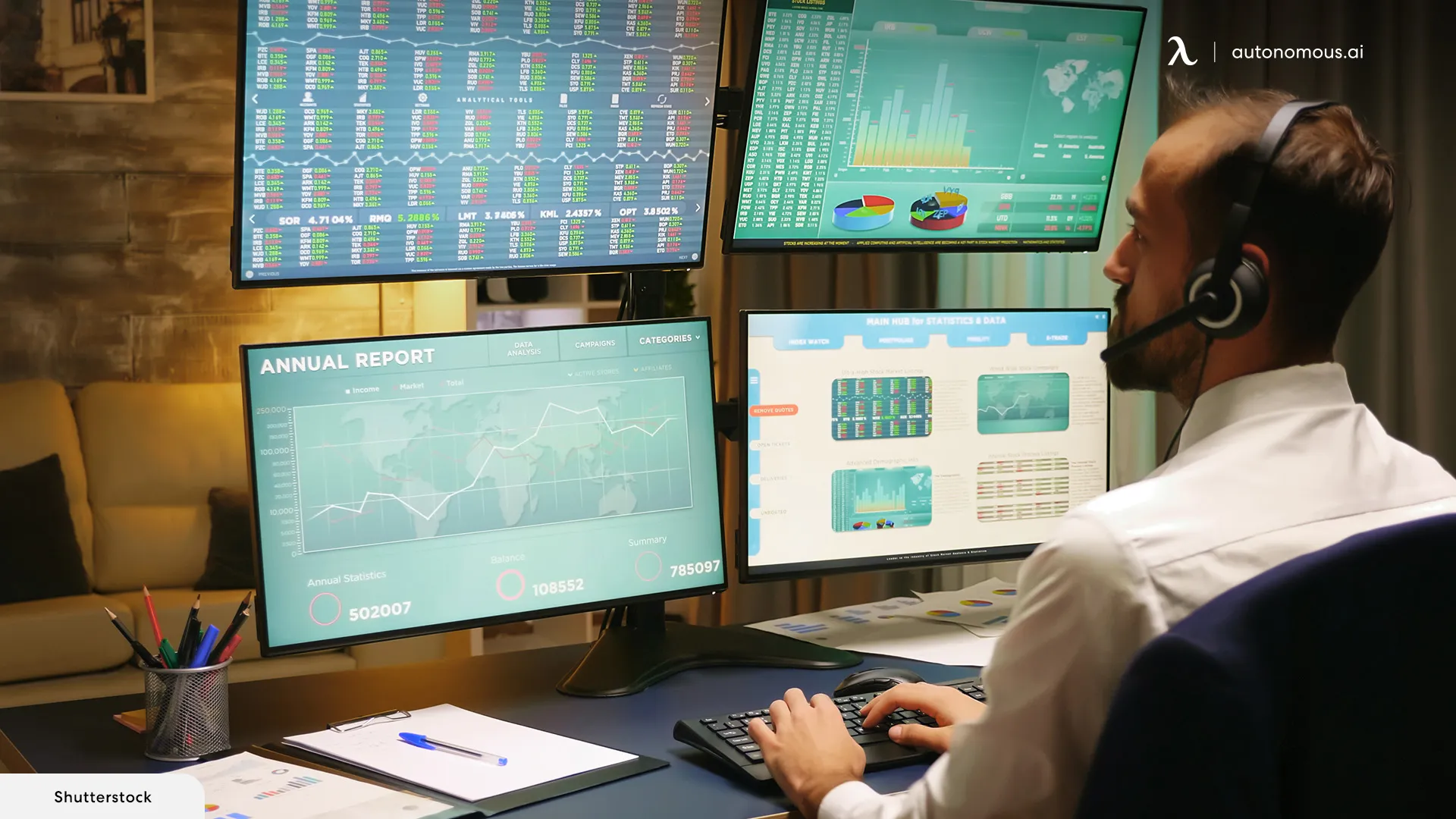
In this setup, two monitors are placed on top and two below, forming a 2x2 grid. It is particularly useful for 4 monitor setup for trading, offering clear separation of different types of tasks. This 4 monitor setup layout provides high visibility of multiple data streams but can be straining to switch between top and bottom monitors, necessitating high-quality mounts for stability.

6. T-Shape Layout
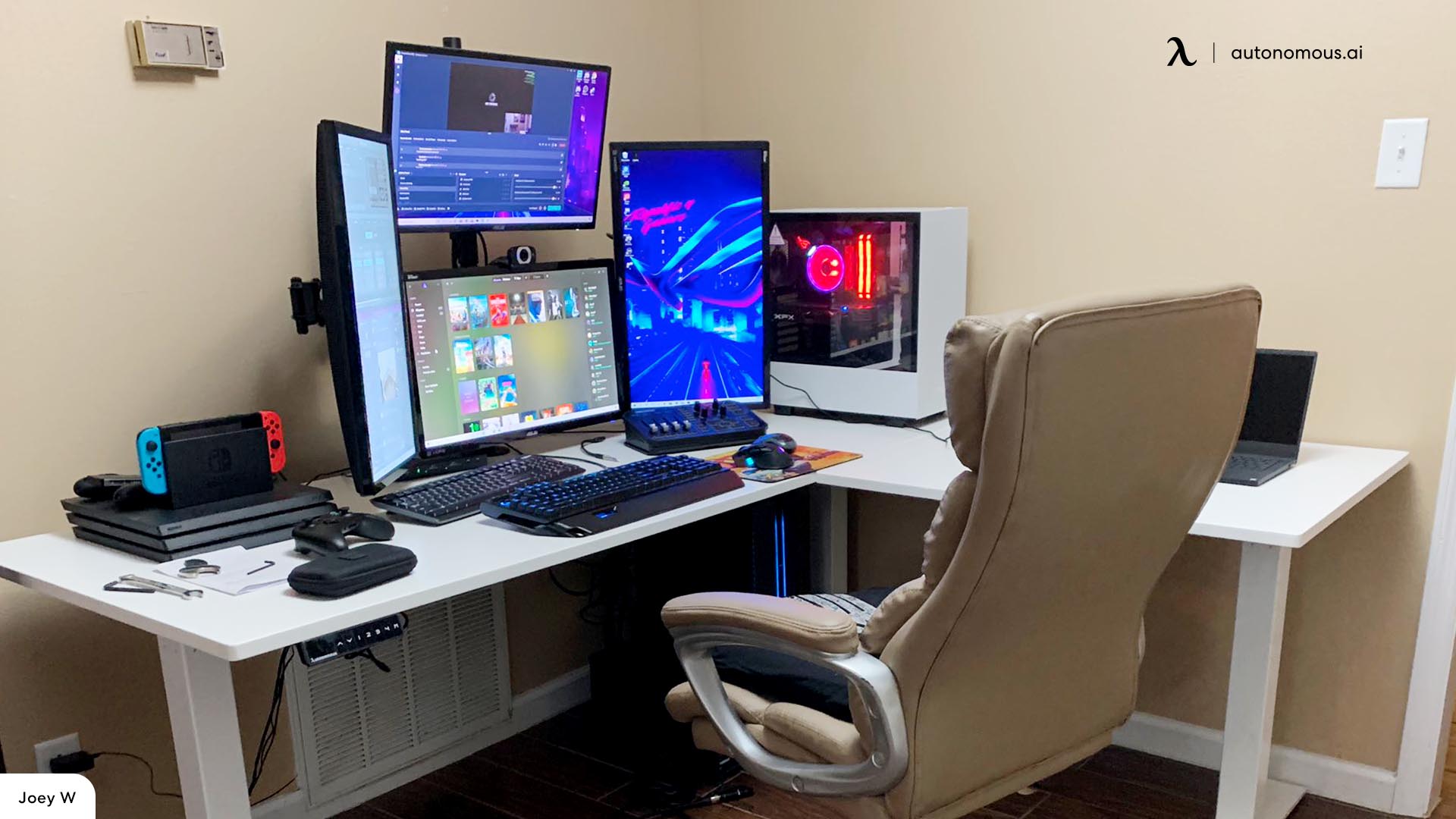
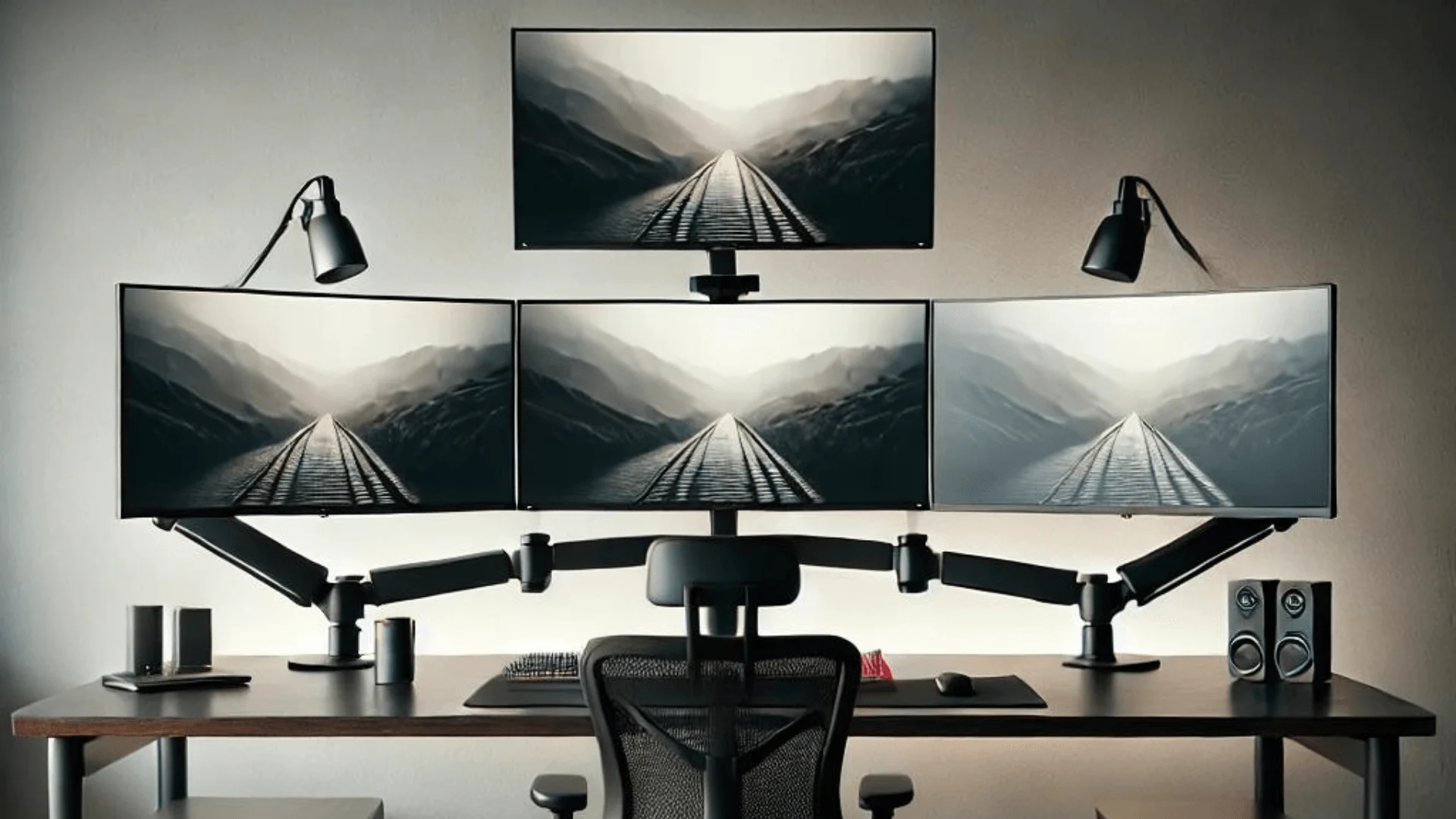
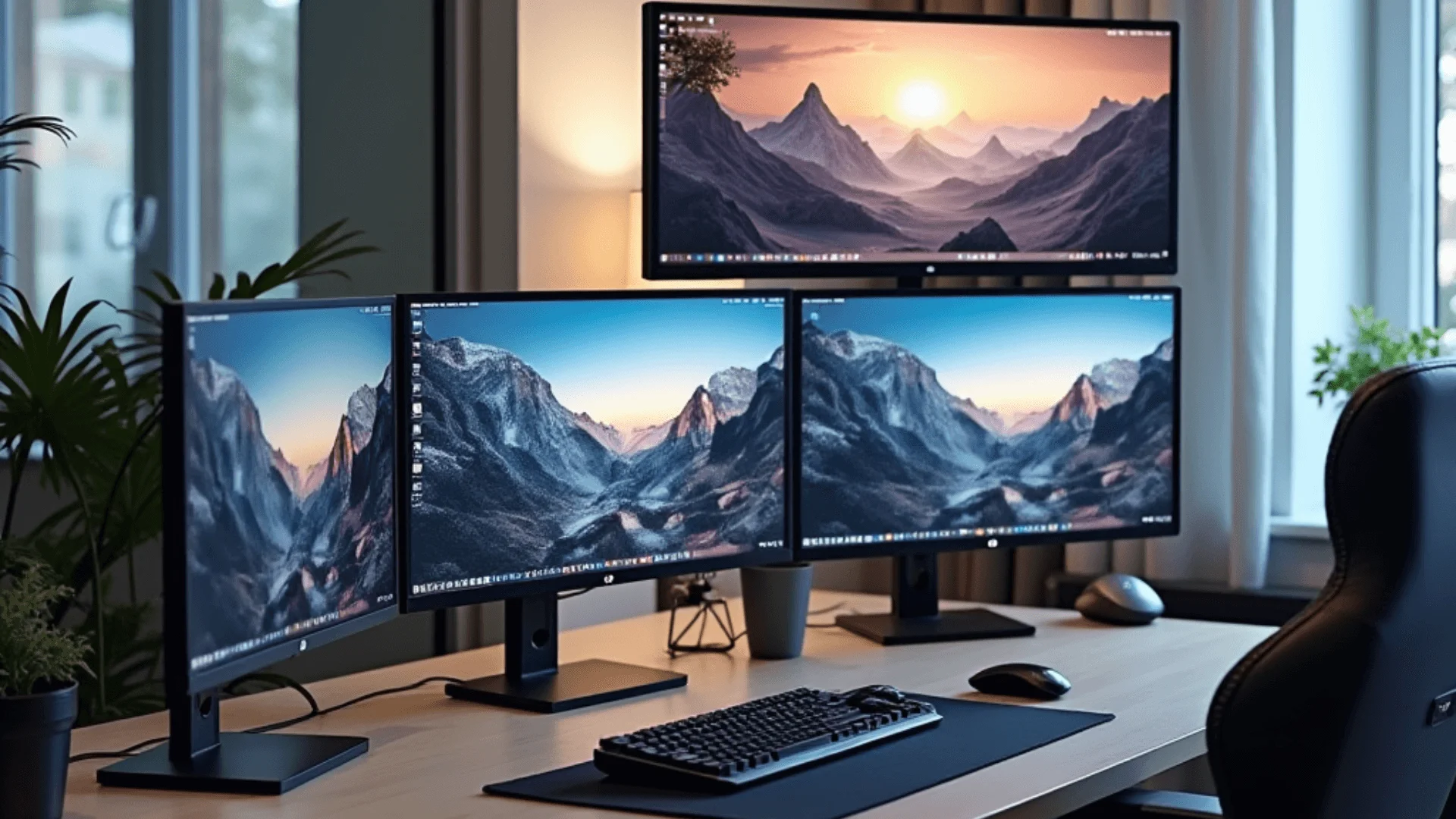
The T-shape layout features three monitors in a horizontal row at eye level, with a fourth monitor positioned above the center monitor. This style is excellent for gamers or streamers who want to have their primary content on the bottom three screens and use the top screen for monitoring chats, stats, or additional information.
Use the top monitor for secondary tasks, such as streaming control panels, email, or social media feeds. Slightly angle the side monitors towards the center for a more immersive experience. Use cable ties and channels to keep cables tidy and out of sight, maintaining a clean and professional look. Add a shelf or small artwork above the top monitor to fill the space and add a personal touch.
Best For: Gaming, streaming, coding, and creative work.
7. L-Shaped Layout
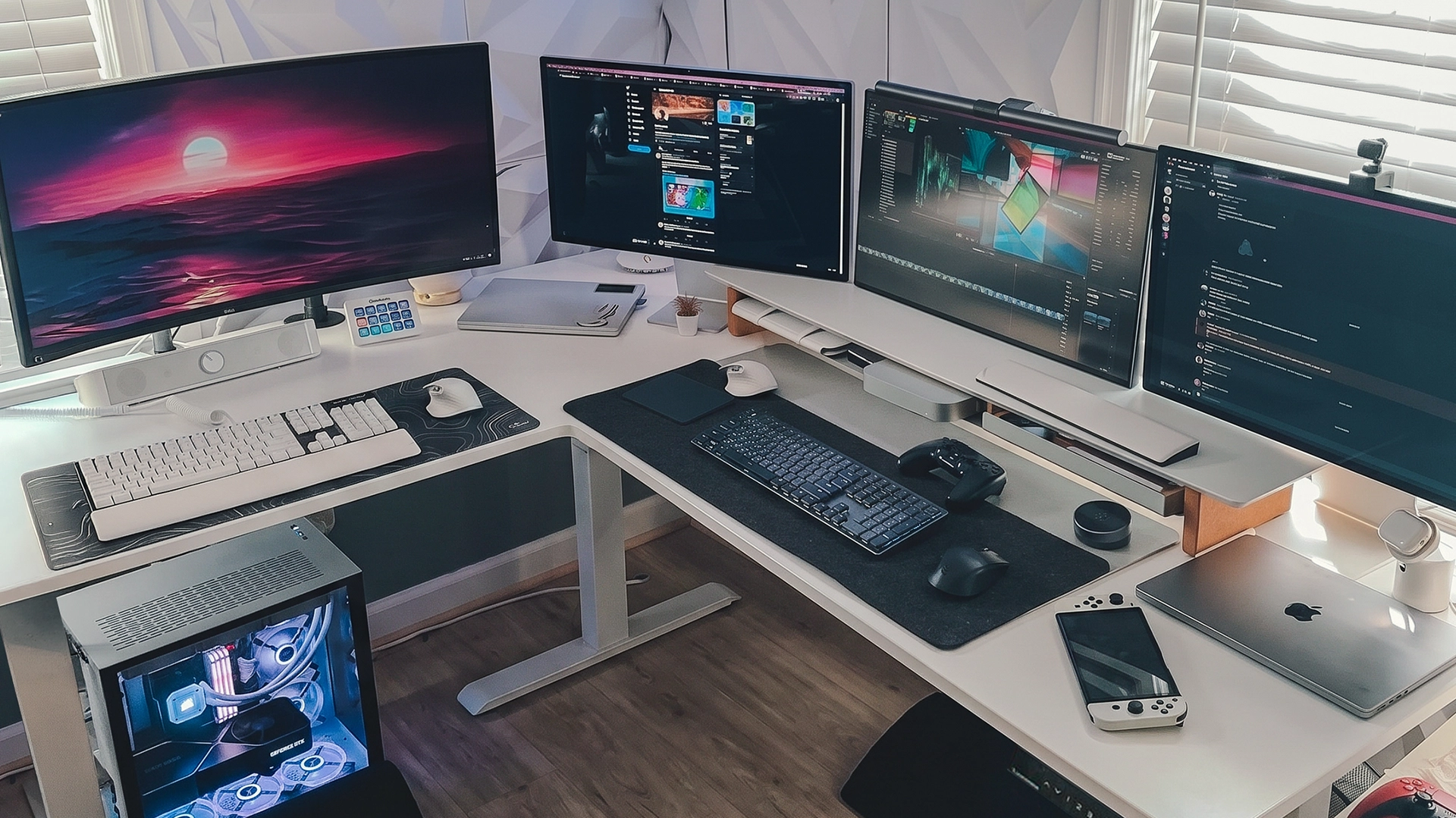
The L-shaped monitor layout offers a versatile and practical solution for multitasking in a flexible workspace. In this 4-monitor setup, three monitors are arranged horizontally in the main viewing area, while a fourth monitor is positioned to the side-either on the left or right-creating a distinct work zone. This configuration is particularly well-suited for corner desks, maximizing the use of space and allowing for different focus areas within your workflow.
One of the key advantages of this layout is the ability to dedicate specific monitors to different tasks, making it easier to switch between work modes without losing focus. For example, you might use the central monitors for primary tasks like coding, video editing, or document creation, while the side monitor could be reserved for reference materials, communications, or project management tools.
The honest picks: a 2×2 grid is the best default - it keeps every screen within easy neck reach and fits normal desks. Go panoramic only if you have the width and want immersion. Choose vertical duals if you read or code all day; portrait screens show far more of a document or file without scrolling.
Making it ergonomic
Keep your primary monitor centered at eye level, align screen heights so your neck doesn't step up and down, and angle the side screens inward. Monitor arms help more here than anything else - they reclaim desk space and let you match heights that mismatched stands can't. Four screens multiply the chance of one sitting too low, so height alignment matters more than with two.
FAQs
What GPU do I need for a 4 monitor setup?
A graphics card that officially supports four simultaneous displays, with at least four usable outputs across DisplayPort, HDMI, or USB-C. Many modern mid-range and high-end NVIDIA and AMD cards qualify - confirm on the spec sheet, since port count alone isn't a guarantee.
How much desk width do I need for 4 monitors?
A row of four 24" monitors needs roughly 85-95". Most desks can't do that, so a 2×2 grid or vertical layout is more realistic on a standard 55-70" desk. Measure first.
Is a 4 monitor setup worth it?
If you regularly juggle multiple apps or data sources, yes - it removes constant window-switching. For single-task work, two or three screens usually deliver most of the benefit.
Can I use 4 monitors for gaming?
You can, but most games run on one screen; the extra three are best for chat, streaming tools, or system monitoring. Surround gaming across four is niche and demanding.
Do the monitors need to be identical?
No, but matching size and resolution keeps motion and scaling consistent across screens. Mixed monitors work if you align their settings and heights.
Can a laptop run 4 monitors?
Some can, via a docking station or external GPU, depending on the laptop's graphics and ports. Check its maximum external-display support before buying screens.
What's the best 4 monitor layout?
A 2×2 grid for balanced productivity, vertical duals for reading and coding, and a T-shape for streaming. Match the layout to your desk width and main task.
What are the common problems with 4 monitors?
GPU display limits, mismatched resolution or refresh settings, cable clutter, and neck strain from poor placement. Confirm GPU support and plan cable routing before mounting.
The Bottom Line
A 4 monitor setup can significantly improve how you work, but only when it’s set up correctly.
The right layout depends on your space and workflow, while the right setup depends on your hardware and display configuration. When both are aligned, four monitors become a practical tool instead of a complicated setup.
Focus on three things:
- a layout that fits your desk
- a GPU that supports multiple displays
- proper positioning for comfort
When these are in place, a 4 monitor setup becomes a clean, efficient workspace that helps you stay organized and work more effectively.