How to Build a Local AI Server, by Budget Tier
.webp)
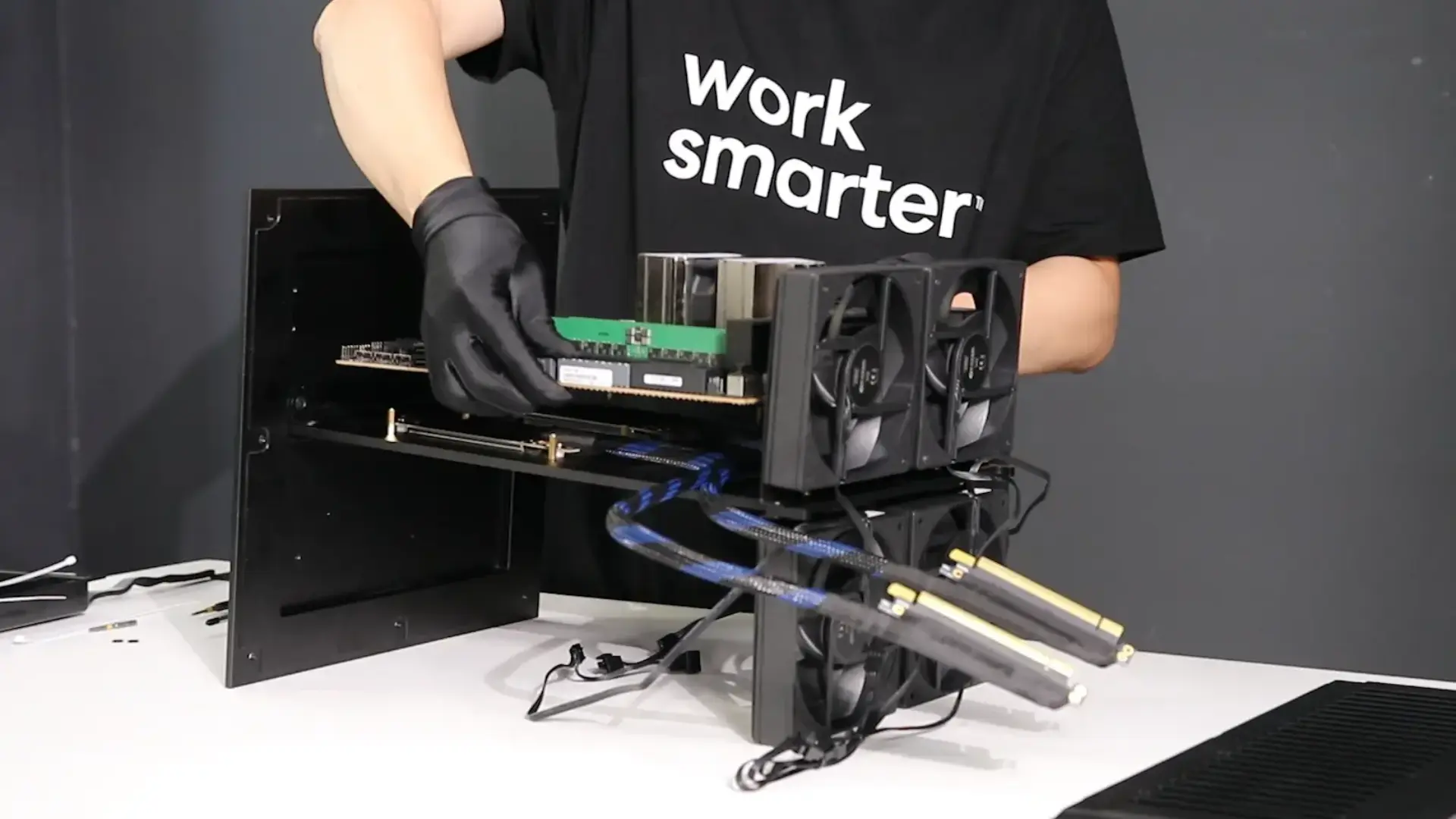
A local AI server is a machine you own that runs AI models on its own GPUs, so every request stays on your network with no cloud bill. Building one comes down to one number more than any other: VRAM, the memory on the graphics card, because a model has to fit in it to run at a usable speed. This guide covers how much VRAM you need for which models, what to build at each budget level, the software to run it, and when buying a finished machine makes more sense than building.
VRAM is the spec that decides everything
For a local AI server, the video memory on the GPU is the spec that matters most, ahead of processor speed or system RAM. A model has to load fully into VRAM to run fast. When it does not fit and spills into system RAM, generation speed collapses from a smooth read to a crawl, so the amount of VRAM sets the ceiling on which models the server can run.
This is why GPU choice drives the whole build. You pick the card for its memory first and its speed second, then build the rest of the machine around feeding it.
The rule that saves the most money and regret is simple: buy the VRAM, not the clock speed.
How much VRAM each model needs
The VRAM a model needs is set by its size and how much it is compressed. Model size is written as a parameter count, like 7B for seven billion, and 4-bit quantization shrinks the memory footprint with little quality loss. At 4-bit, a rough guide is:
Model size | VRAM to run (4-bit) | Good for |
7B to 8B | about 6GB | Chat, drafting, light coding |
14B | about 10GB | Faster, better reasoning |
32B | about 20GB | Cloud-class quality for one user |
70B | about 40GB | The strongest local work |
Two things eat extra VRAM on top of the model: the context, which grows as a conversation gets longer, and running more than one request at a time. Leave headroom above the model's base size, or a server that started fast will slow as the context fills.
What to build at each budget
A local AI server scales with budget, and the honest tiers below track what the community actually builds. Each tier is defined by the GPU and its VRAM, since that sets what the server can run.
Tier | Rough cost | GPU / VRAM | Runs |
Entry | Low | One 16GB GPU | 7B to 14B models, one user |
Mid | Moderate | One 24GB GPU | 32B models with room for context |
Serious | High | 2 or more 24GB+ GPUs | 70B models, or serving several users |
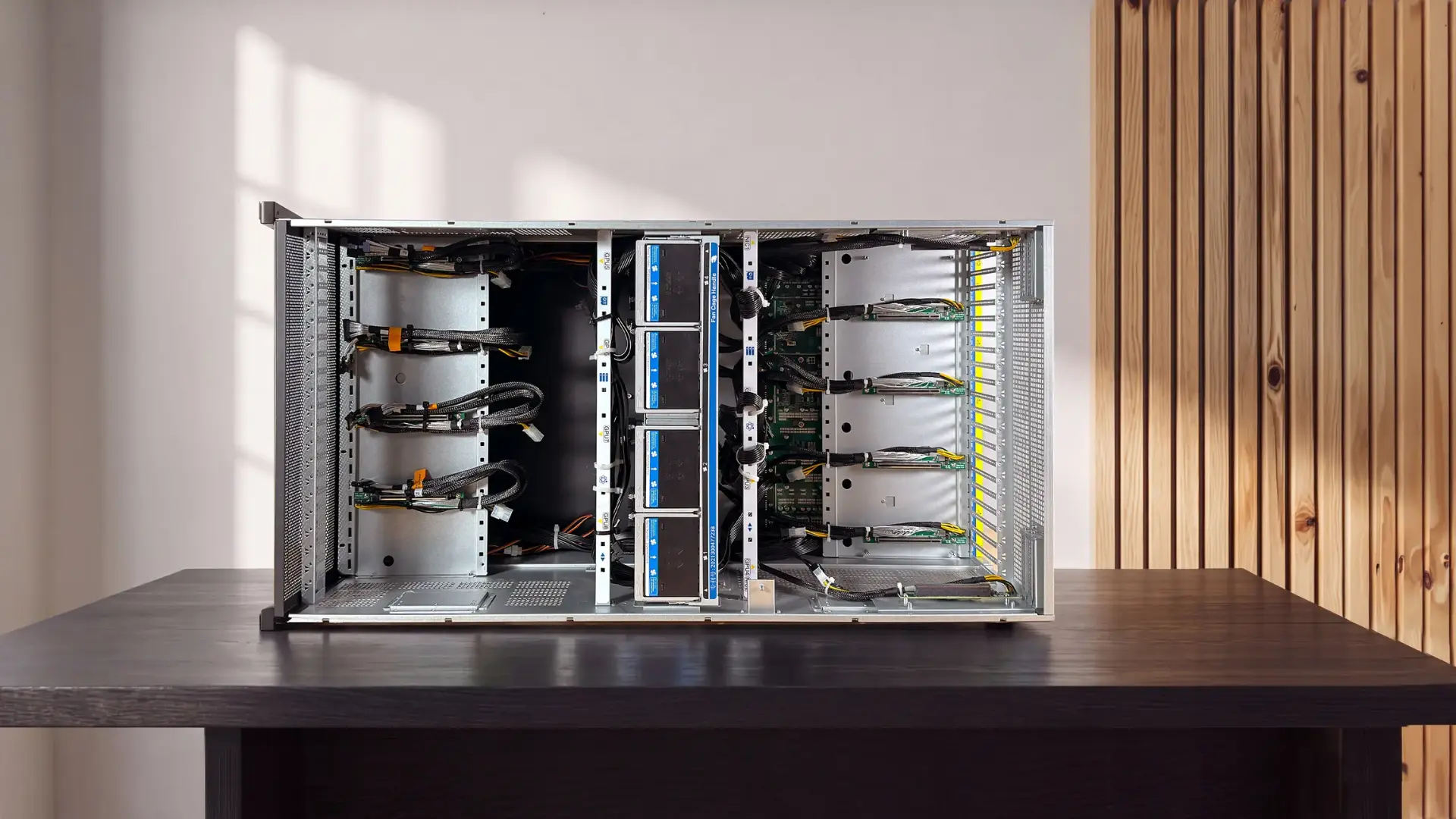
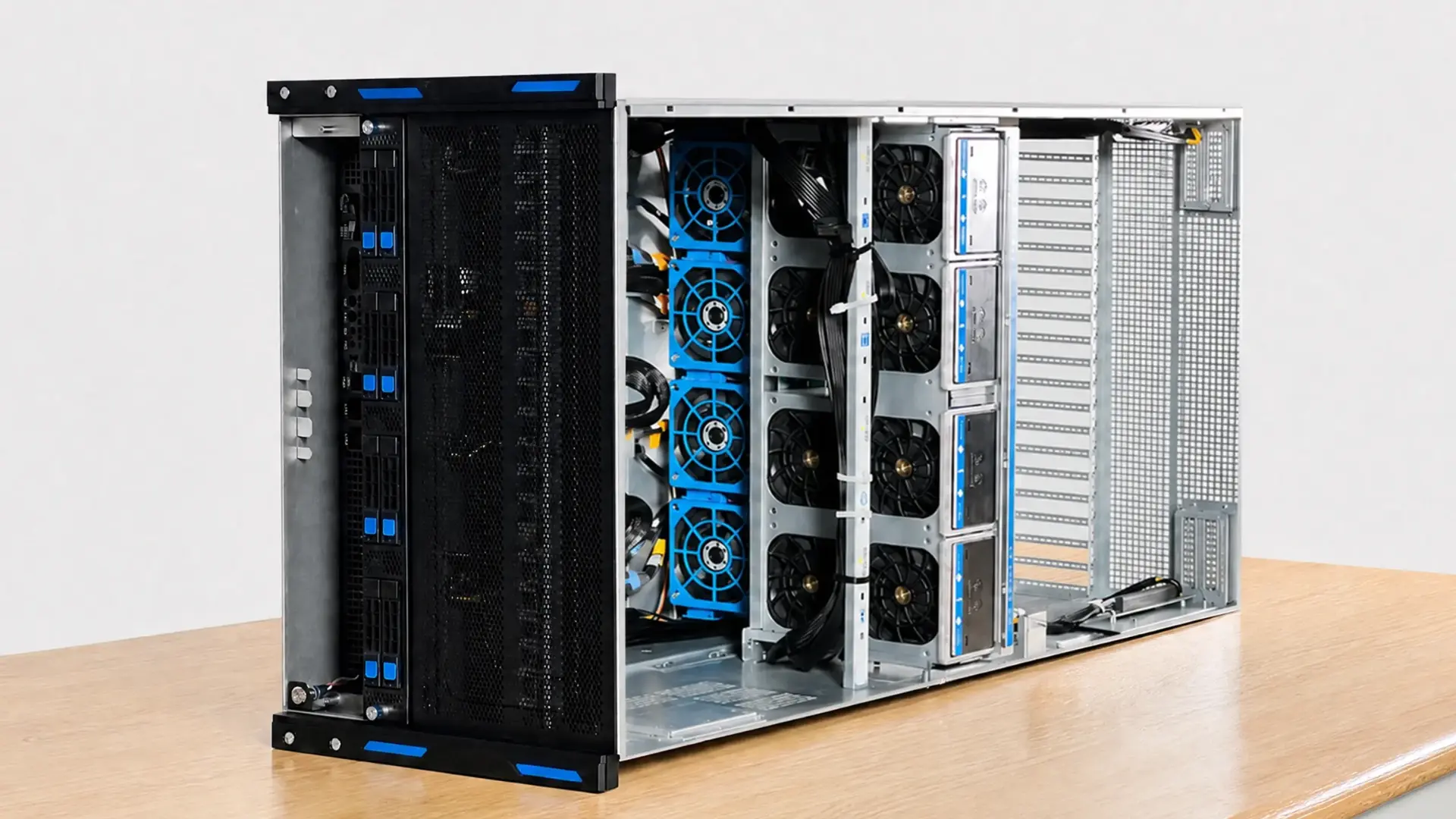
An entry build handles a single user running small models for coding help and drafting. A mid build with a 24GB card is the sweet spot, running 32B models that approach cloud quality. A serious build pools multiple GPUs to run 70B models or serve a team, and this is where a build stops being a desktop and starts needing more power and cooling than a normal case provides.
The local AI server software stack
A local AI server runs its models through an inference engine, and the setup is the same whichever tier you built. Three tools cover almost every case.
- Ollama runs a model from a single command and is the simplest starting point for one user.
- LM Studio gives a visual, ChatGPT-style interface with a built-in model browser, good if you would rather not use a terminal.
- vLLM is the high-throughput server for handling many requests at once, which matters when the server is shared by a team.
For a single user, Ollama or LM Studio is enough. For a shared server, vLLM keeps speed up as concurrent users climb. All three run the same open models, so the tool is a smaller decision than the hardware, and the software side of running AI locally goes into each of these tools in more depth.
Setting up your local AI server
Setting up a local AI server follows the same four steps at any budget.
- First, install the operating system and the current GPU drivers, since the driver is what lets the engine reach the card.
- Second, install the inference engine, Ollama for one user or vLLM for a team.
- Third, download an open model sized to your VRAM from the earlier table.
- Fourth, point your tools or chat interface at the server's local address.
From there every request runs on your own machine. On a shared server, add an authentication step so only your own people and applications can reach the endpoint, which keeps a private server actually private.
Build it or buy it finished
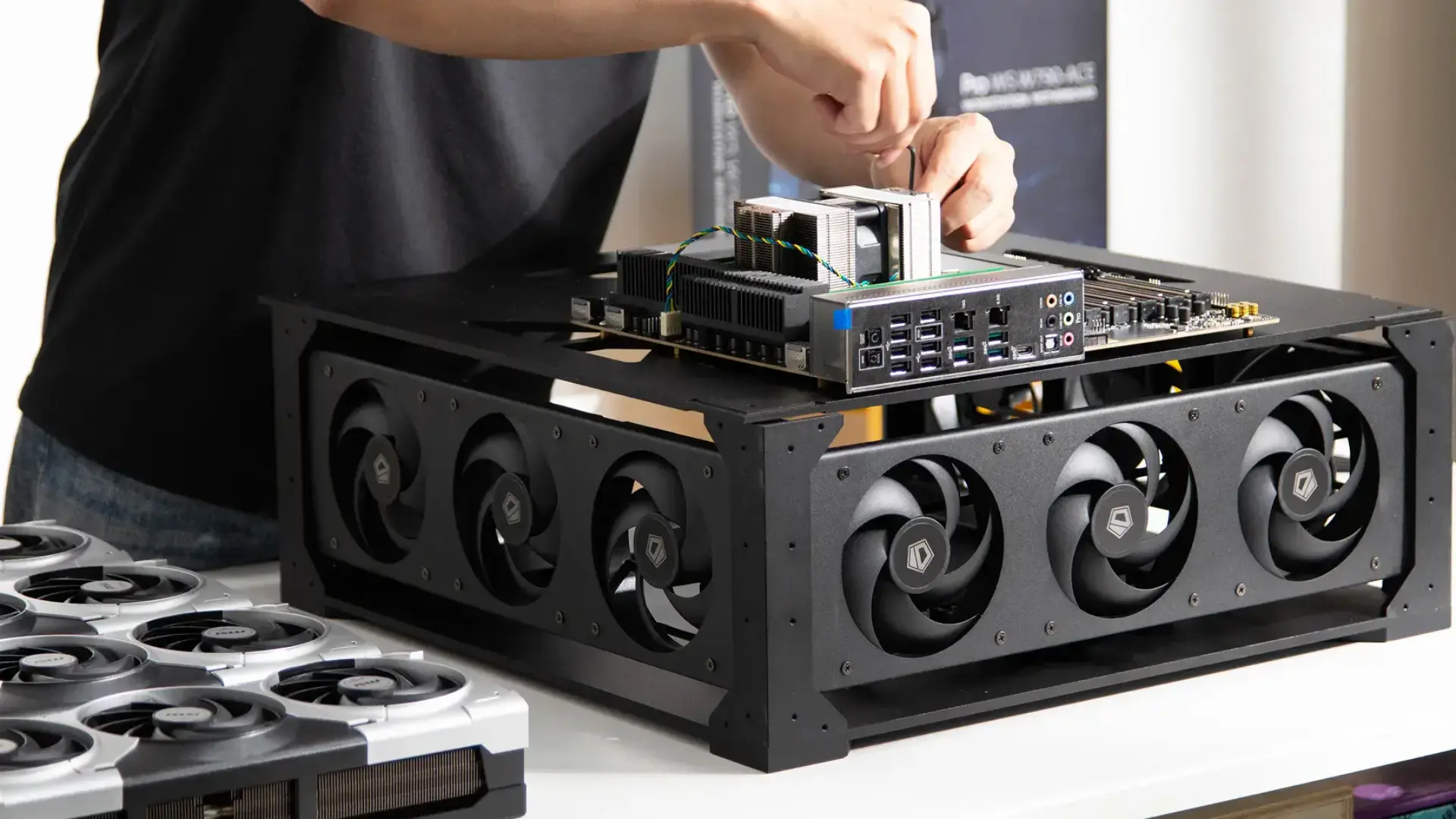
Building a local AI server yourself gives the lowest cost and full control, which is why most single-GPU and dual-GPU builds are self-assembled. The trade is your time: sourcing parts, assembling, installing drivers, and testing stability under load, plus owning the maintenance afterward.
Buying a finished machine makes more sense as the build gets larger and the stakes get higher, because a multi-GPU server is a real engineering job, with power, cooling, and full-speed links to every card to get right.
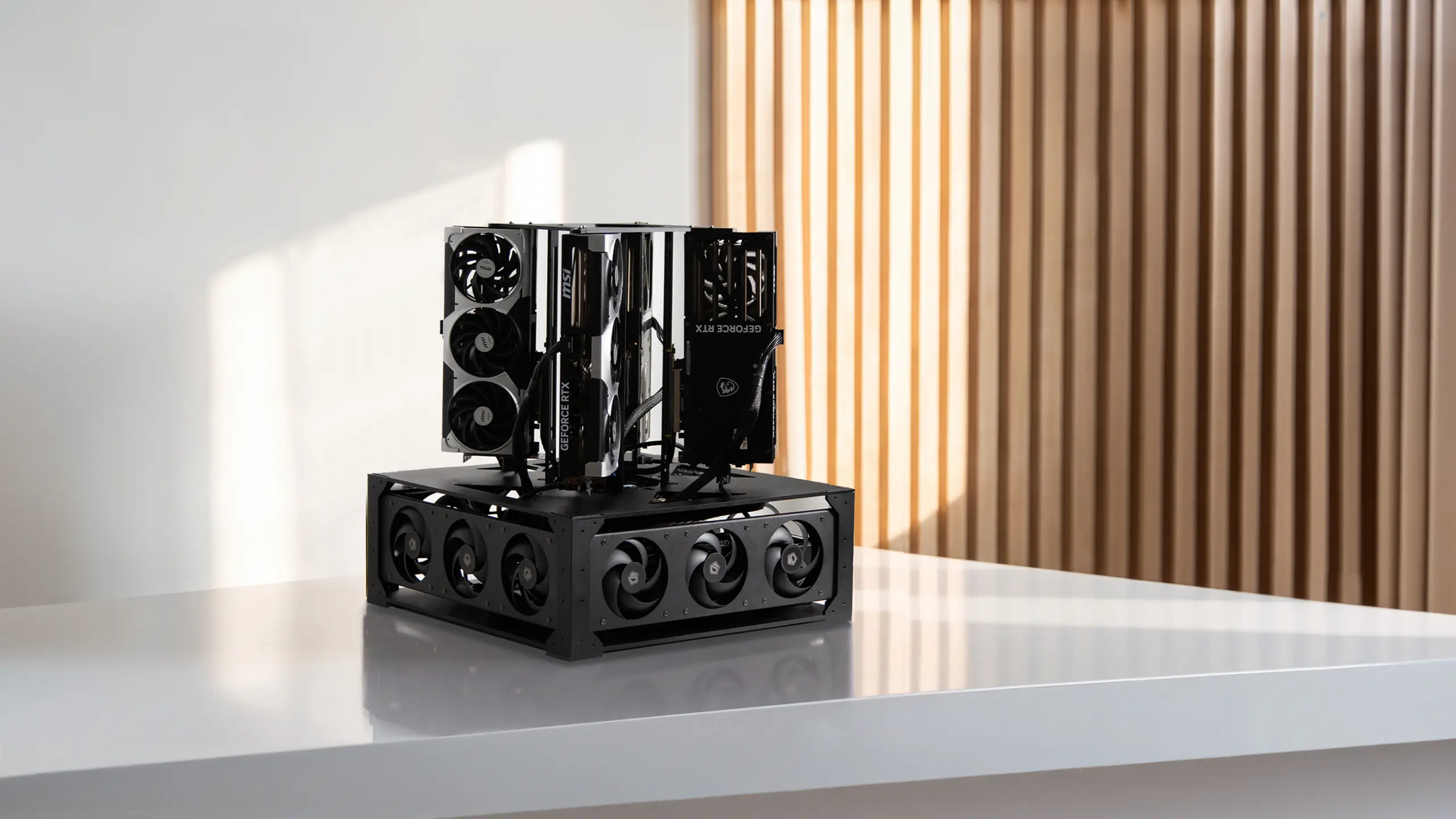
The Autonomous Computer is the finished version of a serious build: a 2-GPU machine that arrives with the cards installed and burn-tested and the serving stack loaded, so a large model runs on arrival, and its full build files are published openly so the same design can be self-built instead.
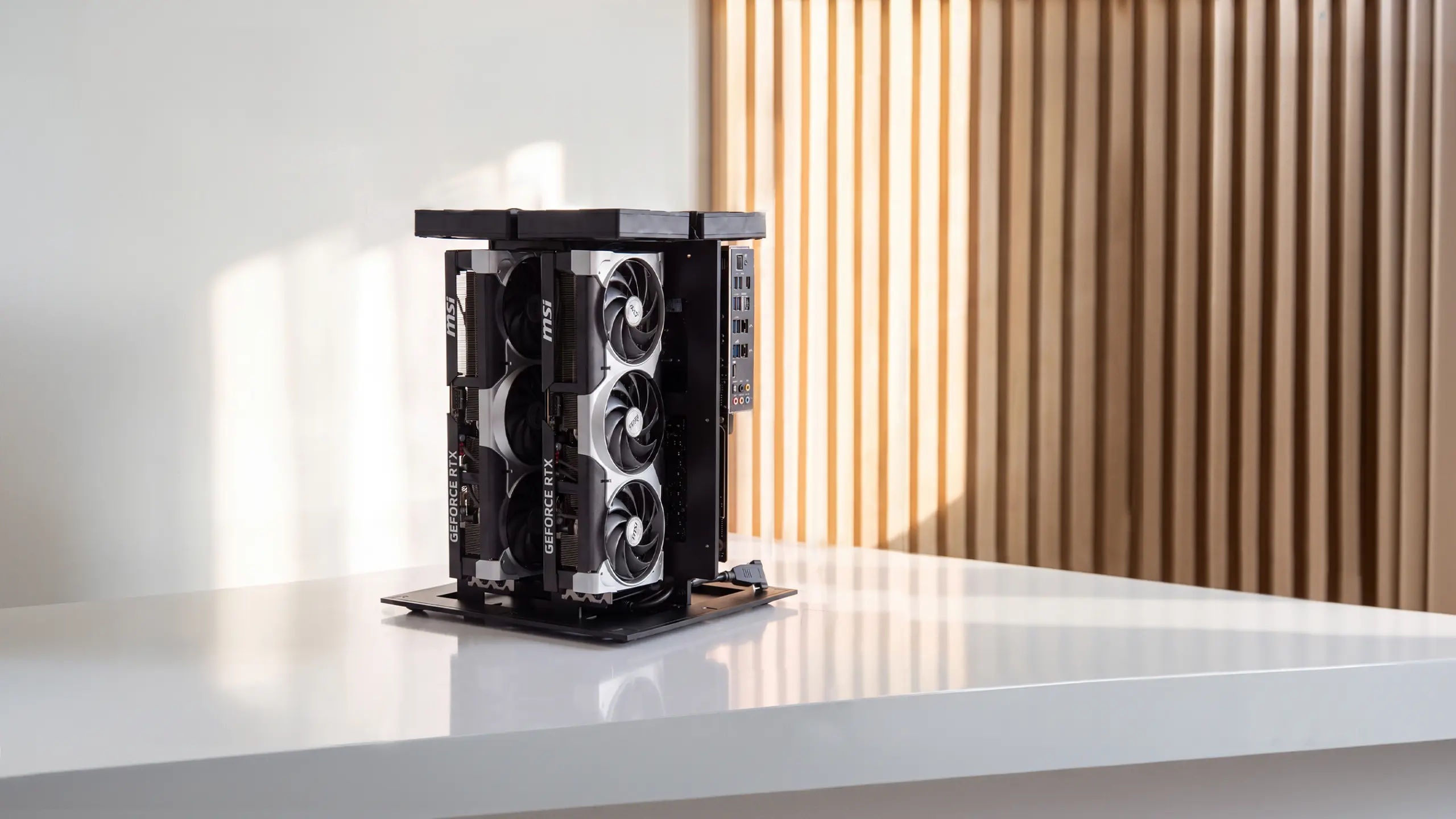
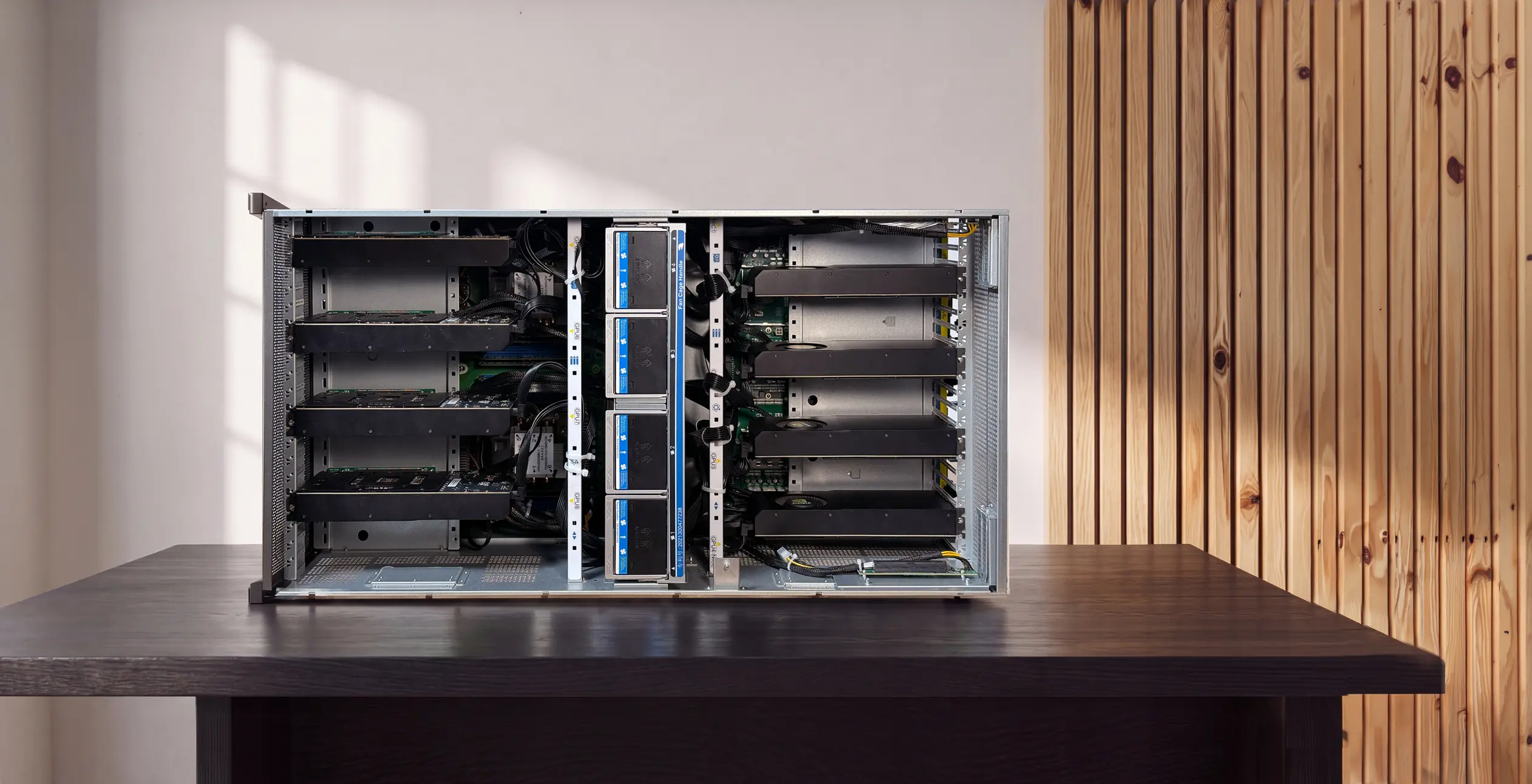
For teams that need more, the same line scales to 4 and 8 GPUs. For a first single-GPU server, though, building it yourself is usually the better place to start.
Frequently asked questions
What is a local AI server?
A local AI server is a machine you own that runs AI models on its own GPUs, inside your network, instead of calling a cloud API. Every request is answered locally, so nothing leaves your machine and there is no per-use bill. It can be a single-GPU desktop or a multi-GPU server, depending on the models you run.
How much VRAM do I need for a local AI server?
The VRAM you need depends on the models you want to run. At 4-bit compression, a 7B model needs about 6GB, a 32B model about 20GB, and a 70B model about 40GB, plus headroom for context. VRAM is the spec that decides what your server can run, so size it to your models first.
How much does it cost to build a local AI server?
A local AI server ranges from a modest single-GPU build for running small models to a serious multi-GPU machine for 70B models or team serving. The GPU and its VRAM drive most of the cost. Buying used cards with more VRAM, like a 24GB card, often gives better value than a faster card with less memory.
Can I build a cheap local AI server?
You can build a capable local AI server on a modest budget by choosing a single GPU with at least 16GB of VRAM. That runs 7B to 14B models well for one user. Avoid 8GB cards, which fill up immediately, and prioritise VRAM over processor speed, since memory is what sets the models you can run.
What GPU is best for a local AI server?
The best GPU for a local AI server is the one with the most VRAM you can afford, not the fastest one. A 16GB card handles small models, a 24GB card runs 32B models with room for context, and multiple 24GB or larger cards run 70B models. Memory capacity matters more than clock speed for running models.
Is a local AI server better than the cloud?
A local AI server is better for continuous use on private data, since it keeps everything on your machine with no per-use bill. The cloud is better for occasional access to the very largest models with no hardware to buy. Many people run a hybrid: a local server for daily work, the cloud for the rare heaviest job.
The bottom line
A local AI server is one of the most practical machines you can build, and the whole project turns on VRAM: size the memory to the models you want to run, pick the GPU for that memory, and build the rest around it.
Start with a single 16GB or 24GB card for a first server, and move to multiple GPUs only when the models or the users demand it. When a build reaches serious multi-GPU scale, weigh the time to build and maintain it against buying a finished machine, and let the models you need, not the spec sheet, decide the hardware.
References
- NVIDIA, GPU memory and local inference documentation, nvidia.com
- Ollama, local model documentation, ollama.com
- Hugging Face, open model hub and quantization guides, huggingface.co