How to Use Flux AI: Models, Prompts, and Local Setup

You use Flux AI by choosing a Flux model, writing a descriptive prompt, and generating, either in a hosted web app with no setup, or by running an open Flux model on your own GPU. Flux, made by Black Forest Labs, is one of the strongest text-to-image models available, known for photorealism and close prompt adherence. This guide covers what Flux is, how it works, the model family and their licenses, how to write prompts that work, and how to run Flux locally.
What is Flux AI
Flux AI is a family of text-to-image models from Black Forest Labs that turn written prompts into detailed, photorealistic images. It was built by some of the original creators of Stable Diffusion, and it competes with closed tools like Midjourney and DALL-E on prompt adherence and image quality, while also offering open-weight models you can download and run yourself.
That mix is what sets Flux apart: it delivers top-tier quality and gives you open models to run on your own hardware. The current generation continues that pattern, with hosted tiers for the best quality and open models for local use.
How Flux AI works
Flux works by turning noise into an image through a diffusion process, guided by your text prompt, using a transformer-based model with about 12 billion parameters. That parameter count is large for an image model, roughly three times SDXL, which is part of why Flux handles detail and text in images better than earlier open models.
The technical detail behind its quality is a method called flow matching, which learns a more direct path from noise to a finished image than traditional diffusion. In plain terms, it takes a straighter route to the result, which improves both speed and fidelity. You do not need to understand the architecture to use Flux, but it explains why outputs look sharper and follow prompts more closely than older models.
The Flux model family and licenses
Flux comes in three main models, and the right one depends on the quality you need and whether you want to run it yourself. The licenses differ, which matters for commercial work.
Model | Best for | Runs | License |
Flux Pro | Highest quality, professional work | Hosted API only | Commercial (via service terms) |
Flux Dev | Near-Pro quality you can self-host | Locally or hosted | Non-commercial weights, output usable commercially |
Flux Schnell | Speed, drafts, light hardware | Locally or hosted | Apache 2.0, fully commercial |
Flux Pro is the flagship, reached through hosted APIs from Black Forest Labs and platforms like Replicate and fal.ai, and it produces the best output. Flux Dev is open-weight with near-Pro quality, popular for local use, though its weights carry a non-commercial license even though images you make with it can be used commercially. Flux Schnell is the fastest, generates in just a few steps, and is released under a permissive Apache 2.0 license, so you can build a commercial service on it.
For running locally, Flux Dev is the most-used model when quality matters, and Schnell is the pick when speed or lighter hardware is the priority.
How to use Flux AI step by step
Using Flux AI takes five steps, whether you are on a hosted app or running the open models yourself. The flow below works for either path, with notes on where they differ.
Step 1: Choose your Flux model
Start by picking the Flux model that fits your quality needs and hardware. Flux Pro is the highest quality but runs only through a hosted API, Flux Dev is the open model most people self-host for near-Pro quality, and Flux Schnell is the fastest and lightest for quick drafts or smaller GPUs.
If you plan to run it locally, your VRAM decides the pick: Schnell for a modest card, Dev when you have 12GB or more. If you just want the best output and no setup, Pro through a web app is the simplest start.
Step 2: Access the model
Once you have chosen a model, get access to it in one of two ways. For a hosted path, open a web app or service that runs Flux, sign in, and you are ready with no install. For local use, download the open weights, Flux Dev or Flux Schnell, from Hugging Face, where you accept the model license once, then load them into an interface like ComfyUI or a Stable Diffusion web UI such as Forge.
The hosted path trades control for convenience; the local path trades setup time for privacy and no per-image cost.
Step 3: Write your prompt
With the model ready, write a prompt that describes the image in plain language. Name the subject, the setting, the lighting, and the style in a full sentence rather than a list of loose keywords, because Flux follows detailed instructions closely. For a first image, keep it simple, a short clear scene, and see what the model returns before adding complexity. A prompt like "a quiet forest at dawn, soft mist, warm light" gives Flux enough to work with without overloading it.
Step 4: Set the options and generate
Before generating, set the handful of options that shape the result, then run it. The main ones are aspect ratio, which sets the image shape, and, on interfaces that expose them, the guidance scale and step count, which trade speed against how closely the image follows the prompt. Flux Schnell needs very few steps by design, while Flux Dev uses more steps for higher quality.
For a first run, the defaults are fine, so set the aspect ratio and generate. The image is usually ready in seconds to a minute depending on the model and hardware.
Step 5: Review and refine
After the first image, refine it by adjusting the prompt and generating again, rather than expecting a perfect result on the first try. If a detail is wrong, name it more precisely; if the style is off, describe it more specifically. Small, targeted changes to the prompt move the result closer without starting over. This loop of prompt, generate, and refine is the whole basic workflow, and a few passes usually get you a usable image.
How to write Flux prompts
Flux rewards specific, structured prompts, because it follows instructions closely. Describing the whole shot, not just the subject, gives you far more control than piling on adjectives. A few habits make the difference:
- Name the setting, lighting, and camera angle, not only the subject.
- Write in full sentences rather than loose keywords.
- Be specific about style, mood, and detail, since Flux takes instructions literally.
- Reuse a fixed style description across images to keep a consistent look for a set.
A worked example: instead of "a nice product photo," write "a photorealistic photo of a matte black bottle on a marble surface, soft window light from the left, shallow depth of field, minimal background." The specific version gives Flux a complete picture and lands closer on the first try. Start simple, see what the model returns, then add detail where it missed.
How to run Flux AI locally
You run Flux locally by downloading an open model, Flux Dev or Flux Schnell, and generating on your own GPU, so nothing leaves your machine. The open models run through the same interfaces used for other image models: ComfyUI for a node-based workflow, or a Stable Diffusion web UI like Forge. You download the model weights from Hugging Face once, load them into the interface, and generate offline from then on.
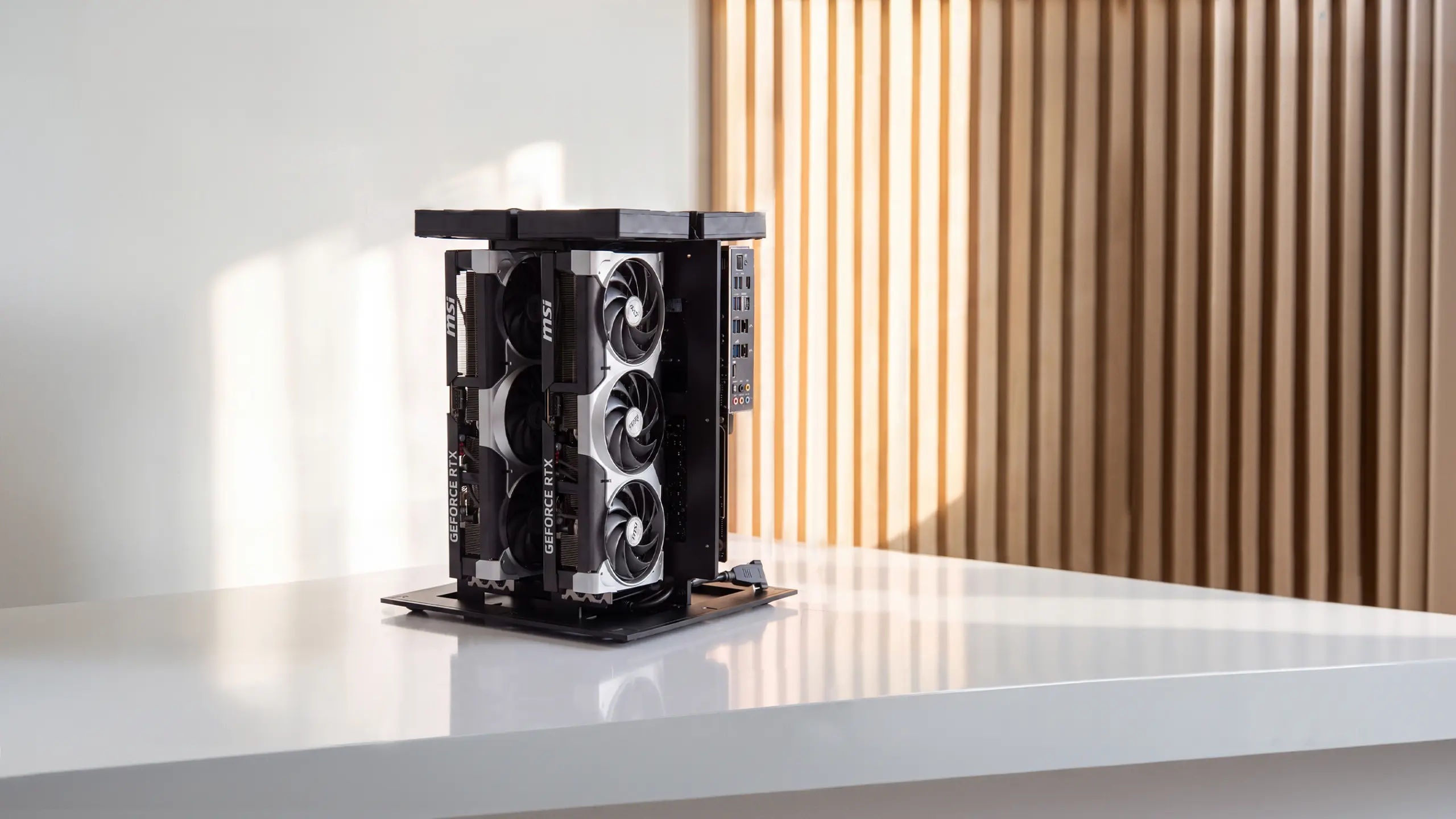
Running AI locally needs a GPU with enough memory. Flux Schnell runs on a modest card, while Flux Dev at full quality wants more VRAM, generally 12GB or more for comfortable use. Image models are lighter on memory than large language models, so a consumer GPU handles Flux well, and more VRAM buys higher resolution and speed. For heavier or continuous local generation, a machine built for it, such as the Autonomous Computer, removes the memory ceiling, but a single consumer GPU is the honest place to start.
Flux vs Stable Diffusion vs Midjourney
Flux leads on photorealism and text, Stable Diffusion on efficiency and ecosystem, and Midjourney on artistic style. Flux and Stable Diffusion are open models you can run locally, while Midjourney is a closed subscription service.
Flux | Stable Diffusion | Midjourney | |
Best at | Photorealism, text | Flexibility, fine-tunes | Artistic, stylized |
In-image text | Reliable | Weak | Weak historically |
Prompt adherence | High, literal | Good | Interpretive |
Model type | Open-weight | Open-weight | Proprietary |
Runs locally | Yes | Yes | No |
API access | Yes | Yes | No public API |
VRAM needed | More (12GB+) | Less (4-12GB) | None (hosted) |
Ecosystem | Growing | Huge, many LoRAs | Curated, closed |
Pricing | Pay-per-use or free local | Free local | Subscription |
The choice depends on what you value. Flux is the pick for accurate prompts, legible in-image text, and photorealism, if you have the VRAM to run it. Stable Diffusion is easier on hardware and has years of community checkpoints and LoRAs, which suits specific styles and heavy customization.
Midjourney needs no setup and produces the most artistic output, but it is closed, has no public API, and cannot run locally. Many people use more than one: Midjourney for artistic bases, Flux for text and detail, Stable Diffusion for fine-tuned styles.
What you can create with Flux
Flux suits any work where realism and prompt accuracy matter, from marketing to design. Common uses include photorealistic product and lifestyle images for e-commerce, brand visuals that hold a consistent style across a set, posters and ad creatives with legible in-image text, and concept art or mock-ups generated early in a design process. Its strength with text rendering and fine detail makes it a good fit for commercial visuals, not just casual art.
Frequently asked questions
What is Flux AI?
Flux AI is a family of text-to-image models from Black Forest Labs that generate detailed, photorealistic images from written prompts. It offers hosted models for the best quality and open-weight models (Flux Dev and Flux Schnell) you can run on your own hardware. It is known for strong prompt adherence and in-image text.
How do you use Flux AI?
You use Flux AI by choosing a model, writing a descriptive prompt, and generating. For no setup, use a hosted web app or API. To run it yourself, download Flux Dev or Flux Schnell from Hugging Face and generate on your own GPU through an interface like ComfyUI. Then refine the prompt and repeat.
What is the difference between Flux Pro, Dev, and Schnell?
Flux Pro is the highest-quality model, available only through hosted APIs. Flux Dev is open-weight with near-Pro quality that you can run locally, under a non-commercial weights license. Flux Schnell is the fastest, released under the permissive Apache 2.0 license, so it can be used in commercial products.
Can you run Flux AI locally?
Yes. Flux Dev and Flux Schnell are open-weight models you can download from Hugging Face and run on your own GPU through ComfyUI or a Stable Diffusion web UI like Forge. Running locally keeps every prompt and image on your machine and has no per-image cost once you have the hardware.
How much VRAM does Flux need?
Flux Schnell runs on a modest GPU, while Flux Dev at full quality wants about 12GB of VRAM or more for comfortable use. Image models need less memory than large language models, so a consumer graphics card handles Flux well. More VRAM buys higher resolution and faster generation.
Which Flux model should I use?
Use Flux Pro for the highest quality when you can work through a hosted API, Flux Dev when you want near-Pro quality you can run locally, and Flux Schnell when you need speed, lighter hardware, or a permissive commercial license. Most local users start with Flux Dev.
Is Flux AI free?
Flux has free options. Hosted apps often include a free tier, and the open models, Flux Dev and Flux Schnell, are free to download and run locally, with no per-image cost after you have the hardware. Flux Schnell's Apache 2.0 license also allows free commercial use.
Conclusion
Flux AI is one of the most capable image generators available, and using it comes down to picking the right model, writing a specific prompt, and refining the result. For quick work, a hosted app needs no setup, while the open Flux Dev and Flux Schnell models let you generate privately on your own hardware at no per-image cost. Start with a simple prompt on whichever path fits, and add detail as you learn what the model rewards.
References
- Black Forest Labs, Flux model documentation and licenses, blackforestlabs.ai
- Hugging Face, Flux open model weights and cards, huggingface.co
- ComfyUI, local image generation workflow documentation, github.com/comfyanonymous/ComfyUI