NVIDIA App Not Opening or Installing? Fix Guide

.webp)
Table of Contents
- TL;DR: Quick Fixes for NVIDIA App Problems
- Why the NVIDIA App Stops Working
- Fix 1: Restart the NVIDIA App and Background Services
- Fix 2: Update Your NVIDIA Drivers
- Fix 3: NVIDIA App Unable to Retrieve Settings
- Fix 4: NVIDIA App Unable to Connect to NVIDIA
- Fix 5: NVIDIA App Stuck on Preparing to Install
- Fix 6: NVIDIA App Installer Failed
- Fix 7: NVIDIA App Crashing or Showing a Black Screen
- Fix 8: NVIDIA App Not Downloading Drivers
- How to Reinstall the NVIDIA App
- Build and Experiment Faster With an AI Assistant
- FAQs
- Final Thoughts
The new NVIDIA App replaces GeForce Experience and parts of the NVIDIA Control Panel for driver updates, game optimization, and GPU monitoring, but many users have run into issues like the app not opening, installer failures, or “unable to retrieve settings” errors. The good news is that most of these problems come down to driver conflicts, corrupted files, or connection issues. This guide covers the most common NVIDIA App errors and the steps to fix them. If you're comparing graphics hardware while troubleshooting driver problems, it may also help to understand how NVIDIA compares to AMD GPUs.
TL;DR: Quick Fixes for NVIDIA App Problems
If the NVIDIA App is not opening, installing, or downloading drivers, these quick fixes usually resolve the issue:
- NVIDIA App not opening → Restart NVIDIA services or end NVIDIA processes in Task Manager.
- Unable to retrieve settings → Sign out of your NVIDIA account, restart the app, and log in again.
- Installer stuck or failed → Run the installer as administrator and remove previous installation files.
- Driver download failed → Manually install the latest GPU driver from NVIDIA’s official website.
- App crashing or black screen → Update or reinstall your GPU drivers with a clean installation.
Most NVIDIA App errors are caused by driver conflicts, corrupted installation files, or blocked background services.
Why the NVIDIA App Stops Working
Before jumping into fixes, it helps to understand why the NVIDIA App might fail to launch or install.
The most common causes include:
- Corrupted installation files: Sometimes the installer fails partway through, leaving behind incomplete files that prevent the app from opening properly.
- Driver conflicts: If your GPU driver is outdated or installed incorrectly, the NVIDIA App may struggle to connect to NVIDIA services or detect hardware.
- Network or login problems: Some features require connection to NVIDIA servers. When that connection fails, errors like “unable to connect to NVIDIA” or “unable to retrieve settings” may appear.
- Security software blocking the app: Windows security settings, firewalls, or antivirus programs can occasionally block NVIDIA services from running correctly.
- Background services not running: The NVIDIA App relies on several background services. If those services stop running, the app may not load.
Fix 1: Restart the NVIDIA App and Background Services
If the NVIDIA App won’t open or keeps loading indefinitely, restarting the related services can often resolve the issue.
Steps:
- Press Ctrl + Shift + Esc to open Task Manager.
- Find any processes related to NVIDIA App or NVIDIA Container.
- Select them and click End Task.
- Restart the NVIDIA App.
You can also restart the NVIDIA services manually:
- Press Windows + R.
- Type services.msc and press Enter.
- Locate NVIDIA Display Container LS.
- Right-click it and select Restart.
After restarting the service, try launching the NVIDIA App again.
Fix 2: Update Your NVIDIA Drivers
Some problems occur when the NVIDIA App cannot properly communicate with the installed GPU driver.
This can cause errors such as:
- NVIDIA App not downloading drivers
- NVIDIA App driver download failed
- NVIDIA App says no driver installed
How to update drivers manually
- Visit the official NVIDIA driver download page.
- Enter your GPU model and operating system.
- Download the latest driver.
- Run the installer and select Clean Installation.
Once the driver update finishes, restart your computer and reopen the NVIDIA App. Keeping drivers updated is especially important for GPU-heavy workloads such as gaming, rendering, or AI tasks where GPU acceleration plays a major role compared with CPU processing. If you're exploring AI development or machine learning workflows, it can also help to understand the difference between GPU vs CPU for AI workloads.
Fix 3: NVIDIA App Unable to Retrieve Settings
One of the most common errors users encounter is:
“NVIDIA App unable to retrieve settings.”
This usually happens when the app cannot sync with NVIDIA servers or when local configuration files become corrupted.
How to fix it
- Sign out of your NVIDIA account in the app.
- Close the NVIDIA App completely.
- Restart your computer.
- Open the app again and sign back in.
If the problem continues, clearing the app’s cache may help.
Sometimes the issue is caused by temporary server problems. In that case, waiting a few minutes and relaunching the app may resolve the error.
Fix 4: NVIDIA App Unable to Connect to NVIDIA
If you see errors such as:
- NVIDIA App unable to connect to NVIDIA
- Unable to connect to NVIDIA App
the problem is usually related to network connectivity.
Possible solutions
- Disable VPN: Some VPNs block NVIDIA services. Turn off the VPN and restart the app.
- Check firewall settings: Make sure the NVIDIA App is allowed through your firewall.
- Restart your router: Network instability can sometimes prevent the app from connecting to NVIDIA servers.
Fix 5: NVIDIA App Stuck on Preparing to Install
If the NVIDIA App is stuck on “Preparing to install,” the installer may not have the required permissions or previous installation files may be interfering with the process.
This issue can occur when:
- an older version of the NVIDIA App was not removed correctly
- security software blocks the installer
- temporary installation files interrupt the process
How to fix it
- Cancel the installation.
- Restart your computer.
- Download the latest NVIDIA App installer from NVIDIA.
- Right-click the installer and select Run as administrator.
- Temporarily disable antivirus software if the installer continues to fail.
Running the installer with elevated permissions often resolves installation problems and allows the NVIDIA App to complete setup normally.
Fix 6: NVIDIA App Installer Failed
If you see errors such as “NVIDIA App installer failed” or “NVIDIA App installer cannot continue,” the installation may have been interrupted or blocked by leftover files from a previous install.
This can happen when:
- an earlier version of the NVIDIA App was not removed properly
- Windows permissions block the installer
- antivirus software interferes with installation
How to fix it
- Open Windows Settings → Apps → Installed apps.
- Locate NVIDIA App and uninstall it if it appears in the list.
- Restart your computer to clear temporary installation files.
- Download the latest NVIDIA App installer from NVIDIA’s website.
- Right-click the installer and select Run as administrator.
If the installer still fails, temporarily disabling antivirus software during installation may help. After the installation completes, you can enable your security software again.
Fix 7: NVIDIA App Crashing or Showing a Black Screen
Some users report the NVIDIA App crashing immediately after launch or opening to a blank or black screen.
This usually occurs when GPU drivers conflict with older configuration files or when the app’s settings become corrupted after an update.
How to fix it
- Press Ctrl + Shift + Esc to open Task Manager.
- End any processes labeled NVIDIA App or NVIDIA Container.
- Restart the application.
If the issue persists, updating or reinstalling your graphics driver may resolve the problem. Installing the latest driver ensures the NVIDIA App can properly communicate with your GPU and system services.
For users experimenting with GPU-intensive tasks such as AI or machine learning, choosing the right graphics hardware also matters. If you're researching hardware upgrades, this guide to the best GPUs for machine learning explains which GPUs handle AI workloads most efficiently.
Fix 8: NVIDIA App Not Downloading Drivers
Some users report that the NVIDIA App cannot download drivers or displays errors such as:
- NVIDIA App driver download failed
- NVIDIA App won’t download driver
This problem is often caused by network interruptions, outdated drivers, or temporary server issues.
How to fix it
First, check that your internet connection is stable and that no VPN or firewall is blocking NVIDIA services.
If the problem continues:
- Close the NVIDIA App completely.
- Restart your computer.
- Open the app again and attempt the driver download.
If downloads still fail, you can manually install the driver:
- Visit the NVIDIA driver download page.
- Select your GPU model and operating system.
- Download the latest driver package.
- Run the installer and follow the instructions.
After installing the driver manually, reopen the NVIDIA App. In most cases, this resolves driver download issues and restores normal functionality.
How to Reinstall the NVIDIA App
If none of the fixes above work, reinstalling the app can reset corrupted files.
Reinstall steps:
- Open Windows Settings
- Go to Apps
- Uninstall the NVIDIA App
- Restart your PC
- Download the latest installer
- Install the app again
Reinstalling often resolves persistent errors that other fixes cannot.
Build and Experiment Faster With an AI Assistant
Many people exploring GPU tools like the NVIDIA App are also experimenting with AI models, game development, or GPU-heavy workflows.
When you’re building projects or testing tools, a lot of time goes into researching documentation, comparing solutions, and summarizing technical information.
That’s where an AI assistant can help.
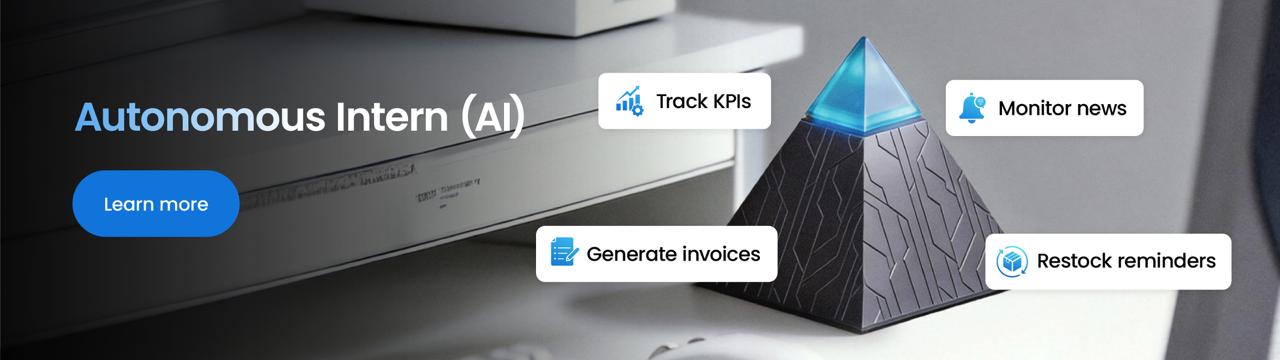
Autonomous Intern acts like a small AI teammate on your desk. Instead of manually reading through long documentation or community threads, you can ask Intern to summarize information, gather resources, or organize ideas while you build.
Developers and creators often use it to:
- summarize technical documentation
- research new tools and APIs
- organize project notes and ideas
- collect resources while experimenting with AI models
If you frequently explore new tools, having an assistant handle the research side can make experimentation much faster.
Use code: INTERN50 to get $50 off
Terms & Conditions
• Valid on Autonomous Intern only
• Not valid on bulk orders (3+ units)
• Valid March 1–31, 2026
FAQs
Why is the NVIDIA App not opening?
If the NVIDIA App won’t open, it is usually caused by background services not running, corrupted installation files, or outdated GPU drivers. Restarting NVIDIA services, updating drivers, or reinstalling the app typically resolves the problem.
How do I fix “NVIDIA App unable to retrieve settings”?
The “unable to retrieve settings” error often occurs when the app cannot sync with NVIDIA servers or when local configuration files become corrupted. Signing out of your NVIDIA account, restarting the app, and logging back in usually fixes the issue.
Why is the NVIDIA App stuck on preparing to install?
If the installer is stuck on “Preparing to install,” it may not have the necessary permissions to complete the process. Running the installer as administrator or downloading a fresh installer often resolves this problem.
Why can't the NVIDIA App download drivers?
If the NVIDIA App cannot download drivers, the issue is usually related to network problems, firewall restrictions, or outdated driver files. Restarting the app, checking your internet connection, or manually downloading the latest drivers from NVIDIA can resolve the issue.
What is the NVIDIA App?
The NVIDIA App is a unified software platform that replaces GeForce Experience and parts of the NVIDIA Control Panel. It allows users to update GPU drivers, optimize games, monitor system performance, and manage graphics settings from a single interface.
Do I need the NVIDIA App?
The NVIDIA App is optional but useful for managing driver updates, optimizing game settings, and accessing GPU performance tools. Many users install it to simplify driver management and gaming optimization.
NVIDIA App vs GeForce Experience: What’s the difference?
The NVIDIA App is the newer platform that gradually replaces GeForce Experience. It combines driver updates, game optimization, and performance monitoring into a single application while simplifying the interface.
Can I uninstall the NVIDIA App?
Yes. You can uninstall the NVIDIA App through Windows Settings → Apps → Installed Apps. If you experience persistent errors, reinstalling the app after uninstalling can often resolve the problem.
Final Thoughts
The NVIDIA App combines driver updates, game optimization, and GPU tools in one place, but problems like launch failures, installer errors, or “unable to retrieve settings” are still common. In most cases, the fix is straightforward: restart NVIDIA services, update your drivers, or reinstall the app. If you work with GPU-heavy tools beyond gaming, it may also be worth exploring app-building software for developers and creators as part of a faster, more efficient workflow.