Best Home Office Setup 2026: Layouts, Gear & Budget

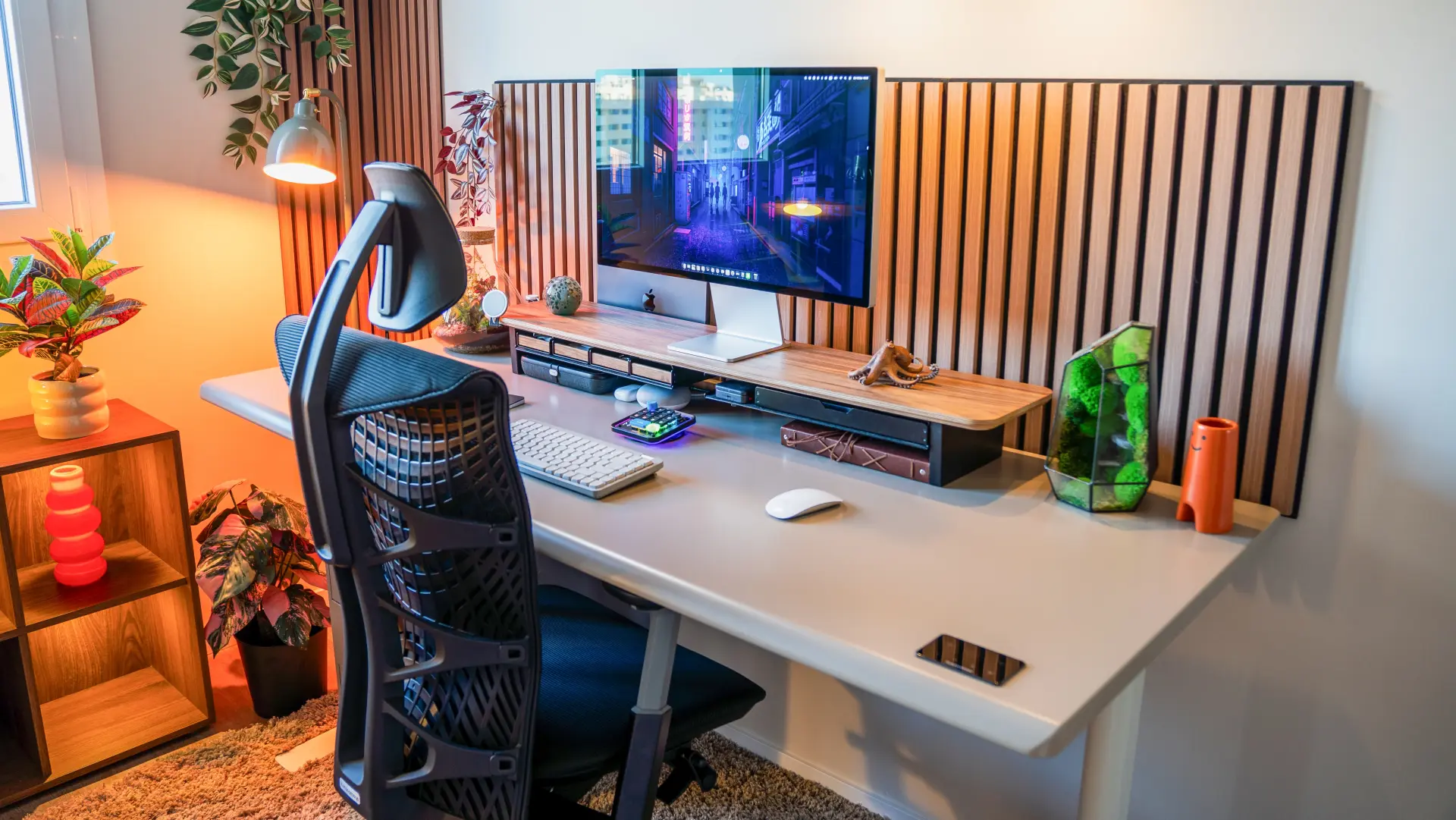
A home office setup works best when the desk fits the room, the chair fits your body, and the screens and tools fit your work. Buying a premium chair cannot fix a desk that blocks the doorway; a beautiful window view is little help if glare makes the monitor unreadable. Plan the space first, then buy around the problems you actually need to solve.
Quick answer: A practical home office needs enough room for a desk and chair, a comfortably positioned screen, reliable internet and power, suitable lighting, and input devices within easy reach. Choose those basics before adding extra monitors, storage, or decor.
How to set up a home office: six decisions in order
Start with the available space and the type of work. That prevents buying furniture that fits the product page but not your room or daily routine.
- Choose the work zone. Check outlets, Wi-Fi or Ethernet, natural light, interruptions, and the path through the room. A corner can work as well as a spare bedroom.
- Measure the footprint. Record the wall width, depth, door swing, chair pull-back area, and where shelves or drawers open. The home office dimension guide helps distinguish a small corner from a usable full-time workstation.
- Match the chair and desk. Confirm seat-height and desk-height ranges work together so your feet stay supported and your shoulders remain relaxed at the keyboard.
- Place the main screen. Put it in front of you, allow enough depth for comfortable reading, and reduce reflections from the window or task light.
- Connect the essentials. Test internet, power, dock, displays, audio and the webcam before fixing every cable into place.
- Live with the setup before buying extras. Notice what interrupts work for a few days; add a lamp, monitor arm, cable tray or storage only when it solves a specific friction point.
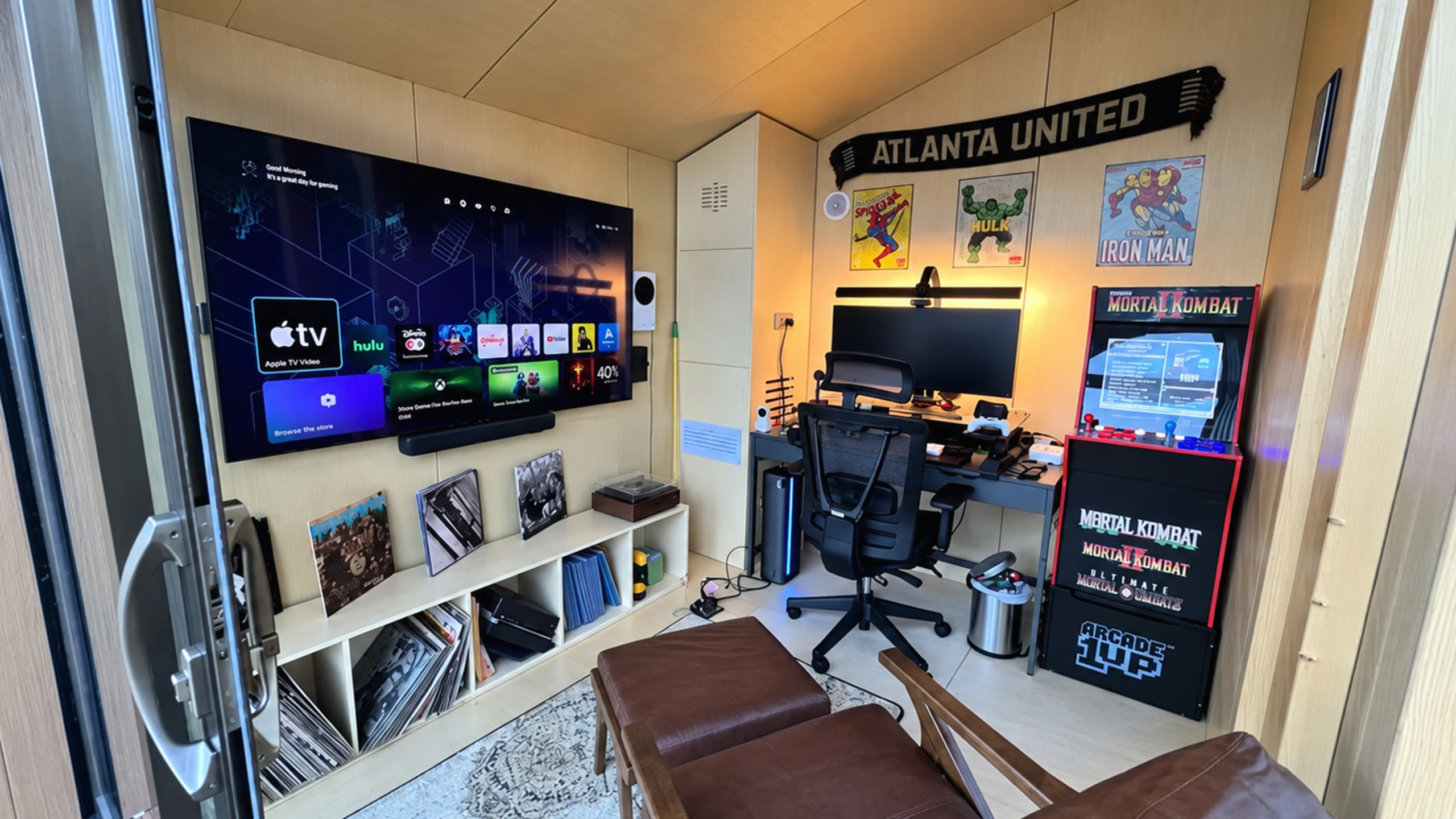
Budget tiers at a glance
A functional work-from-home setup does not need premium hardware everywhere. These US planning ranges cover a desk, chair, screen and basic peripherals for someone starting from scratch; they exclude a laptop or desktop computer, major remodeling and tax. Prices change periodically.
| Tier | Planning range | What to prioritize |
|---|---|---|
| Starter | $500-$800 | Comfortable adjustable chair, compact desk, one screen, keyboard and mouse |
| Everyday remote work | $1,000-$1,800 | More standing desk adjustability, well-fitting chair, better screen, calls and connectivity |
| Specialist / dedicated | $2,500+ | Advanced displays, specialized seating, improved acoustics and dedicated space |
Spend first on whatever prevents you from doing your actual work. If your current desk and chair fit well but video meetings are unreliable, networking and audio deserve the next budget. If your elbows never line up with the keyboard, furniture adjustment should come first.
Seven essentials for a comfortable home office setup
These are the categories most setups need. The right order is conditional: start with the biggest mismatch in your current workspace instead of treating one shopping list as a rule.
1. A chair that fits your sitting position
A supportive ergonomic office chair should let you sit with your back supported, feet resting on the floor or a stable footrest, and forearms reaching the desk without lifting your shoulders. Check seat-height range, usable seat depth, arm position, and lumbar fit. Upholstery, appearance and price cannot compensate for the wrong dimensions.
The Autonomous ErgoChair Pro provides a concrete example of a chair with several fit adjustments: its seat depth moves from 19 to 21.5 inches, its backrest height adjusts, and its lumbar support can be repositioned. It is rated for 300 lbs and carries a lifetime warranty; those specs describe the product, not a guarantee it fits every body.
.webp)
2. A desk sized for the room and your equipment
A desk should fit the monitor, input devices and notes without crowding the chair or doorway. A 48-inch-wide top is often enough for a compact laptop-and-monitor station; a wider surface becomes useful for two displays, large reference materials or creative equipment. Depth matters as much as width because the monitor needs to sit far enough back.
The Autonomous Desk Core provides a specific compact option: a 48 × 24-inch worktop, electric height adjustment from 29.4 to 47.5 inches with the top attached, and a 176 lb rated lifting capacity. The included cable tray helps keep accessories together. Check the 29.4-inch minimum carefully if you need a low seated keyboard height.
A standing desk home office setup supports switching between sitting and standing, but the best height is the one that keeps your elbows and shoulders comfortable. Standing is not a replacement for walking or changing position.
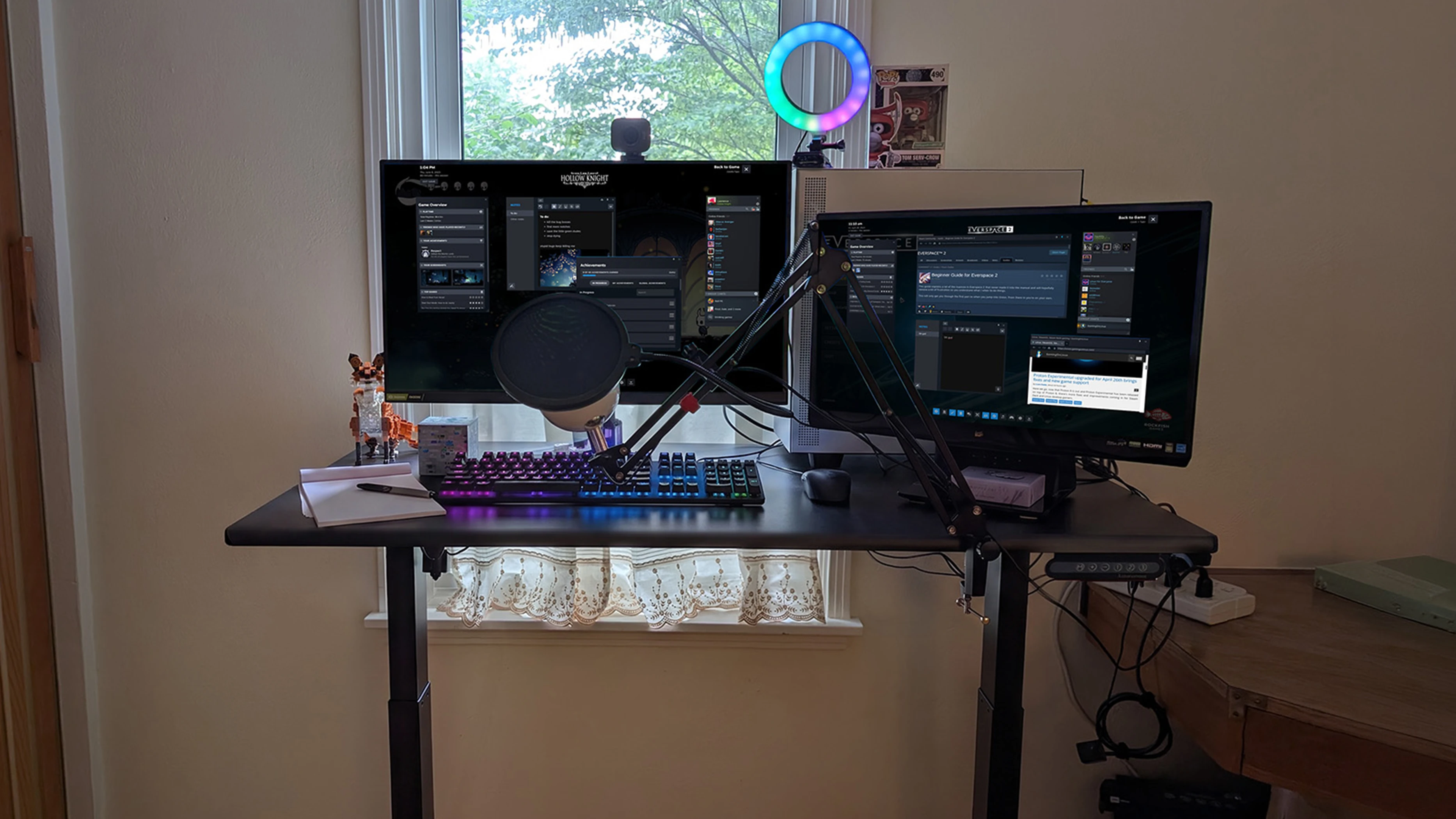
3. A monitor that fits the desk and the task
A readable screen is useful for spreadsheets, editing, programming and video meetings, but bigger is not always better. Start by measuring actual screen width and your comfortable viewing distance, not just the advertised diagonal.
| Screen | Practical starting point | Check first |
|---|---|---|
| 24" | Small desk, documents and calls | Readable text at your preferred distance |
| 27" | General remote work and multitasking | Desk depth, resolution and scaling |
| 32"+ / dual | Design, analysis and several windows | Mount clearance, viewing angle, display outputs |
OSHA recommends positioning the main screen directly ahead with its top at or slightly below eye level and a generally preferred viewing distance of 20-40 inches. A home office dual-monitor layout can be useful if your work regularly needs two applications visible together; otherwise, one well-positioned monitor may be simpler.
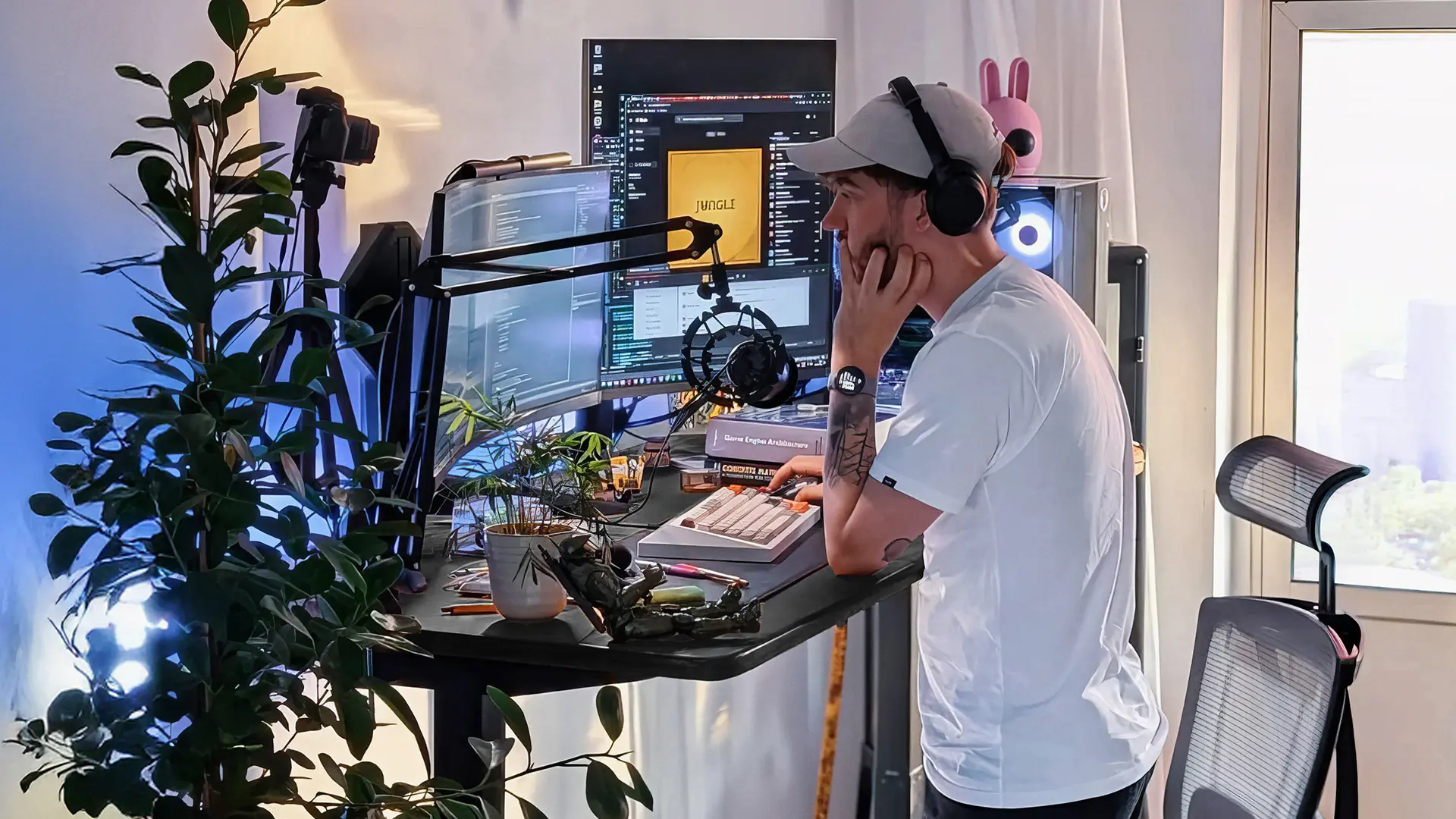
4. A keyboard and mouse that stay within easy reach
Place the keyboard in front of your body and keep the mouse close enough that you do not reach out with your shoulder. A compact keyboard can reclaim desk space; split and vertical designs may change wrist or forearm posture, but they are not automatic pain fixes. Try one adjustment at a time.
If you switch between a computer and tablet, the placement of a second device matters more than adding accessories. A side-mounted iPad desk setup is useful only when it does not push the main screen or keyboard out of alignment.
5. Dependable internet, power and connections
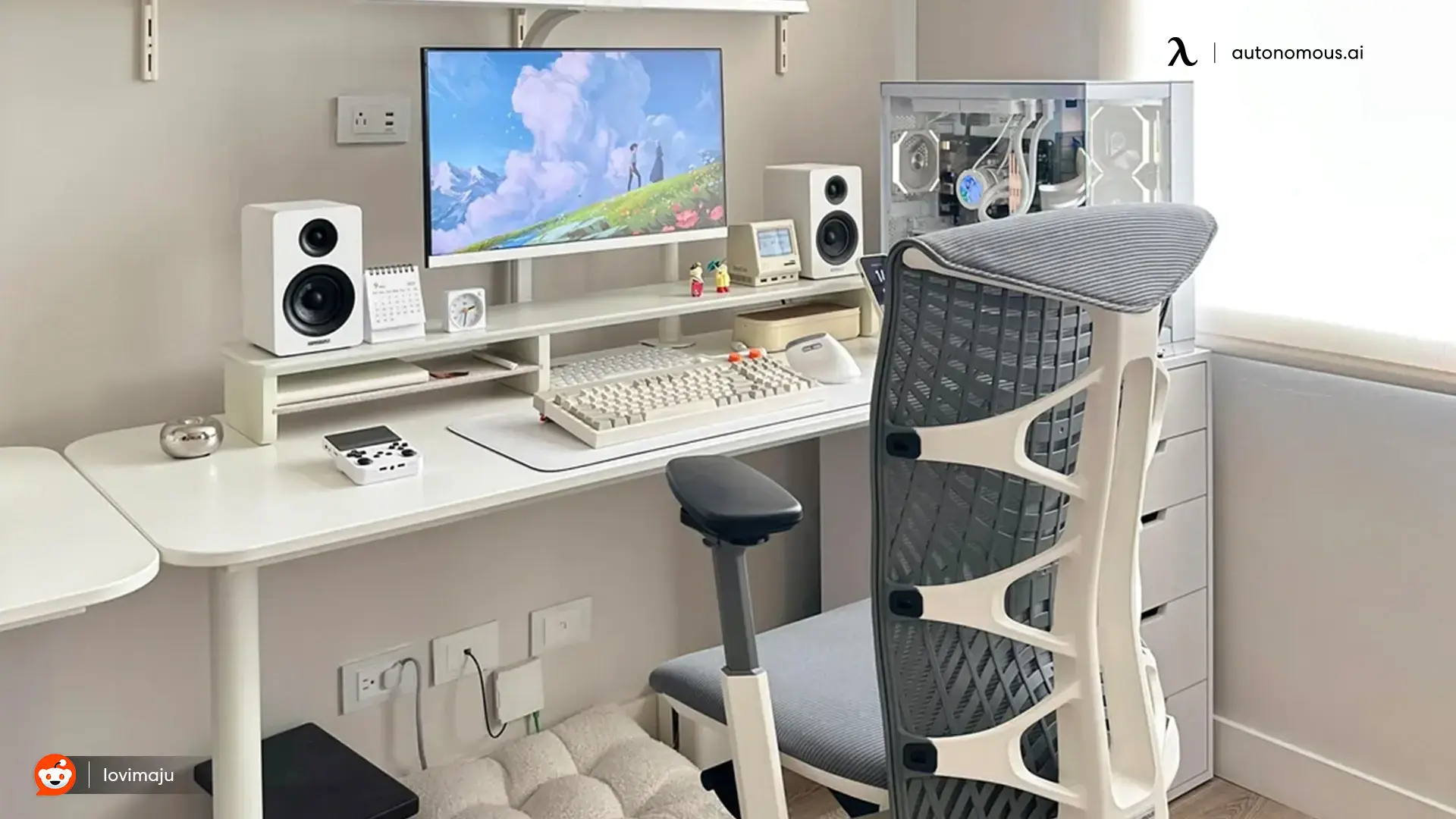
For video calls and cloud work, a stable connection matters as much as a faster computer. Test Wi-Fi at the actual desk location; Ethernet is an option if the signal is unreliable. Check the USB-C dock or hub against your computer's supported external displays, charging wattage and ports before buying.
Keep a surge protector accessible, leave ventilation space around adapters, and avoid overloading a power strip. A laptop user who repeatedly connects monitors, storage and audio may benefit from a dock; someone using a basic desktop may only need a few accessible USB ports. Those are different home office tech essentials needs.
6. Lighting that works for both screens and paper
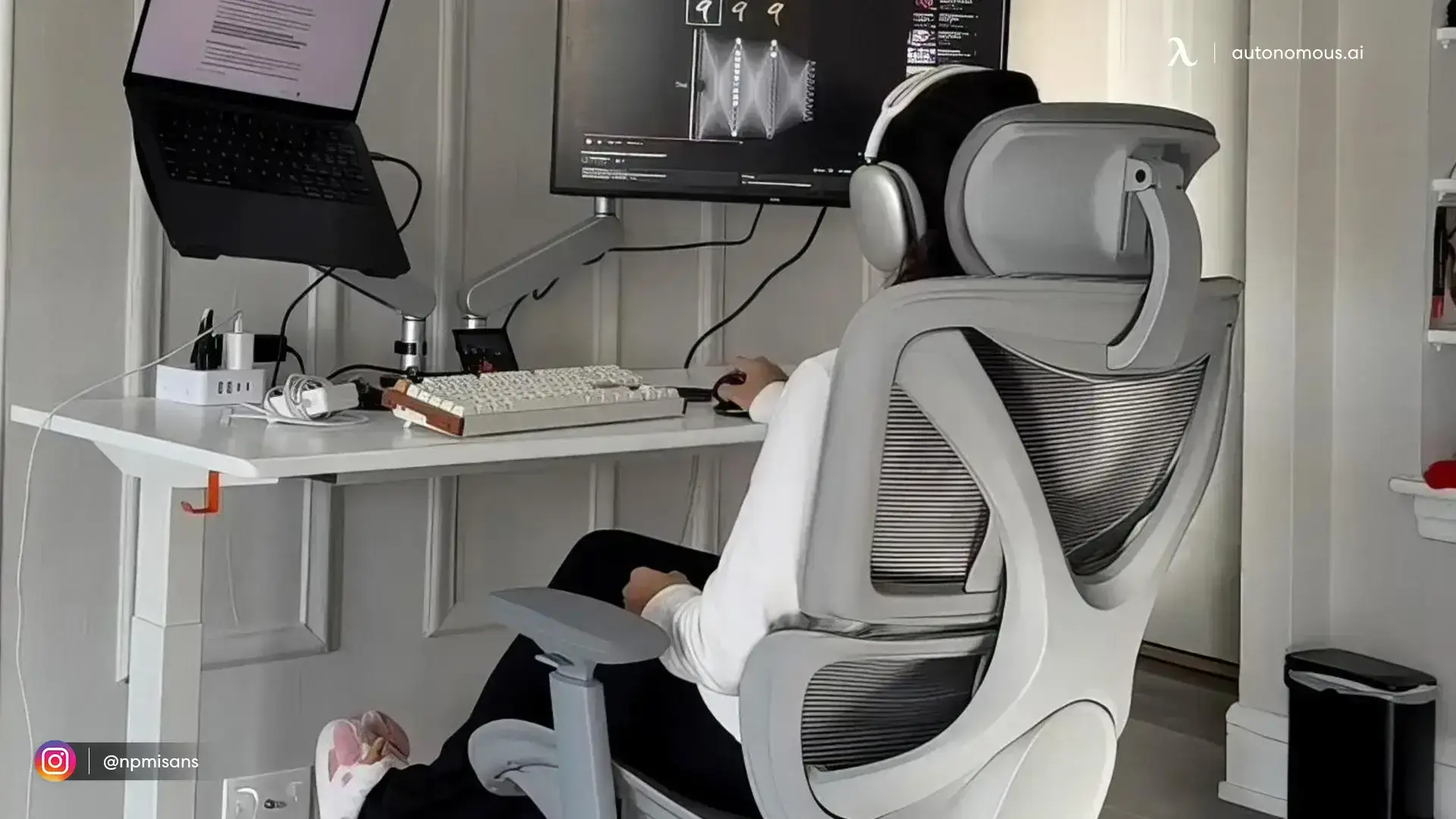
The right home office lighting makes screen content readable without washing out the display. Position the monitor to reduce reflected window light, use adjustable blinds if needed, and add a task light for paper or keyboard work. For calls, a soft light in front of you often works better than a bright uncovered window behind your chair.
Brightness and lamp direction matter more than a decorative shape. A movable home office desk lamp lets you light the desk without shining into the camera or screen; check where the light falls while seated, not just how the room looks from the door.
7. Audio, video and accessories that solve specific problems
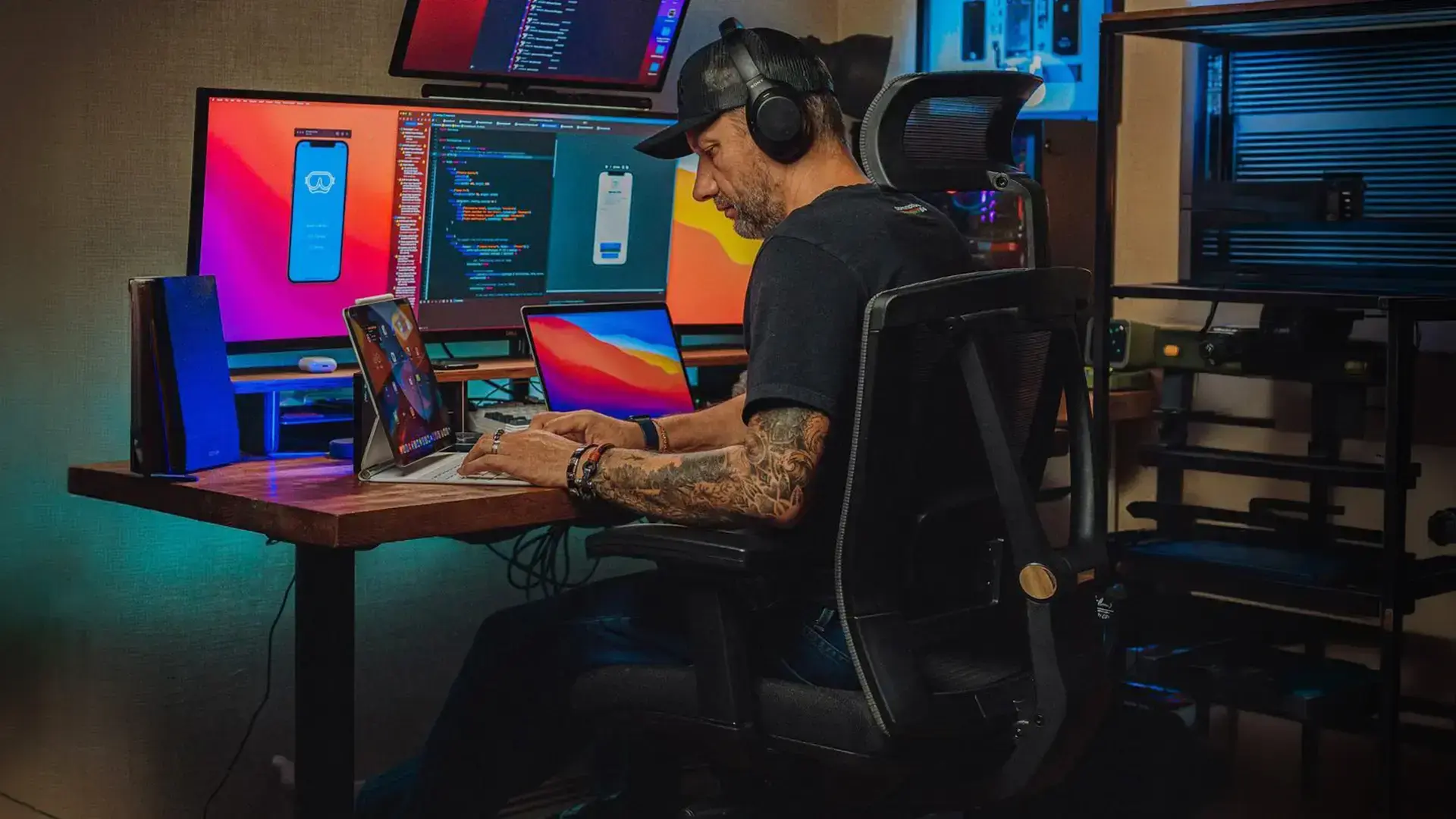
For frequent calls, reliable sound often matters before an expensive webcam. A headset with a microphone or a dedicated mic can help when the laptop is far from your face or the room is noisy. Upgrade camera quality when the picture is the limiting part of a meeting setup.
Use accessories selectively: a monitor arm to recover worktop depth, a footrest if your feet are unsupported, and a cable tray when power bricks keep tangling with chair movement. These are fitting tools, not items every home office needs.
How much room does a home office setup need?
You do not need a dedicated room, but you do need to fit the desk, seated chair and movement path at the same time. Measure the available area with the chair pulled out, drawers open and the door moving through its full swing.
| Available space | Layout to try | Likely constraint |
|---|---|---|
| Bedroom or living-room corner | 36-48" desk, one screen, vertical storage | Chair pull-back and glare |
| 8 × 8 ft room | 48" desk against a wall, slim storage | Door swing, chair and walkway |
| Dedicated room | 48-72" desk or corner/L-shaped layout | Distance to screens and cables |
The 8 × 8 ft example is a starting layout, not a guarantee that every piece will fit. Door and window positions change the plan; the 8 × 8 home office floor plans illustrate different ways to handle those constraints.
As a practical planning check, allow about 30 inches of open space behind a rolling chair where possible, and keep your regular route out of the room free. A closer view of home office floor plans can help when an office shares space with other furniture.
Best home office setup ideas by space and work style
Choose the layout by your workday, not by a photo's color palette. Screen placement, natural light and the path around the desk come before matching accessories.
1. Compact bedroom corner
A small home office works well with one centered monitor, a 36-48-inch desk, and shelves above or beside the workspace. Keep the chair able to roll back without hitting the bed or blocking the door. A monitor arm can create more usable surface, but confirm its clamp fits the tabletop.
.webp)
2. A desk near a window without screen glare
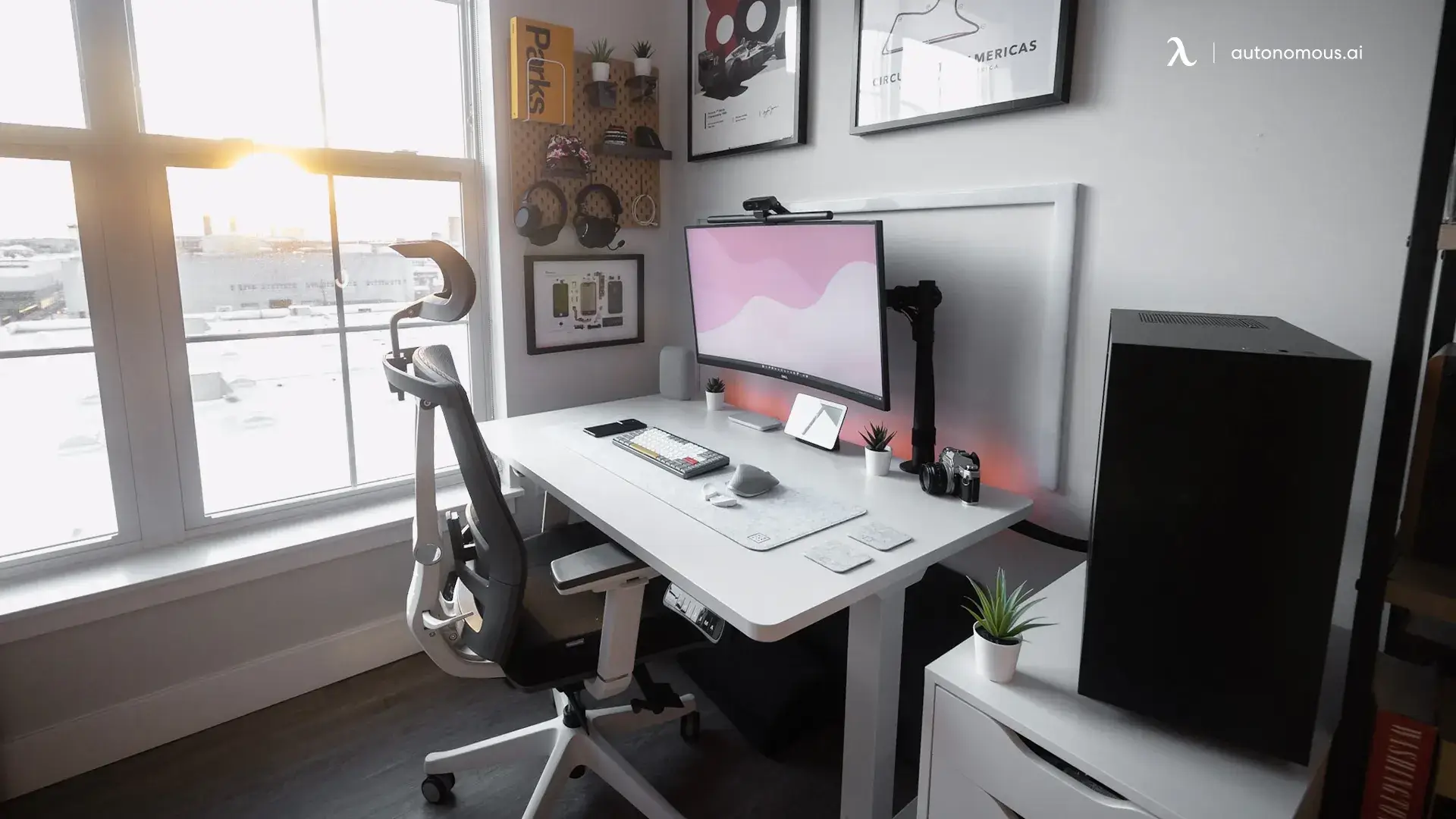
Place the display roughly perpendicular to the window when possible so sunlight does not shine into your eyes or reflect directly off the screen. If the desk must face the window, use shades to control brightness and test the camera framing. Where a desk sits against a wall, window or in the middle of the room affects both light and space for moving cables.
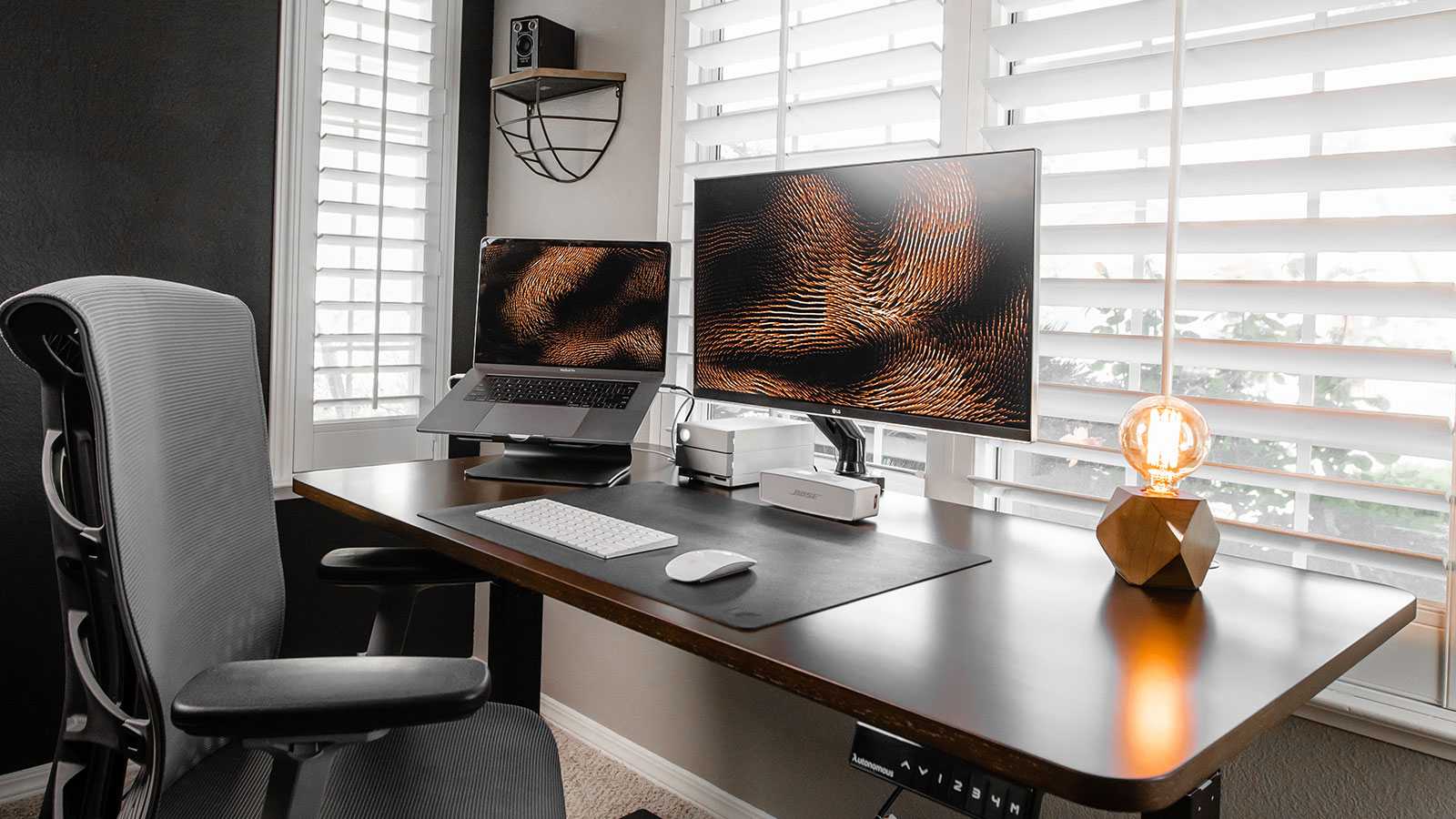
3. Minimalist setup in a shared living room
A simple desk, one monitor and contained cables can make an office less intrusive when the room also serves other purposes. Give work materials one dedicated shelf or drawer so they can be put away after hours. If the desk shares space with seating, keep walking routes open; a small home office with a couch can function as part of the room without becoming the full-time computer chair.
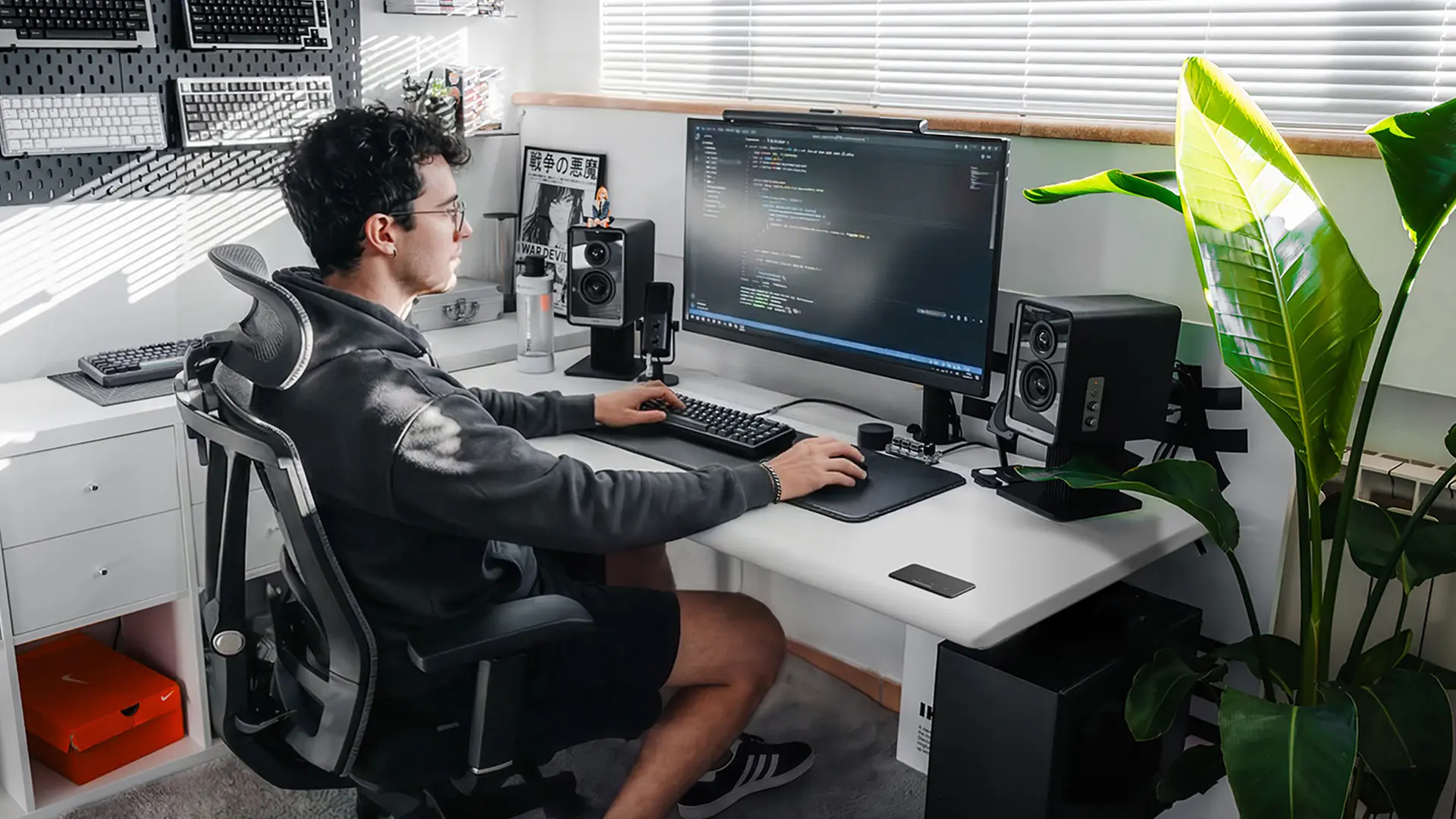
4. Dual-screen or creator workstation
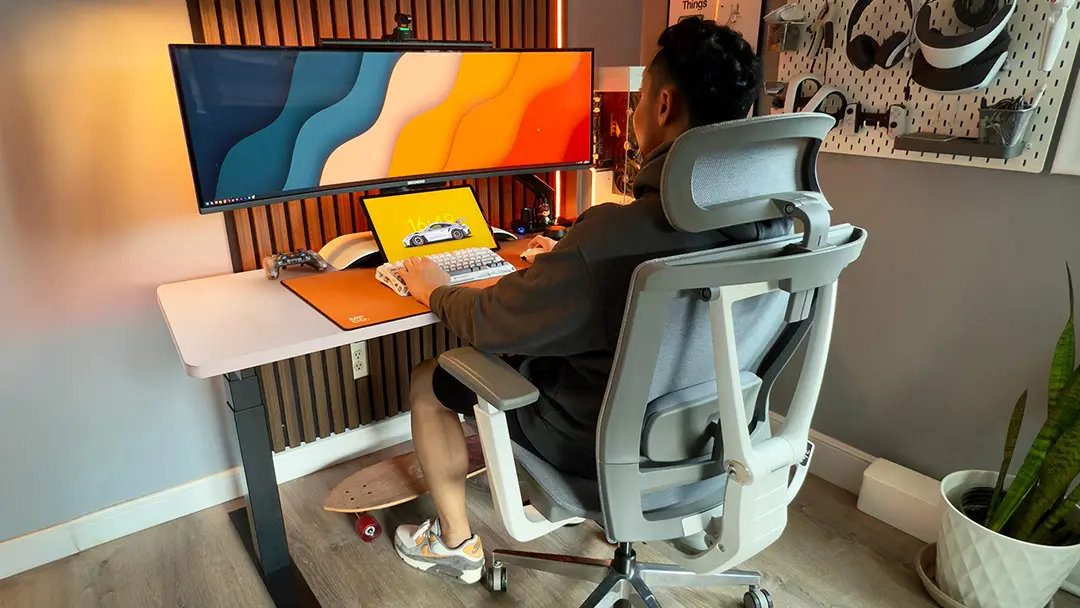
A wider desktop lets you center the screen used most, keep secondary references next to it and leave space for drawing tools or audio equipment. Avoid centering your body between two monitors if one receives almost all your attention. Check monitor-arm weight ratings and ports before committing to the final arrangement.
For a creative work from home setup, the important upgrade may be desk depth rather than adding a third display; it lets the primary screen sit at a comfortable viewing distance while a drawing tablet or notes remain close.
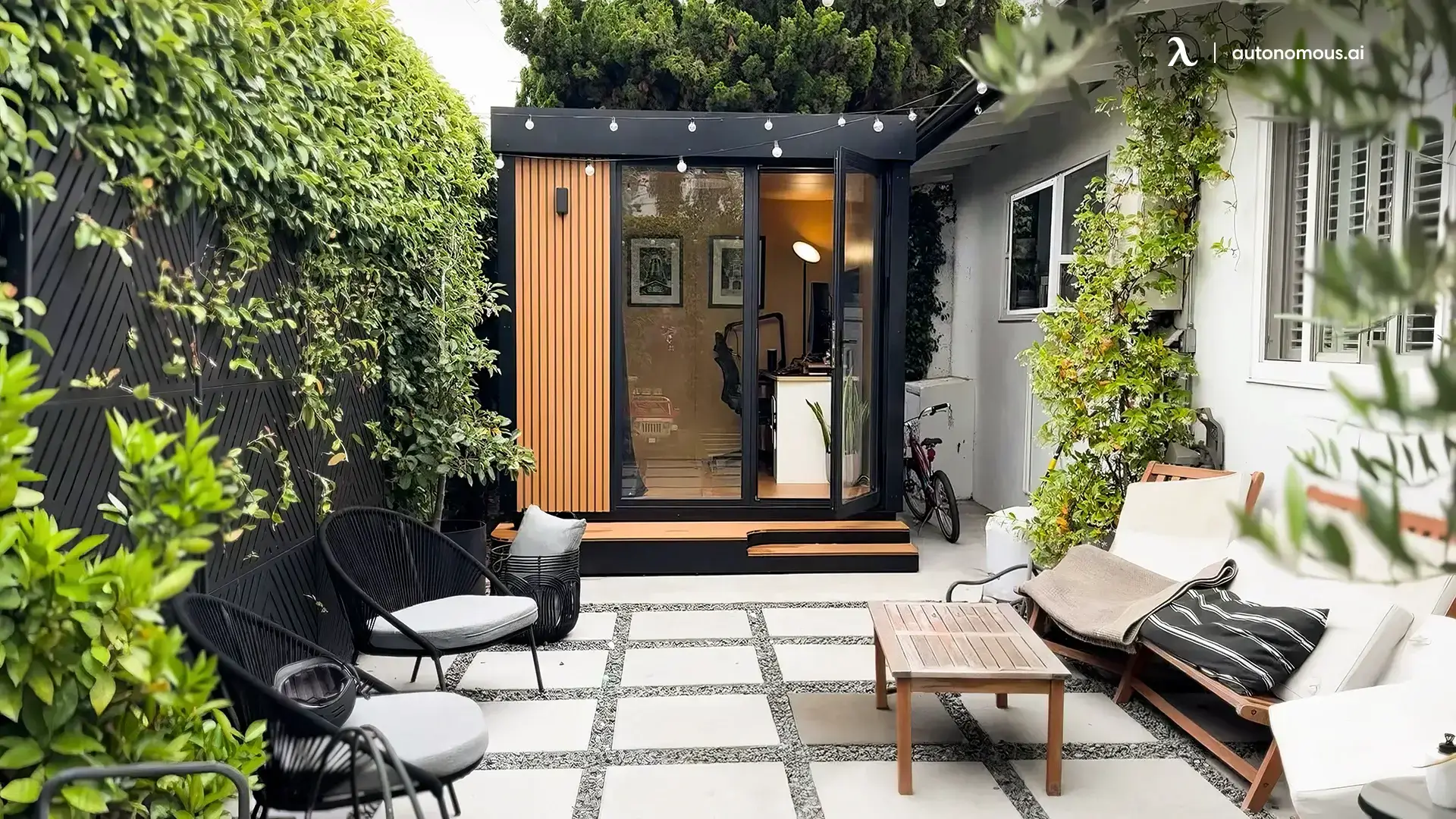
5. Dedicated focus space or detached office
If calls, private conversations or household noise are the main obstacles, a defined boundary can matter more than adding tech. A room divider, door or separated corner is often enough. For a detached workspace, a small mobile and relocatable office pods introduces different questions: weather, utilities, ventilation, property access and local permitting.
Autonomous MetroPod is a compact 80-sq-ft backyard office structure, with furniture sold separately. It suits the concept of separating work from home life, but site preparation and permission requirements depend on the property and jurisdiction, not a universal permit-free claim.
.webp)
Five home office setup mistakes that cost space or comfort
- Buying the furniture before measuring the room. A desk may fit the wall yet leave too little clearance behind the chair.
- Ignoring seated height. An electric desk that cannot lower enough may still leave your shoulders raised when typing.
- Choosing a screen by diagonal size alone. Text scaling, usable depth and viewing distance determine whether it works at the desk.
- Putting the window in the wrong place. Backlighting can make calls look dark; direct reflections can make screen work harder.
- Decorating before fixing the basics. Lighting, internet and cable movement should be tested before hiding power supplies inside furniture.
FAQs
What is the best home office setup?
The best home office setup fits the room and the person using it. Start with a desk and chair that align comfortably, a centered screen, reliable power and internet, and lighting without glare. Add extra monitors and storage only when the work requires them.
How do I set up a home office from scratch?
Choose the work zone, measure desk and chair clearance, then check furniture fit before buying electronics. Place the monitor and keyboard, verify power and connectivity, adjust lighting, and run the setup for a few days before adding accessories.
What should I buy first for working from home?
Buy the item that currently prevents comfortable or reliable work. For a new workstation that often means a desk and adjustable chair, followed by the screen and input devices. If you already own good furniture, internet, audio or lighting may be a higher priority.
How much does a basic home office setup cost?
A planning budget of $500-$800 can cover basic furniture, a monitor and peripherals if you already own the computer. Total cost varies with what you have, room constraints and product choices. Compare current prices before treating any budget tier as a quote.
How do I set up a home office in a small room?
Start with a compact desk, one well-placed monitor and vertical storage. Leave space behind the chair, avoid the door swing and use window shades to control glare. Measure the room before choosing wide furniture or additional screens.
Should a home office desk face the window or a wall?
Either can work. A screen placed perpendicular to the window often reduces glare, while a wall placement can free central floor space. If facing the window, use adjustable shades and check the display's reflections at the time of day you usually work.
Is a standing desk worth it for remote work?
A standing desk can be worthwhile if its height range lets you work comfortably while seated and standing, and if you want to change positions during the day. It does not replace breaks or walking. Check desktop dimensions, minimum height and mounting compatibility first.
Do I need two monitors for a productive home office?
No. Two displays are useful when you regularly compare documents, code, meetings or reference material. For focused single-task work, one readable monitor is often enough. Check the computer's external-display support and desktop space before adding a second screen.
What lighting works best for a home office?
Use controlled natural light and an adjustable task lamp that illuminates work without reflecting onto the screen. For video calls, avoid a bright window directly behind you. Test the light both during your usual work hours and after sunset.
Does a home office need a separate room?
No. A dedicated corner can work well if it has comfortable furniture, reliable power and a clear boundary from household activity. Separate rooms or pods become more useful when noise, privacy or frequent meetings interfere with work.
Bottom line
A home office setup becomes useful when you stop treating it as a shopping list. Measure the space, fit the chair and desk together, position the screen and lighting, then make sure power and calls work reliably. For compact setups, the right furniture dimensions are usually more important than another gadget.
After the essentials are working, use the room layout and your daily tasks to decide what to upgrade next. That might be a monitor arm for extra desk space, an adjustable desk for changing positions, or a better-defined work zone in a shared home.
References
- Occupational Safety and Health Administration (OSHA). Computer workstation chair selection and adjustment.
- Occupational Safety and Health Administration (OSHA). Monitor height, placement and viewing distance.
- Occupational Safety and Health Administration (OSHA). Lighting, glare and workstation environment.
- This Old House. Home office layouts for shared and dedicated rooms.