
ErgoChair Pro
Black Friday price.
Built for 12-hour sessions.
How to Connect Two Laptops Together

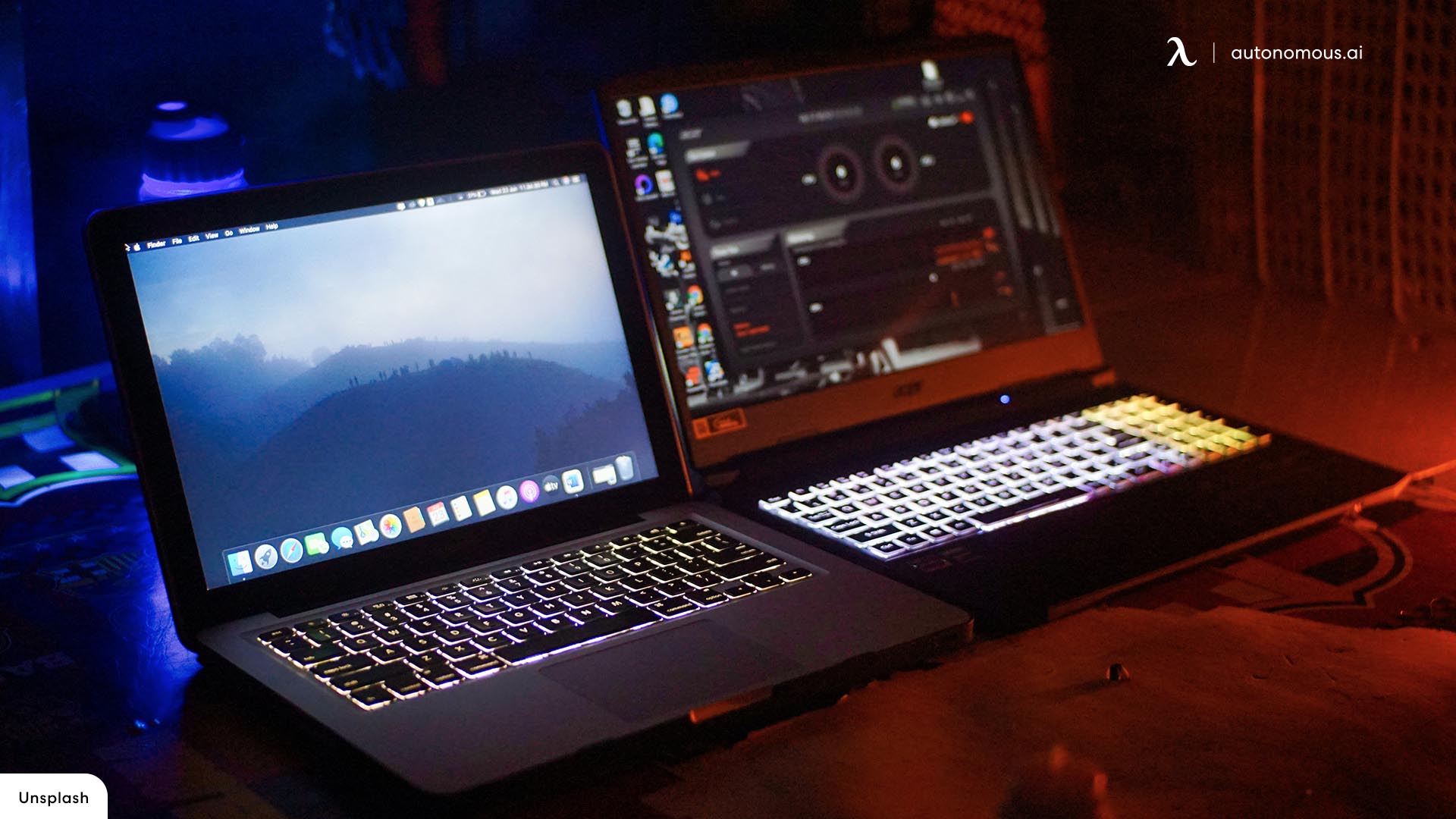
Yes, you can connect 2 laptops together, and the method depends on what you want from the link: moving files, sharing one keyboard and mouse, using one laptop as a second screen, or sharing an internet connection. A cable (Ethernet or Thunderbolt) is fastest for big file moves, Wi-Fi sharing apps are easiest for everyday transfers, and free software handles keyboard sharing and screen extension.
One thing does not work: a plain HDMI cable between two laptops. Below are the steps for each method and what to check when the laptops cannot see each other.
Pick the Method by What You Want to Do
Start from the goal, not the cable. Most of these jobs need only software that is free or already on the laptop.
| Goal | Best method | What you need |
|---|---|---|
| Move a large folder once | Ethernet or Thunderbolt cable | Cable, adapter if no port, file sharing on |
| Send files now and then | Nearby sharing, AirDrop or LocalSend | Same Wi-Fi or Bluetooth on |
| One keyboard and mouse for both | Mouse Without Borders, Logitech Flow, Universal Control, Input Leap | Same network, app on both laptops |
| Use one laptop as a second screen | Projecting to this PC, spacedesk | Windows on the main laptop |
| Control one laptop from the other | Remote desktop app | App and sign-in on both |
| Share internet | Windows Mobile hotspot or Mac Internet Sharing | One laptop online |
If both laptops sit on one desk all day, the keyboard and mouse option saves the most effort, because you stop reaching across for the second trackpad.
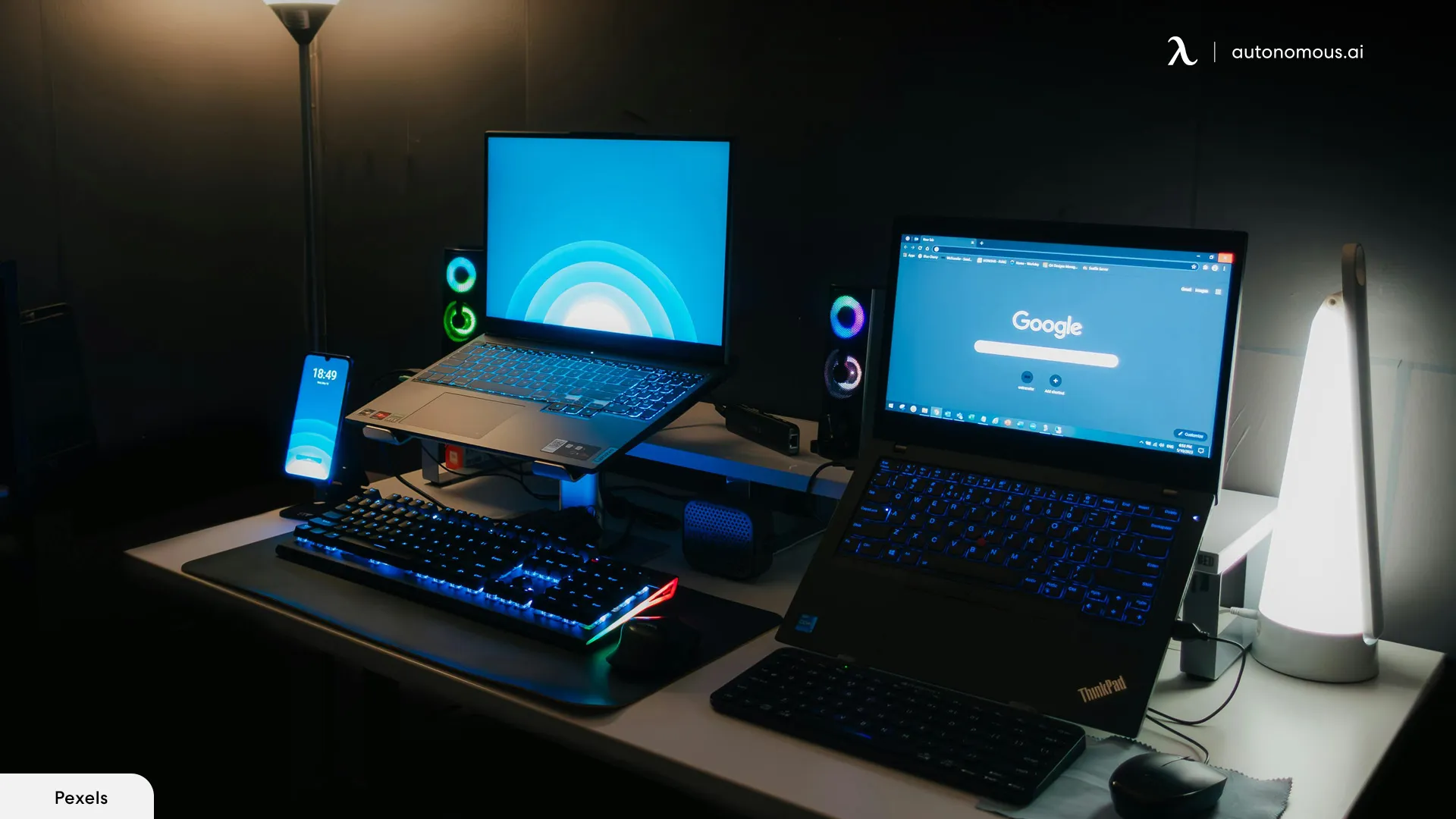
How to Connect 2 Laptops Together With a Cable
A direct cable is the fastest way to connect laptop to laptop, because no router or Wi-Fi signal sits in between. Which cable depends on the ports your laptops have.
Ethernet Cable
A standard Ethernet patch cable works between two laptops: modern Ethernet ports detect the cable type on their own, so you no longer need a special crossover cable. Gigabit Ethernet tops out at 1 Gbps. Many thin laptops have no Ethernet port, so plan on a USB-C to Ethernet adapter for one or both.
- Plug the cable into both laptops or their adapters.
- Without a router, the laptops often find each other on self-assigned addresses. If not, set fixed ones: on Windows go to Control Panel > Network and Sharing Center > Change adapter settings, open the Ethernet adapter's Properties > Internet Protocol Version 4 (TCP/IPv4) and enter 192.168.0.1 and 192.168.0.2, subnet mask 255.255.255.0.
- Share a folder: right-click it, choose Properties > Sharing > Advanced Sharing and tick Share this folder. On a Mac, turn on File Sharing in System Settings.
- On the other laptop, open File Explorer and type \\192.168.0.1 in the address bar, or open Network in the Finder sidebar on a Mac.
USB-C or Thunderbolt Cable
Two Macs with Thunderbolt ports can network over one Thunderbolt cable, and the link shows up in System Settings > Network as Thunderbolt Bridge. Apple sets two conditions: plug directly into both Macs, not through a USB-C hub, and use a Thunderbolt cable, since a charge-only USB-C cable will not carry the link. Then open Network in the Finder and connect to the other Mac (File Sharing must be on).
On Windows, Intel's Thunderbolt Share app does the same job over a Thunderbolt 4 or 5 cable, with file transfer and screen sharing. The catch: it needs Windows 11, the app on both PCs, and at least one PC or Thunderbolt dock that the maker licensed for Thunderbolt Share. Check the laptop's spec page for Thunderbolt Share before buying a cable.
USB Data Transfer Cable
A plain USB-A to USB-A cable does not connect two laptops; you need a USB data transfer cable (also sold as a USB bridge or link cable) with a small chip in the middle. It comes with its own transfer app and needs no network settings, which suits a one-time move to a new laptop with no Ethernet port. Plug it in directly rather than through a hub, and check that the app supports both operating systems.
How to Connect Two Laptops Wirelessly
The easiest way to connect two laptops wirelessly is a built-in sharing feature: Nearby sharing between Windows PCs, AirDrop between Macs, or the free LocalSend app between any mix of the two.
Windows: Nearby Sharing
Nearby sharing sends files and links between Windows PCs over Bluetooth or Wi-Fi. Turn it on under Settings > System > Nearby sharing on both laptops, and pick My devices only (same Microsoft account) or Everyone nearby. Then right-click a file, choose Share and pick the other laptop. Microsoft notes that transfers run faster when both PCs are on the same Wi-Fi network than over Bluetooth alone.
Mac: AirDrop
AirDrop moves files between Macs with Wi-Fi and Bluetooth turned on, within about 10 meters (30 feet). In the Finder, click AirDrop and set who can find you to Contacts Only or Everyone, then drag a file onto the other Mac's icon. Most files land in the Downloads folder.
Windows and Mac Together: LocalSend
LocalSend is a free, open-source app for Windows, macOS, Linux, Android and iOS that sends files over your local Wi-Fi without the internet. Install it on both laptops on the same network and each shows up in the other's list. It is the simplest fix for a Mac and a Windows laptop, which AirDrop and Nearby sharing cannot link.
Shared Folders and Bluetooth
For files both laptops open every day, a shared folder on the same Wi-Fi beats sending copies: set the network to Private, share the folder as in the Ethernet steps, and map it as a network drive on the other laptop. Bluetooth transfer works for a few photos but is far slower than Wi-Fi.
Share One Keyboard and Mouse Between Two Laptops
Keyboard and mouse sharing software lets you move the cursor off the edge of one laptop's screen onto the other, with the keyboard following. Only Logitech Flow needs extra hardware.
| Tool | Works between | Limit to know |
|---|---|---|
| Mouse Without Borders (Microsoft PowerToys) | Windows and Windows, up to 4 PCs | Same network; copy-paste one file at a time, up to 100 MB |
| Logitech Flow | Windows and Mac | Needs a Flow-enabled Logitech mouse and Logi Options+ on both |
| Universal Control (Apple) | Mac and Mac, or Mac and iPad | Same Apple Account, within 10 m, Bluetooth and Wi-Fi on |
| Input Leap (open source, Barrier fork) | Windows, macOS, Linux | Repository now archived, so expect few fixes |
For Mouse Without Borders, generate a security key in PowerToys on the first laptop, then enter that key and the first laptop's name on the second. If it fails, check the network, the key and the firewall rule, which PowerToys can add for you.
Use One Laptop as a Second Screen
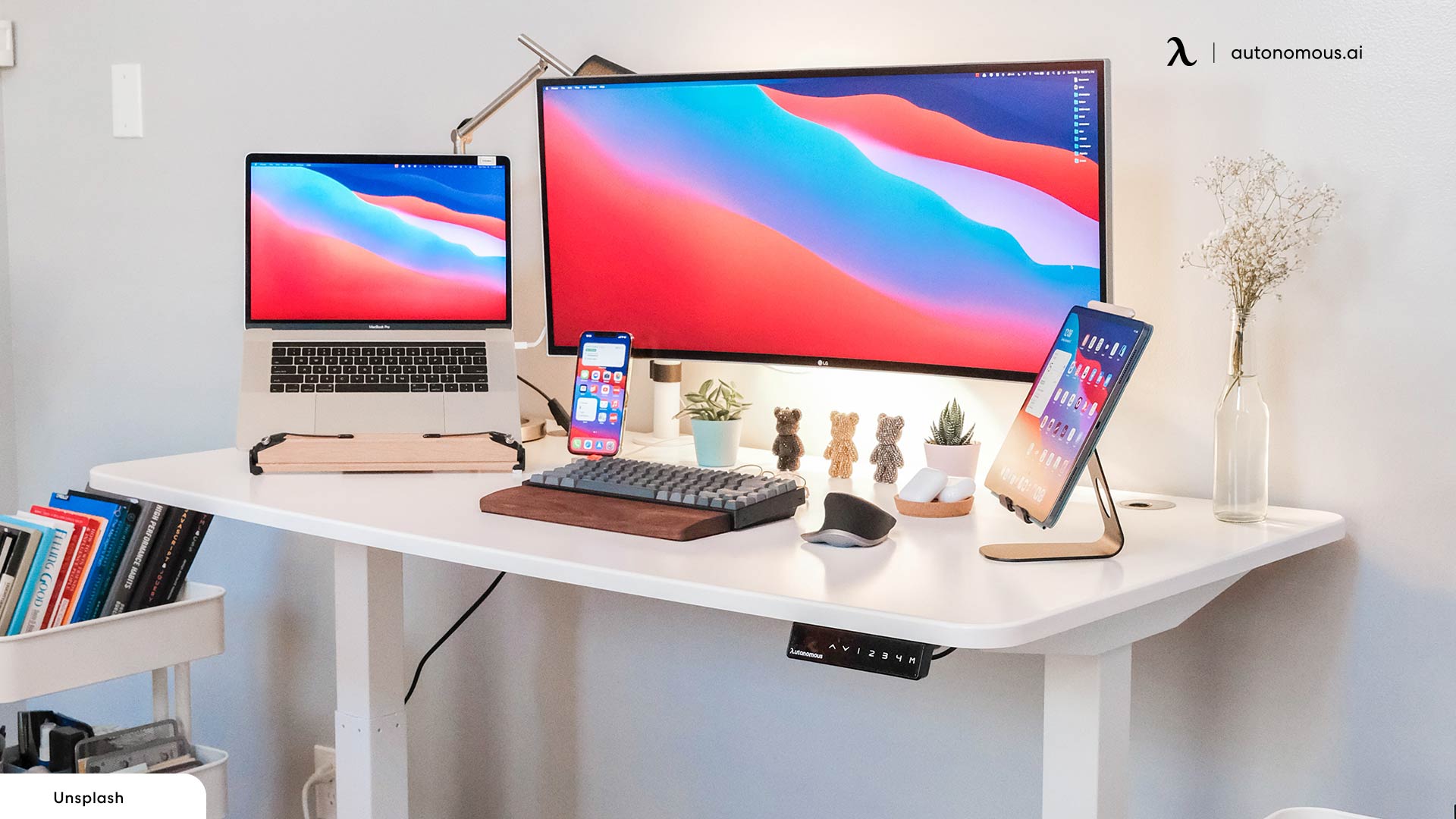
A Windows laptop can act as a wireless second screen for another Windows laptop through the built-in Projecting to this PC feature. On the laptop that will be the screen, go to Settings > System > Projecting to this PC, install the optional Wireless Display feature and open the Wireless Display app. On the main laptop, press Windows key + K and pick the other laptop, then choose Extend.
spacedesk is the other common route: the driver runs on the main Windows laptop, and the viewer app runs on the second laptop, a tablet or a phone, over Wi-Fi or a LAN cable (spacedesk also lists a USB option for some devices).
On Apple gear, Sidecar turns an iPad into a second Mac display, but it does not work with a second Mac. Using a laptop as a monitor this way suits notes and chat windows; for video, design work or a permanent dual-monitor setup, a real monitor costs less effort than any wireless link.
Control One Laptop From the Other
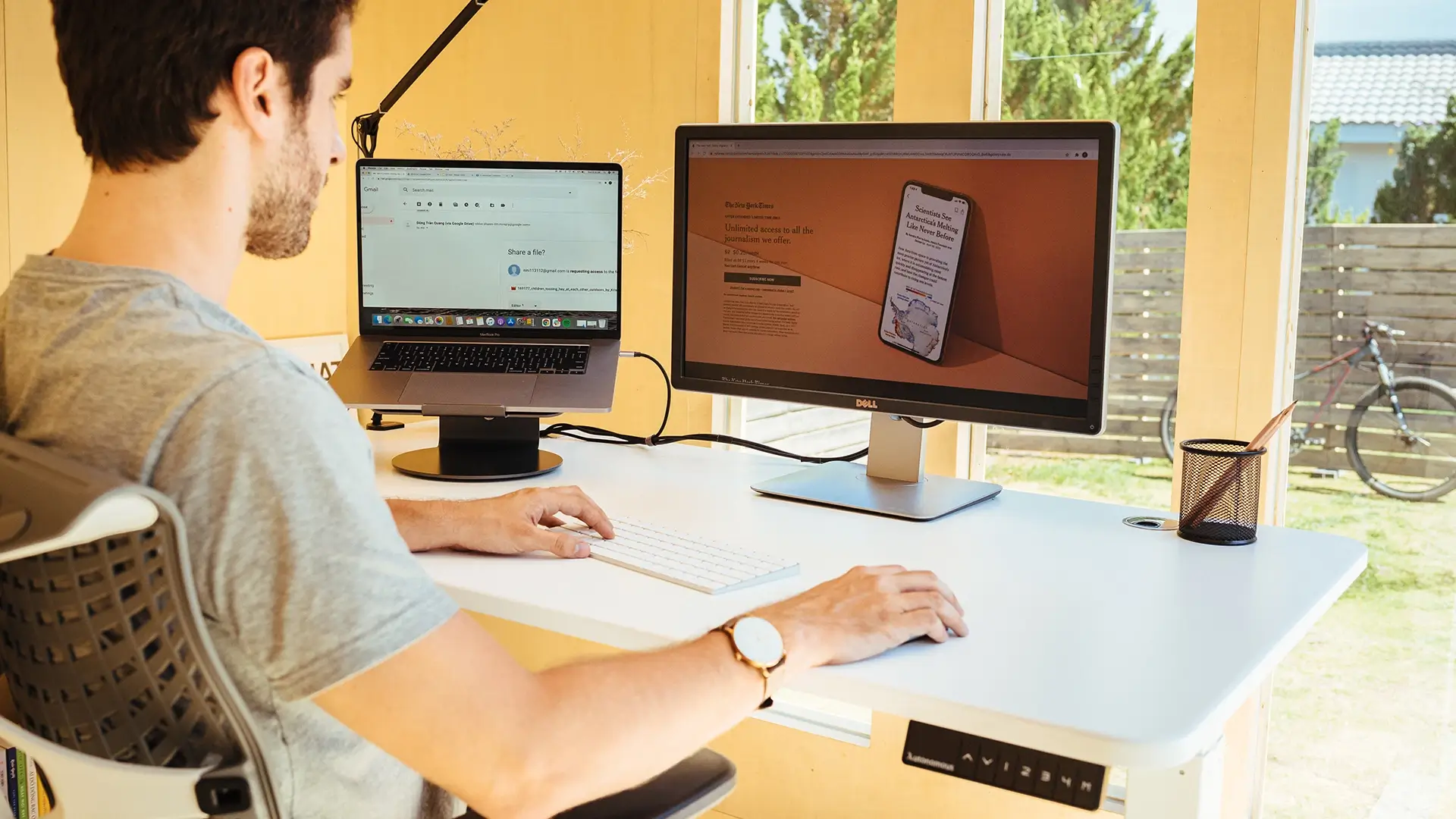
Remote desktop apps put the other laptop's whole screen in a window, so you can run its programs and grab its files from anywhere. TeamViewer and AnyDesk include file transfer, and Chrome Remote Desktop runs free in the Chrome browser. Install the app on both laptops and sign in or share the access code. It suits fixing someone's problem or reaching a work laptop from home, but you see the other desktop, not an extension of yours.
Can You Connect Two Laptops Using HDMI?
No, an HDMI cable between two laptops does not work, because laptop HDMI ports send video out and do not accept it. Plugging two outputs together gives a black screen on both. To show one laptop's picture on the other over a cable, you need a USB capture card on the receiving laptop, or a laptop with a USB-C port that accepts DisplayPort input, which is rare.
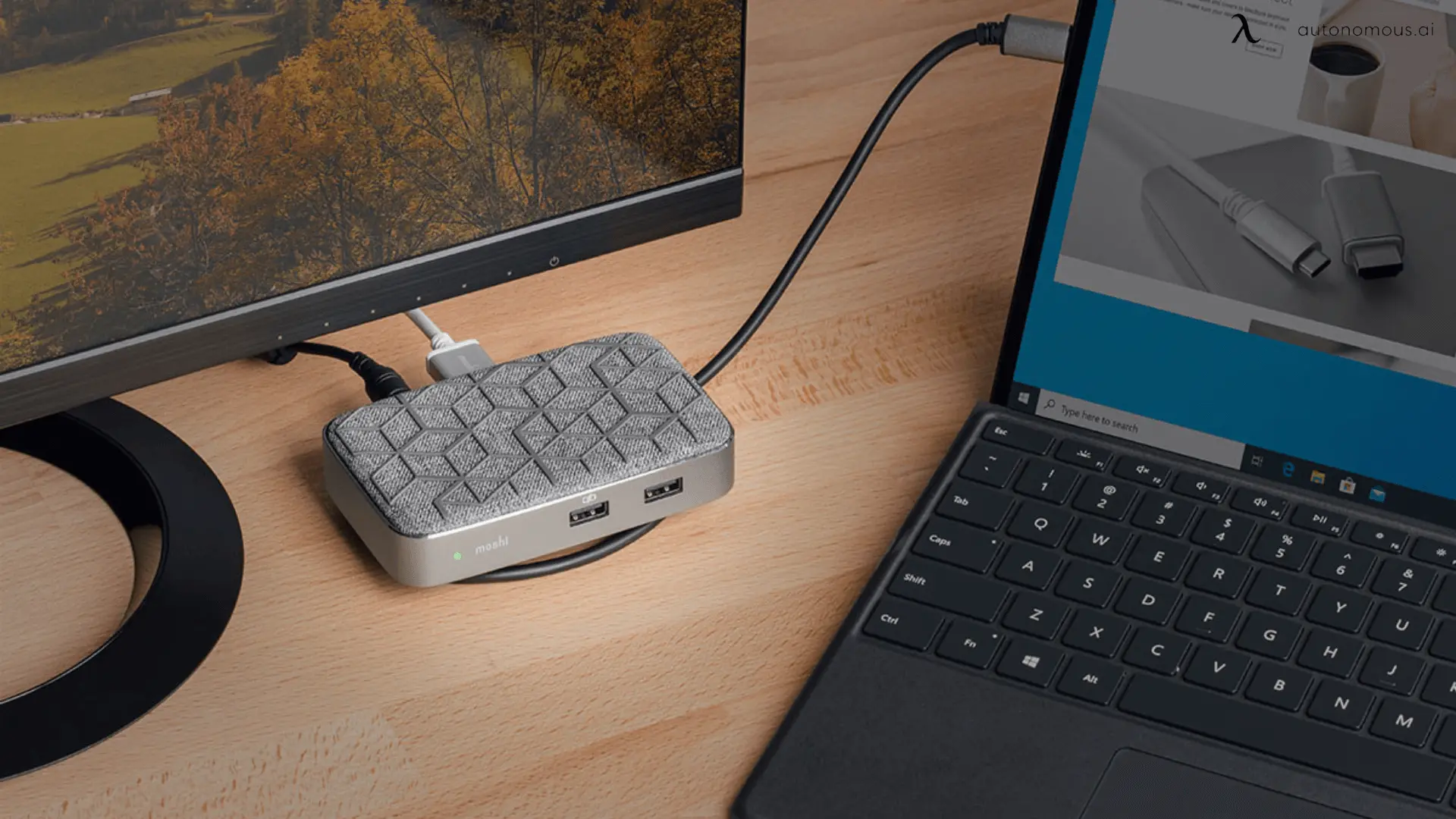
What HDMI does well is connect each laptop to a monitor. The same ports, plus a dock, let you connect a laptop to a monitor or even connect 4 monitors to a laptop. To run two laptops on one monitor, plug each into a different input on the monitor and switch inputs, or use a KVM switch. An HDMI splitter does the opposite job (one source, several screens).
Share Internet From One Laptop to the Other
A Windows laptop can share its connection as a hotspot: open Settings > Network & internet > Mobile hotspot, choose the connection to share under Share my Internet connection from (Wi-Fi, Ethernet or cellular), pick Wi-Fi or Bluetooth under Share over, and turn it on. The second laptop joins it like any Wi-Fi network. Macs have a similar option called Internet Sharing in System Settings.
This helps when only one laptop has a wired or cellular connection. If it is cellular, both laptops now draw on one data plan.
Troubleshooting When Two Laptops Will Not Connect
Most failed connections come down to the network profile, the subnet, sharing settings or the cable. Work down this table before reinstalling anything.
| Symptom | Likely cause | Fix |
|---|---|---|
| Laptop not visible on the network | Network set to Public on Windows | Set it to Private in Network & internet settings |
| Cable plugged in, no link | Different subnets | Use matching fixed IPs, e.g. 192.168.0.1 and .2 |
| Folder not listed | Sharing or File Sharing off | Turn on folder sharing on the sending laptop |
| App connects, then drops | Firewall blocking the app | Allow the app through the firewall, do not turn it off |
| Thunderbolt or USB link fails | Charge-only cable or a hub | Data-rated cable, plugged in directly |
Windows sets networks to Public by default, which hides the laptop and blocks file sharing; switch to Private only on a network you trust. If drivers are the suspect, update them through Windows Update or Device Manager and restart both laptops.
Set Up Your Desk for Two Laptops
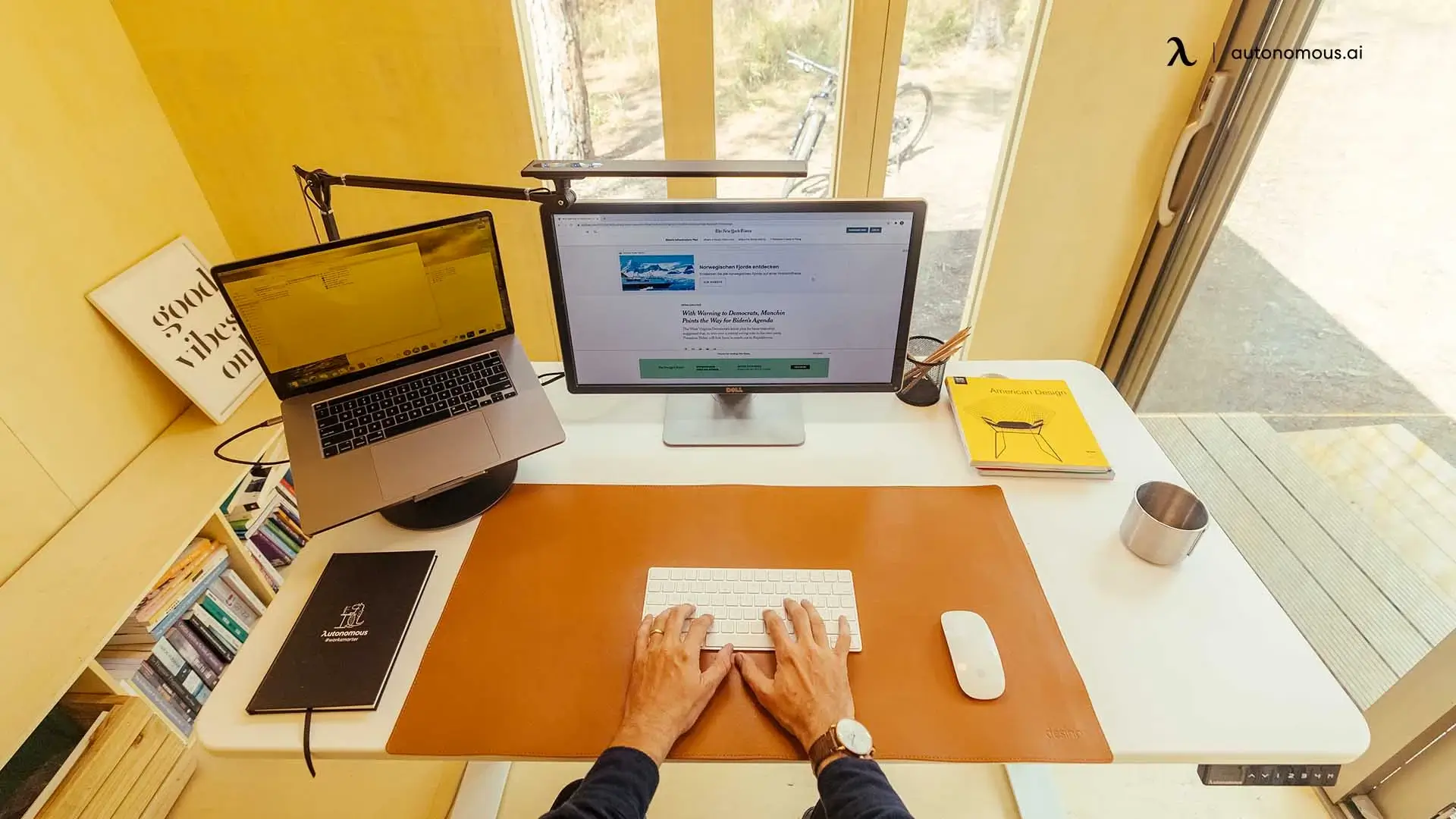
In a two-laptop desk setup, two 14 to 16 inch laptops open side by side take roughly 30 inches of desk width, and closer to 48 inches with a keyboard, mouse and elbow room. Put the laptop you look at most in front of you on a stand, top of the screen near eye level, and type on an external keyboard, the same basics as any productive work environment.
Two laptops also mean two chargers and often a cable between them. A cable management tray keeps the power bricks off the floor; the Autonomous Cable Tray is 35.4 inches wide and mounts under Autonomous desk frames only.
Adding a monitor means a wider desk than two laptops alone; most laptop and monitor setups center the monitor and put the laptop to one side, which suits a two computer desk setup.
FAQs
Can you connect 2 laptops together?
Yes. You can connect two laptops with an Ethernet, Thunderbolt or USB data transfer cable, or wirelessly with Nearby sharing, AirDrop or LocalSend. Software such as Mouse Without Borders shares one keyboard and mouse, and Projecting to this PC or spacedesk turns one laptop into a second screen.
How do you connect two laptops wirelessly?
Put both laptops on the same Wi-Fi network and use a sharing tool: Nearby sharing between Windows PCs, AirDrop between Macs, or LocalSend between Windows and Mac. For a shared screen, use Projecting to this PC on Windows. For a shared mouse, use Mouse Without Borders or Universal Control.
Can you connect two laptops using HDMI?
No. Laptop HDMI ports only send video out, so a cable between two of them shows nothing. To use one laptop as a display over a cable, add a USB capture card to the receiving laptop, or use spacedesk over a network cable or Wi-Fi instead.
Can you connect two laptops together for dual monitors?
Yes, but through software, not a video cable. On Windows, Projecting to this PC or spacedesk extends the main laptop's desktop onto the second laptop. Expect a little lag over Wi-Fi, so it suits documents and chat windows better than video or gaming.
Can I connect two laptops with a USB cable?
Only with a USB data transfer cable that has a bridge chip in the middle, or a Thunderbolt cable between two Thunderbolt laptops. A regular USB-A to USB-A cable does not create a connection, and a charge-only USB-C cable will not carry data between the laptops.
What is the fastest way to transfer files between two laptops?
A direct cable is usually fastest: Thunderbolt between two Macs, or gigabit Ethernet (1 Gbps) between any two laptops with ports or adapters. On Wi-Fi, LocalSend, AirDrop and Nearby sharing are quicker to start but depend on signal strength, so cable wins for very large folders.
Conclusion
How to connect 2 laptops together comes down to the job: a cable for big transfers, Nearby sharing, AirDrop or LocalSend for everyday files, Mouse Without Borders or Universal Control for one keyboard and mouse, and Projecting to this PC or spacedesk for a second screen. Skip HDMI-to-HDMI and set the network to Private.
Desk Pro
Black Friday price.
So 12 hours isn’t 12 hours sitting.