How to Measure Computer Monitor Sizes Plus a Size Chart

Computer monitor sizes are measured diagonally across the visible screen, from one corner to the opposite corner, in inches, without the bezel. The quickest way to check yours on a PC is to find the model name in Windows display settings or on the label on the back, then look up its spec sheet. The chart below adds width and height for every common size, a cited viewing distance and the desk space each setup needs.
How are computer monitor sizes measured?
A monitor's size is the straight-line distance between opposite corners of the lit screen, so a 27-inch monitor has a 27-inch diagonal of picture. The bezel, case and stand do not count. A tape measure confirms it in about a minute:
- Turn the screen on so you can see where the picture stops and the bezel starts.
- Hold the tape at the bottom-left corner of the visible screen, not the frame, and keep it just off the panel.
- Run it to the top-right corner. Either diagonal gives the same length.
- Read the inches. If your tape shows only centimeters, divide by 2.54: 68.6 cm is 27.0 inches.
- Round to the nearest inch and find that size in the chart below.
On a curved monitor, follow the surface from corner to corner with a flexible tape or a piece of string, then measure the string. A rigid tape pulled straight across the curve reads short.
Measuring width, height, bezel and depth
Measure the outer case as well when you plan a desk, a second screen or a monitor arm. The bezel adds width on each side, which matters when two screens sit edge to edge. Depth runs from the front of the screen to the back of the stand base, and it decides how far from your eyes the screen can sit.
How to check your monitor size on a PC or Mac
Windows does not show the physical screen size, so on a PC you find the monitor's model name and look up its spec sheet. On a Mac, the built-in display size is part of the model name. When neither works, the label on the back gives you the model number.
Check monitor size in Windows
- Right-click the desktop and choose Display settings, or open Settings > System > Display.
- Open Advanced display. In Windows 10, scroll down and click Advanced display settings.
- If you have more than one screen, pick the one to check from the display list.
- Note the monitor's name and model under the display information.
- Search that model with the word "specs", or open the maker's support page. The spec sheet lists the diagonal screen size.
If Windows shows no clear model name, use the label method below.
.webp)
A laptop's built-in screen may show only a generic name there, so look up the laptop itself. Press Windows + R, type msinfo32 and read System Model under System Summary, or check the sticker underneath the laptop. Search that model to find its screen size.
Check monitor size on a Mac
For a MacBook or iMac, open the Apple menu and choose About This Mac; the model name there includes the screen size. For an external monitor, open System Settings > Displays to see its name, then look up the spec sheet as on Windows. Before macOS Ventura, that menu was called System Preferences. This also helps when you connect a MacBook to a monitor and want a matching second screen.
Check the label, box or manual
The sticker on the back of the monitor lists its model number, and the box or manual often prints the screen size. Search the model number with "specs" if the size is missing, or use the tape method above.
Standard computer monitor sizes
The common desktop sizes are 21.5 to 24 inches, 27 inches and 32 inches for regular 16:9 screens, plus 34 and 38 inches for ultrawides and 49 inches for super-ultrawides. "Standard" means the size groups that buying guides and stores use, not an official spec. We found no sales data that gives a true average computer monitor size; buying guides such as HP's and CGDirector's list 24 and 27 inches among the everyday desktop sizes.
What each group means on a desk:
- 21.5 to 24 inches: fits a shallow desk and pairs easily as a second screen. Here is how big a 22-inch monitor is on a desk.
- 27 inches: the middle size, 23.5 inches wide.
- 32 inches: the largest common 16:9 size, 27.9 inches wide.
- 34 and 38 inches: ultrawides that add width but stay about as tall as a 27-inch or 32-inch screen.
- 43 and 49 inches: the large computer monitor sizes. A 43-inch 16:9 screen is 37.5 x 21.1 inches, so a 43-inch monitor desk setup needs real depth behind it.
Computer monitor sizes chart: width and height by aspect ratio
A 27-inch 16:9 monitor's screen is about 23.5 inches wide and 13.2 inches tall (59.8 x 33.6 cm). The chart gives the same numbers for every common size and shape, so you can compare screens without a tape.
| Diagonal | Aspect ratio | Width (in) | Height (in) | Width (cm) | Height (cm) | Screen area (sq in) |
|---|---|---|---|---|---|---|
| 21.5" | 16:9 | 18.7 | 10.5 | 47.6 | 26.8 | 198 |
| 24" | 16:9 | 20.9 | 11.8 | 53.1 | 29.9 | 246 |
| 27" | 16:9 | 23.5 | 13.2 | 59.8 | 33.6 | 312 |
| 32" | 16:9 | 27.9 | 15.7 | 70.8 | 39.8 | 438 |
| 43" | 16:9 | 37.5 | 21.1 | 95.2 | 53.5 | 790 |
| 24" | 16:10 | 20.4 | 12.7 | 51.7 | 32.3 | 259 |
| 27" | 16:10 | 22.9 | 14.3 | 58.2 | 36.3 | 328 |
| 34" | 21:9 | 31.3 | 13.4 | 79.4 | 34.0 | 419 |
| 38" | 21:9 | 34.9 | 15.0 | 88.7 | 38.0 | 523 |
| 49" | 32:9 | 47.2 | 13.3 | 119.8 | 33.7 | 626 |
These are visible-screen sizes. The case adds the bezel, and the stand adds height and depth, so check the maker's drawing for the outer dimensions.
The math works for any size. For a diagonal d and an aspect ratio a:b, width = d × a ÷ √(a² + b²) and height = d × b ÷ √(a² + b²). For 16:9, √(16² + 9²) is about 18.36, so a 27-inch screen is 27 × 16 ÷ 18.36 = 23.5 inches wide. "21:9" is a rounded label: a 3440 x 1440 panel at 34 inches is really 31.4 x 13.1 inches, within 0.3 inches of the chart.
Why the diagonal can mislead: aspect ratio and screen area
A bigger diagonal does not always mean more screen: a 34-inch 21:9 ultrawide has about 4% less screen area than a 32-inch 16:9 monitor (419 vs 438 square inches). The wide shape stretches the diagonal while the height stays close to a 27-inch screen, so you gain width for side-by-side windows and give up height for long documents.
Three more comparisons from the chart:
- 49-inch 32:9 vs two 27-inch screens: a 49-inch super-ultrawide (47.2 x 13.3 in) is about two 27-inch 16:9 screens side by side (47.0 x 13.2 in) without the bezel gap. The 49-inch monitor desk setup post covers the desk side.
- 16:10 vs 16:9 at 27 inches: the 16:10 screen is a little narrower and taller, with about 5% more area (328 vs 312 square inches).
- Size steps are not even: 24 to 27 inches adds about 27% area, and 27 to 32 inches adds about 40%.
When you compare screens of different shapes, compare height and area, not the diagonal. The 32 vs 34-inch monitor comparison works through that trade for work.
Rotating a screen swaps the numbers too. In a vertical monitor setup, a 27-inch 16:9 panel is 13.2 inches wide and 23.5 inches tall.
What size monitor should you get?
Get a size you can read and see edge to edge from 20 to 40 inches (50 to 100 cm) away, the eye-to-screen range OSHA gives as generally preferred. Cornell's ergonomics guide and CCOHS both put it as about an arm's length. Measure that distance at your desk first, then pick the size.
Height matters as much as size. OSHA advises keeping the top line of the screen at or below eye level, and CCOHS suggests slightly lower for bifocal and progressive-lens wearers. A tall 32-inch or 43-inch screen makes that harder, so check your ergonomic monitor height before you size up.
- 24 inches: suits a 24-inch-deep desk, a second screen, or two screens on a 48-inch desktop.
- 27 inches: more room for two windows side by side. The 24-inch vs 27-inch monitor breakdown covers the choice.
- 32 inches: works if you can sit toward the far end of the 20-40 inch range. OSHA notes that very large monitors may increase the viewing angle to the edges.
- 34 to 49 inches: wide timelines, spreadsheets and several windows at once. Check desk width first.
- Gaming: the same 20-40 inch distance rule applies. On a gaming setup, the resolution, not the screen size, sets the load on the graphics card.
If text looks small at your distance, raise the scaling in your display settings rather than leaning in. OSHA notes smaller monitors may need larger text, and Cornell recommends enlarging the font instead of moving closer.
Resolution and pixel density at each size
The same resolution looks less sharp on a bigger screen, because each pixel gets larger. A 1920 x 1080 picture is about 92 pixels per inch on a 24-inch monitor and about 82 on a 27-inch, while 2560 x 1440 on a 27-inch is about 109. The monitor pixel density explainer shows what those numbers mean on screen.
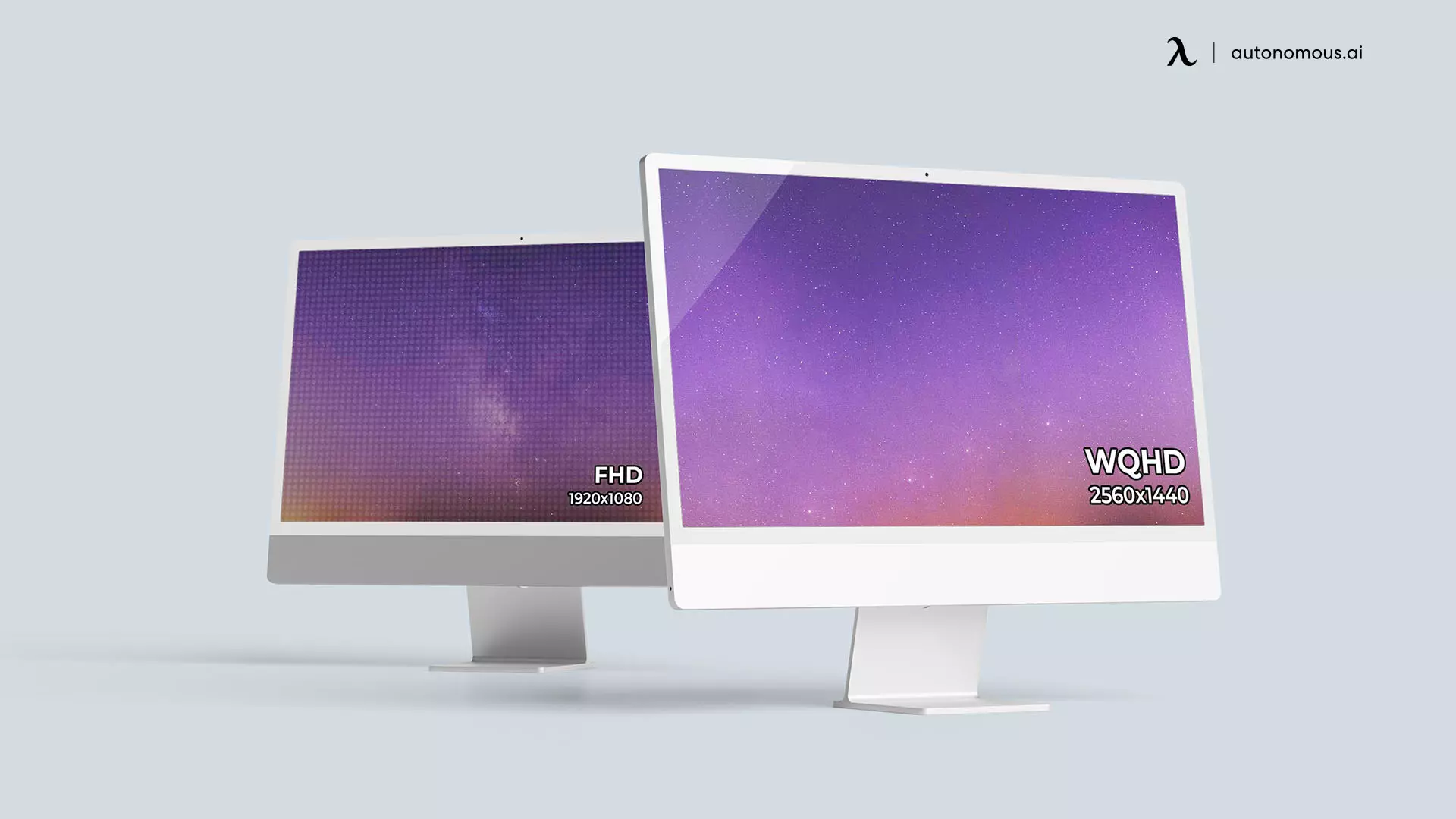
Before you buy a higher resolution, check that your computer's output can drive it, since monitor connection types differ in what they carry.
How much desk space do computer monitor sizes need?
Two 24-inch monitors need about 42 inches of desk width and two 27-inch monitors about 47 inches, counting the screens alone. Bezels, the gap between screens and the stand bases add more. The table uses the panel widths from the chart.
| Setup | Screen width only | 48 in desktop | 53 in desktop | 70.5 in desktop |
|---|---|---|---|---|
| One 27" 16:9 | 23.5 in | Fits | Fits | Fits |
| One 34" 21:9 | 31.3 in | Fits | Fits | Fits |
| Two 24" 16:9 | 41.8 in | Fits | Fits | Fits |
| Two 27" 16:9 | 47.1 in | Tight | Fits | Fits |
| One 49" 32:9 | 47.2 in | Tight | Fits | Fits |
| Three 24" 16:9 | 62.7 in | No | No | Fits |
| Three 27" 16:9 | 70.6 in | No | No | No, unless the side screens are angled or mounted |
"Tight" means less than an inch to spare before bezels and stands, so plan on monitor arms or a wider top. These dual-monitor setups show the common two-screen arrangements.
Depth matters more than width for big screens. On a 24-inch-deep desk, the stand takes part of the depth, which leaves little room to push a 32-inch or larger screen toward the far end of OSHA's 20-40 inch range. A 29- to 31.5-inch-deep top gives you that room. On a small desk, these tips to fit dual monitors help.
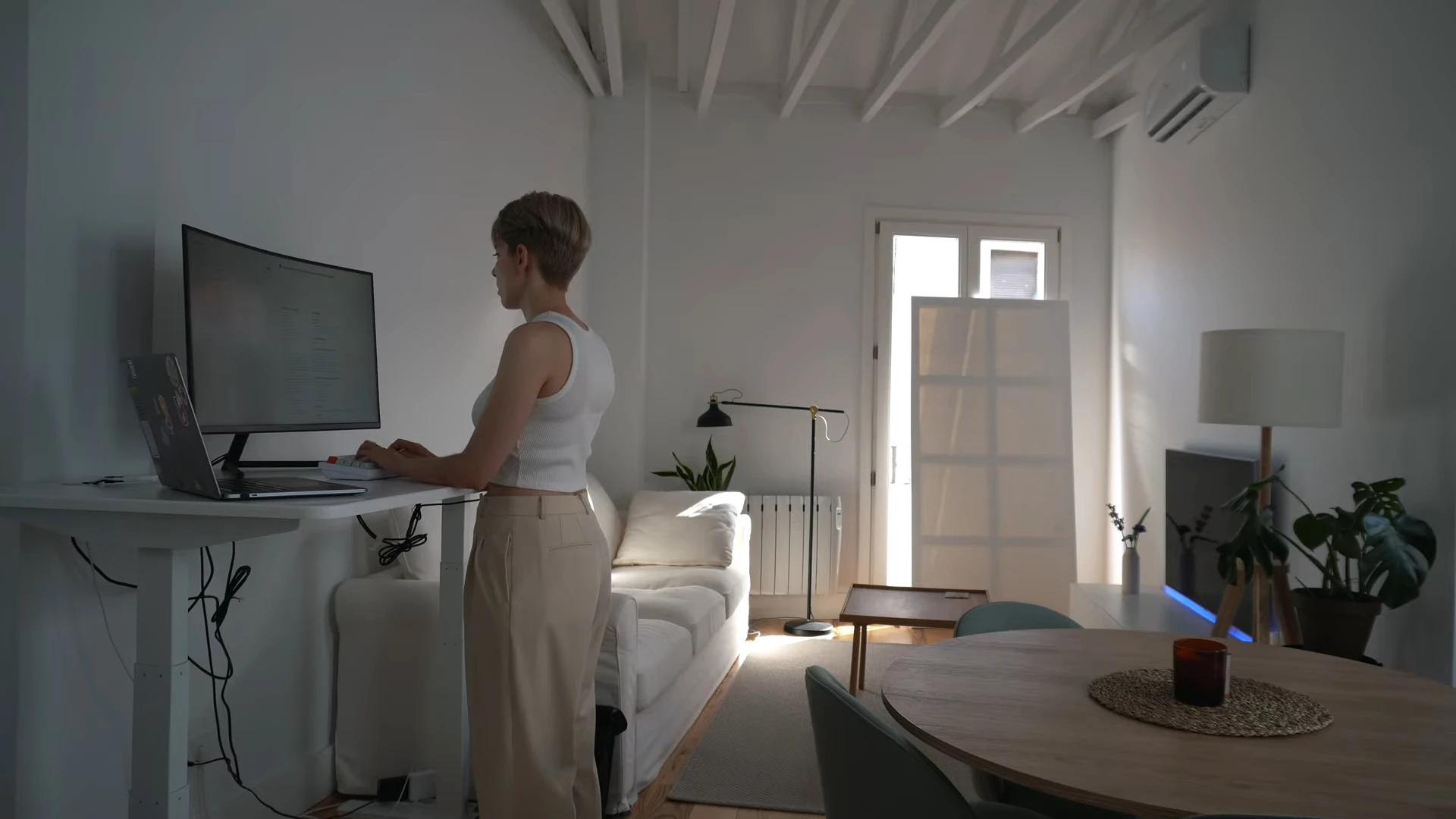
Here is how the five Autonomous standing desks line up against those numbers. Monitor fits come from each desk's own page where it makes a claim, and from the screen-width math above where it does not.
Desk Core for two 24-inch monitors
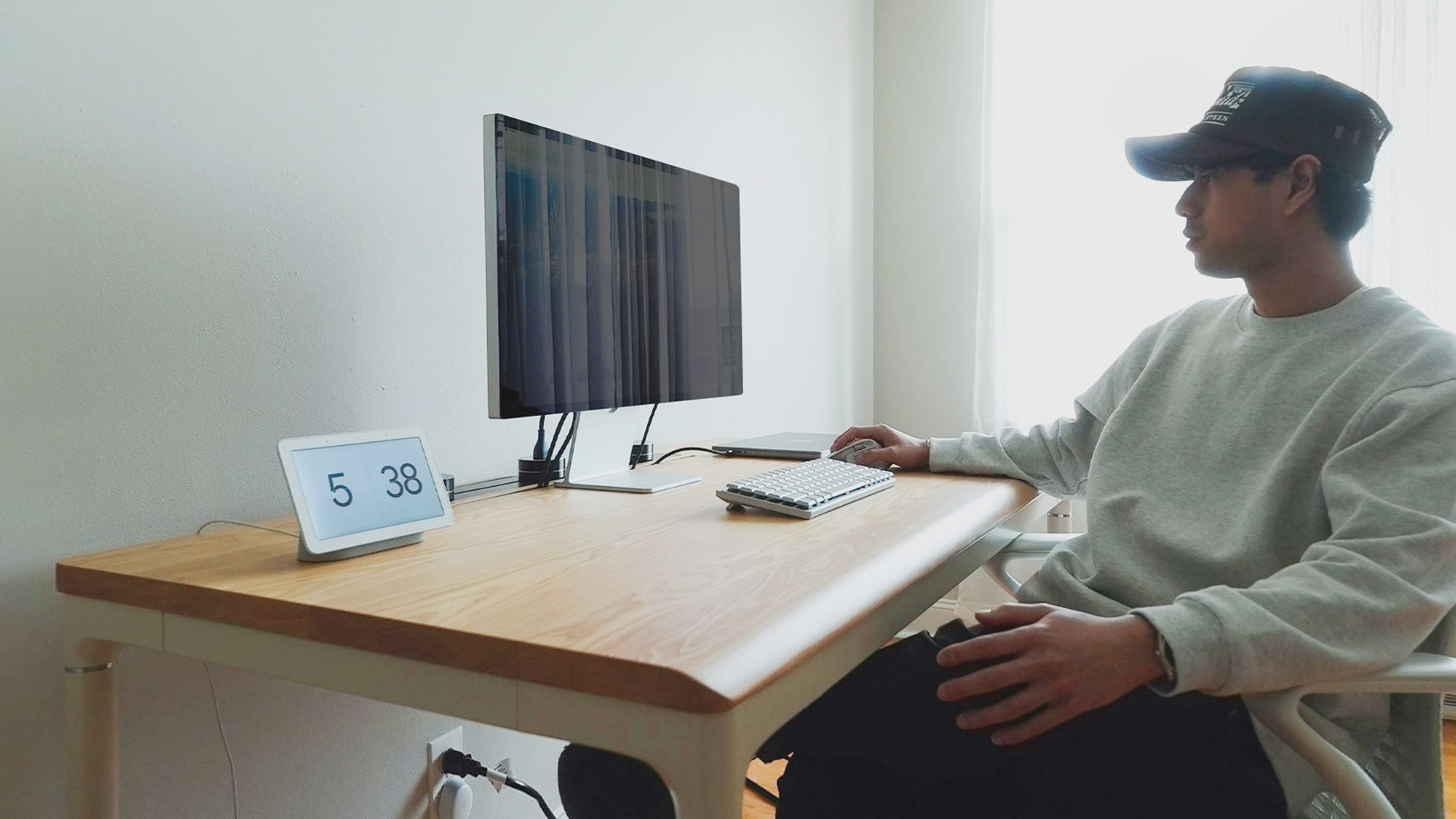
Autonomous Desk Core has a 48 x 24-inch top, and its page says two typical 24-inch monitors fit side by side. That matches the chart, since two 24-inch panels take 41.8 inches. The limit is size: at 24 inches deep it is tight for a 32-inch or larger screen, and two 27-inch panels (47.1 inches) leave under an inch of width to spare.
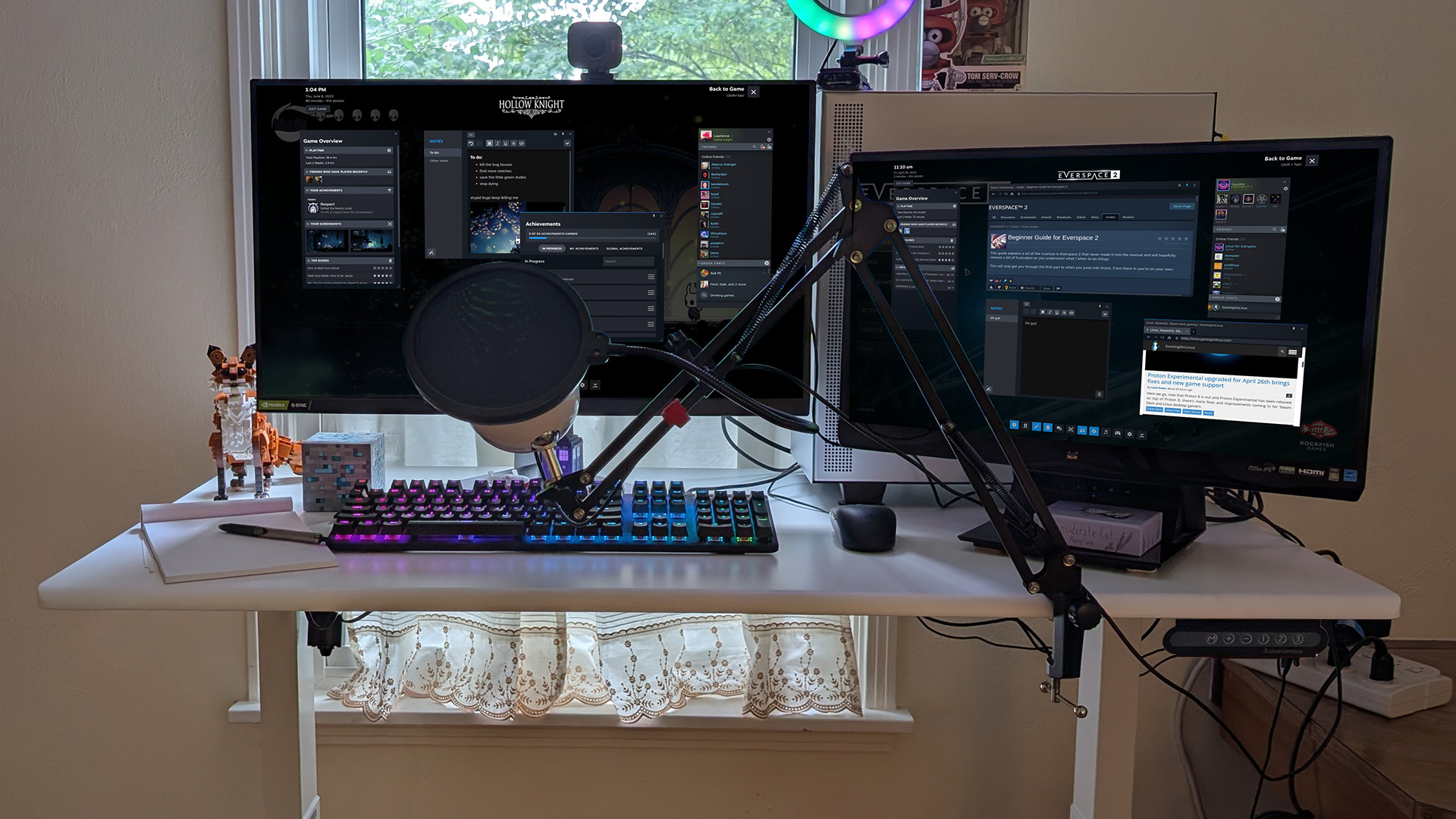
Desk 2 for two 27-inch monitors
Autonomous Desk 2 comes in 53 x 29 inches or a 70.5 x 30-inch XL, and its page says the 53-inch top holds up to two 27-inch monitors (47.1 inches of screen). The XL top clears three 24-inch screens (62.7 inches). Three 27-inch screens (70.6 inches) are wider than even the XL top unless the outer screens are angled or mounted.
WorkingAndGamingDeskMakeoverSetupTour2021_Autonomousx@JamesNguyen.webp)
Desk Pro for two 27-inch screens or a 49-inch ultrawide
Autonomous Desk Pro comes in 53 x 29 inches or a 70.5 x 29-inch XL, with a 1.2-inch HDF top. Its page makes no monitor claim, but by the chart math the 53-inch top holds two 27-inch panels or one 49-inch super-ultrawide (47.2 inches), and the XL holds three 24-inch panels. The same limit applies as on Desk 2: three 27-inch screens need 70.6 inches, more than the XL top.
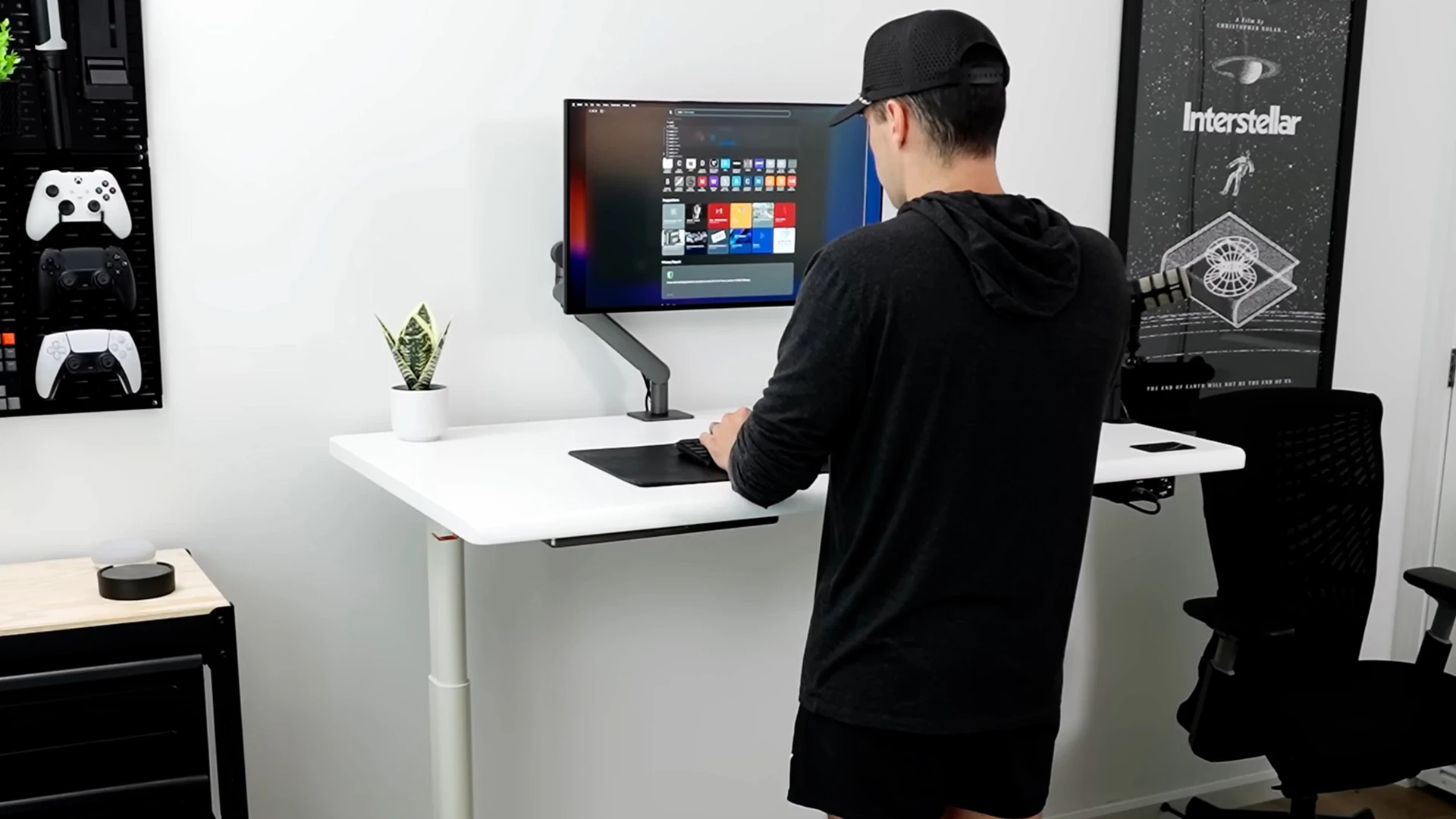
Levitate 2 for a deeper top behind big screens
Autonomous Desk Levitate 2 has a solid ash top in 53 x 29 inches (Classic) or 59 x 31.5 inches (Ultra). Its page makes no monitor claim; by the chart math, both tops hold two 27-inch panels or one 49-inch super-ultrawide. The Ultra's 31.5-inch depth is the most of the four straight desks here, which helps when you set a 32-inch or larger screen back. Neither top fits three 24-inch screens in a row (62.7 inches).
Desk 2 L-Shaped for three monitors
Autonomous Desk 2 L-Shaped measures 77 x 64 inches overall, with a 77 x 29-inch main wing and a 29 x 35-inch return. Its page claims room for three 27- to 32-inch monitors. Three 27-inch screens (70.6 inches) fit along the main wing, but three 32-inch screens in a straight row measure about 83.7 inches, more than the 77-inch wing, so that layout relies on the corner.
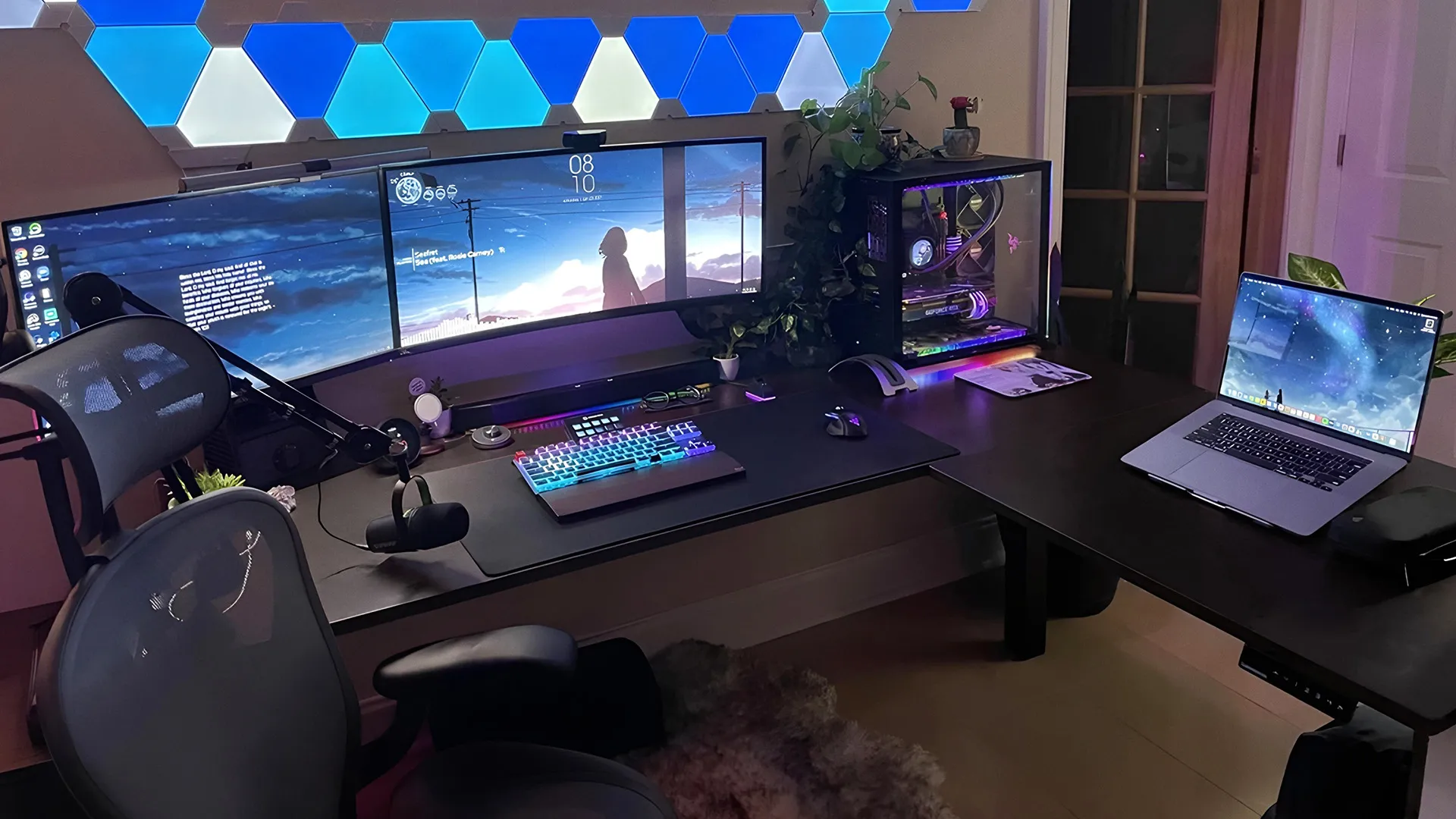
If one of your screens is a laptop, a multi-monitor setup with a laptop changes the width math, since the laptop takes a spot in the row.
FAQs
Are monitors measured diagonally?
Yes, monitors are measured diagonally, from one corner of the visible screen to the opposite corner. The bezel, case and stand are not included. A 27-inch monitor has a 27-inch diagonal of lit screen, about 23.5 inches wide and 13.2 inches tall for a 16:9 panel.
How do you measure a curved monitor?
Measure a curved monitor along the surface of the screen, from the bottom-left to the top-right corner of the visible area. Use a flexible tape or a piece of string, then measure the string. A rigid tape pulled straight across the curve gives a shorter number.
Which monitor size is best for your eyes?
No size is best for your eyes on its own; distance and height matter more. Pick a size you can read edge to edge from 20 to 40 inches away, OSHA's preferred range. Keep the top line of the screen at or below eye level, and enlarge text instead of leaning in.
Do I need a 24 or 27-inch monitor?
Choose 27 inches if you work with two windows side by side and your desk lets you sit about an arm's length away; it has about 27% more screen area. Choose 24 inches for a shallow desk, a second screen or two screens on a 48-inch desktop.
Is a 27-inch monitor too big for office work?
No, a 27-inch monitor is not too big for most office work. Its 16:9 screen is about 23.5 inches wide, which fits desks from 48 inches up. The main check is depth: leave enough room to sit 20 to 40 inches from the screen.
Is a 32-inch monitor too big for work?
A 32-inch monitor is not too big for work if you can sit toward the far end of the 20-40 inch range. Its screen is 27.9 inches wide and 15.7 inches tall. On a 24-inch-deep desk it can sit too close, and OSHA notes very large screens may increase the viewing angle.
How do I convert a monitor size from cm to inches?
Divide the centimeter measurement by 2.54 to get inches. A 68.6 cm diagonal is a 27-inch monitor, and an 81.3 cm diagonal is a 32-inch. Measure the visible screen only, corner to corner, then round to the nearest inch.
What monitor size is best for gaming?
The best gaming monitor size is one you can see edge to edge from 20 to 40 inches away. That usually means 24 or 27 inches; 32 inches or an ultrawide suits you only if you can sit toward the far end of that range. Resolution, not size, sets the graphics card's load.
Does monitor size affect FPS?
No, monitor size alone does not affect FPS. Frame rate depends on the graphics card, the processor and the resolution. A bigger monitor lowers FPS only when it also runs a higher resolution, because the graphics card then renders more pixels in every frame.
Bottom line
Computer monitor sizes are the visible diagonal in inches, so measure corner to corner inside the bezel, or find the model name in Windows or macOS and read its spec sheet. Compare screens of different shapes by width, height and area, and check that your desk is deep enough to sit 20 to 40 inches away. Once the size is settled, choosing among monitors for a home office comes down to the panel, the ports and the stand.
References
- Occupational Safety and Health Administration (OSHA). Computer Workstations eTool: Monitors.
- Cornell University Ergonomics Web. Computer Workstation Ergonomics Guidelines.
- Canadian Centre for Occupational Health and Safety (CCOHS). Office Ergonomics: Positioning the Monitor.