19 Best PC Accessories in 2026: Essentials and Upgrades

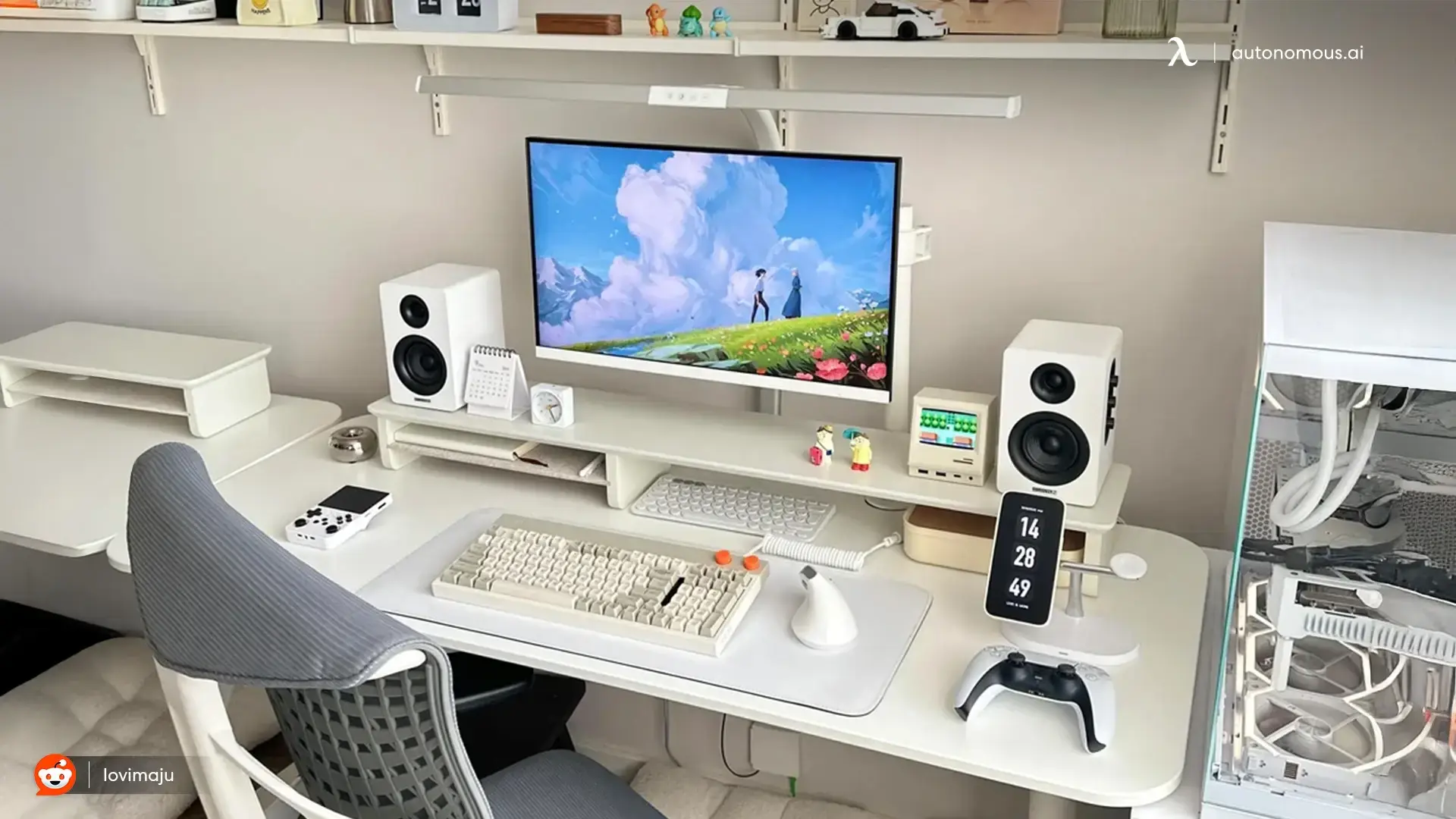
The best PC accessories solve a problem you notice every day: an awkward mouse, missing ports, tangled power cables, poor meeting audio, or a monitor positioned too low. Start with the input and display hardware you actually use, then add upgrades that remove friction. A long computer accessories list is not a shopping requirement.
This computer accessories list covers everyday peripherals, workspace upgrades and specialist programmable devices in one sequence. Each pick explains its practical use and the main compatibility or fit consideration.
Quick comparison: which PC accessories do you actually need?
| Accessory group | What it solves |
|---|---|
| Keyboard + mouse | Daily input |
| Monitor + audio | Screen and sound |
| Webcam + microphone | Calls and streaming |
| USB dock or hub | Missing ports |
| Power protection + backup drive | Outages and lost files |
| Monitor arm + PC mount | Desktop space |
| Cable tray + task light + desk mat | Cables, glare, comfort |
| Charger + controller + macro pad | Task-specific extras |
| AI agent hardware | Agent control and automation |
19 PC accessories for work, gaming and development
The list starts with the peripherals most PCs need, then moves into desk upgrades and specialized hardware. Choose by the problem an accessory solves; you do not need all 19.
1. Mechanical or ergonomic keyboard
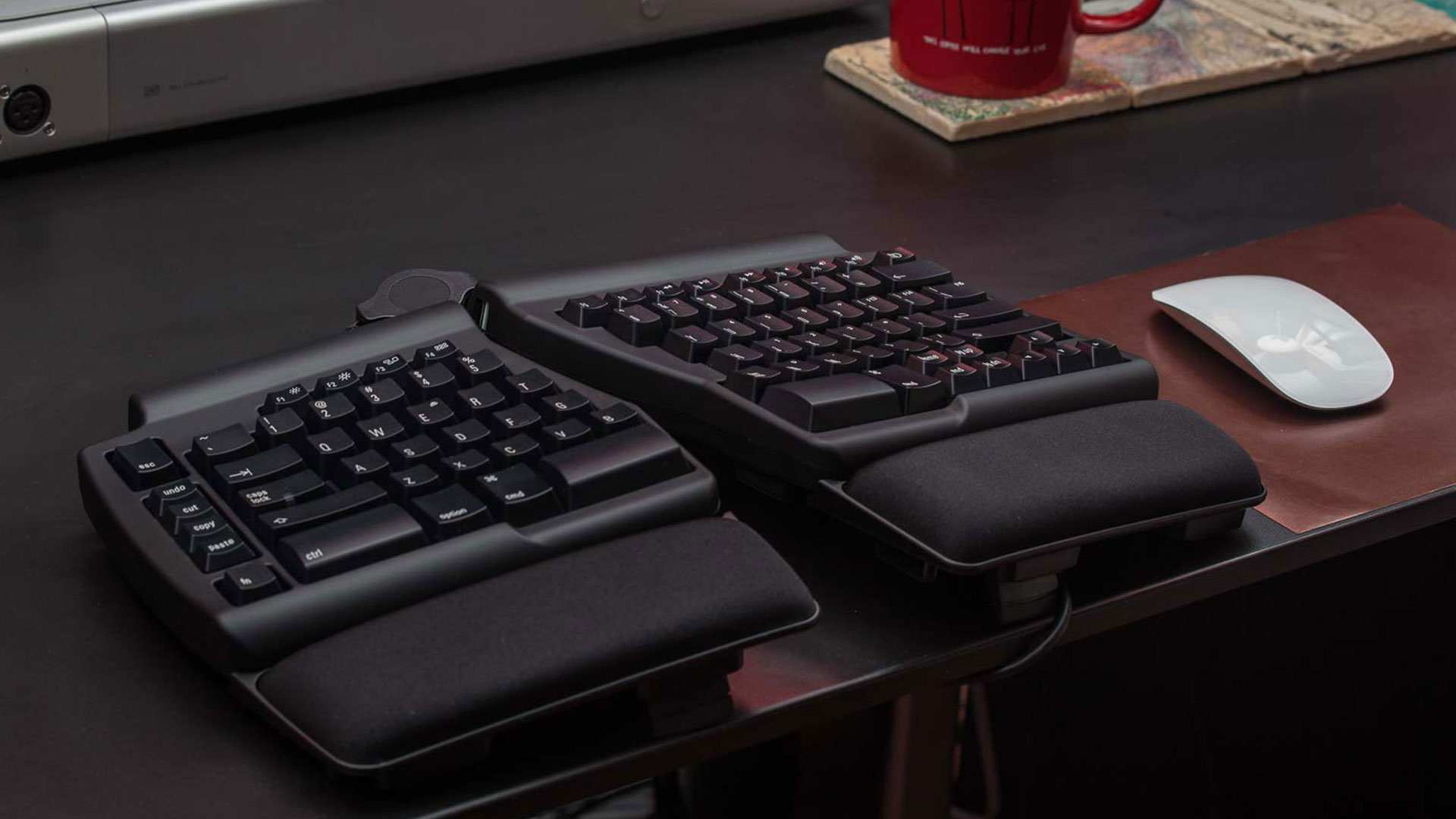
A keyboard should suit how you type, not just your desk aesthetic. Compare hand spacing, noise, key feel and access to the keys you actually use. Switch type and keyboard shape solve different problems, so neither is automatically the more ergonomic choice.
| Keyboard design | Best-fit use |
|---|---|
| Mechanical | Customizable switches and key mapping |
| Split ergonomic | Independent hand positioning |
| Low-profile | Shorter key travel; slim desk feel |
Example to compare: Keychron V1 Max is a 75% keyboard with wireless connectivity, hot-swappable switches and QMK-compatible remapping. It is interesting if you want customization and less desk width, but it omits the dedicated number pad.
2. Mouse or alternative pointing device
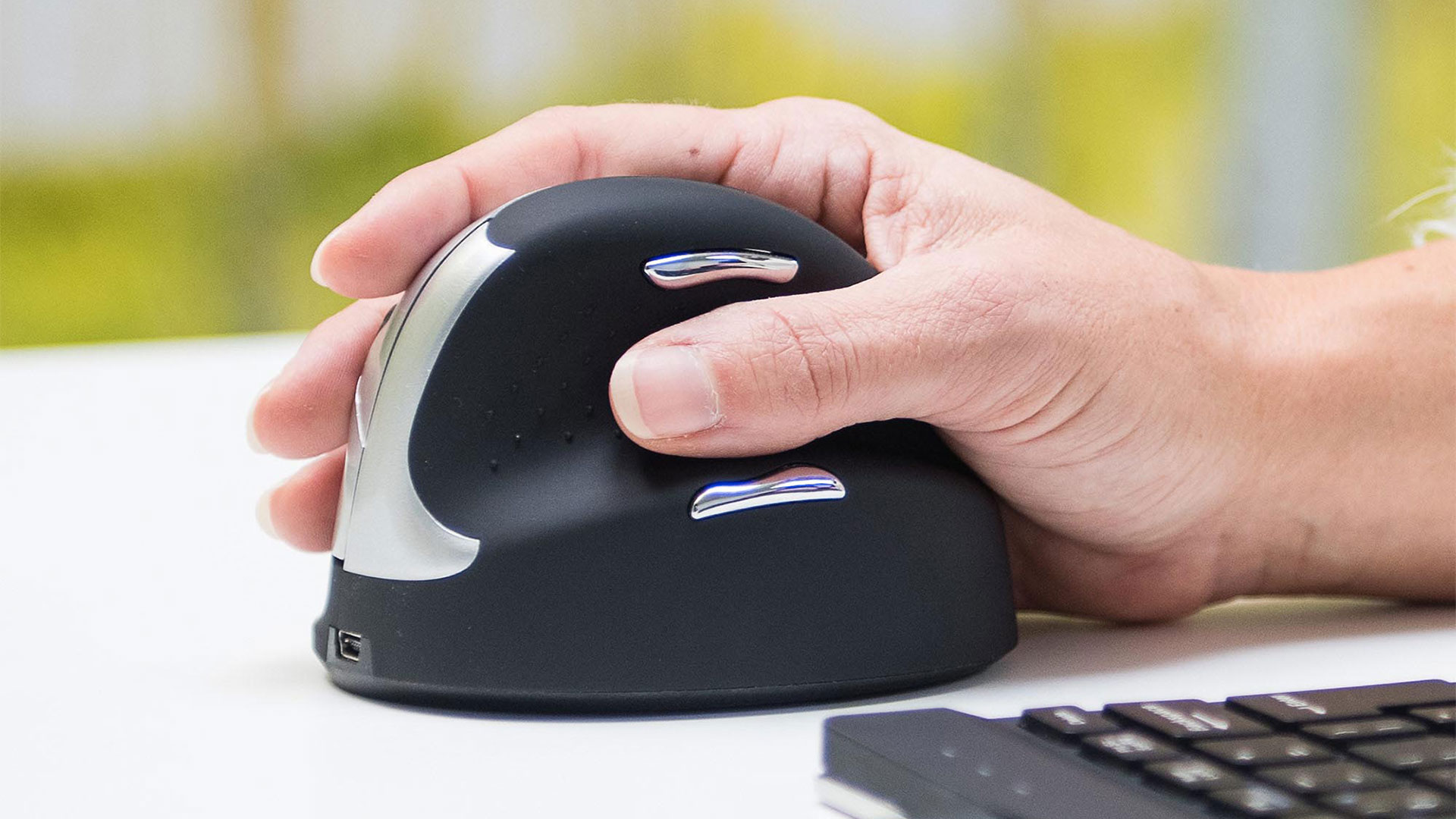
The best mouse is the one that fits your hand and movement pattern. Consider thumb reach, grip pressure, pointer precision and available desk space. A different design may feel better, but no mouse type guarantees pain relief.
| Mouse type | What changes |
|---|---|
| Standard mouse | Moves across the desk; familiar grip |
| Vertical mouse | Changes forearm and hand orientation |
| Trackball | Moves the cursor without moving the device |
Example to compare: Logitech MX Master 4 has a fast-scrolling wheel, programmable actions and an 8,000 DPI sensor for productivity tasks. It is a right-handed, relatively substantial mouse, so it is not an automatic pick for small hands or competitive lightweight-mouse gaming.
3. Monitor matched to the task
A monitor has more impact on everyday PC use than decorative gadgets. For document work, prioritize clear text, usable scaling and an adjustable stand. For gaming, check refresh rate and response behavior as well as resolution. For creative work, review color coverage and calibration options rather than buying on diagonal size alone. The right display also needs enough desk depth: a huge screen too close to your face is a poor trade.
4. Headset or desktop speakers
A headset suits shared rooms, calls and team chat because it keeps sound private and puts the microphone close to your mouth. Desktop speakers are better for open-ear listening in a space where sound leakage is acceptable.
5. Webcam and clear microphone
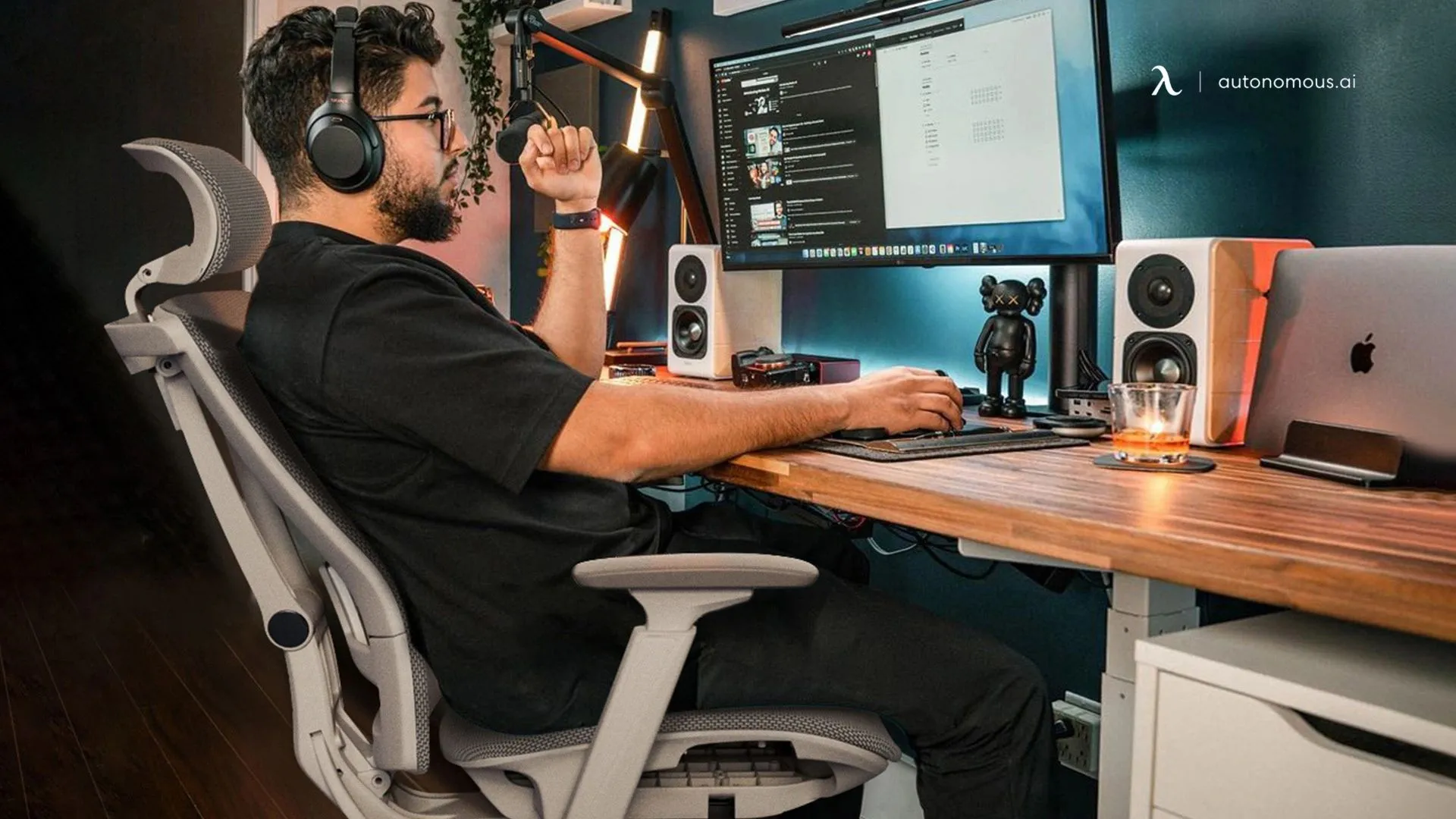
A webcam and microphone become essential when your PC is used for meetings, presentations or streaming. A good 1080p webcam with stable exposure can be more useful than a higher-resolution camera in poor light. If colleagues struggle to hear you, improving microphone placement often matters before upgrading the camera. A USB mic makes sense for regular recording, but a decent headset mic is enough for many people.
6. USB-C dock or powered USB hub
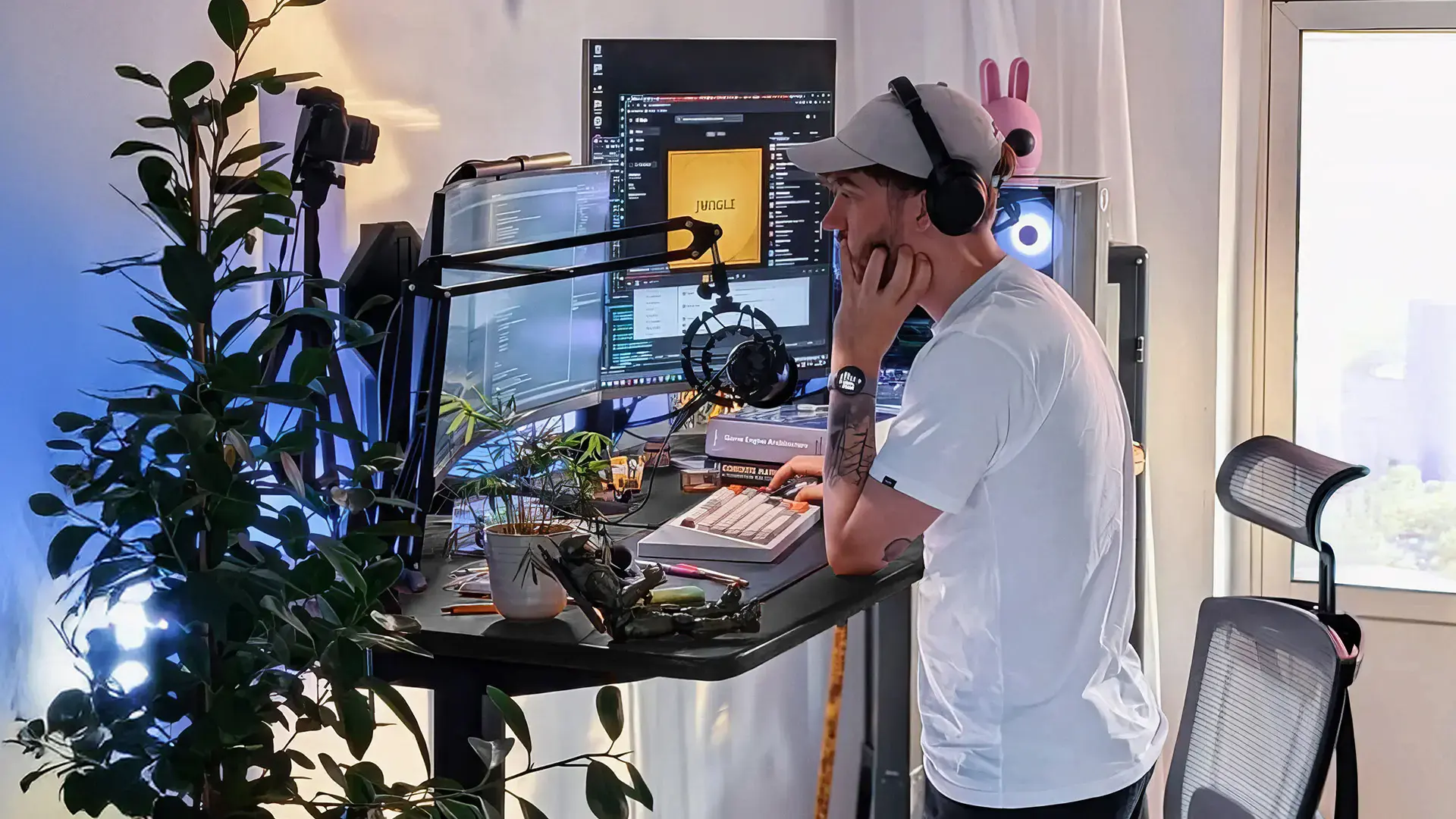
A powered USB hub solves a port shortage; a dock connects more of a laptop workstation through fewer cables. Check whether your computer supports the dock's video outputs and USB-C Power Delivery before buying. In a two-computer desk setup, a KVM switch serves a different purpose: sharing one keyboard, mouse and sometimes display between machines.
| Powered USB hub | USB-C dock |
|---|---|
| More USB ports for existing devices | Monitor outputs, Ethernet and laptop charging, if supported |
7. Surge protector or UPS
A surge protector helps reduce exposure to voltage spikes. A UPS also supplies temporary battery power during an outage so you can save work and shut down. Choose UPS capacity by actual wattage and required runtime, not just outlet count.
8. External SSD or backup drive
For project transfers, look at portable SSD speed and durability; for large local archives, an HDD may offer more capacity for the cost. Neither counts as a complete backup strategy if every copy stays beside the PC.
| Storage method | Practical role |
|---|---|
| Portable SSD | Fast file transfers and portable projects |
| External HDD | Lower-cost local capacity |
| Off-site or cloud copy | Recovery if local equipment is lost |
9. Monitor arm or adjustable riser
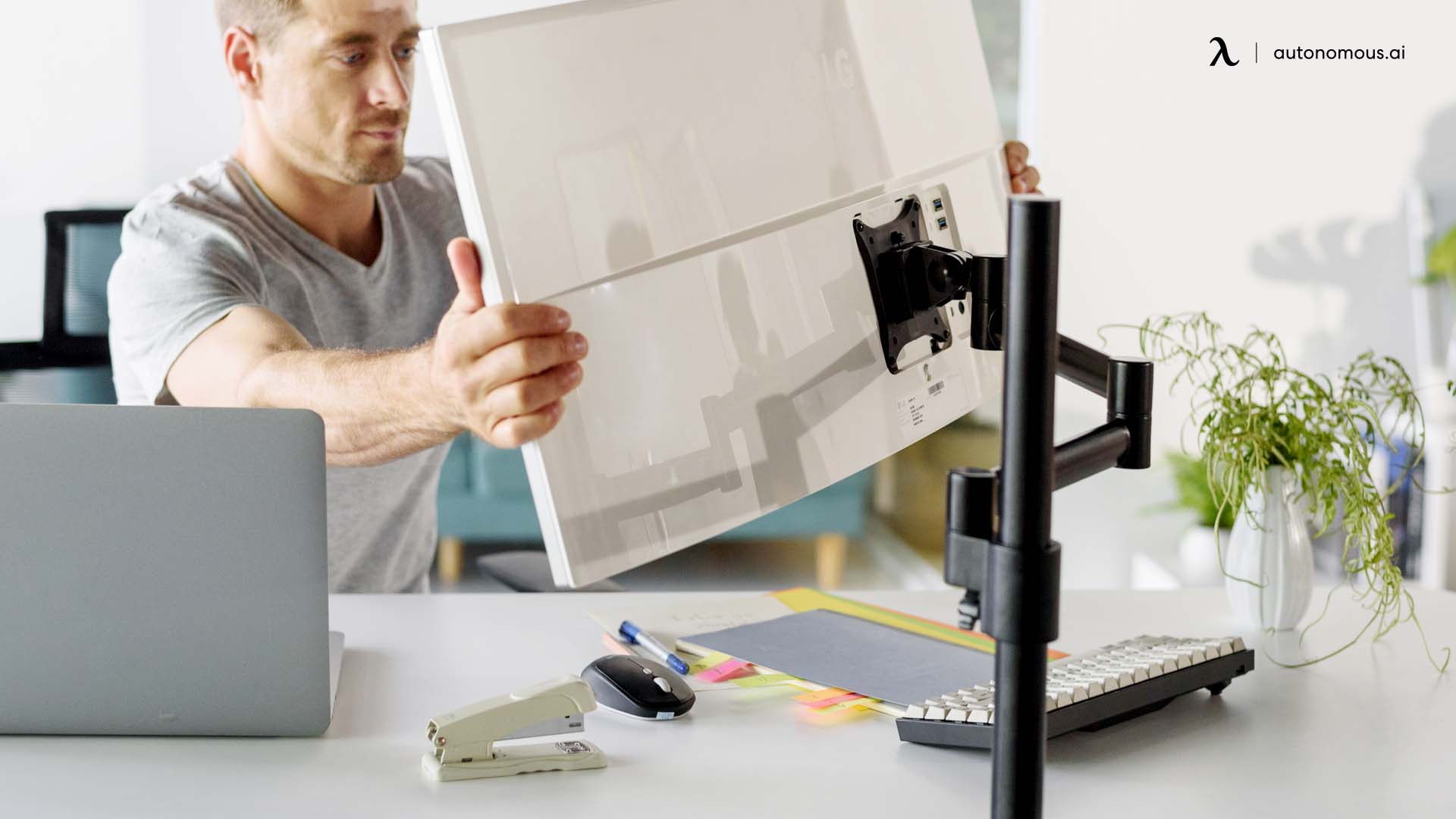
A monitor arm frees worktop space and gives you more control over height, distance and angle, provided the display supports the mount and the desk edge can safely hold the clamp. In a minimalist laptop desk setup, a simple riser may be enough when you only need to raise a fixed-height screen. Good office accessories should solve a fit or space problem, not just add hardware.
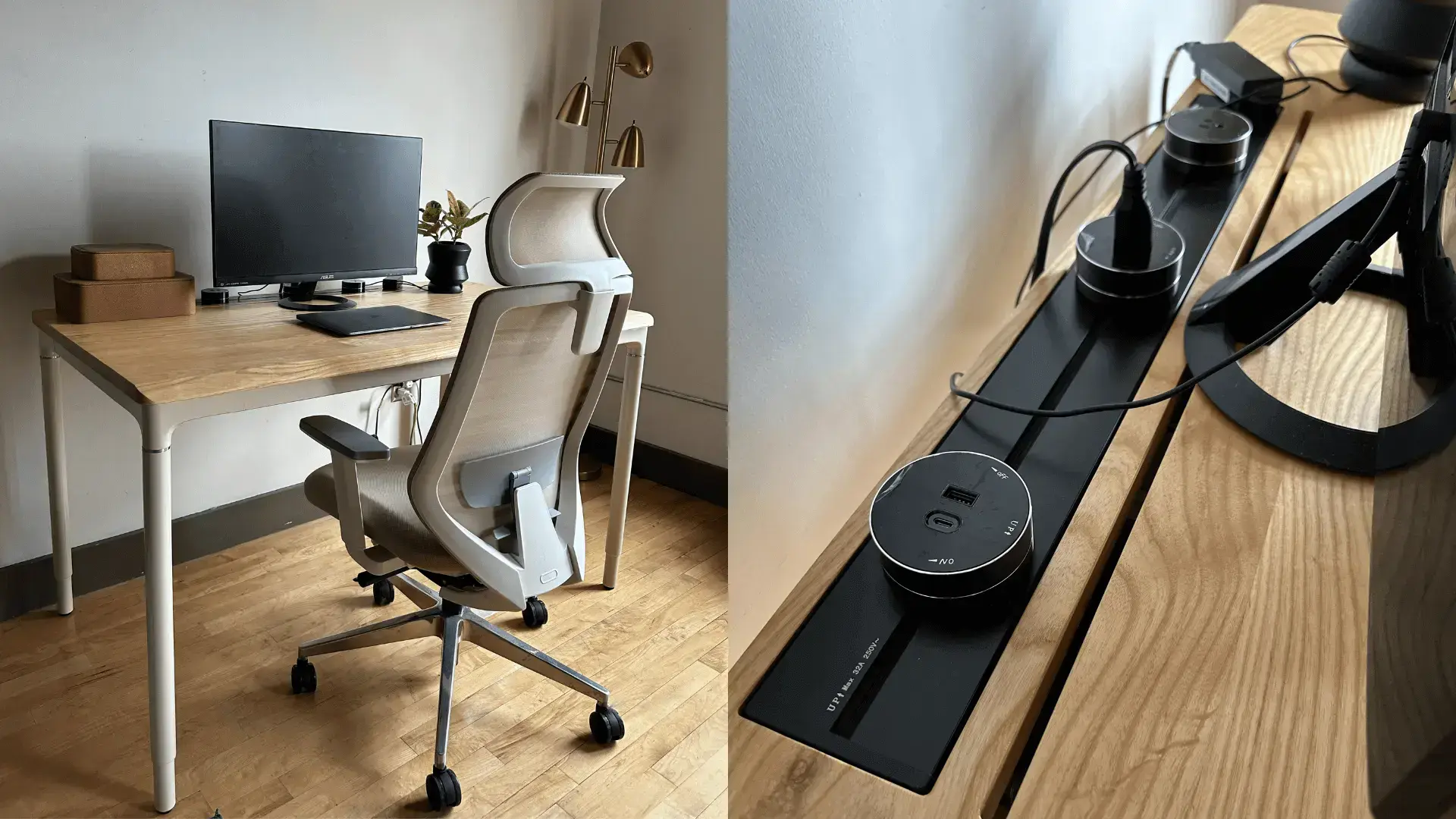
10. Under-desk cable tray
A good cable tray keeps power strips and adapters off the floor without demanding more desktop space. The Autonomous Cable Tray is made from steel, has a published 35 lb load limit and uses mounting hardware designed to work with supported Autonomous desk frames. Those are concrete reasons to consider it for a compatible setup, rather than simply describing cables as untidy. It is not universally compatible with every desk or partner frame.
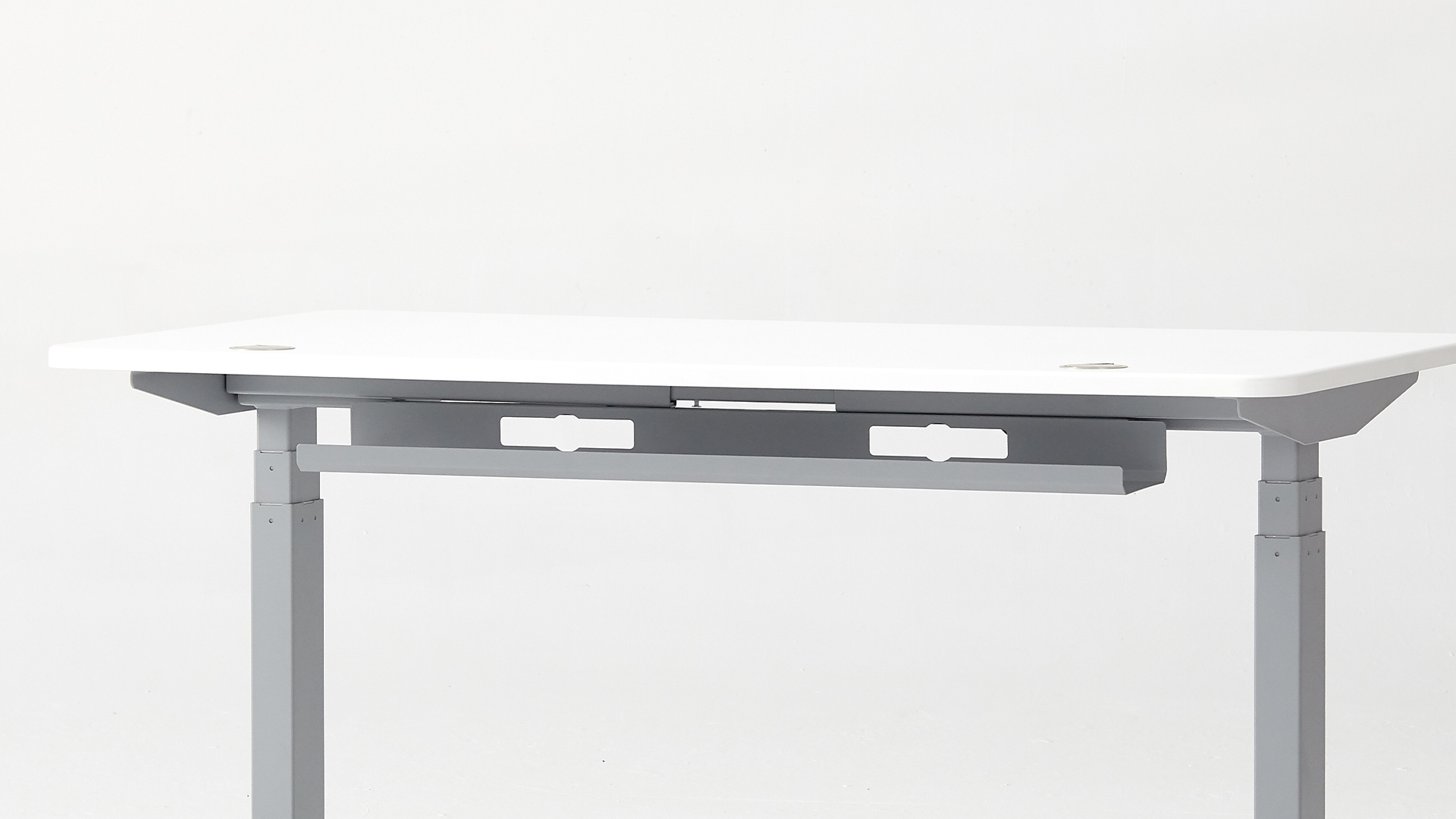
A cable tray is particularly useful with a sit-stand desk, where plugs and adapters must move without snagging. The right approach is to test both endpoints of the desk's travel and leave controlled slack, a practical detail also relevant to standing desk accessories.
11. Adjustable task light
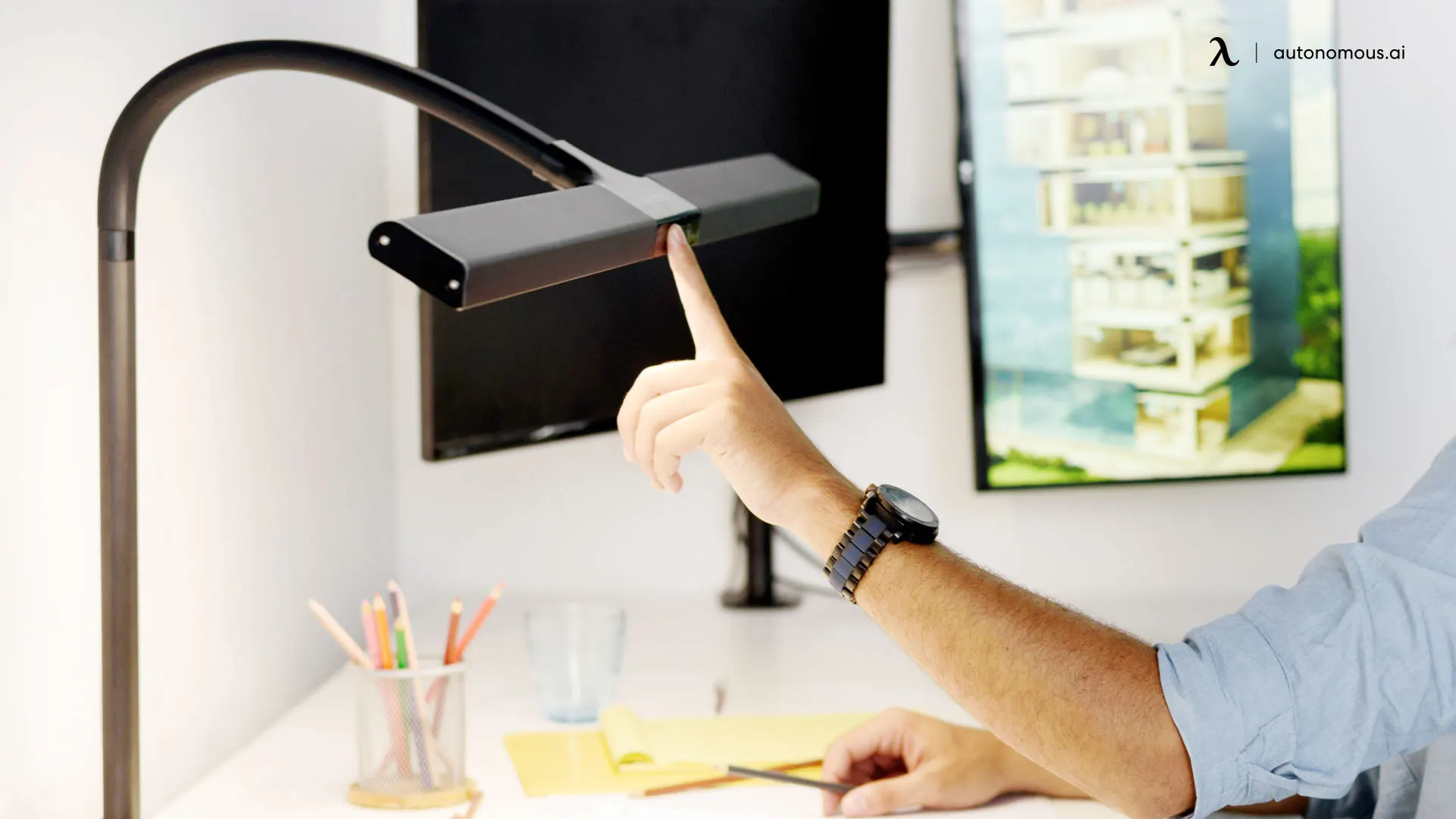
Lighting should illuminate the work surface without reflecting directly into the display. A directional task lamp helps if you read printed notes, sketch or work at night; a monitor light bar may save surface space in a compact setup. Choose light direction, dimming and placement before worrying about RGB scenes. Screen glare and poor contrast can make even a high-resolution display unpleasant to use.
12. Desk mat and optional palm support
A desk mat gives your keyboard and mouse a consistent surface while protecting the tabletop. Choose enough width to move the mouse freely without forcing the keyboard too far away. A wrist or palm rest is optional, not a treatment for pain; the useful question is whether it prevents hard-edge contact while still allowing relaxed hand positions. Oversized, thick mats can interfere with monitor arm mounts or keyboard trays.
13. Multi-device charger
A compact charger reduces the wall adapters competing for outlets in a MacBook desk setup with a phone and tablet. USB-C Power Delivery is useful for compatible laptops and tablets, while a magnetic or wireless pad suits supported phones and earbuds. The total wattage printed on a multiport charger is often shared across ports, so charging speed may drop when several devices are connected. A wireless pad is convenient but can add heat and may be slower than a cable.
14. Under-desk PC tower mount
A tower mount can clear floor space, keep the PC easier to access and move with a standing desk when installed correctly. But not every case belongs under the tabletop: heavy glass-sided towers, unusual ventilation paths and rear cables all need clearance. A tower mount must hold the case securely without blocking fans or interfering with the desk frame. It should not be treated as a substitute for checking the weight rating. A PC built into a desk is a separate enclosure project with its own cooling, structure and service access.
15. Game controller or specialist input device
Choose the input device for the software you use: a controller offers analog movement for games, an accessible controller supports alternative control mappings, and a graphics tablet makes sense for pen-based illustration. None is an automatic PC essential.
In a gaming desk setup, controllers, mouse surfaces and audio have a more direct purpose than decorative extras. Buy around the games you actually play, not the number of gadgets in a setup photo.
16. Programmable macro pad or control deck
A basic macro pad is useful for fixed shortcuts and hotkeys. A control deck with labeled display keys is more useful when commands change by app or scene, as in a streaming desk setup with frequent scene changes. Either is worth the desk space only if you repeat those actions often.
Small control surfaces also fit among unusual desk gadgets, but only a repeated workflow makes them useful instead of novelty clutter.
Example to compare: Elgato Stream Deck Neo provides eight customizable LCD keys, an information display and software profiles. That makes its purpose clearer than a generic macro pad: it can trigger a repeatable task with one press, but it still depends on compatible desktop software.
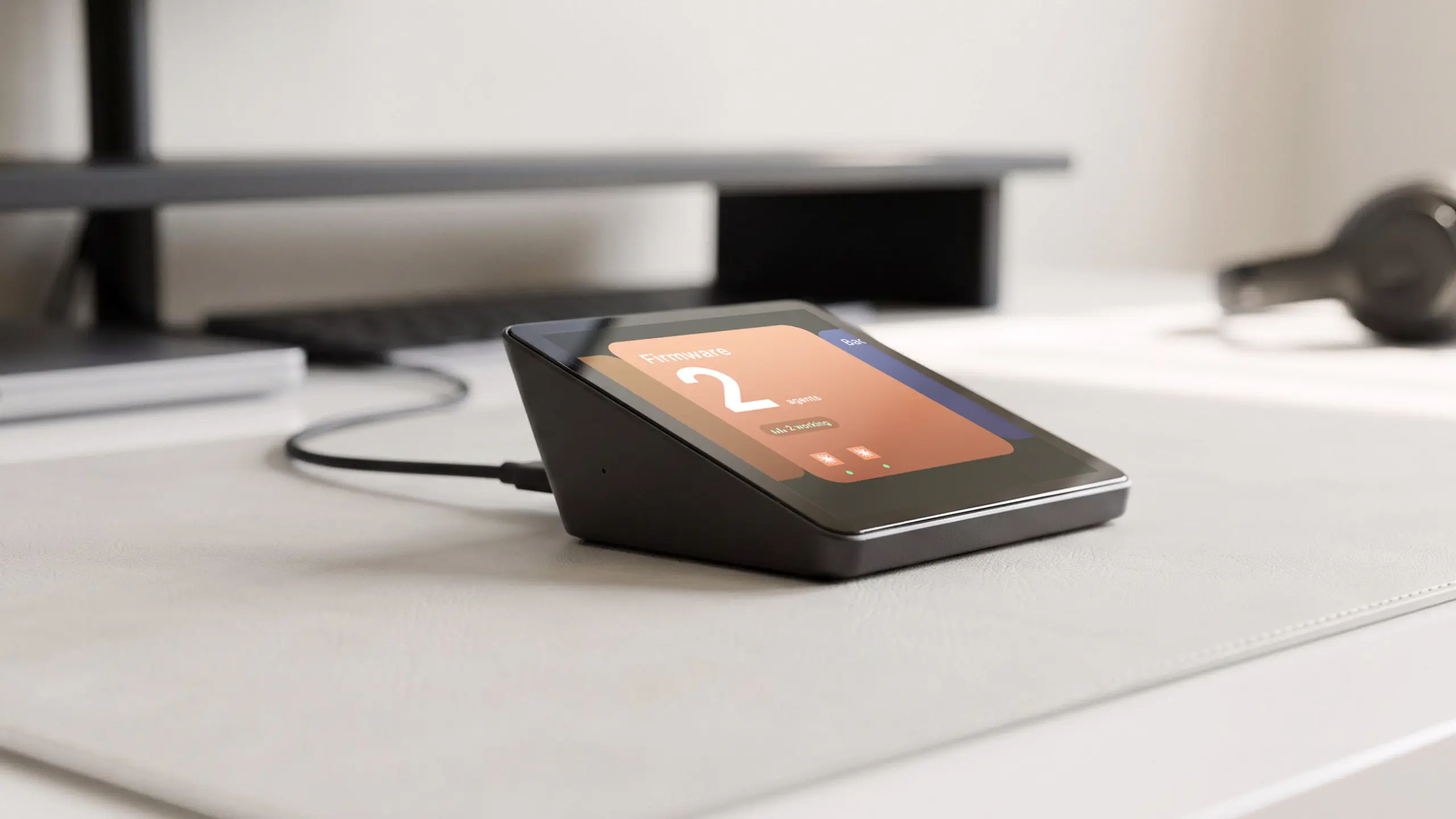
17. Autonomous Harness Pro for monitoring coding agents
Autonomous Harness Pro gives a developer desk setup a small, dedicated screen for coding agents without using another full-size monitor. Its 3.95-inch square touchscreen lets you swipe between agent sessions and tap to send spoken instructions. Rather than running Claude Code or Codex on the device, Harness Pro connects over USB-C to the Harness app and displays agents working on your existing machines.
That distinction matters: Pro is an interface for active agent workflows, not a separate AI computer. It has three microphones, a notification speaker and USB power, but it depends on compatible Harness software and connected machines. It is useful when multiple agents are already part of your work, not an essential purchase for ordinary PC use.
18. Autonomous Lamp as a programmable desk robot
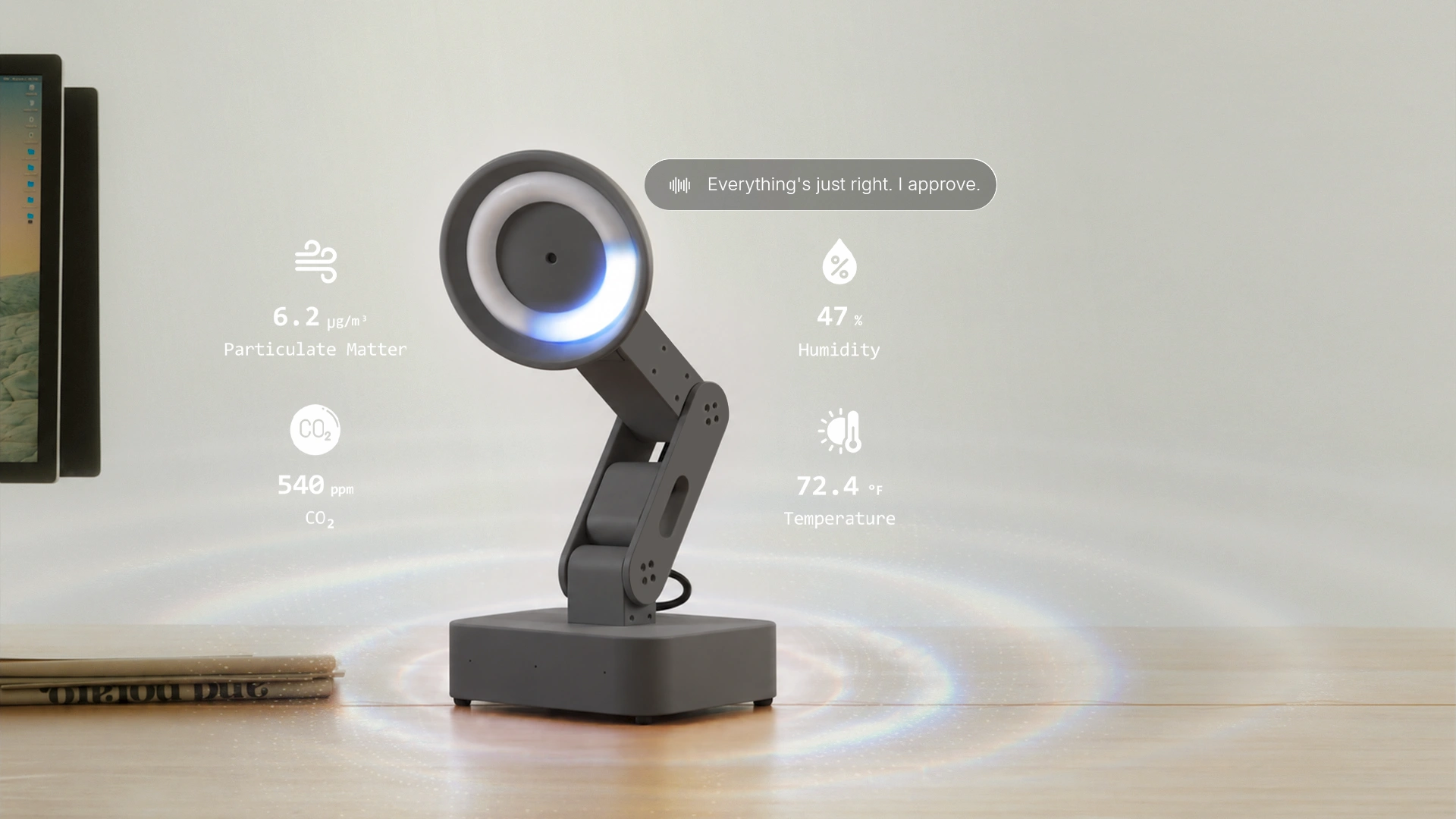
Autonomous Lamp belongs in the advanced PC gadgets category, not the ordinary task-light category. It is a programmable desk robot with camera, microphone array, speakers and a five-axis moving body, powered by an open-source OS. The physical APIs make it interesting to people building interactive agents, robotics demos or voice-driven desk workflows. It requires much more budget, desk space and setup consideration than a regular lamp. Room-air readings are associated with the Pro sensor configuration, not something to assume on every base unit.
19. Autonomous Intern 2 as an always-on AI agent computer
Autonomous Intern 2 is a compact agent computer rather than another PC peripheral or agent status display. Built around an Orange Pi 4 Pro, it runs automation workflows on its own hardware while your desktop is busy or switched off. The standard OpenClaw edition can handle scheduled tasks and chat requests through supported messaging services; the separate Developer Edition offers shell access for configuring agent runtimes and code tools.
Intern 2 has 6GB LPDDR5 memory, 64GB storage, dual microphones, a speaker and USB-C power. That makes it more appropriate for repeatable background tasks than for gaming or general office work. Its files can stay on the device, but hosted AI models may still require network access; an on-device agent does not automatically mean offline inference.

The broader AI gadgets category spans interfaces such as Harness Pro, programmable hardware such as Lamp and dedicated agent computers such as Intern. These are different tools for different workflows, not three versions of the same PC accessory.
Which PC accessories should you buy first for your setup?
The smartest shopping order depends on what the PC is used for. A basic work machine and a gaming/streaming rig have different priorities, even if they sit on the same desk.
| Setup | Get first | Then consider |
|---|---|---|
| Home office | Input, screen, audio | Webcam, dock, lighting |
| Gaming | Display, mouse, headset | Controller, cable tray |
| Developer | Input, display, backup | Dock, UPS, agent tools |
| Creator | Screen, mic, input | Lighting, control deck |
Five checks for a better PC accessory purchase
- Check compatibility first. Confirm operating system, ports, Bluetooth or wireless requirements, VESA patterns and power needs. The same-looking USB-C connector can support different functions.
- Measure the space. Record desk width and depth, monitor clearance, clamp thickness and where your hands sit. A large accessory that pushes your keyboard away is not an upgrade.
- Fix the primary discomfort. Change one part at a time: mouse grip, screen position, lighting or cable snags. A product should address a specific problem rather than promise generic productivity.
- Consider service and failure. Ask how to replace batteries, clean surfaces, update firmware and keep working when a proprietary app is unavailable.
- Protect the basics. Keep backups independent of the PC and use power equipment within its electrical ratings before spending on cosmetic accessories.
FAQs
What are the must-have PC accessories for a new desktop computer?
A new desktop PC usually needs a monitor, keyboard, mouse and an audio option. Depending on how you use it, add a webcam, USB hub, surge protection and a backup drive. Monitor arms, desk lighting and cable trays are useful upgrades, not mandatory purchases.
Which are the best PC accessories for productivity?
Start with comfortable input devices, a monitor placed at a readable distance and the ports needed for your workflow. A dock can simplify laptop connections, while a monitor arm and cable tray recover usable desk space. Workflow-specific accessories matter more than an expensive gadget collection.
What computer accessories should I buy on a budget?
Replace the weakest part of your current setup first. That might be a poorly fitting mouse, an unreliable keyboard, a missing headset or inadequate backup storage. Avoid paying for RGB, wireless charging and macro controllers unless they solve a problem you already have.
What is the difference between a PC accessory and a PC peripheral?
A PC peripheral is hardware used to input, output or store data, such as a mouse, monitor or external drive. PC accessories is a broader shopping term that also covers monitor arms, cable trays, chargers and desk gadgets. The categories overlap in ordinary search results.
Do I need a USB-C dock for a desktop PC?
Not necessarily. Many desktop PCs already have the ports you need. A powered USB hub is useful for easy access to USB devices; a dock makes more sense when a laptop frequently connects to monitors, Ethernet and power. Check supported video and charging capabilities before buying.
Are gaming PC accessories different from office accessories?
They overlap heavily. Keyboards, mice, monitors and headsets serve both, but gaming buyers may prioritize latency, refresh rate and controllers, while office buyers may prioritize meeting audio, connection convenience and quiet operation. Fit and compatibility still matter more than the styling.
Is a vertical mouse better than a normal mouse?
A vertical mouse changes the orientation of your hand and forearm, which some users find more comfortable. It does not guarantee relief from pain or fit every grip. Compare hand size, button reach and movement style; persistent pain deserves advice from an appropriate clinician.
Are AI gadgets essential PC accessories in 2026?
No. AI hardware is optional. Harness Pro shows and controls agent sessions on existing machines, Lamp is programmable desk robotics hardware, and Intern 2 runs an agent service on a separate computer. None replaces a keyboard, mouse, monitor or backup drive.
Bottom line
The best PC accessories are the ones you notice less after installing them. Get the keyboard, mouse, monitor, audio and connection basics right first. Add a cable tray, monitor arm or lighting when a recurring setup problem calls for it.
For developers using coding agents, Harness Pro offers a dedicated control surface, Lamp supports programmable physical interactions, and Intern 2 can run background agent tasks independently. Each is a specialist upgrade, not an item everyone needs in a computer accessories list.
References
- OSHA. Computer Workstations eTool: Monitors. Monitor height, viewing distance and glare guidance.
- OSHA. Computer Workstations eTool: Workstation Components. Keyboards, pointing devices and workstation fit.
- PCWorld. Overlooked PC Upgrades (2026). Peripherals and workflow upgrades.
- Tom's Hardware. Best PC Peripheral Deals (October 2026). Current PC peripheral categories.
- Keychron. V1 Max product specifications. 75% layout, wireless and remapping capabilities.
- Logitech. MX Master 4 specifications. Mouse controls and compatibility.
- Elgato. Stream Deck Neo documentation. Programmable keys and software requirements.