21 Multi-Monitor Desk Setup Ideas for Work and Gaming

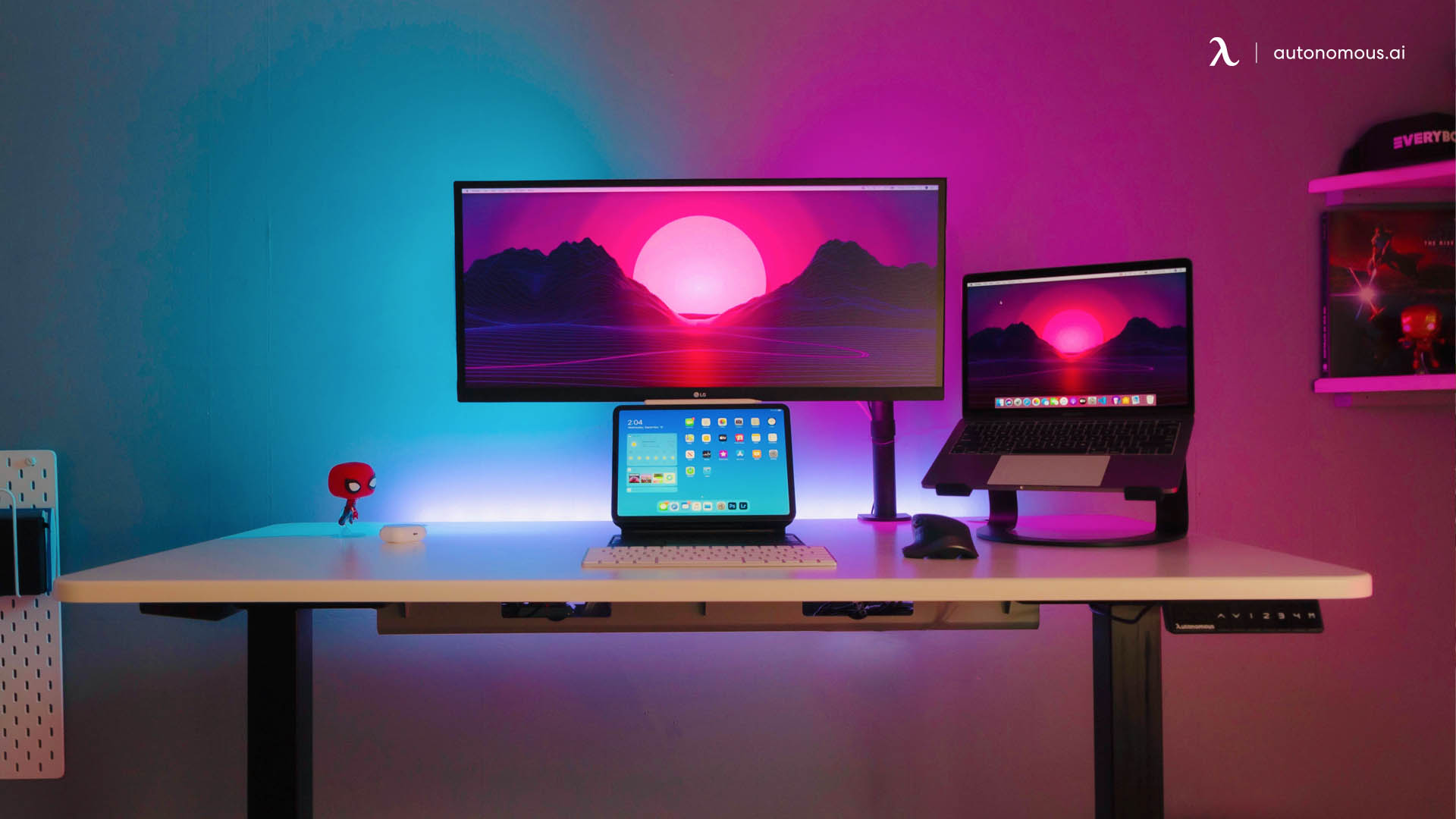
The best multi monitor desk setup is not the one with the most screens. It is the one that keeps your main task directly in front of you while giving reference apps, chat, dashboards, or game tools their own space. That changes how much desk width you need, where the monitor arms clamp, and how the cables travel.
Below are 21 practical ideas: 15 photo-led multi-screen workstations and 6 setup decisions that make them usable. The examples range from compact home offices to gaming and production desks. Use the pictures for layout inspiration, then check the measurements before copying a setup.
Quick comparison: what multi-monitor layout should you build?
| Layout | Best use | Desk planning range | Mounting priority |
|---|---|---|---|
| Two side-by-side screens | General work, research, coding | 48-60" wide | Dual arm or two single arms |
| One horizontal + one vertical | Writing, programming, documentation | 48-60" wide | Portrait clearance and rotation |
| Three-screen wraparound | Trading, analysis, creative projects | 60-72"+ wide | Adjustable side arms |
| Stacked two- or four-screen grid | Monitoring, dashboards, tight rooms | 48-72" wide | Strong vertical mount, viewing angle |
| Ultrawide + side monitor | Video editing, streaming, multitasking | 60-72"+ wide | Arm reach and screen weight |
These are starting ranges, not measured fit guarantees. Actual monitor case widths, angles, desk depth, arm travel and clamp clearance determine whether a configuration fits.
15 multi-monitor desk setup ideas for work and gaming
The best visual ideas also show a practical trade-off. Each layout below explains what is worth borrowing and what you should measure before copying it.
1. A primary display with secondary screens for code and chat
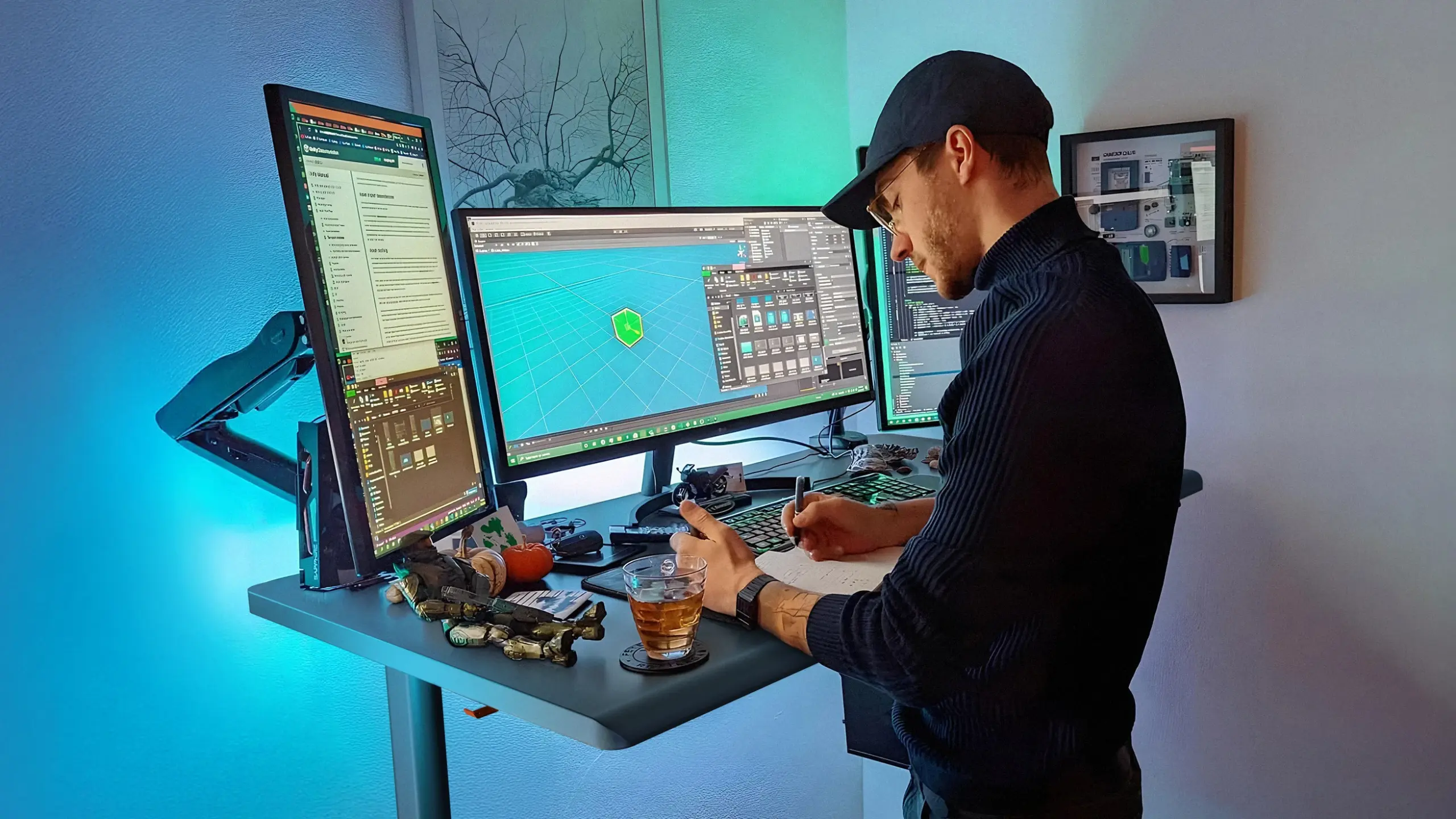
A software engineer benefits most when the editor stays centered and the other displays hold documentation, terminals, or messaging. It is tempting to spread everything across the wall, but the primary screen should remain in your direct line of sight. Set secondary displays close enough to glance at without twisting your torso. The layout matters more than matching RGB or peripherals.
2. A dense multi-monitor workstation for dashboards
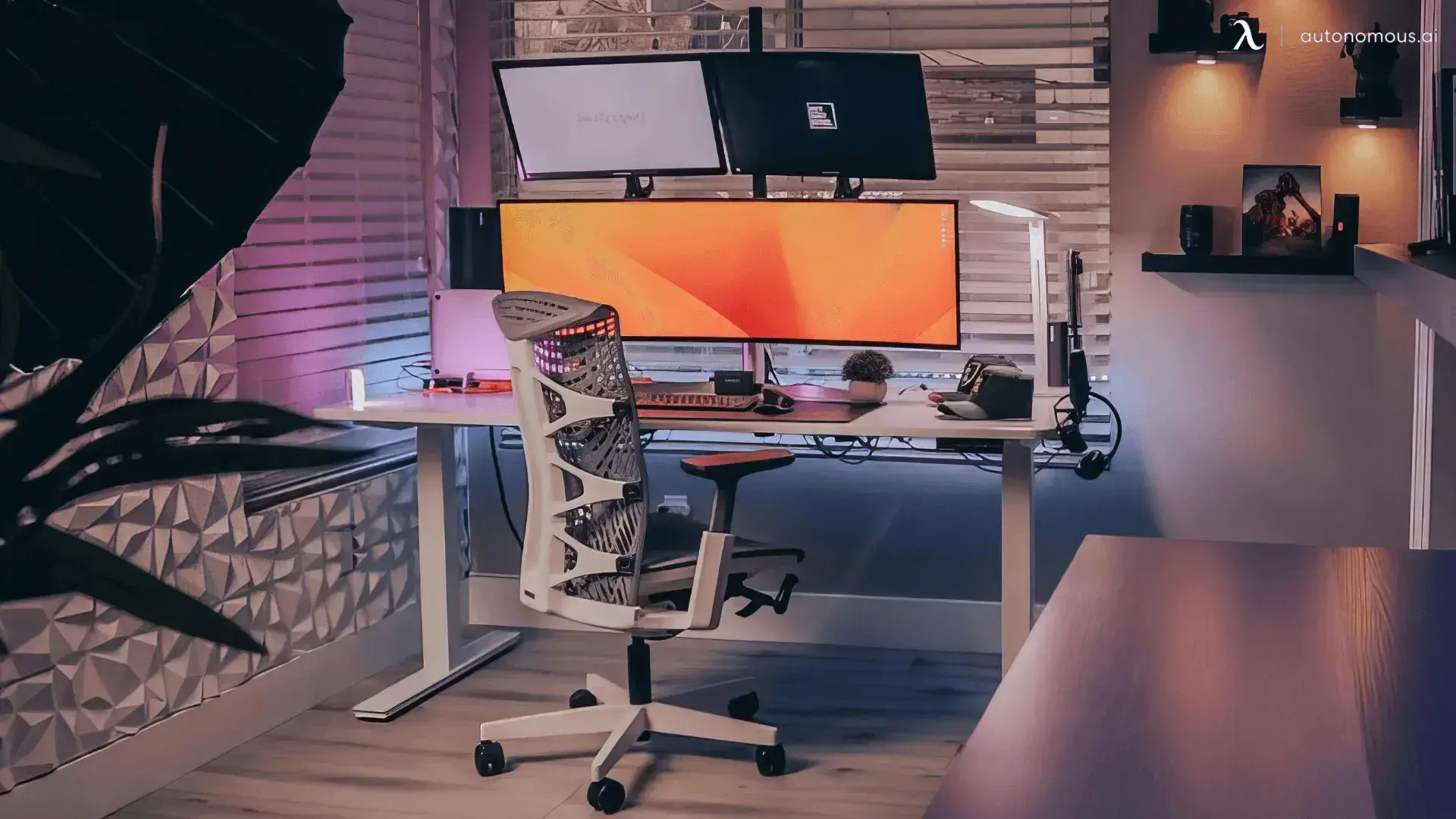
A dashboard-style desk puts several information streams in view at the same time. It is useful for trading, system monitoring, or live production, when changing tabs means missing a signal. Keep interactive work on the lower, central display; reserve high or far-side panels for information you only glance at. The screen count is justified by simultaneous information, not by decoration.
3. A light-wood corner desk with angled screens
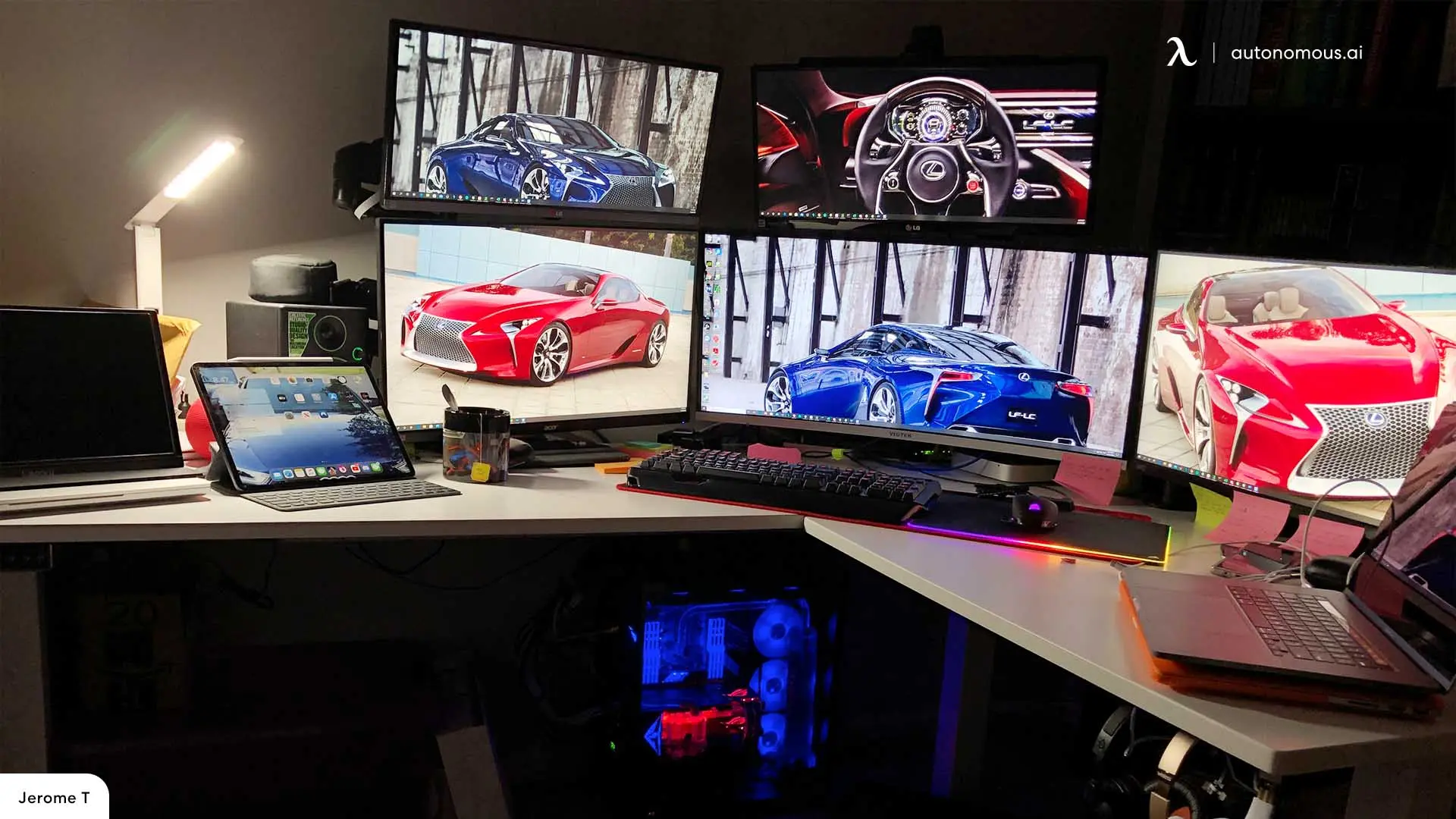
A corner layout can give three monitors more depth than a shallow straight desk. Place the main screen at the natural seating point of the corner, then turn the side screens inward. This geometry helps keep viewing distances more consistent, particularly in three-monitor wraparound layouts. It also leaves an outer zone for a laptop, notebook, or interface rather than pushing every device to the front edge.
4. An immersive RGB gaming multi-monitor desk
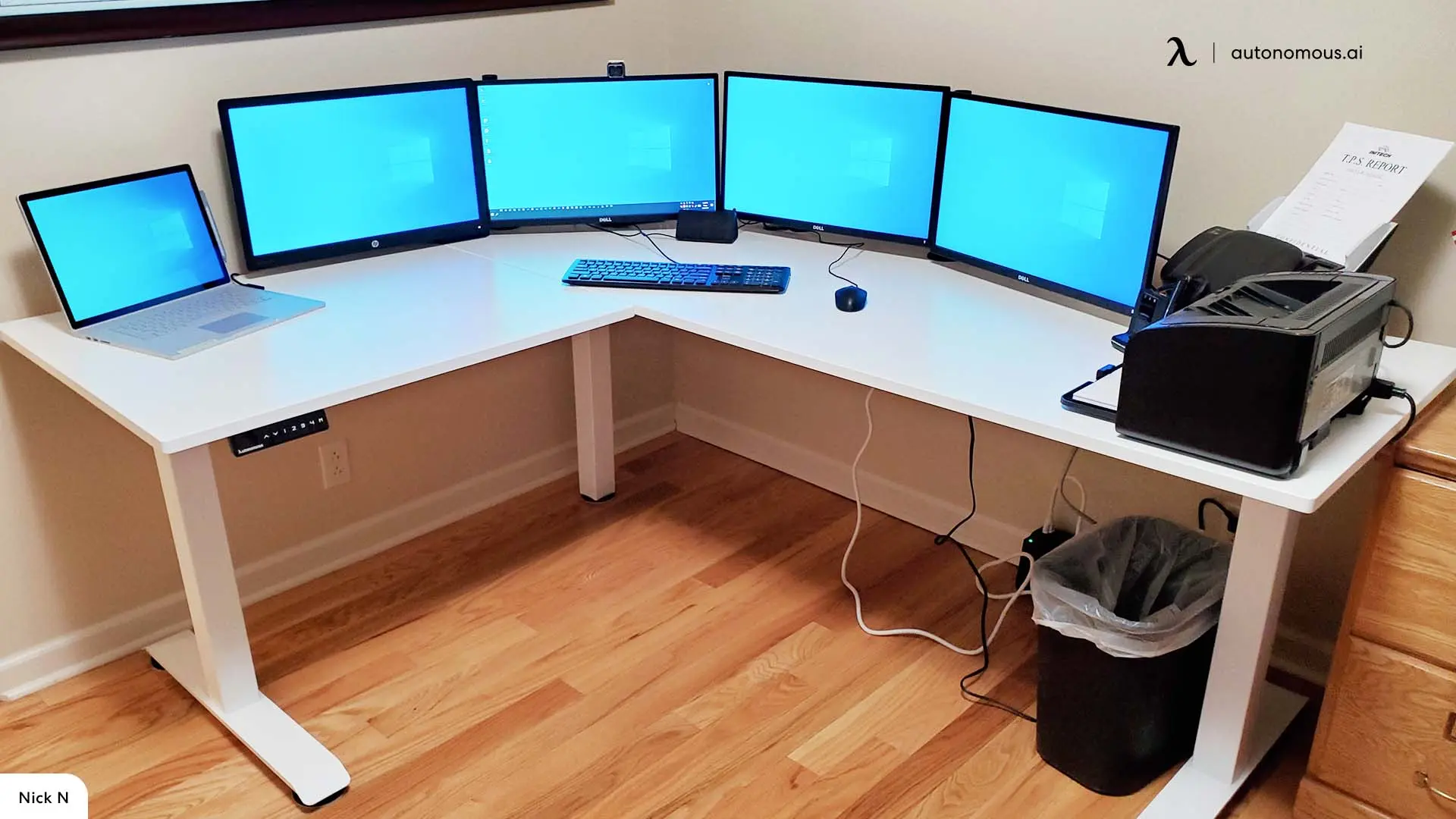
For gaming, dedicate the central screen to the game and use the others for voice chat, streaming software, or guides. This avoids requiring every title to support multi-screen rendering. For dual curved monitor setups, match the display angles to your viewing position before arranging the lighting. RGB backlighting can establish a strong visual theme, but it should not produce reflections or glare on the panels. A deep desk and sensible screen angle do more for usability than a larger number of lights.
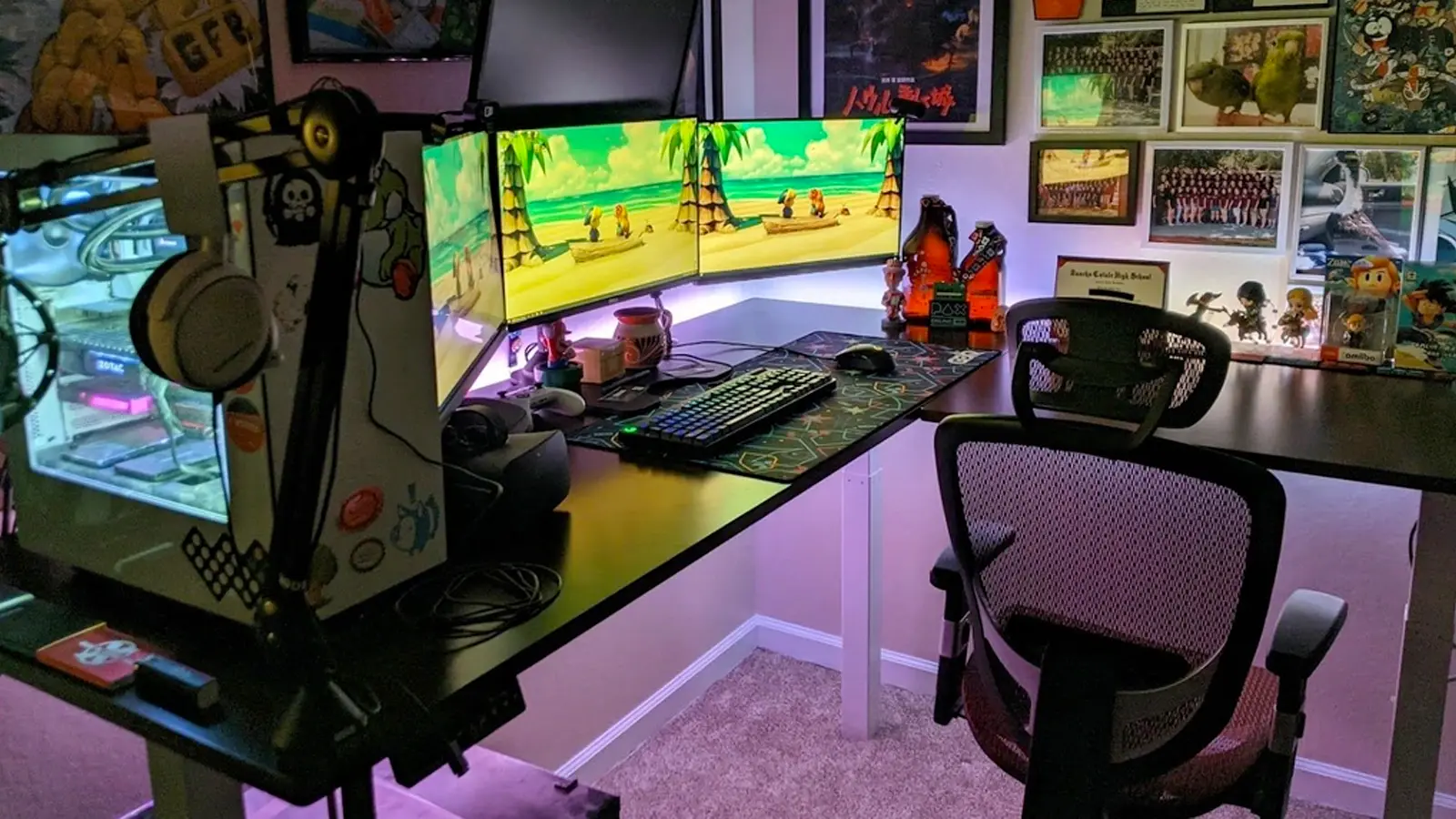
5. An all-black workstation with a restrained footprint
A dark multi-monitor desk works best when cables and stand bases disappear into the layout. A monitor arm can free the desk area that would otherwise be occupied by several large feet. Keep the most-used screen centered; put less frequently used dashboards farther to the side. A dark setup still needs enough task lighting to make notes and keyboard legends readable.
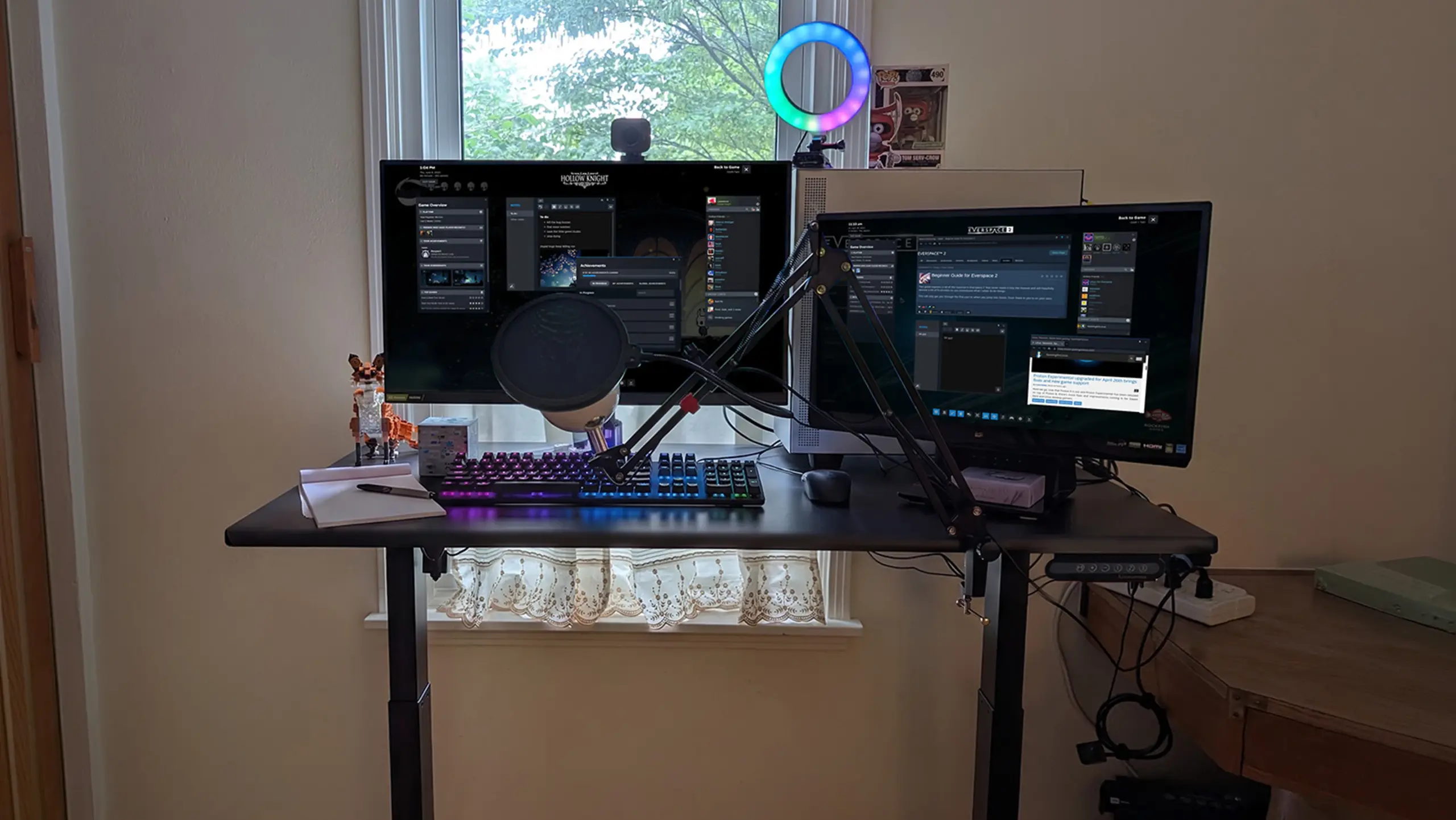
6. A bright white desk with mixed monitor orientation
A portrait monitor is an efficient companion to a landscape display for code, PDFs, long documents, and message threads. It gives vertical information more room without forcing a third full-width monitor onto a small top. Let the landscape panel carry the active task and rotate the secondary display only if its stand or VESA arm supports portrait orientation.
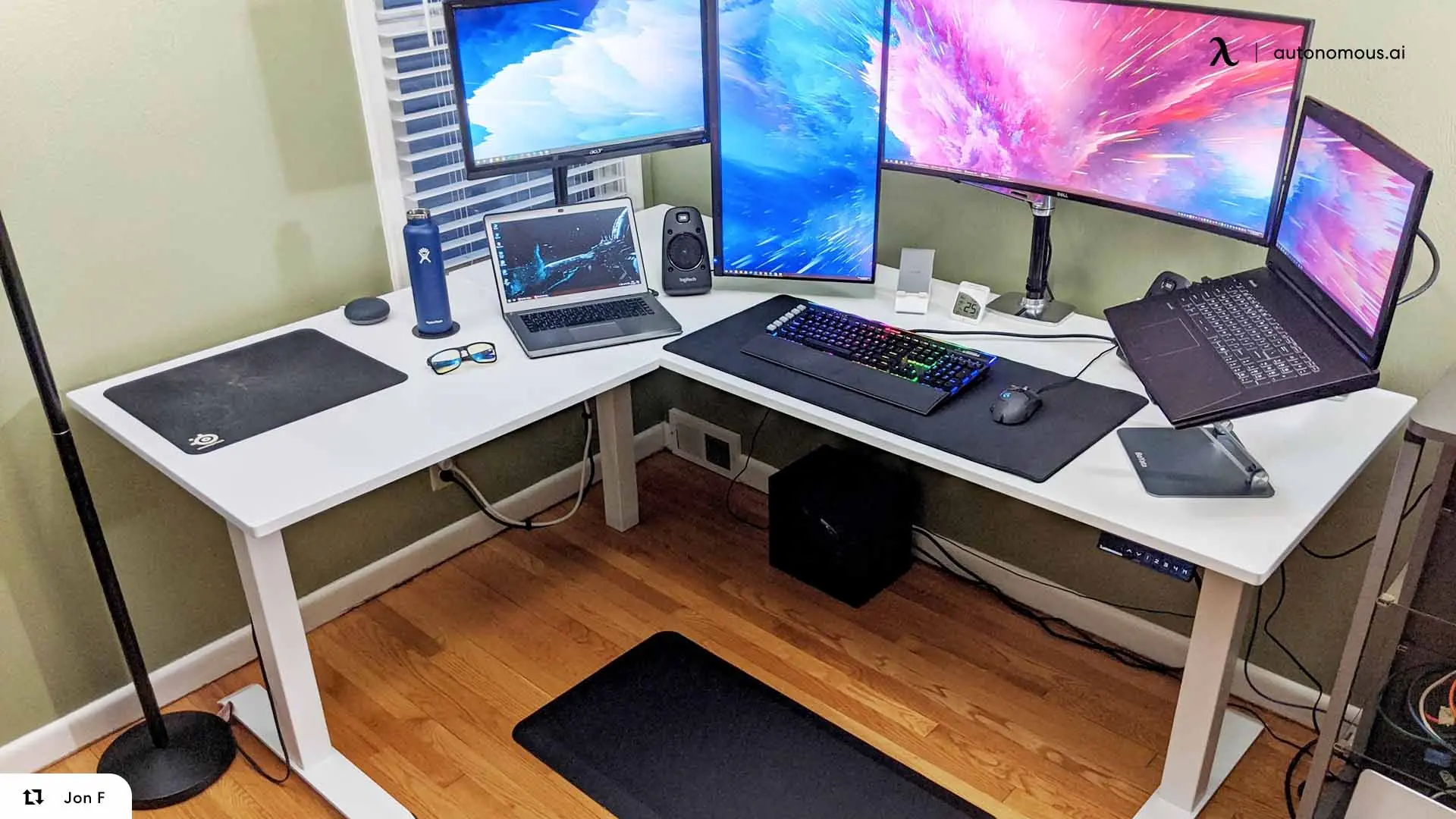
7. A minimal creator desk with a dominant main display
Not every multiple-screen desk needs matched panels. A large central display can handle editing or design while a smaller screen carries tools, preview windows, or chat. The useful rule is to avoid letting a secondary monitor push the main one off-center. A desk mat, fewer visible devices and a monitor arm can make this layout feel deliberate without reducing functionality.
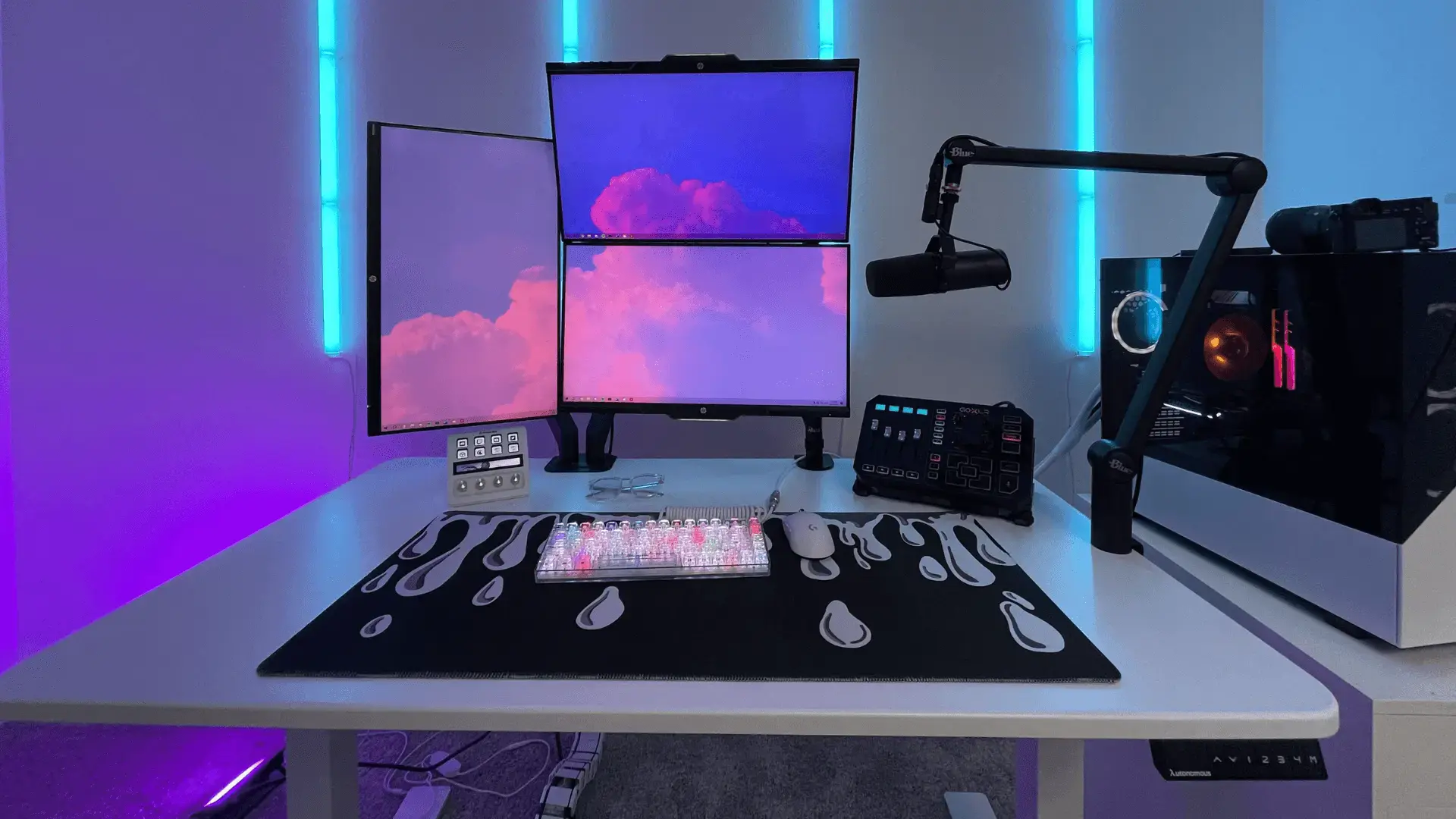
8. A vertical multi-screen command station
Stacking screens uses height instead of desk width. In a four-monitor workstation, a 2-by-2 grid can keep more panels within reach without occupying an entire wall. The upper displays work best for status information you check briefly. Keep the bottom panel at the comfortable working height and tilt the upper one downward where the mount allows. If you continuously edit or read on the upper screen, it is probably too high for comfortable daily use.
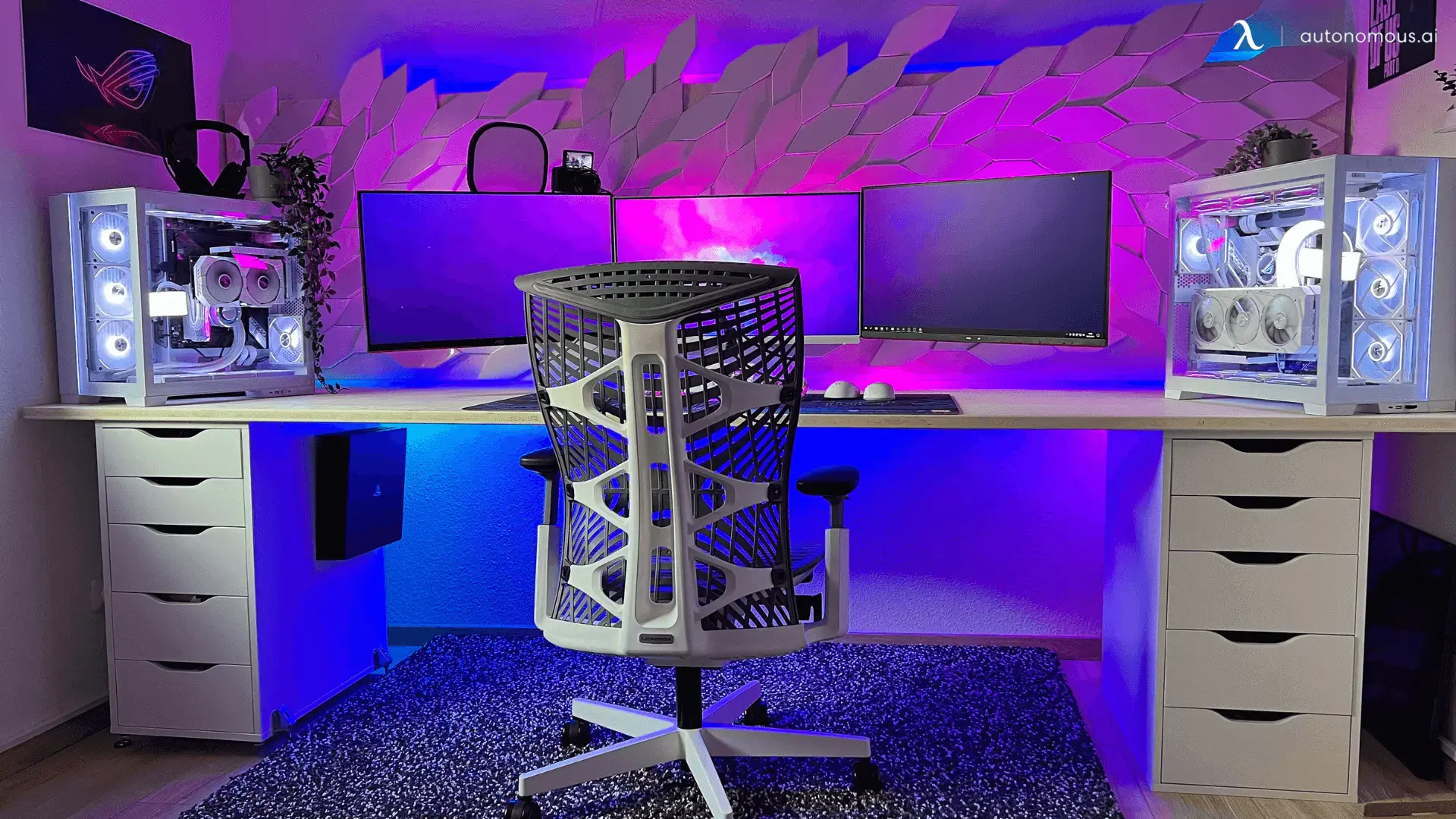
9. A clean office workstation with screen arms
A functional office layout often needs fewer accessories, not fewer screens. Mount displays on adjustable arms and leave clear depth for the keyboard, notes and a comfortable viewing distance. If one monitor is used most of the day, center that monitor rather than centering the gap between two bezels. This small decision reduces frequent head rotation.
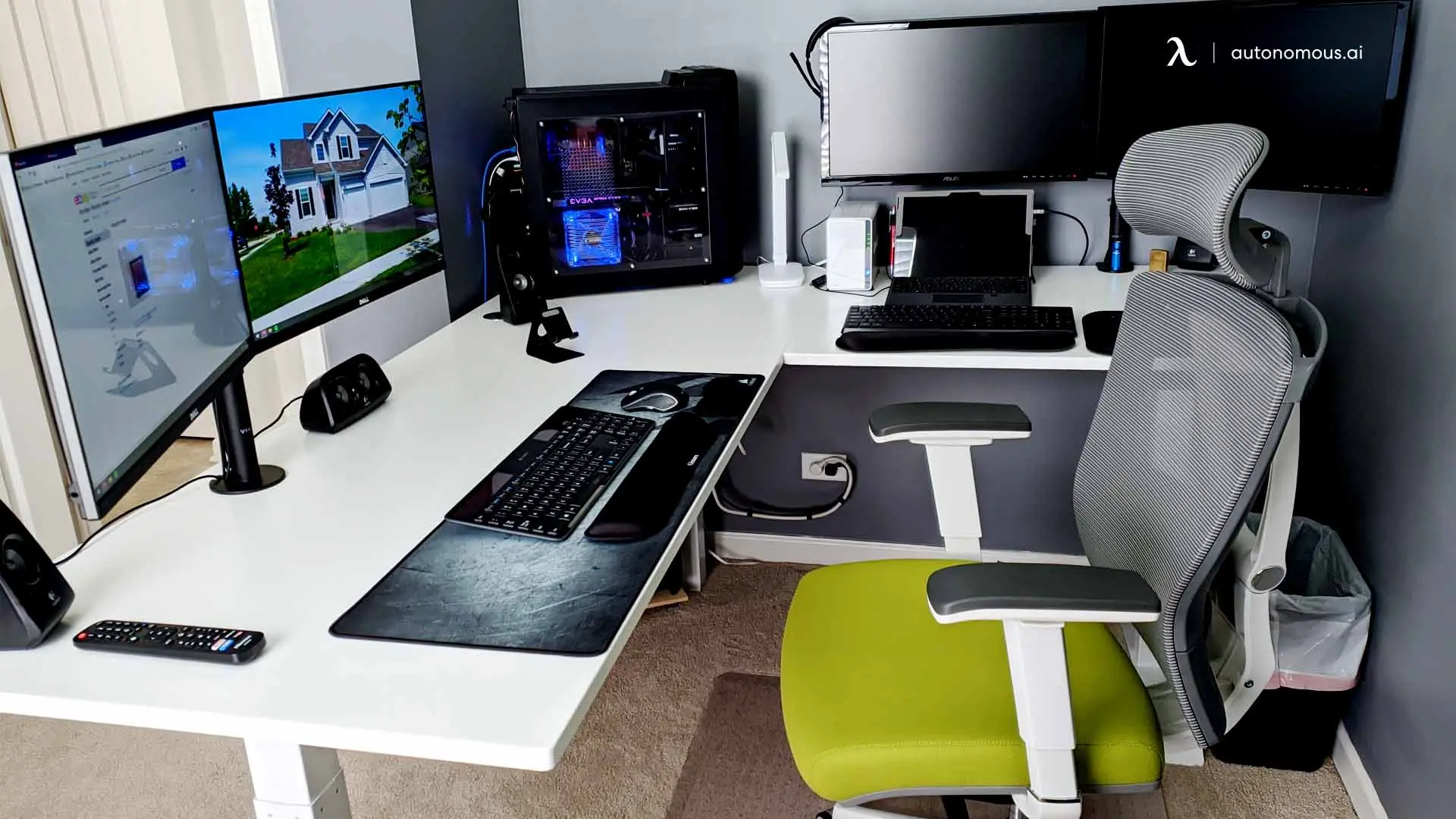
10. A creator workstation for editing and live production
A production desk may need a timeline, preview, audio mixer, chat and a live program feed in view at once. Separate screens by purpose instead of scattering tools randomly. Put the timeline and controls directly in front, with status and preview windows on the sides. Allow room for a microphone arm or camera controls without blocking the screen path.
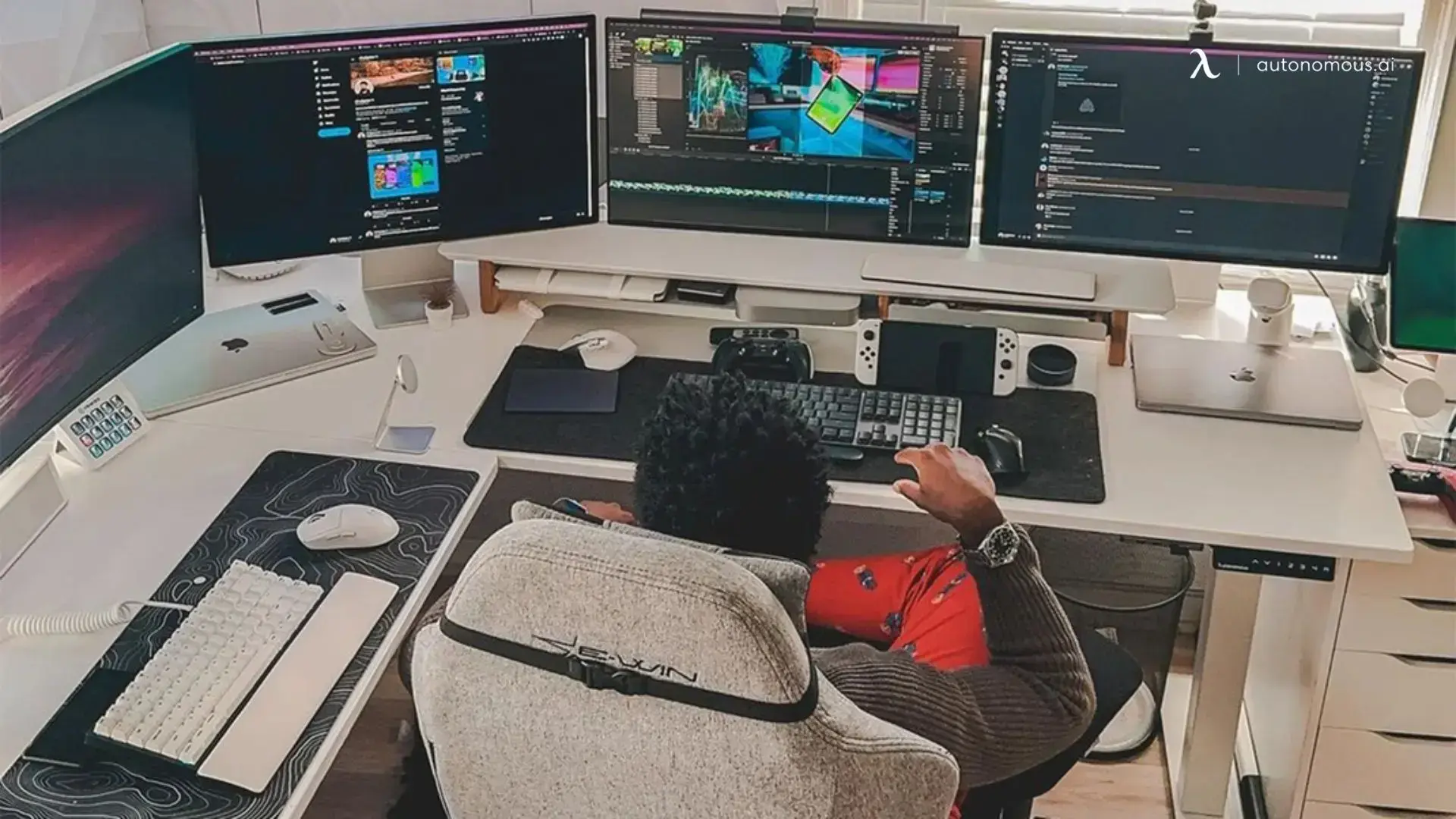
11. A warm wood-tone desk with discrete screens
A wood-top multi-monitor workstation feels less like a control room when the screen mounts, lighting and cables are visually restrained. A clean desk can still carry two or three displays if it has enough usable depth. Keep the laptop or dock off to one side and preserve the central keyboard position. A smaller secondary screen often looks more balanced than another oversized panel.
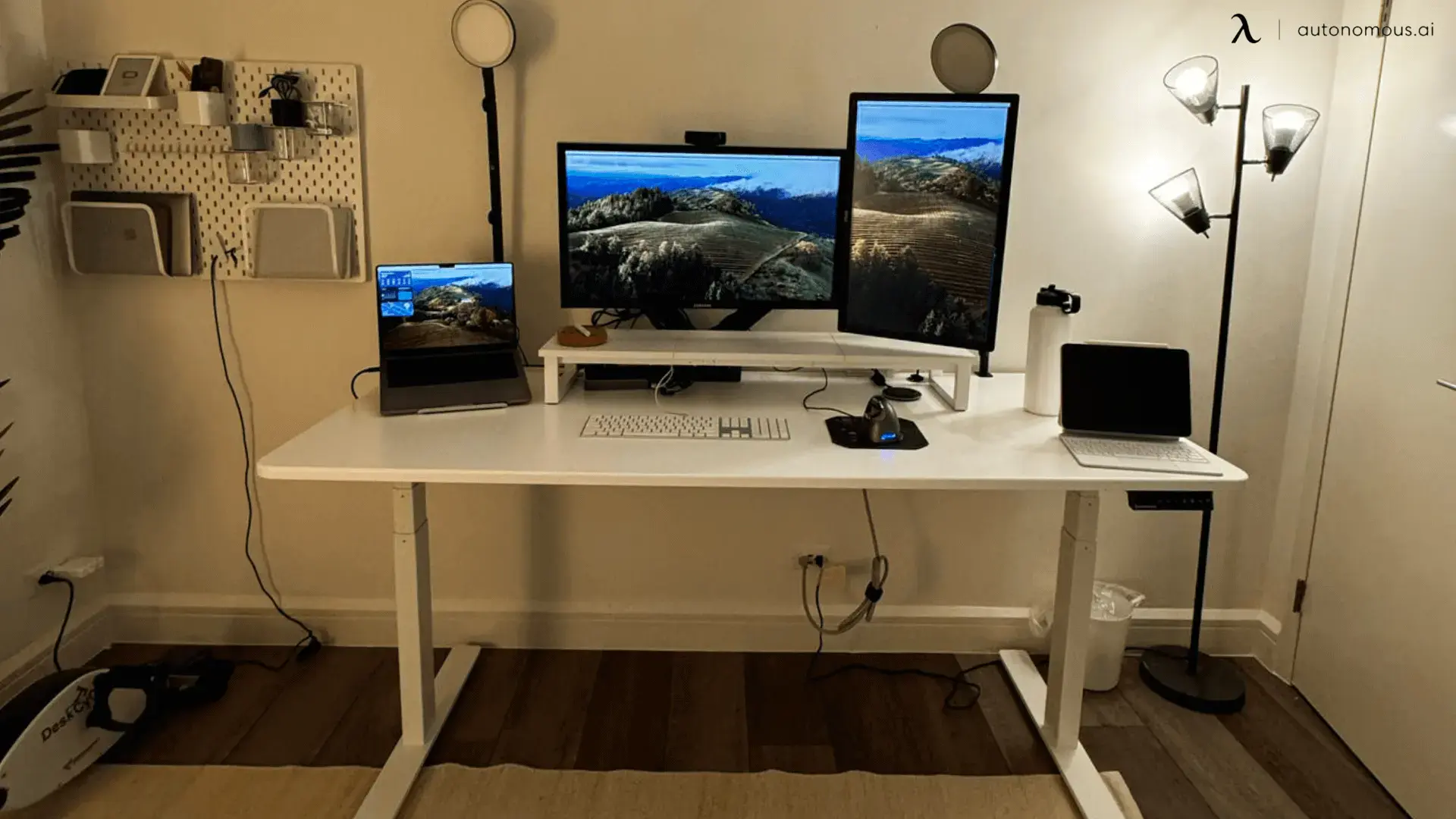
12. A high-contrast gaming desk with ultrawide plus companions
An ultrawide main monitor creates one large continuous work or game surface. The choice between a 32-inch monitor and a 34-inch ultrawide also changes how much room remains for the side screens. Companion displays are more useful for stream controls, community chat and reference material than for stretching a game across mixed resolutions. This approach can also avoid the bezels of a three-monitor gaming view. Leave enough depth so the main panel does not feel too close.
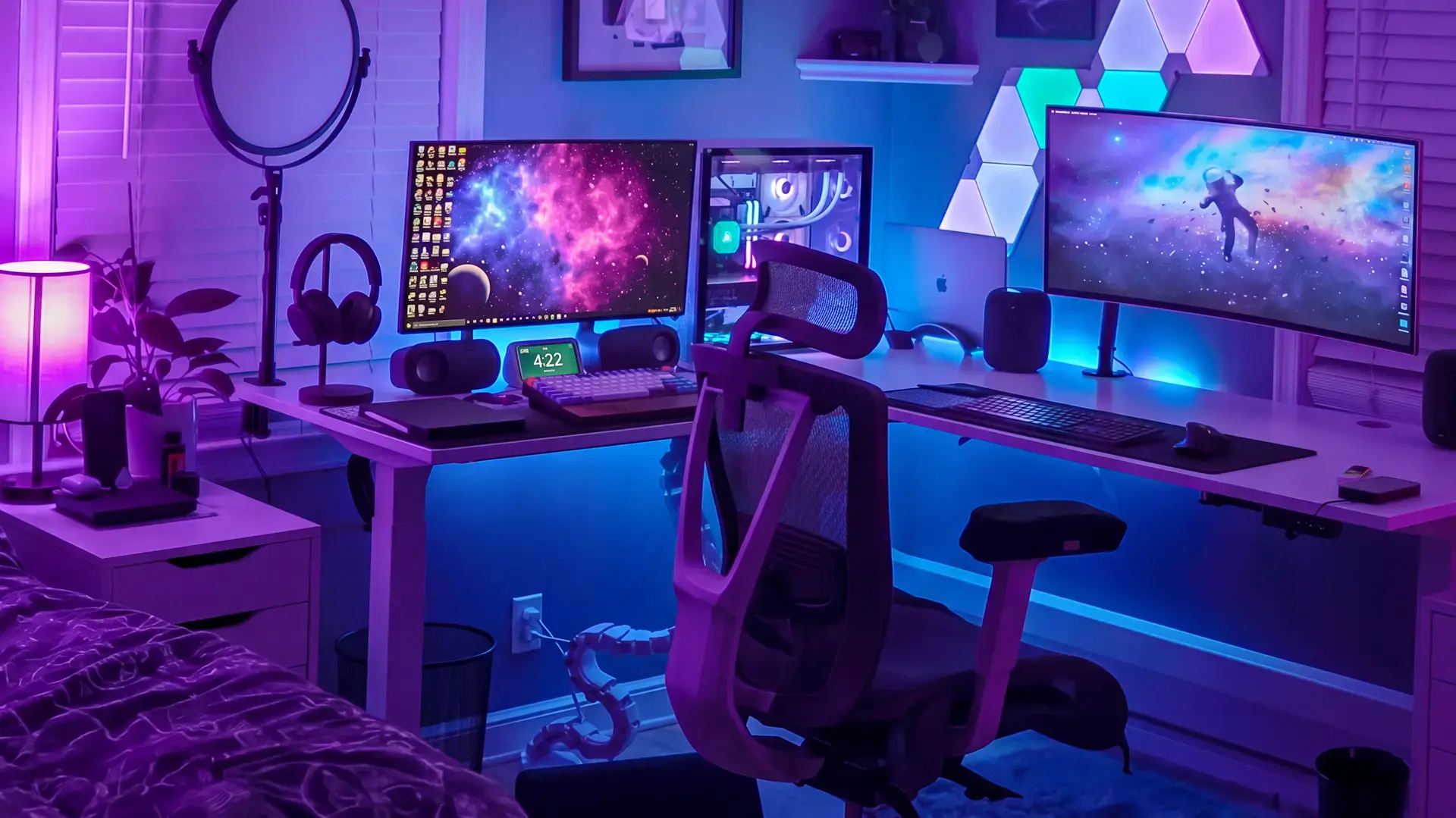
13. An ergonomic dual-zone desk for coding and admin work
Split your work into an active zone and a reference zone. The active monitor should be closest to your straight-ahead viewing direction, while the secondary monitor holds the materials that support it. This dual-monitor productivity layout works well for developers who frequently compare code with API docs or tickets. A supportive chair and the right desk height complete the setup, but screen placement comes first.
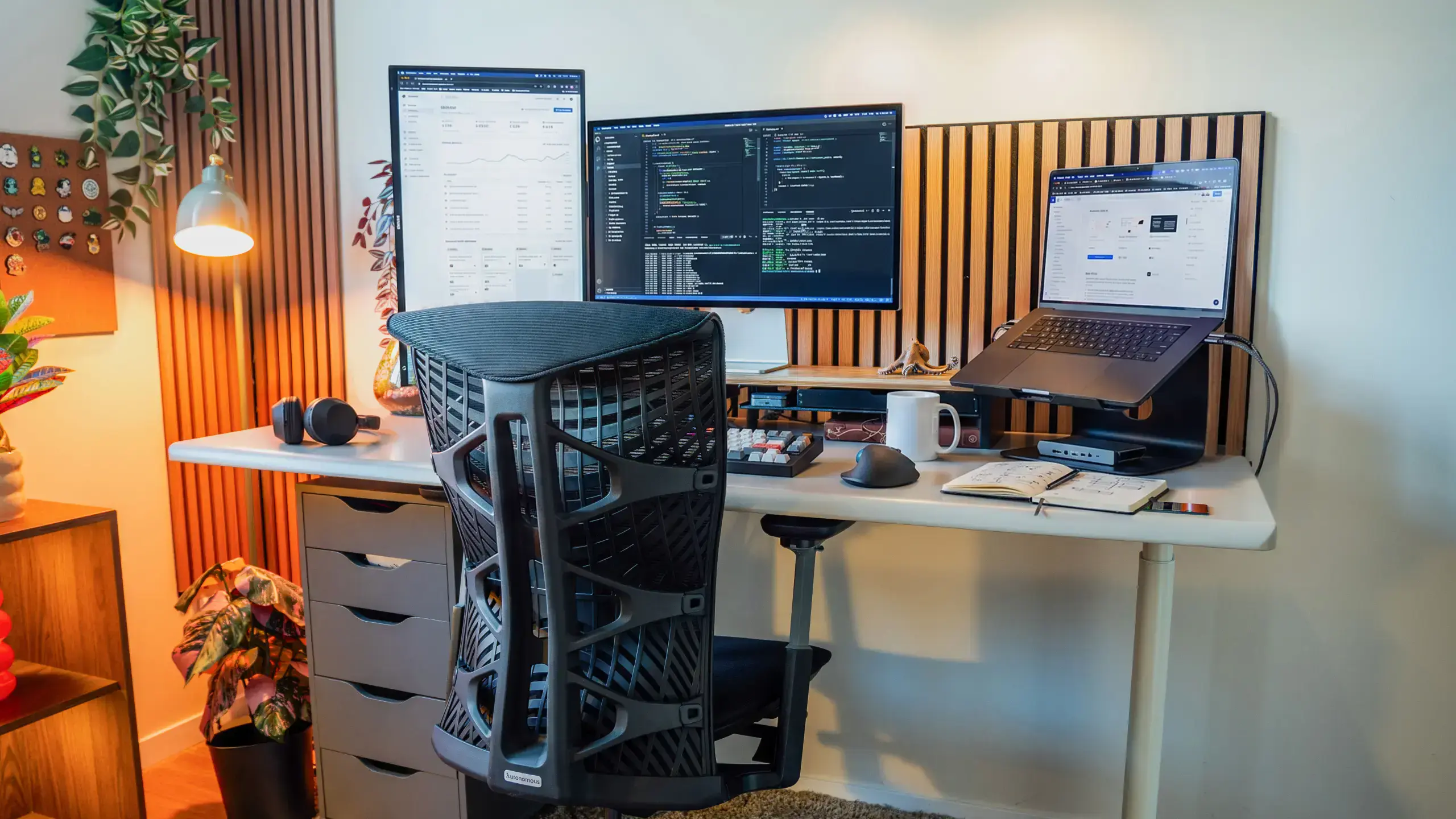
14. An L-shaped desk for gaming and a separate work zone
An L-shaped desk creates a second surface for a PC tower, streaming deck, console, or laptop without packing everything around the keyboard. With two monitors on an L-shaped desk, that second wing holds equipment; with three screens, it keeps the primary work area less crowded. The trap is sitting at the corner while the main screen sits too far to one side. Center the display over the seat first, then assign the second wing.
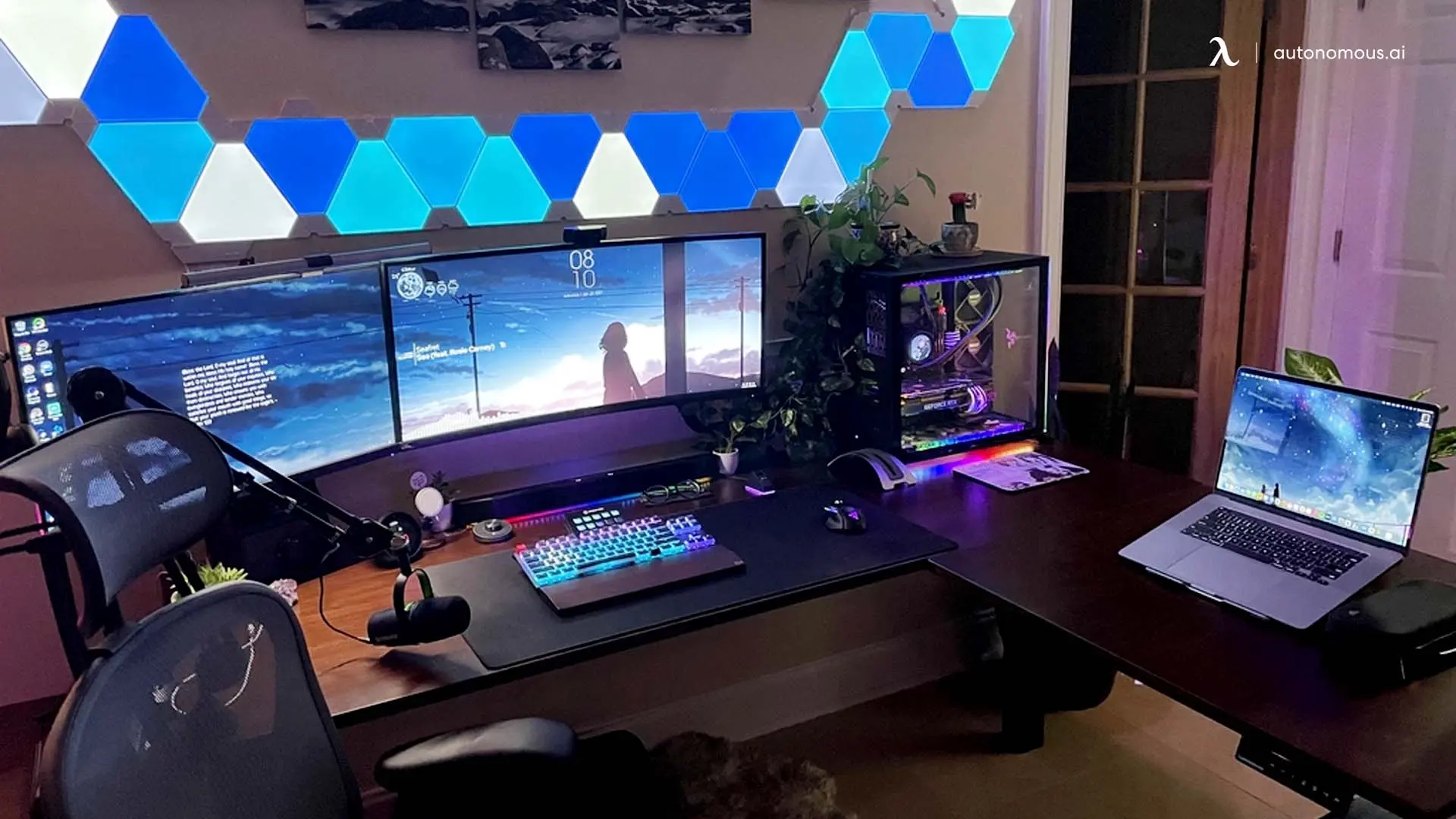
15. A hardware-heavy desk for developers and PC builders
A workstation with multiple displays, a large desktop computer and test hardware needs a little empty space for service. Keep the tower’s intake and exhaust unobstructed and route screen cables independently of the PC power lead where practical. If the screens are mounted to a moving standing desk, verify the load at the rear edge rather than checking only the overall lift rating.
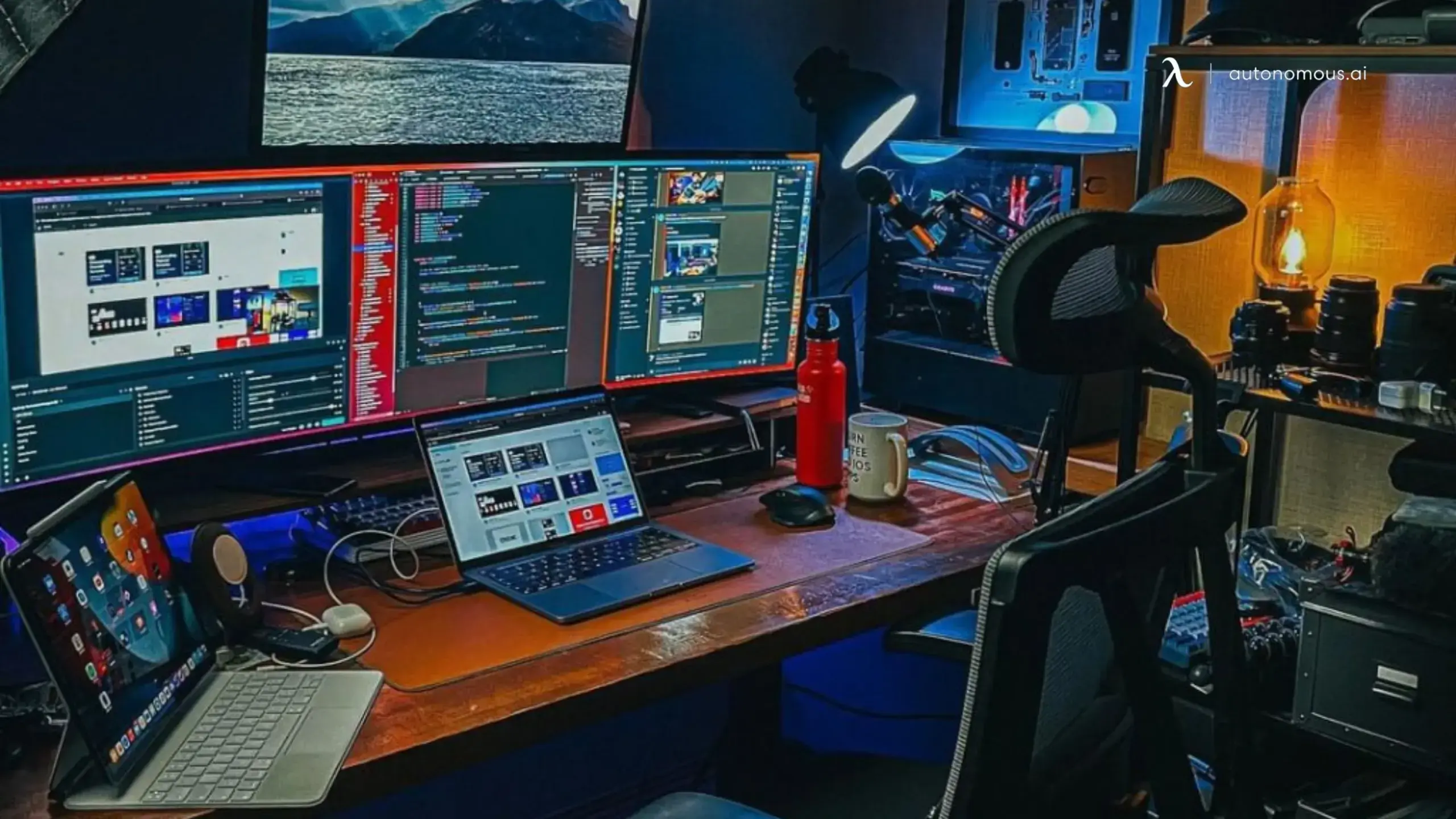
Six setup decisions that make multiple monitors work
The photos show possibilities. These six decisions determine whether the finished workspace stays comfortable and functional after the first week.
16. Size the desk for the monitors, not the monitor count
Desk width is the first filter, but depth decides how far the screens can sit from your eyes. Two thin-bezel 24-inch monitors can fit on some 48-inch tops; two 27-inch panels, triple-display arms or speakers often justify 60 inches or more. Three screens angled inward may fit on a shorter top than three screens placed flat. Use the actual monitor width and height measurements, not only diagonal screen sizes.
| Available worktop | Layout to test first | What may become tight |
|---|---|---|
| 48" wide | Two 24" screens, or one landscape + portrait | Large stands, speakers, side-monitor angles |
| 53" wide | Dual screens on arms; compact angled triple | Three large screens, arm articulation |
| 60-72" wide | Two 27" screens or 3-screen wraparound | Wide speaker pair, large PC tower on desk |
| 70"+ or L-shaped | Triple, stacked quad or ultrawide + side displays | Rear-edge clamp space and room depth |
These are practical planning scenarios, not universal fit ratings. Arm geometry and monitor dimensions can change the result.
17. Choose a desk with enough depth, stability and cable space
The best desk for a multi-monitor setup provides enough width to place the screens, enough depth for a comfortable view, and a rear edge that supports the mounting method. Desk weight capacity matters, but it does not by itself certify a specific monitor-arm clamp installation.
The Autonomous Desk Pro has 53" × 29" and 70.5" × 29" tops, a C-frame, and a published 330 lb lift capacity for the Pro configuration. That makes the wider version a practical candidate for a multiple-screen workstation when the display mounts fit the top and the complete moving load stays within its limits. The standing desk range includes other widths and frame options for different rooms.
For a nonstandard top or an unusually wide build, a frame-only standing desk allows custom surface dimensions subject to the frame’s published limits. Four-leg designs can change the support geometry for large tops, but four-leg standing desk construction is a separate decision from the number of screens.
18. Mount the monitors before routing the rest of the setup
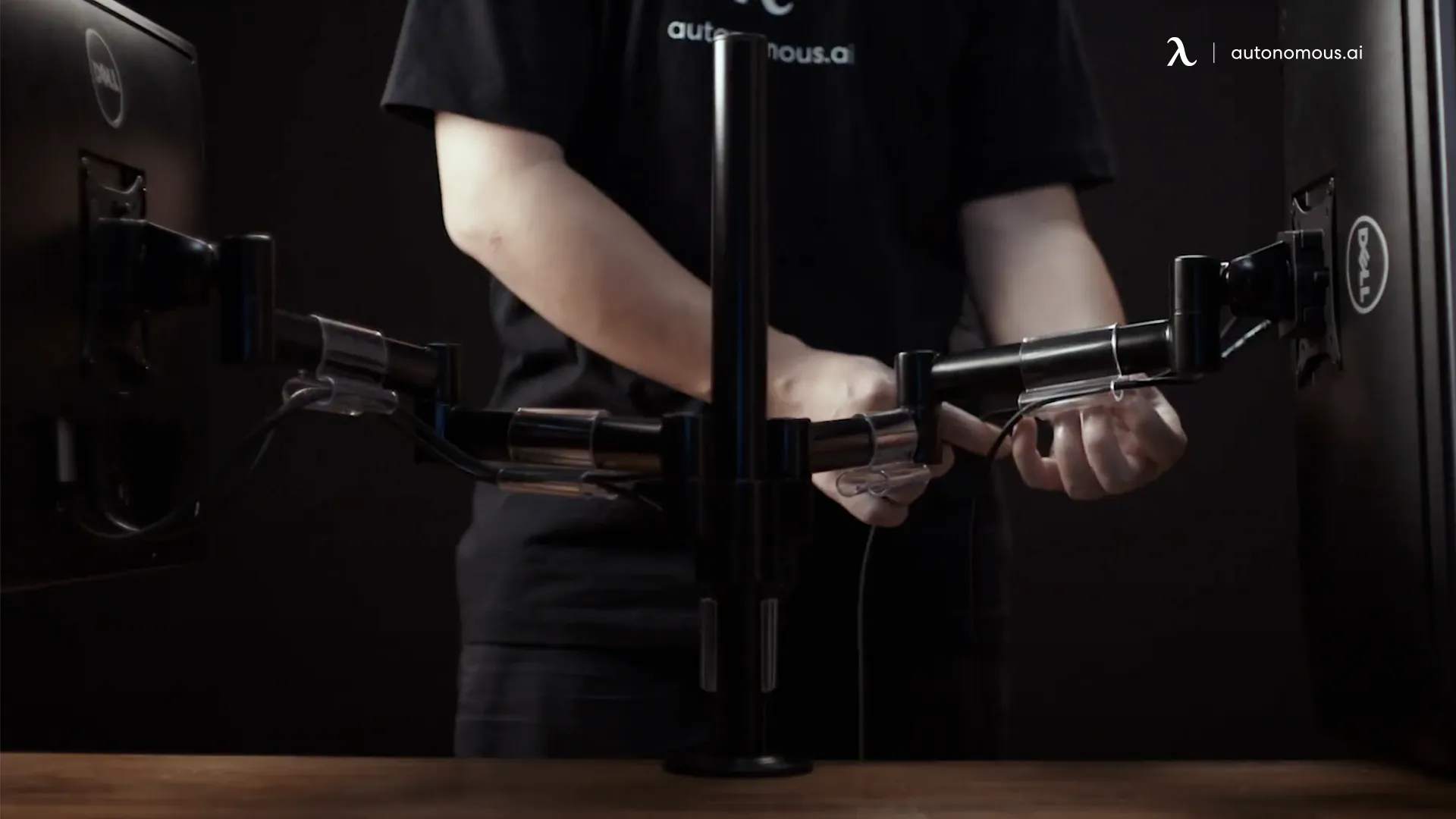
Monitor arms free surface space and make fine adjustments easier, but mounting hardware creates a concentrated load at the clamp or grommet. Safe monitor-arm installation starts with checking top thickness, edge construction, clamp area, VESA patterns and each arm’s per-screen weight rating. A wall mount removes the monitor load from the desk entirely, but then the displays will not follow a sit-stand desktop.
For a two-screen arrangement, place the clamp where both displays can reach comfortable positions without hitting the wall.
19. Treat cables as part of the moving workstation
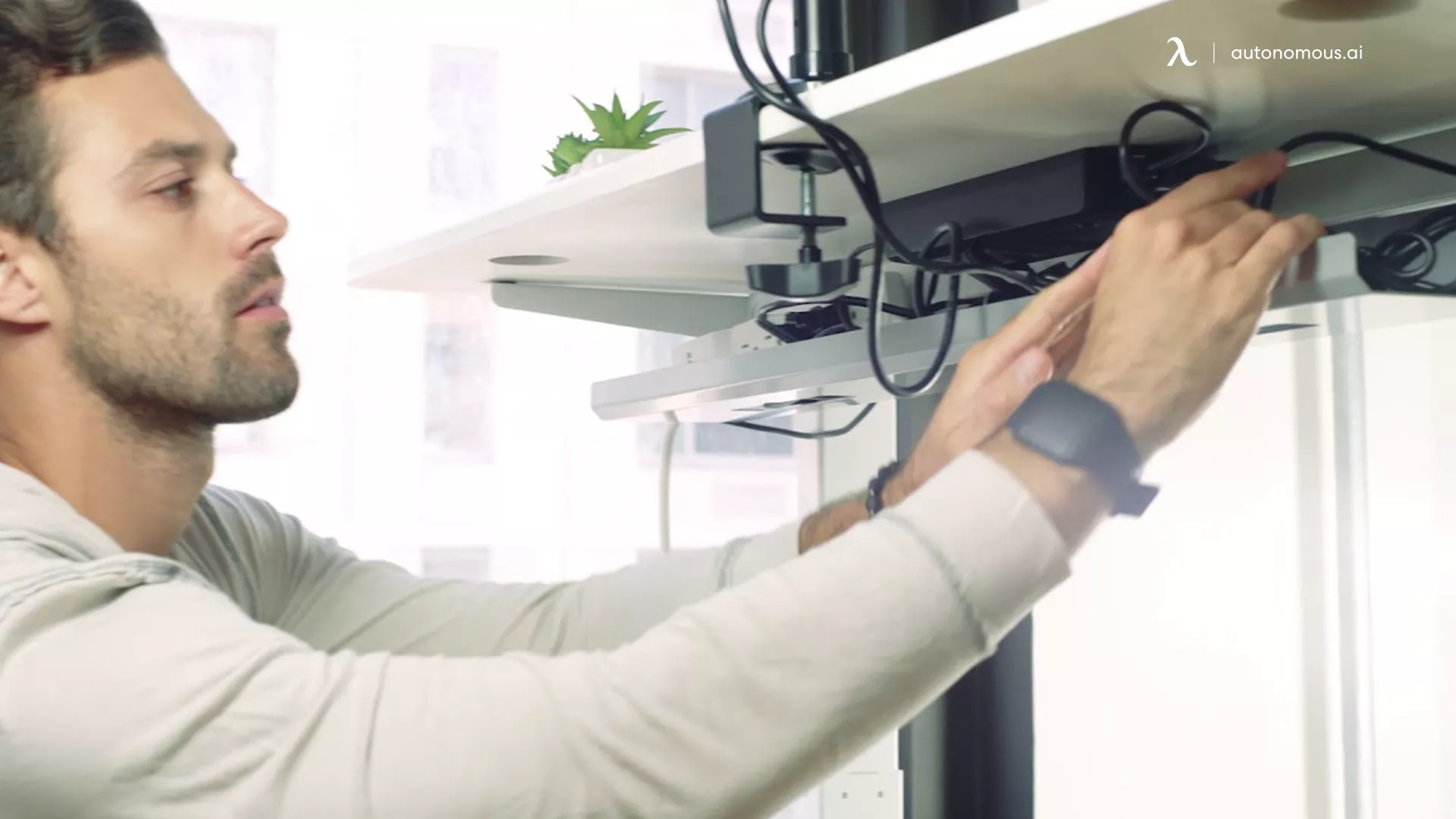
Three monitors may add several power leads, video cables and USB connections. Bundle cable slack behind the screens, guide it along monitor arms, and keep power supplies in an under-desk tray where compatible. If the desk moves, raise and lower it through the full travel while checking for tension, pinch points and cables snagging against walls or shelves.
A PC mount under the desk can free the floor, but tower clearance and mounting capacity need separate checks.
20. Verify GPU, laptop and docking-station display support
Count the external displays your specific computer can drive at the intended resolution and refresh rate before buying the monitors. Four ports do not always mean four independently usable displays; in a four-monitor laptop setup, the dock and the laptop may impose separate display-count or bandwidth limits. Confirm HDMI/DisplayPort versions, USB-C display support, operating-system restrictions and any mixed-refresh requirements in the manufacturer documentation.
For PCs using dedicated graphics cards, connect the displays to the appropriate graphics outputs and test the full configuration before fastening every cable.
21. Arrange the screens around your eyes, not around symmetry
Put the display used most often directly ahead. OSHA advises keeping the top of the screen at or just below eye level and the screen roughly 20-40 inches from the eyes, depending on comfort and text size. Secondary screens should remain close enough for brief glances, while elevated displays should carry occasional-use information rather than sustained reading.
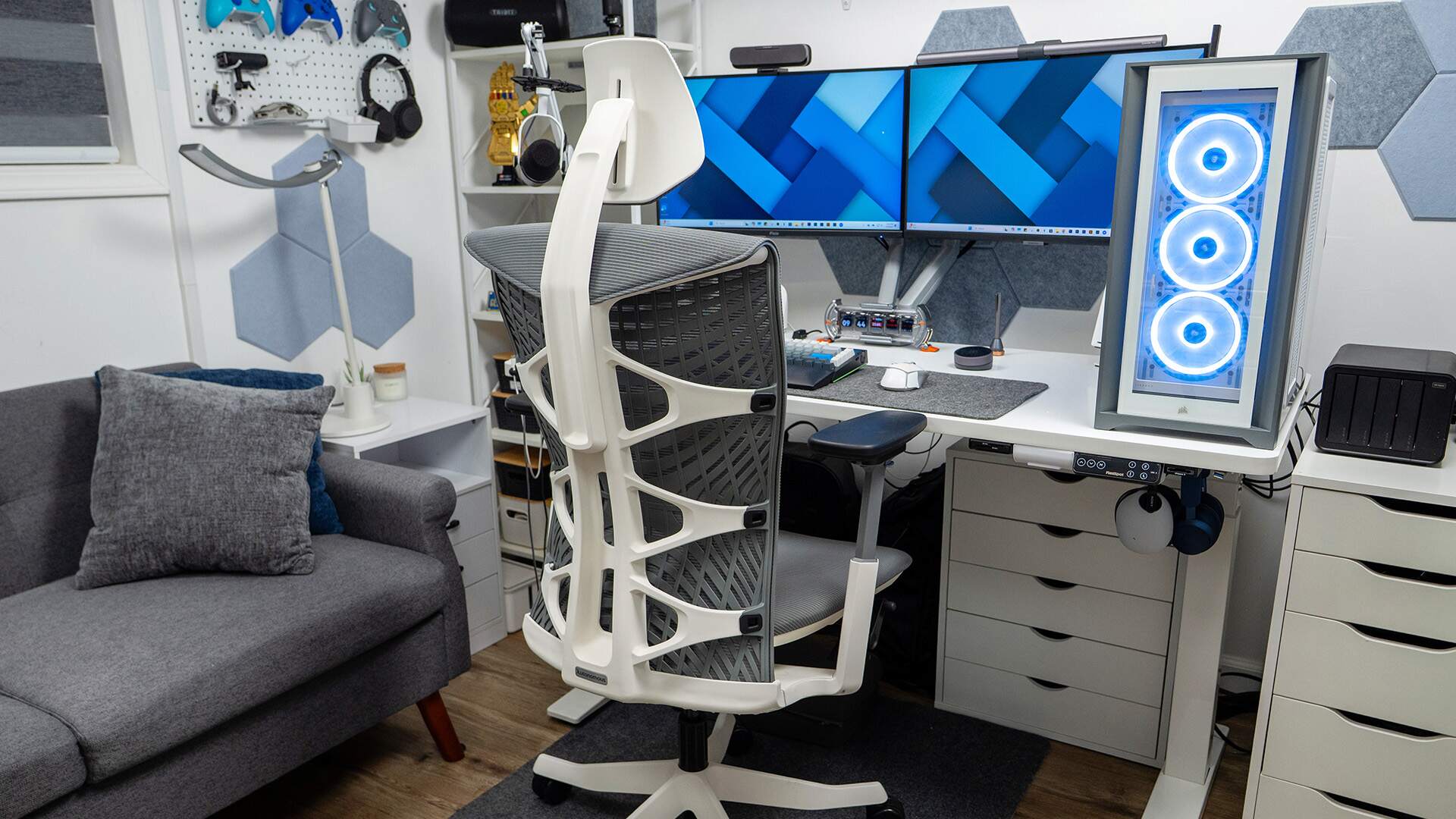
A supportive ergonomic office chair and an adjustable desk can help align the seated working position, but neither compensates for a monitor that is consistently too high or off to the side.
FAQs
How wide should a desk be for three monitors?
A 60-72-inch worktop is a useful starting range for three average-sized monitors, especially with angled outer screens. Narrower tops can work with compact panels or a stacked mount. Measure each monitor case and arm travel before choosing desk width.
What is the best multi monitor desk setup for productivity?
Keep the primary screen centered and assign supporting applications to nearby displays. For most desk workers, two monitors are simpler to manage; a third is useful when reference windows, communication and active work all need to remain visible.
Is an L-shaped desk better for multiple monitors?
An L-shaped desk can make room for more equipment and help organize a workstation by task. It is not automatically more ergonomic. Keep the main screen aligned with your seat, and verify corner depth and monitor-arm clearances.
Do I need a monitor arm for a multi-monitor workstation?
A monitor arm is optional, but it often frees desktop depth and makes height and angle adjustment easier. Check each screen’s weight, VESA mounting pattern and the desk’s clamp or grommet compatibility before installing one.
How do I connect four monitors to one PC?
First verify that the graphics card, laptop or dock supports four external displays at your target resolution and refresh rate. Connect each display to a supported output, configure extended mode in the operating system, then adjust scaling and screen order.
Can a standing desk hold three or four monitors?
Yes, if the total equipment weight stays within the desk’s capacity and the mounts are compatible with the desktop. Monitor-arm loads are concentrated at attachment points, so published lifting capacity alone does not guarantee safe clamp installation.
How can I make a multiple screen desk setup look cleaner?
Mount screens where possible, keep the main panel centered, route video and power cables separately into a compatible cable tray, and leave open space in front of the keyboard. Consistent lighting and fewer desk-top stands help more than extra accessories.
Are stacked monitors comfortable for everyday work?
Stacked displays are useful when desk width is limited, but the upper screen is better for occasional glances than constant reading. Set the lower screen at a comfortable eye level and test the upper display’s tilt and viewing angle before committing.
Bottom line
A good multi monitor desk setup starts with one centered primary screen and adds only the displays your workflow needs. Use the images above to choose a layout, then check the desktop’s real width and depth, monitor-arm clearance, display outputs and cable travel.
For a wide work-and-gaming workstation, a 70.5-inch standing desktop gives more flexibility than a compact top, provided the mounts and overall load are compatible. Prioritize viewing comfort and a serviceable cable layout over the number of screens.
References
- OSHA. Computer Workstations eTool: Monitors. Monitor height, viewing distance and placement guidance.
- PCWorld. How to create a multiple-monitor setup with three, four or more displays. Multi-display connection and layout overview.