Cable Management for a Standing Desk: Tips and Setup

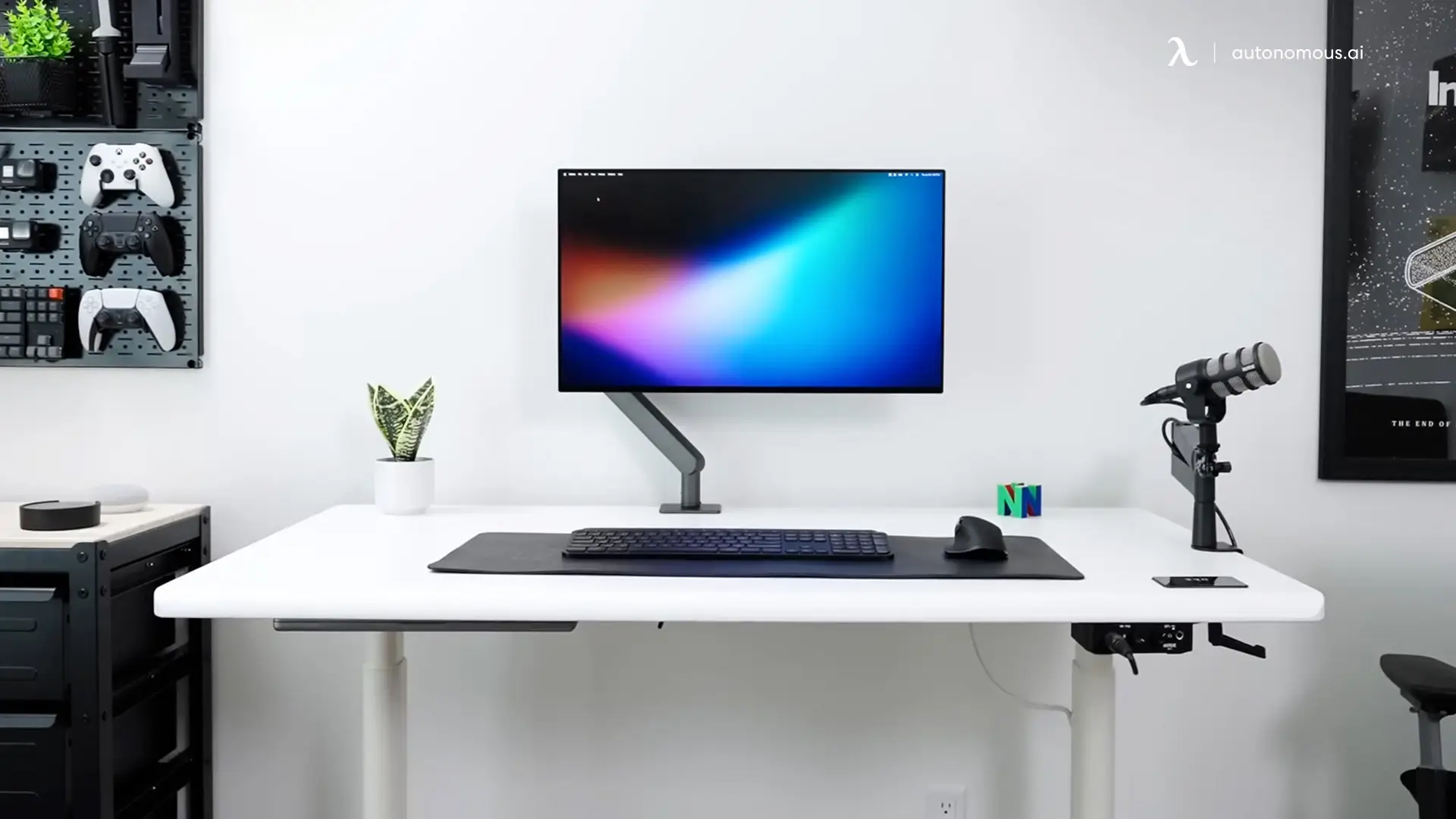
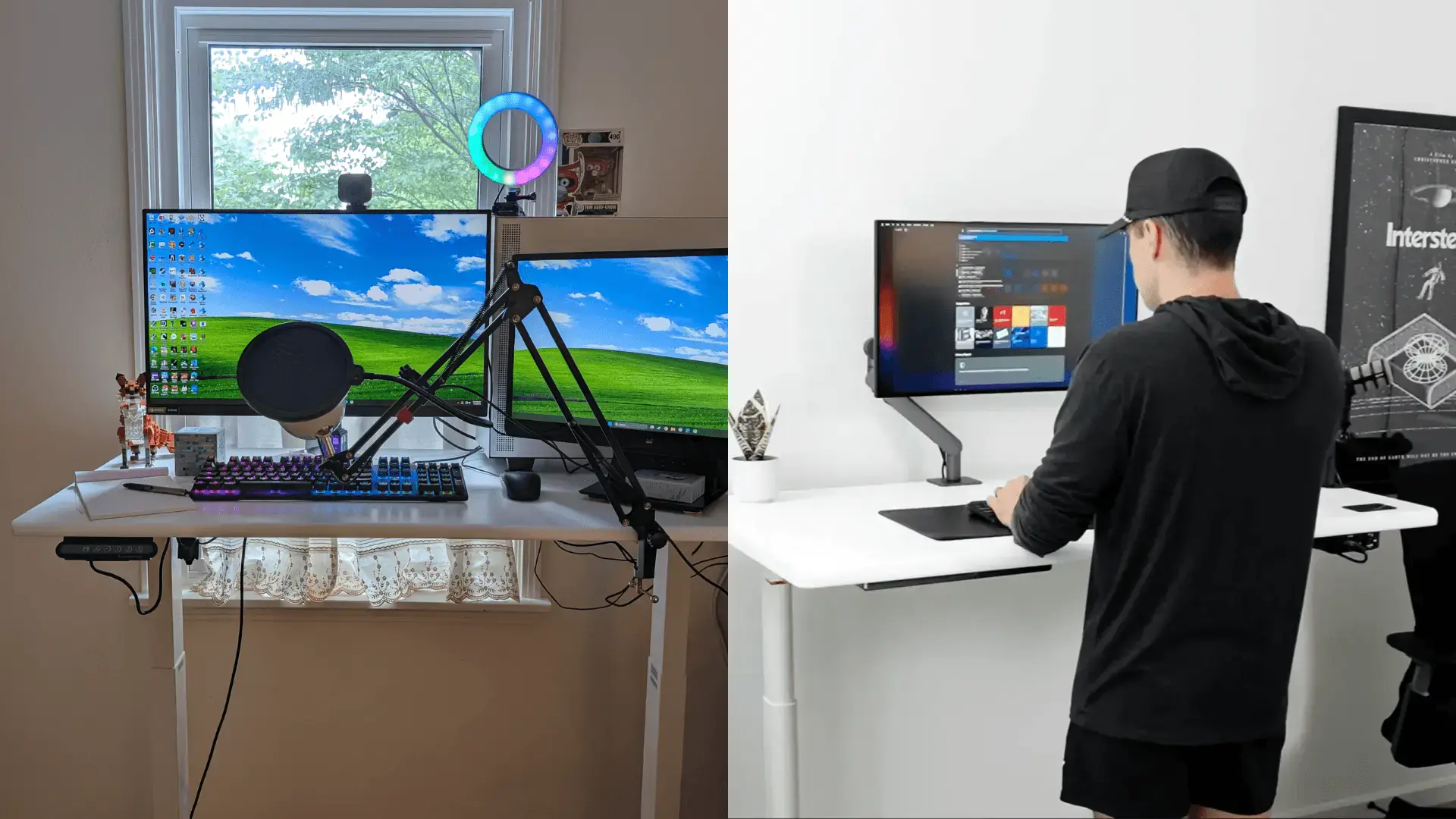
No one enjoys a tangle of cords around their workspace. It looks messy, and on a sit-stand desk in motion it can also snag or strain your cables, which is why cable management for a standing desk matters more than on a fixed one. With a little planning you can route wires so they never pull tight as the desk rises, and keep your adjustable standing desk clean and safe.
This guide covers the ten best cable management solutions and a step-by-step setup, including how to organize the wires behind your desk. The outlet that powers it all is a separate choice with its own guide, and if you would rather buy a desk with the wiring built in, a dedicated roundup compares the models. Both are linked further down.
Common cable challenges with a sit-stand desk
A sit-stand desk adds flexibility, but it also adds cable challenges a fixed desk never has, since the top moves. Without planning, cords cause a few predictable problems:
- Cables dragging on the floor, which get caught and strained as the desk raises or lowers.
- Tangled cords, as multiple monitors, chargers, and peripherals turn into a messy web.
- Limited space under the desk, where power strips, adapters, and surge protectors compete for room.
- Tripping hazards from dangling cables, a real safety risk in a home or shared office.
- Obstructed desk movement, when poorly routed wires interfere with the lifting mechanism.
- Slow troubleshooting, since a messy bundle makes finding or swapping one cord tedious.
Planning for these early with the right wire management for your standing desk keeps the setup safe and easy to live with.
The 10 best cable management solutions for a standing desk
The right tools make a big difference in keeping standing desk cables organized, safe, and easy to reach. Here are the ten worth knowing.
1. Under-desk cable trays
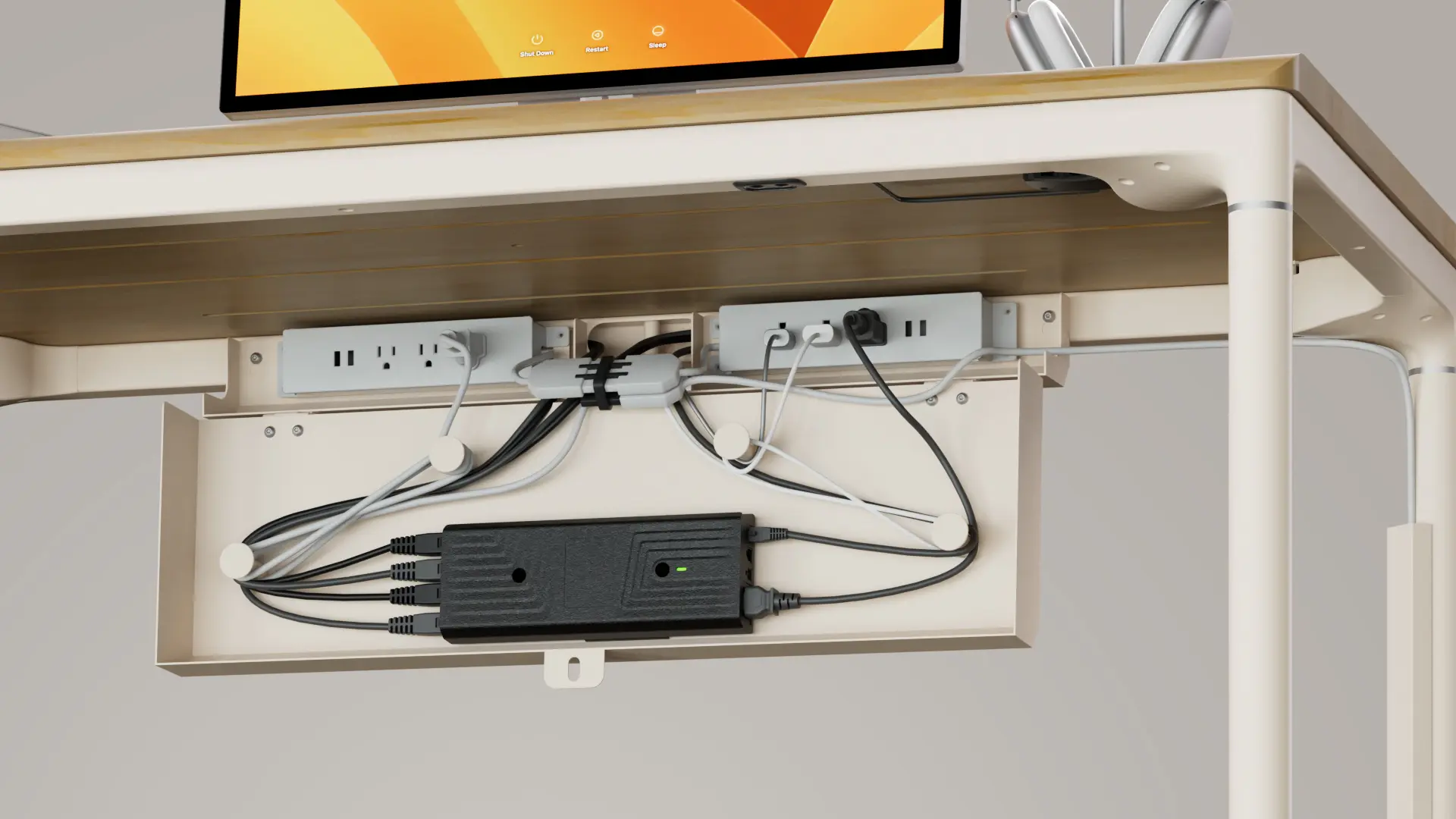
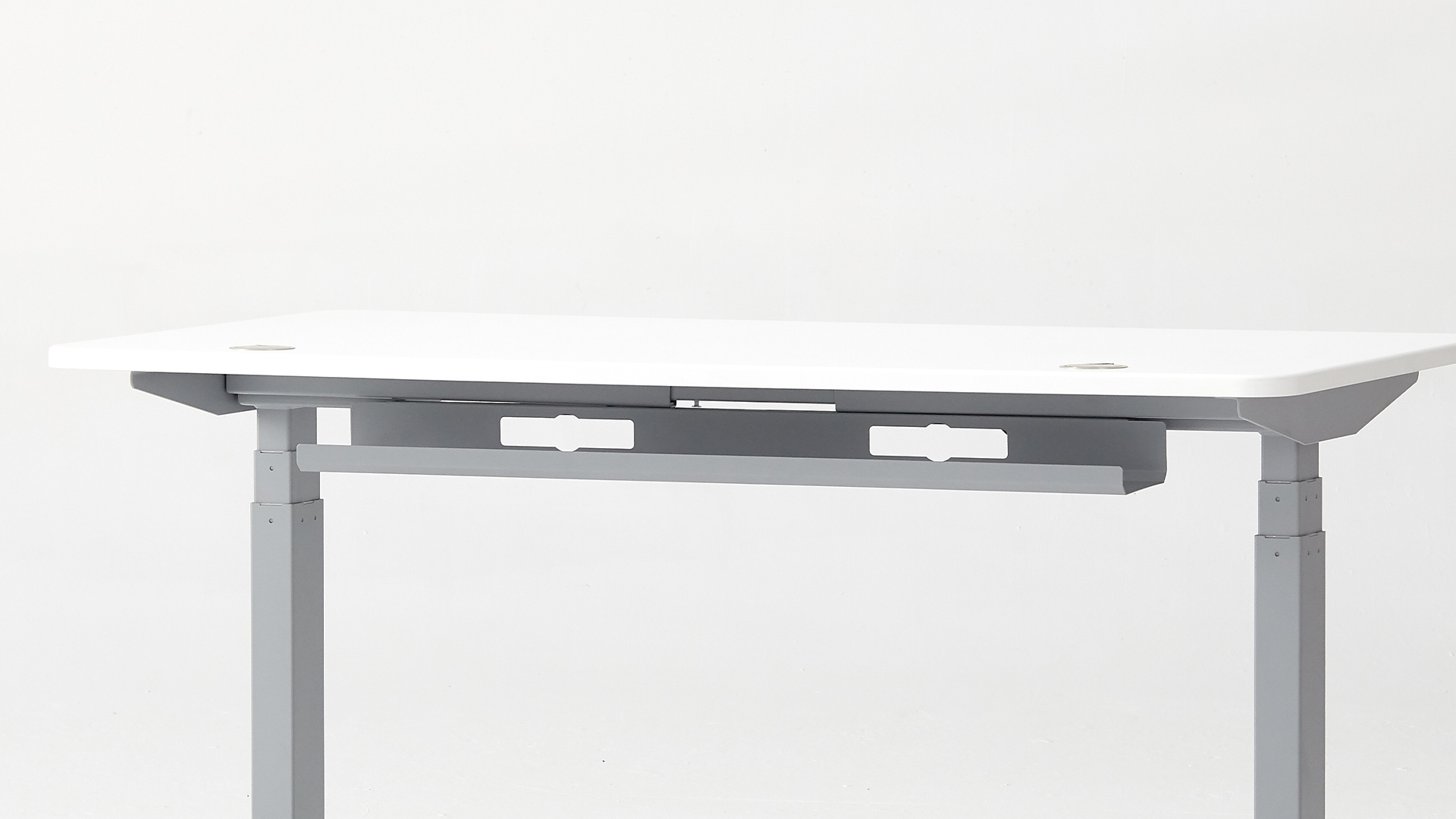
An under-desk cable tray is the backbone of most sit-stand setups. Mounted beneath the desk, it holds a power strip, adapters, and bundled cables in one place, keeping cords off the floor and out of the way as the desk moves. Adjustable trays suit changing gear and different cable thicknesses, and they make cleaning under the desk far easier. A cable tray mounts under almost any desk to hold it all.
2. Cable raceways
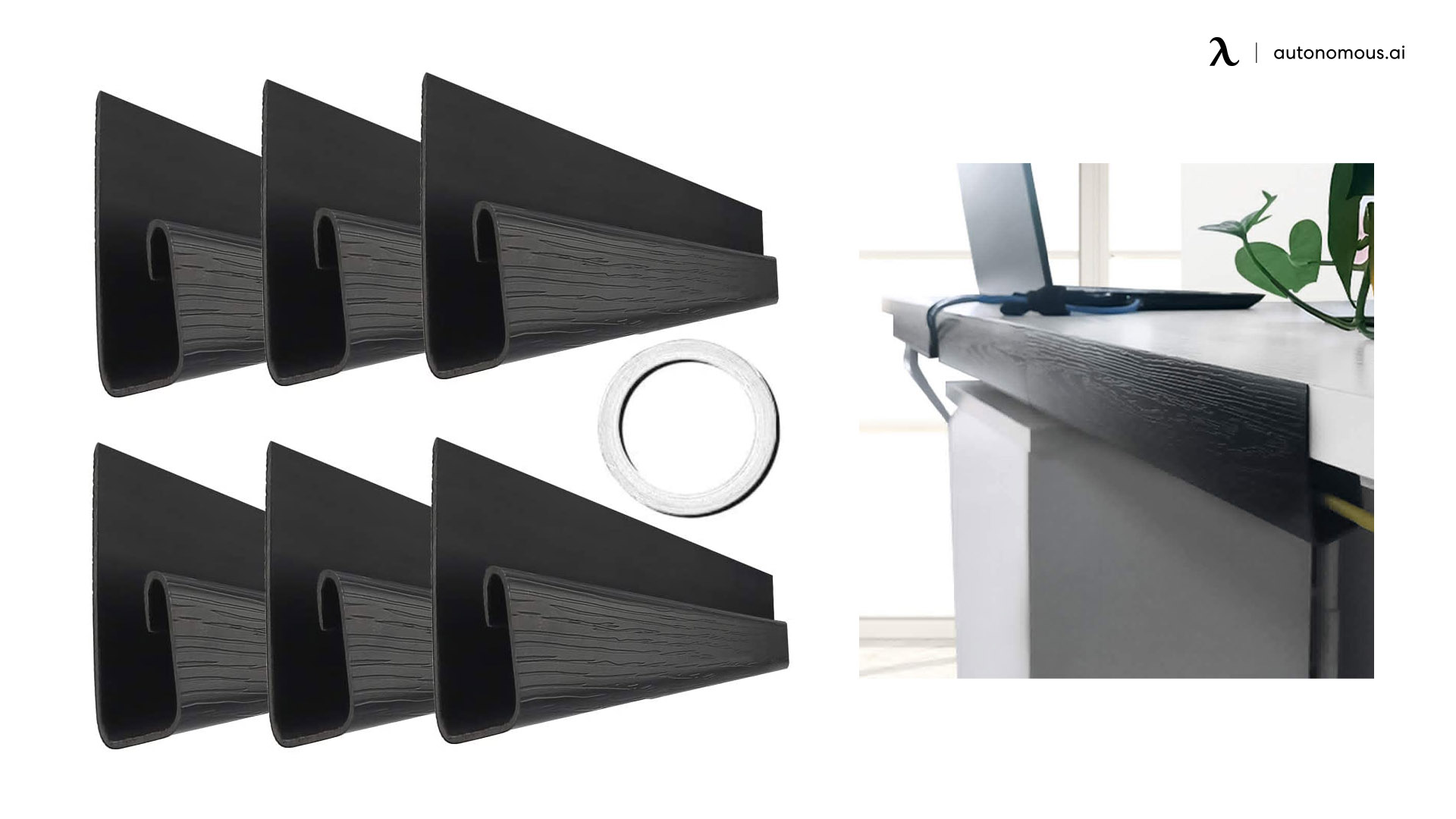
A cable raceway is a channel that guides wires along a wall, a desk leg, or the underside of the top, so they never hang loose or snag during height changes. Adhesive-backed raceways install and reposition easily, and flexible versions bend around corners. By keeping cables on a controlled path, a raceway reduces wear and gives a clean, professional look.
3. Cable sleeves and spiral wraps
Cable sleeves and spiral wraps group several cords into one tidy bundle, cutting visual clutter and protecting individual wires from tangling or fraying. Spiral wraps are especially good on a motorized desk, since they expand and contract as the top moves, so cables never pull or pinch. Leave small gaps or use color coding to tell device types apart at a glance.
4. Velcro straps and reusable zip ties
Velcro straps and reusable zip ties are simple and effective for bundling cables. Velcro is gentle on wires and easy to adjust when you add a device, which suits a setup that changes often. Reusable ties hold bundles neatly inside a tray or raceway, and color-coded ties let you spot power, display, or USB cables quickly during maintenance.
.webp)
5. Retractable cord reels
A retractable cord reel suits devices that move now and then, like a lamp, charger, or printer. The reel contains the cord, prevents tangling, and pulls in the excess length automatically, so the setup stays clean even when you reposition something. On a sit-stand desk, a reel keeps cords from dangling as the top moves between sitting and standing.
6. Monitor arm cable clips
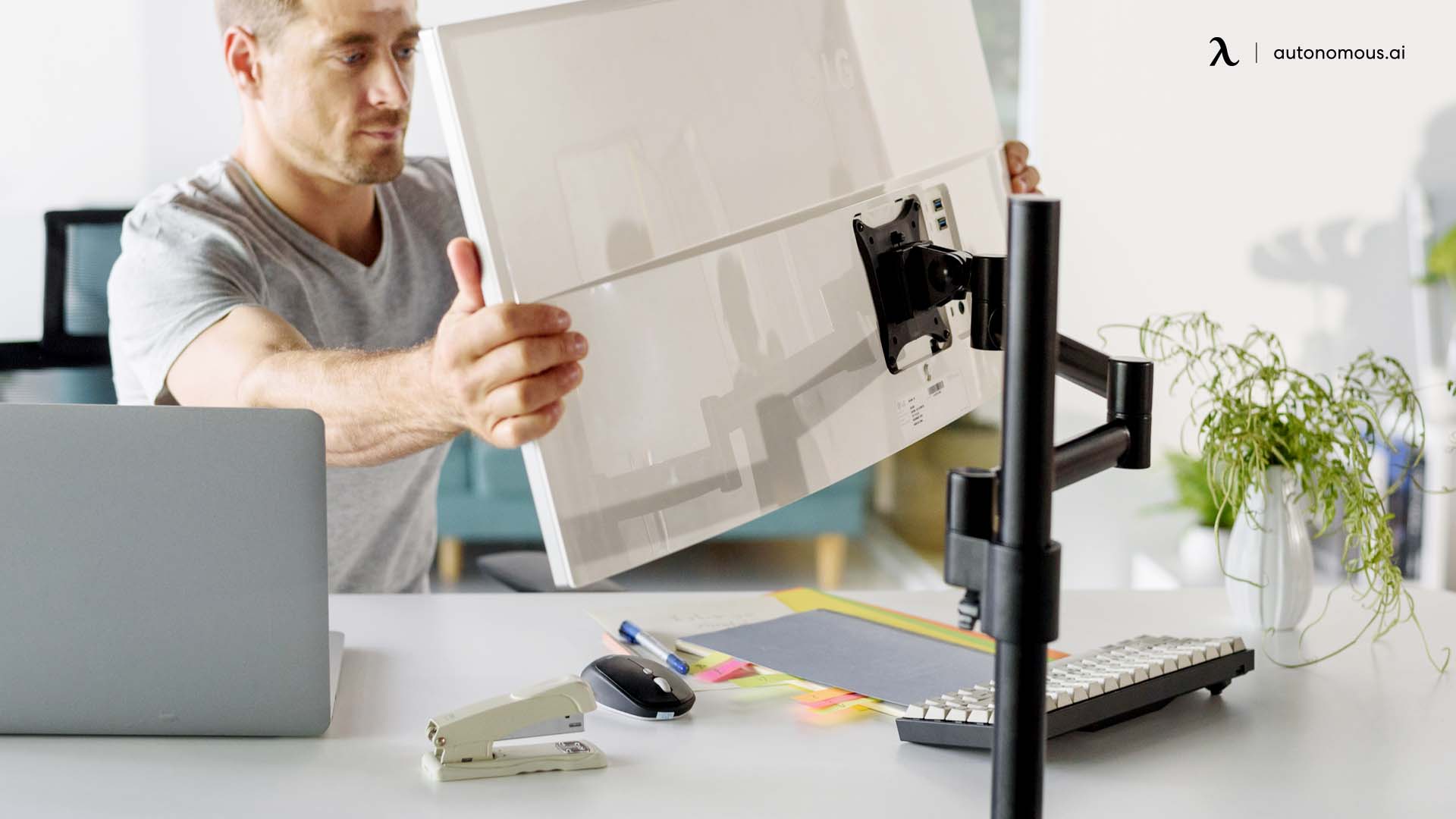
A monitor arm frees your desktop but can leave wires hanging, so clips along the arm keep the cords secured and moving with it as you adjust height or angle. Some arms include integrated cable channels that hide the wires entirely. Either way, the cables stay off the surface, protected from wear, for a clean, minimal look.
7. Wireless peripherals
Going wireless removes cords before you have to manage them. Wireless keyboards, mice, and audio devices cut the cable count, which means fewer tangles, easier desk adjustments, and a more flexible setup. Even a multi-monitor, docking-station rig gets noticeably cleaner when the peripherals go cordless.
8. Magnetic cable organizers
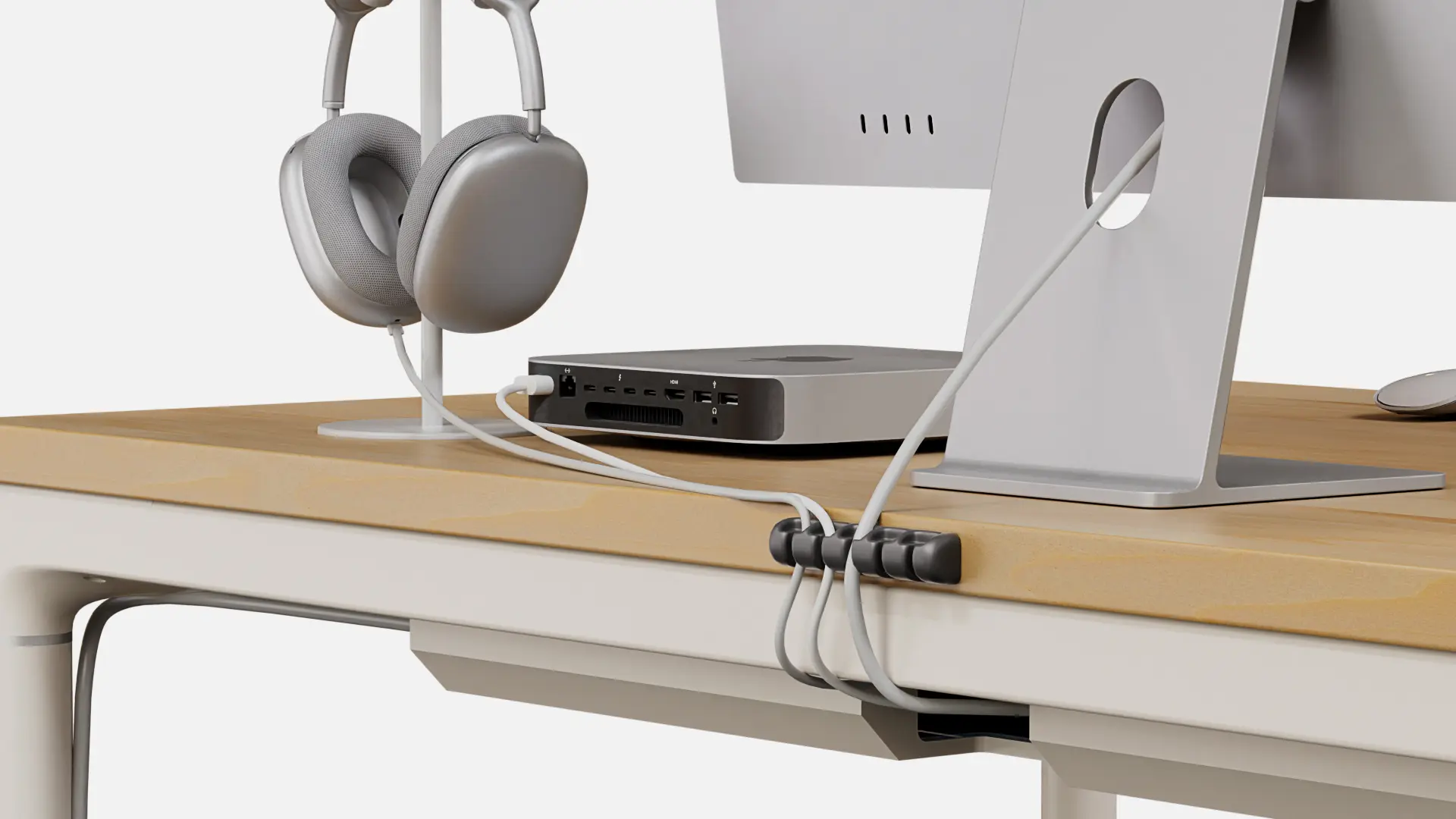
Small magnetic clips hold charging cables, USB cords, or peripheral wires along a desk edge or a metal surface. They keep loose wires aligned, stop tangling, and are easy to move, which makes them a handy cord organizer for a standing desk you reconfigure often.
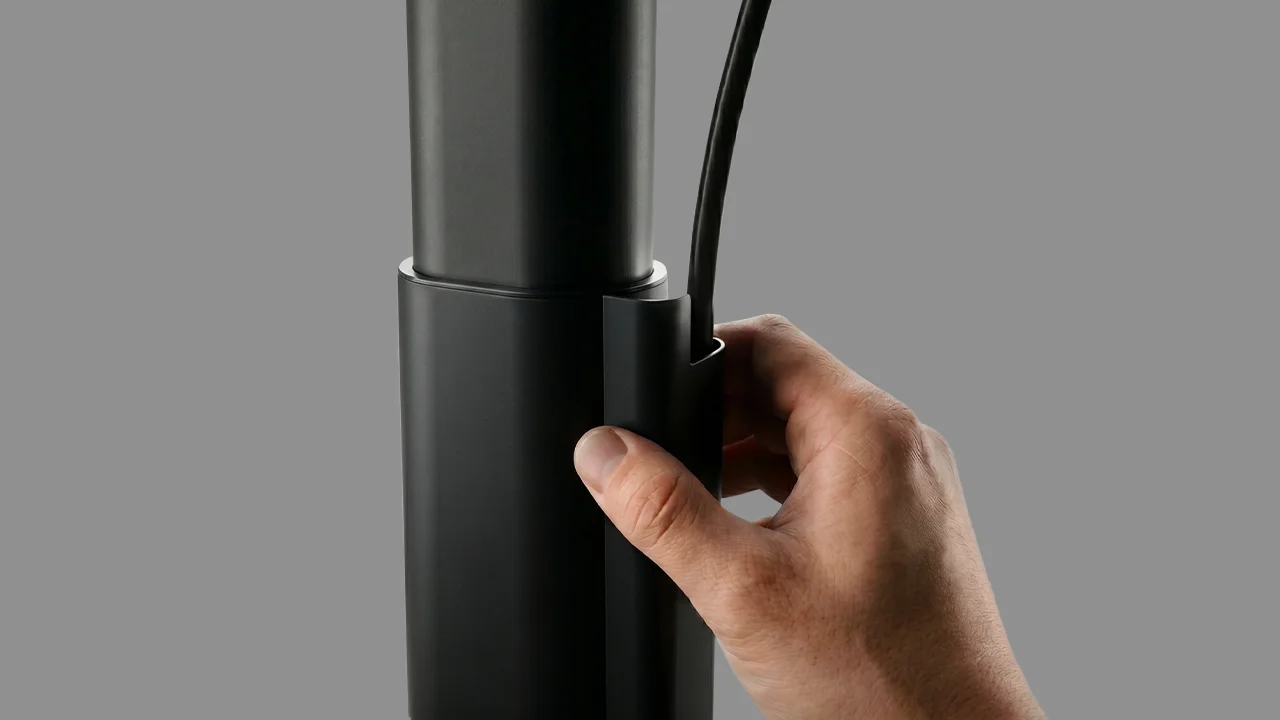
9. Under-desk power hub mounts
Mounting a surge protector or USB hub under the desk centralizes power, protects plugs from accidental disconnection, and keeps cords off the floor. It also makes connecting several devices simpler without adding clutter. Picking the strip itself is its own decision, and standing desk power strips covers what to look for.
10. Desk grommets
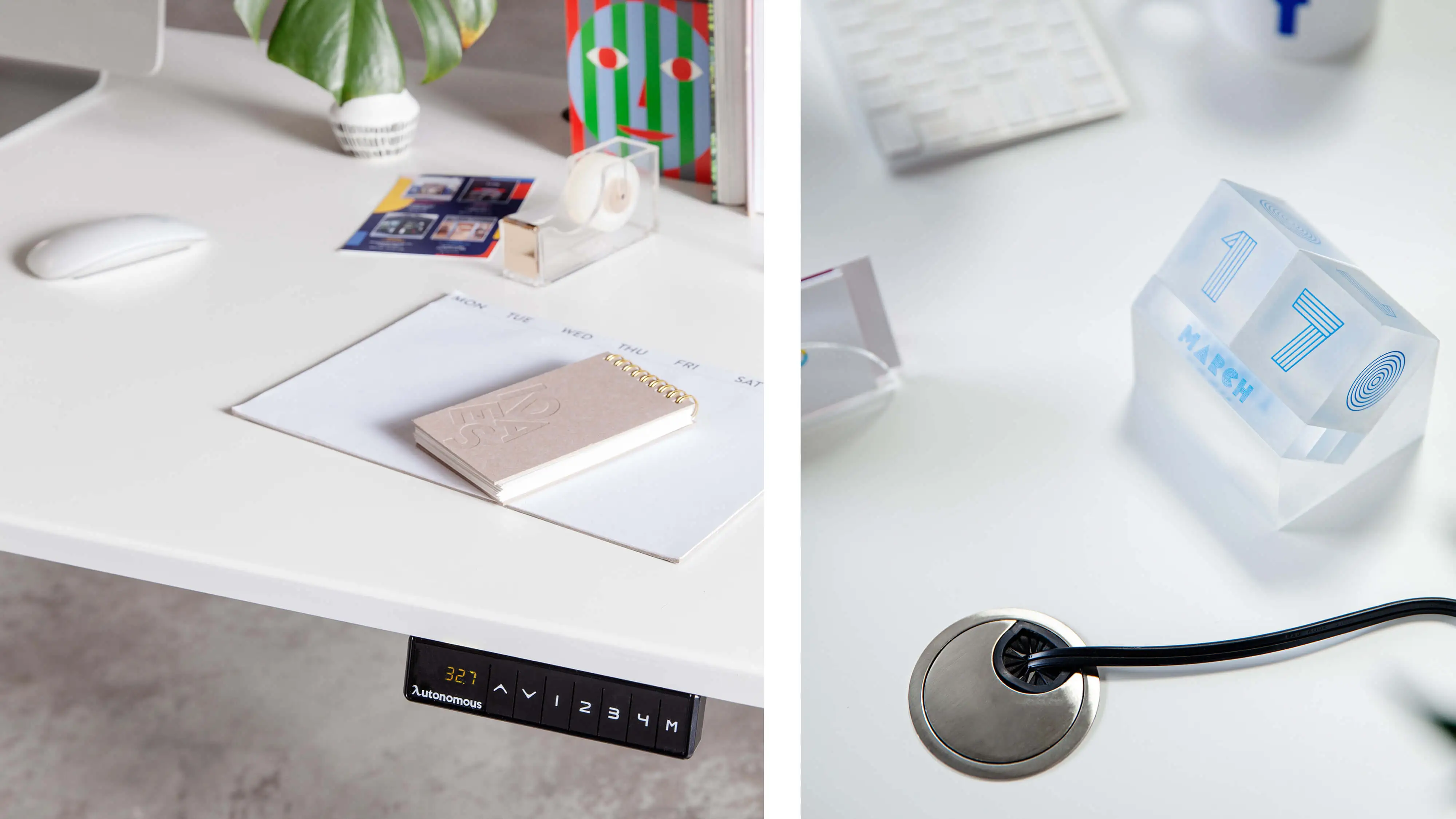
A desk grommet is a small opening in the desktop that lets cables pass cleanly from the surface to underneath, so cords do not spread across the top. Grommets work well for monitors, lamps, and charging cables, keeping wires on a single path while staying easy to reach.
How to set up cable management on your standing desk
Managing cables on a sit-stand desk looks tricky, but a structured approach makes it straightforward. The goal is a cable management desk setup where cords never interfere with the desk's movement, yet stay accessible and tidy.
1. Assess your workspace
Before touching a wire, look at the whole setup. List every device, power cord, and peripheral cable, and note which items move often, like monitors, a laptop, or a charger, and which stay put. Understanding the flow helps you plan routes and decide which wires to bundle, shorten, or reroute.
.webp)
2. Choose the right power hub
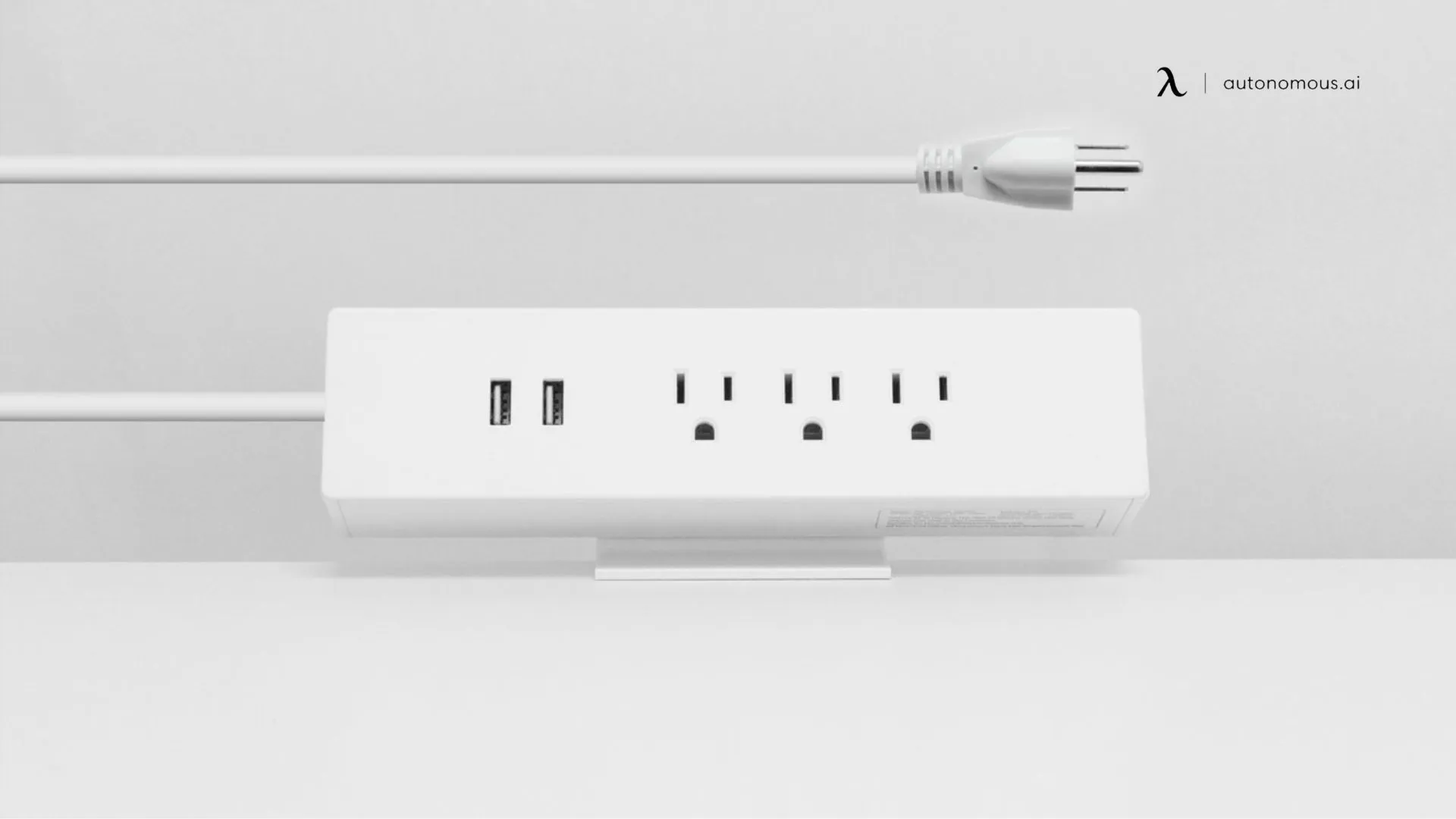
A power strip or surge protector is the center of your plan. Position it where it will not block the desk's height adjustment, and leave enough slack for full travel. Mounting it under the desk or along the back edge keeps it off the floor and cuts cable tension. A model with several outlets and USB ports adds convenience.
3. Use under-desk organization tools
Under-desk trays, raceways, and channels guide cables neatly out of sight, keep them bundled, and make the setup easier to maintain. For a desk with built-in grommets, feed cables through them to route wires cleanly from device to power source. Avoid drilling extra holes in a motorized desk, which can damage the lifting mechanism.
For a triple monitor setup, route each monitor's cables along its arm or into a small dedicated tray, which reduces port tension and keeps the movement smooth.
4. Manage monitor, keyboard, and peripheral cables
A monitor arm installation lifts cables off the surface and adds flexible positioning. For peripherals, choose wireless or short, quality cables, and keep the rest along the arm or the desk edge with clips or adhesive channels so nothing sags. If you run USB hubs, external drives, or a tower, mount them under the desk near the tray to centralize the cables.
5. Bundle, label, and protect
Use Velcro straps, ties, or sleeves to group related cords. Sleeves suit thick power cords, while clips and adhesive mounts handle thinner cables. Label each bundle so you know which cord goes where. Split sleeves let you add or remove a cable without taking everything apart, and leaving a little slack in every tie protects cables from wear.
6. Handle extra or irregular cables
Some cords will not fit a tray or are too short to route neatly. Secure those with adhesive clips or mounts along the desk's back or side, and hide bulky adapters in a mounted holder. For a desk with built-in storage, a standing desk with storage gives you somewhere to tuck away irregular cables and small accessories.
3b463479-3290-404c-ad1d-6853ec654e71.jpg)
7. Test the desk's full movement
Once the cables are routed, raise and lower the desk through its full range to check that nothing is caught or stretched. Adjust where needed, and confirm every cord stays secure while outlets and ports remain easy to reach. A well-organized standing desk setup should feel effortless, with no tangled cords underfoot.
.webp)
8. Keep it consistent
Cable management works best when you maintain it. Check now and then for loose or fraying cords, update bundles as devices change, and keep the space under the desk clean. A color-coding system for power, data, USB, and audio cables makes future changes faster and reduces mistakes when you unplug something.
How to organize the wires behind your desk
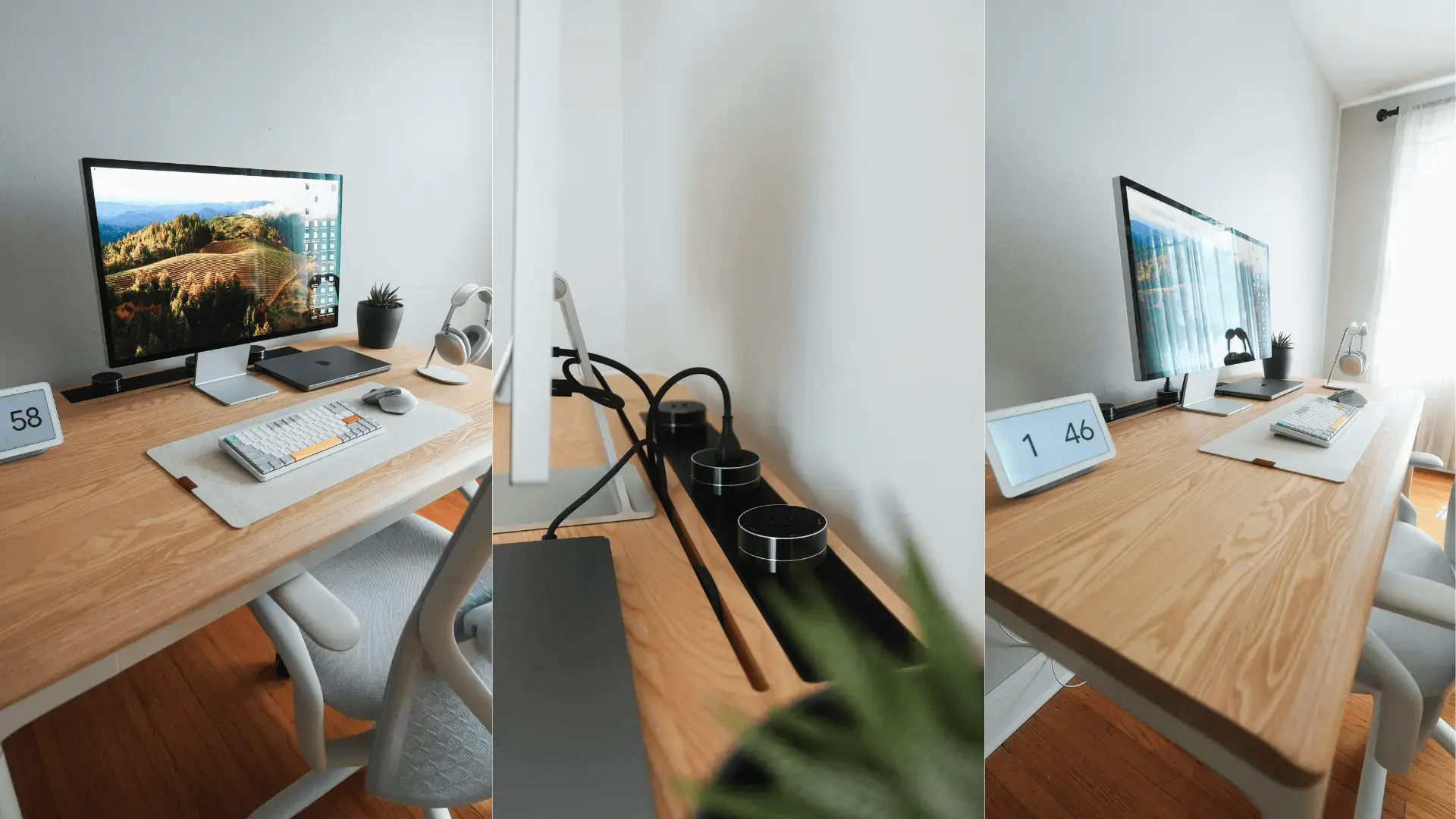
Organizing the wires behind your desk is where a tidy setup is won or lost, since that is where the run to the wall lives. Push the desk close enough to the wall that cords reach the outlet without stretching, then guide the bundle straight down one leg into an under-desk tray rather than letting it fan out across the floor.
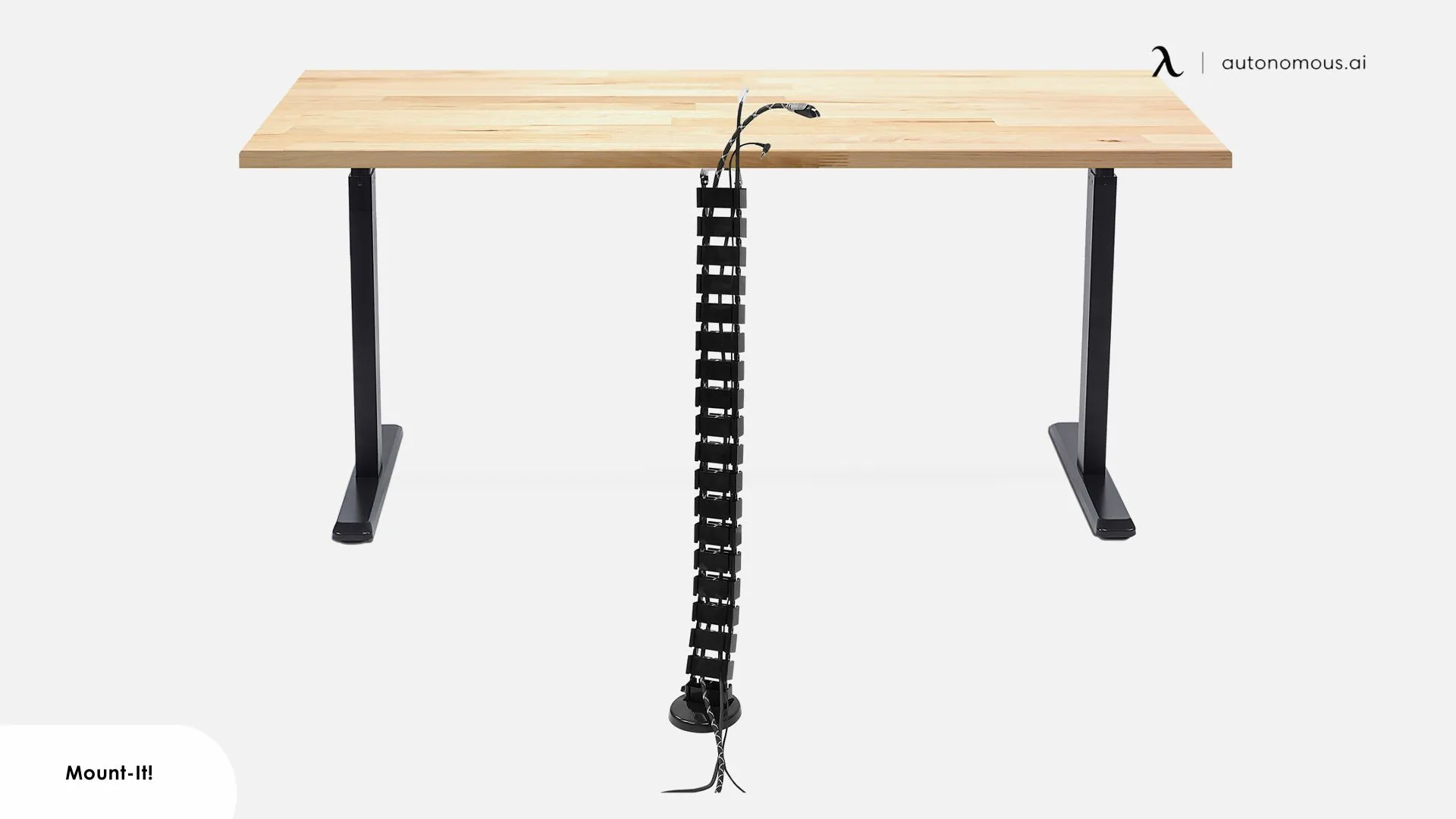
Run a single sleeve or raceway from the tray to the wall outlet so only one visible cord remains, and clip it along the baseboard to keep it off the floor. If your PC sits on the floor, use a cable spine, the flexible chain that hangs from the desk, to carry the bundle up to the moving top so it flexes with every height change, or lift the tower off the floor with a CPU mount so its cables move with the desk.

Benefits of good cable management
Good cable management does more than tidy the look of a standing desk. It improves safety and function across the whole workspace.
- Safety: routed cords stop being trip hazards and stop getting caught when the desk adjusts.
- Equipment protection: bundling and slack reduce strain on wires and connectors, so your PC, monitors, and peripherals last longer.
- Productivity: less time untangling cords means smoother transitions between sitting and standing.
- Cleaner look: trays, spines, and clips keep the workspace tidy and professional.
- Flexibility: a structured system lets you add or move devices and office accessories without redoing everything.
- Less clutter: a clean desk supports focus and makes the workday feel more in control.
FAQs
How do you cable manage a standing desk?
Start by unplugging every device. Mount a power strip under the desk, then route cords through a tray, raceway, or cable spine so they stay bundled and off the floor. Leave enough slack for full height adjustment, and secure loose cables with Velcro ties, clips, or sleeves. Planning the layout first keeps it tidy and safe.
How do I hide the cords on my standing desk?
Use an under-desk cable tray, a cable spine, or magnetic clips to keep cords off the floor and out of sight, and bundle them with sleeves or Velcro ties along the underside or legs. Switching a keyboard, mouse, and charger to wireless removes visible cords for a cleaner, more minimalist desk setup.
How do you manage cables under a desk?
Separate power and data cords, mount a power strip, and route the wires through trays, spines, or clips. Bundle related cables with sleeves or ties, and leave slack for anything that moves with the desk. Check now and then for loose or tangled wires so the setup stays organized over time.
How do I cable manage a standing desk with a PC on the floor?
Use a cable spine or raceway to guide the cords from the desk down to the PC, keeping the bundle secured along a desk leg with ties or a sleeve so nothing tangles or trips you. Leave enough slack for the desk to rise and lower, and keep the PC's ports easy to reach.
What is the best standing desk for cable management?
The best desks build in grommets, a tray, or in-frame power outlets, so the wiring is handled at the source. Autonomous desks pair with an under-desk cable tray and route power neatly. For specific picks, the best standing desks with cable management roundup compares models.
What are some DIY desk cable management ideas?
You can manage cables with household items: binder clips to guide cords over a desk edge, a labeled toilet-roll tube to separate bundles, or an old box as a hidden power-strip holder. The DIY cable management guide collects more household-item fixes for a tidy desk on a budget.
Conclusion
Cable management for a standing desk does not have to be overwhelming. Plan the setup, use under-desk trays, a cable spine, or clips, bundle wires with a little slack, and route the run behind the desk down to a single cord at the wall. Whether your PC sits on the floor or you run several monitors, a tidy setup keeps cords out of sight and the desk free to move.
Take a little time to plan and fit the right solutions, and you get a clean, safe, and flexible workspace that stays that way, with cords out of sight and the desk free to move.
References
- Occupational Safety and Health Administration (OSHA). Walking-Working Surfaces and Slip, Trip, and Fall Prevention. https://www.osha.gov/walking-working-surfaces
- Cornell University Ergonomics Web. Office Ergonomics Guidelines. https://ergo.human.cornell.edu/