.svg)


.webp)
How to Connect Magic Mouse to Windows & Enable Scroll

Table of Contents
Connecting a Magic Mouse for Windows takes under two minutes. But most users run into the same problem immediately after: the cursor moves, and nothing else works. No scroll. No gestures. That's not a setup error — it's how Windows handles the Magic Mouse by default.
This guide covers exactly how to connect Magic Mouse to Windows on both Windows 10 and 11, which driver to install based on your needs, and how to fix the issues that come up after pairing.
Before You Start: What You'll Actually Need
Three things need to be in place before pairing. Skipping this check is the most common reason setup fails halfway through.
- Bluetooth adapter (4.0 or higher):
Most laptops built after 2015 have Bluetooth built in. Desktop PCs often don't. If yours doesn't, a USB Bluetooth dongle rated 4.0 or higher is required — older adapters cause pairing failures and random disconnects. Bluetooth 5.0 dongles are widely available and work more reliably with newer Magic Mouse models.
- A charged Magic Mouse:
A Magic Mouse 2 or 3 with low battery will pair but disconnect within minutes. Charge it via Lightning or USB-C before starting — charging times vary by model, see how long to charge Magic Mouse if needed. One important note for Magic Mouse 3 (USB-C model): the mouse cannot enter pairing mode while plugged in. Unplug it before attempting to connect.
- An Apple Magic Mouse driver for Windows — chosen before you start:
This is the step most guides skip. Windows does not natively support the Magic Mouse touch surface. After pairing, cursor movement works, but scroll and gestures will not — until a driver is installed. There are three options:
Driver Option | Cost | Scroll | Gestures | Windows 11 |
BootCamp (AppleWirelessMouse64.exe) | Free | Basic vertical only | ✗ | Limited |
Open-source GitHub driver | Free | Vertical + horizontal | Partial | ✓ |
Magic Utilities | ~$20/year | Smooth + momentum | Full | ✓ |
Choose your driver path before starting. The pairing steps are the same regardless of which option you go with — driver installation comes after.
How to Connect Magic Mouse to Windows 10 and 11
Pairing a Magic Mouse to a Windows PC is done through the standard Bluetooth settings menu. The steps differ slightly between Windows 10 and 11 due to UI changes — use the path that matches your version.
Windows 11 — How to Pair Magic Mouse via Bluetooth
On Windows 11, Magic Mouse pairs through the Bluetooth & devices settings menu — the process takes under two minutes and requires no additional software for basic cursor movement.
- Open Settings and select Bluetooth & devices
- Toggle Bluetooth On
- Flip the switch on the bottom of the Magic Mouse to the green position — the indicator light will blink, signaling the mouse is in pairing mode
If the mouse was recently used on a Mac: It may attempt to reconnect to that device instead of entering pairing mode. Power it off, wait five seconds, then power it back on. The indicator light should begin blinking.
- Click Add device, then select Bluetooth
- When "Magic Mouse" appears in the list, click it to complete pairing
Alternative path: Click the network, sound, or battery icon in the bottom-right corner of the taskbar to open Quick Settings, then select the Bluetooth tile to turn it on — then return to full Settings to add the device.
Windows 10 — How to Pair Magic Mouse via Bluetooth
On Windows 10, Magic Mouse connects through the Bluetooth & other devices settings page, which uses a slightly different menu structure than Windows 11.
- Open Settings and select Devices
- Click Bluetooth & other devices and toggle Bluetooth On
- Flip the switch on the bottom of the Magic Mouse to the green position — the indicator light will blink, signaling pairing mode
If the mouse was recently used on a Mac: Power the mouse off, wait five seconds, then power it back on before continuing.
- Click Add Bluetooth or other device, then select Bluetooth
- When "Magic Mouse" appears in the list, click it to complete pairing
If a PIN prompt appears during pairing, enter 0000. If the mouse doesn't appear in the scan after 30 seconds, power it off and back on to refresh the signal.
If Magic Mouse appears under "Other devices" instead of "Mouse, keyboard & pen" after pairing, it will not function correctly. Remove it from "Other devices," re-enable Bluetooth, and re-pair. This is covered in the troubleshooting section below.
After pairing on either version: Cursor movement works immediately. Scroll and gestures will not work yet — this is expected behavior, not a setup error. Windows treats the Magic Mouse as a standard Bluetooth mouse until a driver is installed. Proceed to the next section to choose and install the right driver for your needs.
A not for laptop users — prevent Bluetooth disconnections:
After pairing, open Device Manager → Bluetooth → [your adapter name] → Properties. If a Power Management tab is visible, uncheck "Allow the computer to turn off this device to save power." Without this, Windows may cut the Bluetooth connection during inactivity, causing the mouse to disconnect repeatedly.
How to Install Magic Mouse Drivers on Windows
Windows does not natively support the Magic Mouse touch surface. After pairing, the Apple Magic Mouse driver for Windows is what enables scroll and gestures — without one, only basic cursor movement and clicking will work.
There are three driver options. Each has a different cost, feature set, and level of Windows 11 compatibility. Choose based on your OS version and how much gesture functionality you need.
Option 1 — BootCamp Driver (Free, Windows 10)
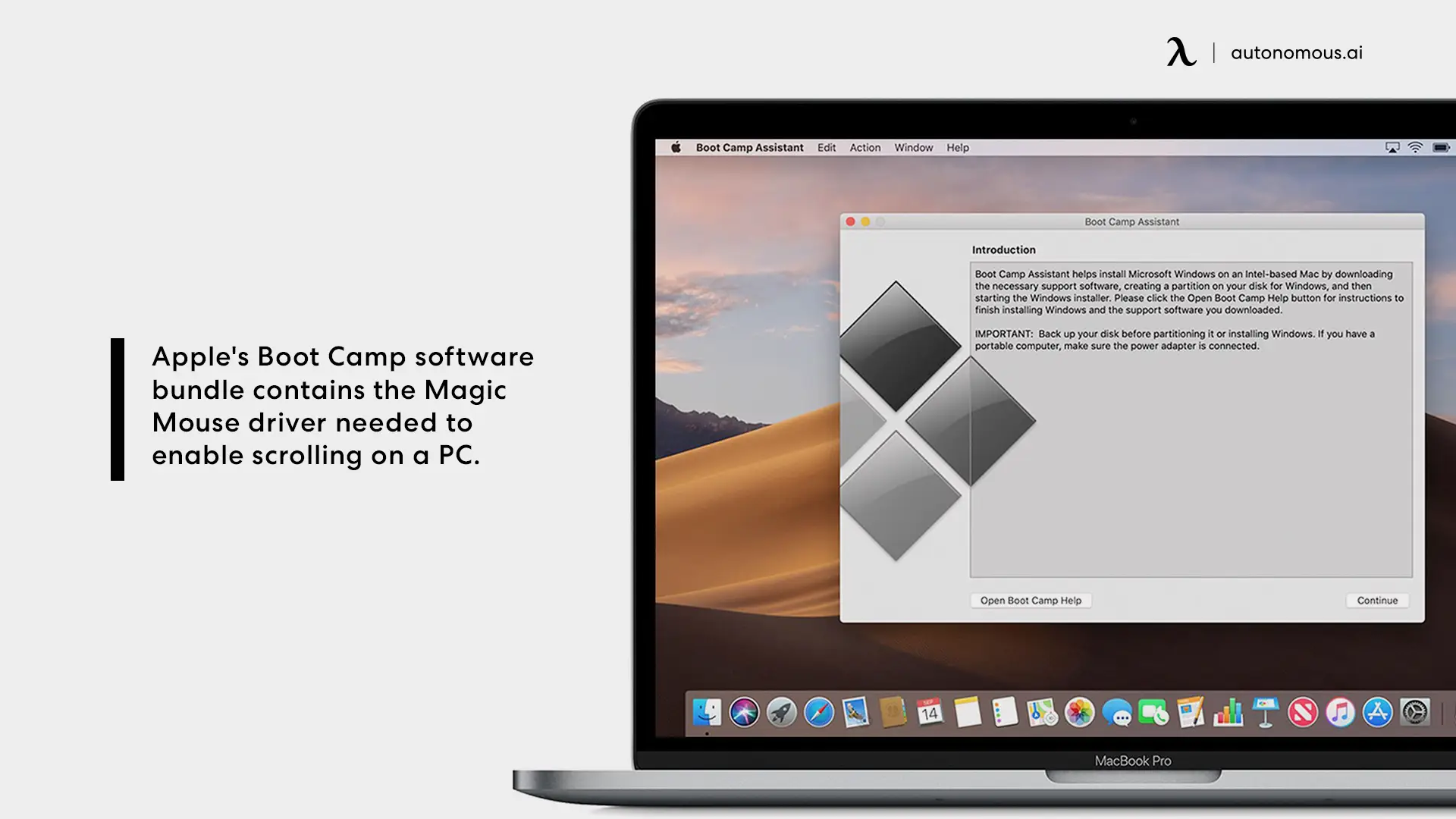
Apple's BootCamp package includes a driver file that enables basic vertical scrolling on Windows. It is the longest-standing free solution, though its reliability on Windows 11 is limited.
Important: Apple's original BootCamp download link (DL1837) is no longer reliably available. The recommended way to obtain the package is through Brigadier — an open-source command-line tool that pulls BootCamp driver packages without requiring a Mac. Download it from its GitHub repository (search: Brigadier GitHub) and run it to generate the driver folder.
Installation steps:
- Extract the BootCamp package
- Navigate to BootCamp\Drivers\Apple\
- Run AppleWirelessMouse64.exe as administrator
- Restart your PC
- Re-pair the Magic Mouse if the connection drops after restart
What this driver enables: Basic vertical scroll on Windows 10. No horizontal scroll, no gesture customization, no battery percentage display.
When to use it: Windows 10 only, and only if you need to scroll without committing to a paid subscription.
Option 2 — Open-Source GitHub Driver (Free, Windows 10 and 11)
The Magic Mouse 2 Utilities driver is a free, open-source option maintained on GitHub that goes beyond what BootCamp offers — without a subscription.
Search "Magic Mouse 2 Utilities GitHub" to locate the repository and download the latest release .exe.
Installation steps:
- Download the release file from the GitHub repository
- Run the installer as administrator
- Restart your PC
- The mouse will connect automatically on next use
What this driver enables: Vertical and horizontal scroll, battery percentage display in the Windows taskbar.
What it does not enable: Momentum scrolling, virtual desktop gestures, gesture customization.
When to use it: Windows 10 or 11 users who need functional scroll and battery monitoring without a paid tool. Some users report inconsistent scroll direction behavior — if that occurs, Magic Utilities is the next step.
Option 3 — Magic Utilities (Paid, Windows 10 and 11)
Magic Utilities is a paid third-party application that provides the most complete gesture support available for the Apple Magic Mouse on Windows. It costs approximately $20 per year and includes a 28-day free trial.
Installation steps:
- Download from magicutilities.net
- Install and follow the on-screen setup
- Pair the Magic Mouse through the Magic Utilities interface — not through Windows Bluetooth settings directly
- Restart your PC
What this driver enables: Smooth vertical and horizontal scroll, momentum scrolling, virtual desktop swipe, battery percentage display, and a gesture customization interface.
When to use it: Windows 11 users, anyone who tried BootCamp or the GitHub driver and scroll is still not working, or users who want full macOS-equivalent gesture behavior on Windows.
What Gestures Work on Magic Mouse in Windows
The driver installed on your system determines what the Magic Mouse touch surface can do on Windows. Without a driver, Windows sees the touch surface as inactive — only the physical click buttons respond.
The table below maps every gesture to each driver option so you know exactly what you have access to before and after installation.
Gesture | No Driver | BootCamp | GitHub Driver | Magic Utilities |
Cursor movement | ✓ | ✓ | ✓ | ✓ |
Left click | ✓ | ✓ | ✓ | ✓ |
Right click | ✓ (may vary) | ✓ | ✓ | ✓ |
Vertical scroll | ✗ | ✓ basic | ✓ | ✓ smooth |
Horizontal scroll | ✗ | ✗ | ✓ | ✓ |
Momentum scrolling | ✗ | ✗ | ✗ | ✓ |
Battery % in Windows | ✗ | ✗ | ✓ | ✓ |
Virtual desktop swipe | ✗ | ✗ | ✗ | ✓ |
Gesture customization | ✗ | ✗ | ✗ | ✓ |
Right-click without a driver: Some Windows configurations recognize the right side of the Magic Mouse surface as a right-click natively after pairing. Others do not. If right-click isn't working, installing any of the three drivers covered in the previous section will resolve it.
Momentum scrolling — where the page continues to drift after a swipe — is exclusive to Magic Utilities. BootCamp and the GitHub driver produce functional scroll but stop the moment your finger lifts.
- Adjusting Scroll and Gesture Settings
Once a driver is installed, two settings are worth adjusting regardless of which option you chose.
Scroll direction: Magic Utilities and the GitHub driver both default to natural scrolling — the same direction as macOS. If you prefer the traditional Windows scroll direction, reverse it in the driver's settings panel.
Mouse acceleration: Windows applies mouse acceleration by default, which changes cursor speed based on how fast you move the mouse., which changes cursor speed based on how fast you move the mouse. This can make the Magic Mouse feel inconsistent, particularly during precise tasks. To turn it off: press Win + R, type control, and press Enter → go to Hardware and Sound → Mouse → Pointer Options tab → uncheck "Enhance pointer precision" → click Apply. This path works on both Windows 10 and 11 regardless of build version.
Magic Mouse 3 (USB-C model) note: All gestures in the table above apply equally to Magic Mouse 3. There is no difference in gesture capability between models — driver compatibility is the same across Magic Mouse 2 and 3 on Windows.
Troubleshooting Magic Mouse on Windows
Most Magic Mouse issues on Windows fall into two categories: Bluetooth connection failures and driver problems. The table below covers the most common failure points, their causes, and the fix for each.
Issue | Likely Cause | Fix |
Magic Mouse not showing up in Bluetooth scan | Mouse not in pairing mode, or still bonded to a Mac | Turn the mouse off, wait 5 seconds, then turn it back on. If recently used on a Mac, forget the device in macOS first: System Settings → Bluetooth → Magic Mouse → Forget This Device, then re-power the mouse |
Cursor moves but scroll doesn't work | No driver installed, or driver didn't apply correctly | Install one of the three drivers covered above. Restart the PC after installation. If scroll was working and stopped, reinstall the driver |
Mouse appears under "Other devices" instead of "Mouse, keyboard & pen" (Windows 10) | Windows assigned the wrong device class during pairing | Remove the device, toggle Bluetooth off and on, then re-pair. Make sure it appears under Mouse, keyboard & pen before installing a driver |
Gestures not working after driver installation | Driver installed before pairing was complete, or driver conflict | Remove the mouse from Bluetooth devices, uninstall the driver, restart, re-pair first, then reinstall the driver |
Mouse disconnects randomly | Bluetooth power management cutting the connection | Open Device Manager → Bluetooth → adapter Properties → Power Management, then uncheck Allow the computer to turn off this device to save power |
Lag or delayed cursor response | Bluetooth interference or outdated adapter | Move the mouse closer to the PC. Remove other active Bluetooth devices temporarily. If the adapter is older than Bluetooth 4.0, a USB dongle upgrade will improve stability |
Magic Mouse won't re-pair after being plugged into a Mac | USB-C or Lightning connection rebonded the mouse to macOS | On macOS: System Settings → Bluetooth → Magic Mouse → Forget This Device. Power the mouse off and back on — the indicator light will blink, signaling it's ready to pair with Windows again |
If the Issue Persists After Troubleshooting
A driver conflict is the most common reason problems continue after following the steps above. Before reinstalling, remove all previous driver traces cleanly.
Full reset sequence:
- Remove Magic Mouse from Settings → Bluetooth (or Settings → Devices on Windows 10)
- Open Device Manager → Mice and other pointing devices — uninstall any entry labeled "Apple Wireless Mouse" or "HID-compliant mouse" associated with the Magic Mouse
- If Magic Utilities is installed, uninstall it fully from Control Panel → Programs
- Restart the PC
- Re-pair the mouse through Bluetooth settings
- Reinstall your chosen driver
This sequence clears conflicting driver entries that a simple reinstall won't remove. Most persistent issues — including scroll working intermittently or gestures registering incorrectly — resolve after a clean reinstall following these steps.
FAQs
Can I connect an Apple Magic Mouse to Windows?
Yes, you can connect an Apple Magic Mouse to Windows 10 and Windows 11 via Bluetooth. Basic cursor movement and clicking work immediately after pairing without additional software. However, scrolling and gestures require a driver such as BootCamp, the open-source GitHub driver, or Magic Utilities.
How do I put my Magic Mouse into pairing mode?
To put a Magic Mouse into pairing mode, flip the switch on the bottom of the mouse to the green position. The indicator light will blink, signaling the mouse is discoverable — if the light does not blink and stays solid or off, power the mouse off, wait five seconds, and power it back on.
Does Magic Mouse scroll on Windows?
No, Magic Mouse scrolling does not work on Windows immediately after pairing. Windows treats it as a standard Bluetooth mouse and does not recognize the touch surface natively. To enable scrolling, install a compatible driver such as BootCamp or the GitHub driver. Full gesture support requires Magic Utilities.
Does Magic Mouse work with Windows 11?
Yes, Magic Mouse works with Windows 11 via Bluetooth, just like on Windows 10. However, the BootCamp driver has limited compatibility on Windows 11. For more reliable scrolling and gestures, the GitHub driver or Magic Utilities are better options.
Which driver should I use for Magic Mouse on Windows?
The best driver depends on your needs. For Windows 10 and basic scrolling, the free BootCamp driver is sufficient. For Windows 11 or free features like horizontal scroll and battery display, use the open-source GitHub driver. For full gesture support, Magic Utilities is the most complete option
How do I connect Apple Magic Mouse to a Windows laptop?
Connecting Magic Mouse to a Windows laptop follows the same Bluetooth pairing steps as a desktop PC. After pairing, go to Device Manager → Bluetooth → your adapter's Properties → Power Management tab and uncheck "Allow the computer to turn off this device to save power" — this prevents the laptop from cutting the Bluetooth connection during inactivity.
How do I right-click on a Magic Mouse in Windows?
To right-click on a Magic Mouse in Windows, press the right side of the mouse surface. This usually works after Bluetooth pairing. If it does not respond, installing a compatible driver will enable right-click functionality reliably.
Why won't my Magic Mouse connect to Windows?
A Magic Mouse usually won’t connect to Windows because it is still paired with a Mac. Remove it from macOS Bluetooth settings by selecting “Forget This Device,” then power the mouse off and back on to re-enter pairing mode. If no Mac is involved, restart Bluetooth and try pairing again.
Why is Magic Mouse connected to Windows but not scrolling?
A Magic Mouse that connects but does not scroll on Windows is missing a driver or has an incorrect driver installed. Windows pairs it as a generic device, so the touch surface does not work by default. Install a compatible driver and restart your PC to restore scrolling.
Does Magic Mouse 3 (USB-C) work on Windows?
Yes, Magic Mouse 3 works on Windows the same way as Magic Mouse 2 using Bluetooth. It supports the same drivers and features. However, it cannot enter pairing mode while charging, so unplug it before connecting.
Can I use Magic Mouse on Windows without Boot Camp?
Yes, you can use Magic Mouse on Windows without Boot Camp. The mouse connects via Bluetooth on any Windows 10 or 11 PC. Boot Camp is only one driver option — the GitHub driver and Magic Utilities also enable scrolling and gestures without needing Boot Camp.
Conclusion
Setting up Magic Mouse on Windows comes down to three steps: pair via Bluetooth, install the right driver for your needs, and adjust scroll direction if needed. Basic cursor movement works immediately after pairing. Everything beyond that — scroll, gestures, battery display — depends on which driver you choose.
For Windows 10, the free BootCamp driver covers most needs. For Windows 11 or full gesture support, the GitHub driver or Magic Utilities are the stronger options.
If anything stops working, the troubleshooting section above covers every common failure point.
If you're still weighing whether the Magic Mouse is the right fit, comparing it against other types of mouse or reviewing optical vs. laser mouse differences can help. For those who also work on macOS, using an iPhone as a mouse for Mac is a separate option worth knowing about.

Stay connected with us!
Subscribe to our weekly updates to stay in the loop about our latest innovations and community news!
Interested in a Link Placement?