Dual Curved Monitor Setup: Best Layout and Setup Guide

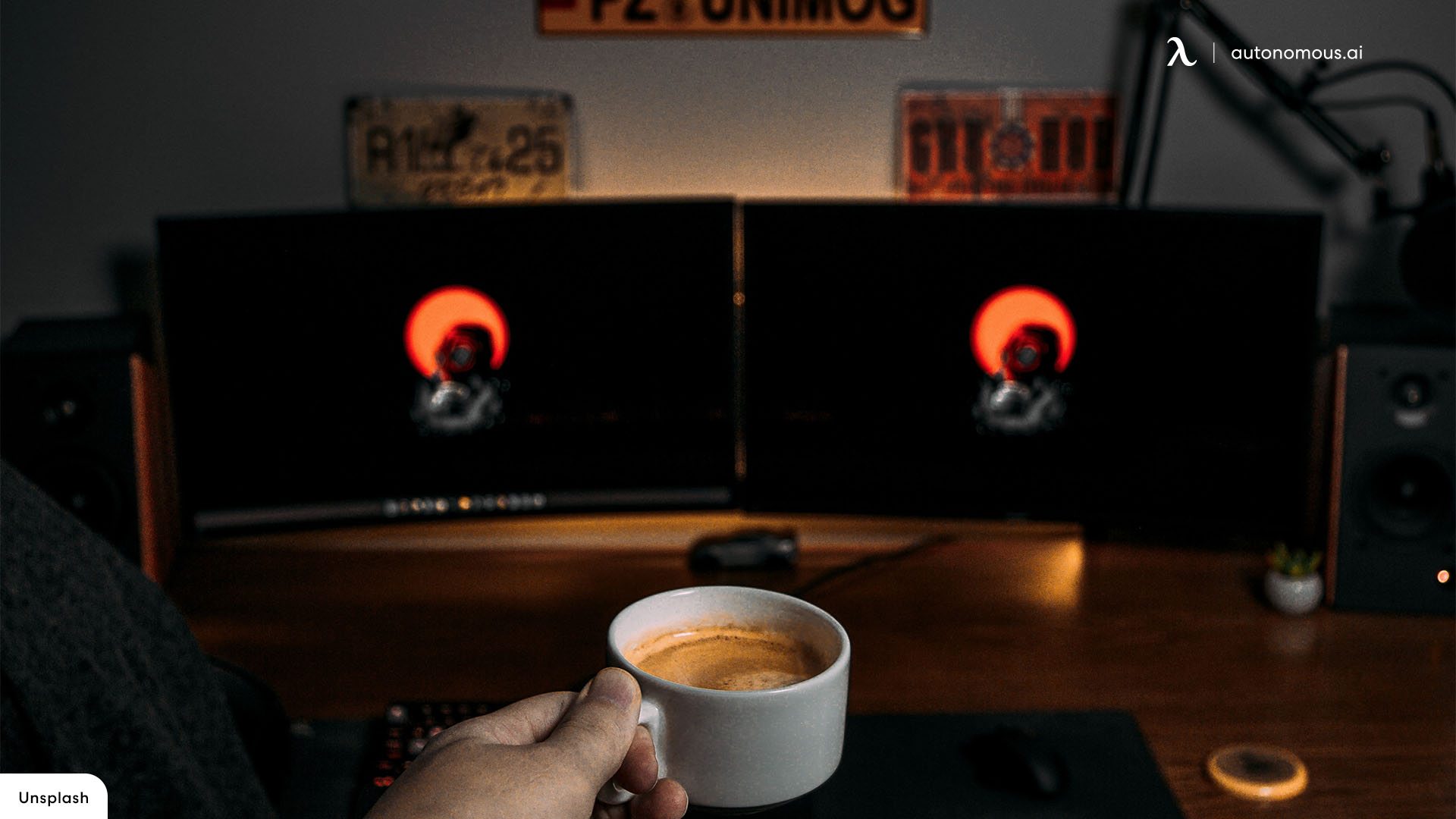
A dual curved monitor setup uses two curved displays to create a wider and more immersive workspace. It is popular for multitasking, gaming, and long work sessions because it reduces the need to switch between windows.
If you are considering a dual curved monitor setup, the key questions are simple: how to arrange it properly, whether curved screens are better than flat ones, and what desk setup actually improves comfort and productivity. This guide answers those questions and shows how to set up dual curved monitors correctly.
What is a dual curved monitor setup?
A dual curved monitor setup is a workstation that uses two curved displays positioned side by side, angled toward the user to match natural viewing distance.
Curved monitors are designed to follow the shape of your field of vision. When used together, they create a more continuous visual experience compared to flat screens. This setup helps reduce edge distortion and keeps both screens within a more comfortable viewing angle.
The result is a workspace that feels more connected, especially when working across multiple applications at the same time.
Are dual curved monitors better than flat monitors?
Dual curved monitors are better for immersion and wide workflows, while flat monitors are better for precision and straight-line accuracy.
Curved displays reduce the distance between your eyes and the edges of the screen. This can make long sessions more comfortable because your eyes do not need to refocus as much when moving across the display.
Flat monitors, however, are often preferred for tasks that require strict alignment, such as design or drafting. Straight lines remain visually consistent, which matters in those cases.
Setup Type | Best For |
Dual curved monitors | Immersion, multitasking, gaming |
Dual flat monitors | Precision work, design tasks |
Mixed setup | Flexibility and experimentation |
Choosing between curved and flat is less about which is better overall and more about which fits your type of work.
Best dual curved monitor layouts
The best dual curved monitor setup depends on how you position the screens relative to your eyes and desk space.
1. Side-by-side layout
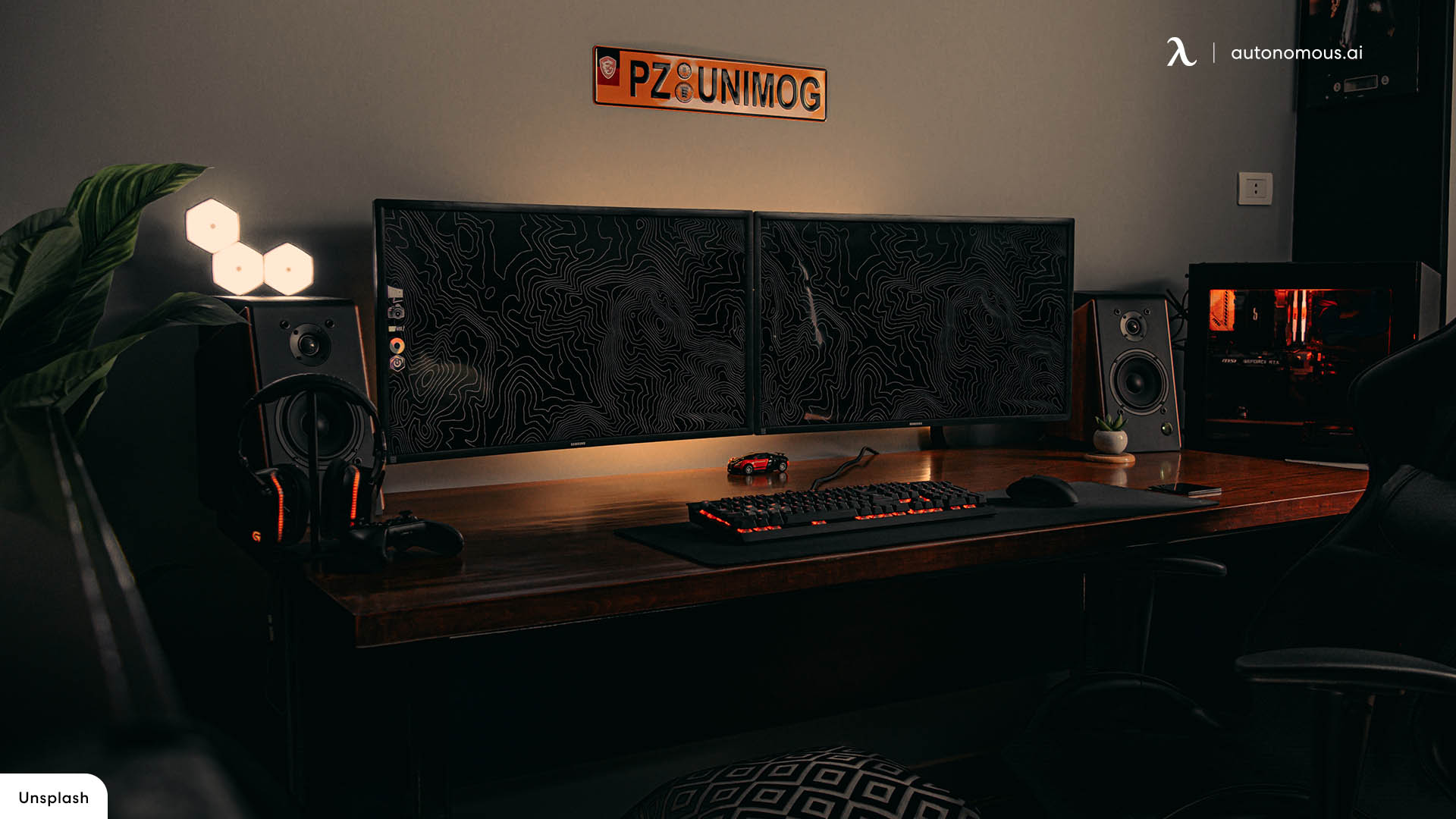
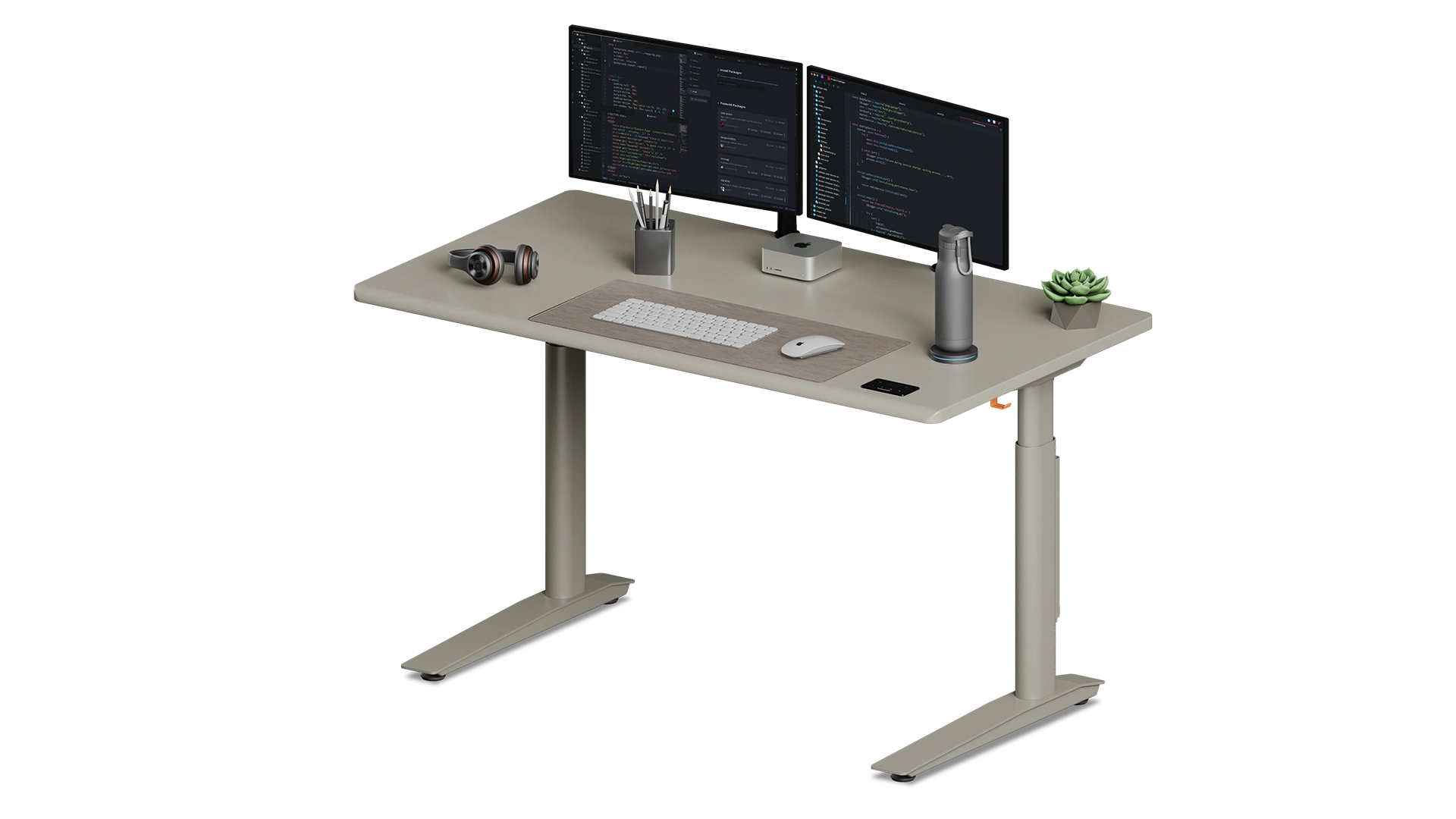
A side-by-side layout places both monitors next to each other with a slight inward angle.
This is the most common dual monitor setup because it keeps both screens within your field of view. It works well for multitasking and general productivity, allowing you to move between windows naturally.
2. Angled layout
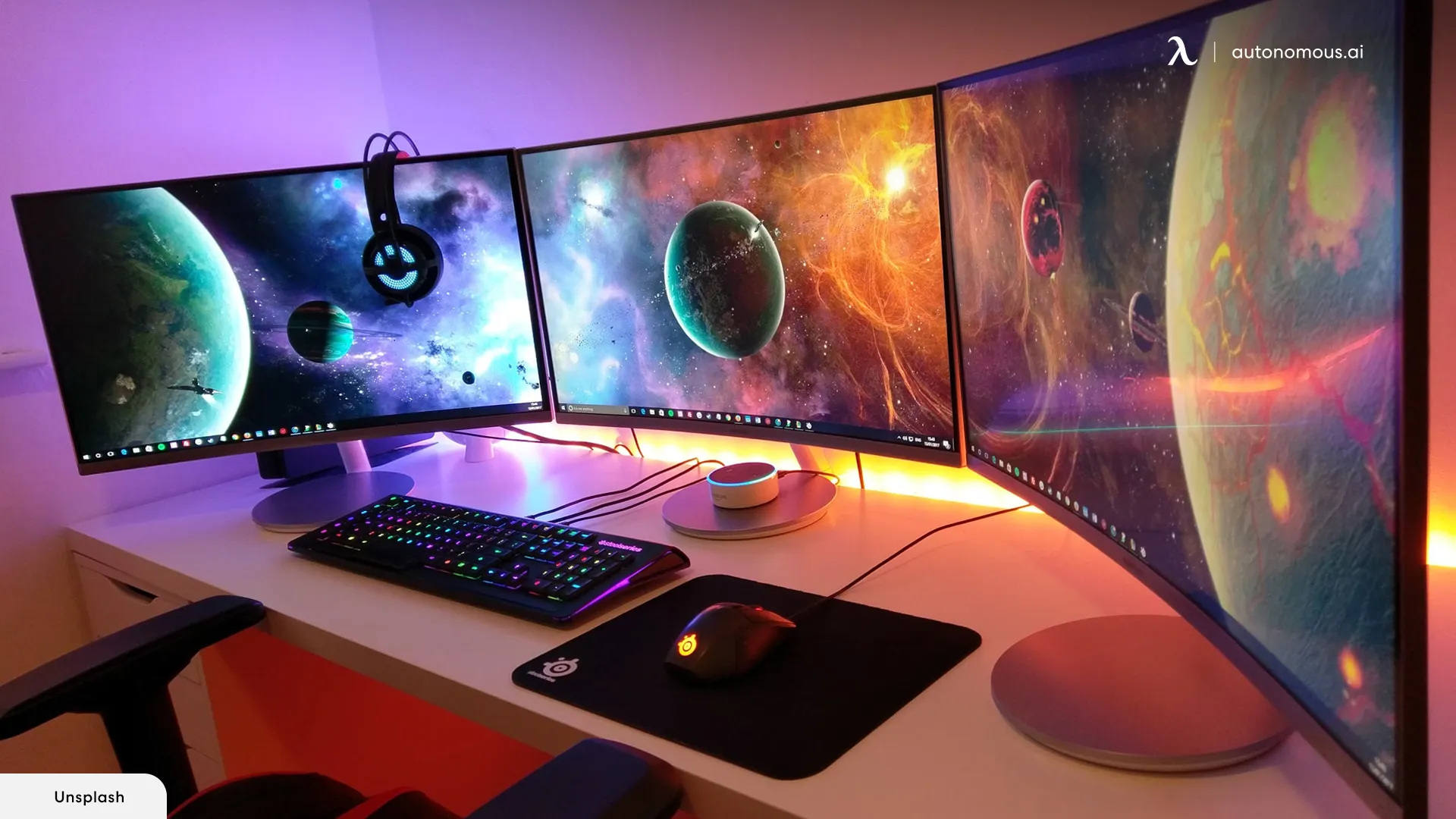
An angled layout positions both monitors in a gentle curve around your seating position.
This setup improves ergonomics by reducing head movement. It is especially useful for long work sessions where comfort matters more than screen symmetry.
3. Stacked layout
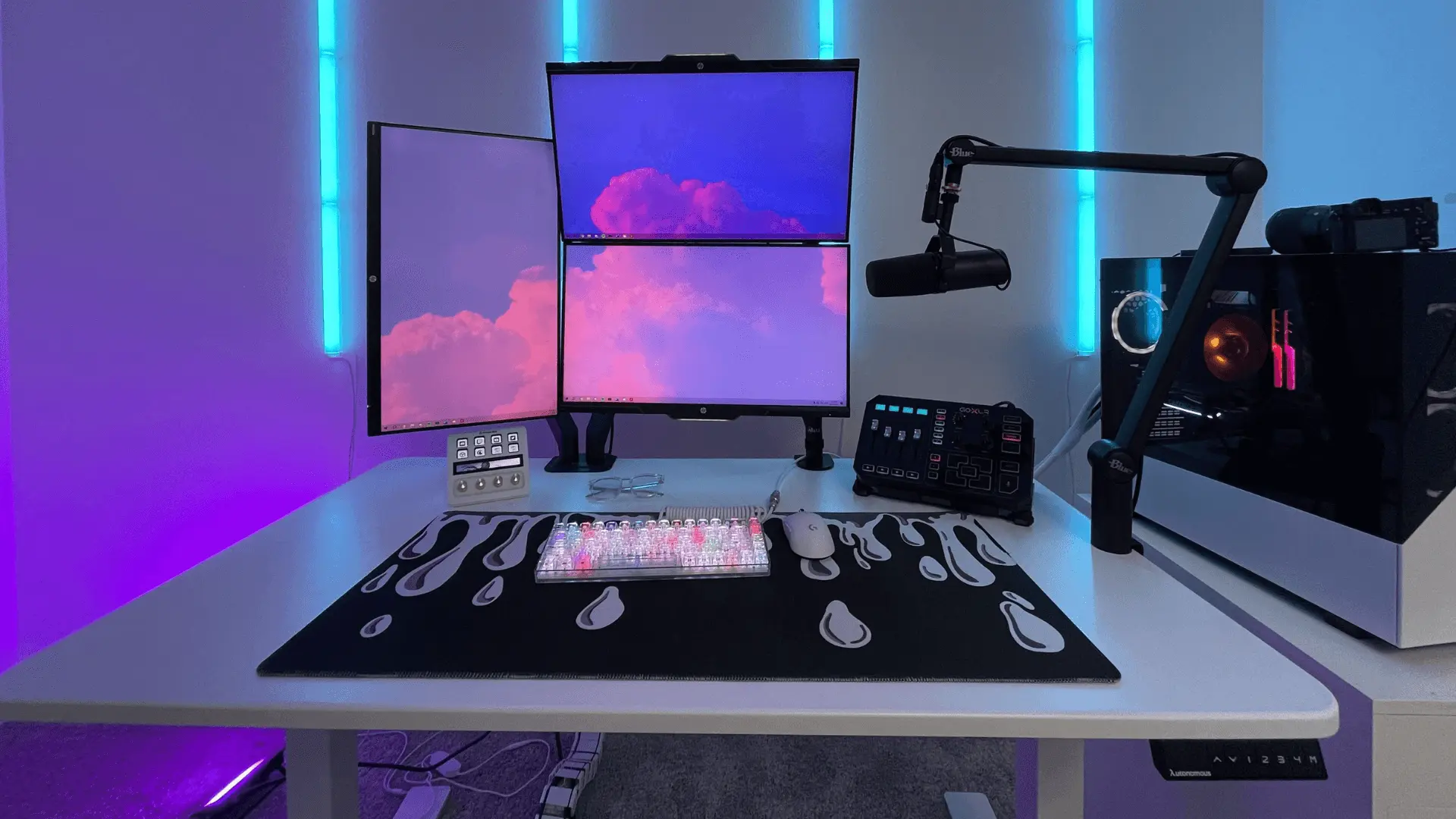
A stacked layout places one monitor above the other.
This is less common with curved monitors but can work in specific cases. It is useful when desk space is limited or when one screen is used mainly for secondary content.
How to set up dual curved monitors correctly
A proper dual curved monitor setup depends on alignment, distance, angle, and consistency between both screens.
1. Align both monitors at eye level
Both monitors should be positioned so your eye line naturally lands around the top third of the screen. This reduces neck strain and keeps your posture neutral.
If one monitor is slightly higher or lower than the other, your eyes will constantly adjust, which becomes tiring over long sessions.
2. Match size, resolution, and curvature
Using two monitors with the same:
- screen size
- resolution
- curvature (e.g., 1500R, 1800R)
creates a more seamless experience.
If the monitors don’t match, you may notice uneven scaling, different brightness levels, or a visual “break” between screens that interrupts workflow.
3. Set the correct viewing distance
You should sit far enough away so both monitors feel natural to view without excessive head movement.
A simple rule: distance ≈ arm’s length or slightly more
Because curved monitors are designed to wrap toward you, sitting too close can feel overwhelming, while sitting too far reduces the benefit of the curve.
4. Angle both monitors inward
Each monitor should be slightly angled toward your seating position, forming a gentle curve around you.
This keeps:
- the center of both screens at a similar distance
- edges easier to see
- eye movement more natural
If the monitors are completely flat (no angle), the outer edges will feel farther away and less comfortable to use.
5. Position the bezel gap correctly
The space where the two monitors meet should be centered directly in front of you.
This way:
- your primary focus stays centered
- both screens feel balanced
- switching between screens is smoother
Avoid pushing one monitor too far to the side, as it forces uneven posture.
6. Adjust height and tilt for comfort
Each monitor should have a slight tilt so the screen faces your eyes directly, not upward or downward.
Small adjustments matter:
- tilt reduces glare
- monitor height improves posture
- alignment reduces fatigue
Even a few centimeters can make a noticeable difference over time.
7. Manage cables and desk space
A clean desk setup helps maintain proper positioning.
Make sure:
- cables don’t pull monitors out of alignment
- stands or arms allow easy adjustment
- desk depth supports your viewing distance
Monitor arms are especially useful because they let you fine-tune angle and height more precisely.
8. Test and refine your setup
After setting everything up, use your system for a few hours and pay attention to comfort.
If you notice:
- frequent head turning → adjust angle
- eye strain → adjust distance
- neck tension → adjust height
A good dual curved monitor setup should feel natural, not something you have to adapt to.
Dual curved monitor setup for work
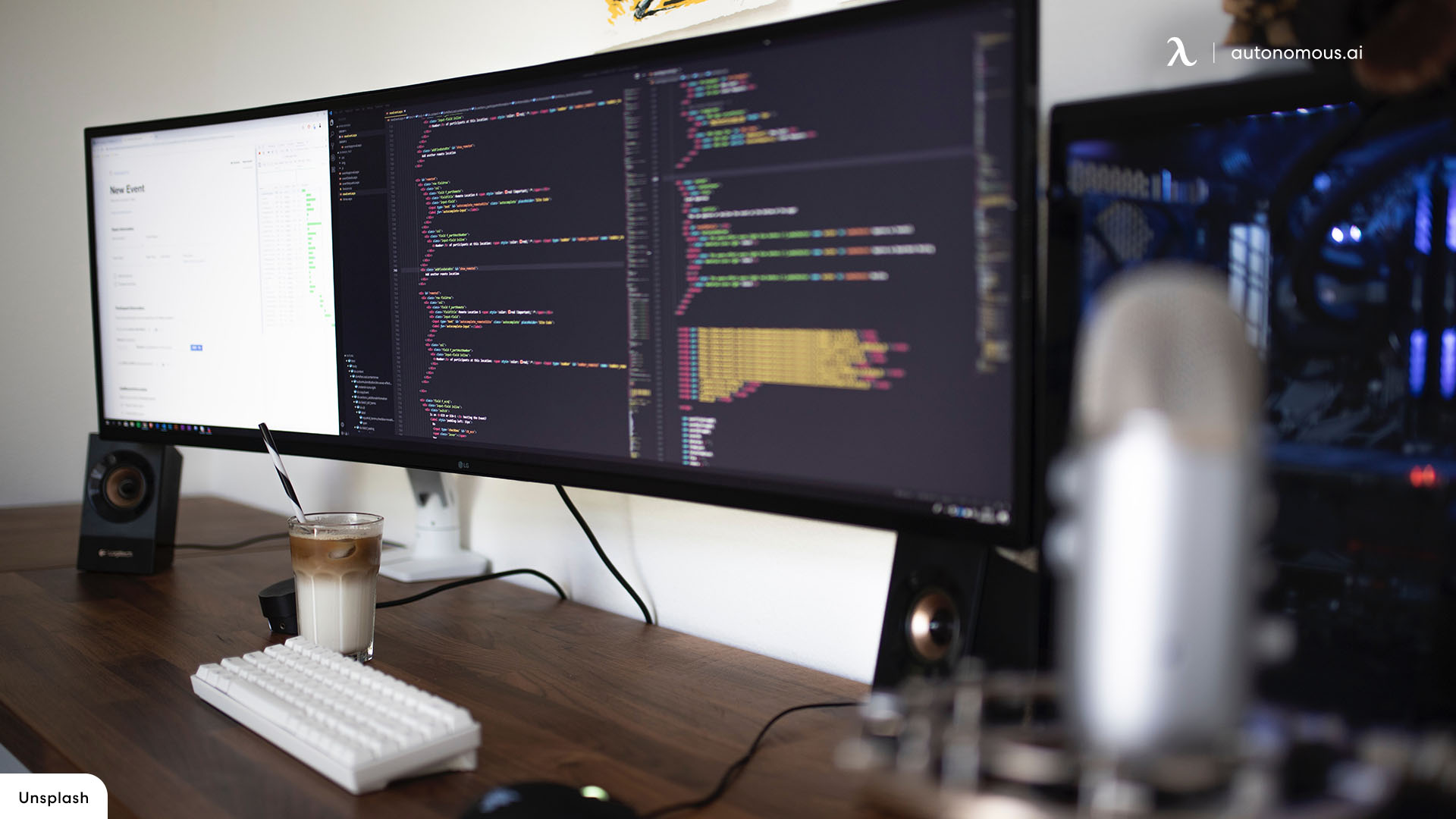
A dual curved monitor setup improves multitasking by allowing multiple windows to stay visible at once.
Instead of switching between tabs, you can place different applications across both screens. This is useful for tasks like comparing documents, managing data, or working with multiple tools.
For office work, the benefit comes from continuity. The curved design helps both monitors feel connected, which reduces visual breaks between screens.
Dual curved monitor setup for gaming
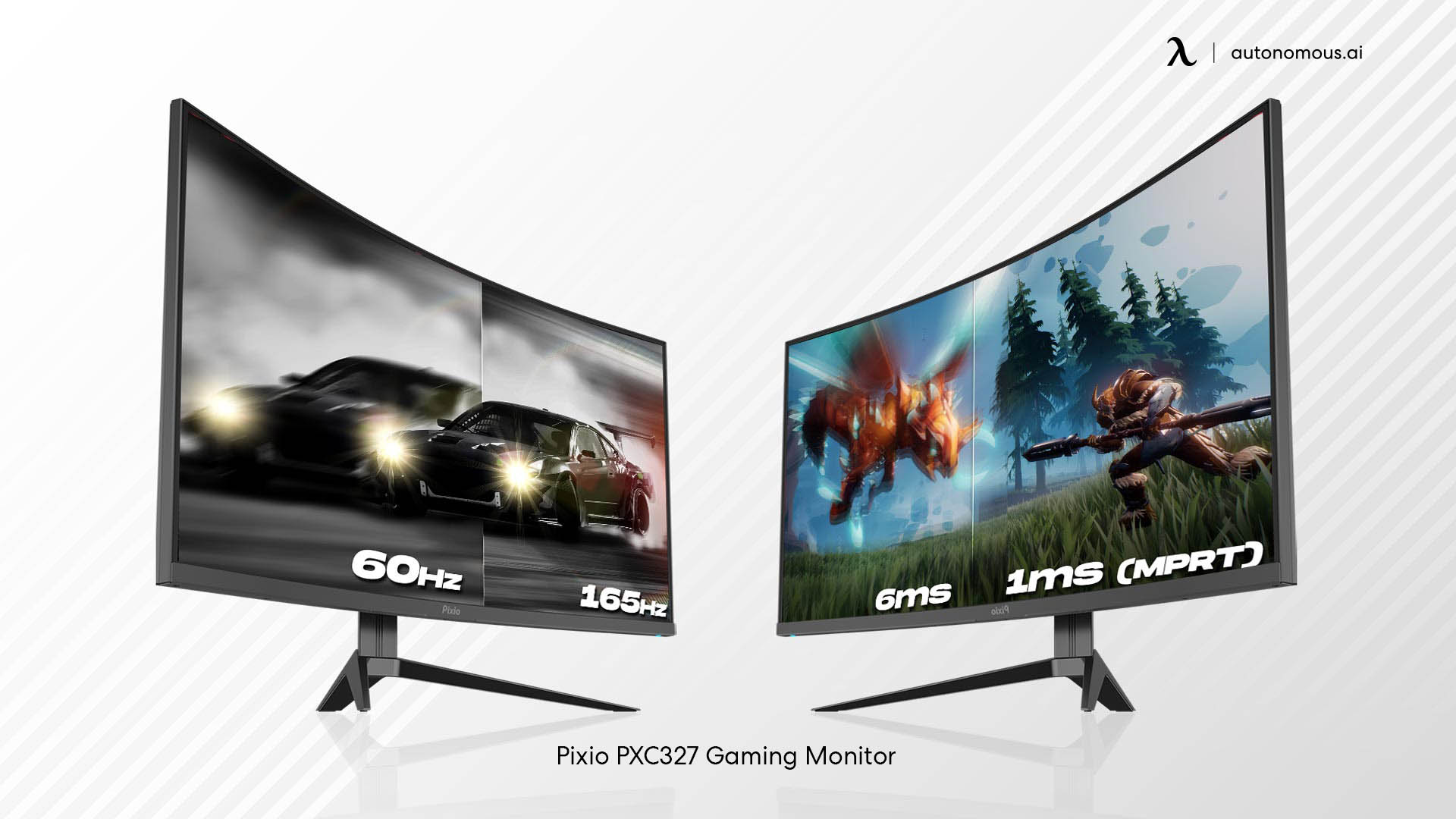
A dual curved monitor setup is not ideal for gaming across both screens, but it can enhance the overall gaming environment.
Most games are designed to run on a single display. Using two monitors at once does not extend gameplay across both screens. Instead, the second monitor is often used for secondary content such as chat, guides, or streaming tools.
The curved design still improves immersion on the main display, especially when paired with a wide field of view.
Can you mix curved and flat monitors?
A curved and flat monitor setup is possible, but it may feel inconsistent during use.
The main difference comes from how each screen is perceived. A curved monitor pulls the edges inward, while a flat monitor keeps everything straight. When used together, this can create a slight visual mismatch.
However, some users prefer this setup for flexibility. For example, they might use a curved monitor for general work and a flat monitor for precision tasks.
FAQs
What is a dual curved monitor setup?
A dual curved monitor setup uses two curved displays placed side by side to create a wider workspace. It is designed to improve multitasking and reduce visual strain.
Are dual curved monitors good for work?
Yes, dual curved monitors are good for work that involves multiple applications. They allow you to keep more content visible at once and reduce switching between windows.
Are dual curved monitors better than flat monitors?
Dual curved monitors are better for immersion and multitasking, while flat monitors are better for precision tasks. The choice depends on your workflow.
Can you use two curved monitors side by side?
Yes, two curved monitors can be placed side by side with a slight angle. This is the most common and effective layout for productivity.
Can you stack curved monitors?
Yes, curved monitors can be stacked, but it is less common. This setup works best when desk space is limited or when one screen is used for secondary tasks.
Can you mix curved and flat monitors?
Yes, you can mix curved and flat monitors, but the viewing experience may feel inconsistent. Some users still prefer this for flexibility.
Final answer
A dual curved monitor setup works best for users who need a wide, continuous workspace and want to reduce constant switching between applications.
It improves comfort and multitasking when set up correctly, but it is not always necessary. The best choice depends on how you work, how much space you have, and whether you benefit from a wider layout.