The 5 Best Monitors for Dual Monitor Setups in 2026

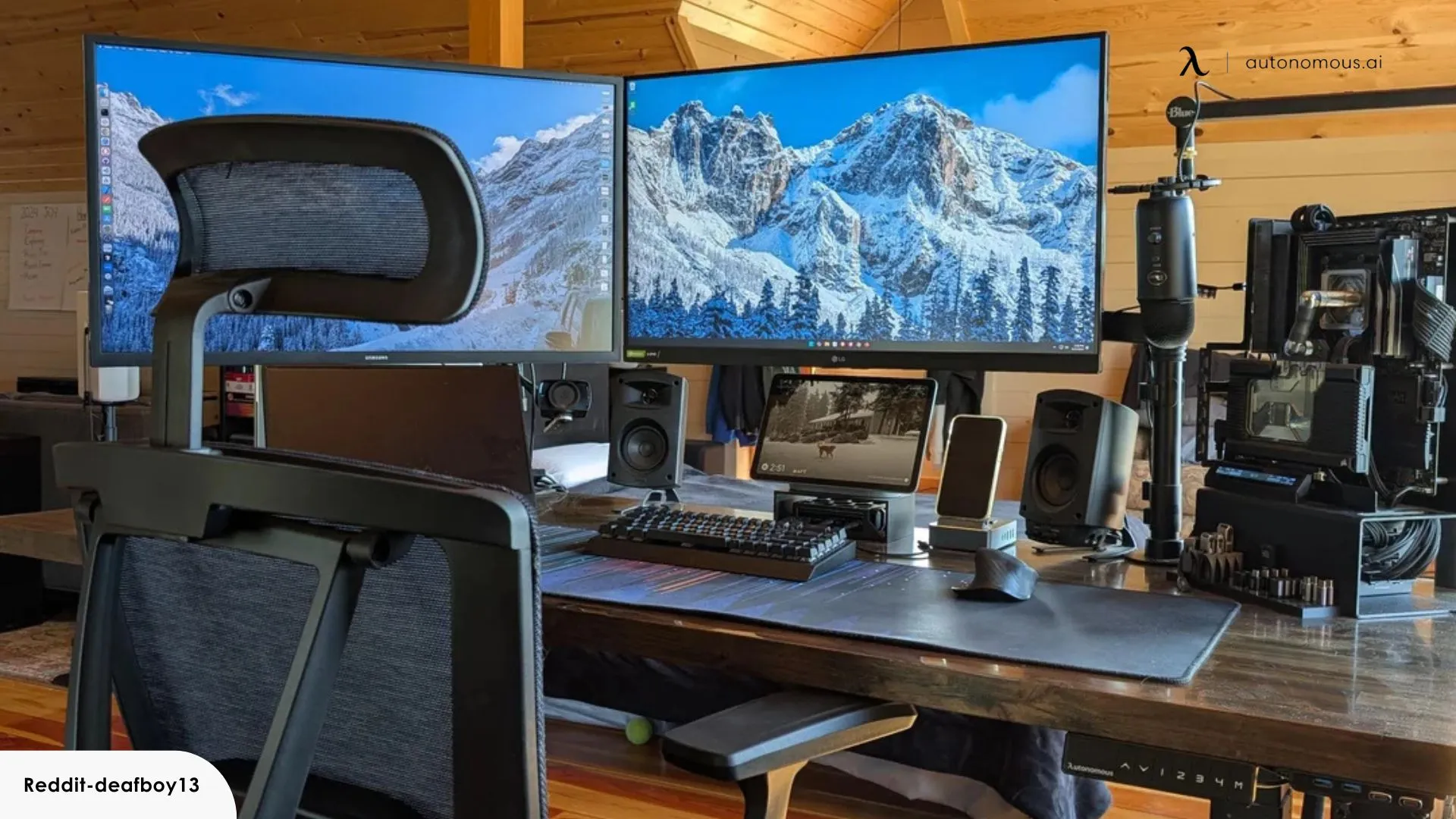
Table of Contents
- 5 Best Monitors For Dual Monitor Setups
- 1. Dell UltraSharp U2723QE – For Visual Purists & Premium Home Offices
- 2. LG 27UP850-W – For Remote Professionals & Hybrid Workers
- 3. ASUS ProArt Display PA278CV – For Designers, Architects & Editors
- 4. HP E24 G5 FHD Monitor – For Students, New Professionals & Budget Setups
- 5. 32" Smart Monitor M8 (M80D) 4K UHD – For Hybrid Users, Streamers & Creative Hobbyists
- FAQs
- Conclusion
If you're building a dual monitor setup, the right screens can make a bigger difference than most people expect. The best options in 2026 are not just about sharper visuals — they also help your desk feel more comfortable, more organized, and easier to work from every day. Whether you're putting together a dual monitor home office setup or comparing layouts like a double curved monitor setup, these monitors stand out for their performance, usability, and fit in real-world setups.
5 Best Monitors For Dual Monitor Setups
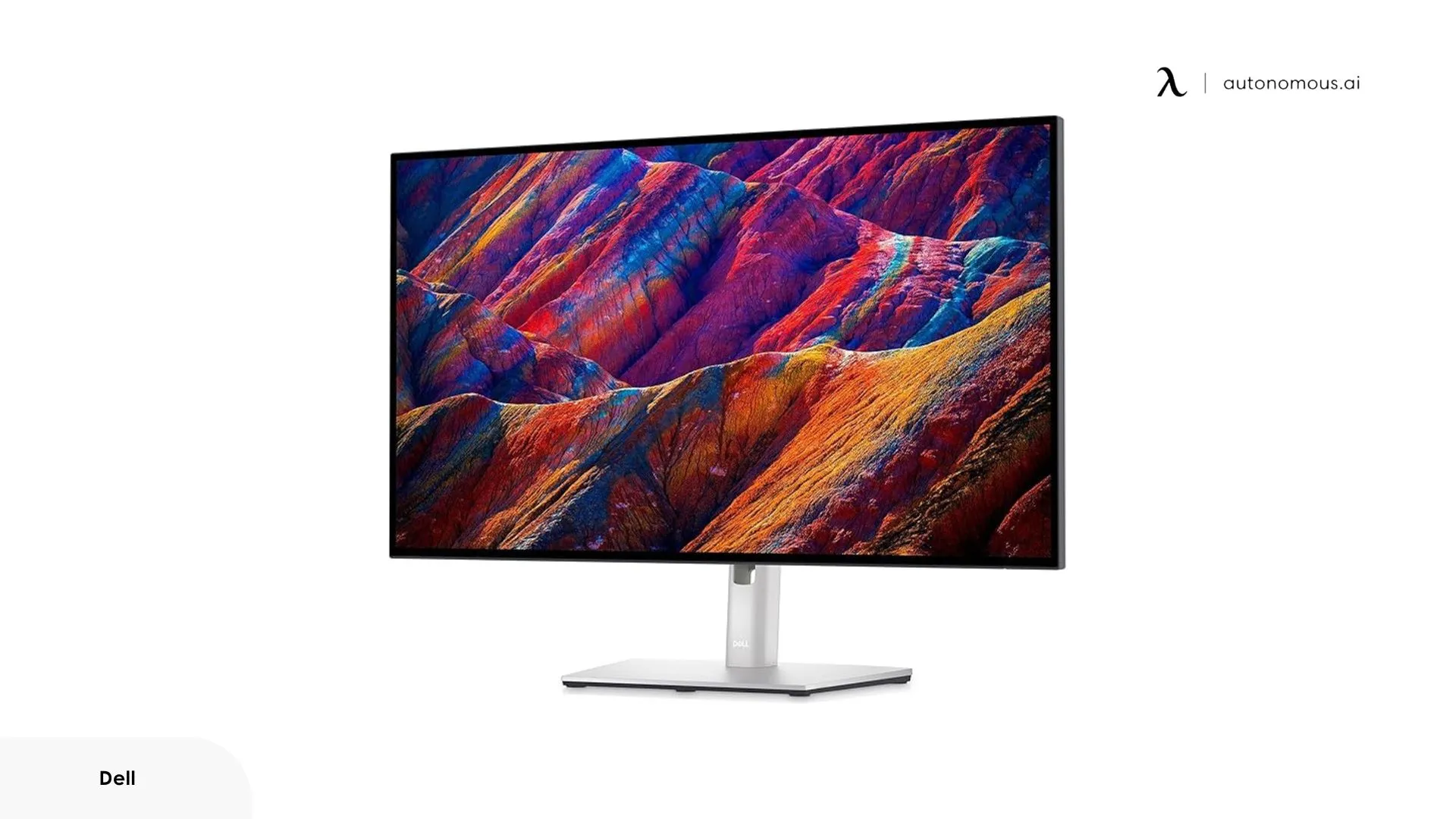
1. Dell UltraSharp U2723QE – For Visual Purists & Premium Home Offices
Key Features:
- 27-inch 4K UHD (3840x2160) IPS display
- Ultra-thin bezels for seamless dual monitor alignment
- USB-C hub with 90W power delivery and multiple ports
- Factory calibrated with 100% sRGB and DisplayHDR 400
- Anti-glare coating and ComfortView Plus for reduced eye strain
Why it’s ideal:
The U2723QE is the kind of monitor that genuinely changes how you feel about sitting at your desk. Dell used LG’s IPS Black panel here, which doubles the contrast ratio of a typical IPS display to around 2,000:1 — you actually notice it in everyday use, not just in benchmarks. Plug in a laptop over a single USB-C cable and you get 4K video, 90W of charging, ethernet, and four USB ports all at once, effectively replacing your need for a separate dock.
Reviewers who moved from standard IPS monitors consistently describe the jump in image depth as immediately visible, and the factory calibration ships at Delta E under 2, meaning it’s accurate out of the box without touching a colorimeter. If you’re looking to optimize your dual monitor desk setup, there are plenty of layout ideas worth exploring.
What users love:
- IPS Black panel delivers noticeably deeper blacks and richer contrast than typical IPS — a real differentiator at its price tier
- 90W USB-C power delivery plus built-in ethernet turns it into a genuine one-cable docking station for laptops
- Factory calibrated to Delta E <2 across sRGB, Rec.709, and 98% DCI-P3 — accurate colors right out of the box
- Fully adjustable stand (height, tilt, swivel, pivot to portrait) plus daisy-chaining via DisplayPort MST
Worth knowing:
- Capped at 60Hz with no variable refresh rate — not a gaming monitor
- Some units have reported occasional USB-C dropout or DisplayPort instability; isolated but worth noting
- Price premium is real — you’re paying for the IPS Black panel and hub functionality
Best for: Professionals and remote workers who want a one-cable 4K workspace with accurate colors | Skip if: You need high refresh rates or are on a tight budget
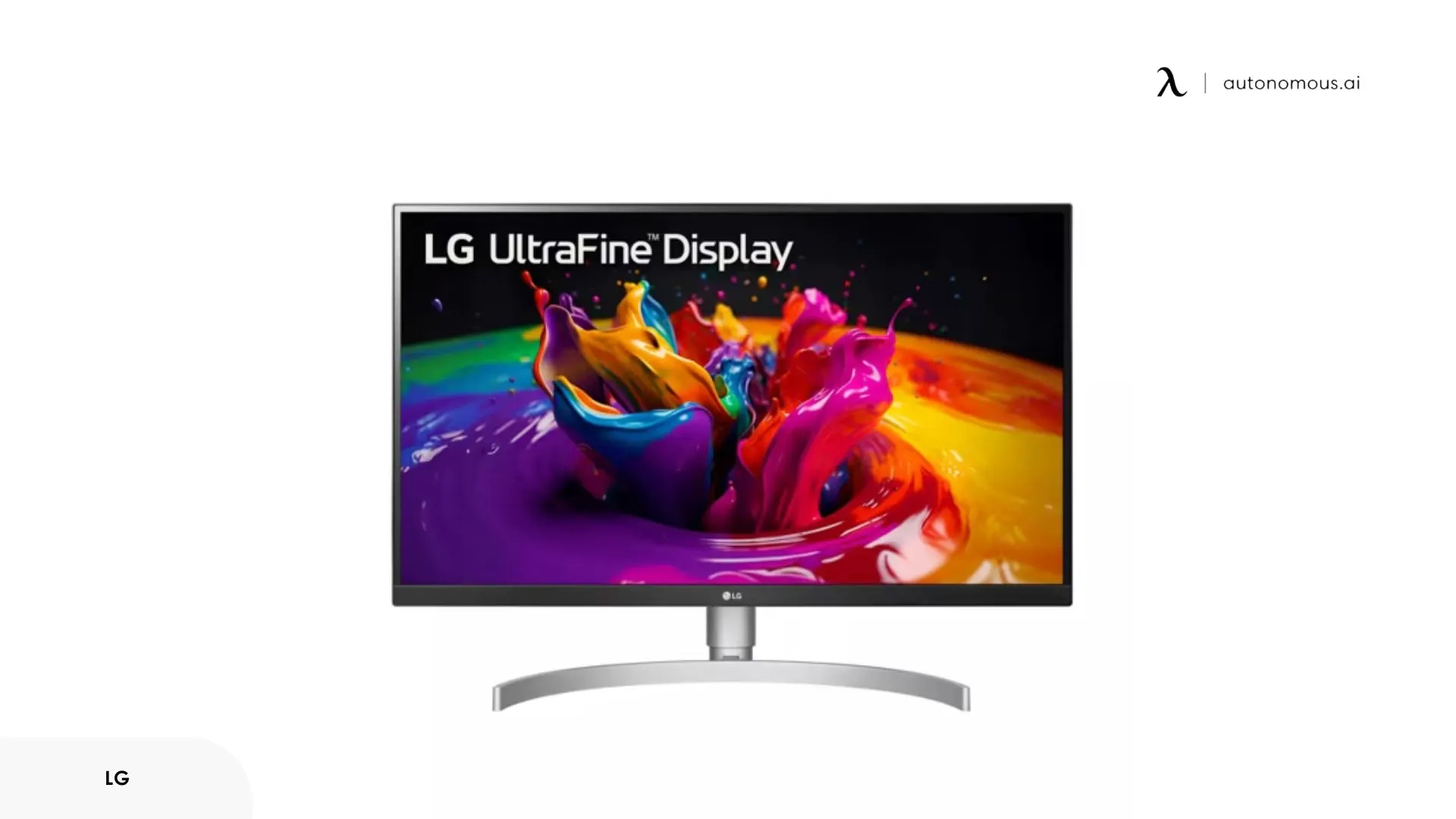
2. LG 27UP850-W – For Remote Professionals & Hybrid Workers
Key Features:
- 27-inch 4K UHD IPS screen with VESA DisplayHDR 400
- USB-C with 96W charging plus HDMI and DisplayPort
- Adjustable stand with tilt, pivot, height, and swivel
- Color calibrated out of the box for accurate visuals
Why it’s ideal:
The LG 27UP850-W is the kind of monitor that makes everyday work feel easier without trying too hard. The biggest win here is USB-C. One cable can handle display and charge a laptop at the same time, which is exactly what a lot of remote workers want. On a MacBook setup especially, it feels clean and simple.
The screen itself is sharp, bright, and pleasant to look at for long hours. At 27 inches, 4K still looks crisp without feeling oversized, and colors look accurate enough for photo work, content creation, and general design tasks. It’s not trying to be a gaming monitor or a dramatic HDR display. It’s just a very practical 4K screen that gets the basics right.
What users love:
- 96W USB-C charging — actually fast enough for a MacBook Pro at full load
- Real-world DCI-P3 measures ~97%, exceeding the advertised spec — colors pop without looking oversaturated
- Clean, minimal white design that pairs well with MacBooks and home office setups
- Built-in 5W speakers decent enough for calls and casual listening
Worth knowing:
- No swivel on the stand — you have to physically move the monitor to angle it left or right
- Arc-shaped stand base consumes notable desk space; a monitor arm is worth considering
- HDR performance is average — the 1000:1 contrast ratio limits it compared to VA or OLED
Best for: MacBook users and photographers who need fast 4K USB-C charging and accurate colors | Skip if: You need a swivel stand, strong HDR, or high refresh rates
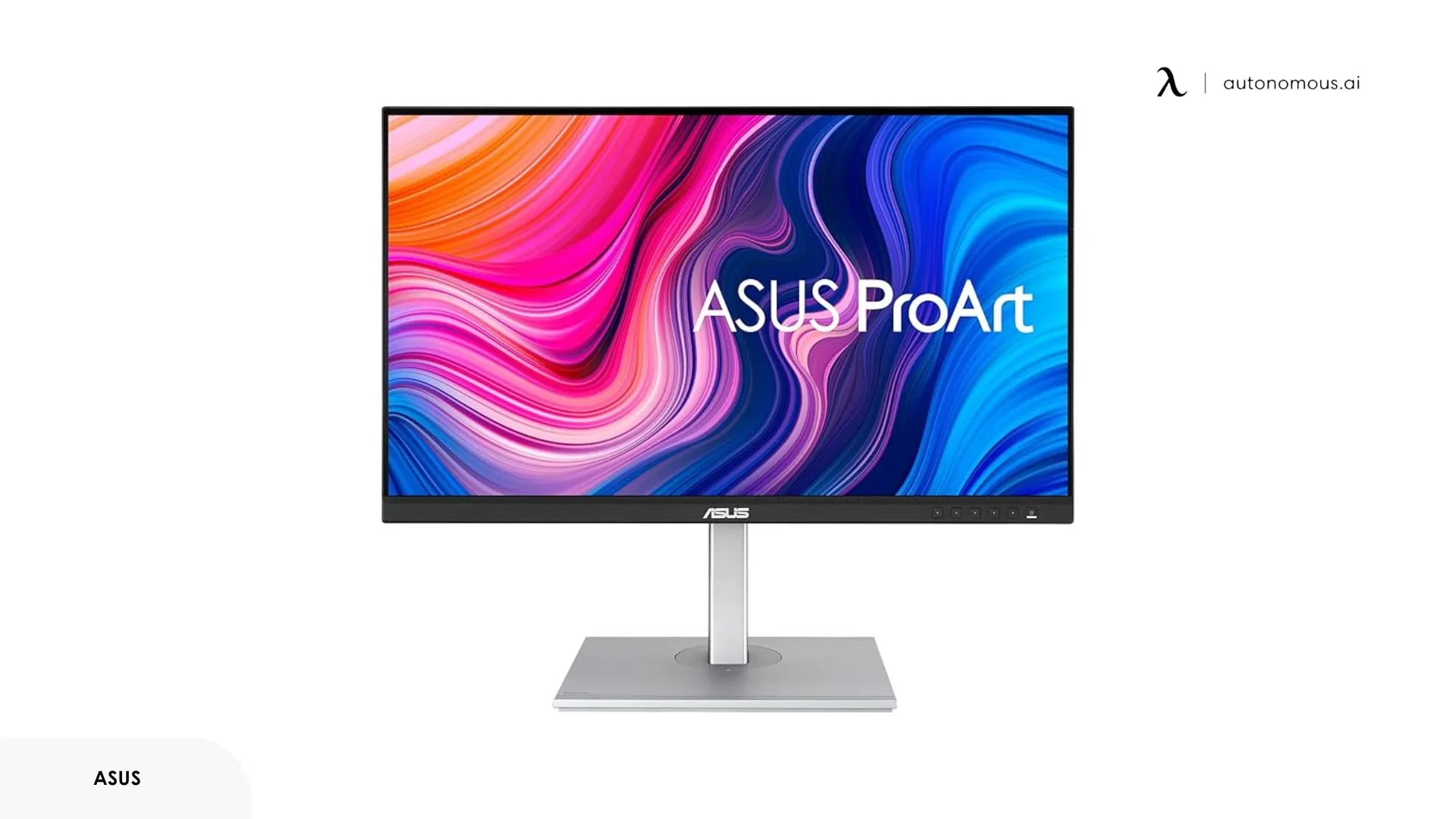
3. ASUS ProArt Display PA278CV – For Designers, Architects & Editors
Key Features:
- 27-inch WQHD (2560x1440) IPS panel
- Factory pre-calibrated with 100% sRGB and Rec.709
- Extensive port selection: USB-C, HDMI, DisplayPort, USB hub
- Ergonomic stand with full adjustability and VESA mount compatibility
Why it’s ideal:
The ProArt PA278CV is easy to recommend because it focuses on the things that actually matter. If you need reliable color without paying premium monitor prices, this is one of the safest choices in the category. Text looks sharp, colors look accurate, and the overall experience feels dependable rather than flashy.
The 1440p resolution also hits a sweet spot. It gives you more room than 1080p without pushing the price into 4K territory. That makes it especially good for people doing design work, editing, architecture, or even coding. It’s the kind of monitor that quietly does its job well every day.
What users love:
- Per-unit factory calibration report shipped in the box — your specific monitor was individually tested
- 100% sRGB and Rec.709 at Delta E <2, plus USB-C with DP Alt Mode for single-cable laptop connections
- Full ergonomic stand (height, tilt, swivel, pivot) — one of the best stands at this price
- Built-in bezel ruler — a small but genuinely useful touch for designers
Worth knowing:
- Six physical OSD buttons instead of a joystick — universally criticized as clunky
- 65W USB-C may charge a 16” MacBook Pro slowly under heavy load
- No HDR support
Best for: Designers, photographers, and developers who need factory-calibrated 1440p color accuracy without spending $500+ | Skip if: You need 4K, HDR, or joystick OSD controls
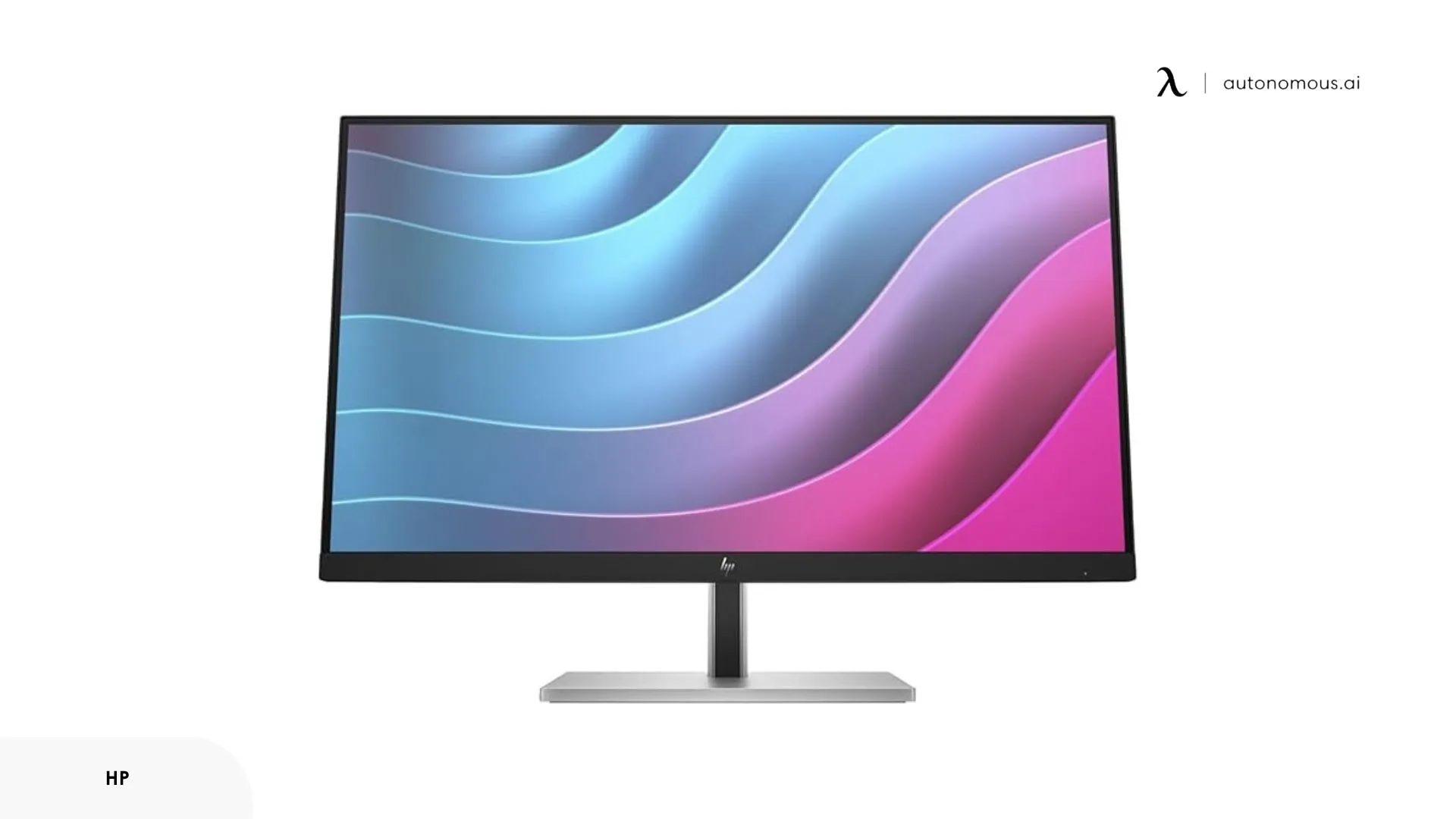
4. HP E24 G5 FHD Monitor – For Students, New Professionals & Budget Setups
Key Features:
- 23.8-inch Full HD (1920x1080) IPS screen
- 3-sided micro-edge bezel for clean dual-screen alignment
- Adjustable tilt and height with 100mm VESA mount support
- Integrated low blue light technology
Why it’s ideal:
The HP E24 G5 is a straightforward work monitor, and honestly, that’s what makes it good. It doesn’t try to impress with oversized claims or trendy features. It just gives you a solid screen, comfortable ergonomics, and the kind of reliability that makes sense for work, study, and everyday office use.
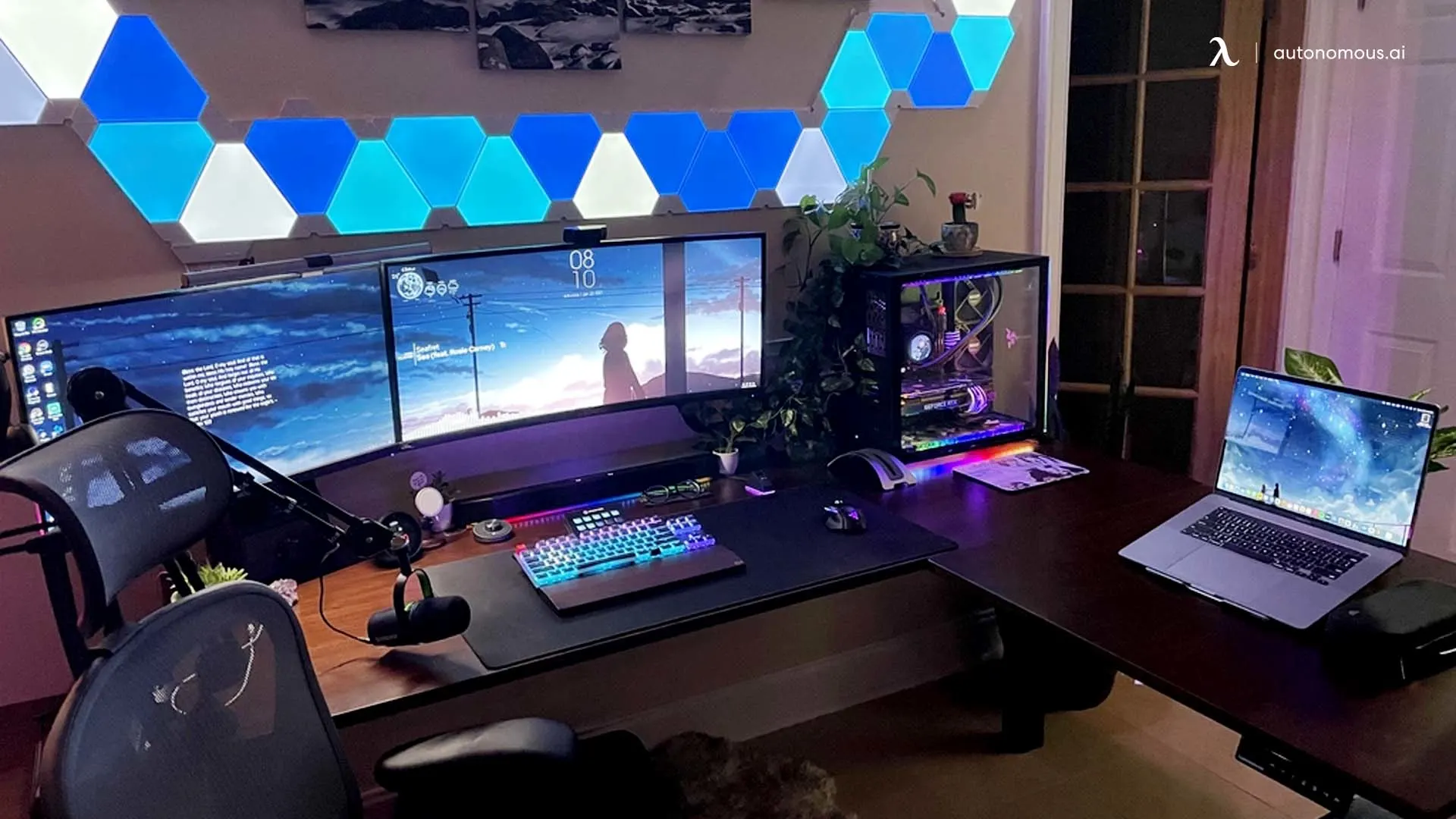
It also fits especially well into a dual monitor setup. The slim bezels help two screens sit side by side without looking bulky, and the 24-inch size is easier to manage if you’re working with limited space. If you’re planning a dual monitor setup for a small desk, this size is often the safer choice. And if you have more room to work with, it can also fit nicely into an L shaped desk dual monitor setup without overwhelming the desk.
What users love:
- Full ergonomic adjustability — height, tilt, swivel, and pivot all included at this price
- Hardware Eye Ease keeps colors accurate while reducing eye strain — better than software night modes
- Built with 85% recycled materials and ocean-bound plastics — a genuine sustainability credential
- USB-C, DisplayPort, and HDMI inputs for mixed-device office environments
Worth knowing:
- 1080p on a 24-inch screen — adequate for office work but noticeably less sharp than 1440p if you’ve used higher density
- No built-in speakers — you’ll need external audio for calls
- 75Hz max — not suitable for gaming
Best for: Home office workers and business users who need a reliable, ergonomic FHD display at a practical price | Skip if: You want 1440p+, built-in speakers, or game on your monitor
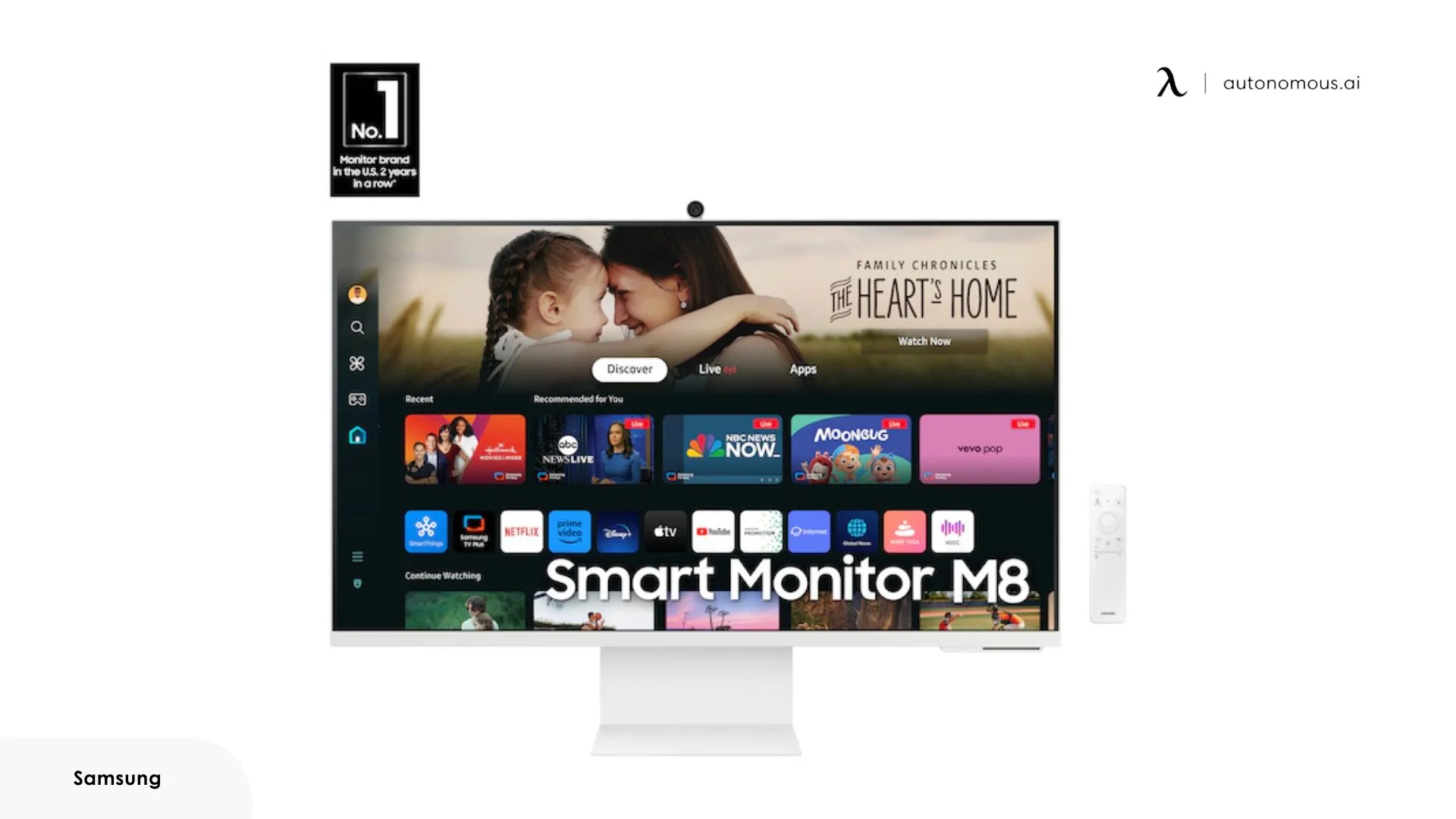
5. 32" Smart Monitor M8 (M80D) 4K UHD – For Hybrid Users, Streamers & Creative Hobbyists
Key Features:
- 32-inch 4K UHD smart monitor with HDR10+
- Built-in Smart TV apps (Netflix, YouTube, Office 365)
- USB-C, HDMI, and WiFi connectivity
- Detachable webcam for video calls
- Remote control and voice assistant compatibility
Why it’s ideal:
The Samsung M8 M80D occupies a genuinely unusual niche: a 32-inch 4K VA panel with a built-in Tizen smart TV platform, webcam, AirPlay support, and remote control — all in a monitor that also works as a proper desktop display. For people who want to eliminate a separate TV from their setup, or who need streaming and PC work on one screen, it delivers a lot per dollar. The VA panel gives better contrast than IPS at this size, and the AirPlay feature works well for Mac users who want wireless screen mirroring without cables.
What users love:
- Tizen OS with Netflix, YouTube, and cloud gaming (GeForce NOW, Xbox Cloud) works standalone — no PC needed
- AirPlay lets Mac and iPad users mirror wirelessly, and it works surprisingly well over a fast network
- 32-inch VA panel delivers noticeably better contrast than IPS alternatives at this size
- Detachable 1080p webcam and remote control included — extras that cost extra on competing monitors
Worth knowing:
- Some features including AirPlay setup require a Samsung account and data collection acceptance
- No ethernet port — Wi-Fi only for smart TV features, which can buffer on congested networks
- Tizen UI feels less polished than a dedicated smart TV; settings can be unintuitive at first
Best for: Home users and Mac owners who want one large 4K screen for both work and entertainment | Skip if: You need professional color accuracy, ethernet, or prefer a focused productivity monitor
FAQs
What is the best dual monitor setup for productivity?
A good dual monitor setup is simple: two matching screens, decent resolution (at least 1080p or 1440p), and proper positioning. Thin bezels help them feel like one workspace, and adjustable stands make a big difference over long hours. You don’t need anything extreme — just two solid monitors set up comfortably.
How do I set up dual monitors for gaming?
For gaming, the main thing to care about is your primary monitor. That’s the one that should have the higher refresh rate and lower response time, since it’s handling the actual gameplay. The second screen is usually there for Discord, streams, maps, or background tools, so it doesn’t need to be as powerful. A double monitor gaming setup usually works best when the main display is centered and the second sits slightly off to the side.
Can you use two different sized monitors for a dual monitor setup?
Yes, and a lot of people do. It works best when the resolutions are similar so things don’t feel off. Some setups even mix horizontal and vertical screens, which is great for reading, coding, or long documents.
How do I improve my dual monitor setup for video editing?
Go for color accuracy first. A 4K monitor helps with detail, but what really matters is consistent color (look for high sRGB or DCI-P3 coverage). Having a second screen for timelines or tools makes editing much faster.
What should I look for in a dual monitor setup for work?
Comfort matters more than specs. Look for adjustable height, anti-glare screens, and enough resolution to keep things sharp. USB-C or HDMI makes setup easier, and thin bezels keep the two screens feeling connected.
How do I connect two monitors to a laptop?
Comfort matters more than specs. Look for adjustable height, anti-glare screens, and enough resolution to keep things sharp. USB-C or HDMI makes setup easier, and thin bezels keep the two screens feeling connected.
What is the best dual monitor setup for programming?
Two 24–27 inch monitors work well for coding. Many developers add a vertical screen for reading long code files or logs. You don’t need 4K — clarity and layout matter more than resolution.
Can I use a TV as a second monitor in a dual setup?
You can, but it’s not always ideal. TVs are fine for casual use, but they usually have lower pixel density and slower response times. For work or detail-heavy tasks, a regular monitor will feel much better.
How do I arrange dual monitors for optimal ergonomics?
Keep your main screen directly in front of you, with the second slightly angled. Both should be around eye level and about an arm’s length away. Small adjustments here make a big difference in comfort.
What type of stand is best for a dual monitor setup?
A monitor arm is usually the best option. It frees up desk space and lets you adjust each screen independently. Once you try it, it’s hard to go back to fixed stands.
Do dual monitor setups increase productivity?
Yes — mostly because you stop switching between tabs. Having two screens lets you keep things visible at the same time, which speeds up almost any workflow.
Can a dual monitor setup be used for video conferencing?
Definitely. One screen for the call, the other for notes or documents. It keeps everything visible without constantly switching windows, which makes meetings much smoother.
.webp)
Conclusion
A dual monitor setup is one of the simplest upgrades that can noticeably improve how you work. More screen space means less tab switching, better focus, and a desk that feels easier to use every day. The best setup is not about chasing the most expensive monitor, but choosing the right mix of size, resolution, ergonomics, and ports for your actual workflow. Once the screens are right, the rest of your setup matters too — a good standing desk and a supportive office chair can make the whole workstation feel far more comfortable and complete.