How to Set Up Dual Monitors for Gaming
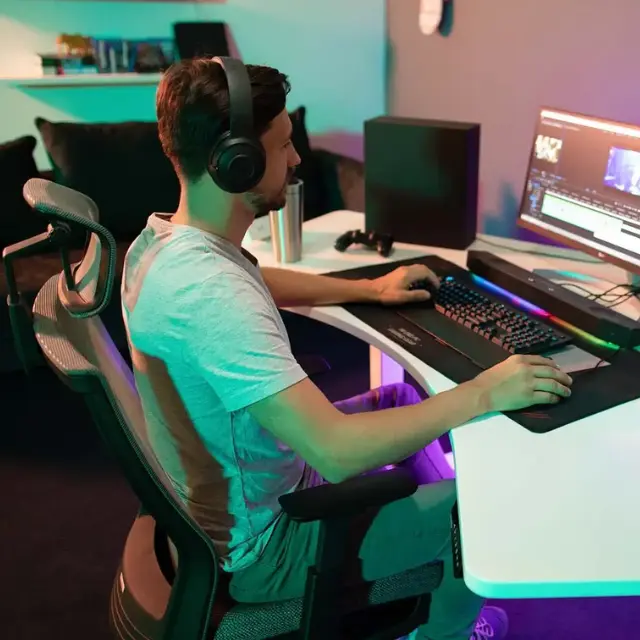
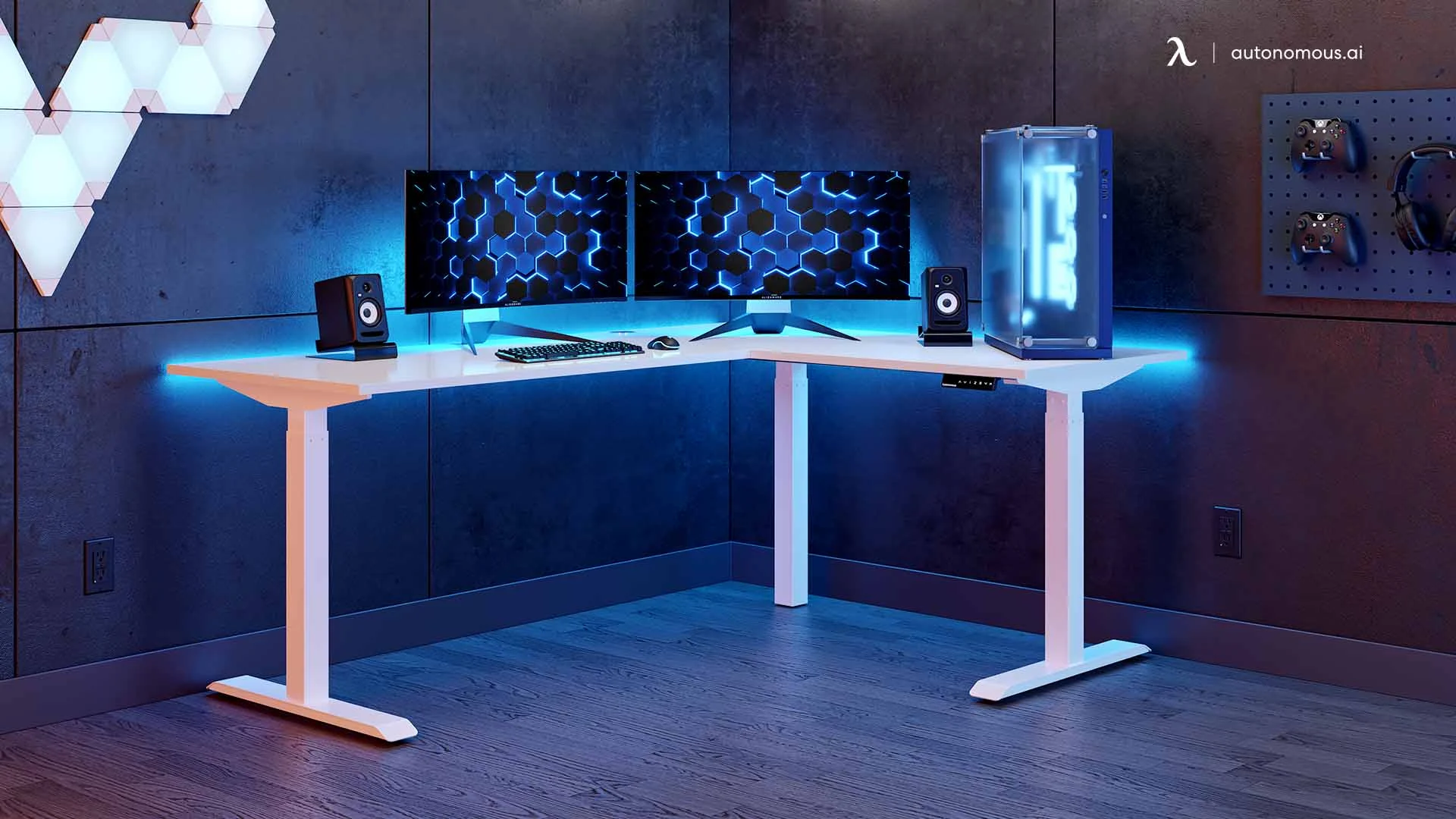
Quick answer: Set up a dual monitor gaming setup by using one monitor as your main gaming screen and the second for chat, streaming, or browsing. Connect both monitors to your graphics card, set the display mode to Extend, choose your gaming monitor as the primary display, and place the second screen slightly to the side for easy viewing.
Table of Contents
- What is a dual monitor gaming setup?
- Why do gamers use dual monitors?
- What is the best dual monitor setup for gaming?
- How to set up dual monitors for gaming
- Best dual monitor layouts for gaming
- Dual monitor gaming vs ultrawide monitor
- Does a dual monitor setup affect gaming performance?
- Desk setup and ergonomics
- Common mistakes in dual monitor gaming setups
- Is a dual monitor gaming setup worth it?
- FAQs
- Final answer
If you’ve ever tried to check Discord, watch a stream, or look up a guide while gaming, you’ve probably had to minimize your game—and that breaks the experience. That’s where a dual monitor gaming setup makes a difference. Instead of switching between windows, you keep your game on one screen and everything else on another.
This guide explains how dual monitor gaming actually works, what the best setup looks like, and how to set it up properly so it improves your experience instead of getting in the way.
What is a dual monitor gaming setup?
A dual monitor gaming setup is a configuration where two displays are connected to one computer, with each screen serving a different purpose.
The primary monitor is dedicated to gaming. It runs at the highest refresh rate and best resolution your system supports. The secondary monitor is used for supporting tasks, such as communication, media, or system monitoring.
This setup does not combine both monitors into one large gaming display. Instead, it separates tasks so your main screen stays focused on performance while the second screen handles everything else.
Why do gamers use dual monitors?
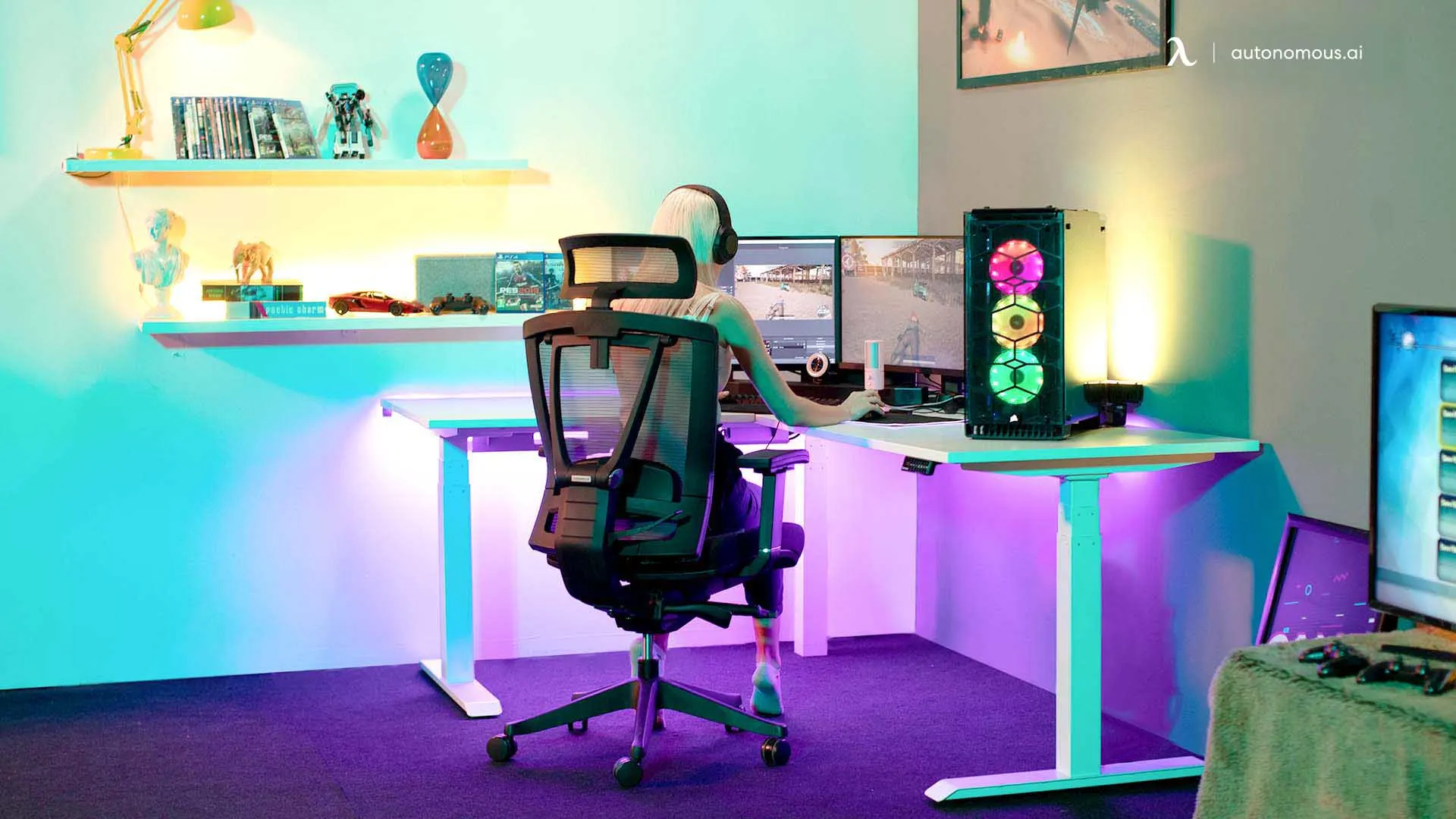
Gamers use dual monitors because it allows them to multitask without interrupting gameplay.
The biggest advantage is continuity. You no longer need to alt-tab out of your game to check something. Everything stays visible and accessible.
A second monitor is commonly used for:
- Discord or voice chat
- streaming software and chat
- web browsing or guides
- music or video playback
For streamers, a dual monitor gaming setup becomes almost essential. It allows them to monitor their stream, interact with viewers, and control software while still focusing on the game.
Even for non-streamers, the convenience quickly becomes noticeable. Once you get used to having a second screen, going back to a single monitor often feels restrictive.
What is the best dual monitor setup for gaming?
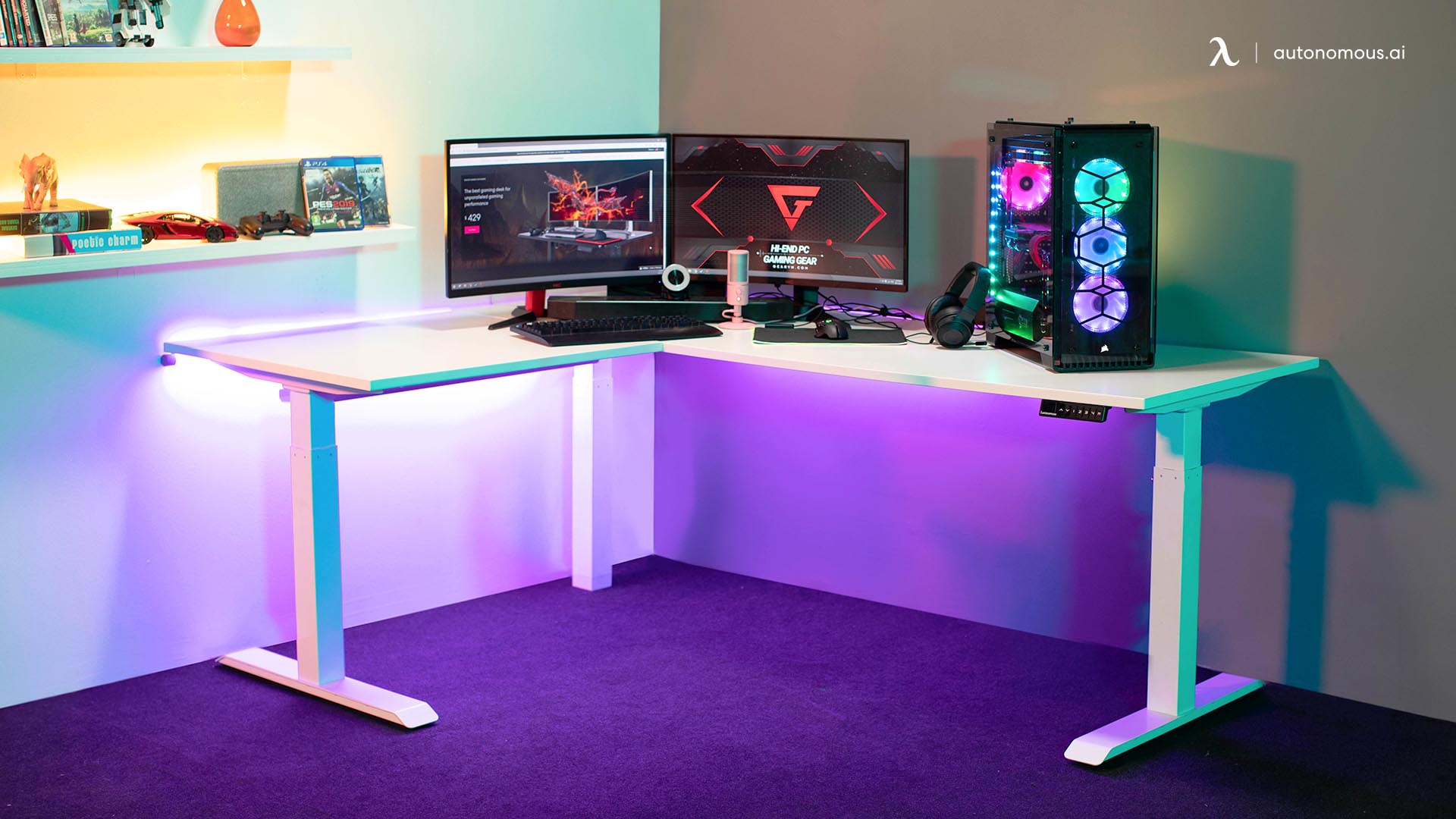
The best dual monitor gaming setup prioritizes performance on the main screen and flexibility on the second.
Your primary monitor should be:
- directly in front of you
- set to the highest refresh rate available
- optimized for gaming performance
Your secondary monitor should:
- sit slightly to the side
- be easy to glance at
- not interfere with your main viewing angle
The key idea is separation of roles. The main monitor is for focus and performance. The second monitor is for support.
When both screens are positioned correctly, the setup feels natural instead of distracting.
How to set up dual monitors for gaming
A proper dual monitor gaming setup works when your main display is optimized for performance and your second screen supports tasks without distraction.
Step 1: Connect both monitors correctly
Start by connecting both monitors directly to your graphics card, not the motherboard.
Use:
- DisplayPort for your main gaming monitor (best for high refresh rates)
- HDMI or DisplayPort for your secondary monitor
If you are unsure which option fits your setup, it helps to understand the differences between common monitor cable types before connecting everything.
If your monitors are connected incorrectly, you may not get full performance on your main screen. This matters even more in mixed setups that involve a laptop, where choosing the right cable to connect a laptop to a monitor can affect refresh rate, resolution, and overall stability.
Step 2: Set display mode to “Extend”
Open your display settings and select Extend these displays.
This ensures:
- each monitor acts independently
- you can move your cursor between screens
- your second monitor doesn’t duplicate your game
Mirrored displays are one of the most common setup mistakes.
Step 3: Choose the correct primary monitor
Set your main gaming monitor as the primary display.
This matters because:
- games launch on the primary screen
- your GPU prioritizes rendering there
- input latency stays consistent
Your primary monitor should always be the one directly in front of you.
Step 4: Optimize refresh rate and resolution
Check that your gaming monitor is running at its maximum capability.
Go into advanced display settings and confirm:
- refresh rate (e.g., 144Hz, 165Hz, 240Hz)
- native resolution
Many systems default to lower refresh rates, which reduces performance without you noticing.
Step 5: Arrange monitors to match your desk
Drag and align your monitors in display settings so they match their physical position.
If your second monitor is on the right, place it on the right in settings. This ensures:
- smooth cursor movement
- no “jumping” between screens
Step 6: Configure GPU settings (important for gaming)
Open your GPU control panel (NVIDIA or AMD) and:
- set your main monitor as primary
- enable full performance mode for games
- disable unnecessary scaling on the second monitor
This step helps avoid performance inconsistencies.
Step 7: Optimize how you use the second monitor
The second monitor should support your game, not compete with it.
Use it for:
- Discord or voice chat
- OBS or streaming tools
- browser tabs or guides
Avoid running heavy applications on the second monitor while gaming, as they can impact performance.
.webp)
Best dual monitor layouts for gaming
The best dual monitor layout keeps your main screen centered and your second screen accessible without causing strain.
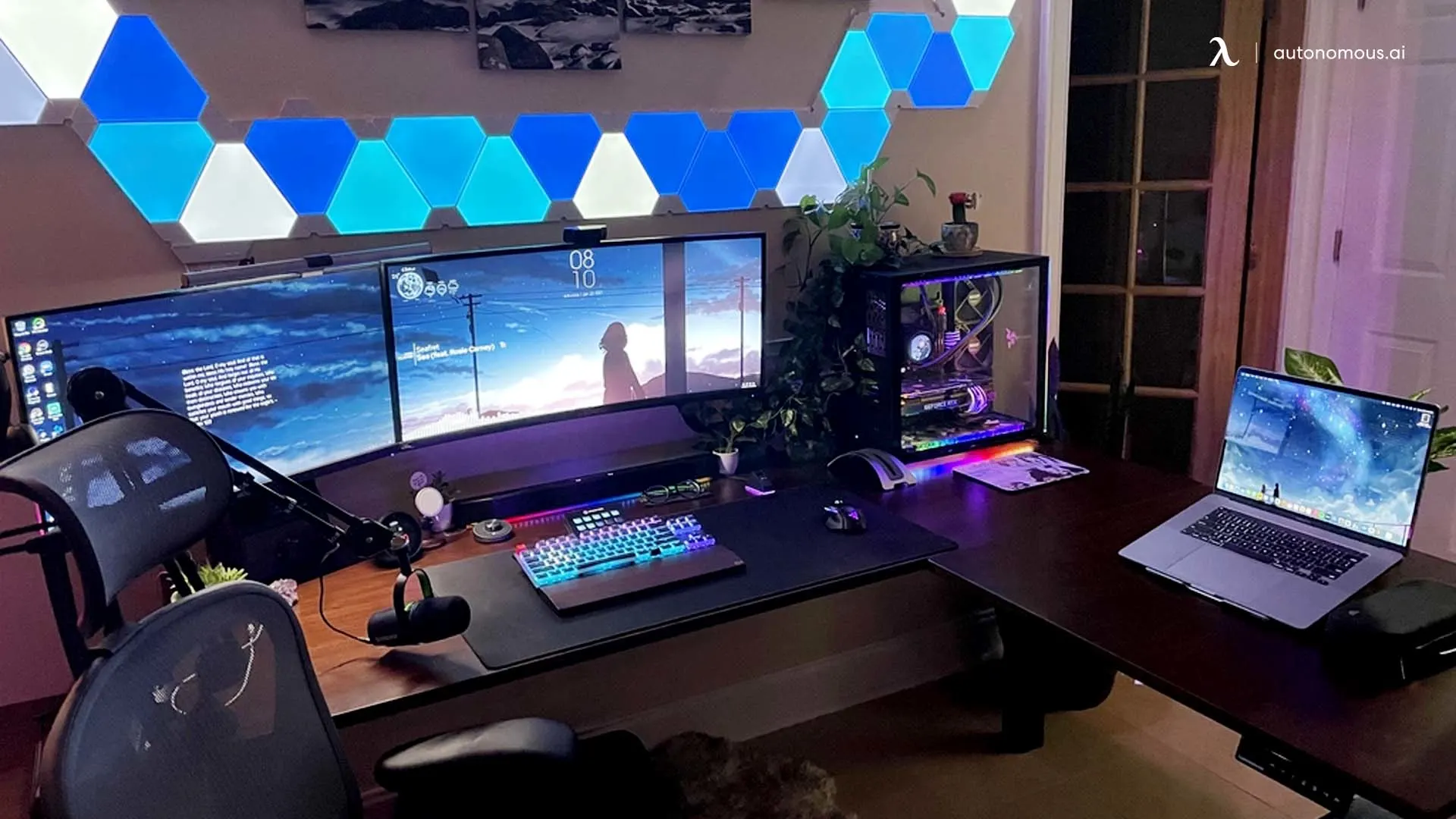
1. Side-by-side layout (most effective)
This is the standard dual monitor gaming setup.
Your main monitor sits directly in front of you, while the second monitor is placed to the side.
This layout works because:
- your focus stays centered
- the second screen is easy to glance at
- it requires minimal adjustment
For most users, this is the best starting point.
2. Angled layout (best for long sessions)
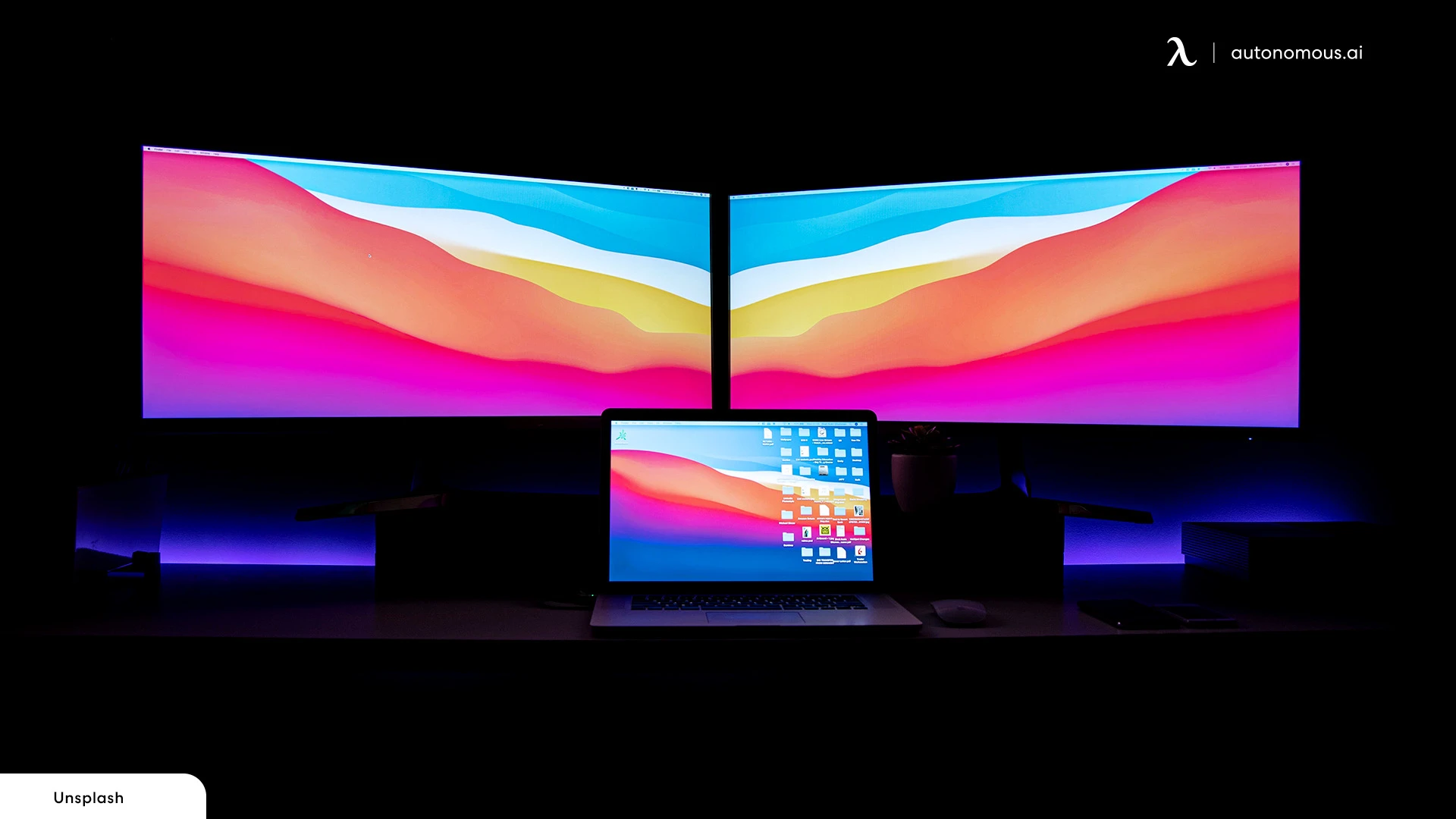
In this setup, the second monitor is slightly angled toward your seating position.
This reduces:
- head movement
- eye strain
- viewing distance differences
It’s especially useful if you use your second monitor frequently during gameplay.
3. Stacked layout (space-saving option)
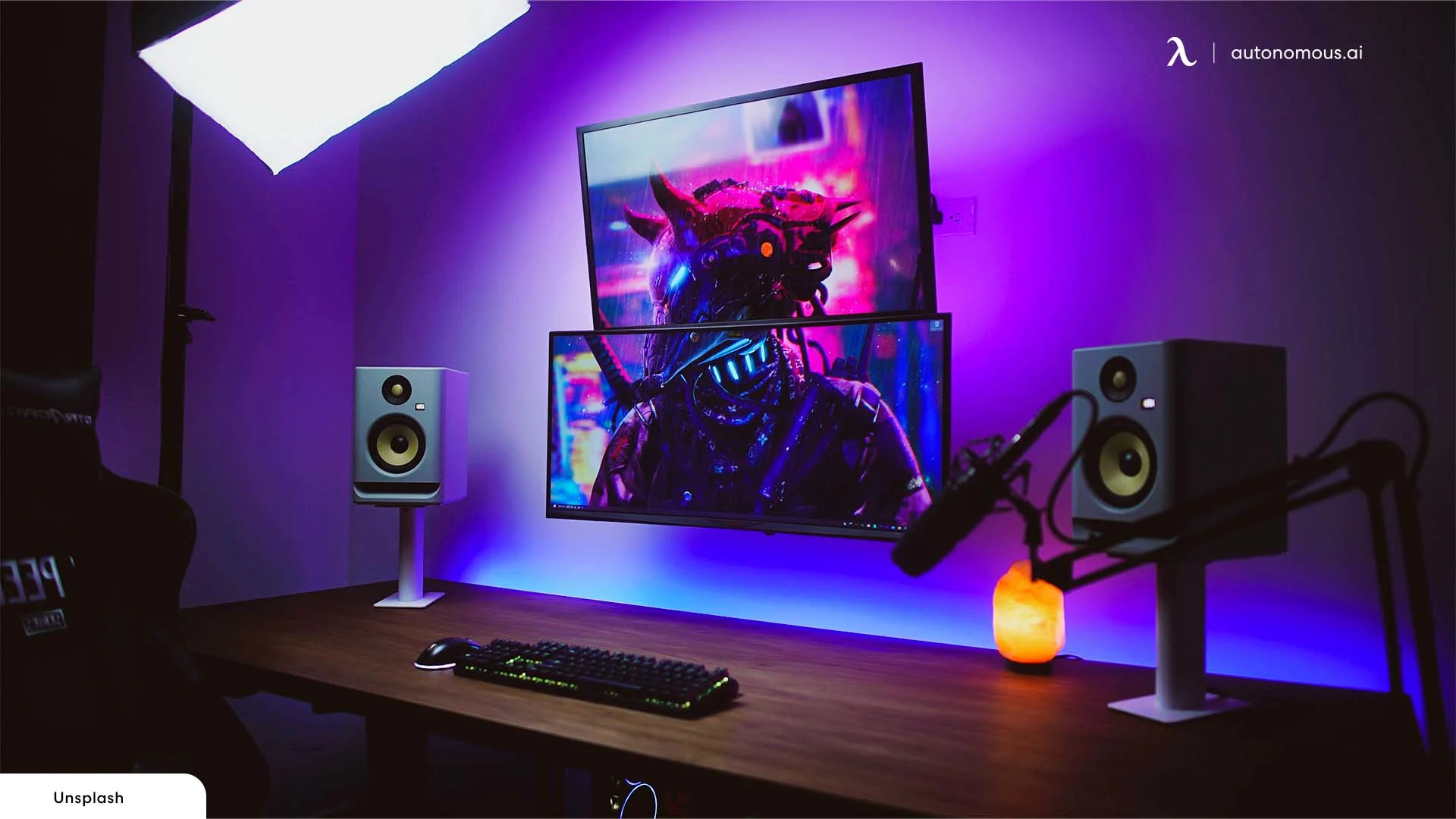
A stacked monitor setup places the second monitor above your main screen.
This works best when:
- desk space is limited
- the second monitor is used for passive content
However, it is less comfortable for frequent interaction because it requires looking upward.
4. Vertical secondary monitor (for specific use cases)
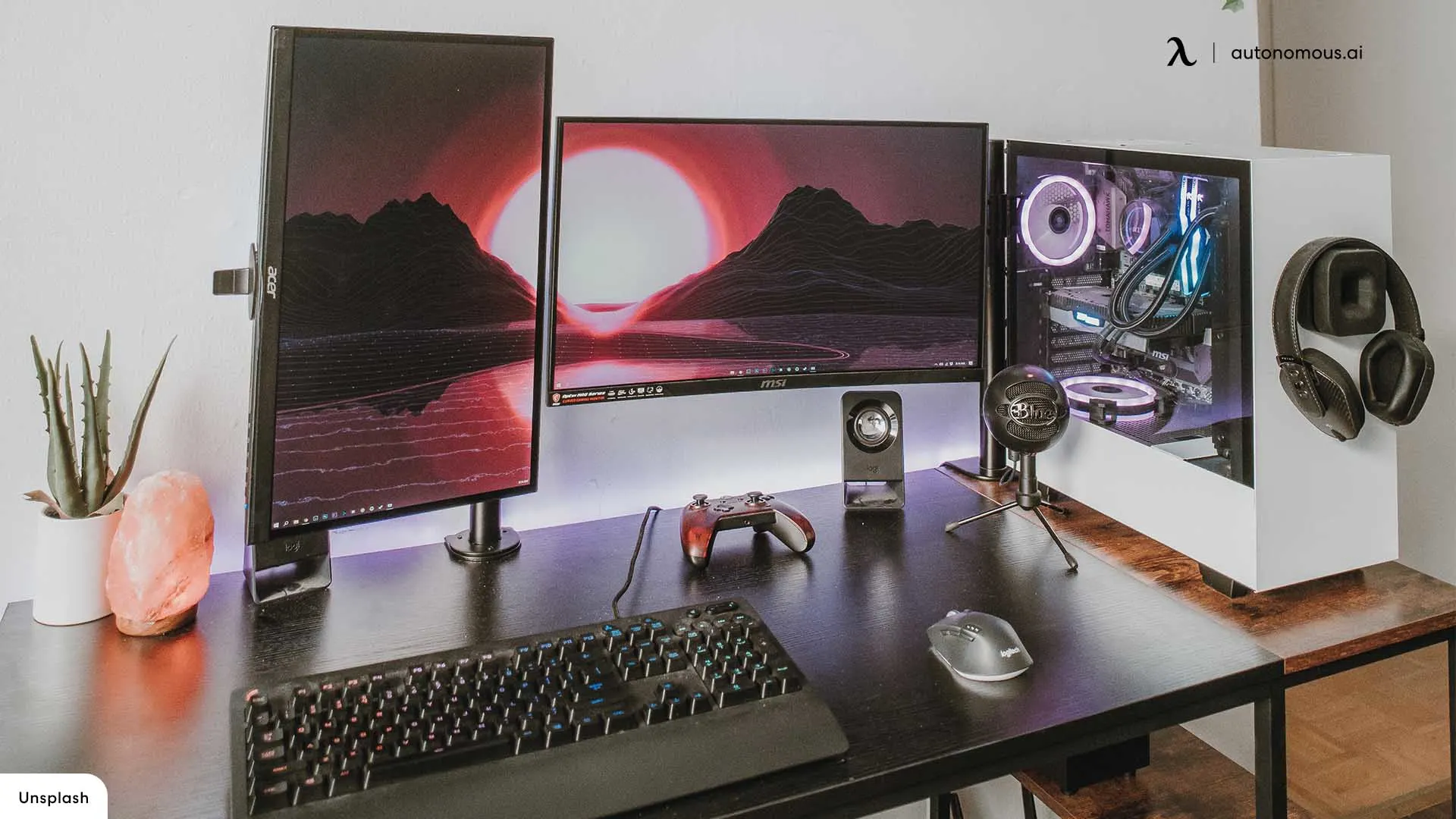
Some users rotate their second monitor vertically.
This works well for:
- reading chat
- browsing long pages
- coding or text-heavy content
In those cases, a vertical monitor setup can make the second display more useful than a standard side monitor.
It is not ideal for video or gameplay, but it can improve efficiency depending on your workflow. If your setup combines one landscape gaming monitor with one portrait support screen, the layout works more like a vertical dual monitor setup, where the second display is optimized for utility rather than immersion.
Dual monitor gaming vs ultrawide monitor
A dual monitor setup and an ultrawide monitor solve similar problems in different ways.
Setup | Strength |
Dual monitor | multitasking, flexibility |
Ultrawide | immersion, seamless view |
A dual monitor gaming setup gives you two separate workspaces, which is ideal for multitasking. An ultrawide monitor creates a single continuous screen, which can feel more immersive for gaming.
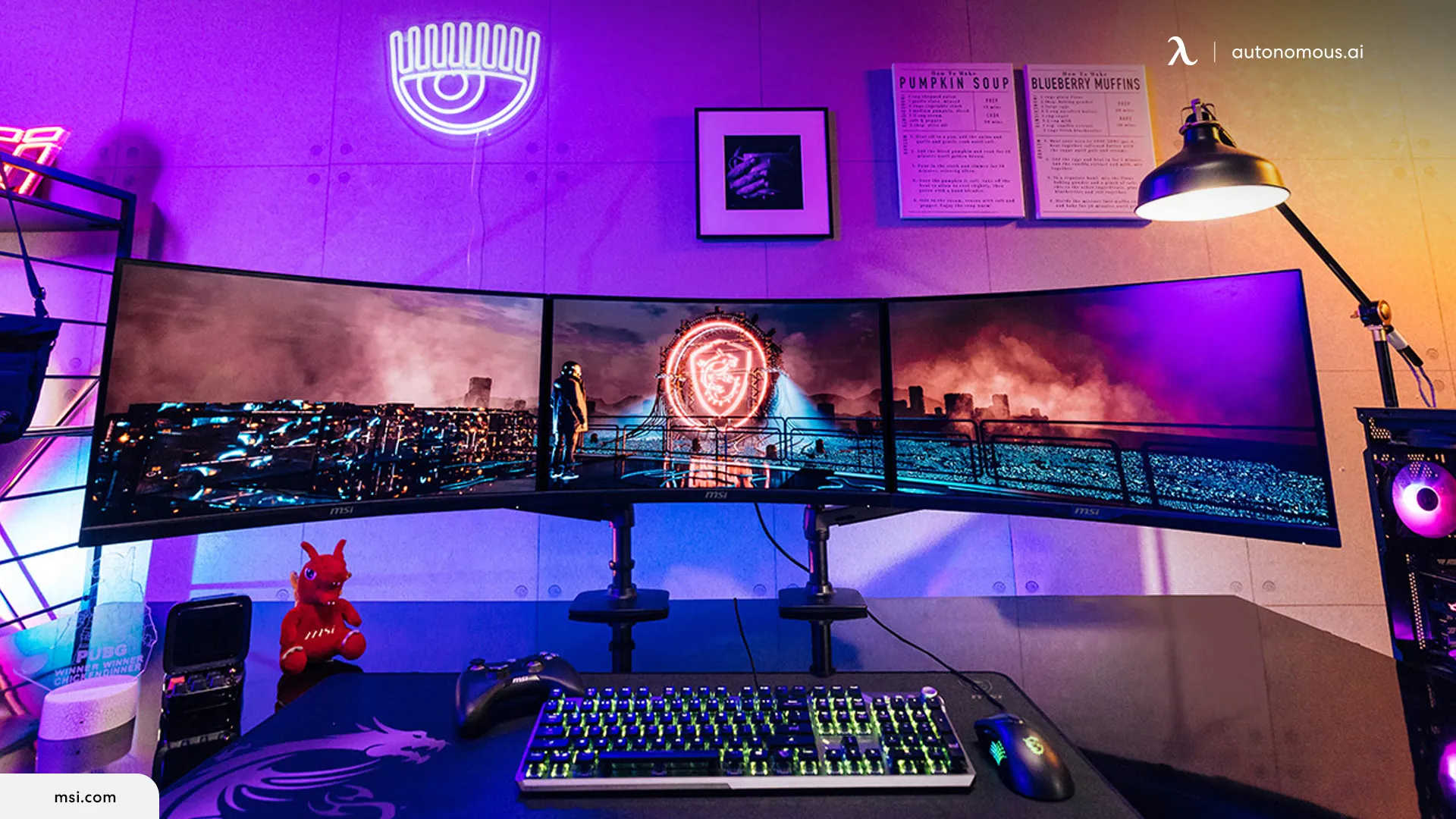
The better choice depends on whether you prioritize flexibility or simplicity.
Does a dual monitor setup affect gaming performance?
A dual monitor setup has minimal impact on gaming performance if used correctly.
Your main monitor handles the game, while the second monitor runs lightweight tasks. Modern graphics cards are built to handle this without significant performance loss.
Performance issues usually come from:
- running heavy applications on the second monitor
- using mismatched display settings
- background processes consuming resources
In most cases, the difference is small and not noticeable during gameplay.

Desk setup and ergonomics
A dual monitor gaming setup only works well if it’s comfortable to use.
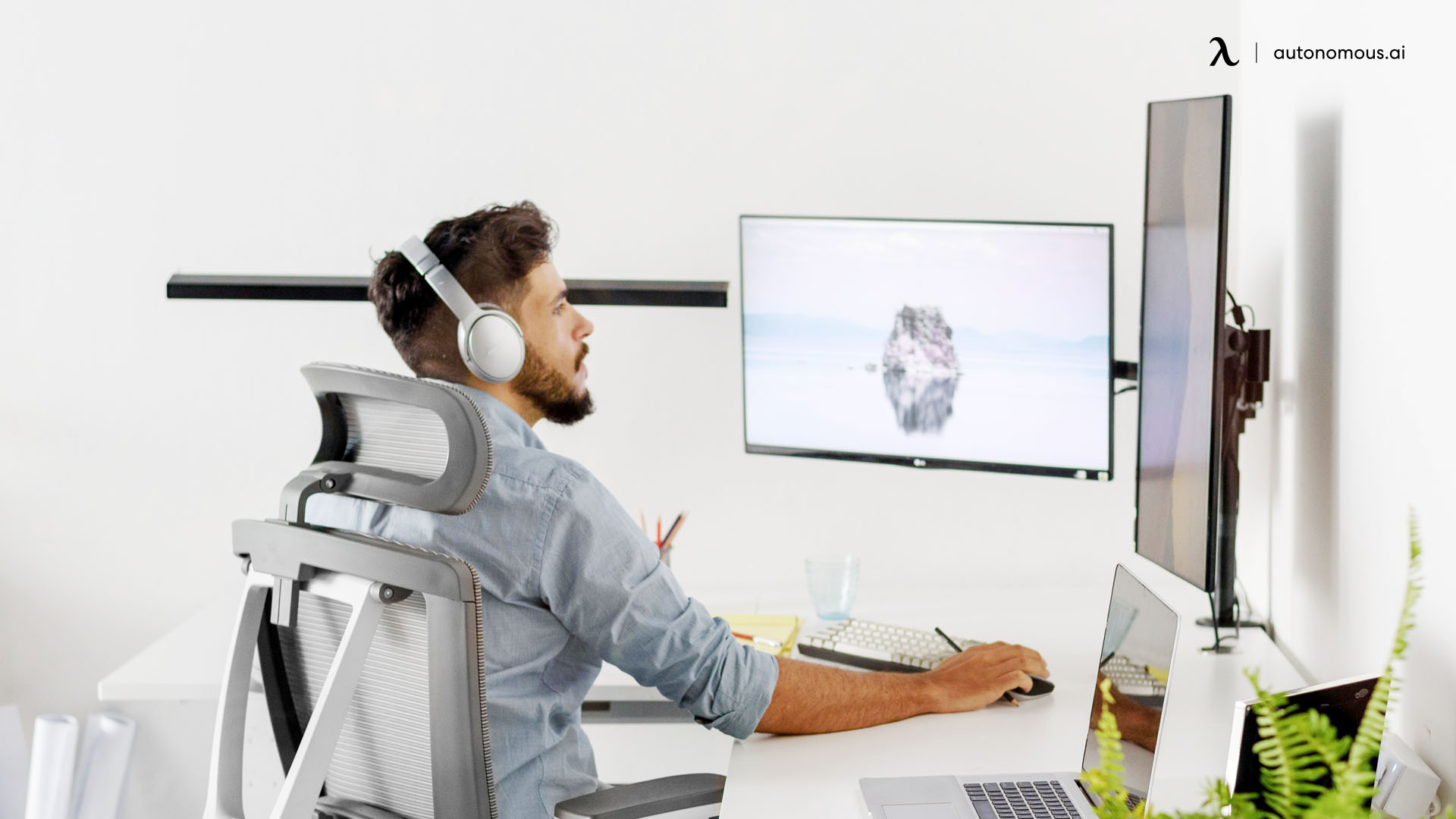
Your main monitor should be directly in front of you at eye level. The second monitor should sit slightly to the side and angle toward your seating position so you can glance at it without breaking posture. This becomes even more important in wider layouts, especially in an L-shaped desk dual monitor setup, where corner positioning can easily push one screen too far away.
You should not need to turn your head significantly to see the second screen. If you do, the setup needs adjustment. Small changes in spacing, height, and monitor angle can make a big difference over long sessions, which is why the best way to set up dual monitors on a small desk usually starts with alignment and viewing distance rather than aesthetics alone.
Comfort matters because small positioning issues become more noticeable over time.
Common mistakes in dual monitor gaming setups
Many issues come from setup rather than hardware.
One common mistake is placing the second monitor too far away. This makes it harder to use and reduces the benefit of having it.
Another issue is not setting the correct primary monitor. This can cause games to launch on the wrong screen, which disrupts your workflow.
Mismatched settings can also cause problems. Differences in brightness, resolution, or scaling can make the setup feel inconsistent.
Fixing these small details can significantly improve your experience.
Is a dual monitor gaming setup worth it?
A dual monitor gaming setup is worth it if you multitask while gaming or stream content.
It improves workflow by keeping everything visible at once. You don’t need to interrupt your game to check messages or adjust settings.
However, if you only play games and don’t use additional tools, a second monitor may not add much value.
The benefit depends entirely on how you use your setup.
FAQs
What is a dual monitor gaming setup?
A dual monitor gaming setup uses two screens connected to one PC, with one for gameplay and the other for tasks like chat or streaming. It helps you multitask without leaving your game.
How do I set up a dual monitor gaming setup?
To set up a dual monitor gaming setup, connect both monitors to your graphics card, set display mode to Extend, choose your main monitor as primary, and adjust layout and refresh rate. This ensures smooth gameplay and proper screen behavior.
What is the best dual monitor setup for gaming?
The best dual monitor setup for gaming uses a high-refresh-rate main monitor for gameplay and a secondary monitor for support tasks. Position the second screen slightly to the side for easy viewing.
Does a dual monitor gaming setup affect FPS?
A dual monitor gaming setup usually has minimal impact on FPS if the second monitor runs lightweight apps. Performance drops only happen when heavy programs run in the background.
Can you play games on both monitors at once?
Most games only run on one monitor, even in a dual monitor gaming setup. The second screen is typically used for chat, streaming tools, or browsing.
Why do gamers use dual monitor setups?
Gamers use dual monitor setups to multitask without interrupting gameplay. It allows them to keep communication, streaming tools, or guides open while playing.
What is the best layout for a dual monitor gaming setup?
The best layout places your main monitor directly in front and the second monitor slightly to the side at an angle. This keeps your focus centered while making the second screen easy to access.
Do you need two identical monitors for gaming?
You don’t need identical monitors, but similar size and resolution can make the setup feel more consistent. Different monitors still work well for most dual monitor gaming setups.
Is a dual monitor gaming setup worth it?
A dual monitor gaming setup is worth it if you multitask or stream while gaming. If you only focus on gameplay, a single monitor may be enough.
How do I optimize my dual monitor gaming setup?
Optimize your setup by setting the correct primary monitor, using the highest refresh rate on your gaming screen, and placing the second monitor within easy viewing distance. Proper positioning improves comfort and usability.
Final answer
A dual monitor gaming setup improves how you manage tasks while gaming by separating your main screen from everything else.
It works best when your primary monitor is centered for performance and your second monitor supports additional tasks without disrupting your focus.